


In our search for the best free data recovery software for Mac, we tested a wide mix of apps and narrowed the list down to the top 5 options we’d actually recommend right now. Some are 100% free. Many others work more like free trials, but we believe almost anyone will find a useful option here. Every app featured here was tested by our technical team, and our recommendations reflect the results of that testing.
Quick Glance: Mac Data Recovery Software Testing Statistics
| Criteria | Value |
| Number of tested tools | 18 |
| How long we tested | 3 weeks |
| OS version | macOS 26.5.2 Tahoe |
| Minimum cost | freeware |
| Average cost | $89 |
1. Disk Drill for Mac
The best data recovery software for Mac that you can add to your toolbox is Disk Drill. Since its arrival in 2010, this freemium application has been making data recovery services nervous by empowering regular home users to get back their lost data in a few simple steps, often saving them significant money in the process.
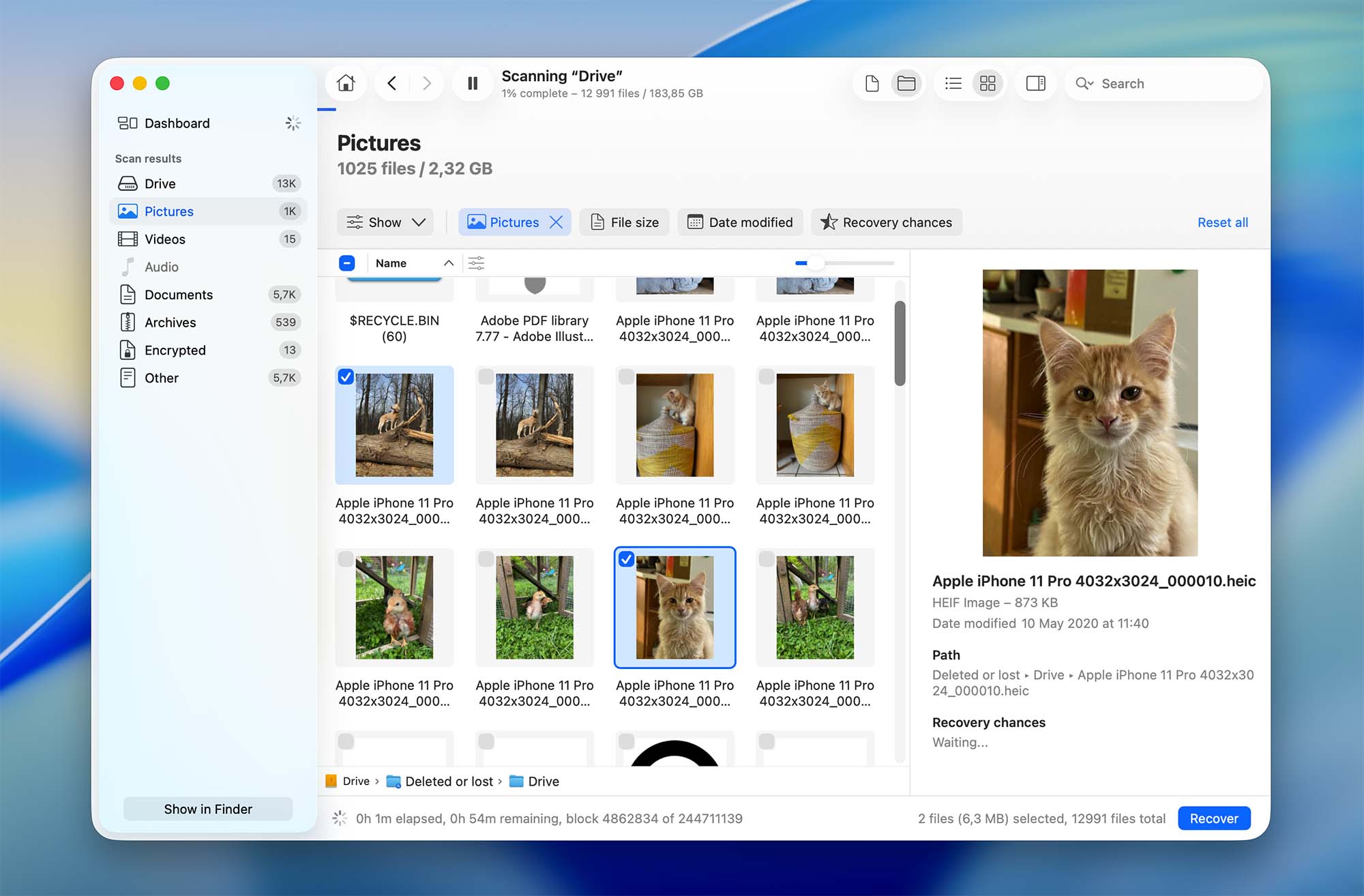
Disk Drill for Mac delivers a full-blooded data recovery solution that can handle a wide range of data loss problems Mac users run into every day. The latest version, Disk Drill 6.2, works smoothly on the new macOS 26 Tahoe, and regular updates help keep the app stable on the newest Apple systems. This versatile Mac file recovery software combines multiple recovery methods with data protection tools and disk health diagnostics, and it presents them in the most intuitive package to date.
Best Features:
- The app natively supports Apple Silicon Macs (M1, M2, M3, M4 and M5 chips), and it’s also fully compatible with older Intel-based Macs with and without the T2 chip.
- Besides internal and external hard drives, USB flash drives, SD cards, NAS devices, RAID arrays, and Time Machine backups, Disk Drill for Mac can restore data from mobile Android, iOS, and iPadOS devices.
- This file recovery app boasts support for hundreds of file formats, which it can recover from all major file systems, namely HFS/HFS+, APFS, ReFS, FAT16/FAT32, exFAT, NTFS/NTFS5, ext2/ext3/ext4, and BTRFS, as well as raw storage devices with no file system.
- The Advanced Camera Recovery (ACR) module can reconstruct fragmented videos from over 150 camera models, including GoPro, DJI, Canon, Panasonic, and Sony. The ACR module has been significantly improved in 6.1, offering better reconstruction of MOOV files and Insta360 videos, and adding support for several new professional cameras, including the Canon 6D, Nikon Coolpix S9400, Nikon Z9, and Ricoh WG-6.
- Top-tier RAW file format (ARW, CR2, CR3, DNG, NEF, and more) recovery performance makes Disk Drill for Mac excellent for photographers and videographers.
- Works with a number of new file types, such as .fs (FlexiSIGN), .story (Articulate Storyline 360), .ooutline (Omni Outliner), .trm/.trs (For The Record), and .lzh/.lha compressed archives.
- In the latest Disk Drill 6.2, users also get free access to the Online Video Repair tool directly from Disk Drill’s sidebar.
- Disk Drill is a cross-platform application, and a single license unlocks both Disk Drill for Mac and Disk Drill for Windows, whose scan sessions can be effortlessly shared.
Free Features:
- The free edition of Disk Drill lets you evaluate the recovery results, and it can generate accurate previews of all recoverable file formats that are natively supported by the macOS operating system.
- The free version includes Guaranteed Recovery, a background service that saves a copy of each file to a user-specified folder.
- The Byte-to-Byte Backup feature provides users with the ability to recover lost data from an image of any device/partition, protecting them from the risks associated with scanning the original storage device. Since the latest update, the backup process is now easier and more reliable. Users can pick up where they left off even if the device was temporarily disconnected. This makes data safer when dealing with failing drives.
- Multiple extra tools, such as S.M.A.R.T. Monitoring, macOS Installer, Find Duplicates, Data Shredder, Clean Up tool, and Video Repair, are included with Disk Drill for Mac for free.
Pros:
- Outstanding overall data recovery performance
- Industry-leading fragmented video reconstruction with the ACR feature
- Intuitive, modern user interface with instant file previews
- Support for BitLocker-encrypted Windows partitions on Mac
- Translated into many different languages
Cons:
- No phone support is offered
“For the first time, truly fragmented videos can be reconstructed from GoPro, DJI, Canon, Panasonic, Insta360, Sony, Olympus, and other camera brands… Whether recovering personal photos from a damaged memory card or salvaging corrupted professional footage from a drone, Disk Drill 6 should get you out of the weeds and back to shooting.”
– Mel Martin, fstoppers.com
Verdict:
Disk Drill is one of the strongest options for users who want to evaluate a recovery case before spending money. All core recovery features and additional tools are available to try for free, while a license is required only when you are ready to recover the files found during the scan. It strikes a strong balance, so it works well for casual users, professionals, and even enterprise-level cases. That makes the full version worth its price, especially if you want a polished Mac recovery software package instead of a bare-bones utility.
2. PhotoRec for Mac
PhotoRec is one of the few genuinely free Mac data recovery tools that imposes no recovery limits or hidden costs. As an open-source solution, PhotoRec has earned the trust of users worldwide who need reliable data recovery without the typical restrictions found in “freemium” alternatives.
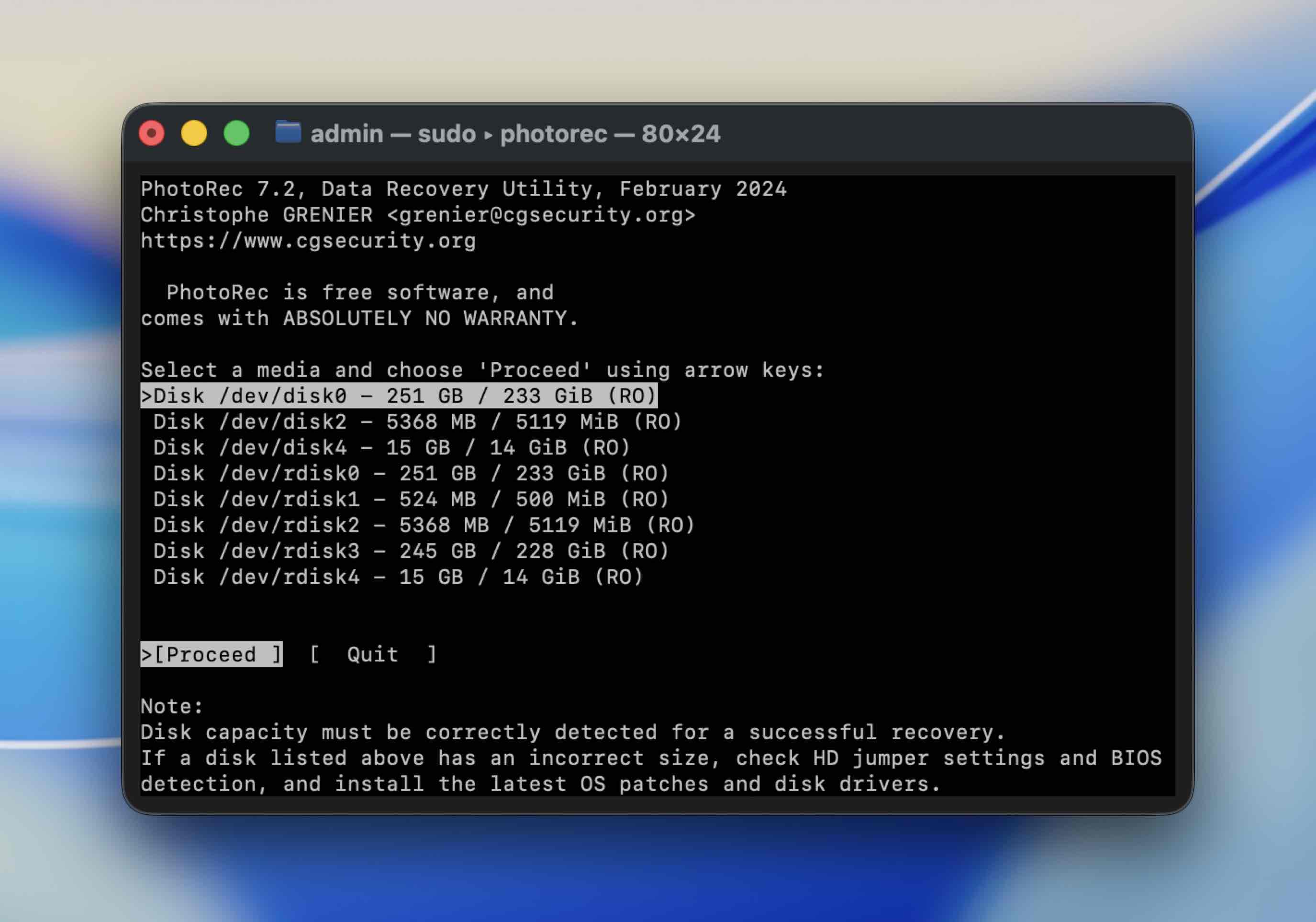
PhotoRec can deliver excellent recovery results across macOS, Linux, FreeBSD, NetBSD, OpenBSD, and Windows, which makes it an undisputed leader when it comes to multi-platform support.
Best Features:
- As a truly free file recovery Mac app (GPL licensed), PhotoRec never requires registration, doesn’t have premium features locked behind paywalls, and won’t limit how much data you can recover.
- Support for over 480 file formats, including photos, videos, documents, and archives, with its advanced file carving technology that searches for known file headers and footers to reconstruct files block by block.
- PhotoRec runs natively on macOS (including Apple Silicon), Windows, Linux, DOS, FreeBSD, NetBSD, OpenBSD, and Sun Solaris.
- The software works with hard disks, CD-ROMs, DVD-ROMs, memory cards (SD, microSD, CompactFlash, Memory Stick), USB drives, DD raw image files, and EnCase E01 image files.
- Companion tool (TestDisk) is bundled with PhotoRec for partition recovery and boot sector repair.
Pros:
- Completely free recovery software for Mac (no hidden costs).
- Proven reliability with over 20 years of development.
- Recovers files even when the file system is severely damaged.
- Small download size and runs without installation.
Cons:
- Command-line interface may intimidate non-technical users.
- Cannot recover original file names or folder structures because it ignores the file system.
- Doesn't work on system drives used in M1-M5/T2 Macs.
“If you don’t mind command-line software applications as long as they perform well, then you should give PhotoRec a try”
– PhotoRec for Mac review by pandorarecovery.com
Verdict:
PhotoRec is an excellent choice for users comfortable with command-line tools who want truly free, unlimited data recovery. While it lacks the polish of commercial alternatives, it certainly doesn’t leave much to be desired when it comes to data recovery performance. You can read our PhotoRec review and guide for more information about the software.
3. EaseUS Data Recovery Wizard for Mac
EaseUS Data Recovery Wizard is another tool that deserves to be placed among the best data recovery Mac software because it nicely balances ease of use and recovery capabilities. Thanks to its clear interface and step-by-step recovery process, EaseUS makes data recovery accessible even for non-technical Mac users.
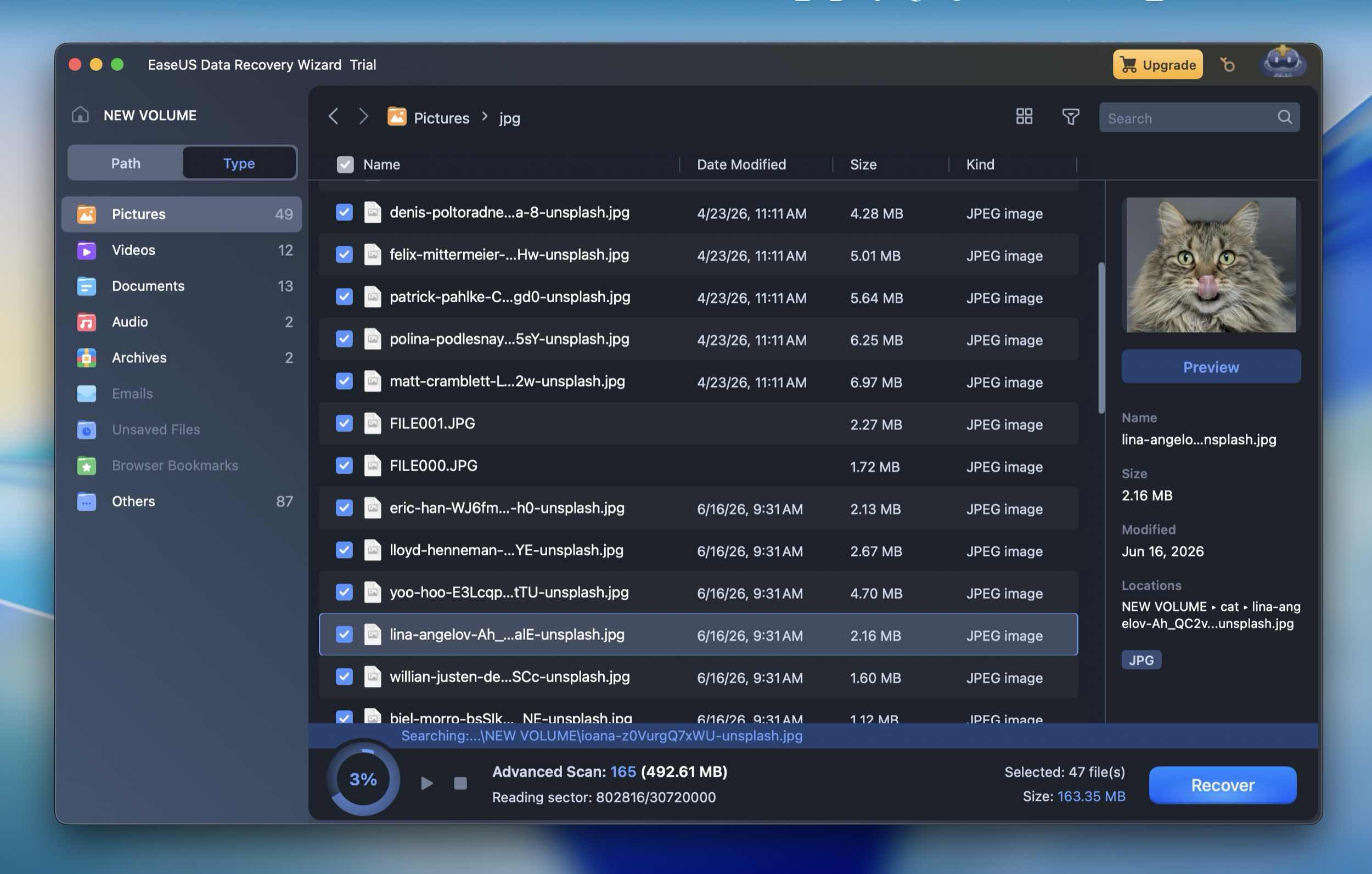
The developer offers three different versions to meet various user needs: a Free version with 2 GB recovery limit, a Pro version for unlimited recovery, and a Technician version for multiple devices. This tiered approach allows users to thoroughly test the software’s capabilities before committing to a purchase.
Free Features:
- Recovers up to 2 GB of data for free.
- Lets users preview recoverable files before recovery.
- Can create a disk backup image before recovery, so users can scan the copy instead of stressing the original drive.
- Supports many common file types, including photos, videos, documents, emails, and archives.
- Can recover data from emptied Trash, accidental deletion, formatting, partition loss, and some RAW/inaccessible drive cases.
- Offers filter and search options.
- Allows users to save scan results and continue recovery later.
Easeus tool recovers file formats most commonly used in image, video, music and document files. It is mostly designed for recovering lost files due to unintentional deletes or drive formatting.
Pros:
- The UI is clean and easy to follow.
- Excellent file categorization with real-time filtering and search capabilities.
- 2GB free recovery limit (500MB initially + 1.5GB after sharing).
- Support for Apple chips and Time Machine backups.
- Clean, intuitive interface suitable for beginners.
Cons:
- Limited preview feature with slow loading and 100MB size limit.
- Subscription pricing is less competitive than alternatives.
- No built-in S.M.A.R.T. monitoring features.
- It is difficult to disable the default collection of user data.
“No data-recovery app can retrieve everything, but EaseUS Data Recovery Wizard Pro does the best job in testing at recovering lost and deleted files”
– Edward Mendelson, pcmag.com
Verdict:
EaseUS Data Recovery Wizard is a practical free Mac file recovery software for small recovery jobs that works out of the box, doesn’t overwhelm, and handles the basics. The up to 2GB free recovery limit is nice, but the subscription pricing that paying users have to deal with is less great. Also, recovery results and file previews are not always as consistent as we’d like. We cover that in more detail in our full EaseUS Data Recovery Wizard review, so we won’t go too deep into it here.
4. R-Studio for Mac
R-Studio is one of the most powerful Mac data recovery tools on this list, but it is also one of the least beginner-friendly. It is built more for technicians and advanced users than for someone who wants a clean “scan – preview – recover” workflow.
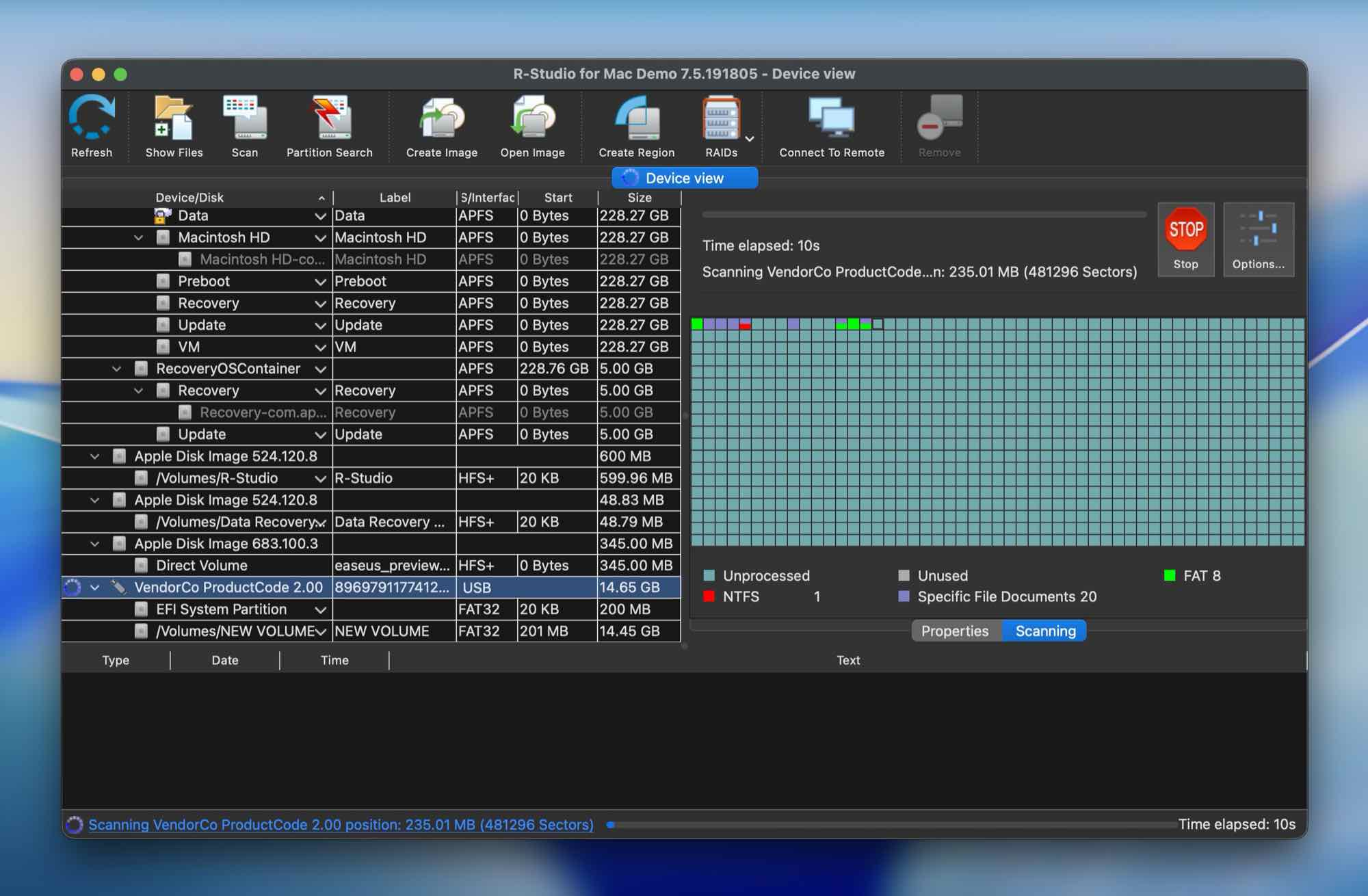
R-Studio’s recovery engine is strong. It supports a wide range of file systems, including APFS, HFS+, FAT, exFAT, NTFS, Ext2/3/4, UFS, and XFS. It can recover data from HDDs, SSDs, USB drives, SD cards, external drives, optical discs, RAID arrays, NAS volumes, and disk images. For complicated cases (especially RAID recovery or damaged file systems), it does offer more control than most consumer-focused Mac recovery software.
The free version, however, is fairly limited. It can scan drives and preview recoverable files, but it only lets users recover files smaller than 1024 KB. That makes it fine for something like a text document or a tiny image, but not for most real-world recovery jobs involving high-def photos, videos, or larger office files.
Free Features:
- Lets users scan Mac drives and external storage devices for lost data.
- Allows preview of recoverable files before recovery.
- Can recover files smaller than 1024 KB for free.
- Works with HDDs, SSDs, USB flash drives, SD cards, external drives, and optical discs.
- Includes disk imaging tools for creating a backup image before recovery.
- Can load virtual disk formats like VMDK, VHD, VHDX, and VDI.
- Supports RAID recovery, virtual RAID reconstruction, and NAS volume recovery.
- Includes advanced tools like S.M.A.R.T. monitoring, hex editor, and custom file signatures.
Pros:
- Excellent file system support.
- Strong recovery results.
- Advanced RAID recovery features.
- Includes disk imaging, S.M.A.R.T. monitoring, and a hex editor.
- Good choice for technicians. Available for macOS, Windows, and Linux.
Cons:
- Not ideal for users who want a guided, modern Mac-style recovery experience.
- No simplified mode for basic recovery.
- Some previews can be inconsistent, especially with certain RAW photo formats.
- Platform-specific license.
- On Apple Silicon and T2-chip Macs, it can’t recover data from internal system drives because of Apple security restrictions.
“R-Studio offers a unique set of advanced features that make it incredibly effective for recovering files in various data loss scenarios. However, given its price and complexity, it’s a solution best suited for advanced users, such as IT professionals and forensic analysts.”
– R-Studio Review by handyrecovery.com
Verdict:
R-Studio’s free version is better suited to testing and technical analysis than to a typical recovery job. It is a serious recovery tool. With serious depth. A strong choice for advanced users and anyone dealing with RAID arrays, damaged partitions, or unusual file systems. For regular Mac users, though, it can feel heavy. The UI is crowded and the workflow takes more patience than most beginner-friendly alternatives. If you want a smoother Mac recovery software experience, another tool on this list will probably fit better.
Still, as our full R-Studio review showed, its place among the best Mac recovery software is 100% deserved. If you know what you’re doing, R-Studio is absolutely worth considering.
5. Data Rescue for Mac
Data Rescue 6 is one of those Mac data recovery tools with a long history behind it. Developed by Prosoft Engineering, it has been around for years and still has a recognizable name among Mac users.
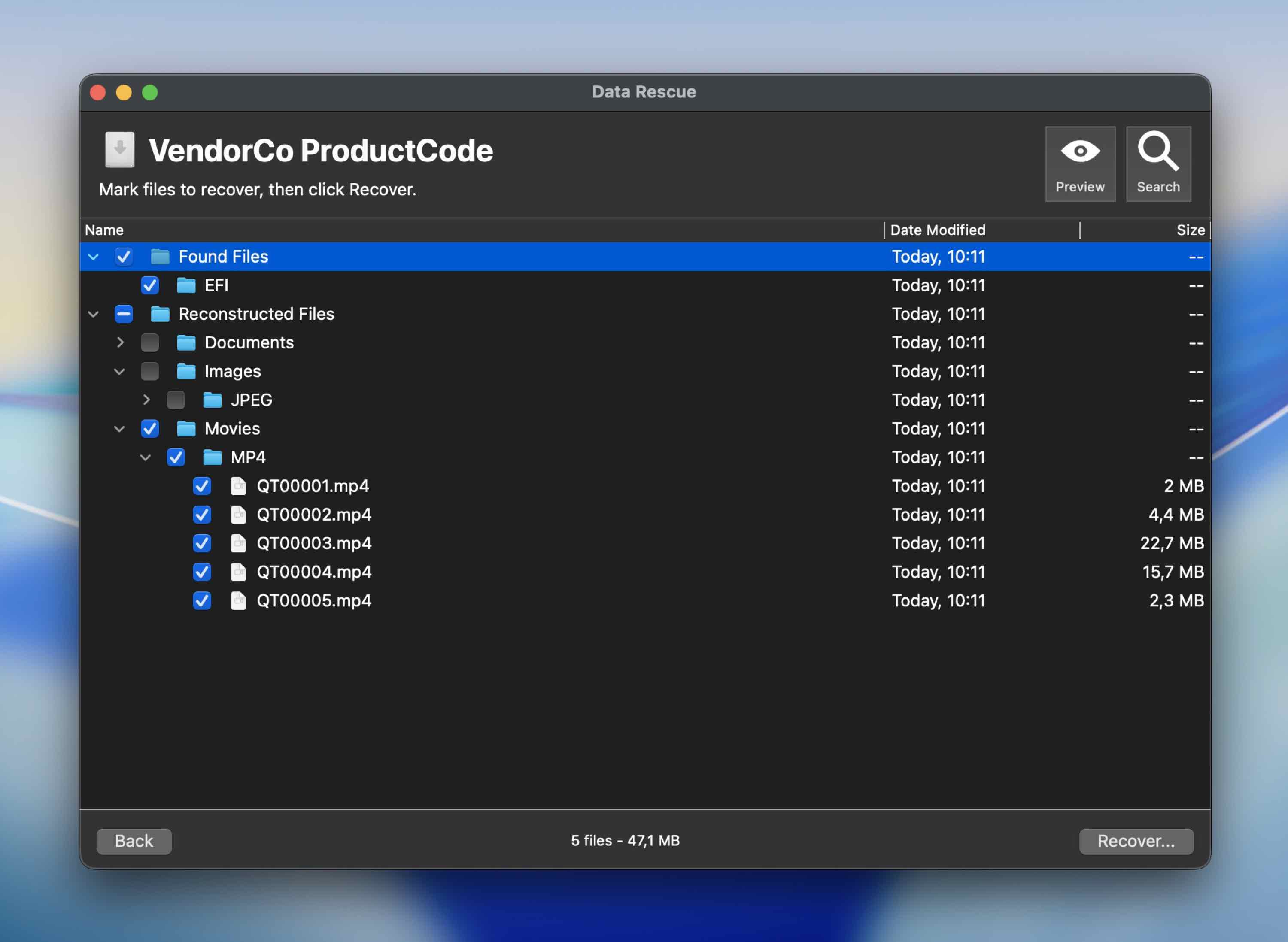
It supports common Mac recovery scenarios, including deleted files, formatted drives, corrupted volumes, external drives, USB flash drives, memory cards, and some RAID setups. The Mac version also includes a bootable recovery drive feature, which can help when the main system drive is having trouble.
Free Features:
- Recovers up to 1 GB of data for free (for new users).
- Supports Quick Scan and Deep Scan modes.
- Allows file preview before recovery (although the feature is quite limited).
- Works with common file types, including documents, photos, videos, and archives.
- Supports APFS, HFS+, FAT, FAT32, exFAT, NTFS, and ext2/3.
- Includes cloning tools, so users can create a disk image before recovery.
- Lets users scan disk images.
- Includes FileIQ, which can teach the app to recognize new file types from sample files.
- Mac version can create a bootable recovery drive.
Pros:
- The company offers online chat support.
- Files can be previewed for free before purchasing the tool.
- Emails can be generated to alert users about bad sectors.
Cons:
- The Pro version of this tool is more expensive than alternate solutions.
- Since macOS 10.13 High Sierra, Recovery Mode needs to be used to scan system disks.
- It can be difficult to locate found files due to the way they are displayed.
- No method is available for finding lost partitions.
- Doesn't work on system drives used in M1-M5/T2 Macs.
“After fifteen years in the business, Prosoft Data Rescue continues to offer one of the most powerful and accessible tools for data recovery.”
– William Fenton, pcmag.com
Verdict:
Data Rescue 6 is worth a try as it can identify recoverable data for free. The need to boot into Recovery Mode to scan system disks may be an issue for some users and the software is higher priced than alternate solutions. To see performance metrics collected during our test, you can take a look at our complete Data Rescue analysis.




How We Test Mac Data Recovery Software
For our Mac-specific data recovery software evaluations at CleverFiles team, we’ve tailored our testing methodology to address the unique aspects and requirements of macOS environments. Here’s a short overview of our Mac-relevant testing steps (contact us in case you need more info):
1. Market Analysis to Pick the Tools
We begin by analyzing the Mac data recovery market, examining user feedback from Reddit, Mac forums, and Apple community discussions. This helps us identify which tools Mac users actually trust and recommend.
2. Testing Bench Configuration
Our Mac testing environment covers data loss scenarios across Intel, T2, and Apple Silicon (M1-M5) Macs. We test on various MacBook and iMac models to evaluate:
- APFS volumes including snapshots and Sealed System Volume
- HFS+ and FAT/exFAT external drives
- FileVault-encrypted volumes with password/recovery key
- Fusion Drives and Core Storage configurations
- Time Machine backups and Target Disk Mode recovery
3. Performance Assessment (Weighted Scoring)
We evaluate each tool across six metrics:
- Recovery Success Rate (35%)
- File-Type & File System Support (20%)
- Scan Speed & Depth (15%)
- Ease of Use (15%)
- Price & License Limits (10%)
- Support & Documentation (5%)
4. Real-World Validation
We cross-reference our findings with feedback from Mac IT professionals and examine user experiences regarding Apple Silicon compatibility, T2 Secure Boot handling, and TRIM warnings for APFS SSDs.
5. Final Evaluation
Tools are ranked based on their weighted scores and practical usability for Mac users. We pay special attention to software that handles modern macOS security layers, provides clear warnings about writing to source disks, and maintains compatibility with the latest Mac hardware without requiring complex workarounds.
Testing Updates
📌 June 2026
We updated this guide for macOS 26.5.1 Tahoe, current Apple Silicon support, and the latest features and recovery limits. Disk Drill (6.2) remains our top pick, with Tahoe support, new file type recognition, and free access to many recovery tools.
Some apps, like PhotoRec and Data Rescue, haven’t changed much since our last update. Disk Drill and EaseUS, however, added new features, and we reflected those changes in this version.
📌 October 2025
We tested all featured recovery tools on macOS Tahoe to check their compatibility and performance. This round of testing revealed significant improvements across the board, with most applications now fully optimized for Apple Silicon M5 chips and the latest security protocols in the newest macOS. Notable updates include Disk Drill 6’s new Advanced Camera Recovery module and PhotoRec’s improved file signature database.
📌 February 2024
We comprehensively re-tested all the apps to ensure they are compatible with the new macOS Sonoma. This helps us keep our advice up-to-date and professional for Mac users.
📌 July 2023
We’ve tested R-Studio Data Recovery for Mac, a tool offering comprehensive features such as RAID reconstruction, network recovery, and extensive file system support. It supports a wide range of file systems, legacy storage devices, and is compatible with older Macs.
However, R-Studio for Mac doesn’t rank in our top five data recovery apps for macOS. Its complex interface and unintuitive scanning process can be daunting for casual users. The tool doesn’t support system disk scanning on T2 and M1 Macs or S.M.A.R.T. data display for many modern drives. Preview support for several file formats is also limited. These limitations, combined with its lack of a scan session manager, make it less user-friendly compared to other options.
📌 January 2023
- We’ve re-tested all tools from the list to make sure they are compatible with the latest macOS Ventura.
📌 October 2022
- We’ve tested the DiskWarrior tool and decided not to include this software in our rating. The last version was released in 2018, since then, not a single update has been released.
- We were not able to test Lazesoft Data Recovery. The latest version of this tool is compatible only with macOS Mojave 10.14.
📌 March 2022
- We have removed MiniTool from our review as it is no longer available. When accessing the company’s website, you are directed to download Stellar Data Recovery instead of MiniTool. There are better options out there that don’t try to redirect you to another site.
- Softote has also been removed from our list since it is no longer supported by its developer. It appears to have last been updated in April of 2020. We believe data recovery is too important to trust with unsupported software.
The Bottom Line
We recommend going with Disk Drill Data Recovery Software for Mac as the most versatile solution for the majority of data recovery scenarios. The tool combines professional-grade recovery capabilities with an intuitive user interface and a useful set of free utilities, so it’s the ideal all-around choice for both casual users and professionals.
However, your specific needs might point you toward different solutions:
- Choose PhotoRec if you need a completely free, no-strings-attached recovery tool and don’t mind working with a command-line interface (and also don’t mind losing original file names and folder structure).
- Choose R-Studio if you’re comfortable with tools like a hex editor and need deep file system support, RAID recovery, or more control over complex recovery cases.
Regardless of which tool you choose, remember that successful data recovery depends on acting quickly. The sooner you start, the better your chances. Most importantly, never install recovery software on the same drive you’re trying to recover from, as this could overwrite the very files you’re trying to save.
FAQ
Mac data recovery software works best for accidental deletions, emptied Trash, formatted drives, corrupted file systems, and partition loss. The best Mac data recovery software like Disk Drill can recover even some encrypted storage devices directly, such as BitLocker drives, but only if you can provide the correct password. However, its ability to deliver good results drops dramatically when it comes to SSDs with active TRIM, let alone physically damaged drives (those are best handled by professional data recovery services with specialized equipment).
Not entirely, but SSDs with TRIM enabled do complicate recovery. When files are deleted on modern Mac SSDs, TRIM marks those blocks as empty, making traditional recovery much harder. However, recovery software can still help if you act quickly, disable TRIM, or if the data hasn’t been fully purged.
Here are the best data recovery software applications for Mac in 2026:
- Disk Drill for Mac – best for most Mac data loss cases;
- PhotoRec for Mac – best freeware;
- EaseUS Data Recovery Wizard for Mac – best customer support;
- R-Studio for Mac – best for professional use;
- Data Rescue for Mac – best for small, straightforward recovery jobs.
There are Mac data recovery software applications that are completely free, but most come with certain limitations and require their users to purchase a license to remove them. The cost of a Mac data recovery software license varies greatly, but the average is around $89.
Yes, there is. PhotoRec is open-source free file recovery software Mac users can download and use without recovery limits. It also works on Windows, Linux, and *BSD, and it can recover many common file formats from hard drives, memory cards, USB drives, and other storage devices. However, you should know that PhotoRec doesn’t have a graphical user interface (on Macs), and it doesn’t offer any extra features that require it, such as the ability to preview files before recovery.
