


If you’ve got a lost partition on your drive and need software that can help you save it, look no further. We worked with our QA team to test and compare the best partition recovery software we could find (including 100% free options!). We’ll break down what each tool does best.
Partition Recovery vs Partition Repair vs File Recovery
But before we get into the list, we need to clear up one thing that confuses a lot of people: different tools solve different partition problems.
Some apps try to bring the lost partition back as a working volume. Or Repair damaged partition structures. Others save your files. All can help in a partition emergency, but they don’t work the same way.
- Partition recovery usually means the software looks for a lost, deleted, or damaged partition and tries to restore it in the partition table. For example, if your external hard drive suddenly shows one big chunk of “Unallocated” space in Disk Management, a partition recovery tool may detect the old NTFS or exFAT partition and rebuild the entry so Windows can see it again.
- Partition repair goes a step closer to fixing the structure itself. It may try to repair a damaged boot sector, file system records, or partition table errors. This can help when the partition exists but refuses to mount, shows as RAW, or asks to be formatted. The catch is that repair tools may write changes to the drive. That’s useful when the fix works, but risky when the drive is failing or the software guesses wrong.
- File recovery takes a safer route in many cases. Instead of trying to make the broken partition usable again, the app scans the entire drive and pulls out recoverable files. You might see folders, file names, thumbnails, and previews inside the recovery app even though the partition does not appear normally in File Explorer or Disk Utility.
Here’s the practical rule we use: if the files matter, recover the data first. After that, you can think about partition repair or rebuilding. A repaired partition is nice. Your actual documents and files matter more. As we go through the tools below, we’ll point out exactly what each one is built for.
Top 7 Partition Recovery Software
Now let’s look at the tools themselves.
We won’t go “too deep” here. The goal is to give you a practical overview of each option: what it can help with, where it works best, and what drawbacks you should know about before you download anything.
For each tool, we’ll cover the main strengths, the weak spots, and the type of partition recovery case it makes the most sense for. If one of them catches your attention, we have full reviews/guides for most of these tools. (Those separate articles go much deeper, with screenshots, test notes, detailed pros&cons, and step-by-step recovery workflows.)
1. Disk Drill (Best Partition Recovery Software for Most Users)
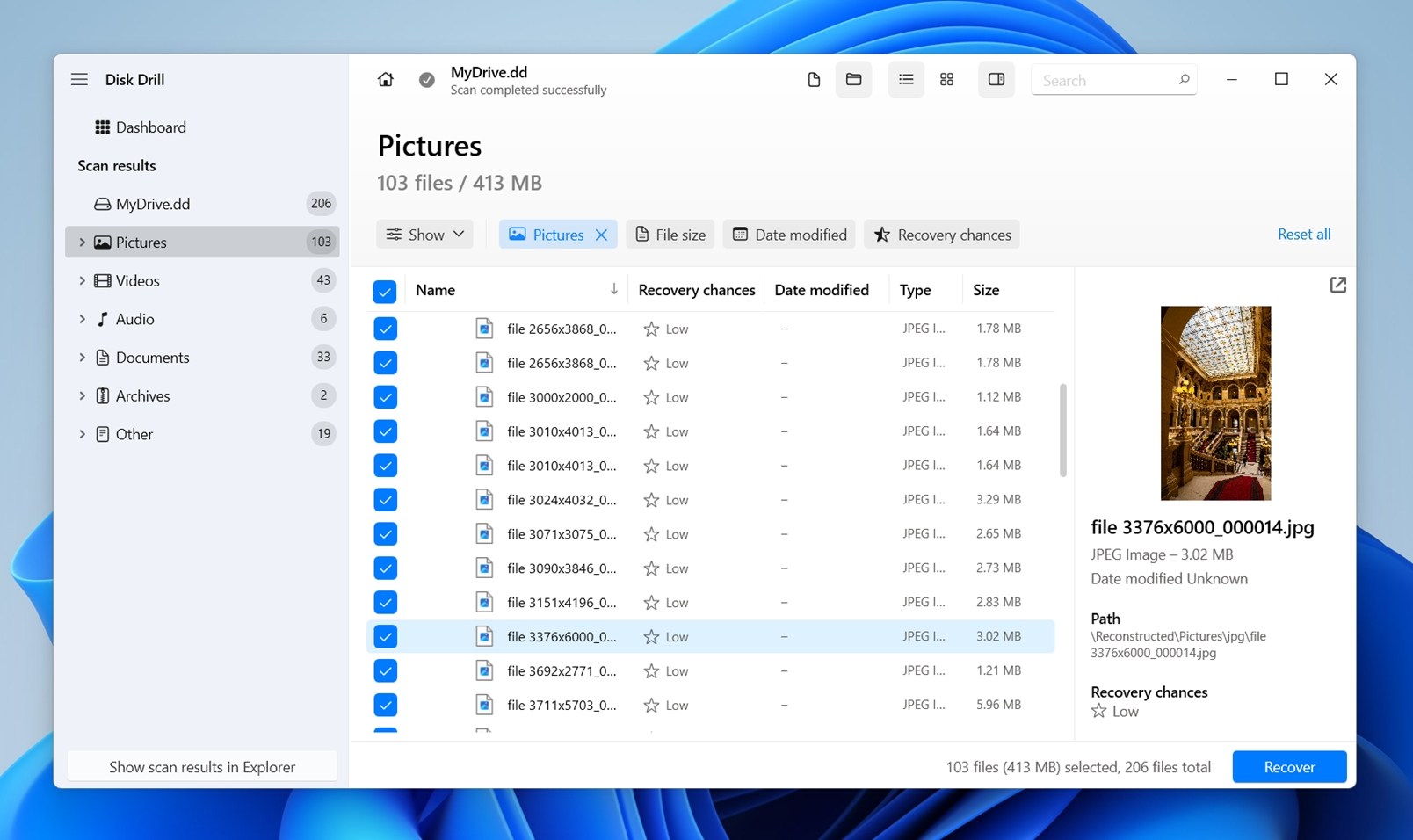
Disk Drill is the tool we’d point most people to first when the goal is to recover files from a lost, deleted, RAW, or formatted partition. The interface looks clean and simple, almost deceptively so, but underneath it sits a strong recovery engine with plenty of extra features that make the job easier. It can scan the whole drive, find missing partitions, preview recoverable files, and even create an image of the drive before recovery if the disk looks unstable.
- Clean UI that does not feel like a technician-only tool
- Can scan entire drives, not only visible partitions
- Supports many common file systems, including NTFS, FAT32, exFAT, APFS, and HFS+
- Works well with lost, deleted, formatted, RAW, and unallocated partitions
- Shows file previews
- Groups results into useful categories
- Includes a drive image tool, which helps when a drive acts unstable
- Good choice for users who want partition data recovery without learning command-line tools
- No dedicated partition management module
📋 Real-world cases where Disk Drill works best:
- A hard drive partition disappeared after accidental formatting
- Windows shows the drive as RAW or asks you to format it
- Disk Management shows the old partition space as Unallocated
- An external hard drive lost its volume after a failed resize or repartition attempt
- A USB drive or SD card shows an unsupported file system
- You work across both Windows and Mac systems and want one license that covers both platforms.
- You want to preview & recover files first before trying riskier partition repair tools
- The drive still appears in the system with the correct size, but the partition itself is unreadable
2. DiskInternals Partition Recovery (Best Dedicated Partition Recovery Software)
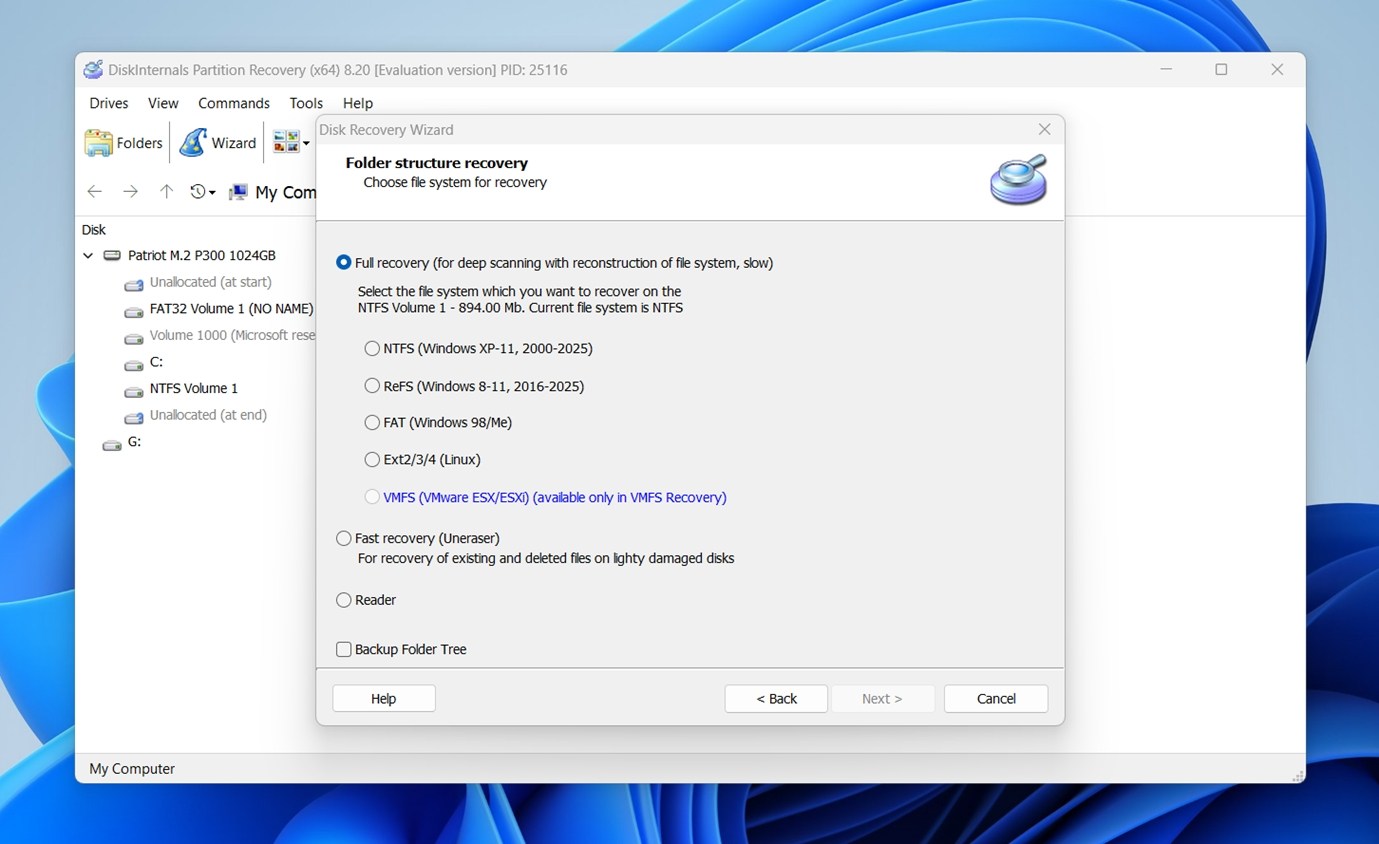
DiskInternals Partition Recovery is a dedicated partition recovery tool. As the name suggests, it was built specifically around damaged, deleted, formatted, and inaccessible partitions. The interface is not as slick as Disk Drill, but it gives you a clear wizard-style workflow: pick the disk, choose the scan mode, wait while it searches for lost volumes, then preview what it finds. It’s a strong choice when you want software that stays focused on partition recovery instead of packing in a dozen different utilities.
- Built specifically for partition recovery cases
- Can scan deleted, formatted, corrupted, and inaccessible partitions
- Wizard-style workflow makes the process easier to follow
- Lets you preview recoverable files before saving them
- Supports common Windows partition recovery cases, especially NTFS/FAT-style drives, and the broader DiskInternals toolkit covers additional file systems
- Can create disk images, which helps when the original drive should not be stressed too much
- Handles both quick scans and deeper scans for more difficult cases
- The interface looks dated compared with newer recovery apps
- It is more Windows-focused, so Mac users will need another option
- The free version is mostly useful for scanning and previewing, not full recovery
- Scan results can feel a little dense if you have never used recovery software before
- It does not feel as beginner-friendly as Disk Drill or EaseUS
📋 Real-world cases where DiskInternals Partition Recovery works best:
- A Windows partition disappeared after a failed formatting or repartition attempt
- Disk Management shows the drive as RAW, Unallocated, or damaged
- You deleted a partition by accident and need to check what can still be recovered
- A hard drive still shows the correct size, but the original volume no longer opens
- You want a dedicated hard drive partition recovery software tool rather than a data recovery app
- You are working with a Windows drive and want a guided scan instead of a command-line tool like TestDisk
3. TestDisk (Best Free Partition Recovery Tool)
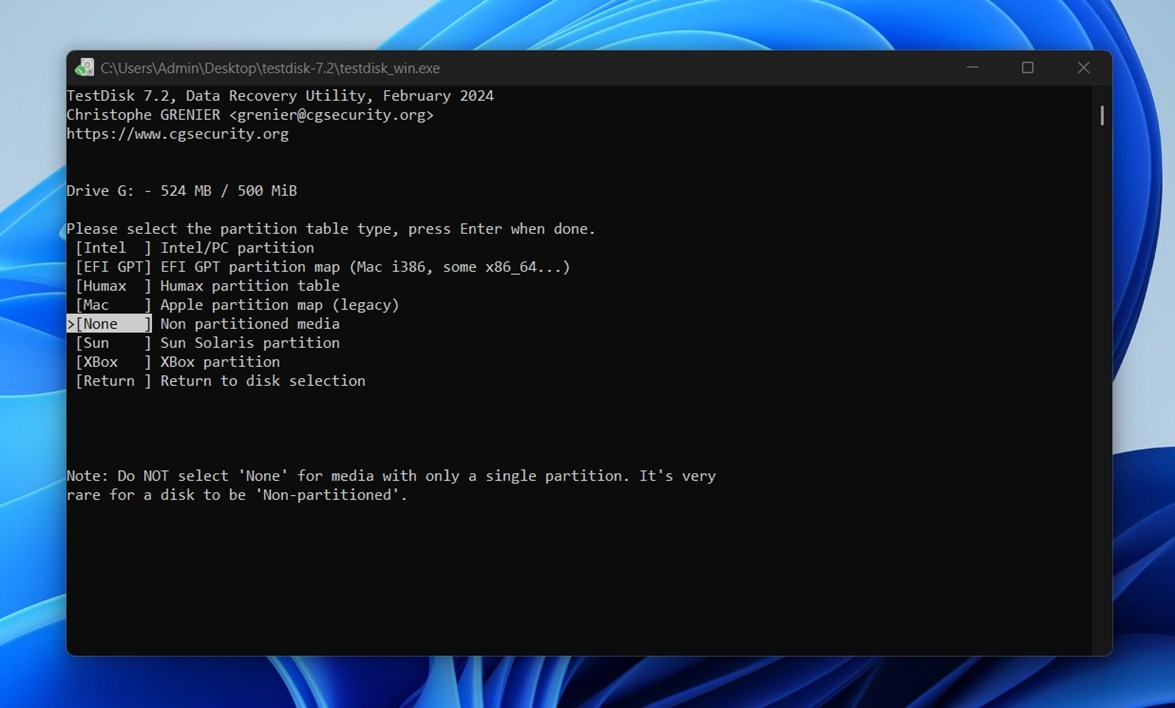
TestDisk is the tool we’d recommend when someone specifically asks for a free partition recovery tool that can restore lost partitions. It’s open-source, completely free, and quite powerful. The tradeoff is the interface. TestDisk runs in a command-line window, so it will not give you buttons, thumbnails, or a modern scan screen. You select the disk, choose the partition table type, analyze the drive, review found partitions, and decide whether to write the recovered structure back to the disk. It works well, but it expects you to pay attention.
It is not the friendliest tool on this list, but it earns its place. If you know what you’re doing, or you’re willing to follow instructions carefully, it can solve partition problems that many paid tools only work around.
- 100% free and open-source
- One of the best tools for restoring lost partition table entries
- Works on Windows, macOS, Linux, and more
- Supports many file systems, including NTFS, FAT, exFAT, ext2/ext3/ext4, HFS+, and others
- Can help recover deleted partitions and make non-booting disks readable again in some cases
- Lightweight and portable
- Great option for technical users who want full control
- Comes bundled with PhotoRec
- Command-line interface can intimidate beginners
- No file previews like modern recovery apps offer
- A wrong choice can write incorrect changes to the partition table
- Not ideal if you only want to recover a few files quickly
- The workflow feels dated and requires patience
- Documentation helps, but the process can still feel unclear if you’ve never dealt with partitions before
📋 Real-world cases where TestDisk works best:
- You deleted a partition by mistake and want to restore it
- A drive suddenly shows as Unallocated, but the disk still appears with the correct size
- A partition table was damaged after a failed OS install, resize, or repartition attempt
- You need 100% free partition recovery software and don’t want trial limits
- You are comfortable reviewing found partitions before applying changes
- You want to repair boot-related partition issues on a disk that still works physically
- You want to try direct partition recovery before moving to paid software
4. PhotoRec (Best Free Partition Data Recovery Tool)
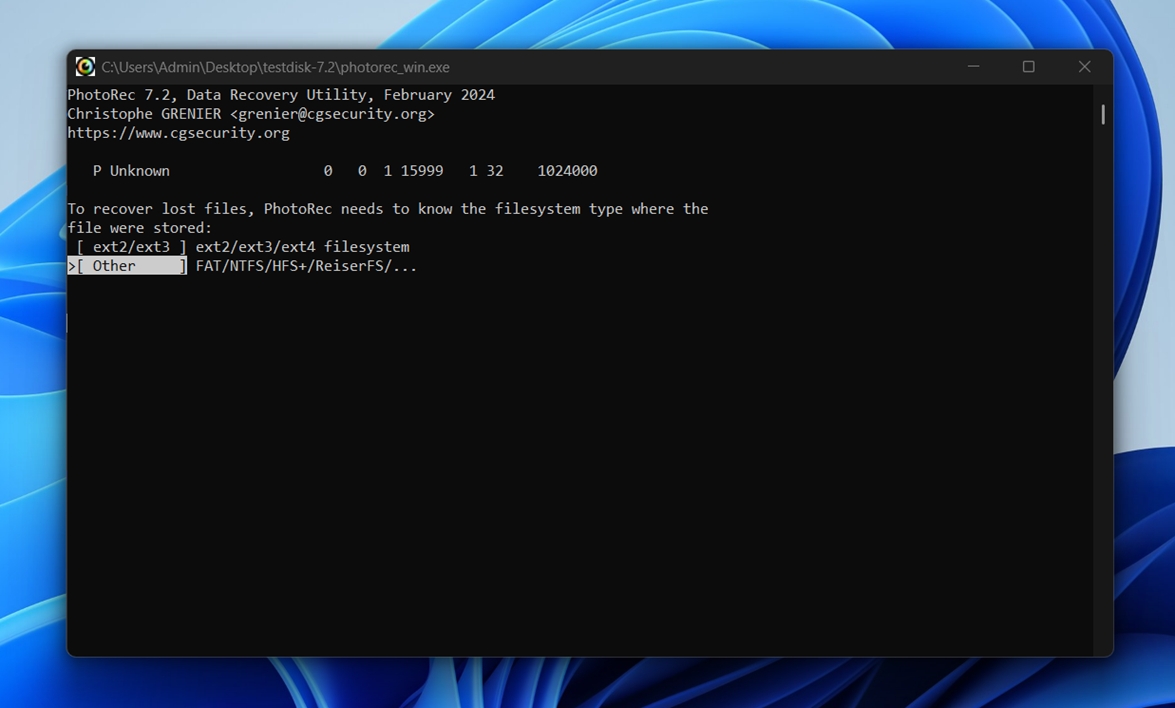
PhotoRec is not the tool we’d pick first for a clean, organized recovery. But as a free open-source alternative, it deserves a spot on the list. It comes from the same project as TestDisk, but it works differently. TestDisk tries to restore lost partitions. PhotoRec is all about partition data recovery. It scans the raw disk space and looks for recognizable file signatures, even if the partition table, file system, folders, and file names are gone. It’s not pretty. It’s not comfortable. But when a damaged partition refuses to give you anything useful, PhotoRec can still pull files out of the wreckage.
- 100% free and open-source
- Works on Windows, macOS, Linux, and more
- Can recover files from deleted, formatted, RAW, or badly damaged partitions
- Does not need the original partition to mount
- Supports a huge number of file formats
- Useful when file system metadata is missing or destroyed
- Great companion tool to TestDisk
- Has a graphical version called QPhotoRec for Windows
- No modern UI
- Recovered files usually will not have original names and folder structure
- Results can be messy
- No polished preview system like Disk Drill or DiskInternals
- Not the best option if you need a clean recovery with folders intact
- Less effective with fragmented files
- The workflow is too technical for first-time users
📋 Real-world cases where PhotoRec works best:
- You need free partition recovery with no recovery-size limits
- A drive shows as RAW
- You care more about getting the files back than keeping original names
- You need to recover photos, documents, videos, archives, or other known file types
- You want a last-resort free tool before paying for advanced recovery software or a professional service
5. Active@ Partition Recovery (Best Advanced Disk Partition Recovery Tool)
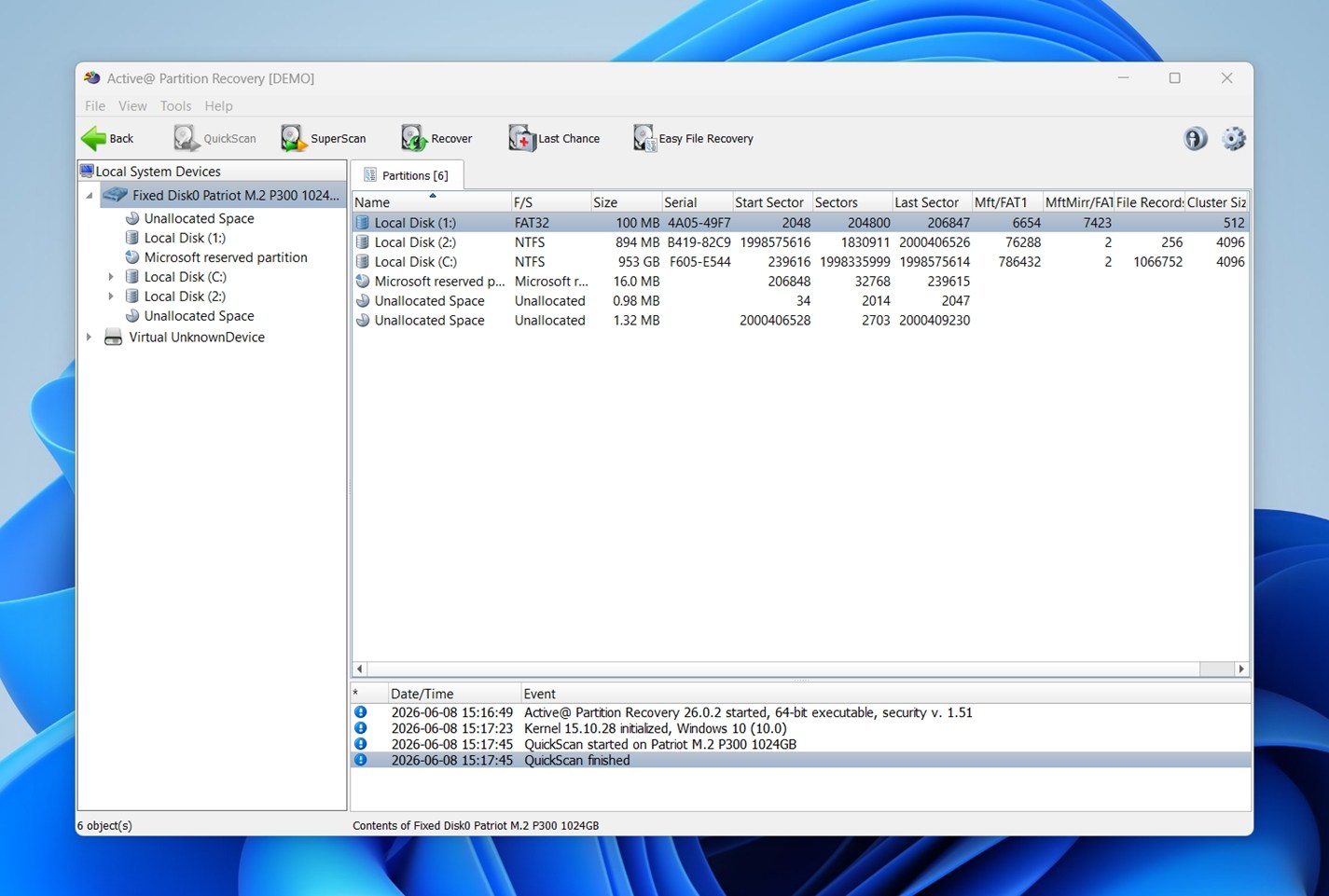
Active@ Partition Recovery is a more technical option, and that is exactly why it belongs on our list. It can scan for deleted or damaged partitions, inspect the disk at a deeper level, and help restore lost volumes when the partition table has been wiped or corrupted. The UI has that classic Windows utility look: lots of panels, disk maps, tables, scan results. It may not feel cozy, but it gives you useful control when a simple recovery wizard is not enough.
Active@ Partition Recovery makes the most sense when you already know the issue sits around the partition structure itself.
- Built specifically for disk partition recovery
- Can find and restore deleted or damaged partitions
- Supports common partition styles, including MBR and GPT
- Includes quick scan and deeper scan modes
- Can work with damaged boot sectors and partition table issues
- Offers a bootable recovery environment in higher editions
- Gives advanced users more control
- Interface feels more technical than beginner-friendly
- Some editions and feature differences can feel confusing at first
- Best features may require a paid license
- Not the fastest tool to learn if you have never worked with partitions before
- Less comfortable for file recovery compared with tools like Disk Drill
- You need to be careful before writing changes back to the disk
📋 Real-world cases where Active@ Partition Recovery works best:
- You need an advanced hard drive partition recovery software tool for Windows
- A partition disappeared after a failed resize, clone, or OS install
- Windows shows the disk space as Unallocated, but the drive still appears with the correct size
- The partition table is damaged and you want to search for old volume entries
- You want to recover or rebuild a partition instead of only copying files out
- You need bootable recovery media because the affected computer will not start normally
- You are comfortable reviewing technical scan results before applying fixes
6. EaseUS Partition Master (Best Beginner-Friendly Partition Repair Software)
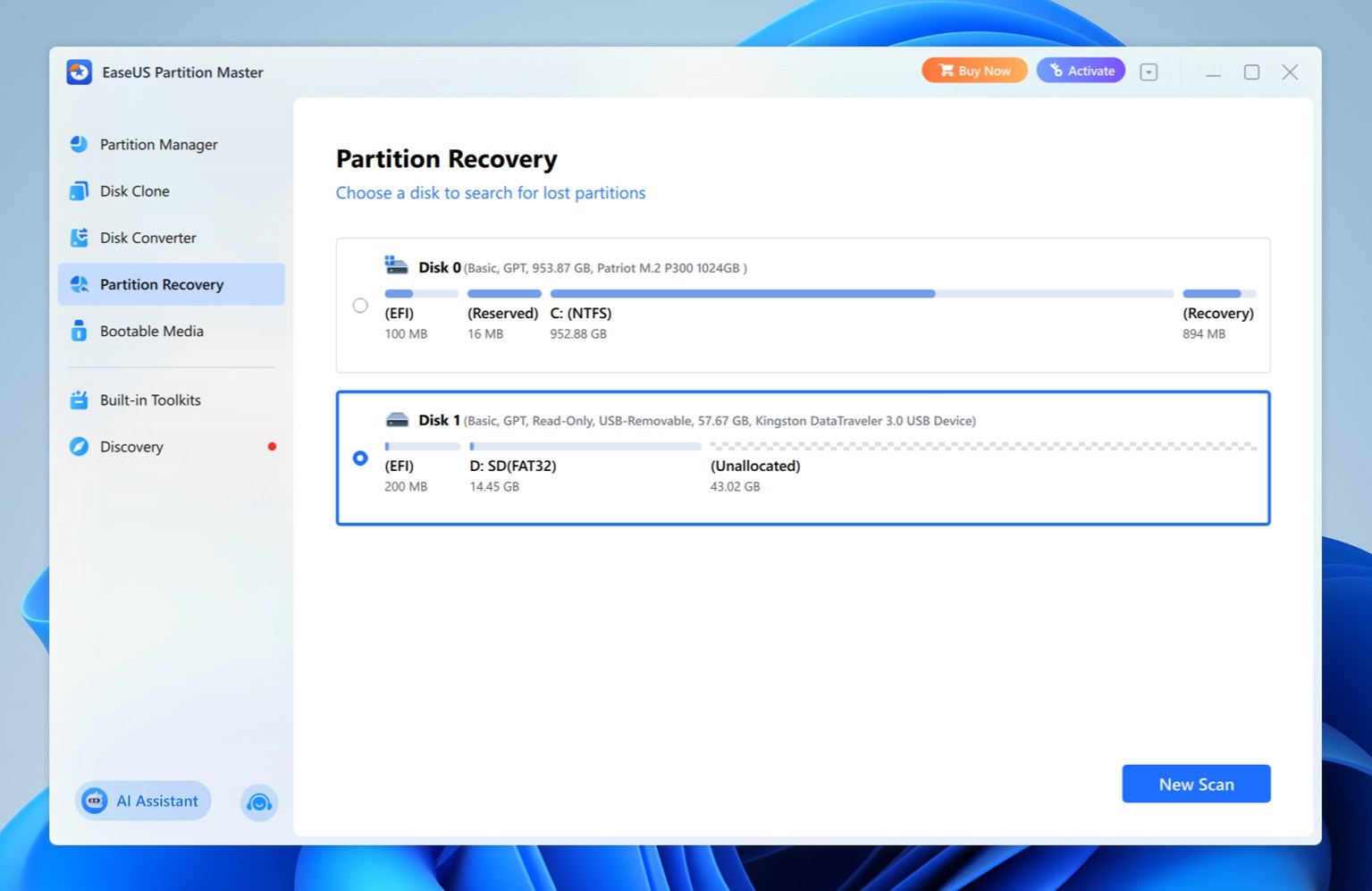
EaseUS Partition Master is a good fit when your goal is to fix partition problems, and it’s one of the easier partition managers out there, even if you have never worked with partition tables, file systems, or disk layouts before. The main idea is: choose the disk/partition, pick the operation you need, preview the pending changes, and apply them.
- Beginner-friendly UI that makes disk and partition operations easier to follow
- Can recover lost or deleted partitions in some cases
- Includes useful partition repair tools like file system check and MBR rebuild
- Can resize, move, merge, format, delete, and create partitions
- Supports common file systems like NTFS, FAT32, exFAT, EXT2, EXT3, and EXT4
- Good option for users who want partition tools without working in DiskPart or Terminal
- Shows pending operations before applying changes
- Some useful repair and recovery features are locked behind paid versions
- Partition changes can be risky if you use the wrong option before recovering important data
- Advanced users may still prefer more technical tools with deeper manual control
- The interface is easy, but it can also make dangerous disk operations feel too casual
📋 Real-world cases where EaseUS Partition Master works best:
- You need a beginner-friendly partition repair software option for Windows
- A partition was deleted and you want to try restoring it as a working volume
- A drive has partition table issues and needs tools like MBR rebuild or partition recovery
- A partition appears without a drive letter and needs to be made accessible again
- You want to resize, move, merge, or format partitions without command-line tools
7. MiniTool Partition Wizard (Best Visual Disk Partition Recovery Tool)
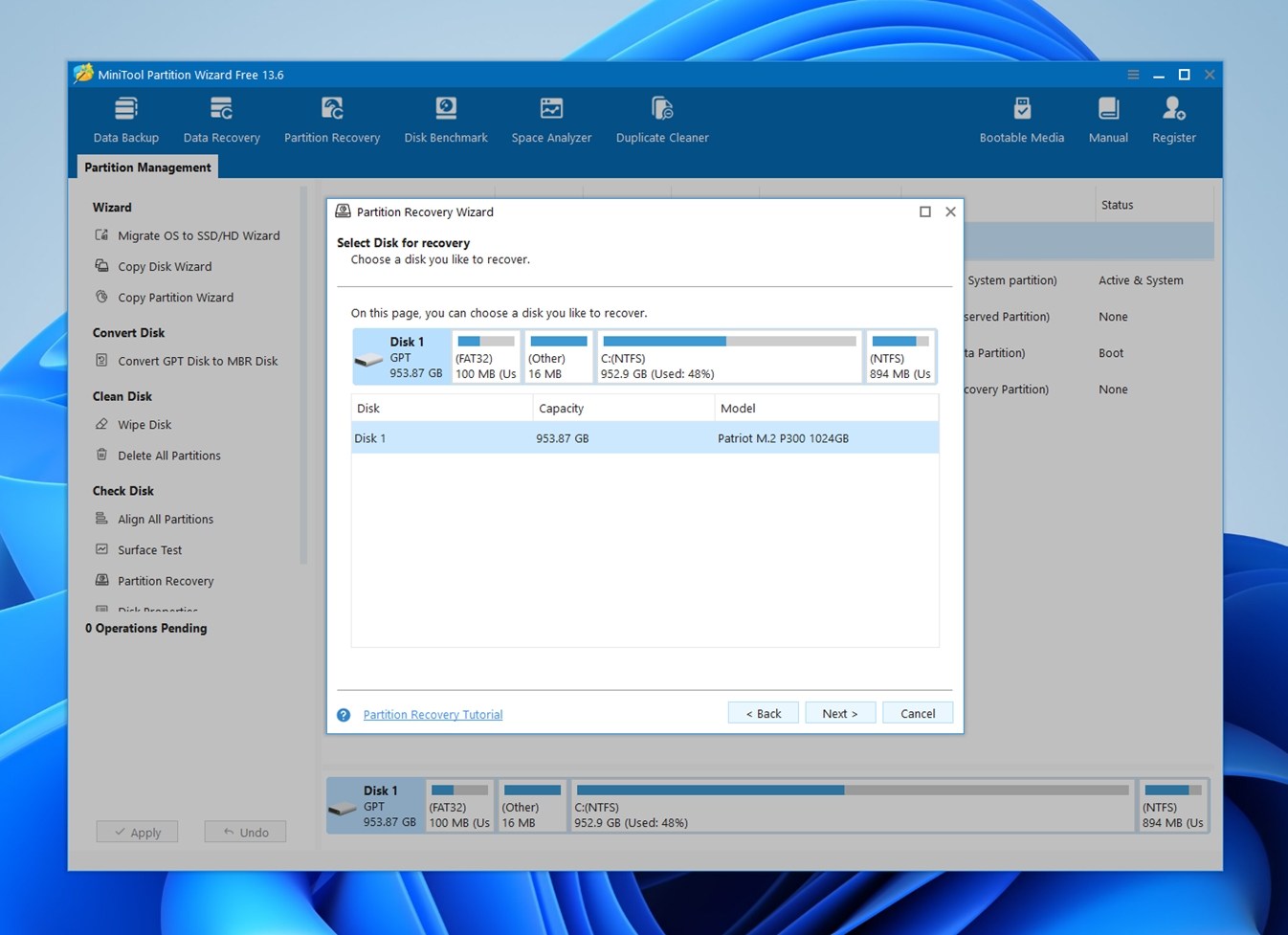
MiniTool Partition Wizard is a good fit for users who want to see what happened to the disk. Its visual disk map makes partition problems easier to understand: you can see the drive layout, unallocated space, existing volumes, and recovered partition candidates in a familiar Windows-style interface. MiniTool Partition Wizard focuses on partition management and partition recovery, especially useful when the disk layout still makes sense and the missing partition can likely be detected from leftover information.
It gives you a clearer picture than many recovery apps, but it also works closer to the disk structure, so don’t rush through the final “Apply” step. Review what it found, make sure it’s the right drive, and recover important files first if you’re unsure.
- Visual disk layout makes lost partitions easier to spot
- Can scan unallocated space for deleted or lost partitions
- Useful for MBR and GPT disk partition recovery cases
- Beginner-friendly compared with command-line tools like TestDisk
- Includes many extra partition management features
- Good option for Windows users who prefer a guided interface
- Can help after accidental deletion, failed partition changes, or missing volume issues
- Lets users review found partitions before applying changes
- Windows-only
- Some useful features require a paid edition
- It is not built primarily for file-by-file recovery
- Extra partition management tools can be risky if used carelessly
- Not ideal for physically failing drives
- Users still need to avoid writing changes to the wrong disk
📋 Real-world cases where MiniTool Partition Wizard works best:
- A partition was deleted by mistake and now appears as Unallocated space
- You want a visual disk partition recovery tool instead of a command-line workflow
- A Windows drive lost a partition after resizing, merging, or repartitioning
- You need to search for lost partitions on an MBR or GPT disk
- The drive still appears with the correct capacity in Disk Management
- You want to restore a lost partition entry rather than recover individual files first
- You prefer a tool that shows the disk structure clearly before you apply changes
Quick Comparison of the Best Partition Recovery Software
To make the comparison easier to scan, here’s a quick side-by-side look at all the partition recovery tools we covered above. Use it as a visual shortcut:
| Feature | Disk Drill | DiskInternals Partition Recovery | TestDisk | PhotoRec / QPhotoRec | Active@ Partition Recovery | EaseUS Partition Master | MiniTool Partition Wizard |
| Deep scan file recovery | ✅ | ✅ | ❌ | ✅ | ✅ | ❌ | ✅ |
| RAW devices scan | ✅ | ✅ | ✅ | ✅ | ✅ | ❌ | ❌ |
| Automatic scans / guided workflow | ✅ | ✅ | ❌ | ❌ | ❌ | ✅ | ✅ |
| File labeling by metadata (if available) | ✅ | ✅ | ❌ | ❌ | ❌ | ❌ | ❌ |
| Recovery chances prediction | ✅ | ❌ | ❌ | ❌ | ❌ | ❌ | ❌ |
| Disk health monitoring (S.M.A.R.T.) | ✅ | ❌ | ❌ | ❌ | ❌ | ❌ | ❌ |
| Disk backup / image tools | ✅ | ✅ | ❌ | ❌ | ✅ | ✅ | ✅ |
| Data protection features | ✅ | ❌ | ❌ | ❌ | ❌ | ❌ | ❌ |
| Convenient file-by-file preview | ✅ | ✅ | ❌ | ❌ | ❌ | ❌ | ❌ |
| Preview with thumbnails | ✅ | ✅ | ❌ | ❌ | ❌ | ❌ | ✅ |
| Built-in tutorials / easy onboarding | ✅ | ❌ | ❌ | ❌ | ❌ | ✅ | ✅ |
| Windows support | ✅ | ✅ | ✅ | ✅ | ✅ | ✅ | ✅ |
| macOS support | ✅ | ❌ | ✅ | ✅ | ❌ | ❌ | ❌ |
| Linux support | ❌ | ❌ | ✅ | ✅ | ✅ | ❌ | ❌ |
| One license for Windows + Mac | ✅ | ❌ | ✅ (free) | ✅ (free) | ❌ | ❌ | ❌ |
What Is the Best Partition Recovery Software?
To finalize our list and answer the main question, we only need to look back at the comparison table above. Across most of the metrics we checked (all those ✅ marks add up), Disk Drill lands as the best partition recovery software.
It’s easy to see why – it’s capable, works on both Windows and Mac, and has one of the clearest workflows of all the tools we covered. You select the drive, scan it, preview what the app found, and recover the files to a safe location. No guessing your way through partition table entries. The extra features help too, especially drive images, S.M.A.R.T. monitoring, and file previews.
That said, “partition recovery software” is a broad category. So while Disk Drill gets our easiest overall recommendation, TestDisk also deserves the “best” label if you need a completely free tool that can restore lost partition entries. DiskInternals Partition Recovery deserves it in dedicated Windows partition recovery cases where you want a guided (wizard-style) tool built around damaged or missing partitions.
So our final take is simple:
- Start with Disk Drill if you want the safest and clearest path to recover your data.
- Choose TestDisk if you need free “direct” partition recovery and feel comfortable with a technical interface.
- Pick DiskInternals Partition Recovery if you want a dedicated Windows tool that stays focused on partition recovery from start to finish.
FAQ
If we’re talking about freemium tools that let you scan, preview, and recover partitions (with some limits), Disk Drill and DiskInternals Partition Recovery are strong options.
If you want a 100% free partition recovery tool, then TestDisk/PhotoRec are the obvious picks. TestDisk is best when you want to restore a lost partition entry. PhotoRec is better when the partition structure is too damaged and you need to recover files directly from the disk. The tradeoff is usability.
Yes, some partition recovery software can recover deleted data, but it depends on how the tool works.
Apps like Disk Drill and PhotoRec can scan a lost, deleted, formatted, or damaged partition and recover files from it.
Tools like TestDisk, Active@ Partition Recovery, and MiniTool Partition Wizard focus more on restoring lost partition entries. They may help bring the partition back, but they are not always the best first choice if your main goal is to save lost files.
Hard drive partition recovery software is safe when it scans the drive in read-only mode and saves recovered files to another storage device. Tools like Disk Drill, DiskInternals Partition Recovery, EaseUS Partition Master, PhotoRec are generally safe for this.
The risk goes up when a tool tries to repair the partition table, restore a partition entry, write changes back to the disk. That applies to tools like TestDisk, Active@ Partition Recovery, and MiniTool Partition Wizard. They can help a lot, but you need to review what they found before you apply changes.
Recover the files first. Always.
Partition repair sounds tempting because it may bring the missing volume back in one big move, but it can also write changes to the disk. If the tool restores the wrong partition entry, repairs the wrong structure, or the drive has hidden damage, you can make the situation harder to fix.
A safer workflow looks like this – scan the (whole) physical drive, preview the files, recover them to another storage device, and only then try partition repair. Tools like Disk Drill make sense for this first step. After your files are safe, tools like TestDisk, Active@ Partition Recovery, or MiniTool Partition Wizard can help with the partition structure itself.
