How to Recover Deleted Files on Windows PC Easily

Different methods exist to recover deleted files on Windows, even those that have been permanently removed from the Recycle Bin. To help you get started, we’ve put together this comprehensive overview of the best recovery methods, including everything from free built-in features to our easy-to-use and highly effective data recovery software tool: Disk Drill.

Best Methods to Recover Deleted Files on Windows 11/10/8/7

There are several effective methods you can use to recover deleted files on a Windows 11/10/8/7 computer. While each of the methods we described below can deliver great results, it's always wise to start by checking the Recycle Bin since it’s the lowest-hanging fruit. Once that’s done, you can use data recovery software like Disk Drill or attempt to recover your files from local or cloud backups.

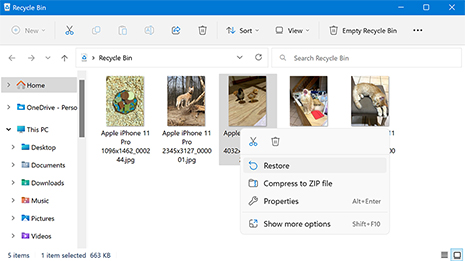
How to recover deleted files on Windows with Recycle Bin:

  1. Open the Recycle Bin by clicking on its icon.
  2. Search for the files you wish to recover.
  3. Right-click on the file or folder you want to recover.
  4. Select the Restore option from the menu to recover the item to its original location. Another method is to drag the files out of the Recycle Bin to the desktop or another storage location.
Best Methods to Recover Deleted Files on Windows 11/10/8/7
!

Note: If the files you’re looking for were deleted from an external HDD or SSD, that drive must be connected to the computer for the deleted files to appear in the Recycle Bin.

Method 1. Recover Deleted Files with File Recovery Software

Deleted files can easily be recovered with file recovery software. When no backup is readily available, it scans your drive for deleted data and gives you the opportunity to save it before it’s erased for good. One particularly effective solution is Disk Drill, as it utilizes several scanning modes that give you a higher chance of recovering more data. And, it comes with many valuable features and benefits:

  • Restore up to 100 MB of data for free;Restore up to 100 MB of data for free;
  • Preview files before performing recovery;Preview files before performing recovery;
  • Recover files in any format;Recover files in any format;
  • Create byte-to-byte copies of unstable drives;Create byte-to-byte copies of unstable drives;
  • Reconstruct video from cameras and drones with the Advanced Camera Module;Reconstruct video from cameras and drones with the Advanced Camera Module;
  • Perform S.M.A.R.T. monitoring of your HDD (hard disk drive) or SSD (solid-state drive).Perform S.M.A.R.T. monitoring of your HDD (hard disk drive) or SSD (solid-state drive).
!

Note: Undeleting lost files even after emptying Recycle Bin is a real possibility with the right tools. However, it's important to note that if your files were deleted from an SSD, the recovery process is affected by the TRIM command.

Therefore, as soon as you realize that a file or an entire partition has been deleted, it's crucial to act swiftly. If this is your system drive, the best thing to do in this situation is to set the drive to read-only mode and create a disk image as soon as possible. Non-system internal SSDs should be removed immediately and connected to a PC as an external drive for further scanning. If it is an external SSD, depending on the type of connection, TRIM may not work at all, but it is better to take preventive measures.

5 easy steps

Steps to Recover Deleted Files with Data Recovery Software

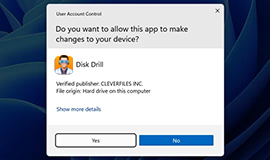
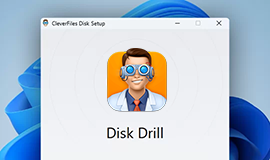
1. Download and Install Disk Drill for Windows

First, download Disk Drill for Windows and install it. Note that Disk Drill should not be installed on the disk from which files have been deleted. Installing file recovery software on the same disk where your deleted files were located can overwrite the lost data. The free version of Disk Drill allows you to recover essential files and verify their integrity before deciding to acquire Pro.

  • Download Disk Drill for Windows
    1

    Download Disk Drill for Windows

  • Install the app
    2

    Install the app

  • Open Disk Drill
    3

    Open Disk Drill

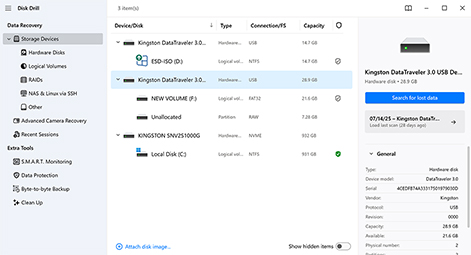
2. Select the Drive and Search for Lost Files

Choose the drive or partition that contains the deleted files. Click the Search for lost data button and, if you’re scanning an external drive or disk image, you will be prompted to choose between Universal Scan and Advanced Camera Recovery. The Universal Scan is best for recovering any and all file types (as well as detecting lost partitions), while the Advanced Camera Recovery module is perfect for recovering unchanged videos from cameras and drones due to its effectiveness in reconstructing media files.

Select the Drive and Search for Lost Files

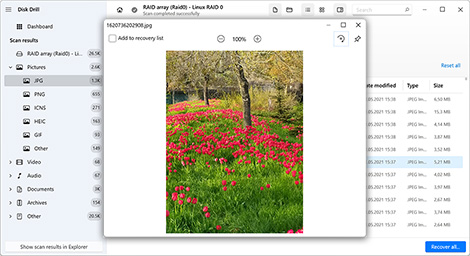
3. Preview the Found Files

As the scan progresses, Disk Drill will show you an overview of how many files it is finding in real-time. It’s best to wait until the scan is completely finished to be sure you don’t miss any files before they’re found. But if you can’t wait, Disk Drill provides you with the ability to preview the files found during the scanning process. Simply click Review found items. Previewing the files before recovery can save a lot of time, as it lets you see if the files are intact and capable of being recovered without any issues.

Preview the found files

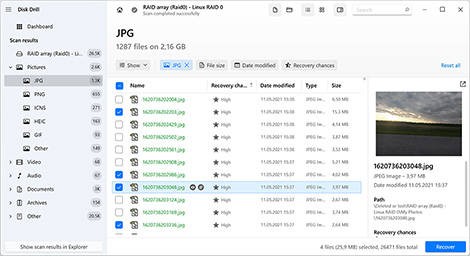
4. Select Which Files You Want to Recover

Once the scan is complete, your next focus is to select the files you want to recover. Disk Drill would have undoubtedly found more files than you need, which is why you need to use the built-in filtering options to refine the results. To select a file, tick the checkbox next to it, or recover all at once by clicking the “Restore All...” button at the bottom right.

Select Which Files You Want to Recover
Use filters for a faster search or to select a specific file type
4.1 Use “Filters” for a Faster Search or to Select a Specific File Type

You can narrow down your search to specific types of files that have been identified as recoverable by Disk Drill. One set of filters is available in the left pane, allowing you to display only pictures, videos, audio files, documents, and archives. Another set of filters is located above the list of recoverable files, and you can use them to show files of a certain size, age, and more.

Search for files
4.2 Search for files

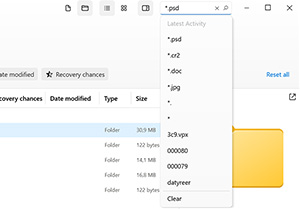
Use the search bar at the top of the app’s window to locate files with standard search terms like *.jpg or filename.*. Inside the window will be a list naming the files that have been found along with reconstructed files whose names could not be determined by the application. Check the boxes next to the files you wish to restore or click the Recover all button to get back all of the data.

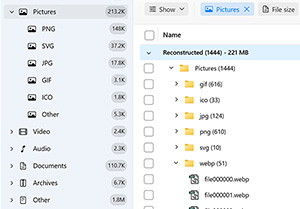
Check the Reconstructed section
4.3 Check the Reconstructed Section

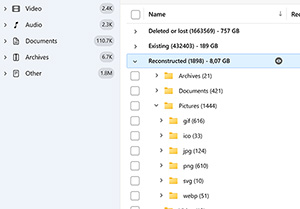
The Reconstructed section of each window contains files that can be recovered by Disk Drill but do not have sufficient metadata available to provide a file name. The deep scanning algorithms can reconstruct lost data based on their file signatures. While their names may not be evident, you can preview the files to determine if they are what you want before you recover them.

5. Recover the Deleted Files

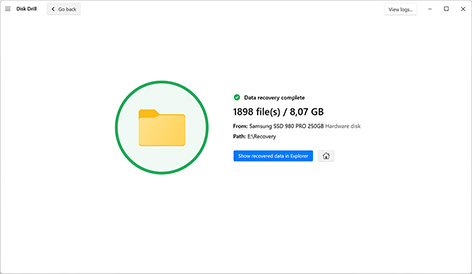
Once you’ve finished selecting the files you wish to restore, click Recover. You will then need to choose a storage location where the recovered data will be stored. You should not choose a location on the same device that has experienced data loss to avoid overwriting files before they can be recovered. Click Next when you have chosen the storage location.

Recover the Deleted Files

Devices Suitable for Restoring Deleted Files

Here is the list of all storage devices Disk Drill can recover deleted data from (beyond computer HDDs and SSDs):

Personal computer’s internal drives

Personal computer’s internal drives

Files deleted from your disk, including those that have been deleted from the Recycle Bin, can easily be restored from your HDD or SSD* with this software tool.

External hard drives

External hard drives

If you have deleted or lost data from an external drive, connect it to your computer and scan it with Disk Drill to recover the files.

Flash drives

Flash drives

Disk Drill can easily restore deleted files from flash drives and produces great results when recovering data from healthy and corrupted USB flash drives alike.

Storage arrays

Storage arrays

Disk Drill is capable of recovering lost data from RAID arrays, Windows Storage Space, and NAS devices, and the process is completely straightforward.

Memory cards

Memory cards

Memory cards, including SD, microSD, CF, XQD, and any other memory cards that use FAT32 or exFAT file systems, are fully supported by Disk Drill.

Android iOS devices

Android/iOS Devices**

Easily recover lost files from your mobile devices by connecting your Android (root access required) or iOS device to a Mac computer with Disk Drill.

!

Note: * If TRIM is disabled. Learn more >
** Android and iOS recovery capabilities are supported only by Disk Drill for macOS.

File Types That Can Be Retrieved

Photos
Photos

Photos in a wide variety of formats such as JPG, PNG and TIFF files. Pictures can usually not be replaced, so the ability to recover these valuable memories is vitally important in recovery software.

Videos
Videos

Videos that have been downloaded or created by users can be restored easily with this application. It supports the AVI, DV, MOV, MKV, and MP4 format as well as many others that should be able to get back any video that has been accidentally lost.

Raw Images
Raw Images

RAW camera images are the preferred file format used by many digital cameras. Some of the RAW formats supported by Disk Drill include Nikon NEF, CR2 and CR3 by Canon, and GoPro GPR among many others.

Music
Music

Music files in the MP3, AIF, and WAV formats are all recoverable by this data recovery tool. It enables users to easily get back those tunes that were inadvertently deleted while they were cleaning their device’s storage.

Documents
Documents

Documents are created in many formats on your Windows computer and using this recovery software lets you restore deleted files in DOCX, PPTX, and XLSX formats to name just a few of the supported file types.

6 OTHER EASY METHODS

Other Methods to Recover Deleted Files on Windows Without Software

Here are some other methods that you can use to attempt the recovery of deleted data on your Windows computer.

METHOD 2

Restore Deleted Files using Previous Versions

If you have the File History feature enabled, it's possible to recover previous versions of files and folders that have been deleted using the Previous Versions feature. Here’s how:

  1. Locate the folder where the deleted files and folders were originally stored.
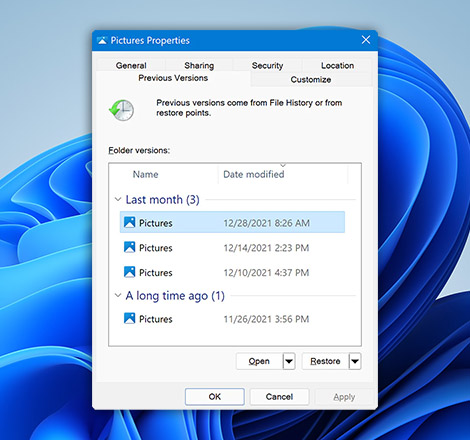
  2. Right-click on the folder and select Properties.
  3. Navigate to the Previous Versions tab. Here, you will see a list of previous versions of the folder, created through File History.
  4. Select the version of the folder from a date before the files were deleted.
  5. You have two options:
    • Click Restore to overwrite only the files in the current folder that existed in the selected previous version, without affecting new files added after the backup.
    • Select Restore to... to restore the folder to a different location, preserving the current folder and its contents intact.
Restore Deleted Files using Previous Versions
METHOD 3

Restore from a Manual Backup

Backups are a great way to protect your valuable files and will come in very handy if you are faced with a data loss situation. If you have followed best practices and are making backups of your data regularly, you may be able to recover your lost files by using the backup media.

This implies that backups were made in the time between when the files were introduced to your computer and when they were deleted. Here are the general steps to use when using a backup to recover your lost data.

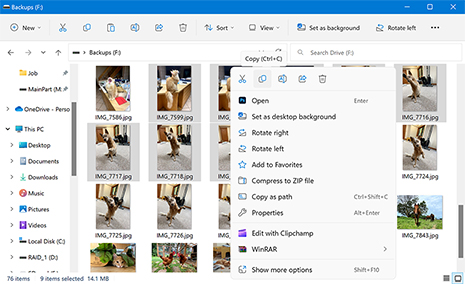
  1. Find the storage device that contains your backups and attach it to your machine.
  2. Launch File Explorer and locate the deleted files on the backup storage device.
  3. Copy (not move!) the files you want to recover from the backup storage device back to the original device
Restore from a Manual Backup
!

If you use a cloud storage service like OneDrive, Google Drive, or Dropbox, there’s a chance that it was preconfigured to back up your data upon installation. As such, you should check your cloud storage for copies of your data.

METHOD 4

Use the File History Feature

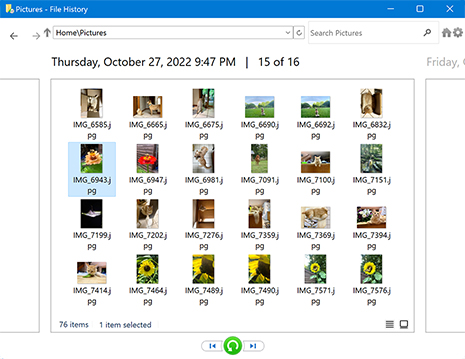
The Windows operating system comes with an incremental backup feature called File History. When enabled, File History automatically creates backups of files and folders in Libraries, Desktop, Contacts, and Favorites locations on your computer.

Best of all, File History keeps multiple backup copies of the same files, so you can recover, for example, older versions of documents. To restore files and folders using File History:

  1. Open the Start menu and type "Restore your files with File History" in the search bar.
  2. Select the Restore your files with File History option.
  3. Navigate to the location where the deleted folder or file was located.
  4. Select the folder or file you want to restore.
  5. Click the green Restore button to restore the selected folder or file back to its original location.
Use the File History Feature
METHOD 5

Use the Legacy Backup and Restore (Windows 7) Feature

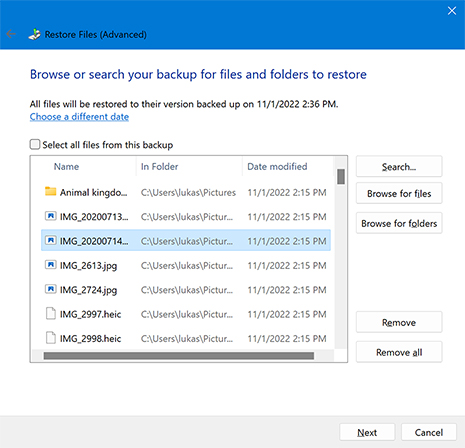
All versions of Windows since Windows 7 come with a feature called Backup and Restore. By default, this feature backs up data saved in libraries, on the desktop, and in default Windows folders, but you can also manually choose exactly what you want to back up.

If you've created a backup using the Backup and Restore feature, then restoring your deleted files from it should be painless:

  1. Open the Start menu and type "Control Panel" in the search bar.
  2. Select the Control Panel app from the list of results.
  3. Navigate to System and Security > Backup and Restore.
  4. Click the Select another backup to restore files from option.
  5. Select your backup and click Next.
  6. Specify what you want to restore and click Next.
  7. Decide if you want to restore the backup to a different location.
  8. Click Restore to start the process.
Use the Legacy Backup and Restore (Windows 7) Feature
METHOD 6

Recover Your Lost Files from OneDrive

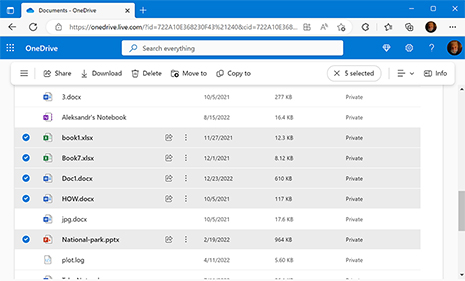
Recent versions of Windows integrate Microsoft's cloud backup service, OneDrive, to provide users with a simple way to safely back up to 5 GB of data for free. If you've been using the service to protect important files, then you should be able to recover them in no time:

  1. Go to https://onedrive.live.com/
  2. Log in using your Microsoft account.
  3. Find the missing files.
  4. Select them.
  5. Click the Download button.
Recover Your Lost Files from OneDrive
METHOD 7

Hire a Professional Data Recovery Service

If all other methods fail, you may need to engage the assistance of a professional data recovery service. This can prove to be expensive and is not the most convenient method of getting your files back. You will need to get your device to the recovery service and will be without it for the time needed to perform the recovery. These services often require access to the device before quoting a price for the restoration operation.

Use these steps if you are considering a professional data recovery service:

  1. Search Google for a local data recovery service or one with a good reputation. We suggest Cleverfiles Data Recovery Center as a reputable solution.
  2. Make your selection and follow the vendor’s guidelines to send them your storage device.
  3. Ship or deliver the device to the company and obtain a price for the recovery.
  4. Complete the financial transaction with the recovery service and let them recover your files.
  5. Pick up the device and start using your files again.
Hire a Professional Data Recovery Service
Disk Drill for Windows

Wondering how to recover deleted files on macOS? Disk Drill for macOS will help.

Tips to Avoid Losing Your Files in the Future

Frequently Asked Questions

by Disk Drill Team

How to recover permanently deleted files on Windows for free?

To recover permanently deleted files on Windows for free, your first option is to check existing backups for a copy of your data. If you don’t have a backup, your next best choice is to use free data recovery software to get the files back. Disk Drill allows free recovery up to 100 MB on Windows, or you can use completely free tools like Recuva or PhotoRec.

How do I recover deleted files on Mac?

Deleted files can easily be restored from the built-in macOS backup utility, Time Machine. If Time Machine wasn’t enabled at the time, and you don’t have any other backups, you can recover deleted files on a Mac using data recovery software.

How can I recover files deleted from a Recycle Bin after it’s emptied?

The only native option for recovering files from an emptied Recycle Bin is to restore a copy from a backup. If that’s not an option, data recovery is the next step. To recover files from an emptied Recycle Bin follow this procedure:

  1. Install Disk Drill for Windows on a partition that does not contain the Recycle Bin.
  2. Select the disk with the Recycle Bin.
  3. Click Search for lost data to start scanning for deleted files.
  4. Select the files you wish to restore from the preview.
  5. Click Recover to retrieve the data.

How to restore permanently deleted files from the Recycle Bin without software?

In order to recover permanently deleted files from the Recycle Bin without using software, you will need to restore them from a built-in backup solution like File History or a third-party solution like Macrium Reflect:

  1. Locate your backup storage media.
  2. Connect the backup media to your computer.
  3. Start your backup and recovery application.
  4. Search through backup copies for the files you need to recover.
  5. If they are found, select the files and restore them to your hard drive.

How to recover deleted files on PC?

To recover deleted files on PC, your best option is to restore from a backup. If you don’t have a backup, your next option is data recovery software which can be installed on your PC and used to scan HDDs/SSDs, memory cards, flash drives, and more. But, before that, you should stop using the drive containing the deleted files to prevent your data being overwritten.

How do I recover deleted files from an external hard drive?

In most cases, restoring from a backup is the go-to answer. However, given that external hard drives are rarely included in backups due to their portable nature, you should instead use data recovery software to scan and recover the data.

How can I recover deleted files on Android devices?

All Android devices come with a built-in file management app, typically and aptly named “Files”. This app also usually has a Trash, which keeps your deleted data temporarily until it’s permanently deleted. Otherwise, if that’s not possible, you can connect your Android device to a Mac and scan it with Disk Drill.

How do I recover deleted files from a pendrive?

As pendrives are constantly being connected and disconnected, they’re rarely ever included in backups. Because of that, your best option is to recover the data from the pendrive using data recovery software instead. Before that, though, you should keep the pendrive disconnected until recovery can be performed.

Can I recover deleted files using Command Prompt?

There is no native functionality in Command Prompt to recover deleted data. However, it is capable of unhiding files that have been made invisible with the hidden attribute. Here is how you remove the hidden attribute from the files:

  1. Open Windows Terminal with administrator privileges.
  2. Copy & paste the following command into the terminal window: attrib -h -r -s /s /d X:*.* (make sure to replace "X" with the actual drive letter assigned to your storage device)
  3. Press Enter and check if any files have been revealed.

Can I recover permanently deleted files with Windows File Recovery tool?

Yes, the Windows File Recovery tool is Microsoft’s own recovery solution capable of recovering permanently deleted files. It’s a command-line tool that can be used to perform custom recovery using select parameters and flags.

Find out how to recover deleted files

Disk recovery university

Customers and software guru say

Yesterday I deleted files in my One Drive without remembering that it's connected to my laptop. Happily selected all files. And all the files on my laptop were happily deleted. Thank God, there's Disk Drill! I'm able to retrieve the essential documents!
Read more
"A professional data recovery tool. The free software supports a range of file types and works on both internal and external hard drives." - Chantelle van Heerden
Read more
Used by world famous companies