


Lost data and looking for software to recover it? Since you’re here, we’ll assume you already know that data recovery software can help in your case, so we won’t bore you with what it is or how it works. Instead, we’ll help you choose the right data recovery tool for your situation.
As part of our goal to create and maintain a list of the best data recovery software rankings in Windows, we re-ran all our tests in April 2026. Working with our in-house QA team and professionals from leading data recovery labs, we tested a range of recovery tools to determine which are the best, and why. Based on those results, we can already highlight the tools that stand out in 2026.
Do you prefer watching over reading? We have this topic covered in an exclusive video format:
5 Best File Recovery Software
Let’s take a closer look at the tools that made our list of the best data recovery software. Each one excels in some way or another, and we’ll break down their features. We will provide our general opinion and test results, point out what we liked and didn’t like, and include reviews from real users. We’ll concentrate mainly on the Windows versions but we will also address Mac and Linux support where relevant.
1. Disk Drill Data Recovery (Windows & Mac)
Disk Drill Data Recovery is an undeniable leader in the data recovery space, it can recover deleted files from your device even if it is crashed, formatted, or has lost a partition.
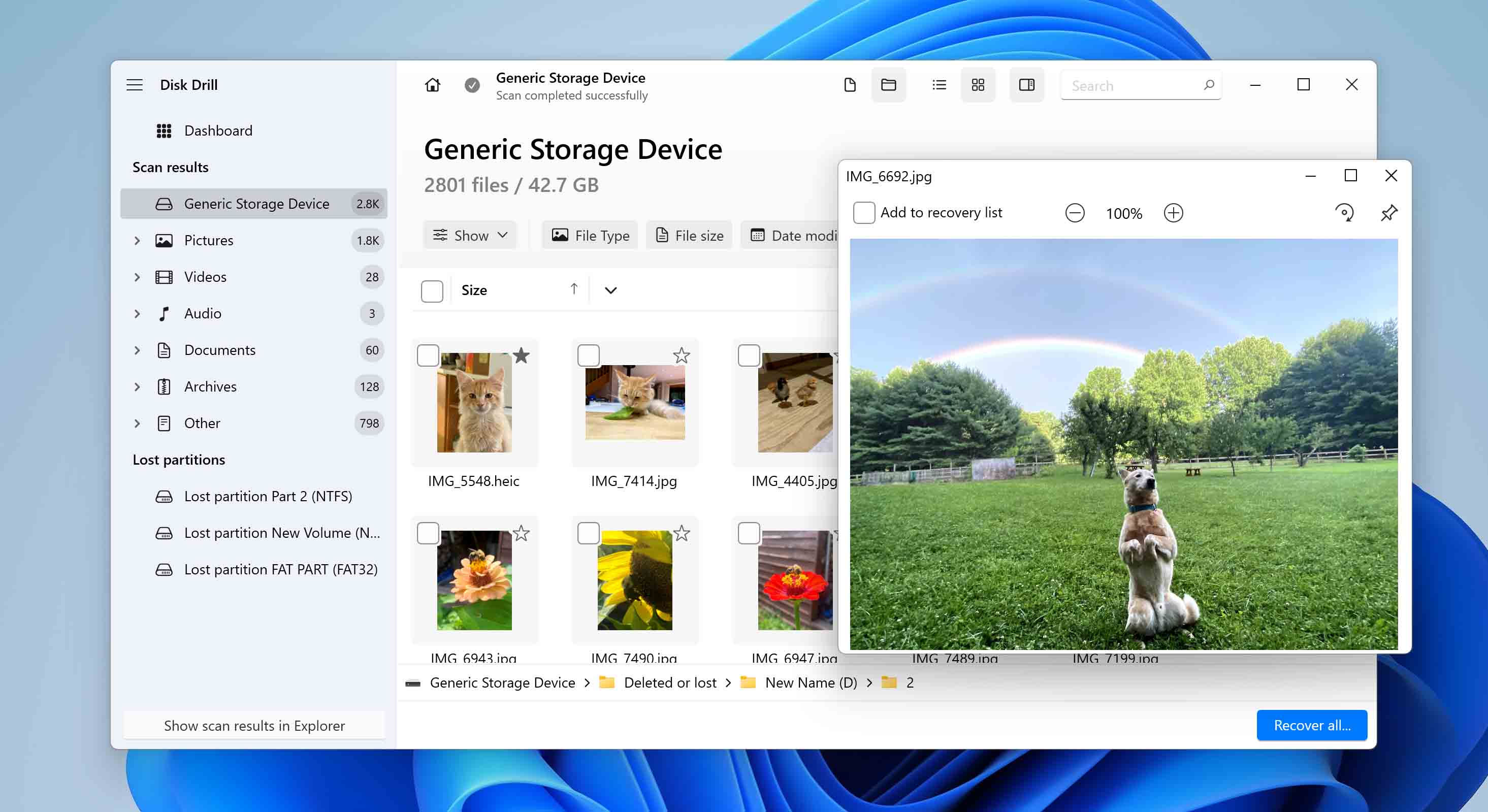
- Several scanning algorithms allow for the discovery of more data
- Advanced Camera Recovery for fragmented video reconstruction from cameras, drones, and similar devices
- Improved drive backup tool with visual feedback for identifying bad sectors
- Support for the modern ReFS file system
- Broad library of known file signatures
- Additional data protection features to reduce the chances of future data loss
- Cross-platform capabilities like APFS recovery on Windows and BitLocker recovery on Mac
- No phone number for customer support
- There is no way to create custom boot disks
With Disk Drill you can easily recover deleted photos, videos, music files, and documents from internal or external drives, USB flash drives, SD cards, etc. The Mac version (available on macOS Tahoe since Disk Drill 6.0, with full compatibility starting in Disk Drill 6.1) supports iOS and Android recovery as well.
In our tests, Disk Drill achieved a perfect usability rating of 100% as well as a best-in-class recovery performance rating of 91% (Windows version) and 96% (macOS version). It stood out as an excellent RAW image and video file recovery tool, with support for file formats used by virtually all major camera manufacturers, including Canon, Nikon, Olympus, RICOH, and others.
Features:
- Disk Drill allows users to create image files of disks and partitions (even those encrypted with BitLocker) in the form of ISO, DMG, and DD files. That means you can scan and recover data from a clone instead of working directly with the original device, which helps avoid extra risk when the source drive is unstable. This functionality is of particular importance in forensic science.
- The Advanced Camera Recovery module is something you won’t find in any other recovery tools. It’s a feature dedicated to aiding you with the recovery of unedited videos from cameras and drones by reconstructing them.
- More technical users can benefit from the RAID and NAS recovery features that work well with NAS devices from vendors like QNAP, Netgear, Synology, and now TrueNAS, in addition to features like drive health monitoring and cleanup.
- On top of that, the software includes S.M.A.R.T. monitoring for drive health alerts, along with cleanup and other extra tools that help users keep storage devices in better shape.
“Disk Drill is an excellent free file recovery program, both because of its long list of features and its exceptionally simple-to-use interface.”
– Tim Fisher, lifewire.com
Summarizing, Disk Drill is not only free and feature-rich but also the best-value data recovery software. It has been confirmed by plentiful independent reviewers on the Internet and printed publications. CleverFiles, the developer of Disk Drill, has been around for many years and is a respected technology provider, based in the USA.
2. R-Studio (Windows, Linux, macOS)
R-Studio is our second top recommendation for free data recovery software, and it differs from the previous one in one important aspect: its target audience is IT professionals and power users who can appreciate its extensive and potentially confusing features while navigating its uninviting user interface.
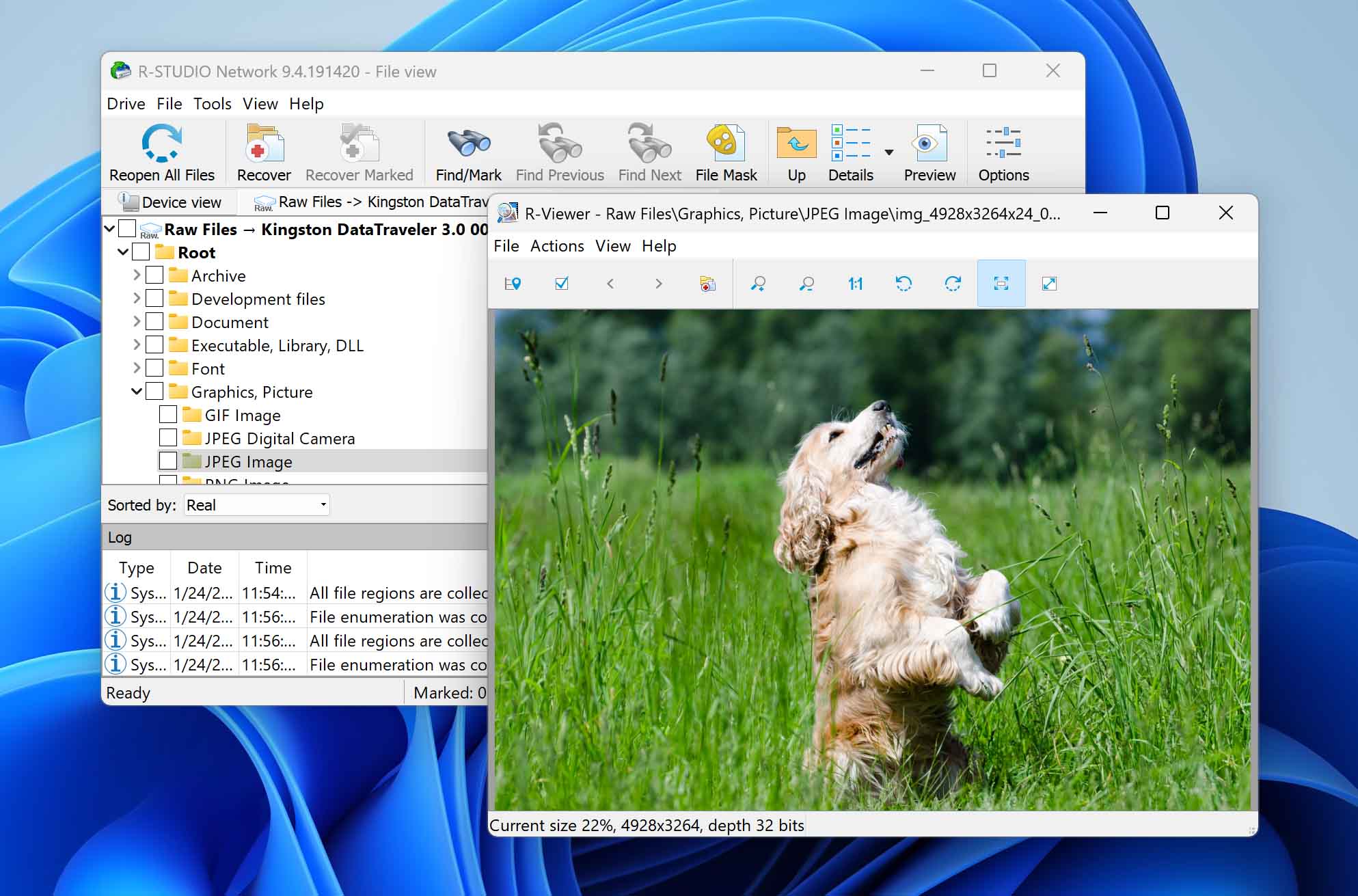
- Excellent suite of high-level data recovery features
- Built-in RAID reconstruction model
- Add custom file types to find even obscure formats
- Supports all major operating systems, even some as old as Windows 2000
- Great at recovering files with their original file name and folder structure
- Very complicated for the casual user
- No easy function for managing session management
- Can’t recover data from internal system drives on Apple Silicon Macs or T2-chip Macs
- Free version is too limited for meaningful recovery
- Each file must be manually previewed; there’s no built-in preview navigation
Its support for all major operating systems, including Windows, Linux, and macOS (even older versions like Windows 2000), makes R-Studio a highly versatile data recovery software application that can handle just about any file system you throw at it.
R-Studio also isn’t afraid of RAID configurations, and its powerful RAID reconstruction module can fix broken arrays that many lesser recovery tools would find unfixable. It can also address the most unique data loss scenarios thanks to its support for custom file types and professional data recovery hardware like the DeepSpar Disk Imager and USB Stabilizer.
When testing R-Studio, we closely examined its performance across multiple criteria and found it to be better than average in most situations, earning it a recovery performance score of 64%. The tool was held back mostly by its average RAW file format support.
Features:
- Recovers files from a wide range of file systems, including NTFS, ReFS, FAT, exFAT, HFS+, APFS, Ext2/3/4, UFS, and XFS.
- Includes disk imaging tools, including more advanced imaging options in higher editions.
- Lets advanced users add custom file signatures for obscure or proprietary formats.
- Includes pro-oriented extras like a hex editor and S.M.A.R.T. monitoring.
”I would try out R-Photos, by the same people as R-Studio. It’s free, or at least a 30-day unlimited trial. If it gives you a good result, go with it.”
– Zorb750, reddit.com/r/datarecovery
Overall, R-Studio is a valuable tool for those who require advanced data recovery options. However, its complexity might pose challenges for average users who want to address common problems with data loss as painlessly as possible.
3. TestDisk & PhotoRec (Windows & Mac)
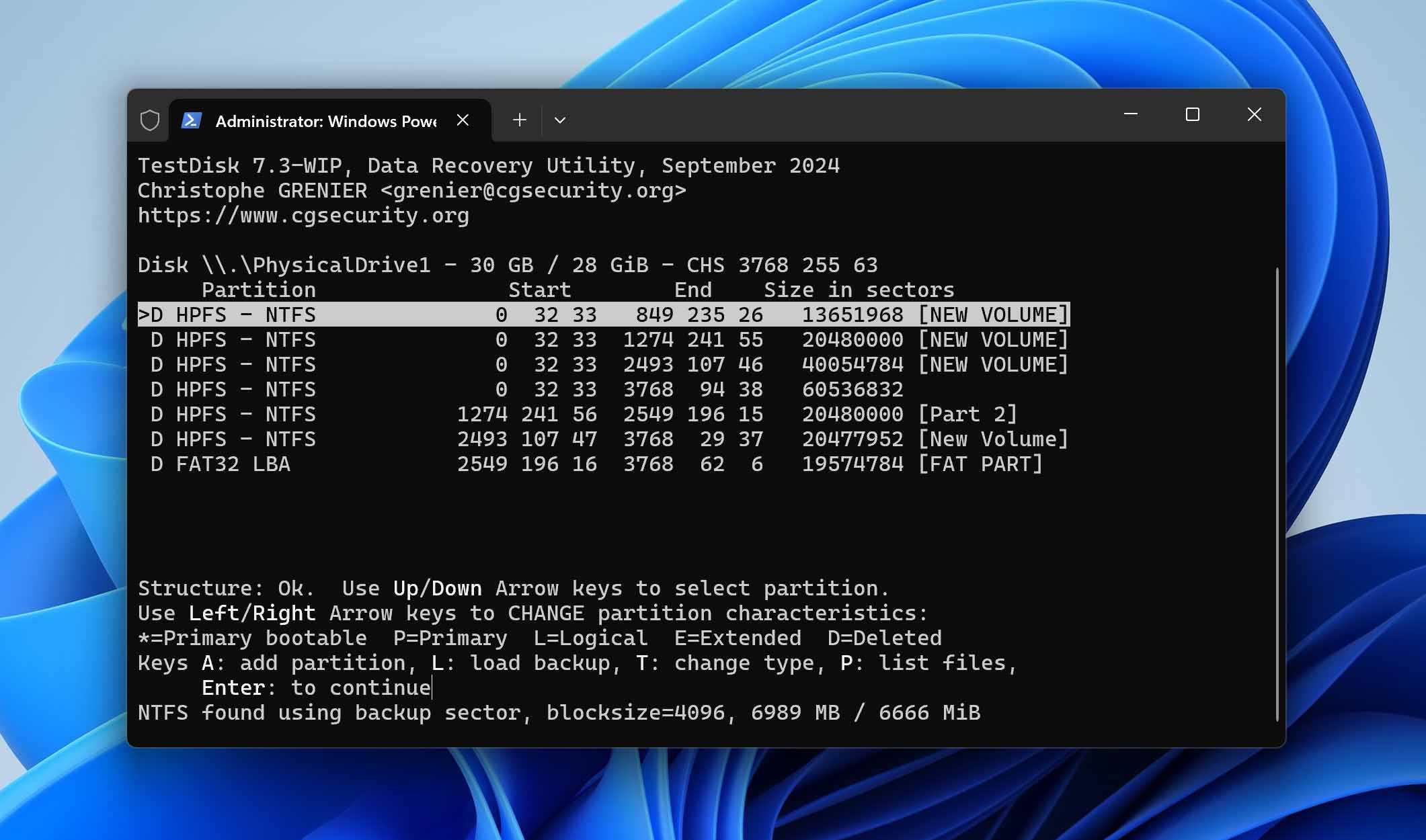
TestDisk is a freeware solution that shines the most when it comes to partition recovery. It is a command-line tool that supports many operating systems and file systems. The app is still supported by its developer and is included in many popular live USB and rescue environments.
- Free and open-source
- Portable app that requires no installation
- Works with RAW and dismounted disks
- Works on all major operating systems
- Recovers the partition and file system, restoring it in-place
- No signature-based recovery. It only recovers based on file system metadata from FAT, exFAT, NTFS, and ext2
- Uses a command-line interface (CLI), which takes some time to learn for casual users
- Manual, and oftentimes complex, scanning process can confuse some users
When we evaluated TestDisk, we knew that the tool’s purpose is to recover lost partitions and found that TestDisk excels in these areas. It can also undelete files to a limited extent, but that side of the tool feels basic and underdeveloped compared to the best data recovery software for PC built for broader file recovery.
If you need to recover lost partitions, rebuild partition tables, repair boot sectors, or fix damaged file system structures, TestDisk is much more in its element.
Features:
- Supports a wide range of file systems across Windows, Linux, macOS, and BSD/Unix.
- Works with file systems such as FAT12/16/32, exFAT, NTFS, ReFS, ext2/ext3/ext4, XFS, JFS, ReiserFS, Btrfs, HFS, HFS+, HFSX, APFS, UFS/UFS2, and ZFS.
- Recovers lost partitions and rebuilds partition tables.
- Repairs NTFS boot sectors and MFT records.
- Restores FAT32 boot sectors and FAT tables.
- Locates and restores ext2/ext3/ext4 superblocks.
- Supports detection and basic handling of RAID metadata, including mdadm RAID.
- Works with LVM/LVM2 and major partition map types such as MBR, GPT, and Mac partition maps.
Another plus of TestDisk is that it comes bundled with another tool – PhotoRec. It is a free and open-source companion to TestDisk that recovers files via signature-based scanning. It’s cross-platform, capable of handling a broad range of file types on Windows, Mac, and Linux. In our tests, it successfully retrieved numerous file formats, though the minimalist interface required extra manual sorting. Despite these drawbacks, PhotoRec remains a cost-effective choice for those seeking reliable file restoration, especially when budget considerations outweigh the need for a more user-friendly approach.
“As a free partition and file recovery solution, TestDisk and PhotoRec does everything a domestic user might expect.”
– Sofia Elizabella Wyciślik-Wilson, techradar.com
Overall, TestDisk is a highly capable partition recovery tool that excels in restoring lost partitions and repairing damaged file systems, while PhotoRec brings effective signature-based file recovery to the table. Both applications are entirely free and powerful enough to handle a wide range of data loss scenarios. However, they can be intimidating to less technical users and demand a level of caution to avoid accidental file overwriting.
4. Recuva (Windows)
Developed by Piriform, Recuva can recover permanently deleted files, which have been marked as free space by the operating system. Recuva is a freemium app, meaning that its functionality can be enhanced by acquiring a commercial license.
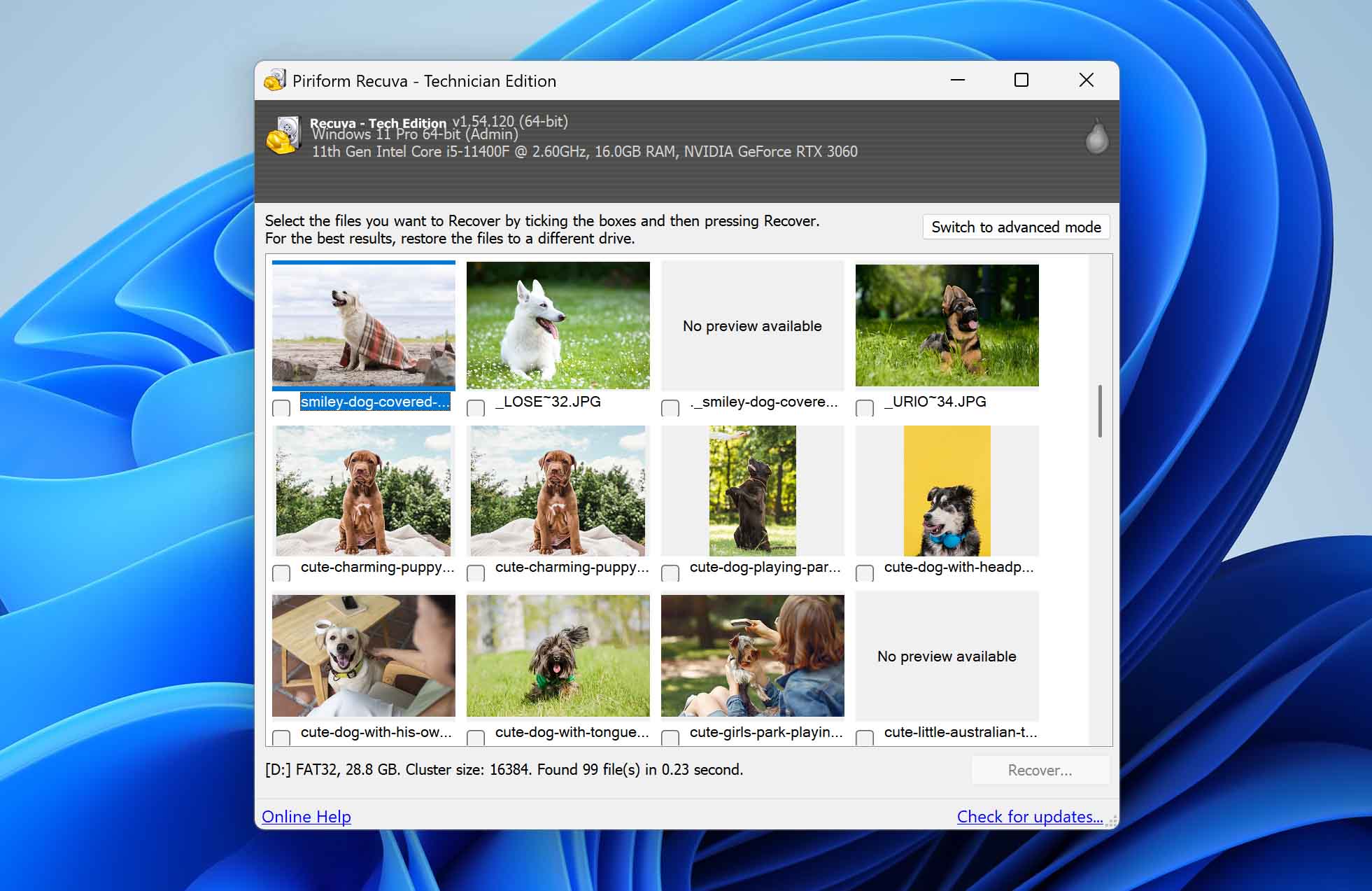
- Free with no limit on scanning and recovering data
- Has a basic recovery chance indicator for pointing out intact files
- Two operating modes based on your experience
- Small and lightweight. Doesn’t take up a lot of disk space or consume heavy resources
- Very quick scanning
- Unlikely to recover data with its original file names and folder structure
- Only lets you scan partitions - not entire disks
- Doesn’t support a lot of file signatures
- Can only scan disks that contain a working file system, not RAW or unrecognized ones
- Disk imaging is available only in the paid version
This free data recovery software can work on hard drives, USB flash drives, memory cards, MP3 players, and other storage devices supported by FAT, exFAT, and NTFS file systems. The app comes in 32-bit and 64-bit versions. After the developer joined a bigger enterprise, the app hasn’t received a major update in several years (only small bug fixes).
Despite not being significantly updated for a long time, Recuva still offers plenty of value, as confirmed by our tests of the software. Yes, its recovery performance is below average (the software achieved only 31% of success), but its free price tag and great usability make up for it.
The premium version of Recuva adds support for virtual hard drives and automatic updates, and its users also receive prioritized customer support. If that doesn’t seem like a lot, then that’s because it isn’t—premium versions of competing products offer a lot more. But at least the paid version of Recuva is inexpensive.
Features:
- Unlimited free data recovery with the standard version.
- Deep scan mode for hard-to-find files.
- Wizard mode for beginners.
- Secure overwrite feature.
“Recuva is attractively priced and easy to use, though it can’t dig in quite as deeply as higher-priced data recovery software.”
– Edward Mendelson, pcmag.com
In summary, Recuva presents a good choice for both users, casual and frequent, that require a solid app for data loss recovery.
5. EaseUS Data Recovery Wizard (Windows & Mac)
EaseUS Data Recovery Wizard is a great alternative to our top pick because it offers a similarly smooth user experience and a three-step easy file recovery process.
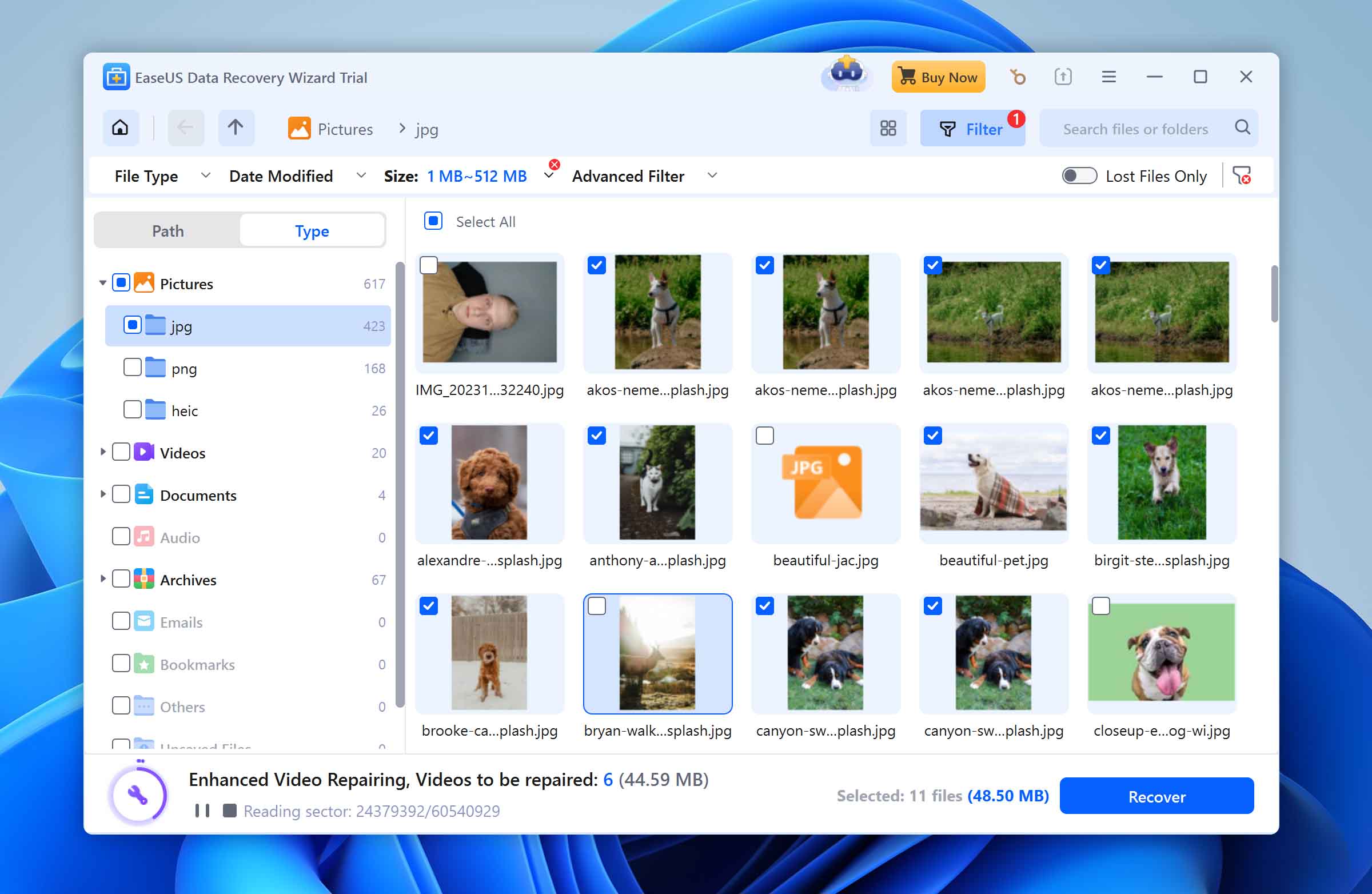
- Scan results are easy to refine and explore
- Clean interface that works well for beginners
- Great customer support
- Lets you recover data during the scan
- Rich knowledge base with a vast library of articles
- Pop-up ads for other products are rampant in the app
- Cannot preview a lot of popular photo formats
- Can only preview files up to 100 MB
- Struggles with Linux-formatted (EXT3, EXT4) drives
This data recovery software for PC is free for recovering data up to 500 MB (with the limit increasing to 2 GB if you mention the product on social media). It works on internal and external hard drives, USB flash drives, memory cards and various types of partitions.
Our tests have revealed that EaseUS Data Recovery Wizard can scan a storage device very quickly and recover a praise-worthy quantity of files from it—even during scanning. Unfortunately, the speed of recording found files to a safe destination is much slower, so the total time to recover lost data isn’t as impressive as it would be otherwise.
Features:
- The success rate of recovery is excellent when retrieving data from storage devices that use the NTFS file system and average when it comes to FAT32 and exFAT file systems;
- Group deleted files with Tags for simpler recovery.
- Real-time scan results with built-in search, filters, and sorting.
- Supports pausing and resuming scans.
- Works with some NAS systems and simple RAID setups, including RAID 0 and RAID 1.
“Fast, reliable performance. Recovers many files other products couldn’t recover in testing. Easy sorting of deleted files and specific file types”
– Edward Mendelson, pcmag.com
In brief, EaseUS Data Recovery Wizard presents a practical option for casual data losses. If the user needs extra recovery capacity, the developer offers a paid upgrade that gains extra functionality.
Comparison of Our Top Picks
| Best Data Recovery Software | Platform | Unique Features | Built-in Data Protection | Free version | Pro version |
| 1. Disk Drill | Windows, Mac | iPhone & iPad data recovery; Android data recovery; Advanced Camera Recovery | Yes | 100 MB for free (Windows) | Subscription + lifetime licenses |
| 2. R-Studio | Windows, Linux, macOS | Network recovery | Yes | Recovers files smaller than 1024 KB | Subscription + lifetime licenses |
| 3. TestDisk & PhotoRec |
Windows, Mac, Linux | Partition recovery | No | Freeware | Freeware |
| 4. Recuva | Windows | Portable version available | No | Free plan without customer support | Subscription-based |
| 5. EaseUS Data Recovery | Windows, Mac | Image files and documents repair supported | No | 2 GB for free | Subscription-based |
Honorable Mention
- Windows File Recovery, developed by Microsoft, is a freeware command-line tool for data recovery on Windows 10 and 11, supporting NTFS and signature-based scanning. Despite its basic interface and limited file system compatibility, it offers a straightforward solution for simple data recovery scenarios, as evaluated in our review.
- DiskGenius is a highly technical data recovery and disk management solution that we thoroughly evaluated in collaboration with our QA team. Its fast scanning, built-in SMART monitoring, and ability to create bootable recovery media make it an attractive choice for professionals working with Windows or Linux-based drives. However, it did not earn a spot in our top five due to its steep learning curve, cluttered interface, lack of session management, and average performance when dealing with certain file types. Moreover, it lacks Apple file system support, reducing its appeal for those seeking broader OS compatibility.
- DMDE (DM Disk Editor and Data Recovery Software) is a feature-packed solution I’ve personally used to retrieve data from advanced RAID arrays and rescue particularly stubborn file losses. Its fast scanning, advanced RAID reconstruction, and forensic-friendly functionality are a major asset for seasoned technicians. That said, it falls short of our top five file recovery tools due to its steep learning curve, limited previews, and a cluttered interface that can stump beginners. Key drawbacks include no S.M.A.R.T. analytics, lack of session management, and no mid-scan recovery. Still, for tech-savvy users seeking professional-grade power at an affordable price, DMDE remains a compelling choice.
- Minitool Power Data Recovery (Windows) offers users a capable data recovery tool that supports over 100 different file types. The application can restore lost and deleted data with an intuitive three-step recovery process. A free version of the tool (capable of recovering up to 1 GB of data) can be upgraded with monthly, yearly, or lifetime subscriptions to unlock corrupted video recovery and other premium features.
Is it Safe to Use Data Recovery Software?
Yes, data recovery tools can be safe, but you still need to do your due diligence.
From a privacy standpoint, the safest option is software downloaded from an official website or another trusted source. You shouldn’t have problems with reputable tools, but it is still smart to review the developer’s privacy policy, license agreement, and customer feedback before you install anything.
It also needs to be safe for your files and your device. Good recovery tools use non-destructive scan methods, which means they look for lost data without modifying the source drive. Even so, your actions still matter. You should never save recovered files back to the same drive, and if the device seems unstable, disconnects, or shows read errors, it is much safer to create a full disk image first and work with the copy instead of the original.
That distinction comes up often in advice from recovery professionals:
According to Andrew Vasiliev, COO at ACE Data Recovery Lab:
Data recovery tools can be used with a high degree of safety – provided users take proper precautions. “One of the most critical steps is creating a full disk image before scanning,” Vasiliev explains. “This prevents the risk of further damaging the original data during the recovery process.”
With that said, Bogdan Gluschko, CEO at Proven Data, urges users to proceed with caution when dealing with physically damaged storage devices. “DIY methods and software scans on a hardware-failed drive can exacerbate the damage,” he warns. “In these cases, it’s best to consult professional services to avoid permanent data loss.”
How We Choose & Test Data Recovery Software
In order to bring you the most accurate and trustworthy recommendations, we took the following steps:
- 📊 Hands-On Testing with QA & Lab Experts. In April 2026, our in-house QA team thoroughly re-tested 24 different data recovery tools and evaluated 9 of them. We also consulted with professionals from leading data recovery labs to verify our findings. Their expert insights helped us replicate advanced data loss scenarios and judge each tool’s real-world effectiveness.
- 🗑️ Real-World Data Loss Simulations. We built a broad dataset (including images, videos, documents, and archives) to test how each tool handles various file types and file systems. Using virtual drives and specialized software like WinHex, we replicated realistic data loss events, such as accidental deletions, partition damage, and drive formatting.
- 💬 Community & User Feedback. Beyond our lab tests, we scoured user forums (including Reddit) and collected data from our support team to gather feedback from everyday people who have faced data loss. Collecting these personal experiences allowed us to see how each software performs in diverse contexts—because every user’s situation is unique.
- 🧑💻 Interviewing Industry Pros. To make sure we didn’t miss any critical considerations, we interviewed seasoned data recovery specialists and IT professionals. They gave us valuable insights on issues like device compatibility, RAID support, offline operation, and privacy protection.
- 📝 Reviewing Official Documentation & Security Checks. We checked software developer sites, license agreements, and privacy policies to confirm security and reliability claims. Whenever possible, we also looked at verifications from independent security services (e.g., VirusTotal) to ensure each solution was free from malware or other malicious components.
- 🧰 Assessing Key Criteria. We considered a range of factors – recovery performance, ease of use, supported file systems, additional features (like disk imaging or SMART monitoring), and value for the money. We also explored user-friendly elements such as previewing recoverable files or having clear tutorials and customer support.
How to Pick the Best Data Recovery Software
If you’ve lost files, the best data recovery software is not always the one with the flashiest website or the longest feature list. The right choice depends on what exactly happened to your data, what kind of files you need back, and what condition the device is in. Pick the wrong tool, and you might waste time. (And in the worst case, you can make recovery harder.)
Before you choose a recovery app, think less in terms of “Which data recovery tool is best?” and more in terms of “Which tool fits my case?”
⚙️ If You Need to Recover a Large Number of Files or an Entire Partition
Not every recovery app is equally good at large-scale recovery. Some tools are fine for a few deleted files from a healthy drive, but struggle when the job involves a formatted volume, a lost partition, or a drive that now shows up as RAW or unallocated. Recuva is a good example here. It’s a solid tool for basic undelete jobs, but it won’t help with a RAW drive at all or other more complex recovery cases.
If your problem is bigger than a few deleted files, look for software that can:
- scan entire disks
- recover lost or deleted partitions
- work with RAW, damaged, or unrecognized volumes
- preserve original folder structure and filenames (where possible)
- create and scan disk images instead of forcing you to work on the original drive
Tools that rely only on file system metadata tend to do best when the structure is still intact, such as after a normal deletion. They are much less useful after formatting, partition loss, or file system corruption, where signature-based recovery and deeper scan methods matter much more.
🎞️ If You Need to Recover Photos, Videos, or Other Specific File Types
Media recovery can be more demanding than document recovery. A tool may do well with DOCX, PDF, JPG, and MP4, but still struggle with RAW photos, fragmented video, proprietary camera formats, or large media files that need proper preview support.
If media matters most, check whether the software:
- supports the exact file formats you care about
- can preview those files before recovery
- handles fragmented video recovery well
- performs well with files from SD cards, cameras, drones, and external media
This matters even more if you’re trying to recover footage from action cameras, dash cams, drones, or mirrorless cameras, where the file structure can be more complex and some tools will miss playable results entirely.
In these cases, more advanced tools can make a real difference. For example, Disk Drill includes a dedicated Advanced Camera Recovery module designed to reconstruct fragmented video files that ordinary recovery tools we’ve tested, often fail to recover.
💽 How Much File System Support Actually Matters
File system support is important, but not always in the way people think.
It does not automatically mean a tool will recover every file from every drive with that file system. What it usually affects is how well the software can read the disk structure, recognize deleted entries, preserve original names and folders, and handle logical damage such as partition loss or corruption.
In practice:
- if the file system is still readable, strong file system support can improve structure-aware recovery
- If the file system is damaged or missing, support for that file system matters much less, because recovery usually depends more on signature-based scanning than on file system metadata
- if the drive uses an unsupported or poorly supported file system, recovery quality may drop sharply
That’s why good software should support a broad range of file systems used on both internal and removable devices, including NTFS, FAT/FAT32, exFAT, HFS+, APFS, ext2/3/4, ReFS, and others. But file system support is only part of the picture. Strong signature-based recovery matters just as much (and often more) because once the original file system is damaged, missing, or unreadable, the software may need to find and reconstruct files without relying on that structure at all.
The more varied your devices and data loss scenarios are, the more these capabilities matter.
💻 Operating System Support
This one sounds obvious, but it is still easy to overlook. Some tools are Windows-only (Recuva). Others offer Windows and Mac versions (Disk Drill, R-Studio, EaseUS Data Recovery Wizard), but not necessarily with the same features.
A few support Linux as well (R-Studio, TestDisk), though sometimes with a more technical workflow.
It is also worth checking version support. Some recovery tools only work on relatively recent OS versions, while older systems may require a legacy release or an earlier build of the software.
On macOS, hardware can matter just as much as the OS version. Not every tool works equally well on Apple Silicon Macs or older T2-based systems (many apps cannot properly scan the internal system drive because of Apple’s security architecture).
So before you download anything, make sure the software:
- supports your OS version
- supports the file system used by the device you’re scanning
- offers the same recovery features on your platform
- works properly with your hardware
You should also check how the license works across operating systems, because some tools require separate purchases for Windows and Mac. Disk Drill, for example, offers a 2-for-1 license that covers both, while most other recovery tools charge separately for each platform.
🧰 Extra Features
Some extra features are just nice to have. Others can make a real difference.
Features worth paying attention to include:
- file preview before recovery
- filtering and sorting tools for large scan results
- disk imaging and image scanning
- S.M.A.R.T. monitoring
- recovery from lost partitions
- support for unstable or partially unreadable drives
- scan pause/resume and session saving
Not every user needs all of these. But some matter a lot in specific cases. For example:
- if a drive seems unstable, disk imaging is far more important than a polished UI
- if you need to sort through thousands of found files, filters and previews matter a lot
- if you’re dealing with a device that may be failing, S.M.A.R.T. monitoring and safer scan workflows, such as disk image creation and image-based scanning, become much more important
🛒 Price (Free Doesn’t Always Mean Useful)
When you compare data recovery software, the real question is not just how much it costs, but what you get for that price. A cheaper tool may look appealing at first, but still leave you with limited recovery options, weaker scan methods, or fewer safety features when the device is unstable.
A tool that looks cheap at first becomes expensive if it locks practical recovery behind upgrades, so a pricier option is often the better value overall. Also, many vendors charge you twice: once for Windows and again for macOS. The best value often lies in a universal license that includes both systems for a single price. Even if you only need one OS right now, the inclusion of both is a significant bonus – it keeps you covered no matter what device you or your family use in the future.
So when comparing pricing, look at:
- the actual recovery capabilities, not just the price tag
- whether the software supports the kinds of devices and file systems you use
- whether useful extras, such as disk imaging or safer scan options, are included
- whether the license is subscription-based, lifetime, or tied to a specific platform
Conclusion
As a result of extensive testing of the reviewed apps, we are confident in naming Disk Drill the best free data recovery software. The impressive feature set, approachable UI, and helpful guidance for first-time users give it broad appeal, while its recovery performance makes it capable enough for more demanding cases too. Beyond recovering lost data, Disk Drill also includes tools that help protect existing files and support safer recovery workflows. Thanks to features like S.M.A.R.T. monitoring, Byte-to-Byte Backup, and Advanced Camera Recovery, it remains a versatile option whether you’re scanning a HDD, USB flash drive, SD card, camera storage device, or drone media, and whether the problem involves simple deletion, formatting, partition loss, or a less stable drive.



FAQ
Top 5 best free data recovery software in 2026:
- Disk Drill Data Recovery (Windows and Mac) – Best overall.
- R-Studio (Windows, Mac and Linux) – Best for professionals.
- TestDisk & PhotoRec (Windows and Mac) – Best open-source.
- Recuva (Windows) – Best freeware.
- EaseUS Data Recovery Wizard (Windows and Mac) – Best free recovery limit.
Data recovery software uses sophisticated algorithms to find files that are still physically present on the hard drive but whose logical links have been severed. Imagine that you have a large book, such as an encyclopedia, and you want to find a specific section. That’s easy to do if the book has a convenient index at the end, but what if it doesn’t? In that case, you must go through the book page by page and manually look for the section, and that’s basically what data recovery software does when you want to recover a file your operating system is no longer aware of.
Since professional tools cost money, they typically offer more features and better recovery performance than free tools. Some Pro tools are visually indistinguishable from their Free counterparts, which makes it easier to transition from the free version to the paid ones.
Professional data recovery labs often rely on advanced software to handle complex data recovery tasks. According to insights from Reddit users, many of these professionals use tools like R-Studio, DMDE, and Disk Drill Enterprise, which are known for their capabilities to recover RAID, NAS drives, and perform forensic recovery.
Recovery software can help with all cases of logical data loss, including:
- Accidental file deletion: By far the most common cause of data loss, accidental file deletion can be reverted with the help of a capable recovery software application.
- Corrupted file systems: From operating system incompatibilities to software errors, there are many reasons why file systems become corrupted.
- Lost, deleted, RAW, inaccessible, formatted partition: One small error when partitioning a storage device can make an entire partition inaccessible or wipe it out entirely.
- Disk failure: A temporary disk failure is another common cause of logical data loss that can be fixed with recovery software.
- Virus attack: Viruses, ransomware, and other kinds of malware often target sensitive data to cause as much damage as possible.
- Formatted storage devices: When you accidentally format an entire storage device, you can still recover your files from it, provided you act quickly and don’t overwrite them.
Unfortunately, recovery software can’t help with hardware-related data loss, including:
- Mechanical failure: A head crash is one example of a mechanical failure plaguing spinning hard drives, but all storage devices are vulnerable to hardware-related data loss.
- Electronic failure: All storage devices are controlled by tiny electronic components with limited lifespans and varying reliability.
Yes, but not all data recovery software works after formatting. And, it’s only possible after a quick format, not a full format.
Recovery apps that exclusively use the file system for finding data won’t work if the drive was reformatted with the same file system. Instead, you’ll need a tool that supports recovery by signature, like Disk Drill, which can scan the drive and identify data by its unique file structure. From there, it can use this information to reconstruct the data, making it suitable for recovery.
No matter what, your first step when working with a failing drive is to back up that drive. Using a byte-to-byte backup tool, you need to create an image of the disk. This will preserve the disk’s current state in case it fails. Then, you can scan the disk image and recover the data from it.
Yes, but only with the necessary keys, and only by some data recovery tools. Without the keys to decrypt the drive, data recovery software will be unable to recover any data, as all of the data will be scrambled in a way that makes it impossible to know what’s what. Either scan the drive while it’s unlocked, or provide the necessary credentials when your data recovery tool asks for it.
