If you’re looking for a SanDisk file recovery tool that can help you recover lost photos, videos, documents, or other files, our list is a good place to start. We gathered the best options currently available based on what we’ve seen in real SanDisk recovery jobs. Some tools here are very simple, some are a bit more technical, but all can help (and a few can even help for free). All that’s left is to choose the right one.
🔎 Why You Can Trust Us:
Every app review is the result of a hands-on, multi-step process run by team experts. Our QA specialists run recovery tests on real drives. Then, lab engineers verify the results to make sure every text is accurate. Experienced technical editors present the results in a clear, reader‑friendly format.
How to Choose the Right SanDisk Recovery Software
SanDisk recovery software, also referred to as compact flash recovery software, is a term used to describe data recovery applications with support for flash-based storage devices, such as memory cards, USB flash drives, and eMMC storage.
These apps come in all price ranges, from completely free tools to professional suites that cost a few hundred dollars. They all have the same basic goal: help you recover permanently deleted/lost files that haven’t been overwritten yet. But the way they try to reach that goal can vary a lot.
Here’s what we looked at before we decided which SanDisk recovery tools deserved a spot on this list:
- 💾 File format support. SanDisk SD cards usually store photos, videos, audio files, documents, and camera-specific formats. That can mean JPG, PNG, MP4, MOV, AVI, RAW photos, GoPro footage, Sony clips, Canon files, and plenty more. A good SanDisk recovery tool needs to recognize the formats people actually lose. This is one reason tools like Disk Drill, R-Studio, UFS Explorer stay relevant: they support a wide range of file signatures (though they don’t all present the results in the same user-friendly way).
- 💿 File system support. Many SanDisk memory cards use FAT32, while larger SDXC and SDUC cards commonly use exFAT. Some cards may also end up with a damaged or RAW file system after corruption, bad removal, camera errors, or failed formatting. We gave more credit to tools that can work with common card file systems and still offer a way forward when the file system is no longer readable. That said, we also included tools like PhotoRec, which does not depend on the file system at all. It mainly uses signature scanning, which has obvious downsides, like lost original file names, but it can still save the day (for free).
- 👩💻 Recovery methods. The best SanDisk SD card recovery software usually gives you more than one scan method. A quick scan can bring back recently deleted files with names and folders intact when the file system metadata is still available. A deeper scan can search for file patterns when the card is formatted, corrupted, or partially damaged. In our experience, tools with multiple scan modes handle more real-world cases.
- 🧩 Extra recovery features. We also looked at features that can make a huge difference in tougher SanDisk recovery cases. Disk imaging is a big one. If a card acts unstable, freezes, or shows read errors, it’s safer to create a byte-to-byte image first and scan that image instead of pushing the card over and over again. Some tools also include specialized recovery modules. Disk Drill’s Advanced Camera Recovery is a good example here – it targets fragmented camera video, where a basic signature scan may find a file but fail to rebuild it correctly. We gave tools with these kinds of useful extras a higher spot on the list.
- 💯 Free limits and overall value. Free SanDisk data recovery software sounds great, but “free” can mean different things. Some tools are truly free but too technical (or limited). Others let you scan for free but require payment to recover files. Or give you a free recovery limit, which is useful because you can test the scan results before you decide anything. We didn’t limit the list to 100% free tools because the strongest options usually cost money, but we did pay attention to whether each app gives you enough for free to judge its results. At minimum, you should be able to see whether your missing files are recoverable before you pay.
- 🍎 Operating system compatibility. Our guide focuses mainly on Windows, since that’s where many SanDisk recovery cases start. But we also considered whether the software supports macOS, because plenty of photographers, creators, and casual users move SD cards between cameras, Windows PCs, and Macs. A cross-platform tool gets extra points, especially when the license works across both systems or the UI stays familiar on each one.
9 Best SanDisk SD Card Recovery Software
After conducting hands-on tests of numerous data recovery tools, our team has meticulously identified the top 9 SanDisk recovery software options currently available on the market. Below, we detail the unique features and capabilities of each tool, so you can make an informed decision on the best software for your specific file recovery needs.
1. Disk Drill (Windows & Mac)
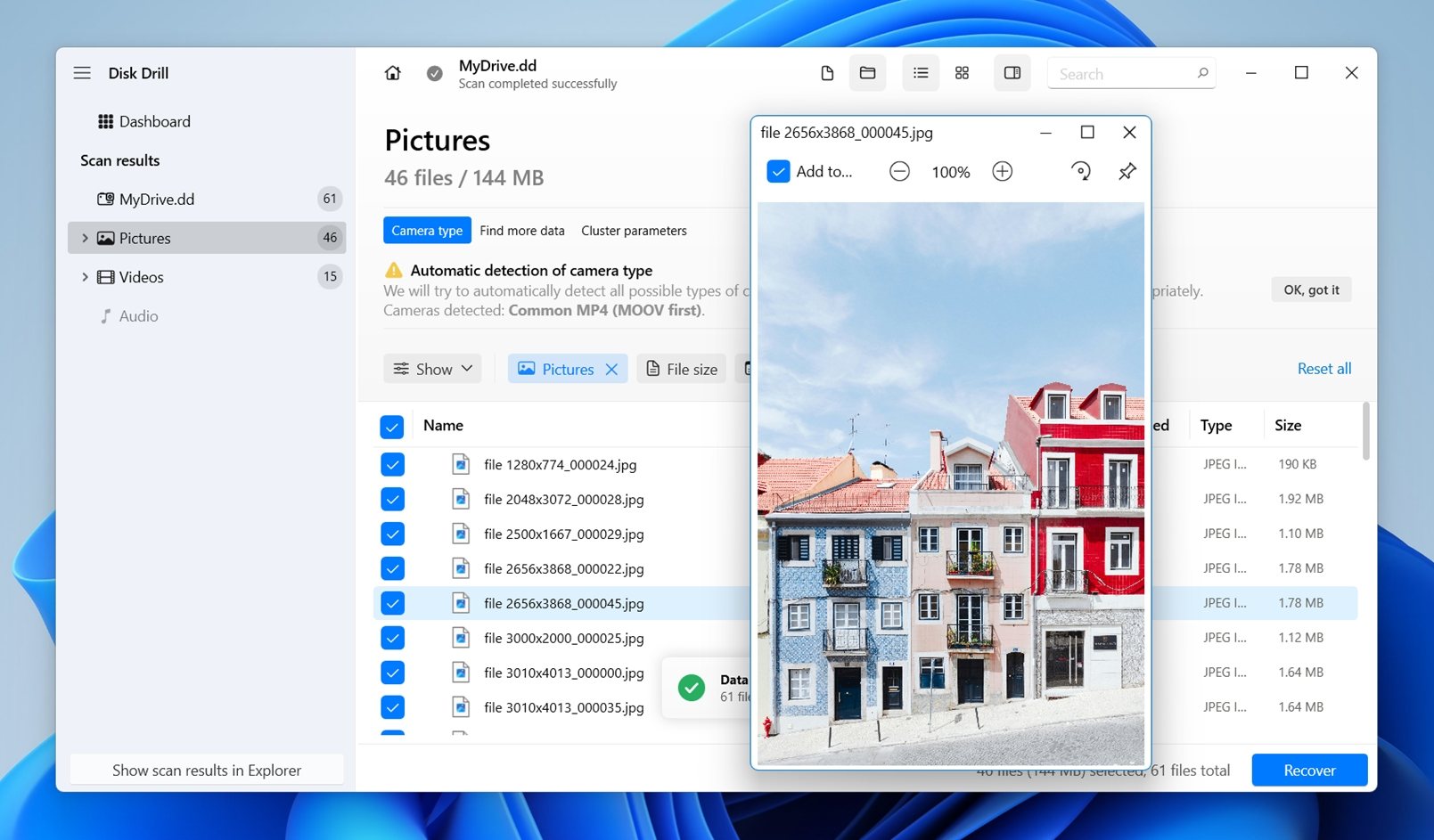
Supported file systems: APFS, HFS, HFS+, NTFS/NTFS5, FAT/FAT32/exFAT, EXT2/EXT3/EXT4, BTRFS | Supported file formats: around 400 | Price: $89/year (Subscription) or $149 (Lifetime License), free version for Windows available (recovers up to 100 MB)
After our team’s in-depth evaluation, we found that Disk Drill delivers a smooth recovery process for both Windows and Mac platforms. Our hands-on experience showed its exceptional strength in recovering RAW files and video footage. (Its Advanced Camera Recovery mode is a major advantage for anyone who works with footage from cameras, drones, action cams, or any similar devices.)
Overall, we’d say Disk Drill’s recovery capabilities make it one of the strongest options for SanDisk SD card recovery right now. It’s powerful tool for professional photographers and videographers, but the workflow is simple enough that almost anyone can use it without feeling lost.
The free Windows version lets you preview an unlimited number of files and recover up to 100 MB at no charge. That’s perfect for testing results on your SanDisk memory card, and getting a bunch of photos or short video clips before committing. For larger jobs, Disk Drill PRO costs $89/year (or $149 for a lifetime license).
👍 Pros
- Excellent ease of use.
- Support for many different file formats and file systems.
- Recovers up to 100 MB of data for free.
- Verifies recoverability using the “Preview” feature.
- Advanced Camera Recovery mode can help reconstruct fragmented video footage.
- Works on both Windows and macOS (on a single licence).
👎 Cons
- No portable version available.
- Doesn’t support Linux.
2. R-Studio (Windows, Mac, Linux)
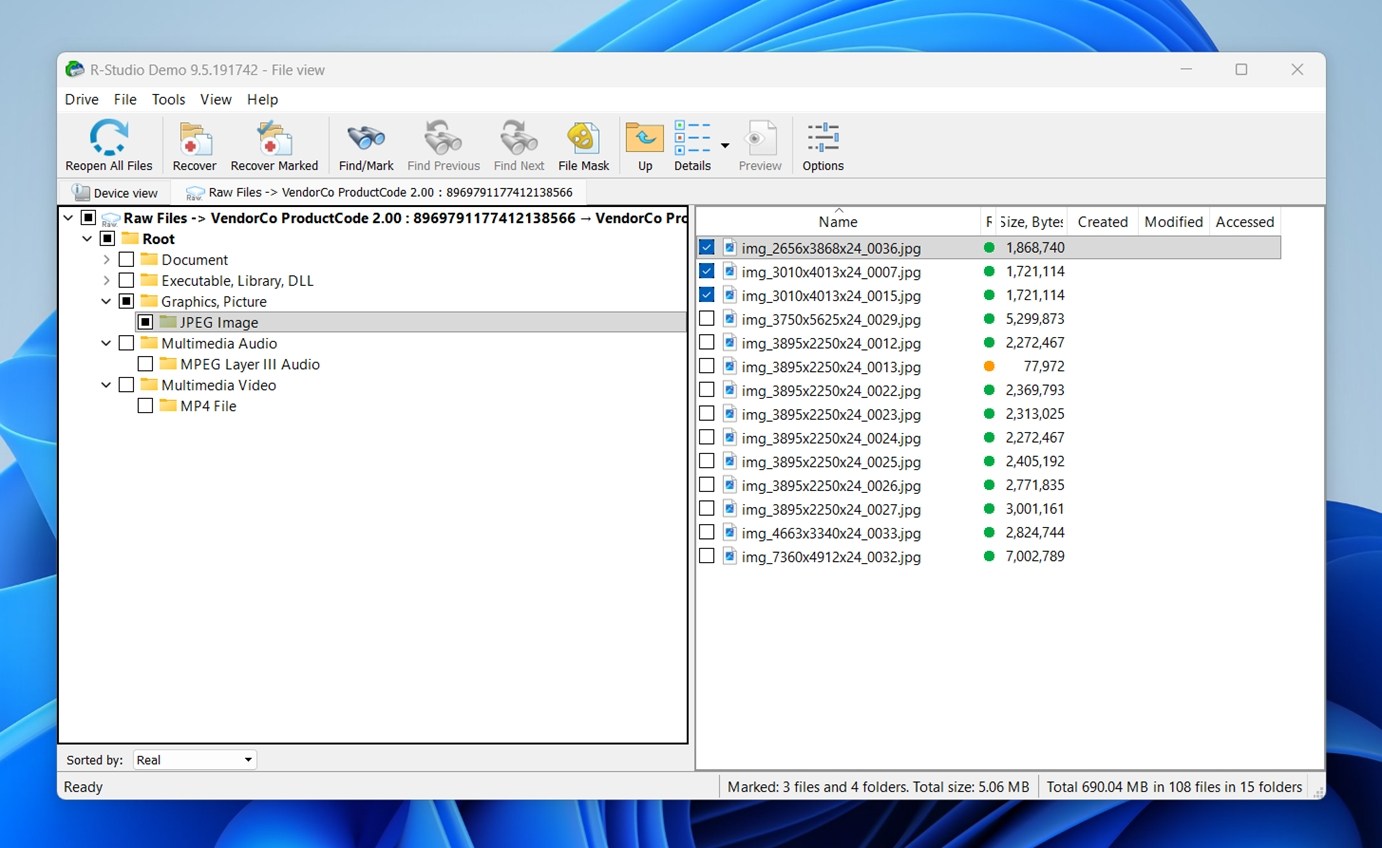
Supported file systems: NTFS, NTFS5, ReFS, FAT12/16/32, exFAT, HFS/HFS+ and APFS (Macintosh), Little and Big Endian variants of UFS1/UFS2 (FreeBSD/OpenBSD/NetBSD/Solaris) and Ext2/Ext3/Ext4 FS (Linux) | Supported file formats: several hundred | Price: from $79.99 (the free version can only recover files up to 1024 KB)
R-Studio is not as friendly as Disk Drill, and we wouldn’t call it the easiest option for someone who has never used recovery software before. But once you get past the denser interface, it’s clear why R-Studio has such a strong reputation among advanced users and recovery technicians.
For SanDisk SD card recovery, its biggest strength is control. R-Studio supports Windows, macOS, Linux, and any common memory card file systems like FAT and exFAT, along with NTFS, ReFS, HFS/HFS+, APFS, Ext2/3/4, UFS, and more. That wide file system coverage matters when you’re not sure what happened to the card, or when the card shows up as RAW after a camera error or failed format.
The demo version is useful for checking results before purchase, but it has a major recovery limit: files larger than 1024 KB can’t be recovered in demo mode. So, for SanDisk photo and video recovery, the free trial is mostly a way to confirm whether the software can find your files. Just keep in mind that each platform requires a separate license, so you better carefully evaluate your purchase decision before you finalize your order. You can check our complete R-Studio software test here.
👍 Pros
- Advanced features, such as a built-in hex editor.
- Can recover networked storage devices.
- Supports virtually all commonly used Windows, Mac, and Linux file systems.
👎 Cons
- Home users may find it confusing.
- Each platform requires a separate license.
3. EaseUS Data Recovery Wizard (Windows, Mac)
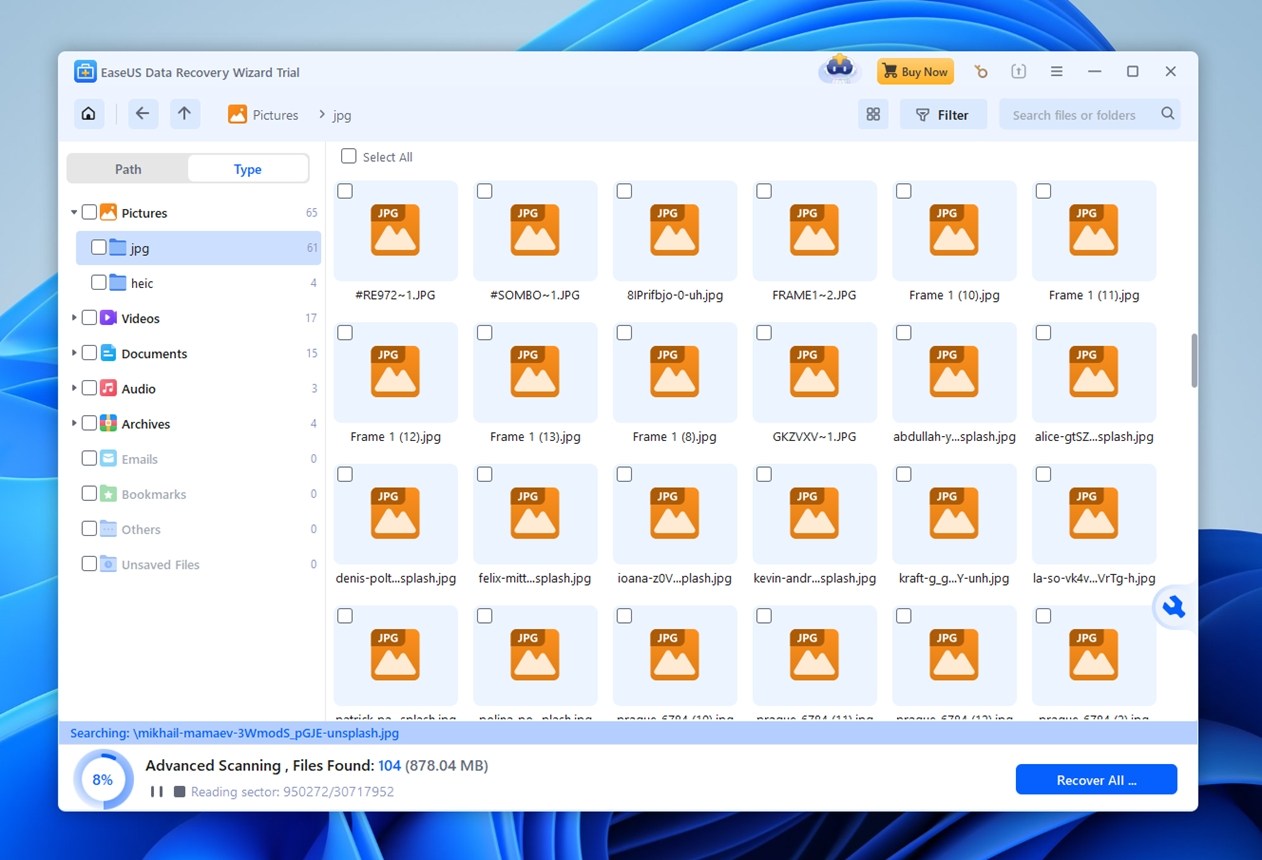
Supported file systems: FAT(FAT12, FAT16, FAT32), exFAT, NTFS, NTFS5, ext2/ext3, HFS+, ReFS | Supported file formats: over 1,000 | Price: $69.95 a month or $99.95 a year (the free version can recover up to 2 GB)
EaseUS Data Recovery Wizard is one of the easier SanDisk recovery tools to recommend for casual users, mostly because the workflow is simple from the first screen. You pick the SanDisk SD card, start the scan, and wait while the results fill in by category.
For SanDisk SD card recovery, EaseUS works best in the common cases: deleted photos, formatted cards, missing files, and memory cards that still appear correctly in Windows or macOS. It supports the file types most people keep on SanDisk cards, including photos, videos, documents, and RAW camera files. We also like that it gives beginners enough guidance without burying them in technical scan settings. That said, it feels less flexible than tools like R-Studio, and it doesn’t have the same kind of power as Disk Drill.
As we mentioned in our full EaseUS Data Recovery review here, it is a solid SanDisk data recovery software choice, but some things hold it down, like inconsistent file previews and lackluster success with certain RAW formats. That’s why we’d recommend EaseUS mostly for straightforward SanDisk recovery cases.
👍 Pros
- Simple user interface.
- Good choice for common SanDisk recovery cases.
- Generous free version.
👎 Cons
- Scan time is always irrelevant.
- Not many file formats can be previewed.
- Windows and Mac versions require a separate license.
4. Recuva (Windows only)
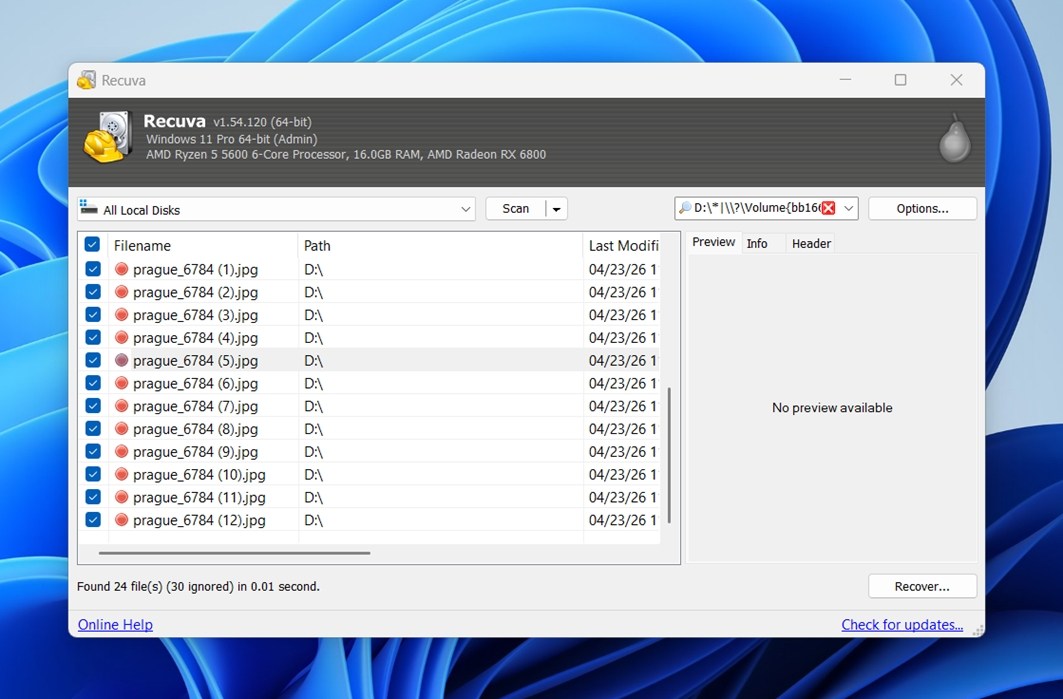
Supported file systems: FAT, exFAT, NTFS, Ext2, Ext3, and Ext4 | Supported file formats: less than 100 | Price: Recuva is free, but you can pay $24.95/year to upgrade to Recuva Professional
The glory days of Recuva might be over considering this once extremely popular and well-rated file recovery application hasn’t kept up with modern recovery tools, and the interface looks pretty dated today, but that doesn’t mean Recuva isn’t worth your time anymore. When it comes to simpler data recovery jobs, Recuva is still a fantastic option because it can restore an unlimited number of files free of charge.
Yes, you won’t find sophisticated recovery modes here. (You can choose between a quick scan and a deep scan, and that’s mostly it.) There are no real-time previews, no disk imaging, and no advanced modules for damaged cards or fragmented camera footage. We cover the full list of missing features in our complete Recuva review, but for this guide, the important part is simple: Recuva is one of the few truly free SanDisk SD card recovery tools that can still get the job done when the case isn’t too complicated.
👍 Pros
- Simple wizard-style workflow.
- Unlimited free recovery.
- Works well as a first attempt.
👎 Cons
- Preview options are very limited.
- Unable to scan disks with a RAW file system.
- Signatures are outdated, failing to recognize modern video and photo formats.
5. SanDisk RescuePRO (Windows, Mac)
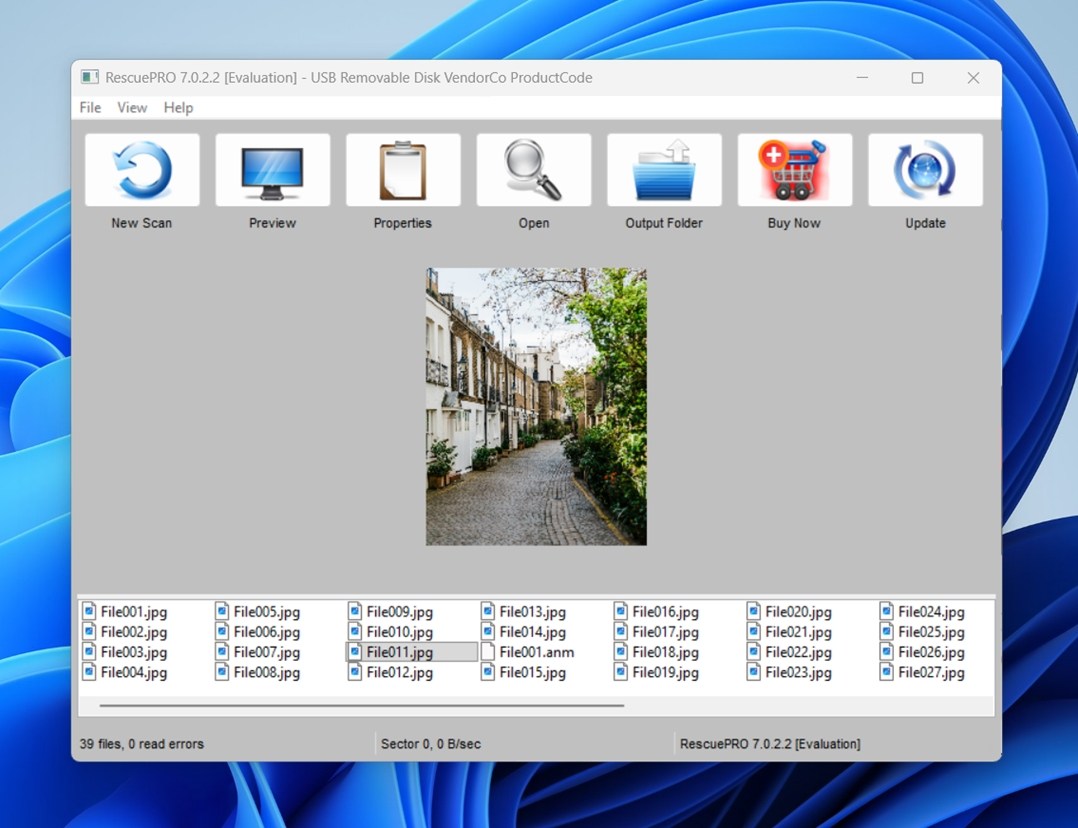
Supported file systems: NTFS and FAT file systems | Supported file formats: images, documents, mail, standard definition video, music, and more | Price: from $39.99 a year
You can often find a RescuePRO license bundled with a new SanDisk card, usually on the back of the package or on an insert inside the box. That alone makes it worth mentioning in a SanDisk recovery software roundup. If you already paid for a SanDisk Extreme, Extreme PRO, or similar card and the recovery license is sitting in the packaging, it makes sense to try it before you buy another tool.
In our testing, RescuePRO proved good at simple recoveries, easily handling lost files on various SanDisk cards. However, its performance fell short in more complex situations, such as attempting to recover data from SD cards with corrupted file systems. Despite this limitation, the entry-level version of RescuePRO sufficiently meets the needs for basic memory card data recovery. That’s why we decided to include it in our list, even though it clearly doesn’t come close to the top performers we already covered.
👍 Pros
- Often comes bundled with SanDisk memory cards, so you may already have a license.
- Good enough for basic SanDisk recovery cases.
- Supports common file types stored on SD cards.
👎 Cons
- To recover RAW formats or videos you need a Deluxe edition ($59,99/year).
- Non-intuitive user interface.
- No advanced features.
6. Stellar Data Recovery (Windows, Mac)
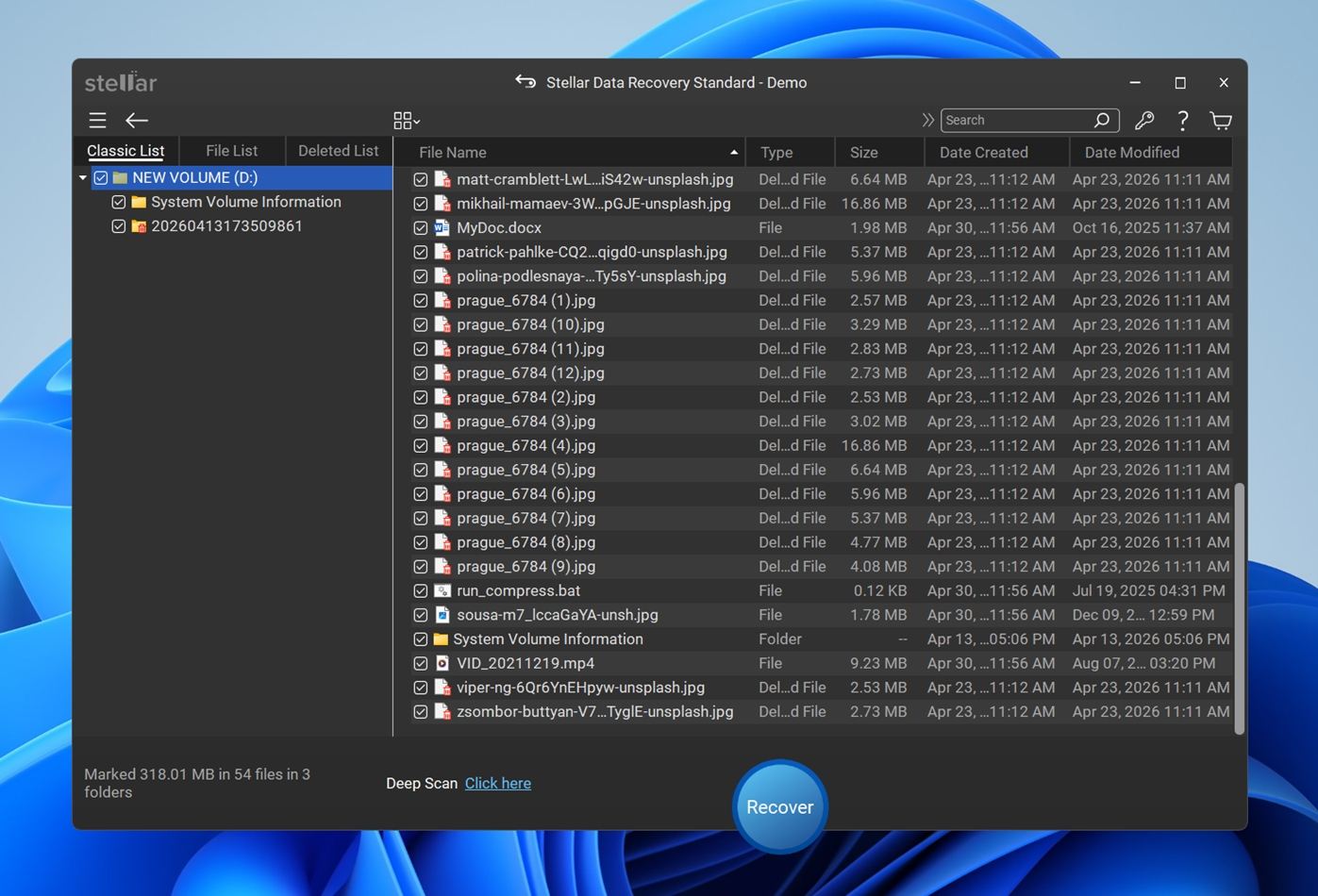
Supported file systems: APFS, HFS, HFS+, NTFS, FAT & ExFAT | Supported file formats: over 200 file formats | Price: from $59.99 a year (the free version can recover up to 1 GB of data for free)
Stellar Data Recovery is one of those tools that makes a strong first impression. The interface looks great, the recovery workflow is easy to follow, and the app offers more than basic file recovery. Depending on the edition, you get extras like disk imaging and file repair for photos and videos. That feature set makes Stellar feel more complete than many simple SanDisk undelete tools.
In our testing, though, Stellar Data Recovery didn’t quite match its presentation. It handled some standard recovery jobs (recently deleted files and basic scans on accessible drives) well enough, but it felt slower and less consistent when the situation became more complex. Cases like corrupted file systems, heavily formatted media, or messy partition loss exposed its limits. But it can still recover a lot, that’s why we still decided to include Stellar Data Recovery in our list, but not as one of the top-tier performers.
It’s a recognizable, beginner-friendly option with a generous-looking feature set and a free version that lets users recover up to 1 GB before paying. Stellar is a safe mainstream pick.
👍 Pros
- Intuitive user interface.
- Several extra features included.
- Responsive customer support.
👎 Cons
- Limited RAW formats supported.
- Limited preview options for video files.
- It takes a long time to process the scan results.
7. 4DDiG Data Recovery
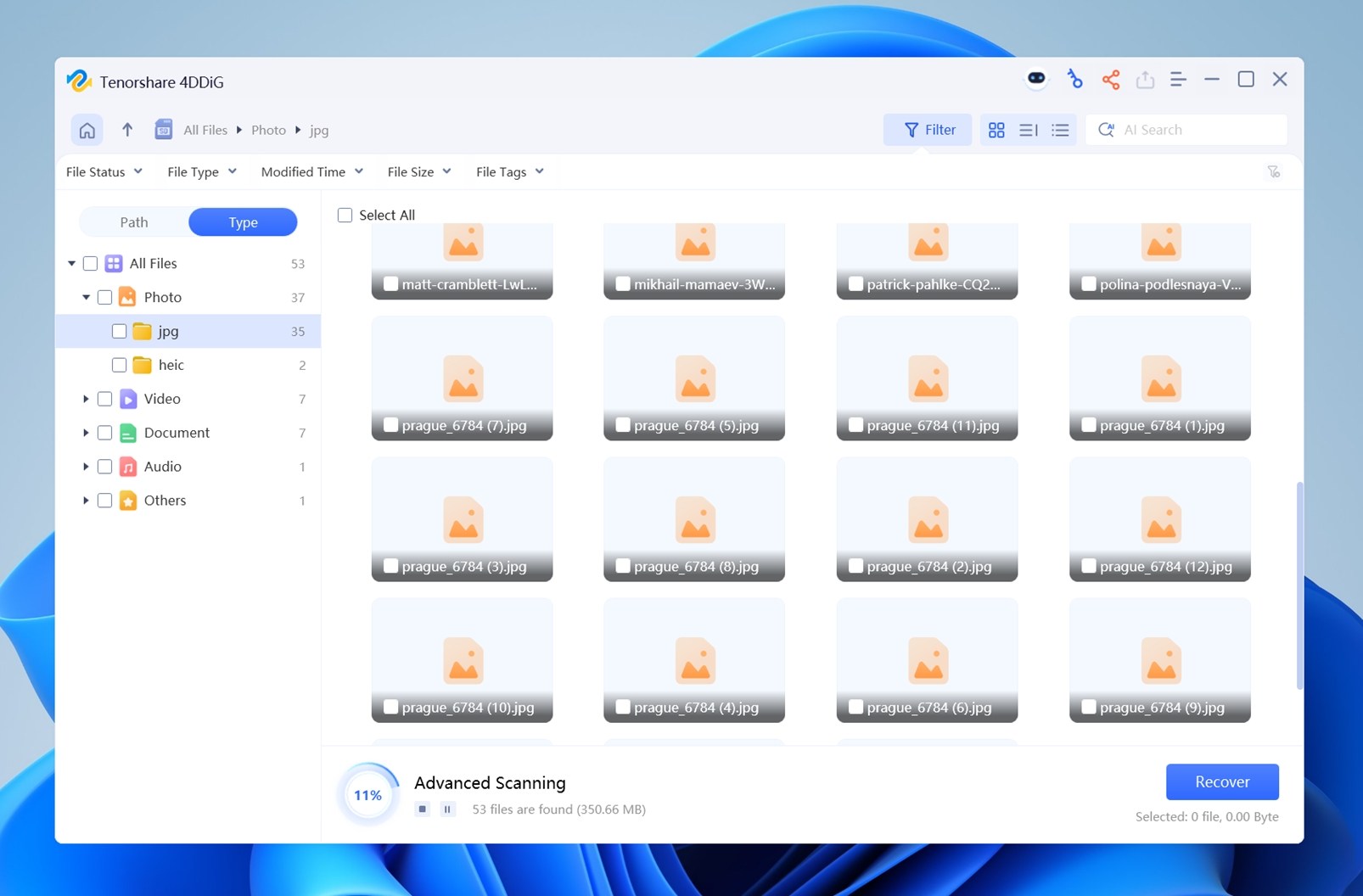
Supported file systems: FAT, FAT32, exFAT, NTFS, APFS, HFS+, and ext2/ext3/ext4 | Supported file formats: several hundred file types | Price: free version with up to 2 GB recovery; paid plans from $45.95/month
Another good option for SanDisk SD card recovery is 4DDiG. It supports SD cards, USB drives, cameras, memory cards, external drives, and other removable devices, so it fits the kind of storage most SanDisk users need to recover. The interface is straightforward, like most similar apps: select the card, scan it, preview files, and recover them to a safe location.
Its main selling point for SD card recovery is the mix of broad file format support and extra recovery modes. 4DDiG claims support for hundreds of file types, including photos, videos, documents, archives, audio, and email files. That matters for SanDisk cards used in cameras, phones, drones, dashcams, any other devices where one card can hold JPGs, RAW photos, MOV/MP4 videos, and random document files. It also includes a dedicated Camera Recovery mode, plus file repair tools for damaged photos and videos. We’d treat the “AI-powered” label around camera recovery with some caution, but the feature can still be useful for broken or incomplete clips from SD cards.
As our full Tenorshare 4DDiG review concluded, the trade-off is value: it is not the cheapest option once you move past the free limit, and stronger competitors may offer more advanced tools for the money.
👍 Pros
- Beginner-friendly interface.
- Free version can recover up to 2 GB.
- Available for Windows and macOS.
- Lets users preview files before recovery.
👎 Cons
- Subscription can feel expensive.
- Not as strong a value as some competitors.
- Marketing claims feel a bit aggressive.
- Less appealing for advanced users who need deeper control.
8. Minitool Data Recovery (Windows)
Supported file systems: FAT12, FAT16, FAT32, exFAT, VFAT, NTFS, NTFS5 and ISO9660, Joliet, UDF | Supported file formats: several hundred | Price: from $69.00 a month or $89.00 a year
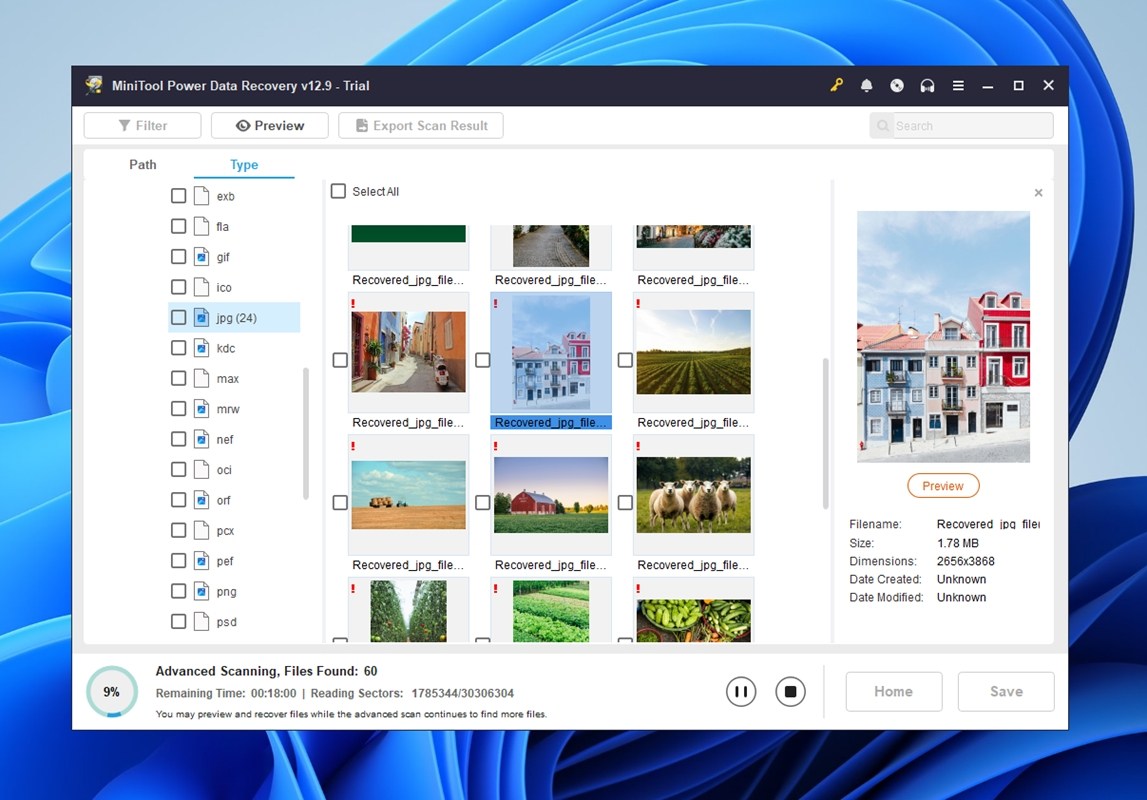
MiniTool Power Data Recovery earned a spot on our SanDisk recovery software list because it covers the basics that matter for (most) SD card cases. It supports common removable-storage file systems like FAT32 and exFAT, works with SD cards, USB drives, and other everyday Windows media, and keeps the recovery process simple: select the card, scan it, preview the results, and recover what you need to another drive. In our MiniTool test, it handled deleted files and quick-formatted media reasonably well, which is exactly the kind of simple SanDisk SD card recovery case many users deal with.
We also liked that MiniTool gives users 1 GB of free recovery, so it can work as a practical SanDisk data recovery software free option if you only need to restore a smaller batch of photos/videos ot documents. But it’s not a heavy-duty SanDisk recovery tool. It lacks disk imaging, has limited preview functionality, and struggled more once we moved into corrupted-drive territory. So we selected it as a beginner-friendly SanDisk file recovery option for basic jobs, not as the best choice for high-stakes media recovery.
👍 Pros
- Addresses all common cases of data loss.
- Frequently updated.
- Support for Windows Server operating systems.
👎 Cons
- Windows-only.
Not the strongest choice for corrupted SD cards.
9. PhotoRec (Windows, Mac, Linux)
Supported file systems: FAT, exFAT, NTFS, and ext2/ext3/ext4 | Supported file formats: supports more than 480 file extensions | Price: free and open-source
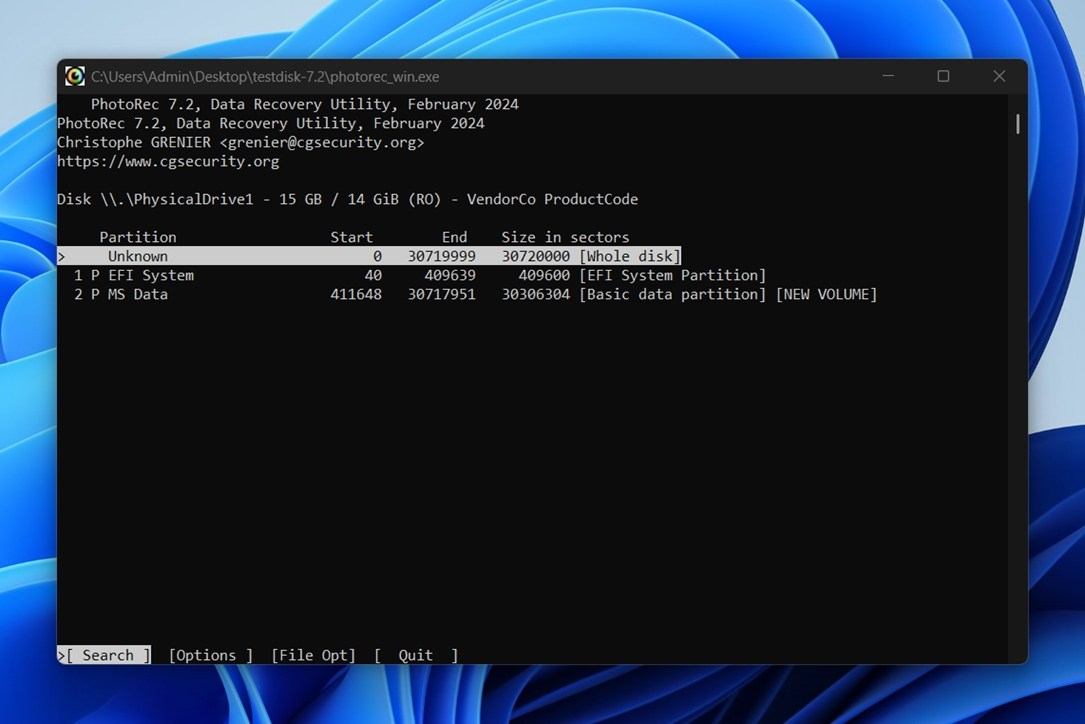
PhotoRec deserves a place on any SanDisk SD card recovery list mostly because it is completely free, open-source, and surprisingly broad in what it can recognize. It runs on Windows, macOS, Linux (and several other systems), and it supports recovery from SD cards, memory cards, USB drives, disk images, hard drives, and more. That makes it a useful option when someone needs SanDisk recovery software but doesn’t want to pay.
Its other big selling point is file format support. PhotoRec can recognize and recover hundreds of file extensions across photos, videos, documents, archives, and other common file families, which is helpful for SD cards used in cameras, drones, phones, dashcams, or mixed-use devices. It’s not the only tool that can scan by file signatures, of course. Most recovery apps can do that too, and many add previews, folder reconstruction, disk imaging, and a cleaner interface on top. But for a free SanDisk file recovery tool, PhotoRec’s format coverage is still impressive.
We selected it for this list because it gives users a no-cost recovery option. But the main trade-off, as we cover in our full review, is usability. The classic interface is not beginner-friendly at all, recovered files get generic names, and original folder structure won’t survive. So PhotoRec is not the smoothest SanDisk recovery tool, but it is free, proven, widely compatible, and still worth keeping in the toolbox.
👍 Pros
- Multi-platform.
- Source code publicly available.
- Can repair file system issues.
- Completely free.
👎 Cons
- Command-line user interface.
- The least intuitive SD card recovery software on this list.
What to Do in Common SanDisk Data Loss Cases
Before we wrap up, let’s go through the most common SanDisk data loss scenarios we see with SD cards, microSD cards, and similar devices. The useful question here is what you should do next.
Below, we’ll look at what you can learn from other people’s mistakes – when SD card recovery tools can help, and what you should do (and what you should avoid) so you don’t make recovery harder than it already is.
| Scenario | Does DIY recovery help? | What to do | What not to do |
| Deleted files | Yes, often. If the files haven’t been overwritten, recovery software has a good chance. | Stop using the SanDisk device and scan it with recovery software. Recover files to another drive. | Don’t save new photos, videos, or documents to the same card or USB drive. |
| Accidental quick format | Yes, often. A quick format usually removes file system records but doesn’t erase all file data right away. | Scan the formatted card or drive before you copy anything new to it. | Don’t format it again “to fix it.” Don’t reuse it before recovery. |
| Full format / secure erase | Chances are close to zero. | You can still scan the device, but keep expectations realistic. | A full wipe is much harder to recover from than a quick format. |
| Card asks to be formatted | Yes, but scan first. This usually points to file system damage. | Use recovery software first. After you recover the files, you can format the card to make it usable again. | Don’t click Format if the files matter. Don’t run repair tools before recovery. |
| RAW file system / unreadable partition | Yes, often. Signature scans and deep scans can still find files. | Scan the SanDisk device with recovery software that can handle RAW drives. | Don’t use CHKDSK or other repair tools as your first move if you need the files. |
| Not showing up in File Explorer/Finder, but visible in Disk Management/Disk Utility | Usually yes. The system still detects the device, so software may be able to scan it. | Check whether the device appears in Disk Management on Windows or Disk Utility on Mac, then scan it. | Don’t initialize, erase, or repartition the device. |
| Not detected at all | Usually no. | Try another card reader, USB port, cable, or computer. If nothing detects it and the files matter, contact a recovery lab. | Don’t keep plugging it in over and over if it heats up, disconnects, or behaves strangely. |
| Interrupted transfer | Sometimes. Complete files may be recoverable; unfinished files may be damaged. | Scan the card or USB drive and check recovered files with preview. | Don’t continue the transfer onto the same device before recovery. |
| Camera or video errors | Yes, but choose the right tool. Camera videos can be fragmented. | Use recovery software that handles camera media well, especially if you lost MP4/MOV footage. | Don’t keep recording test clips on the same card. New video can overwrite old video fast. |
| Malware or hidden files | Yes, if the files are hidden or the file system is affected. | Scan the computer for malware first, then check whether files are hidden. If needed, recover from a clean system. | Don’t assume the files are deleted just because they disappeared. |
| Fake or failing SanDisk card | Sometimes, but proceed carefully. | Create a byte-to-byte image first if the card is unstable, then scan the image instead of the original. | Don’t stress the card with repeated scans, copies, or repair attempts. |
| Physical damage | No, not with DIY software. | If the card is cracked, bent, water-damaged, or unreadable on every device, use a professional recovery service. | Don’t try risky physical fixes at home. Software can’t scan a device the system can’t read. |
Conclusion
As you can see, there’s no shortage of options. But if you’ve reached this point and still feel undecided, we’d suggest looking no further than the #1 on this list: Disk Drill. Pound for pound, Disk Drill is the best SanDisk recovery software on the market right now. The combination of a clean, obvious workflow, a sophisticated recovery engine, and extra features like byte-to-byte backups and Advanced Camera Recovery makes it the safest all-around pick for most people.
That said, the other tools that made this list are not slackers either. Recuva still deserves attention because it’s simple, lightweight, free and useful for basic deleted-file recovery on Windows. PhotoRec, despite its rough interface and generic recovered filenames, remains a valuable free and open-source option with broad file format support. R-Studio is a stronger fit for advanced users who want deeper control and more technical recovery options. EaseUS, Stellar, MiniTool, and 4DDiG all offer beginner-friendly workflows and can handle everyday SD card recovery cases well enough. The balance may not be as impressive across the board, but each tool still has something real to offer.
FAQ
Selecting the best SanDisk SD card recovery software is no easy task because we all have different preferences and priorities. That said, here are the top 3 recovery tools based on our own independent testing:
- Disk Drill (Windows & Mac)
- R-Studio (Windows, Mac, Linux)
- EaseUS Data Recovery Wizard (Windows & Mac)
For corrupted SanDisk media, look for recovery software that offers disk imaging and strong file type support. Disk imaging matters because a corrupted SD card, USB drive, or external drive can become less stable with every scan attempt. A safer approach is to create a byte-to-byte image first, then scan that image instead of repeatedly stressing the original device.
That’s one reason apps like Disk Drill are the best pick for corrupted SanDisk media. It can create and scan disk images, supports a wide range of file systems and file types, and includes extra recovery modes like Advanced Camera Recovery for fragmented camera videos.
Windows 11 has a few built-in tools that can help with SD card problems, but it does not have a full SanDisk SD recovery utility built in. For example, you can use Disk Management, CHKDSK, and Error Checking to inspect or repair a card, but these tools are not designed to recover deleted photos, videos, or files.
Microsoft also has Windows File Recovery, a free command-line recovery tool available from the Microsoft Store. It can help in some deleted-file cases, but it’s extremely limited, and it’s not as beginner-friendly as dedicated recovery software.
Yes, but not because the device is SanDisk. Most recovery tools don’t care much about the brand. What matters is the file system, the type of data loss, and the condition of the media. A SanDisk SD card, microSD card, or USB drive may use FAT32 or exFAT, and most decent recovery apps can scan those just fine.
The real difference shows up in tougher cases. If the SanDisk storage was just accidentally deleted or quick-formatted, many tools may recover at least some files. But if the card is corrupted, shows as RAW, freezes during scans, or contains fragmented camera videos, the tool choice matters a lot more.