What should you do if your hard drive suddenly stops working as expected? How can you figure out whether it’s a simple file system error, a failing sector, or something more serious? And, given the amount of software out there claiming to be the best hard disk repair tool, how can you tell which ones are genuinely reliable?
Rest assured that some software solutions do work and can address many hard drive problems. While none can fix severe physical damage, the right tools can repair corrupted file systems, recover lost partitions, restore access to unbootable drives, repair bad sectors, and even help protect your data for the future.
15 Best Hard Disk Repair Tools For Monitoring and Recovery
Our list below includes options for Windows, macOS, or both. Together, they cover a wide range of use cases, so you can use them to analyze, avoid, and solve virtually all common hard drive issues.
1. Disk Drill – Best for Hard Drive Data Recovery
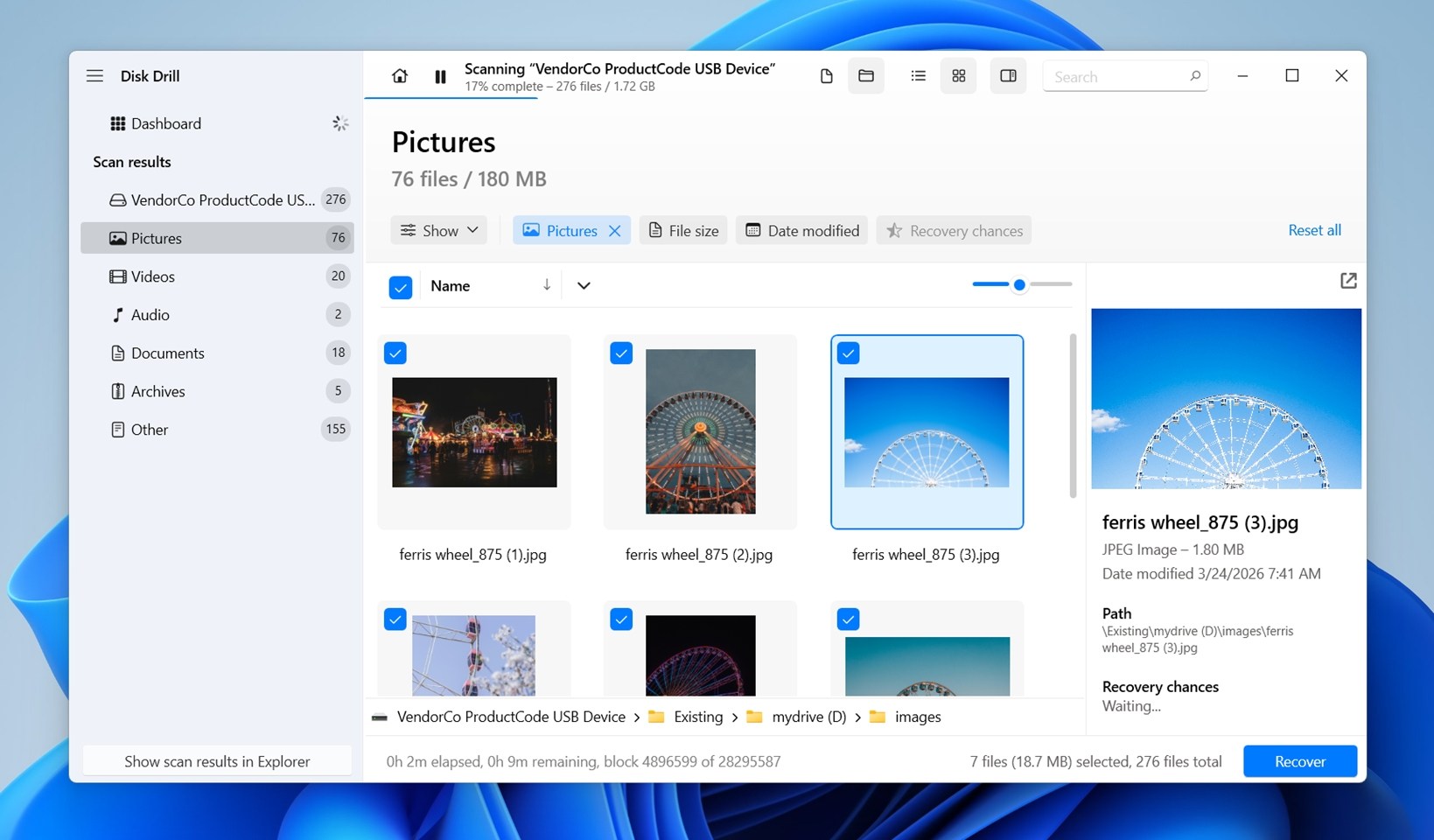
⚙️ OS support: Windows 10/11 and macOS 10.15 or later; current Disk Drill also supports Windows 11 ARM and modern Windows Server releases. If someone is on an older system, there are older Disk Drill releases that can run on Windows XP, Vista, 7, 8, and 8.1. While on Mac, older versions support systems from Mac OS X 10.5 onward.
🧰 Main features: Data recovery for deleted, lost, RAW, corrupted, and unbootable drives; partition data recovery; S.M.A.R.T. monitoring; Byte-to-byte backup; file preview; scan pause/resume; Advanced Camera Recovery module; data protection tools.
💰 Pricing: Paid PRO plans are available as a lifetime license ($149) or a one-year subscription ($89), with Enterprise pricing available on request.
🕹️ Demo/Trial version: Yes. The free Basic edition lets you scan and preview recoverable files before purchase. On Windows, it also allows recovery of up to 100 MB for free (files protected with Recovery Vault on Windows or Guaranteed Recovery on macOS can be restored at no cost as well).
🧑💻 Difficulty level: Easy. The UI is beginner-friendly and easy to use.
Disk Drill is a professional and user-friendly hard drive recovery tool designed to recover lost or deleted data from even the most problematic drives. It can restore lost partitions, recover files from corrupted, unbootable, crashed, or RAW drives, and handle RAID arrays or NAS devices.
It uses an all-in-one scan that utilizes metadata and signature-based scanning to uncover as much data on your problematic drive as it can, and includes a one-of-its-kind Advanced Camera Recovery (ACR) module for the reconstruction of fragmented video files from damaged media. You can even add virtual drives and disk images, allowing for recovery without the physical drive. And, it supports cross-platform scanning across Windows and macOS.
Beyond recovery, Disk Drill comes with some free features to protect and manage your drives. It includes active S.M.A.R.T. monitoring, which will run in the background and alert you to anticipated failures. The advanced byte-to-byte backup module uses a multipass backup algorithm to work effectively with failing drives, and visually maps out and highlights damaged sectors.
👤 User experience:
“Definitely get the DiskDrill software. I have gotten files back from damaged hard drives that even repair shops said they couldn’t fix without sending it to a lab and doing the $10k full physical procedure.”
– @Quincinerate, X user
✅ Pros:
- Provides access to data on or recovers data from problematic drives, including those that are corrupted, unbootable, crashed, or RAW drives.
- Works with all drives, including internal, external, software RAID, NAS, and virtual drives.
- Features an advanced byte-to-byte backup module to work with failing drives.
- Allows users to add virtual drives and disk images for recovery without needing the physical drive present (both created by the tool or created on other systems).
- Ability to pause and resume scans, useful for larger drives or interrupted sessions.
- Offers complimentary tools like active S.M.A.R.T. monitoring.
- Includes file previews, filtering, sorting, and search options during recovery to locate files.
- Offers a free version for small-scale recovery of up to 100 MB.
🙁 Cons:
- Does not include partition management and bad block repairing functions.
- No phone support is available.
- Does not offer built-in video or photo repair (those tools are available separately at no extra cost with paid licenses).
- The scanning process can be time-consuming for large drives.
2. TestDisk – Best for Partition Recovery and Repairing Non-Booting Disks
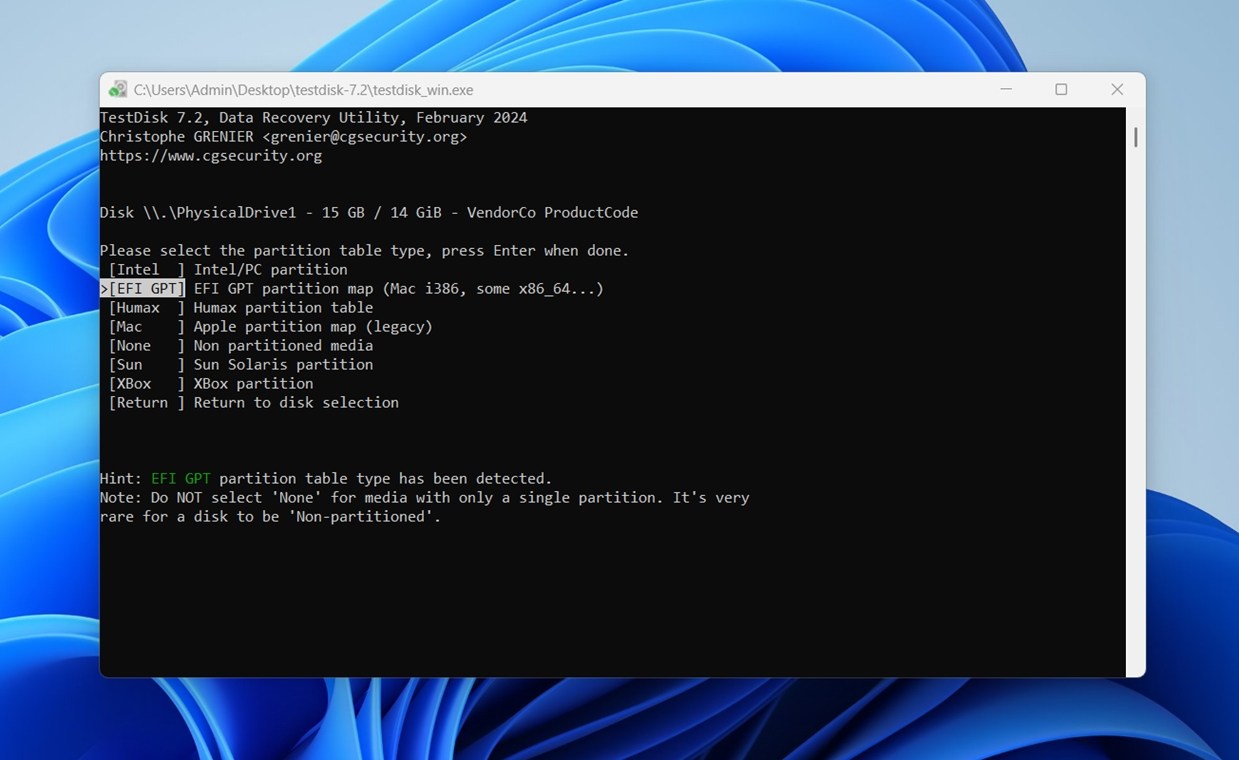
⚙️ OS support: Windows, macOS, Linux, and DOS. TestDisk is one of the more flexible options here in terms of platform coverage, which is part of why it still gets recommended so often.
🧰 Main features: Lost partition recovery; partition table repair; NTFS boot sector repair; FAT boot sector repair; MFT repair; undelete support for FAT, exFAT, NTFS, and ext2; recovery of ext2/ext3/ext4 superblocks.
💰 Pricing: Free. TestDisk is completely open-source.
🕹️ Demo/Trial version: Yes, in the sense that the full version is free to use with no restrictions.
🧑💻 Difficulty level: Hard. The tool is text-based, has no graphical interface, and expects the user to understand at least the basics of partitions, boot sectors, and drive structure.
TestDisk is a powerful and well-respected hard disk repair tool built mainly for structural recovery tasks. It shines when the problem moves into territory like lost partitions, damaged partition tables, broken boot sectors, or drives that show up as RAW or unmountable.
If your goal is to repair hard drive structures and restore access to a disk that no longer behaves normally, this is one of the strongest free options out there.
TestDisk can rebuild partition tables, recover deleted partitions, repair NTFS boot sectors, restore FAT tables, and locate usable superblocks on Linux file systems. It can also undelete files from some file systems, though that is not its best side. For that kind of file-level recovery, you can use PhotoRec, which is bundled with it. While TestDisk absolutely qualifies as a serious hard disk repair software option, it works best when the issue is only structural.
Another reason experienced users still keep it around is its broad file system and platform support. It works across Windows, macOS, Linux, BSD, and DOS, and supports a long list of file systems and partition maps. That makes it a strong candidate when you need a hard disk repair tool that can deal with mixed environments, older systems, or unusual disk setups. It is also lightweight, portable, and often included in rescue environments, which adds to its value as a professional HDD repair tool for advanced users and technicians.
👤 User experience:
“TestDisk is a great little program – If I have a drive that is dying or corrupt I will image it first, then let TestDisk run on the image to recover. Also by the same developer is PhotoRec which is useful if you are just trying to recover a certain type of file (i.e. all *.doc files from a HDD).”
– Reddit user
✅ Pros:
- Completely free and open-source.
- Excellent for partition recovery and boot sector repair.
- Works on Windows, macOS, Linux, DOS, and other systems.
- Lightweight and portable.
- Handles RAW, unmountable, and structurally damaged drives well.
- Supports a wide range of file systems and partition types.
- Often included in bootable rescue environments.
🙁 Cons:
- No graphical UI, which makes it hard for beginners.
- Not ideal for recovering individual deleted files.
- No preview, filtering, recovery tree.
- No session saving or scan resume feature.
- Easy to make mistakes if you are not comfortable working with partitions and low-level disk structures.
3. Clonezilla – Best Disk Imaging Tool
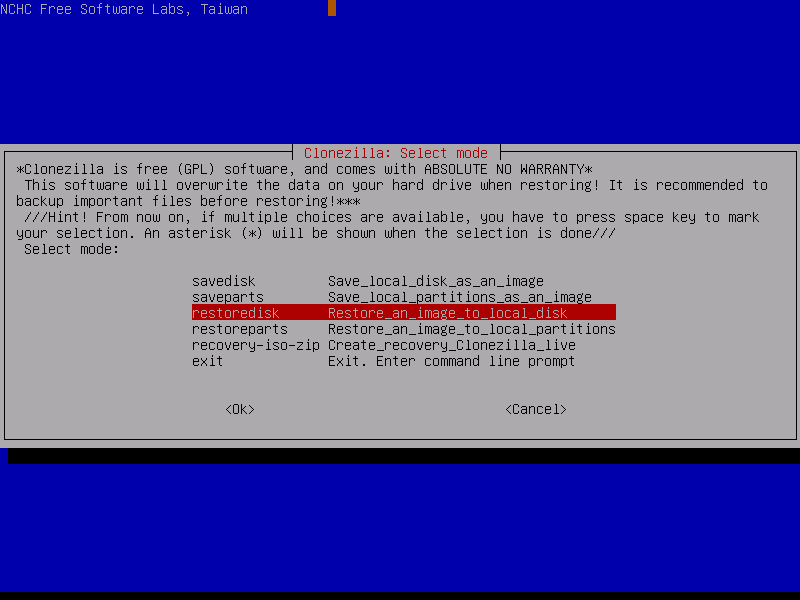
⚙️ OS support: Windows, macOS, Linux, BSD, and other systems, since Clonezilla works as a bootable live environment rather than a normal installed desktop app.
🧰 Main features: Disk imaging and disk cloning; partition backup and restore; used-block copying for supported file systems; sector-to-sector copy for unsupported file systems; boot loader support; MBR and GPT support; unattended mode; encryption and compression; local, SSH, Samba, and NFS image storage.
💰 Pricing: Free (open-source software under the GNU GPL).
🕹️ Demo/Trial version: The full version is free to use with no paid restrictions.
🧑💻 Difficulty level: Hard. Clonezilla runs from boot media and has a technical text-based workflow.
Clonezilla is one of the best options out there for creating backup images of your drives or partitions. When you experience any problem that has affected your drive and caused data loss as a result, creating a byte-to-byte backup of the drive is your first step. Why? Because it preserves your disk’s current state, preventing further loss and allowing for recovery at a later time.
The tool supports a wide variety of file systems, including those used by Windows, macOS, and Linux. You’ll find it can also compress disk images and perform basic repairs to restore unbootable systems. But we decided on Clonezilla for this spot because of its unmatched flexibility and reliability compared with similar open-source tools. It’s particularly useful in scenarios where multiple machines need to be cloned, when migrating to new hardware, or when creating a secure backup before attempting risky system changes.
While it does have a steeper learning curve compared to similar alternatives, its capabilities make it one of the most effective free options out there.
👤 User experience:
“Clonezilla is free (as in Open source). Most of what Macrium and TrueImage can do can also be done with Clonezilla.”
– Splendid, Tomshardware forum moderator.
✅ Pros:
- Completely free and open-source.
- Supports a range of file systems for Windows, macOS, Linux, BSD, and VMware.
- Ability to encrypt and compress backups.
- Can restore boot loaders, handling both MBR and GPT partition schemes.
🙁 Cons:
- Requires external boot media (CD/DVD/USB) to operate.
- Steep learning curve for non-technical users.
- Partitions must be unmounted to be imaged.
4. DiskGenius – Best Basic Bundle
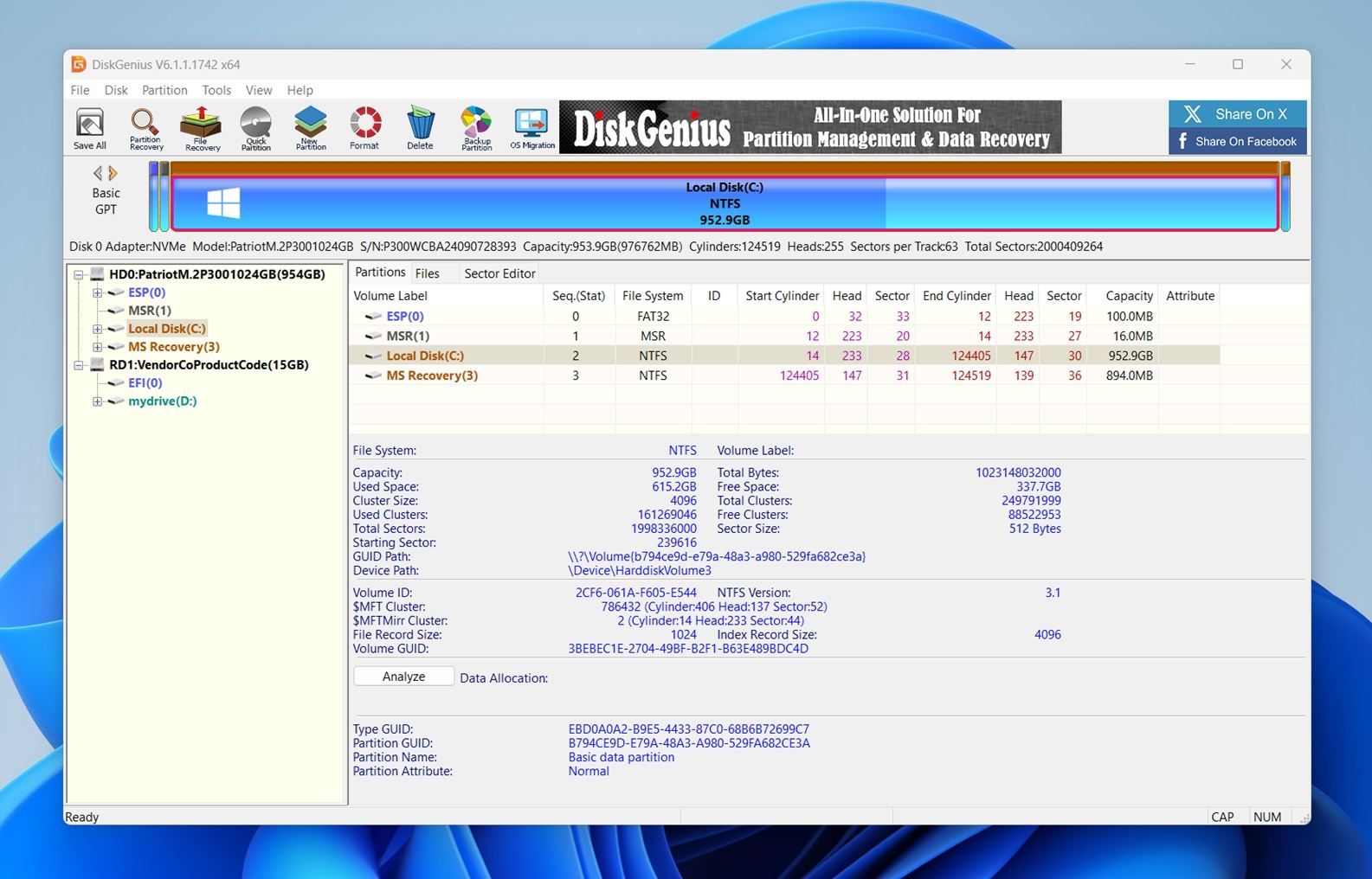
⚙️ OS support: DiskGenius is mainly a Windows tool. It also has a DOS mode for some offline operations.
🧰 Main features: Data recovery; lost partition recovery; partition management; disk and partition cloning; OS migration; backup and restore; bad sector checking and repair; disk health monitoring; secure wipe; support for RAID, BitLocker, virtual disks, and Windows Storage Spaces (higher editions).
💰 Pricing: One-Month ($69.90), One-Year ($99.90), and Lifetime ($129.90) for personal licenses.
🕹️ Demo/Trial version: Yes. DiskGenius offers a free edition and free trial evaluation before purchase, though recovery and advanced functions are limited unless you upgrade.
🧑💻 Difficulty level: Moderate. The UI is graphical and easier to approach than tools like TestDisk or Clonezilla, but some operations still assume you understand partitions and disk structure.
DiskGenius is an all-in-one disk repair tool that combines aspects of data recovery, partition management, and basic disk utilities into a single package. While it may not go as deep into specialized features as other tools we’ve mentioned, its strength lies in its versatility. For users who don’t want to juggle their own tech stack for disk repair, DiskGenius provides a straightforward way to handle common disk-related problems without switching between different programs.
The software can recover lost files and partitions, repair certain disk errors and bad sectors, resize or clone partitions, and even back up data. It also supports hex-level editing for advanced troubleshooting, making it a surprisingly flexible option for a general-purpose tool. And, if you have a damaged RAID array, it can virtually reconstruct and rebuild it on the fly.
Overall, DiskGenius is best suited for users who want a little bit of everything. It might not match the raw recovery depth of Disk Drill or the deployment power of Clonezilla, but for everyday disk repair and management, it’s a convenient and reliable choice.
👤 User experience:
“In my experience, not only is Diskgenius free, but it works consistently and correctly where other companies fall short.”
– Linkticus, Reddit user.
✅ Pros:
- Combines aspects of recovery, partition management, and backup into one.
- Supports RAID reconstruction and virtual disk management.
- Securely erases all data from the hard drive.
- Works outside the operating system (OS).
- Includes a built-in hex editing feature.
🙁 Cons:
- Requires external boot media.
- Cannot wipe solid-state drives.
5. SeaTools – Best for Drive Diagnostics
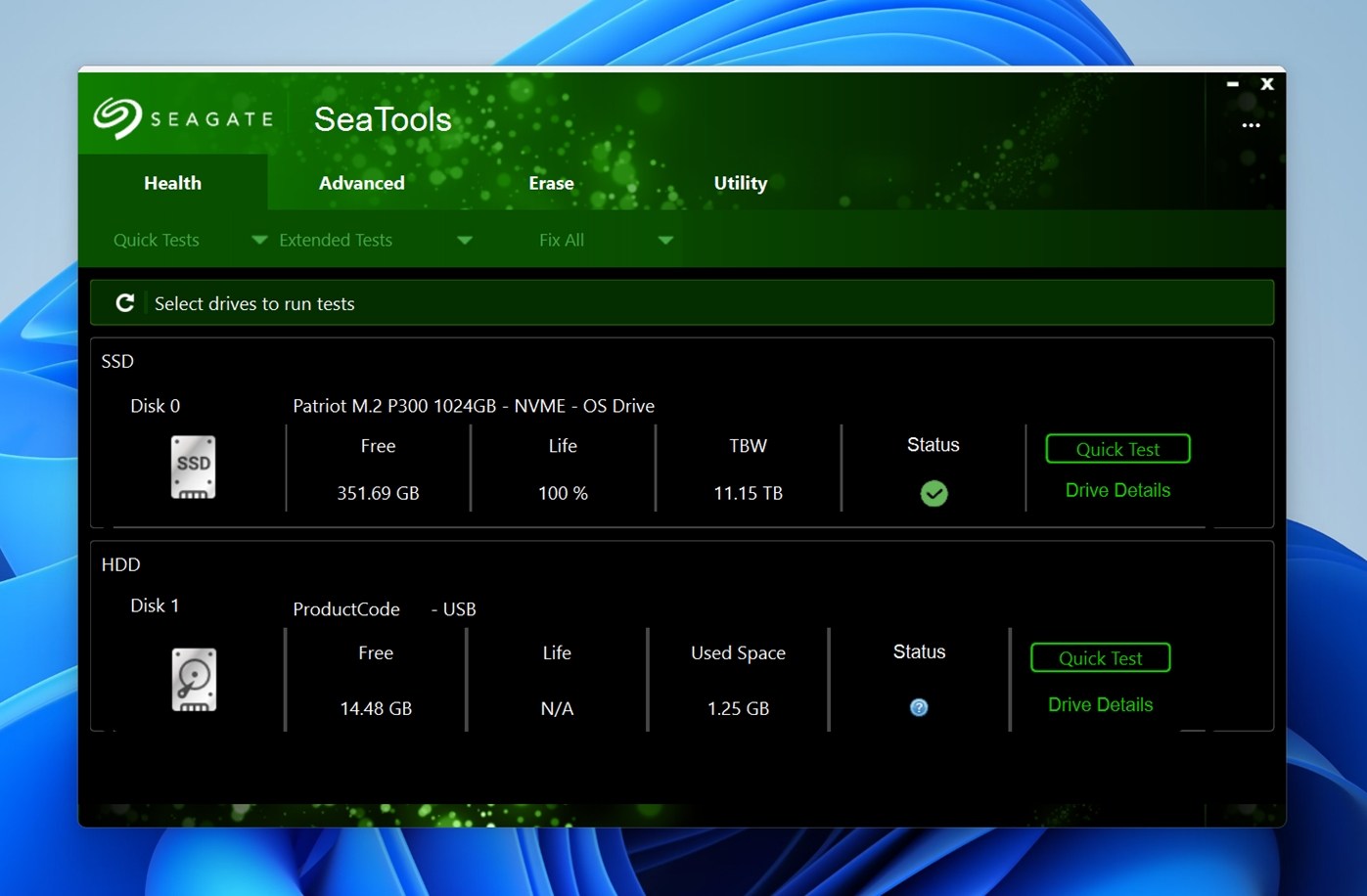
⚙️ OS support: Windows through SeaTools for Windows, plus bootable and Linux-based SeaTools variants for systems that need diagnostics outside the installed OS. SeaTools has also had older DOS-based editions.
🧰 Main features: S.M.A.R.T. status checks; short and long drive diagnostics; generic surface-style tests; bootable diagnostics; SSD monitoring; test logs and results reporting. SeaTools is built as a diagnostic and hard drive repair utility, so its job is to help confirm drive health, spot failure signs, and sometimes trigger firmware-level tests the drive already supports.
💰 Pricing: Free. SeaTools is available from Seagate at no cost.
🕹️ Demo/Trial version: Not needed.
🧑💻 Difficulty level: Easy to moderate. The Windows version is approachable for most users, while the bootable version takes a little more effort (you need to create and boot from USB media).
Seagate’s official hard drive diagnostic utility is one of the better-known options in the hard drive repair software space when your goal is diagnosis. It is designed to test hard drives and monitor SSDs, which makes it useful when a drive starts acting strange and you need to figure out whether you are dealing with file system trouble, failing hardware, or a drive that is simply on its way out. If you want a hard disk repair tool that helps answer the question “Is this drive still healthy enough to trust?” SeaTools is a solid place to start.
What makes it useful is its mix of quick tests and deeper diagnostics. Depending on the version, SeaTools can run short self-tests, short generic tests, long self-tests, long generic tests, and a 2-minute generic test. In plain English, that means it gives you a few ways to check whether the drive can still read its media properly and whether its built-in health reporting shows anything concerning. That makes it more of an HDD health repair tool in the diagnostic sense, not software that repairs lost files or rebuilds damaged partitions.
It also helps that SeaTools is not limited to internal Seagate drives. SeaTools can be used to test Seagate and Maxtor drives, as well as non-Seagate drives in many scenarios.
👤 User experience:
“The only program that correctly determined the HDD was failing was Seagate Seatools using the long generic test (it passed the short tests).”
– Covecube Community member
✅ Pros:
- Free to download and use.
- Good for quick and extended drive diagnostics.
- Can read drive health information and S.M.A.R.T. status.
- Bootable version helps when the installed OS is unstable or unbootable.
- Useful for both internal and many external drives.
- A practical first-step HDD repair software tool before deeper recovery work.
🙁 Cons:
- Bootable workflow is less convenient than a normal desktop app.
- Users may still need another bad sector repair tool, disk imaging app, or recovery suite after testing.
6. CrystalDiskInfo – Best Health Monitoring Tool
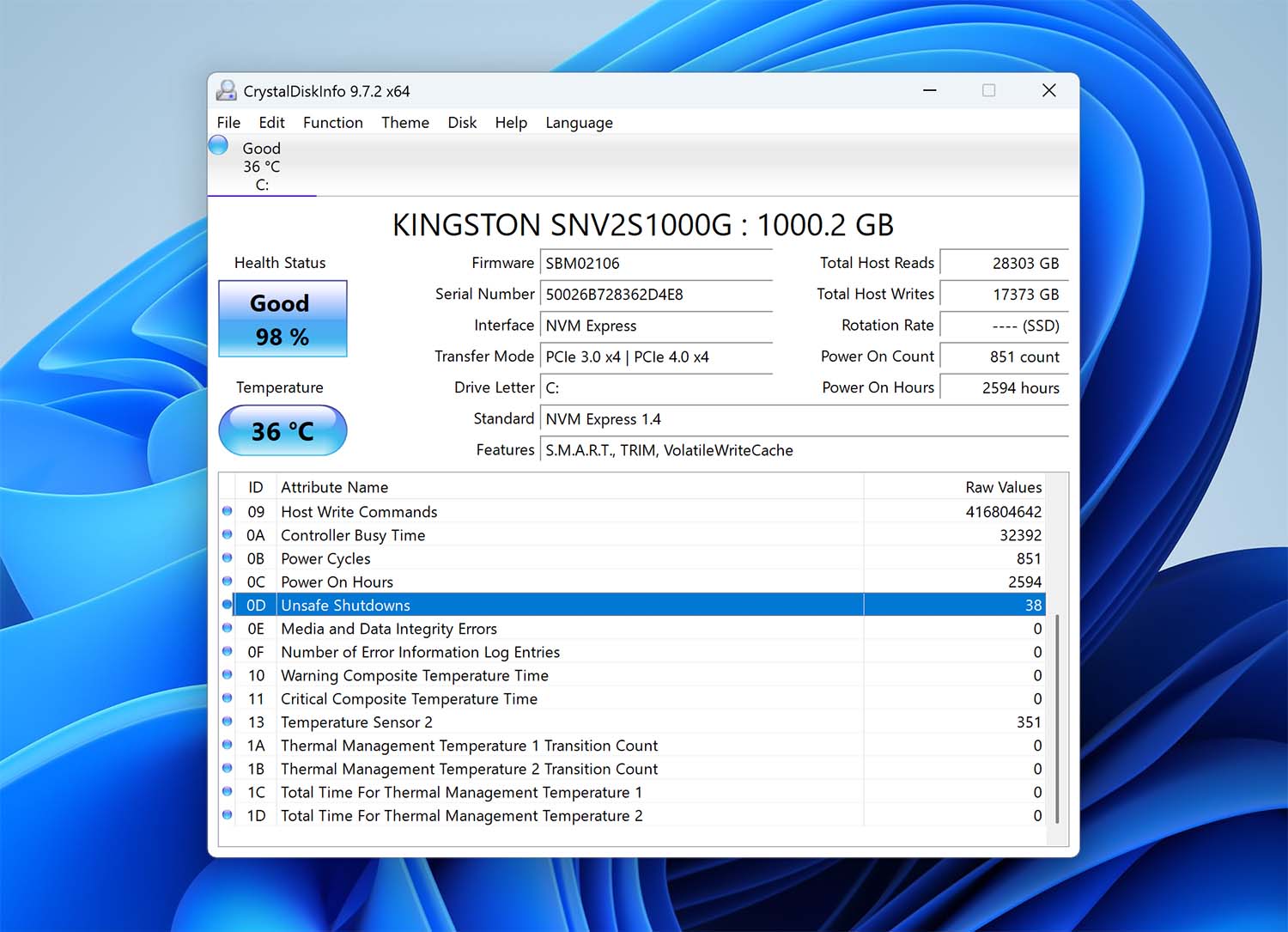
⚙️ OS support: Windows. CrystalDiskInfo supports Windows 11, 10, 8.1, 8, 7, Vista, and XP, plus a range of Windows Server versions.
🧰 Main features: S.M.A.R.T. monitoring; drive health status; temperature tracking; real-time alerts; historical graphs; AAM/APM control on supported drives; tray monitoring; support for many HDDs, SSDs, NVMe drives, and some USB and RAID setups.
💰 Pricing: Free. CrystalDiskInfo is open-source software under the MIT License.
🕹️ Demo/Trial version: Free to use with no paid upgrade required.
🧑💻 Difficulty level: Easy. The interface is simple enough for everyday use, and it is one of the more approachable drive health tools.
CrystalDiskInfo is an extremely handy disk monitoring utility that’s best used as a preventative measure rather than a last resort fix. It can read S.M.A.R.T. (Self-Monitoring, Analysis and Reporting Technology) data from hard disks. S.M.A.R.T. data includes things like the read error rate, seek error rate, or spin-up time. Your S.M.A.R.T. values service as an indicator that can warn you about impending failure, which makes CrystalDiskInfo a useful tool to keep around.
It also allows you to set up custom alerts so you’re warned when thresholds are exceeded. Because it focuses primarily on monitoring, it doesn’t have a lot of additional features like the other solutions we’ve mentioned. That said, it does offer historical temperature graphs, AAM/APM control for turning noise and power settings, and a portable version to run without installing.
👤 User experience:
“I’d suggest that you check on your NVMe or SSD storage using Crystaldiskinfo. It’s good, I use it frequently to monitor my hard drive’s health from time to time”
– @404Usernam, X user.
✅ Pros:
- Can be configured to send event-based alerts.
- In-depth overview of your hard drives.
- Completely free and open-source.
- Also available in themed anime-style editions.
🙁 Cons:
- Cramped interface may be confusing.
- No clear instructions or guides.
7. GSmartControl – Best for SMART Diagnostics
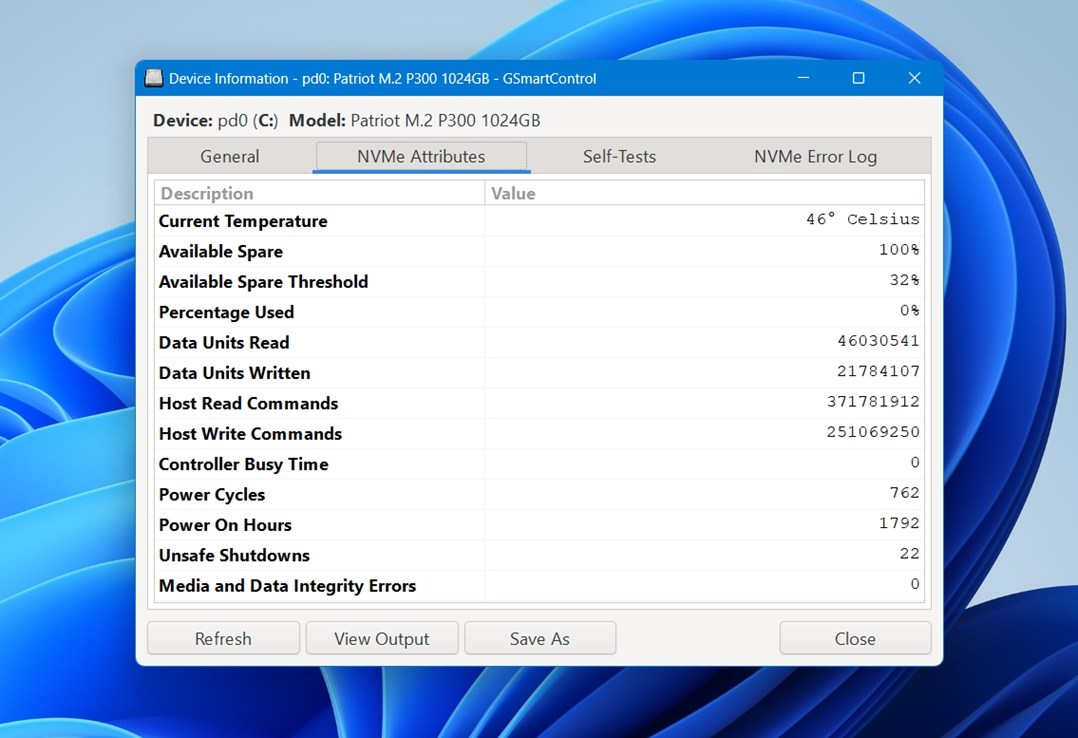
⚙️ OS support: Windows, macOS, Linux, and BSD. Since GSmartControl is a graphical front end for smartctl from the smartmontools package, it has broad cross-platform support and works well in mixed environments.
🧰 Main features: S.M.A.R.T. health inspection; attribute and error log viewing; short and extended self-tests; automatic highlighting of concerning values; support for both HDDs and SSDs. It is built for health checks and diagnostics, not for file recovery or partition repair.
💰 Pricing: Free. GSmartControl is open-source software with no paid tier.
🕹️ Demo/Trial version: Not needed.
🧑💻 Difficulty level: Moderate. The interface is much friendlier than raw smartctl, but the data still helps more if you have at least a basic sense of what S.M.A.R.T. attributes and self-tests mean.
GSmartControl is an open-source hard disk repair tool in the diagnostic sense, built as a GUI for smartctl. In a lot of ways, it fills a similar role to CrystalDiskInfo. If you want a free HDD health repair tool to help spot warning signs before a drive gets worse, this is one of the better options.
What it does is monitoring and self-testing. You can inspect health attributes, read error logs, and run built-in drive tests without dropping into the command line. That makes it more approachable than smartctl alone. GSmartControl can give you a clearer picture before you decide whether to clone the disk, replace it, or move on to stronger hard drive repair software. In that way, it earns a spot on a list like this even though it is more about prevention and diagnosis than repair hard drive actions in the literal sense.
👤 User experience:
“I recommend SMART selftest of SSD. I often use GSmartControl which works great in my experiences.”
– Raspberry Pi Forums
✅ Pros:
- Free and open-source.
- Works across Windows, macOS, Linux, and BSD.
- Much easier to use than raw smartctl.
- Good for checking S.M.A.R.T. health data and running self-tests.
- Useful with both HDDs and SSDs.
- Great first-step HDD repair software tool for diagnostics.
🙁 Cons:
- Some S.M.A.R.T. data can still be confusing for beginners.
- Usefulness depends on the drive and enclosure exposing full S.M.A.R.T. data properly.
- Better as a monitoring tool than as software to fix hard drive problems directly.
8. GParted – Best Partition Manager
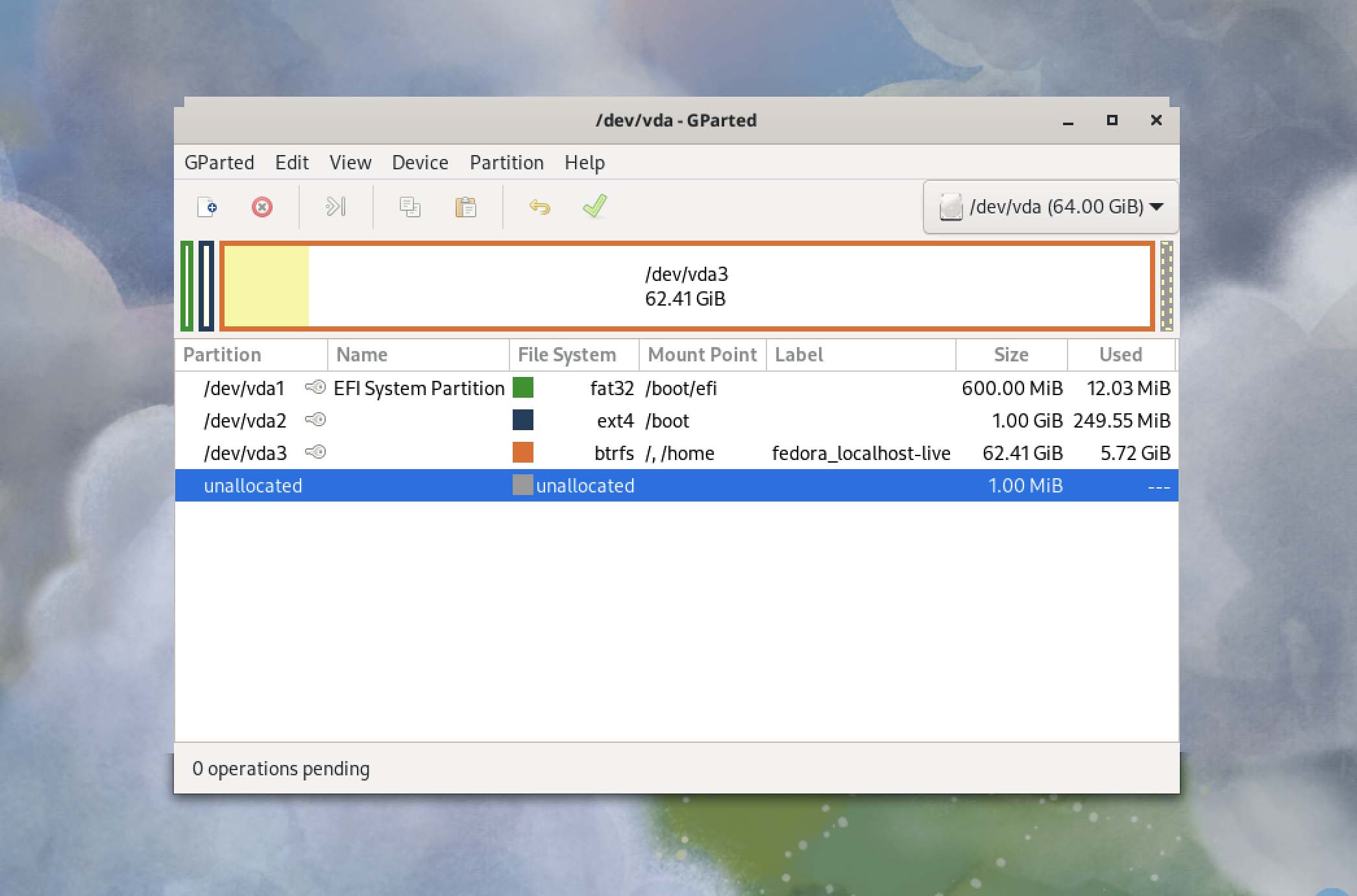
⚙️ OS support: Windows, macOS, and Linux, in the sense that GParted is usually used through the bootable GParted Live environment.
🧰 Main features: Create and delete partitions; resize and move partitions; copy and paste partitions; check and label partitions; set new UUIDs; and work with a wide range of file systems including NTFS, exFAT, FAT32, ext2/3/4, XFS, Btrfs, HFS/HFS+, UFS, and more.
💰 Pricing: Free. GParted is open-source software under the GNU General Public License.
🕹️ Demo/Trial version: Free to use with no restrictions.
🧑💻 Difficulty level: Moderate. The interface itself is graphical and fairly approachable, but because it works at the partition level and is often used from boot media, it still expects the user to understand at least the basics.
GParted is a free, graphical partition editor that you can use to resize, copy, and move partitions without data loss or file corruption. This makes it an excellent option to shrink a partition to create space for another OS, a backup partition, or to simply reorganize your disk layout without wiping your drive.
Part of the reason we chose GParted is that it’s fully cross-platform. It can be run on Linux, macOS, and Windows-based systems by booting from a USB stick or CD/DVD. It’s known by many IT professionals as one of the best HDD repair software options since it can be used to recover partitions that have become inaccessible, repair boot issues by managing partition flags, and check file system integrity with a built-in repair option.
GParted is already included in popular tools like Partclone and the aforementioned Clonezilla, or you can download it as a lightweight bootable GNU/Linux distribution for x86-based computers. Its ability to queue multiple changes before applying them makes it both flexible and forgiving, marking it as a clear upgrade from Windows’ built-in Disk Management tool and similar third-party counterparts.
👤 User experience:
“I tried MS DISKPART first, but found that I was unable to extend my primary partition into unallocated space. GParted did the job fast and efficiently and saved me many headaches. I thank everyone involved for a marvelous utility.”
– prlwtski, SourceForge user.
✅ Pros:
- Queues changes before applying them.
- Works outside the OS.
- No reboots required to commit changes.
🙁 Cons:
- Requires external boot media.
- Large download size.
9. DiskWarrior – Best Diagnostic Tool for Mac
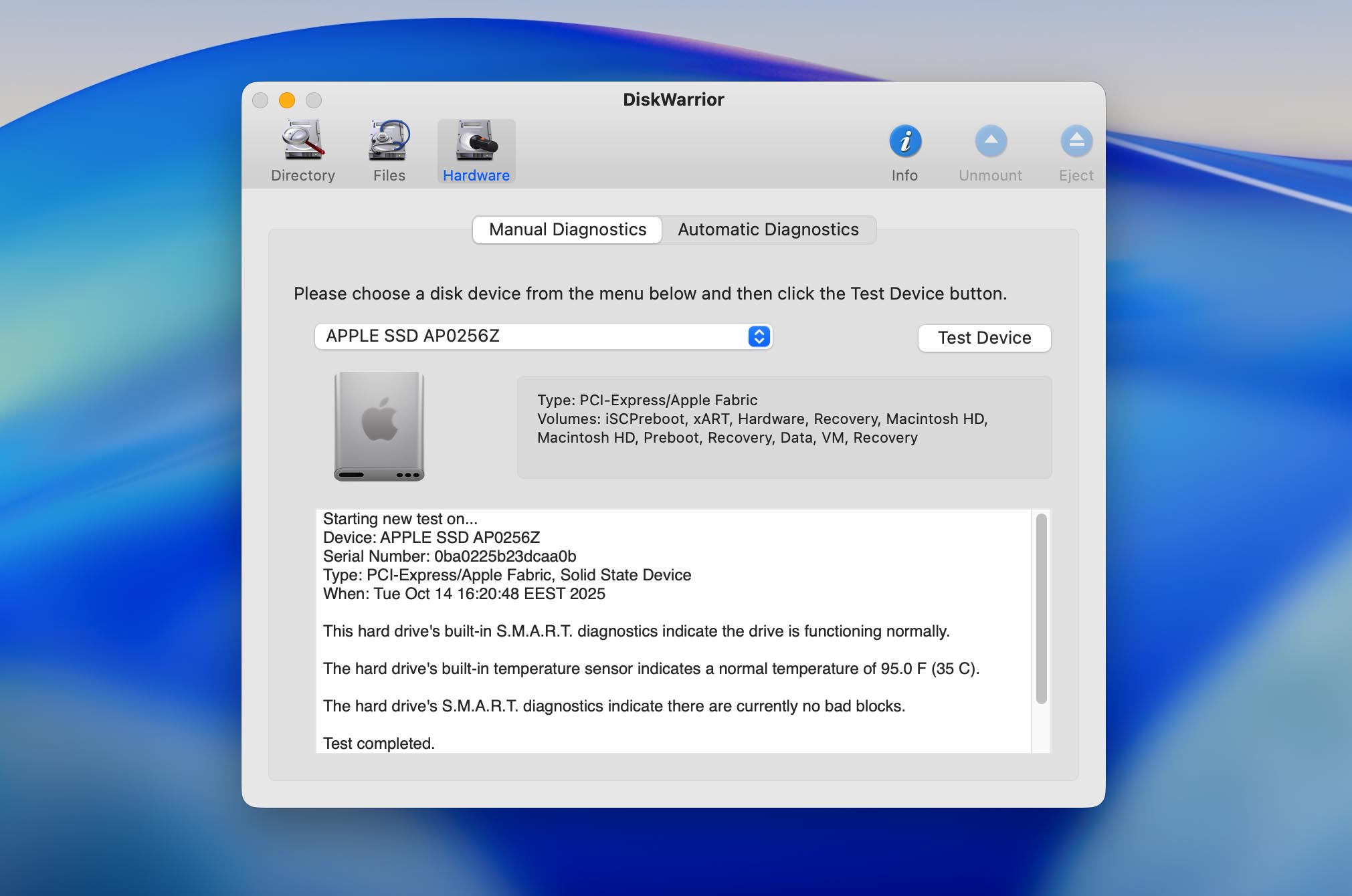
⚙️ OS support: macOS only.
🧰 Main features: Directory rebuilding and repair; recovery of inaccessible files from directory damage; preview before replacement; S.M.A.R.T. drive health monitoring; file and permission checks; support for HFS+ volumes, RAID setups, Fusion Drives, Time Machine volumes, disk images, and other Mac storage configurations when formatted with supported file systems.
💰 Pricing: Paid software with a new copy ($119.95) and upgrade purchase options.
🕹️ Demo/Trial version: No true free trial. The product can preview what a repaired disk would look like.
🧑💻 Difficulty level: Moderate. The interface is simpler than command-line tools, but it still helps to understand Mac file systems, boot methods, and the difference between supported HFS+ volumes and unsupported APFS rebuild scenarios.
DiskWarrior is one of the most trusted diagnostic and hard drive recovery tools available for Mac. Unlike standard utilities, it focuses on rebuilding and repairing the directory structure, which is often the source of file access issues, slow performance, or unbootable drives. It can fix corrupted directories, improve drive performance, and also recover any data that has been lost due to the damage.
The non-destructive approach it takes protects data while it’s scanning, repairing, and rebuilding directories. What’s more, it creates clear, visual reports of your drive’s health to make identifying and addressing potential problems easy. While the tool doesn’t offer support for APFS at the time of this edit, its reliability on HFS and HFS Plus-formatted drives has made it a trusted choice for decades.
👤 User experience:
“DiskWarrior is absolutely worth the money if you have to deal with damaged/corrupted HFS+ filesystems on anywhere near a regular basis.”
– kramer314, Reddit user.
✅ Pros:
- Specialized for macOS HFS+.
- Rebuilds directories without overwriting lost data.
- Can recover lost or inaccessible files from damaged drives.
- Optimizes the directory structure, improving drive performance.
🙁 Cons:
- Exclusively available on Mac.
- Poor fit for most modern Macs.
- No free or trial version available.
- No APFS support.
10. HDD Regenerator – Best Ability to Repair Bad Sectors
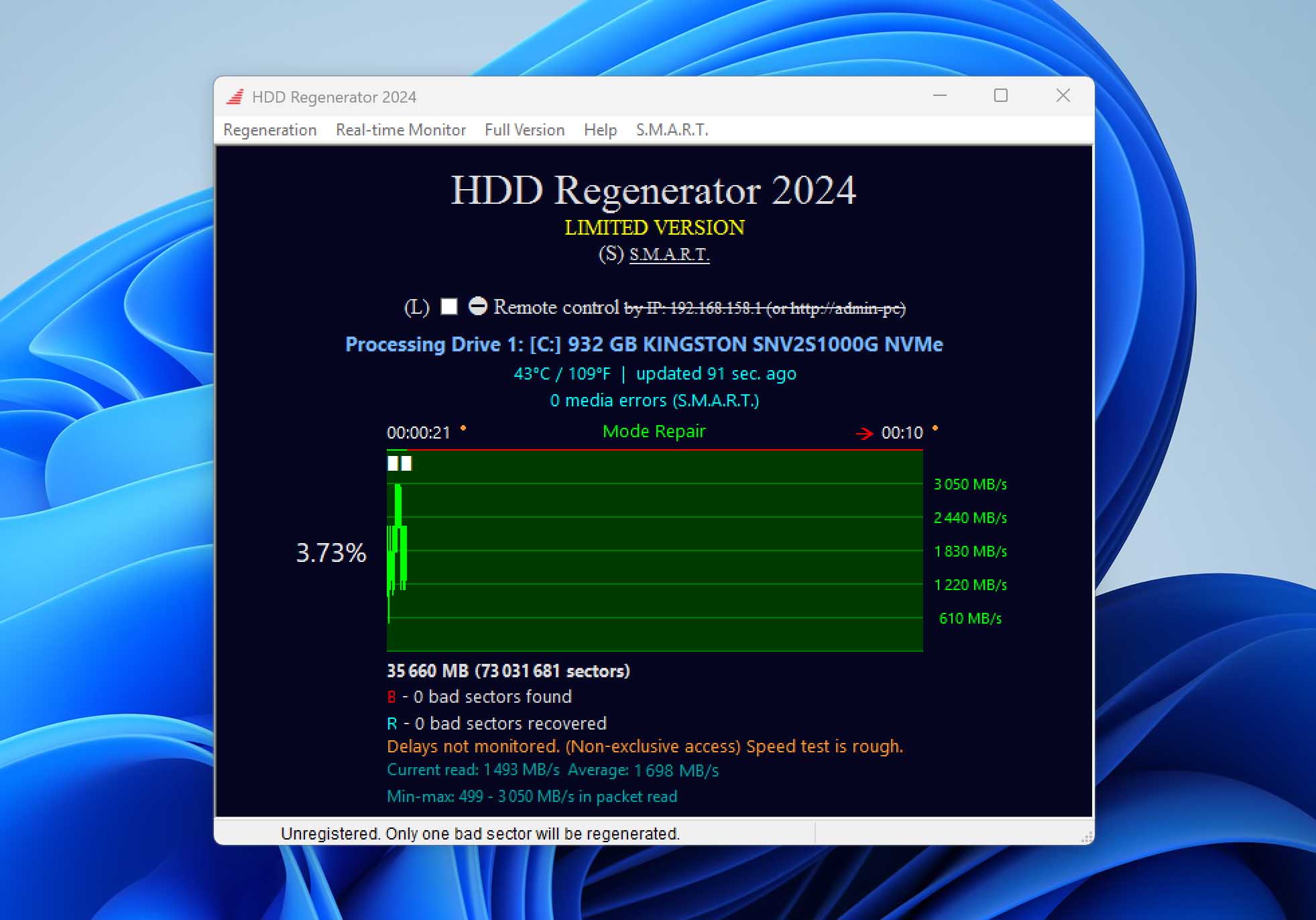
⚙️ OS support: Windows 10 and 11 for the current HDD Regenerator release, with bootable media support for use on virtually any operating system.
🧰 Main features: Physical-level disk scanning; bad sector detection; bad sector regeneration; S.M.A.R.T. monitoring; bootable USB support; scan, test, refresh, and regenerate modes; support for HDDs, SSDs, and NVMe drives in the current release; support for any file system because it works below the file system level.
💰 Pricing: $89.99 (the older 2011 version is listed at $49.99).
🕹️ Demo/Trial version: Yes. The free demo can scan the drive and attempt to regenerate the first bad sector it finds – mainly to show whether full regeneration may be possible.
🧑💻 Difficulty level: Moderate – because it works at the physical drive level and includes bootable repair workflows, it helps to understand some technical things.
While Windows comes with a built-in hard disk repair tool capable of fixing logical file system errors, it doesn’t attempt to address physical defects. HDD Regenerator, on the other hand, is a specialized HDD repair tool designed to detect physical bad sectors on a hard disk drive surface and attempt to repair them using its proprietary Hysteresis loops generator technology, developed by Dmitriy Primochenko.
The latest version of HDD Regenerator supports Windows 10/11, as well as modern storage devices like SSDs and NVMe drives. The tool can be launched from bootable media, allowing it to be used on any system regardless of the OS. Outside of repairing bad sectors, the latest version includes full S.M.A.R.T. support, real-time hard drive monitoring, and corrupted data recovery
👤 User experience:
“I used HDD Regenerator in the past and it fixed something that wasn’t solved before by other programs.”
– muchmore777, Reddit user.
✅ Pros:
- Quick bad sector detection.
- Has a chance to restore functionality by fixing some bad sectors.
- Real-time hard drive condition monitor.
🙁 Cons:
- Slow on very large hard drives.
- Fairly expensive.
11. AOMEI Partition Assistant – Best Hard Disk Manager
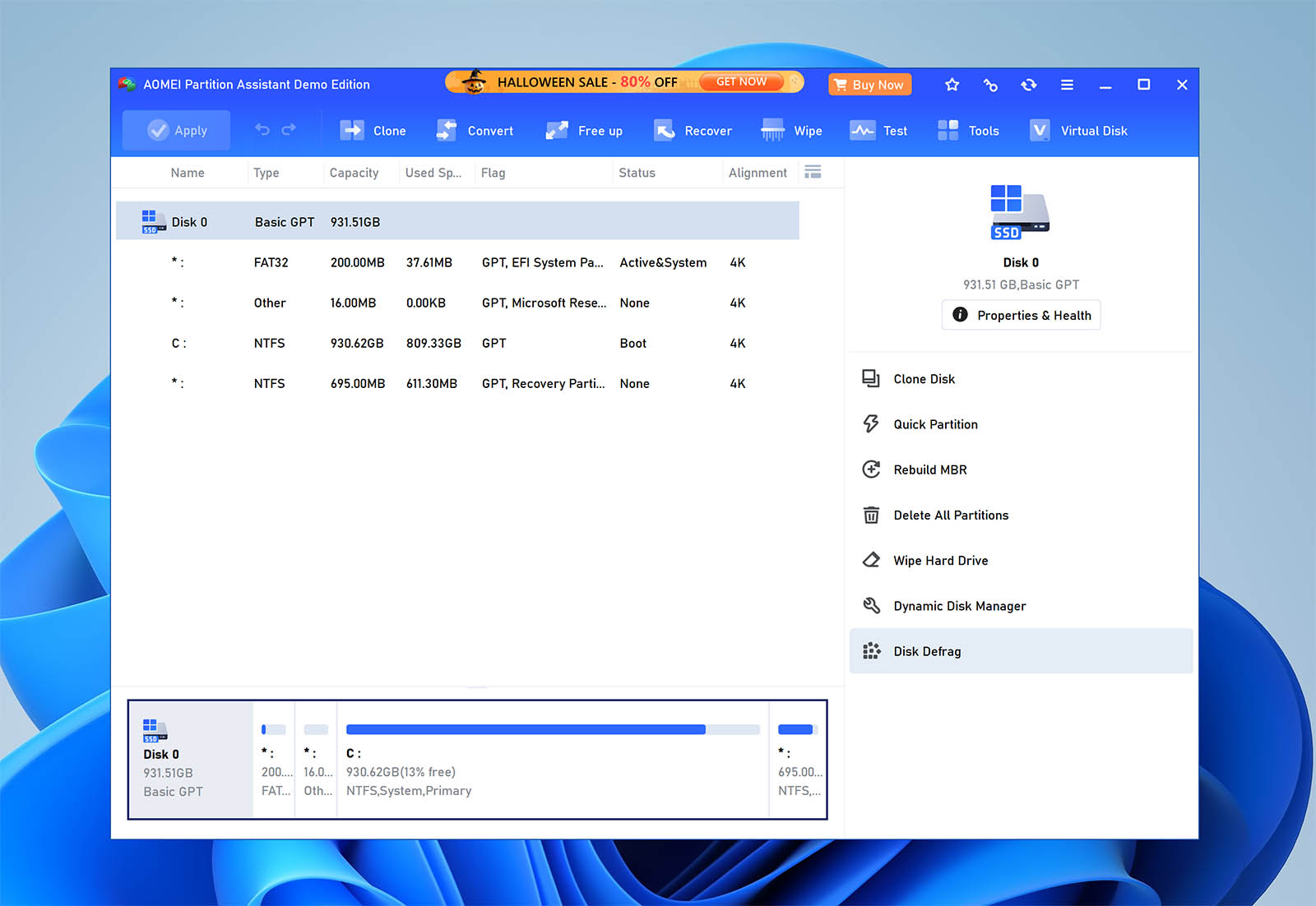
⚙️ OS support: Windows, with current editions supporting Windows 11, 10, 8.1, 8, and 7, plus Windows Server editions in the server-focused plans.
🧰 Main features: Partition management; resize, move, merge, split, create, delete, and format partitions; disk cloning; OS migration; MBR/GPT conversion; dynamic/basic disk conversion; partition recovery; bootable media creation; Windows To Go creation; secure wipe; and junk file cleanup tools.
💰 Pricing: Paid Professional and Server editions. The current official pricing starts at $49.95 yearly or $59.95 lifetime for Professional, with Server plans starting at $169 yearly.
🕹️ Demo/Trial version: Yes. There is a free Standard edition, and AOMEI also offers free trials for the paid editions.
🧑💻 Difficulty level: Easy to moderate. The interface is beginner-friendly and wizard-based, but some operations still assume the user understands partitions.
Despite its name AOMEI Partition Assistant isn’t yet another tool for moving, resizing, and creating partitions. It’s actually a feature-packed hard disk manager capable of solving virtually all commonly encountered issues related to hard drives. You can use it for external hard drive repair, OS migration to a new drive, or the conversion from MBR to GPT without data loss. Included is the ability to securely shred sensitive files, preventing their recovery, even by Disk Drill.
Its queue system lets you stage multiple changes before applying them, minimizing the risk of mistakes during complex operations. AOMEI Partition Assistant can be set to run before your OS boots, making it possible to work on drives that are otherwise inaccessible, including recovering data from an external hard drive. The interface is straightforward and contains all the information you need without taking away from being able to perform detailed disk management and repair tasks.
✅ Pros:
- User-friendly interface makes it easy to use.
- Can run before Windows boots.
- Can queue changes before committing them.
🙁 Cons:
- Cannot convert dynamic disks to basic.
- Fairly expensive paid licenses.
12. Hard Disk Sentinel – Best for Advanced Drive Health Monitoring
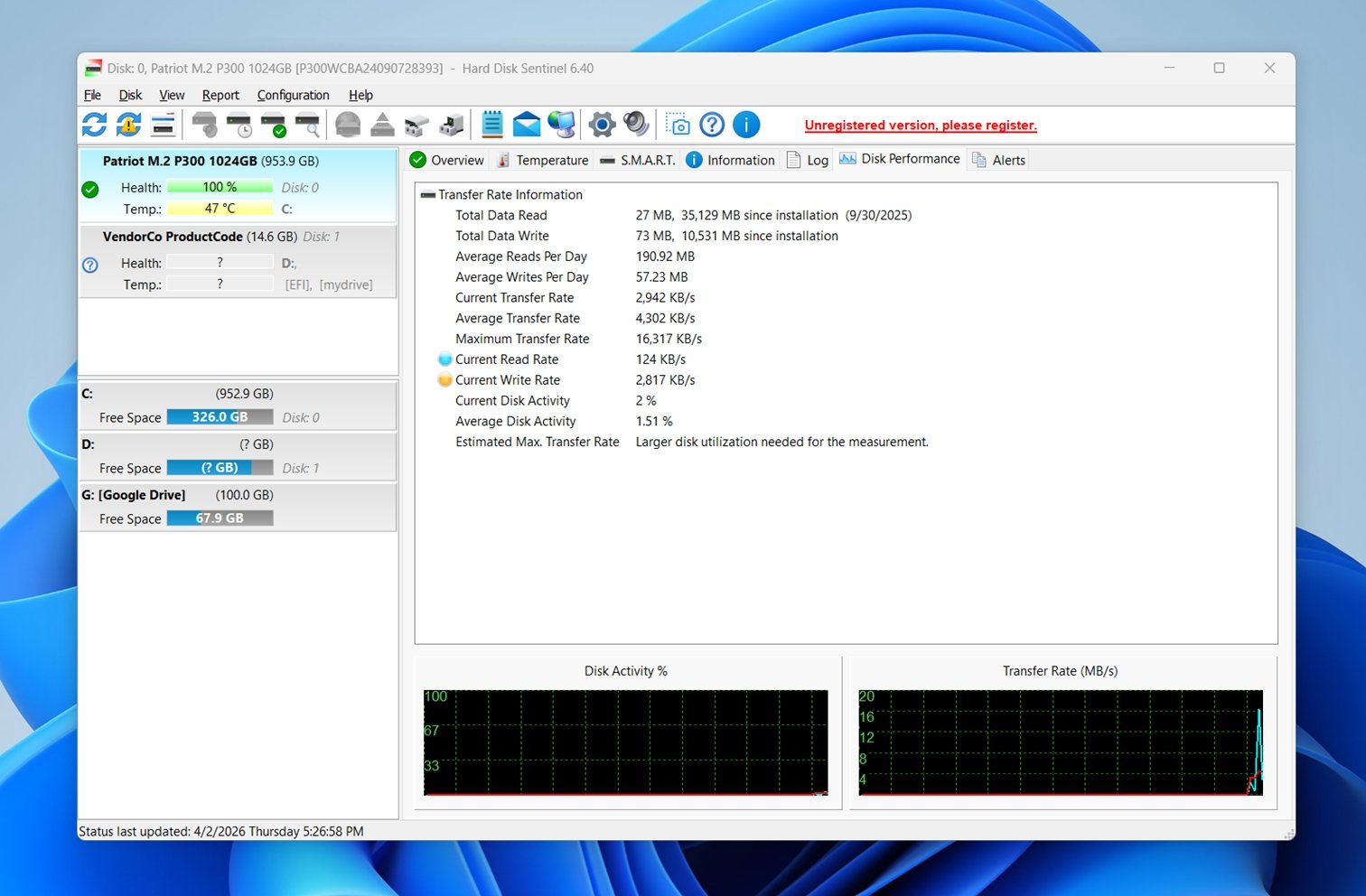
⚙️ OS support: Windows as the main platform, with separate Linux and DOS editions also available. The Windows version is the one with the fullest feature set.
🧰 Main features: S.M.A.R.T. monitoring; health and temperature tracking; real-time transfer rate monitoring; built-in short and extended self-tests; alerts and detailed status reports. In the Professional edition, you also get extras like backup options, remote monitoring, and an API for developers.
💰 Pricing: Paid software, with Standard and Professional editions ($59) available, plus family and corporate licensing options.
🕹️ Demo/Trial version: Yes. There is a limited trial for Windows, while the Linux and DOS editions are offered free.
🧑💻 Difficulty level: Moderate. The Windows UI is much more approachable than command-line diagnostic tools, but the amount of technical health data can still feel dense if someone is new to drive monitoring.
Hard Disk Sentinel or HDSentinel, is best understood as a drive monitoring and diagnostic suite. That is also why it stands out from tools like CrystalDiskInfo or GSmartControl. Those two are strong for health checks, but Hard Disk Sentinel pushes further with more detailed analysis, broader alerting options, built-in testing, and extra protective features in the higher editions. If you want a hard disk repair software option that focuses on early warning and ongoing monitoring, this is one of the strongest picks in the category.
Its biggest strength is depth. Hard Disk Sentinel reads both general and vendor-specific S.M.A.R.T. attributes, estimates health and performance, tracks temperatures, and can launch the drive’s own hardware self-tests.
Its extended self-test can verify the full surface, identify weak areas, and reallocate possible bad sectors through the drive’s built-in hardware methods. So while we would not treat it as a true bad sector repair tool in the same sense as dedicated low-level repair claims, it does go further than a basic disk fixer.
Another reason it deserves a place on this list is hardware coverage: it works with IDE, SATA, NVMe, SCSI, SAS, most USB drives, SSDs, SSHDs, RAID arrays, and NAS-related setups in some cases. That broad support makes it useful when someone wants one professional HDD repair tool to watch over several kinds of storage instead of juggling multiple utilities.
👤 User experience:
“HD Sentinel is an extremely valuable, important tool that I recommend to everyone running any version of Windows. It is a very important part of my computer consulting service.”
– Dan S Tong, Trustpilot reviewer
✅ Pros:
- Detailed health, temperature, performance monitoring.
- Supports a wide range of drive types.
- More advanced than many free monitoring-only tools.
- Built-in self-tests and extensive alerting options.
- Professional edition adds backup, remote monitoring, and API access.
- Strong choice as an HDD health repair tool for ongoing monitoring.
🙁 Cons:
- Not free beyond the trial on Windows.
- Can feel information-heavy for casual users.
- Some of the strongest features are locked to the Professional edition.
13. SpinRite – Best for Older Computers
⚙️ OS support: PC-compatible systems with Intel or AMD processors and BIOS support. SpinRite runs from its own bootable FreeDOS environment, so it can be used on drives from Windows, Linux, or other systems.
🧰 Main features: Low-level disk analysis and maintenance; data recovery from unstable sectors; surface testing; sector refreshing; drive stress testing; bootable media creation; and physical-media-focused work that does not depend on the file system. SpinRite is aimed more at magnetic storage repair and maintenance than at modern file-level recovery.
💰 Pricing: Paid software ($ 89.00).
🕹️ Demo/Trial version: Not exactly. GRC offers the separate free BootAble utility so users can verify whether a machine can boot FreeDOS and run SpinRite, but SpinRite itself is a paid product.
🧑💻 Difficulty level: Hard. SpinRite is a specialized bootable tool with an old-school workflow.
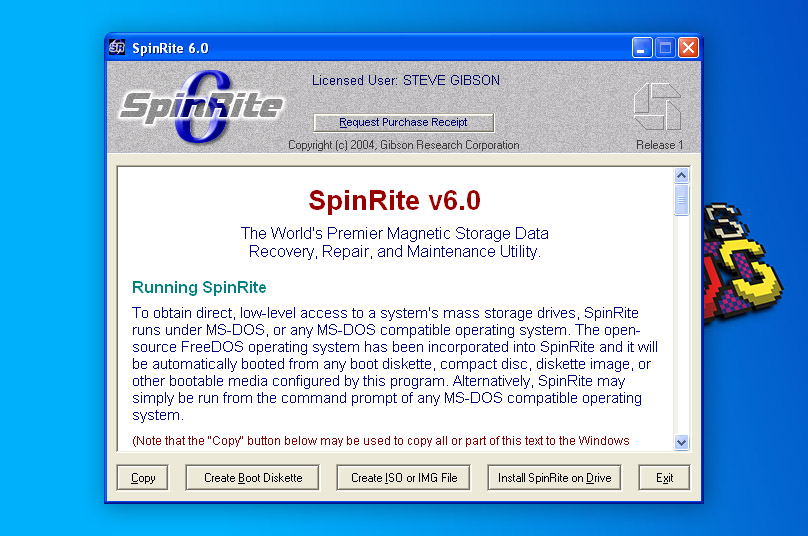
Considering that the last version of SpinRite, an application for recovering lost files from magnetic data storage devices such as hard disks, was released back in 2004, you might be surprised to see it featured on this list. The reason why we decided to include it is simple: it remains the best hard drive repair tool for older computers. SpinRite works at a low level, accessing the magnetic data on the disk rather than relying on the file system. This lets it recover data from drives that are unreadable, have intermittent errors, or are failing slowly over time.
Since it runs inside a live version of FreeDOS, you can use it to scan just about any computer – even one that doesn’t work properly anymore. The tool supports not only Windows file systems but also DOS FAT, all Linux file systems, Novell, Macintosh, and more. Beyond recovery, SpinRite can detect weak sectors before they fail so you’re aware they exist. While its text-based interface may be reminiscent of Windows XP, its low-level scanning and repair capabilities make it a unique solution.
👤 User experience:
“Spinrite and Zero Assumption Recovery have been my best duo if the drive responds.”
– flunky_the_majestic, Reddit user.
✅ Pros:
- Works on computers running older hardware.
- Doesn’t require an OS.
- Claims to recover data and refresh the hard drive surface.
🙁 Cons:
- Some users find the software doesn’t live up to its claims.
- Can wear solid-state drives with excessive writing.
14. Victoria for Windows – Best for Remapping Bad Sectors
⚙️ OS support: Windows 2000, XP, 7, 8, and 10 in x86 and x64 versions. There is also an older DOS branch in the archive.
🧰 Main features: S.M.A.R.T. diagnostics; surface scanning; drive testing; speed graphs during full sector scans; support for HDDs, SSDs, memory cards, and other storage devices; NVMe and SAS/SCSI support in version 5.37; and limited repair-oriented functions for minor issues. The official site also notes an advanced PIO mode that can access some partially faulty IDE/SATA drives below normal Windows and BIOS layers.
💰 Pricing: Free.
🕹️ Demo/Trial version: The full version is free to use with no paid tier or locked feature set.
🧑💻 Difficulty level: Moderate to hard. The standard Windows interface is usable, but Victoria includes advanced diagnostic and low-level access features, especially PIO mode.
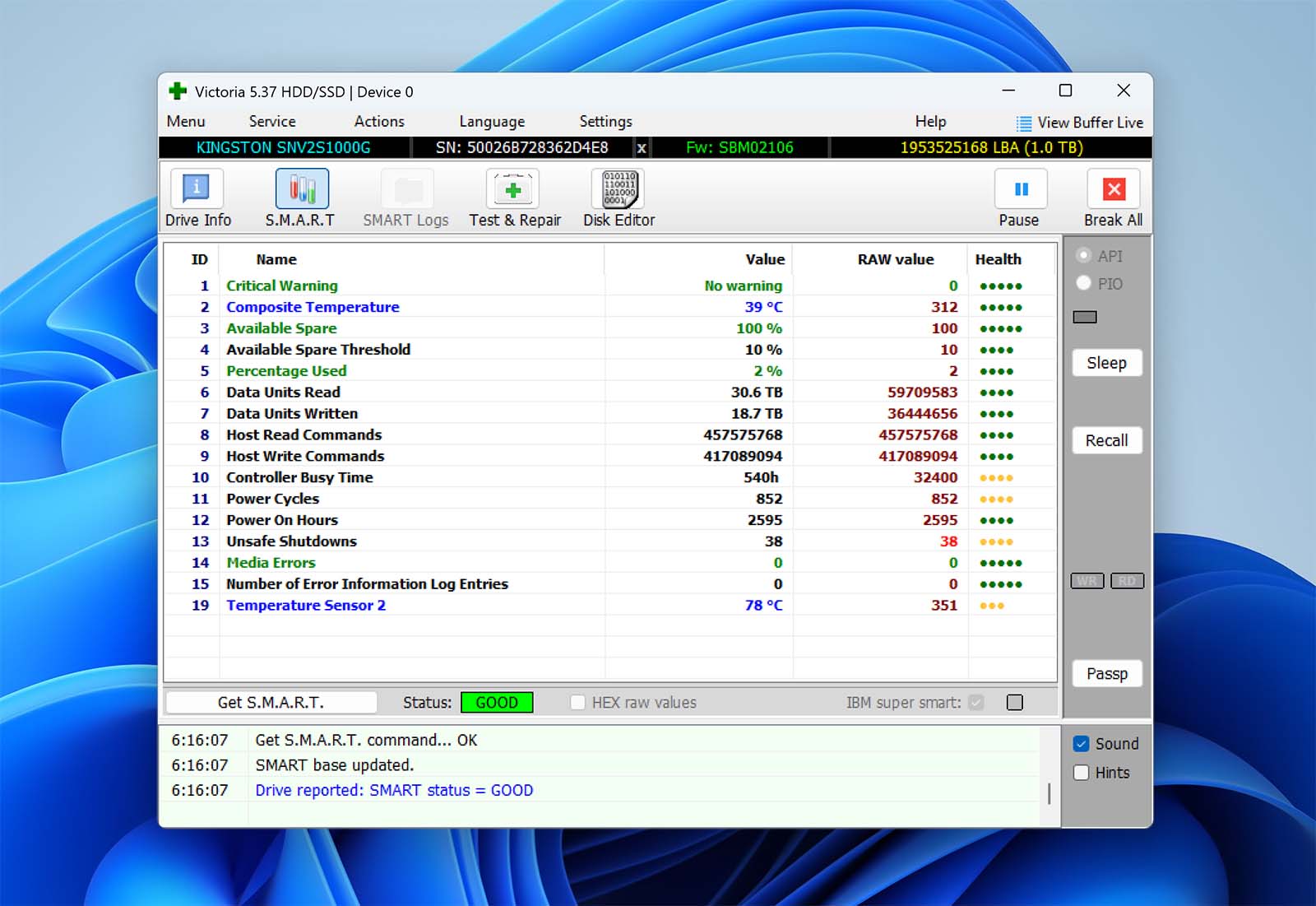
Victoria for Windows is a hard disk drive information and diagnostic utility that allows users to view detailed information about their hard drives and troubleshoot hard drive-related issues. One of its most useful features is its ability to scan hard drives for bad sectors and remap them to working ones. Since bad sectors are a sign of hard drive corruption, remapping them may allow you to restore the hard drive to a working state to recover all of your remaining data. Although its outdated interface may deter some, there’s no doubt that it is an impressive tool with a lot of practical uses. And, best of all, it’s completely free.
✅ Pros:
- Provides detailed information about your hard drives.
- Review S.M.A.R.T. data.
- Shows a colored overview of sectors for easy identification.
🙁 Cons:
- No clear instructions.
15. HD Tune Pro – Best for Drive Benchmarking and Error Scans
⚙️ OS support: Windows 7, 8, 10, and 11 in 64-bit versions for the latest HD Tune Pro 6.x release. The older free HD Tune edition supports older Windows versions like 2000, XP, and Vista, but that is not the current Pro branch.
🧰 Main features: Read and write benchmarking; detailed drive info; S.M.A.R.T. health checks; error scans; error logs; secure erase; file benchmark; cache tests; disk monitor; temperature statistics; S.M.A.R.T. self-tests; device statistics; health checks across multiple drives.
💰 Pricing: A single-user HD Tune Pro license at $29.95 USD.
🕹️ Demo/Trial version: Yes. HD Tune Pro offers a 14-day trial.
🧑💻 Difficulty level: Easy to moderate. Some of the graphs, S.M.A.R.T. values, and benchmark results still take a little interpretation. This is a tool you can use without expert knowledge, though it helps to know what you’re looking at.
HD Tune Pro sits closer to CrystalDiskInfo and Hard Disk Sentinel, but with a stronger focus on benchmarking, surface testing, and drive analysis. That mix gives it a different role in a list of hard drive repair software.
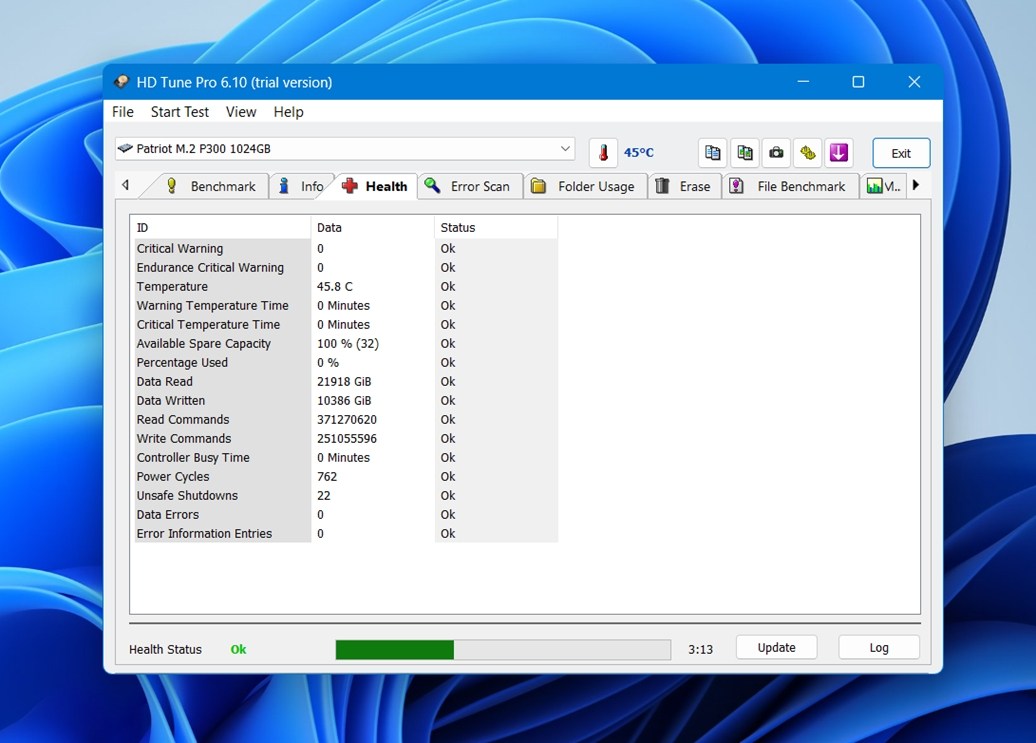
You can check S.M.A.R.T. health, run an error scan, benchmark transfer speeds, look at temperature data, and even securely erase a drive. That makes it more versatile than a simple HDD health repair tool. If someone wants a disk fixer for diagnosis, performance testing, and early warning signs, this is a strong option. It gives you a lot of useful data.
Another point in its favor is that HD Tune Pro works with more than one kind of storage – it supports internal and external hard disks, SSDs, USB sticks, and memory card readers (though some functions depend on the hardware). Not every hard disk repair tool gives useful health and scan data across such a broad mix of devices. If your goal is to test a slow drive, scan for surface errors, or compare performance before and after changes, HD Tune Pro makes a lot of sense.
👤 User experience:
“Give HD Tune a try to measure your SSD’s read speed. It’s free and easy to use.”
– Tom’s Hardware forum user
✅ Pros:
- Combines health monitoring, benchmarking, and error scanning in one app.
- More feature-rich than basic free drive health tools.
- Useful for HDDs, SSDs, external drives, USB sticks, and (some) card readers.
- Includes secure erase and multiple diagnostic modules.
- Good choice when you want both performance testing and health checks.
🙁 Cons:
- Windows-only in the current Pro version.
- Some features depend on the drive or enclosure exposing the needed data.
Are there Alternative DIY Solutions to Repair a Hard Disk?
Not every hard drive problem you run into will require professional repair or costly software. Before you send your drive into a lab or invest in specialized tools, there are several practical DIY steps you can try. These methods will help you address common logical errors, check hardware connections, and restore access to files, often without spending a dime. While they cannot fix serious physical damage, trying these alternatives first can save time and money.
| Method | Type | Details | When to try it |
| Run antivirus | Software | Useful when files disappeared, the PC acts strangely, or problems started suddenly | First step if you suspect malware or odd system behavior |
| CHKDSK / First Aid | Built-in tool | CHKDSK is for Windows; First Aid is the Mac equivalent | When the drive shows errors, opens slowly, or becomes inaccessible |
| Reinstall drivers / update firmware | System fix | Best for drives that appear in hardware but behave inconsistently | When the drive disconnects, performs poorly, or is not detected correctly |
| Format the disk | Last-resort DIY fix | A quick format refreshes the file system; a full format also checks the surface more thoroughly | Only after backing up or recovering your data |
| Check cables and ports | Hardware check | Your hard drive connects to your motherboard via two cables: a power cable and a SATA cable, for data transfer. Loose or damaged cables can cause a wide range of issues, so a quick inspection will help to avoid unnecessary troubleshooting. External drives are a little different, and you will need to inspect the USB ports, cables, and any adapters or enclosures. If it’s still not recognized, see our guide on recovering data from external drives that are not recognized |
When the drive is not detected or disconnects randomly |
| Try another computer | Troubleshooting step | If the drive works elsewhere, the issue is likely with your system, not the disk. Try connecting your hard drive to a different computer. If it works like normal on another system, the problem is likely with your own PC rather than the drive itself. See our guide on how to recover data from an external hard drive that isn’t detected for more information. | When you want to isolate the cause before using repair software |
| Professional recovery service | Pro | Professional recovery services usually offer the highest chance of success, especially when a drive has physical damage, severe corruption, bad sectors, or is no longer detected properly. The tradeoff is cost and time, since the work often involves specialized lab equipment, manual diagnostics, and cleanroom procedures Check out our list of recommended data recovery services to find a recovery service that works for you |
When the drive clicks, grinds, vanishes from BIOS, or keeps failing |
Conclusion
Hard drive issues may be stressful at times, but the right software tools can help you recover data, repair errors, and manage your drives safely. Of the options we’ve discussed in this article, we’ve selected the top three tools in their respective categories. For a broader list of recommended Windows recovery software, see our list of the best data recovery software for Windows.
- Disk Drill for data recovery. Disk Drill’s streamlined user interface and powerful recovery features make it an excellent option for any user. It’s capable of restoring lost partitions and files from corrupted or unbootable drives, supporting RAID and NAS devices across Windows and macOS.
- Hard Disk Sentinel for diagnostics and health monitoring. This one monitors HDDs, SSDs, NVMe drives, RAID arrays, and external drives, tracks S.M.A.R.T. health and temperature, runs tests, and is built around early warning and ongoing monitoring.
- Clonezilla for disk imaging. Clonezilla remains one of the best in terms of creating complete byte-to-byte backups of drives or partitions. Its flexibility and support for multiple file systems make it invaluable for secure backups, system migrations, and, most importantly, recovery preparation, in cases of data loss.
You can find a brief breakdown of each tool in the table below.
| Disk Drill | Hard Disk Sentinel | Clonezilla |
| ✅ Works with internal, external, RAID, NAS, and virtual drives ✅ Recover and reconstruct damaged video files ✅ Previews any file that has its base program installed ✅ Byte-to-byte tool also acts as a surface scan to find bad sectors ✅ Free version allows up to 100 MB of recovery ❌ No phone support. |
✅ Monitors HDDs, SSDs, NVMe drives, RAID arrays, and external drives. ✅ Tracks health, temperature, performance, and S.M.A.R.T. values. ✅ Runs tests and provides alerts. ✅ Creates an easy-to-understand health reports. ❌ Paid on Windows beyond limited editions |
✅ Completely free and open-source ✅ Works on Windows, macOS, Linux, BSD, and VMware ✅ Lets you encrypt and compress backups ✅ Restores MBR and GPT boot loaders ❌ Requires external boot media ❌ Steep learning curve for beginners |
| Jump to overview | Jump to overview | Jump to overview |
FAQ
A lot of hard disk repair software also works on SSDs, not only on HDDs. But what “works” means depends on the type of tool.
Health-monitoring and diagnostic apps usually support both. Tools like CrystalDiskInfo, GSmartControl, SeaTools, and Hard Disk Sentinel can read S.M.A.R.T. data from many SSDs and HDDs, so they’re useful either way.
Partition managers and cloning tools also often work with both drive types.
Where things start to differ is low-level repair. Traditional HDD-focused tools were built around spinning disks, sectors, and magnetic media behavior. SSDs work in a different way, so features like bad sector repair, surface regeneration, or anything that claims to “refresh” the disk are usually much more relevant to HDDs than SSDs.
It depends on the bad sectors. Soft bad sectors are logical, meaning software tools can reliably fix them. Hard bad sectors, on the other hand, are generally considered irreparable.
Some professional HDD repair tools and specialized utilities like HDD Regenerator may help in limited cases, but once bad sectors start piling up, the drive is no longer something you should trust for long-term use. Keep an eye on your S.M.A.R.T. data, and if the warning signs keep growing, replace the drive.
Absolutely. First, you should recover your data using data recovery software like Disk Drill. Once your data is recovered, you can either try repairing the drive using tools like CHKDSK, DiskGenius, or DiskWarrior, or simply format the drive since all your data is now safe.
These costs are hard to estimate, since every recovery service is different, which therefore affects the final price. However, if we had to guess, the cost of the average recovery ranges from $300 to $3000, but can definitely exceed this in special or urgent cases.
1000 times yes. A drive facing recurring errors, physical damage, or an increase in bad sectors, replacement is the best decision. DIY repairs can help temporarily, but the problems will only exacerbate and not stop until the drive fails completely.
Before you run any hard drive repair software, stop using the drive as much as possible. That matters most if the disk holds important files or is already showing signs of failure. (Every extra write can make recovery harder.)
If the data matters, your first move should usually be backup or imaging. Create a byte-to-byte backup or clone the drive if the tool allows it, or at least copy off anything important that is still accessible. That gives you a safer fallback if the repair attempt makes things worse.
You should also figure out what kind of problem you’re dealing with. A file system error, missing partition, bad sectors, slow performance, clicking noises, and S.M.A.R.T. warnings do not all point to the same solution. In most cases, the best step is recovery software. But if the drive is making unusual mechanical noises, you should stop and consider professional help instead of DIY repair.
So, in order: stop using the drive, back up or image it, identify the problem, check drive health, and only then run the repair tool that fits the situation.
If the drive is slow but still stable enough to read normally, Clonezilla is one of the best options. It’s free, reliable, and built specifically for disk imaging/cloning; it’s a strong choice for full-drive copies and backup images.
If the drive is slow because it may be failing, Disk Drill can be the better choice. Its byte-to-byte backup tool is designed with damaged drives in mind and includes features like multi-pass backup, automatic block size adjustment, retries on bad sectors, and the option to skip slow or damaged zones instead of getting stuck on them. That makes it more practical than a standard clone tool when the disk is unstable or starting to degrade.
No. Unless you can restore it with HDD Regenerator, that data is gone for good. Your drive will attempt to remap the data to a spare, healthy sector, but if this there is no telling what was stored on which sector.