


There are countless apps for PC designed to recover data that has been lost from your memory card. While everyone obviously hopes that they’ll never need to use one, it’s important to prepare so that you have the best SD card software available in case something does happen.
You can take measures to reduce the risk of data loss, but nobody can completely eliminate the possibility. Once you’ve discovered that files have been deleted, you should stop using the SD card and use one of the memory card recovery software tools we’ve mentioned in the article below.
1. Disk Drill SD Card Recovery (Windows & Mac)
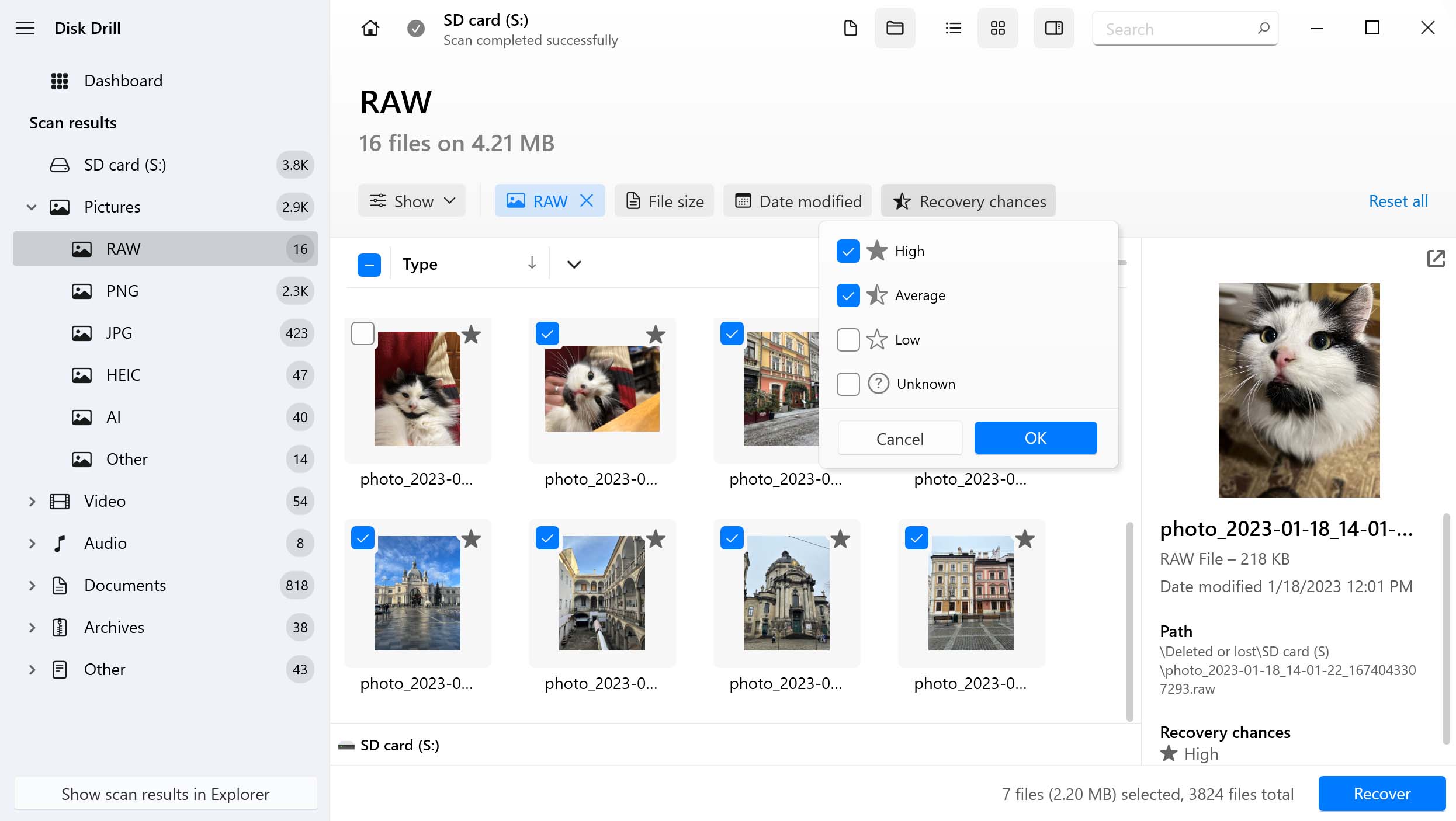
Disk Drill sits at the top of our list, demonstrating exceptional capabilities for recovering lost photos and videos in various data loss situations. It’s an indispensable tool in your collection, whether you’re an everyday user recovering a single file or a professional videographer recovering an entire collection. In addition to its powerful recovery algorithms, it gives you a series of tools for diagnostics and protection.
- High success rate
- Supports all file systems
- Includes an Advanced Camera Recovery module
- Supports a wide range of photo and video file types
- Includes a byte-to-byte copy tool for cloning corrupted memory cards
- Ability to restore corrupted videos with the Clever Online Video Repair tool, which is currently free
- No portable version
Among the various free SD card data recovery programs, Disk Drill is a great place to start, and we recommend it as a must-download if you are storing anything important on your SD card.
This versatile tool for Windows and Mac can recover hundreds of file formats, including photos, videos, audio files, documents, and file archives from Windows, macOS, and Linux file systems (including FAT16, FAT32, and exFAT, which are often used to store files on SD cards).
There are plenty of good reasons to use Disk Drill, especially if you’re dealing with SD cards. Not only can it recover data from memory cards with a corrupted file system, but it also allows for device cloning when working with damaged or unstable cards. And, if you find that some of your videos are corrupted, you can use the free Clever Online Video Repair tool to restore them to working condition.
What makes Disk Drill really stand out from other data recovery programs featured in this article is its Advanced Camera Recovery module, an innovation not available in other software. This function can reconstruct fragmented clips from over 150+ cameras, including GoPro, DJI, Canon, Insta360, Tesla, Panasonic, Potensic, FitCamX, Nikon, Sony, Olympus, Fujifilm, Samsung, and Leica. It also works with other devices that accept memory cards, such as dash cams, body cams, and digital microscopes.
@Cleverfiles So glad I found Disk Drill. Works amazing. I lost 36 audio file recordings when I mistakenly formatted the my memory card. Sure enough Disk Drill recovered all 36 files in less than an hour. Back to work on my project! I
— Jonathan Nimerfroh (@JDNPHOTOGRAPHY) November 22, 2024
Disk Drill’s user reviews on Reddit frequently mention successfully recovering fragmented videos that other popular recovery tools couldn’t restore. A common denominator is its ease of use. It uses a clean interface and keeps all essential information in plain sight so you know how to go from point A to point B. When recovering data, it has a convenient file-by-file preview option for quickly flicking through multiple files.
Raw files created by Sony (.arw), Nikon (.nef, .nev (N-RAW), .nrw), Canon (.cr2, .cr3, .crw), Fujifilm (.raf), or Panasonic (.rw2), among many other brands, are all flawlessly supported regardless of if they’re stored on MicroSD cards, MiniSD cards, CF cards. SDHC, or SDXC cards.
The free version of Disk Drill can preview an unlimited number of files, allowing you to make sure your files are recoverable before you use the free recovery limit of 100 MB (Windows only) or upgrade to a PRO subscription or perpetual (lifetime) license. This limit also allows you to test the actual recovery process and even restore a substantial number of work documents and personal files.
2. PhotoRec (Windows, Mac, Linux)
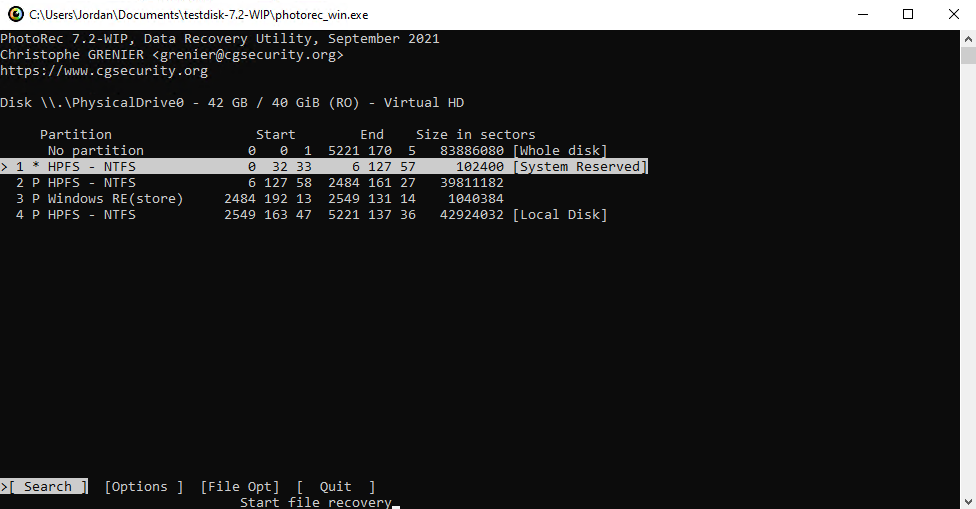
PhotoRec earns its place on the list by offering powerful, no-cost recovery of photos, videos, and other files from SD cards – even in some of the more complicated data loss scenarios. While its interface is extremely minimal, PhotoRec relies on robust file-signature-based scanning to deliver good results, especially when dealing with the recovery of photos and videos from formatted or RAW SD cards.
- Completely free
- Open-source license
- Supports all major platforms
- Doesn't require installation
- Command-line software
- The optional GUI is very basic
- Doesn't receive updates often
- Doesn’t utilize file system metadata for recovery
PhotoRec is unlike any other data recovery program recommended in this article because it doesn’t have a graphical user interface (UI). Instead, it relies on a text-based system very reminiscent of DOS, which adds a bit more friction to the recovery process. It does ship with an optional graphical user interface that’s included alongside PhotoRec. However, the optional graphical user interface (GUI) qPhotoRec (only available on Windows) is very basic, and the user experience it provides is miles behind Disk Drill.
If usability isn’t all that important to you, then PhotoRec should be very high on your list of favorites because it’s completely free and open-source. That’s not all that’s good about it though. For instance, it’s currently one of the few completely free recovery programs available for Macs running the latest version of macOS 26 Tahoe.
“Don’t let the DOS-like user interface fool you. This is the BEST software to recover photos from SDCard. You just select the SD Card, select a directory to place the recovered files, and BOOM, everything will be there. Can’t be better than that. And it’s totally free!” – danarrib, AlternativeTo
The application’s signature scanner delivers above-average results when recovering raw photo and video file formats, and it performs similarly well even when recovering documents and most other file formats. Unfortunately, because PhotoRec only relies on signature-based recovery, the original file names and folder structures are not recovered. This makes recovering large volumes of files, like entire photo catalogs, a pain to sift through afterward.
PhotoRec works well with SD cards that have become raw, and it can also scan their byte-to-byte images. These and other positive qualities make its steeper learning curve worth overcoming.
3. Recuva (Windows only)
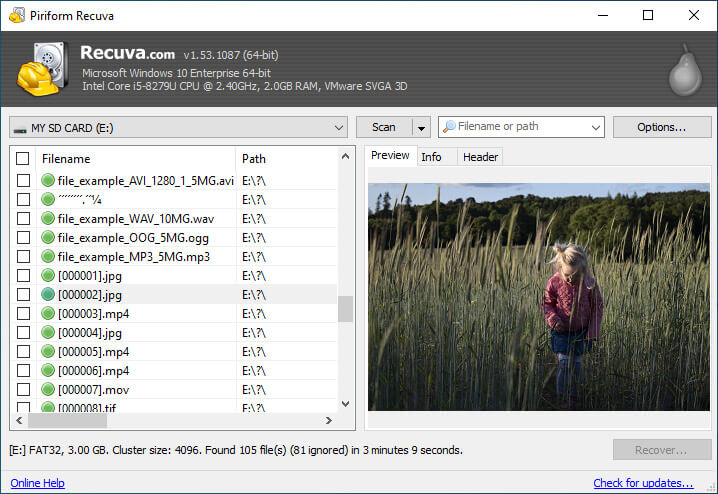
Recuva is a popular choice for straightforward SD card recovery on Windows, specifically when dealing with recently deleted photos, videos, and everyday files. Its simplicity makes it ideal for casual users who only need core recovery features, but still need something capable of recovering common file formats.
- Portable version available
- Free version available
- The free version doesn't include support
- No major updates since 2022
- The interface is not user-friendly
- Doesn’t work with corrupted SD cards (needs a working file system)
Piriform Recuva performs well in recovering images and videos from a memory card as long as they are saved in standard file formats like JPG, MOV, AVI, MP4, and similar. However, its reliability diminishes when attempting to recover less common or proprietary formats, such as RAW data, where results may vary.
Recuva offers both a free and premium version, but the set of features locked behind the paywall is slightly different, as data recovery is unlimited in both.
Instead, the $20 premium version offers a few unique features that make the experience more seamless. First, premium users are given priority technical support and automatic updates.
“Accidentally deleted over 1800 Canon RAW files from my SD card. I used Recuva and it restored all of my files.” – Reddit user, reddit.com
Possibly more important to some users, the premium software also gives you the option of creating and scanning virtual hard disk images instead of the drive directly, alleviating some of the stress associated with scanning unstable drives.
The actual scanning process is very straightforward, to a fault almost. While the wizard-like interface and barebones recovery window make things simple, some elements, like the inability to easily preview each file, can make exploring large amounts of data a mountainous effort. This is complicated further in complex scenarios, like damaged memory cards (or sometimes even formatted memory cards), as Recuva’s core recovery functions are only suitable for the basic recovery of recently deleted files.
4. UFS Explorer (Windows, Mac, and Linux)
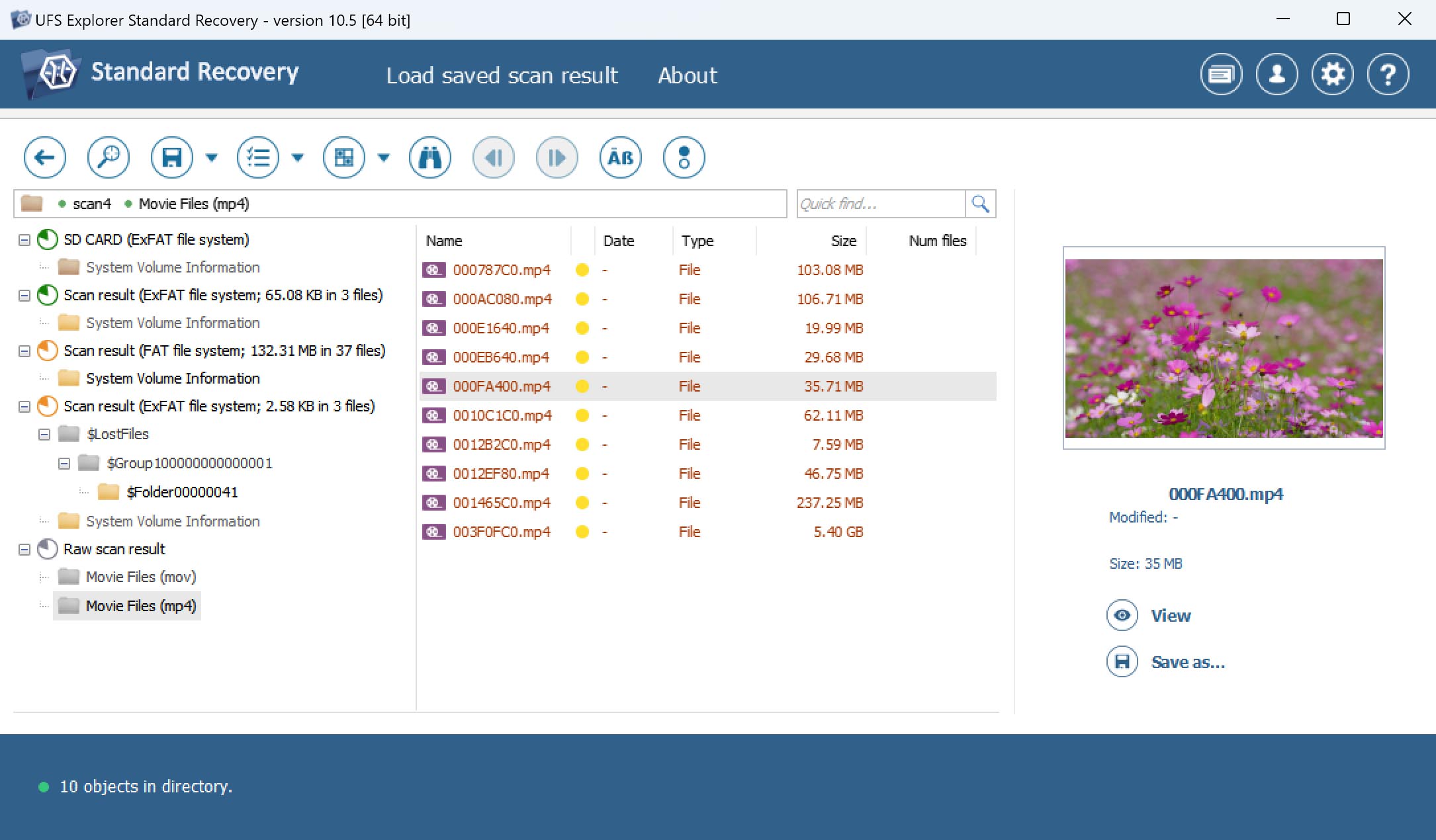
UFS Explorer stands among the more advanced SD card recovery solutions, offering professional-grade tools for retrieving lost data while preserving valuable metadata. It’s particularly suited to recovery specialists and technicians dealing with complex data loss scenarios, providing a means of performing high-level recovery where precise control is required.
- Supports commonly used SD card file systems
- Effective at retrieving files with their metadata
- Can scan a specific portion of your SD card
- Many advanced features
- The free version can recover only tiny files
- Steeper learning curve
- Scan results are presented in a complicated manner
UFS Explorer is a versatile SD card recovery tool that supports most existing file systems, including NTFS, FAT, exFAT, HFS+, Ext2/Ext3/Ext4, Btrfs, XFS, and others. This means that it can often recover lost files from your SD card with their metadata intact—something PhotoRec, for example, can never do because it recovers files only based on their signatures.
Speaking of signature-based recovery, UFS delivers good results when looking for document files, such as DOC/DOCX, PDF, PPT, or XLS/XLSX, but the signatures of some files more commonly found on SD cards, like the Canon RAW CIFF Image File, are not recognized. That’s bad news because it makes their recovery impossible in the absence of file system records.
“I lost a RAID5 array on my Buffalo NAS. Just a couple of minutes ago, I bought UFS Explorer, followed the online manual step-by-step and within 5 minutes I got my data back.” – Romano Cibien, ufsexplorer.com/testimonials/
However, it’s worth noting that the software lets you add custom file signatures manually, which is one of its many advanced features that can help when recovering lost files from SD cards. This functionality is useful for recovering specific file types that are normally unsupported, such as RAW image and video files. It also has a UFS Explorer Video Recovery package that’s tailor-made for the recovery of videos from CCTV recorders – a unique feature not found in similar applications.
In order to make use of its entire feature set, a certain level of understanding and knowledge is required, especially for the more advanced options. This isn’t to say that they’re not useful, but rather that they will go unused by the majority of people who only want to scan and recover their data. Naturally, this adds a level of complexity to the UI, which is felt when you’re trying to navigate your way around the simple act of recovering data.
The free version allows you to open any supported storage, whether simple or complex, reconstruct it if necessary, scan for lost data, explore the recovered file system, and preview intact files. Files up to 768 KB in size can be saved to another location without requiring a Pro license.
5. R-Studio (Windows, Mac, and Linux)
R-Studio is another powerful, professional-grade SD card recovery tool designed to tackle complex data loss situations. It’s ideal for tech-savvy users working with corrupted memory cards, damaged file systems, or unique edge cases. While its highly technical UI can feel overwhelming, it compensates with deep scanning capabilities, broad file system support, and highly customizable recovery options.
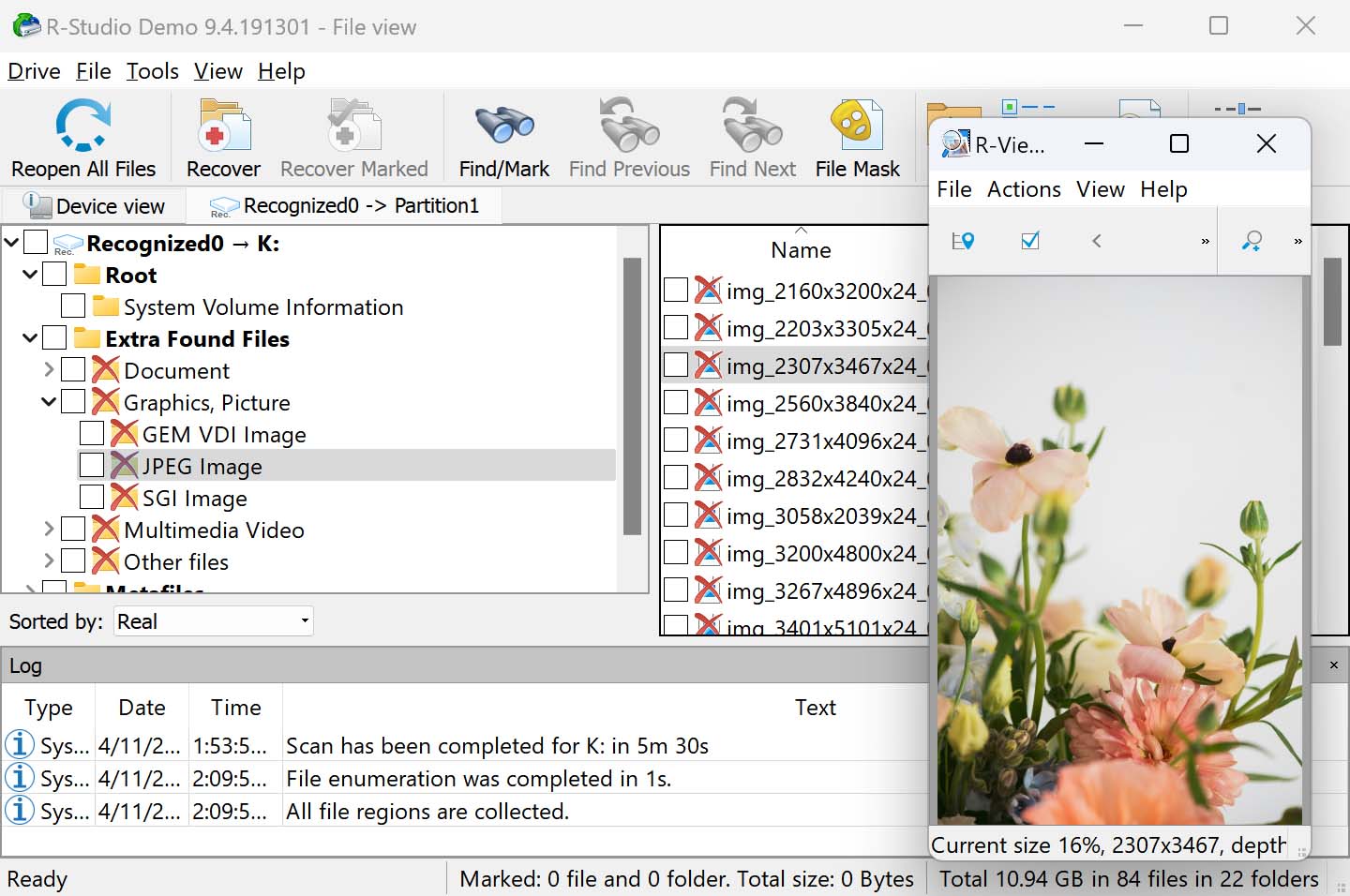
- Extensive file system support
- Works equally well on all major operating systems
- Can scan a specific portion of your SD card
- Supports custom file formats
- Geared toward experienced users
- Cluttered UI that can be difficult to navigate
- Limited file preview capabilities
- Doesn’t handle bad sectors well
R-Studio is more than enough for DIY SD card recovery, so long as you’re willing to overcome its complicated, function-first user interface. Despite that, it’s packed with many useful features and can offer solid data recovery results in a wide range of data loss cases.
Those who manage to get past the initial steep learning curve and accept the absence of many quality-of-life features, such as auto-resume or real-time scan results, are rewarded with a powerful and versatile data recovery tool that supports all file systems that SD card users typically rely on. As such, R-Studio can effectively recover, for example, formatted SD cards in such a manner so that all files are restored together with their file names and folders. You can even specify which part of the SD card you want to scan to avoid bad sectors, which the software otherwise doesn’t handle well.
R-Photo worked amazing. Filter for last date, shows previews. (R-undelete is part of R-Studio, and the undelete part is free as far as I can tell). – Reddit user.
Just like our previous recommendation, R-Studio supports custom file format signatures, so it can technically be used to recover any file from an SD card. Another similarity is that it can only recover files smaller than 1024 KB for free, which could be enough for very small images and documents, but certainly won’t be enough for RAW photos or GoPro video files.
As is common with industry-grade tools, the average user isn’t going to make use of everything it has to offer. If you’re not an expert, a lot of what this software can do will be unnoticed. It does little more than add to the visual clutter. So even though it is undeniably a recovery powerhouse, it’s only considered so in the hands of someone with an understanding of how to use it.
Given the number of options in front of you, making a choice can be overwhelming. The best course of action is to choose a data recovery solution that’s well-suited to addressing the issue you’re facing. We’ve taken key insights from each data recovery tool and put them into an easy-to-read table below.
| Tool | RAW Format Support | Fragmented Video Handling | Media Repair Tools | Effectiveness on SD Cards |
| Disk Drill (Win/macOS) | Extensive: Supports 350+ formats, incl. all major RAW photo & video types (CR2, NEF, ARW, MP4, MOV). | Advanced: ACR module reconstructs fragmented GoPro, DJI, DSLR video streams. | Yes: The same developer has a separate online video repair tool for fixing corrupted footage (MOV, MP4, etc.). | Excellent: 90%+ success in tests; excels with photos and 4K action cam footage. |
| PhotoRec (Win/macOS/Linux) | Wide coverage of RAW formats. Some less-common ones may be unsupported or mislabeled. | Limited: Can’t reconstruct fragmented video files; only recovers intact segments. | No: Does not include any media repair functionality. | Very good for non-fragmented files; one of the best free tools available. |
| Recuva (Windows only) | Basic: Recovers common formats (CR2, NEF) but misses newer/less popular RAW types. | None: Deep scan cannot recover fragmented videos. Relies on file system data. | No: Basic recovery only. No built-in repair features. | Moderate: Works for simple deletions; weak with formats & corrupted cards. |
| UFS Explorer (Win/macOS/Linux) | Professional-level support for most RAW formats. Custom signatures add flexibility. | Advanced (Pro Edition): Can reassemble fragmented videos from DVRs, cameras. | Partial: Manual tools and separate Video Recovery edition for advanced cases. | High: Strong recovery results on RAW files & video. Reliable in pro use. |
| R-Studio (Win/macOS/Linux) | Broad support, but some RAW types may require manual signature setup. | Limited: No auto-reassembly. Fragmented files may require manual reconstruction. | No: No built-in repair; HEX editor available for experts. | High for common formats; powerful but requires advanced user knowledge. |



How We Test Memory Card Data Recovery Software
Our testing process for memory card data recovery software strictly adheres to our editorial guidelines so that our methods remain both rigorous and unbiased. Of course, given that we are working with memory cards that are typically used in cameras and other mobile devices, we’ve paid special attention to the file formats and systems that are used. This results in findings that are both objective and relevant to our readers.
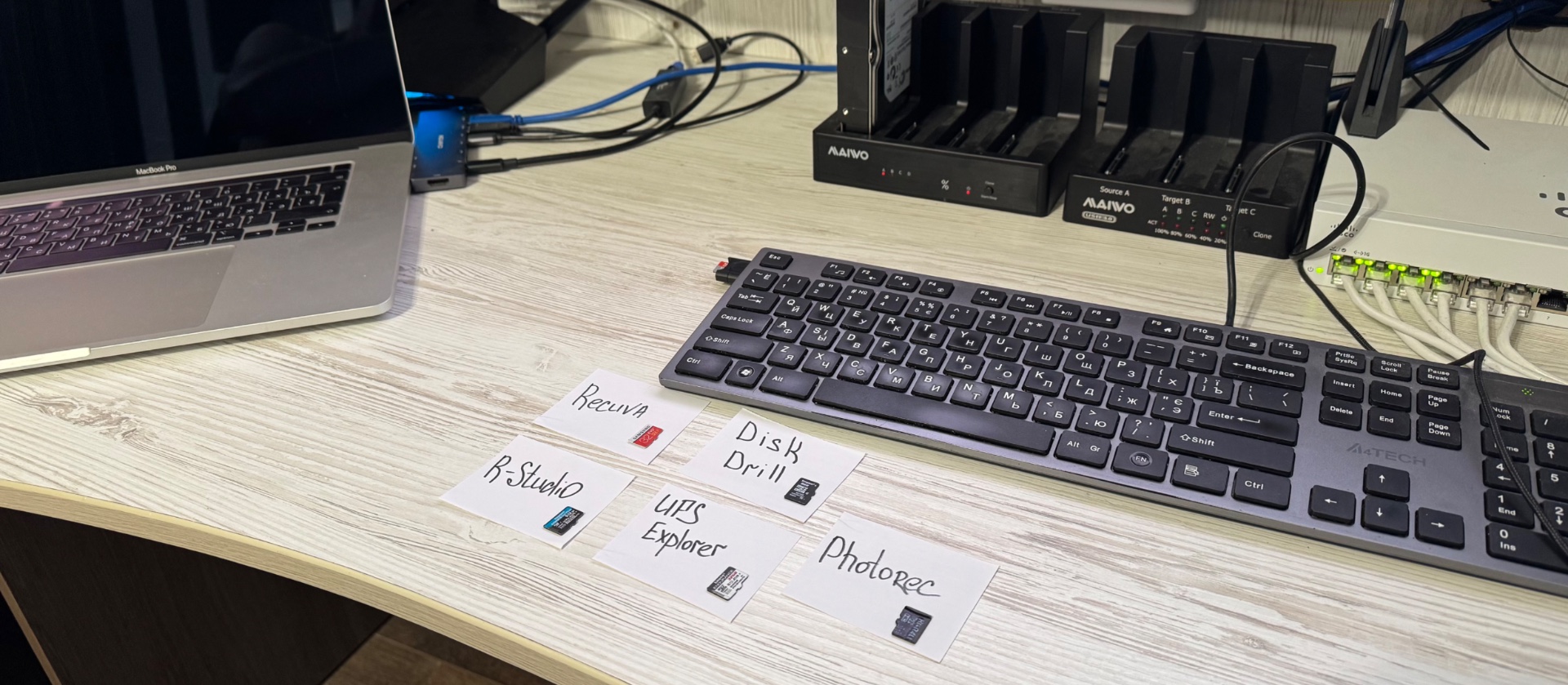
When testing SD card recovery tools, we go beyond simple file deletion scenarios. We simulate real-world failures—such as formatted cards, RAW file systems, and fragmented videos—to evaluate how each tool handles the kind of damage users actually face. Recovery performance for RAW photos and 4K videos is especially important to us, as that’s where many tools start to fall short. We also examine how accurately the software interprets file systems and how safely it scans without risking further data loss.
Here’s a summarized version of our testing process:
- Dataset Preparation: We gather a diverse range of file types typically stored on memory cards. While we focus on RAW photo and video formats supported by DSLRs and action cams, we also include files like spreadsheets, text files, presentations, audio files, and PDFs, as memory cards are often used as external storage for devices such as tablets, laptops, mini PCs, and MP3 players. These files are sourced from various devices to represent different camera models and file formats.
- Memory Card Preparation: We use real SD, microSD, CF, SDHC, SDXC cards with varying degrees of wear and, in some cases, virtual hard drives (VHDs) to simulate memory cards. These memory cards are prepared with our dataset, containing a mix of file types and sizes.
- Simulating Data Loss: We simulate common data loss scenarios on memory cards, including accidental deletion, formatting, and corruption.
- Recovery Process: Each data recovery tool is run through its paces, using quick scans for recently deleted files, deep scans to recover data with file system records, and signature scans for recovery by file type, where applicable. We pay special attention to the software’s ability to handle memory card-specific challenges, like fragmented files and varying file systems, and its ability to work with corrupted memory cards.
- Analyzing Recovery Results: The recovered data is evaluated for completeness, integrity, and quality. We also assess the ease of use of the recovery software, specifically for memory card recovery, and any additional features that speed up the process (preview abilities, recovery chances, sorting) and help repair damaged files.
- Scoring and Ranking: Data recovery tools are scored on their performance in recovering various file types from memory cards. Additional factors such as user software features specific to memory card recovery, and overall reliability are also considered. We also incorporate feedback from Trustpilot and Reddit, integrating user insights and experiences to enhance our scoring accuracy and relevance.
Conclusion
These five software solutions for SD card recovery offer excellent options for users seeking to recover deleted files or restore data from their formatted or corrupted SD card.
Chances are you’ll find what you need with our top three picks. Disk Drill is a perfect blend of recovery performance and usability. PhotoRec offers robust signature recovery at no cost. And Recuva is another no-cost solution, but great for simple undelete operations.
Here’s a quick breakdown of the pros and cons of these three tools:
| Disk Drill | PhotoRec | Recuva |
| ✅ Includes an Advanced Camera Recovery module ✅ Works with all file systems ✅ Great support for a wide range of photo and video file types ✅ Allows byte-to-byte cloning of corrupted memory cards ❌ No portable version |
✅ Completely free ✅ Open-source license ✅ Works on all major platforms ❌ The optional GUI is extremely basic ❌ Isn’t updated often |
✅ Portable version available ✅ Allows unlimited free recovery ❌ The free version doesn’t include support ❌ No major updates since 2022 ❌ The interface is not user-friendly |
| Jump to overview | Jump to overview | Jump to overview |
FAQ
After reviewing multiple free SD card recovery software solutions, we’ve found Disk Drill to be the most versatile and functional recovery tool with an allowance for free recovery, features useful for SD card users, and unlimited previews for free. PhotoRec is another good option, as it’s free and open-source with good signature recovery if you can navigate the text-based interface. Recuva is also a good pick that’s completely free, best suited for basic undelete tasks.
Unless you have the right equipment and technical skills, you most likely won’t be able to recover data from a physically broken SD card without professional help. A professional data recovery service center should be able to transplant the flash memory chip from your broken SD card to a suitable donor SD card and recover your data for you.
Both Windows and Mac come with a utility that you can use to repair SD card corruption. In Windows, this utility is called CHKDSK, and you can invoke it from the command-line with the following command: chkdsk c: /r (replace “c” with the letter assigned to your SD card). macOS users can use the First Aid feature in Disk Utility.
Yes, some SD card recovery applications, such as Disk Drill, are able to restore files from a RAW SD card. To protect your data during recovery, particularly in the case of a corrupted card, use the “Byte-to-byte Backup” tool to create a disk image.
Android users can choose from several SD card recovery apps, each offering a slightly different set of features and capabilities. Based on our testing, DiskDigger delivers the best results and a truly straightforward data recovery experience.
Yes, you can repair corrupted video files from your SD card. Simply upload the corrupted file to Clever Online Video Repair service along with a working sample recorded with the same device and settings. If the corrupted file isn’t visible on your SD card, you may need to first recover it using a data recovery tool before attempting the repair.
