300+ Million
TOTAL DOWNLOADS
Search the website

It might seem impossible to recover files from Trash on Mac. But it's not! We will show you several methods for recovering data from the Trash including the use of data recovery software. With the Disk Drill data recovery app getting your lost data back is a matter of a few clicks and just several minutes. Moreover, it's free to completely scan and find your trashed data, even if your Trash was emptied. macOS Tahoe Ready!

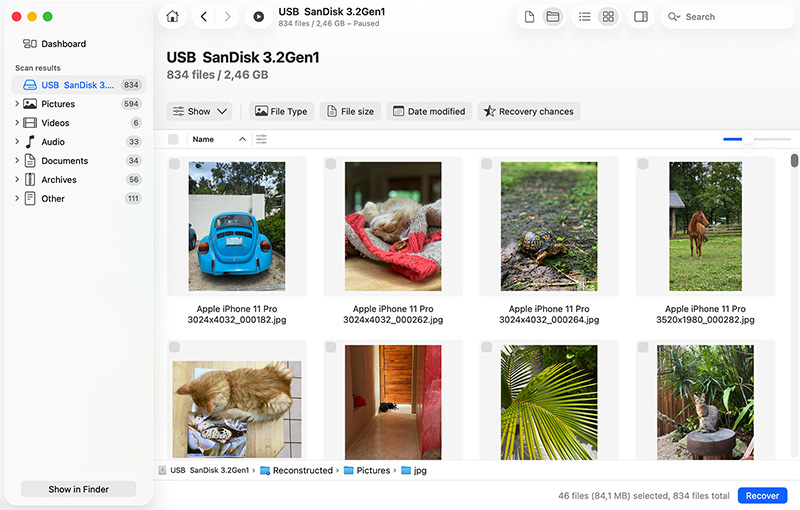
Check out our article Variables That Impact File Recovery Chances to better understand your chances of successfully being able to recover deleted trash on macOS. If you only emptied your trash a short while ago and you did NOT use the “secure empty trash” function, then your chances are good.
Read on for a quick overview of the steps needed to recover Recycle Bin on Mac. For detailed tutorials, see How to Install Disk Drill and How to Recover Lost Files from Your Mac Internal Hard Drive in our Knowledgebase.
Before you go any further, let's make absolutely sure your files are actually gone from Trash.
Open the Trash folder and check if your files are still there. If you deleted files from a flash drive or external hard drive, you'll need to plug that device back in first (external drives have their own separate Trash folders that only show up when the drive is connected). Once you plug it back in, deleted files will appear in your main Trash alongside everything else.
To recover deleted files from the Trash on Mac:
Once you click the Put Back option, all selected files will be immediately moved back to their original locations. If you would rather move them somewhere else, then you can click & drag them to any folder you want.
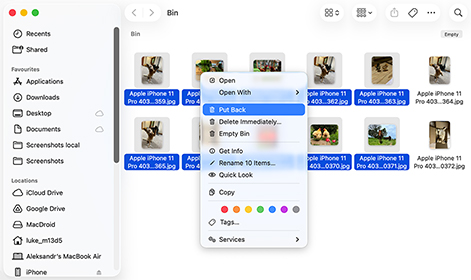
Note: Even if you don't see your files in the Trash, they still might not have been deleted at all. Try searching for them in Finder by name or file type. If Finder doesn't show anything and the Trash is empty, then it's time to use data recovery software like Disk Drill, which can find both existing and deleted files across your entire storage device.
In situations where deleted files can’t be recovered from the Trash (either because they never made it there or because it has been emptied), there's only one way to determine if your files can still be recovered: scan your drive with data recovery software.
With data recovery software, you can locate all files that are still physically present on your storage device, even if they're no longer visible to macOS. And the best part is that you can do it at home and without spending any money.
Download the free version of Disk Drill and, for best results, install it on a different drive than the one you're trying to recover files from (installing software writes new data to your drive, and that could overwrite the very files you're trying to save).
After installation, macOS will ask you to grant Disk Drill access permissions. If you're scanning your system drive, you'll need to enable the system extension (KEXT) for Disk Drill to read it at a deeper level. Follow the prompts, and if you need detailed instructions, check out this guide on enabling system extensions.
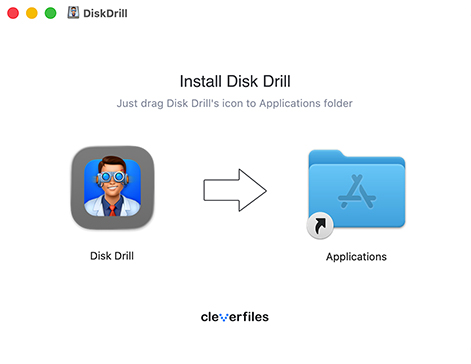
If installing to a separate drive isn't an option, you can run Disk Drill in portable mode, which avoids writing any data to your internal drive. If that's also not possible, you can install Disk Drill directly on the affected drive. It will still work just fine, but this is the least preferable option since the installation process could potentially overwrite some of the data you're trying to recover.
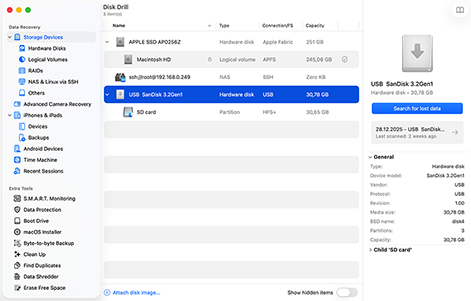
Launch Disk Drill and when the main window appears, you'll see a list of available drives. Select the specific disk where your files were originally stored before they ended up in the Trash.
Most MacBooks have just one internal drive, so they might not be more storage devices to select on your computer. But if you have external drives connected, multiple partitions, or you're working on an iMac or Mac Pro with additional storage, there will be a few options to choose from.
Once you've selected the correct drive, click Search for lost data. This will scan your drive and attempt to recover files deleted from Trash on macOS.
After the scan is complete, Disk Drill will show you the list of files it has found. Sometimes the recovered files do not have their original names preserved, so you can filter your results by date, size and type. Click the “eye” icon to preview the files right in Disk Drill.
Be sure to preview the entire file to make sure it is complete and uncorrupted. There is a good chance you will be able to recover emptied trash on Mac.
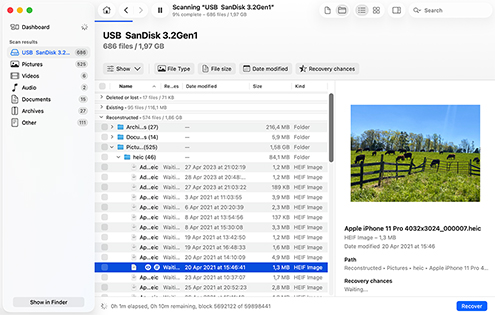
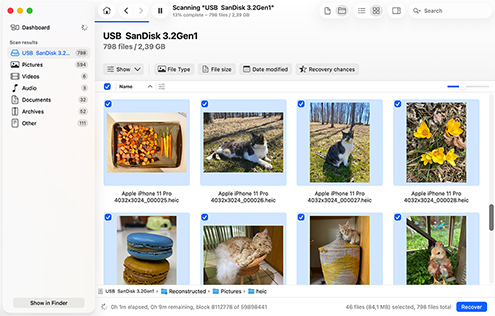
When you find the files you need, check the box next to them and click Recover. Disk Drill will walk you through the file recovery steps.
When you successfully recover the emptied trash on Mac, you will want to prevent it from happening again. The best way to do this is to use Disk Drill’s Guaranteed Recovery feature. Guaranteed Recovery monitors your Mac’s trash folder, and makes an invisible copy of any file you send to the trash.
This way you always have a copy – even after you emptied the trash. Best of all, recovering protected files is completely free of charge. Simply install Disk Drill on your Mac’s hard drive and then follow the instructions in How to Use Guaranteed Recovery to activate it. After that you will never have to worry about recovering deleted files from your Mac trash again.
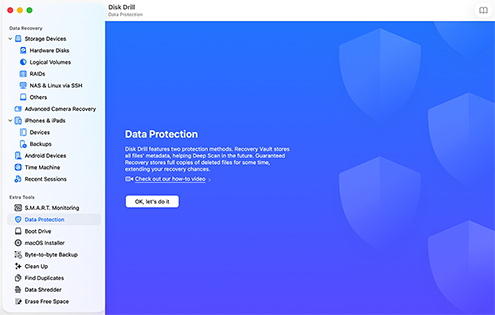
Note: Most modern Macs use SSDs with TRIM enabled, which means deleted data can be permanently erased within minutes. With Guaranteed Recovery protecting your files, you won't have to worry about TRIM jeopardizing your recovery chances.
Even in situations where other methods for recovering deleted files are available, such as professional data recovery services, data recovery software is often the best solution because it offers the following benefits.

No waiting around for appointments or shipping your drive across the country. You just need to download the software, run a scan, and you'll know within minutes whether your files can be recovered.

Professional data recovery services can easily run into hundreds or thousands of dollars. Recovery software costs a fraction of that, and most leading solutions like Disk Drill let you scan for free to see what's recoverable before spending anything.

Modern recovery software is built for regular people, not just tech experts. You don't need to understand file systems or storage architecture. You just need to go through a few simple steps and let the software handle all the technical complexity under the hood.

Data recovery software works for recovering permanently deleted files that bypassed the Trash (using Option + Command + Delete) as well as files lost without ever going to the Trash, such as after formatting or partition corruption. Even when the file system is severely damaged, advanced software can recover files using signature-based detection.

The best data recovery software operates in read-only mode. It looks at your drive without changing anything, which means you can't accidentally make things worse and jeopardize any further recovery attempts.
There are multiple ways to recover deleted items on a Mac without software:
🏆 Best for: Permanently deleted files that have been backed up.
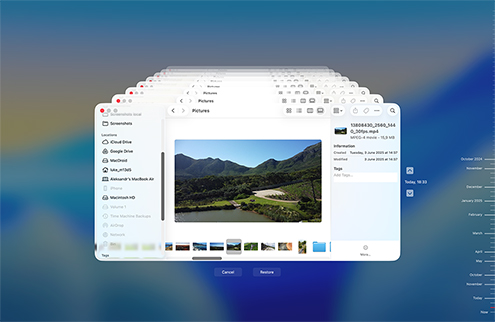
Note: Even if you don't have a full Time Machine backup, macOS may have created local Time Machine snapshots on your drive, which can sometimes help you restore recently deleted files, so it's worth checking Time Machine even without an external backup drive connected.
🏆 Best for: Files deleted from within certain applications.
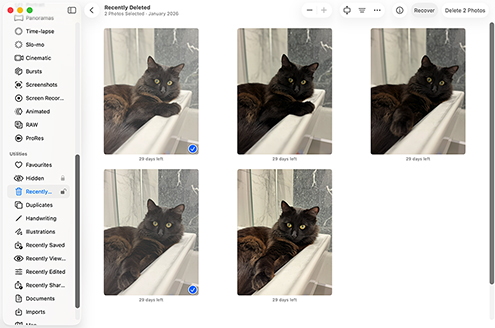
Some Mac software applications have their own alternatives to the Trash folder. For example, the Photos app has a folder called Recently Deleted, where all deleted photos and videos are placed for a certain amount of time before they become permanently deleted.
Other Mac apps that have an app-specific Trash folder should work similarly, so adapting the steps above to recover lost data from them shouldn’t be a problem for you.
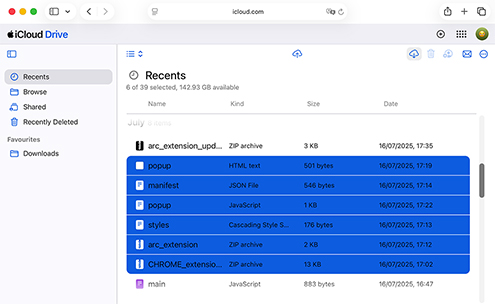
🏆 Best for: Files synced to iCloud Drive or stored in iCloud.
iCloud Drive can help you recover deleted files if you stored them directly in iCloud Drive through the web interface (rather than syncing them from your Mac), or if you deleted files from your Mac while your internet connection was down and the changes haven't synced yet.
Important: If you deleted files from your Mac and those changes already synced to iCloud, the files are gone from the cloud too. That’s because iCloud Drive is a sync service, not a backup service. Deleting files locally means they're deleted everywhere as soon as that sync happens, and this includes emptying the Trash.
Here's how to recover files from iCloud:
Don’t forget to check the Recently Deleted folder in the sidebar. iCloud holds onto deleted files for 30 days before permanently removing them.
Note: Unlike iCloud Drive, services like Google Drive, Dropbox, and OneDrive sync file deletions but don’t sync the emptying of your Mac's Trash due to limited integration with macOS. As a result, deleted files may still remain in the cloud service's trash for up to 30 days from the moment of deletion even if you empty your Mac's Trash.
When macOS empties the Trash, it doesn't physically erase your files from the storage device. It simply removes the logical links that make the files visible to the system and marks the space they occupied as available for future use. Until that space gets overwritten by new data, the original files can still be recovered. In fact, it can be recovered even once overwritten, but using different methods.
Here are the three main methods for recovering files from an emptied Trash:

If the data had been backed up before it was removed from the Trash Bin, you could easily recover it from the backup storage media. This is a fairly straightforward method of recovering your lost information. There is no mystery to the fact that you need to have backed up a particular file if you want to recover it from a backup.

Using data recovery software or a recovery service are the other methods to recover emptied Trash from your Mac. Both of these recovery methods take advantage of the way that the macOS deletes data. When the operating system deletes a file, it does not physically remove the data from the storage media. It simply eliminates the logical links that make the files and folders accessible by the system and marks the space they occupied as available for future use.

Until the space has been overwritten by new data, the original files can be recovered. If the storage device can be accessed by your operating system, data recovery software may be able to perform a Mac Trash recovery. If the device has experienced physical damage, a professional data recovery service may be required to get your data back.
The methods we've covered so far are for when things have already gone wrong. But if you catch a deletion mistake immediately, you can save yourself a lot of hassle. The following two methods are your fastest options when you realize you've just deleted something you shouldn't have.
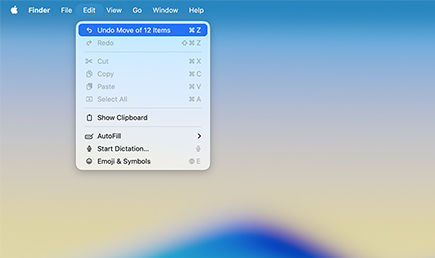
🏆 Best for: Files that were deleted a few moments ago.
If you accidentally delete a file or folder, press Command-Z right away. This keystroke combination undoes your last action and brings your files back instantly.
Unfortunately, the Command-Z shortcut won't work if you log out, restart your Mac because your Mac's undo history gets wiped whenever you end your current session.
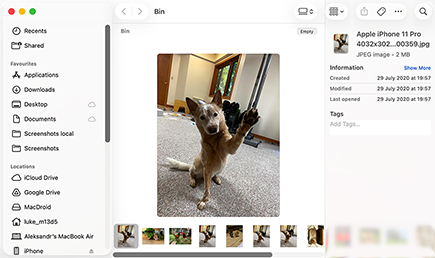
🏆 Best for: Recently deleted files that haven't been permanently removed.
As we explained earlier, files sit in your Mac's Trash folder before they are permanently deleted. That’s why you should make it a habit to check your Trash before emptying it, and definitely check it as soon as you realize a file is missing.
You may also want to disable the “Empty Trash automatically” feature from System Settings > General > Storage so that macOS doesn’t automatically empty your Trash after 30 days.
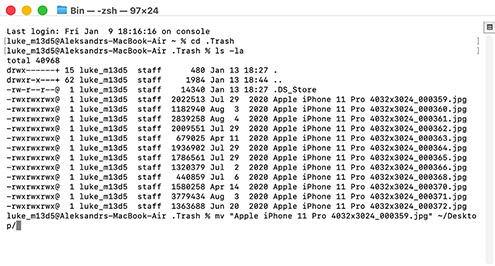
A lot of Mac users wonder if there's some hidden Terminal command that can magically recover permanently deleted files from Trash, but there really isn’t. The best the Terminal app has to offer for recovering files from Trash is just a more complicated version of manually restoring files from the Trash folder using Finder.
In other words, if you've already emptied the Trash, Terminal commands won't help you. But if your files are still sitting in Trash and you prefer working with the command line (or if Finder is acting up), this method works just fine.
Here's how to recover files from Trash using Terminal:
In most scenarios, DIY recovery is your best bet. It's convenient, quick, and way more economical than shipping your drive to a recovery lab. For straightforward cases like recovering files after emptying the Trash, data recovery software will almost always get the job done.
However, sometimes the do-it-yourself approach isn't enough. If your storage device is physically damaged, making strange clicking noises, or not showing up at all on your Mac (in Disk Utility), professional data recovery services with specialized equipment to extract data from storage chips directly may be the only option you have.
Professional recovery also often makes sense for businesses dealing with mission-critical data (financial records, client information, or irreplaceable project files) simply because the higher costs are negligible compared to the value of the data itself and the potential losses from business disruption.
Here’s what to expect if you need to engage a recovery service to get your data back.

Taking a few simple precautions before emptying your Mac’s Trash can save you a lot of time later. Consider following these practices to minimize the possibility that you empty the Trash along with important files that can no longer be recovered.

This is a simple activity that shouldn’t take too much time. Glancing at the sites in the Trash may draw your attention to some items that you did not want to delete. You can easily get them out of the Trash and then go ahead and empty it if that’s your plan.

It never hurts to take a backup before any activity that can potentially delete data. It might seem like overkill, but why not take a backup before emptying the Trash rather than afterward? You will be able to recover files that were in the Trash at the time of the backup without using recovery software.

If you want an extra safety net, enable Disk Drill's Guaranteed Recovery feature before you empty the Trash. Guaranteed Recovery saves protected copies of files sent to the Trash, making recovery quick and reliable after the Trash has been emptied. It takes just a few clicks to set up and runs silently in the background.
When you click the Trash icon in Dock, you don’t actually open any specific Trash folder. Instead, you open an aggregated view of all Trash folders on storage devices connected to your system.
When you delete a file on macOS, the file is moved to a Trash folder, and it will stay there until permanently deleted, which can happen automatically or manually, depending on your settings.
Once a file is permanently deleted from Trash, you can recover it only using specialized data recovery software like Disk Drill and only under certain conditions (the storage devices mustn’t be encrypted, and the file itself must still be physically present on the storage device).
by Disk Drill Team
You can recover deleted files from the Mac equivalent of the Recycle Bin folder by clicking the Trash icon in the Dock, selecting your deleted files, and moving them to a safe folder. If the Trash has already been emptied, you can use the free version of Disk Drill to scan your drive and preview recoverable files, which lets you confirm your files can be recovered before deciding whether to upgrade to the full version for actual recovery.
To recover deleted files from an emptied Mac Trash Bin:
Your best option is Time Machine. If you have a backup that predates the deletion, you can restore the files from there. Even without an external backup drive connected, macOS may have created local snapshots that contain your files. You can also check app-specific trash folders (like Recently Deleted in Photos) or iCloud's Recently Deleted folder, which retains files for 30 days. Beyond these options, recovering permanently deleted files without software isn't possible.
Yes and no. When you empty the Trash, the files are permanently logically deleted from your system. The physical data still exists until it is overwritten and can be recovered with data recovery software or a data recovery service. However, if you're using an SSD (which most modern Macs have), the TRIM command may quickly erase the deleted data blocks, which would make recovery virtually impossible. For this reason, recovery chances are typically better on traditional hard drives than on SSDs.
You can undo sending a file to the Trash folder on Mac by pressing the Command-Z shortcut. Know that you can press the shortcut multiple times to reverse more actions.
The Trash icon is located on the far right of your Mac’s dock.
Deleted files remain in their original location after you empty the Trash. The space they occupied is marked as available for use by the operating system and will eventually be overwritten by new data.
You can recover photos after emptying Trash using data recovery software like Disk Drill:
If your Trash Can has disappeared from your Mac’s Dock, you can try this method of recovering it.
If you have not already emptied the Trash Bin you can use the Terminal application to recover deleted files. Use this procedure:
Follow these steps to restore files from the Trash to their original locations:
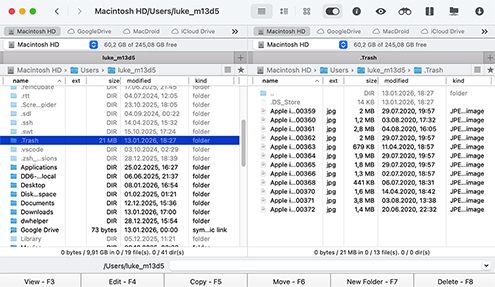
Yes, there is a Trash Bin on your external drive. There is a hidden folder in the root directory of every drive named .Trash. While your system's Finder settings can be modified to show hidden files, starting with macOS Big Sur, the .Trash folder on external drives won't be visible even with hidden files enabled. To view it, you'll need to use third-party file explorers such as OneCommander.

REQUIREMENTS
macOS 10.15–26.x, 69.7 MB
Use Disk Drill 1.x-5.x for OS X 10.5+
AVERAGE USER RANK
NEWEST RELEASE




TOTAL DOWNLOADS

PRO CLIENTS

in 160+ countries

 Caroline
 Thanks for building this app! It recovered most of the photos I lost after a disk crash.
 technologytell.com
 Disk Drill is an excellent utility that has a place on every hard drive, especially if you use an iPhone, digital camera, or other digital devices. Erica Marceau