


Have you ever connected a storage device to your computer to copy or open a file, only to find that Windows can’t read it properly? This can happen with USB flash drives, external HDDs and SSDs, and even internal drives. In some cases, Windows recognizes the device but identifies its partition as RAW, which leaves you unable to access your files.
Does that mean your data is gone, or that formatting is your only option? Not necessarily. Depending on what caused the problem, you may be able to repair the existing file system and recover your files. We’ve tested several approaches to dealing with this issue and put together a guide to help you convert a RAW drive to NTFS without losing data. All you need to do is follow along.
What is a RAW Partition?
Before we get into how to recover lost data, it’s important to understand what a RAW partition is. Simply stated, a RAW partition is a partition which has not been formatted with the file system recognized by the computer being used.
For example, most Windows machines use either FAT12, FAT16, FAT32, NTFS, or NTFS5 file systems. On the other hand, macOS uses APFS, HFS+, FAT32, and exFAT (with read-only support for NTFS). Linux machines use ext3, ext4, BTRFS, ReiserFS, XFS, and more.
If the problem is compatibility, accessing the drive from a supported OS may be enough. If it’s corruption, however, you may need to repair the file system.
Is It Possible to Recover Data from a RAW Partition?
The good news is that, yes, it is possible to recover lost or inaccessible data from a RAW partition.
Even when Windows can no longer recognize the file system, the files themselves may still be intact. Your chances of recovery largely depend on what caused the partition to become RAW and how badly the file system or storage device has been damaged.
If the problem is file system corruption, there are generally two ways forward.
- In cases of relatively minor damage, it may be possible to repair the existing file system and regain access to your files without formatting.
- If the corruption is more severe, data recovery software can scan the RAW drive, locate recoverable files, and save them to another storage device. And once your files are safely recovered, you can simply format the RAW partition as NTFS and copy your files back.
Why Do You Need to Convert RAW to NTFS?
Put simply, you won’t be able to access your data if it’s stored on a RAW partition. The function of a file system (like NTFS) is to logically store your data so it’s easy to retrieve when needed. Without a file system, your data is nothing but an unorganized mess, making it nearly impossible to find anything.
Since computers rely on file systems to locate and access your data, a RAW drive will not be accessible. The data on it may still be intact, but without a working file system, it will remain inaccessible.
How to Convert RAW to NTFS Without Losing Data
In the best-case scenario, a drive may appear as RAW because relatively minor corruption has damaged the NTFS file system metadata that Windows relies on to recognize the volume. If the underlying NTFS structures are still intact enough to be detected, CheckDisk (CHKDSK) may be able to repair them and make the partition accessible again.
This is the simplest option to try when you need to convert a RAW partition to NTFS without losing data, but there is an important distinction: CHKDSK does not actually convert a RAW file system to NTFS; it attempts to repair the existing file system. If the partition is truly unformatted, uses an unsupported file system, or its NTFS metadata is too badly damaged, CHKDSK will usually refuse to run and report that it is not available for RAW drives.
Here’s how to convert a RAW drive to NTFS using Command Prompt (CheckDisk):
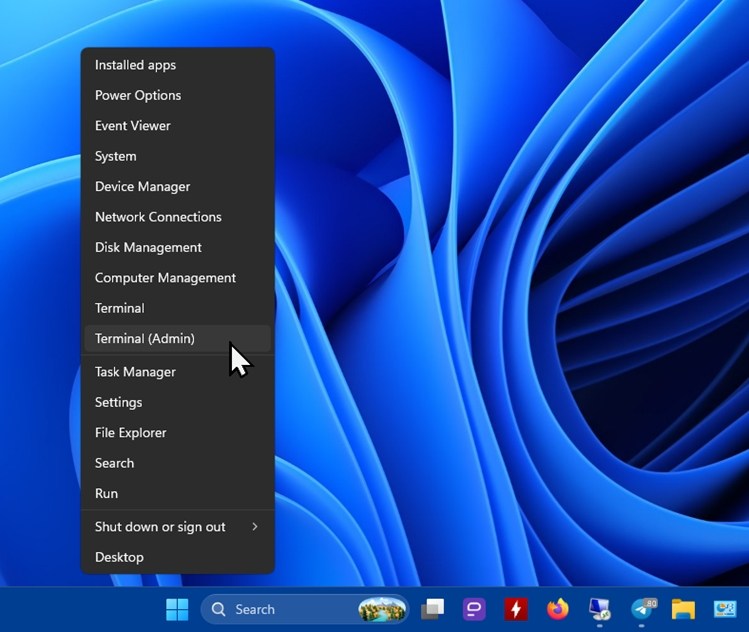
- Right-click Start and click Terminal (Admin). If prompted by UAC to allow, click Yes.
- Type chkdsk D: /f. Replace D: with the drive letter of the RAW partition. Press Enter.
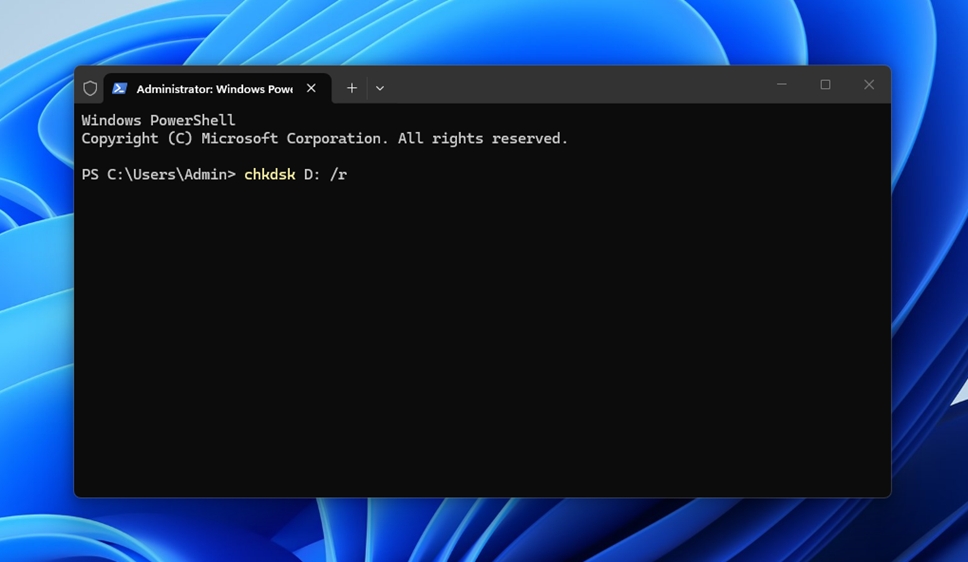
If CHKDSK reports that the file system is RAW and cannot run, do not keep repeating the command. Move on to the next fixes below.
How to Recover Data from a RAW Partition
Sometimes CheckDisk is unable to fix the RAW partition without losing data. If that’s the case, you should recover your data instead before converting the RAW partition back to NTFS manually.
Here are some methods you can use for recovering your data before repairing the troubled drive.
Solution #1 Recover Using Disk Drill
Disk Drill Partition Recovery Tool can recover data from a RAW partition in just a few steps. Data recovery tools like this can retrieve files even when the OS can no longer recognize the file system or access the partition normally.
Disk Drill scans the drive directly for recoverable file system structures and file signatures, so the partition does not need to be accessible in File Explorer. It doesn’t matter whether you need to recover data from a RAW USB drive or an HDD. As long as Disk Drill can access it, you can attempt to scan it.
You can also preview found files before recovery to see what is still recoverable, then restore everything at once or narrow the results with filters and select only the files you need.
To restore files from a RAW partition, follow these steps:
- Download and install Disk Drill. Once the installation is complete, launch Disk Drill.
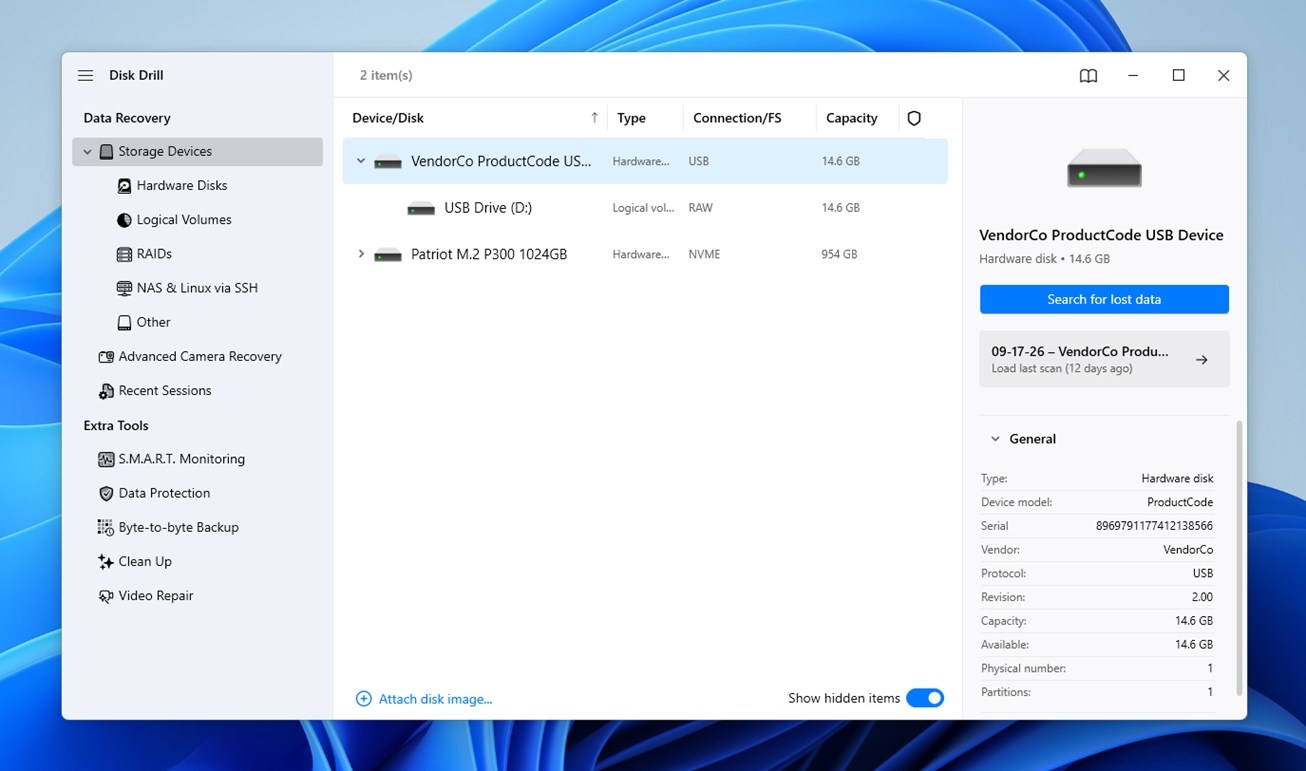
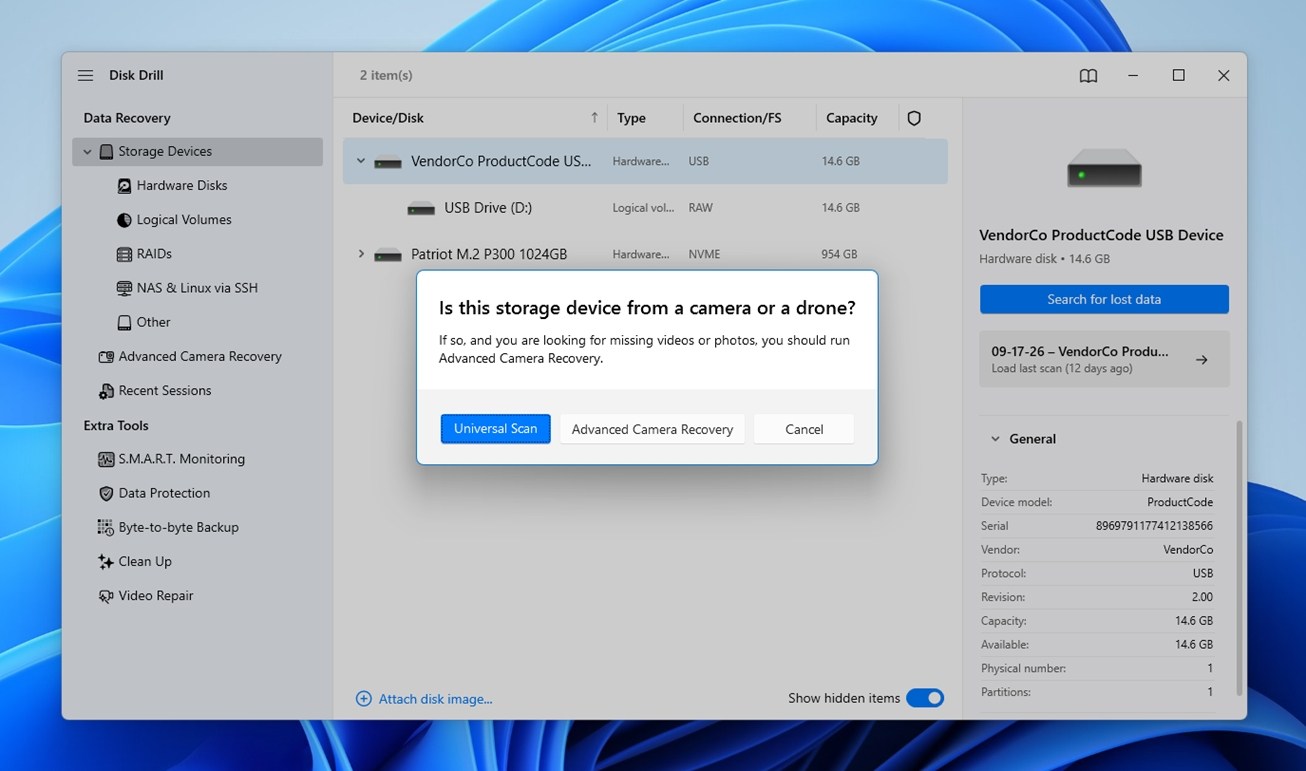
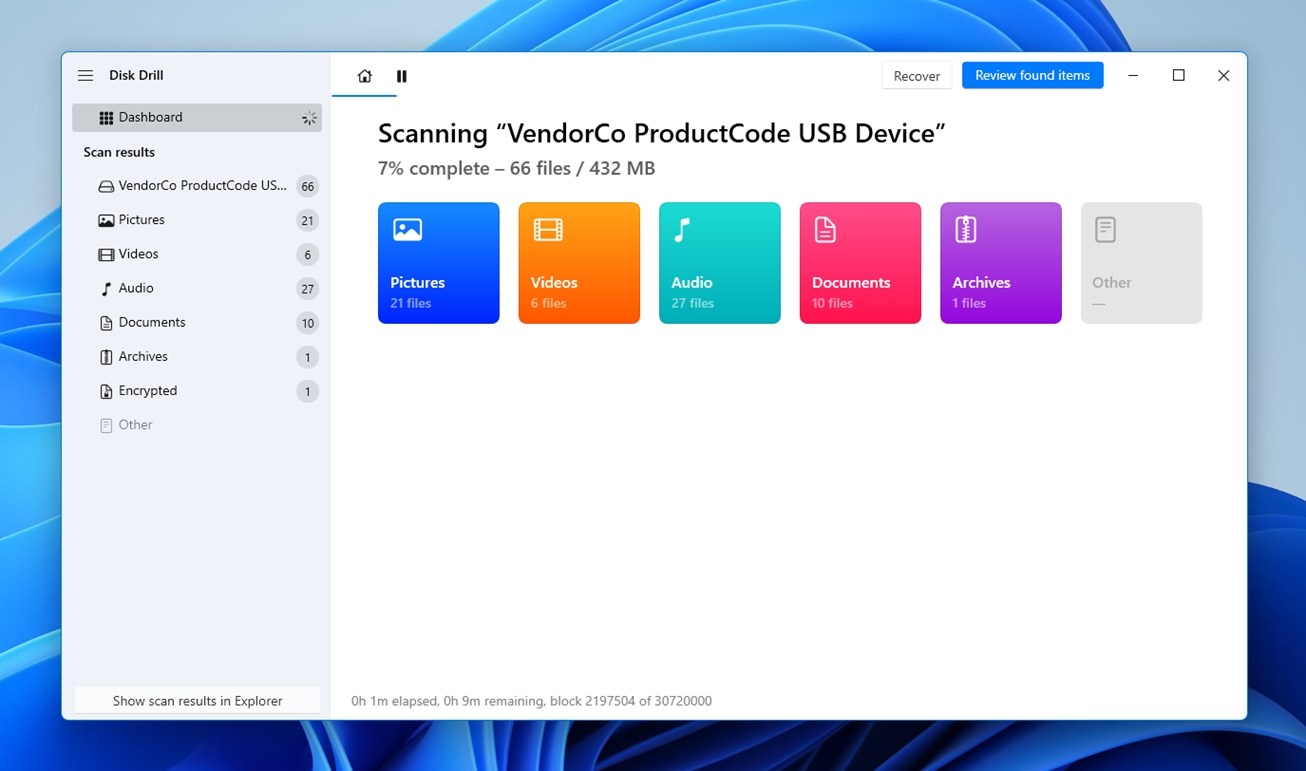
- Select the RAW drive in question (preferably the entire physical drive, rather than just the RAW partition) and click Search for lost data. If Disk Drill asks which scan mode to use, select Universal Scan.
- Once the scan is complete (or right away if you want to watch the results appear in real time), click Review found items. From there, you can browse the discovered files and folders as Disk Drill finds them.
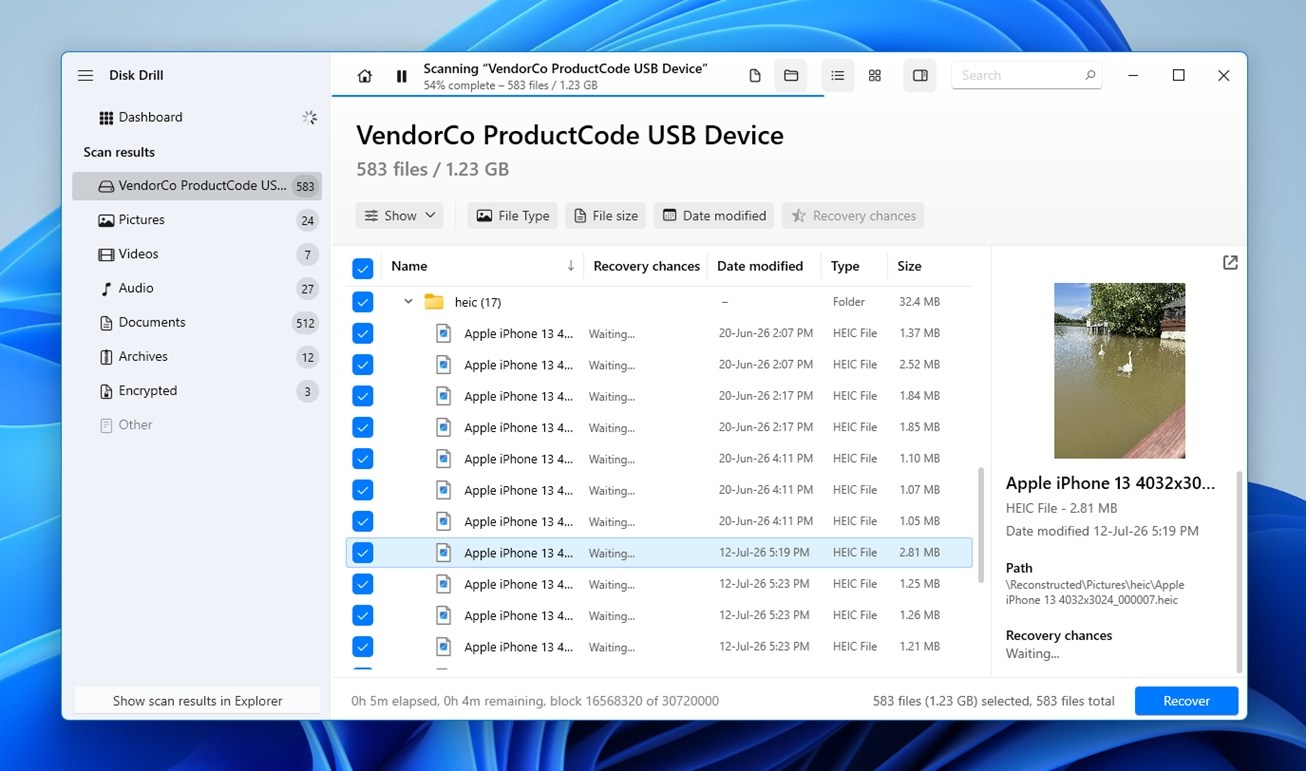
- Now select the files you want to recover. (To narrow the results, use filters such as file type, size, or date modified. You can also use the preview pane on the right to check files before recovery, which is useful when file names are missing or unclear.)
- After selecting the files to recover, click Recover. Select where you want to store the recovered files. Make sure you’re choosing an output location on a different physical drive.
- Click Next, and the recovery process will begin.
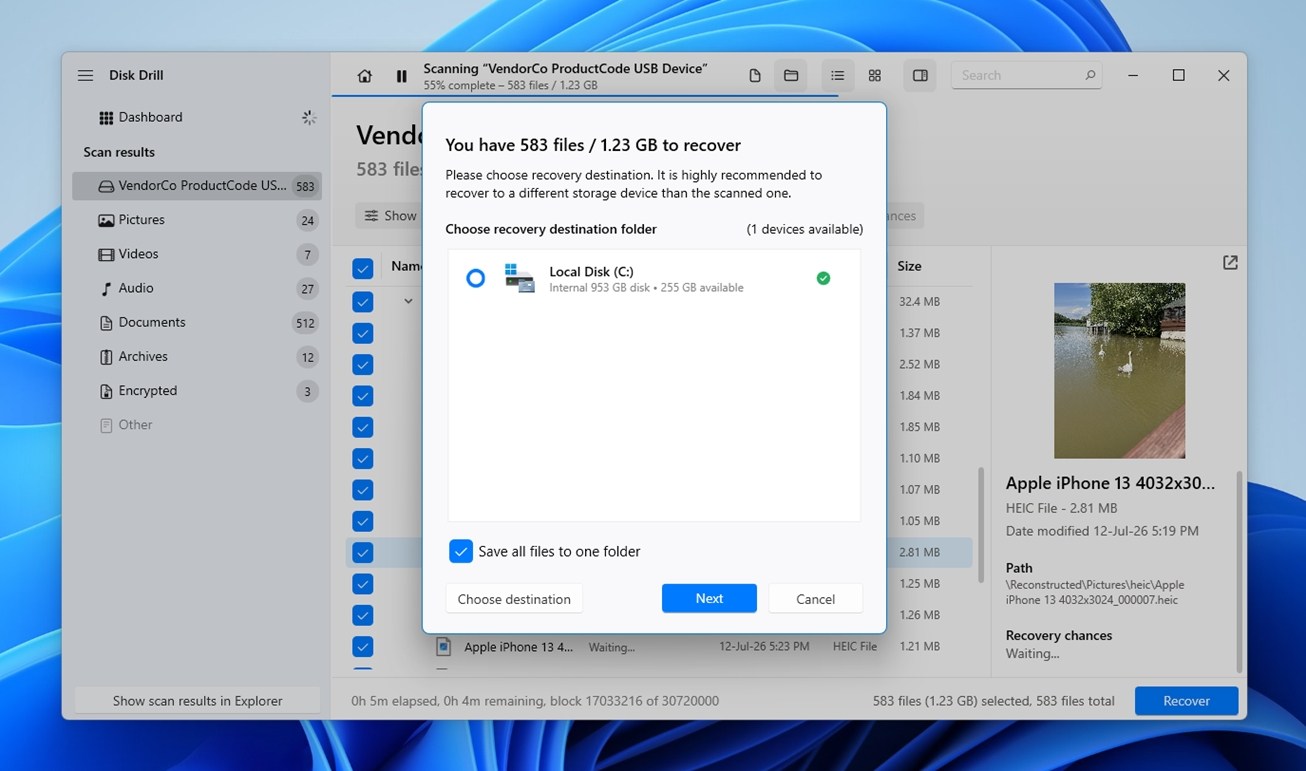 Depending on how many files you’ve selected to recover, how large those files are, and the condition of the scanned device, this can take some time. When the process completes, Disk Drill will present you with an overview screen that includes an option to jump straight to your data.

Solution #2 Recover Using TestDisk
Another, somewhat less dependable option for recovering a RAW partition is TestDisk. Unlike Disk Drill, this is a terminal-only tool that can sometimes restore access to a RAW partition by finding the original partition structure and repairing/rewriting damaged partition or boot-sector information.
TestDisk works best when the problem is caused by damaged partition metadata rather than severe file system corruption. It is also much less beginner-friendly (no graphical interface to guide you through the process), and because some of its actions write changes directly to the disk, you need to be careful when following the steps.
Here is a quick demonstration showing the recovery of a lost partition using TestDisk:
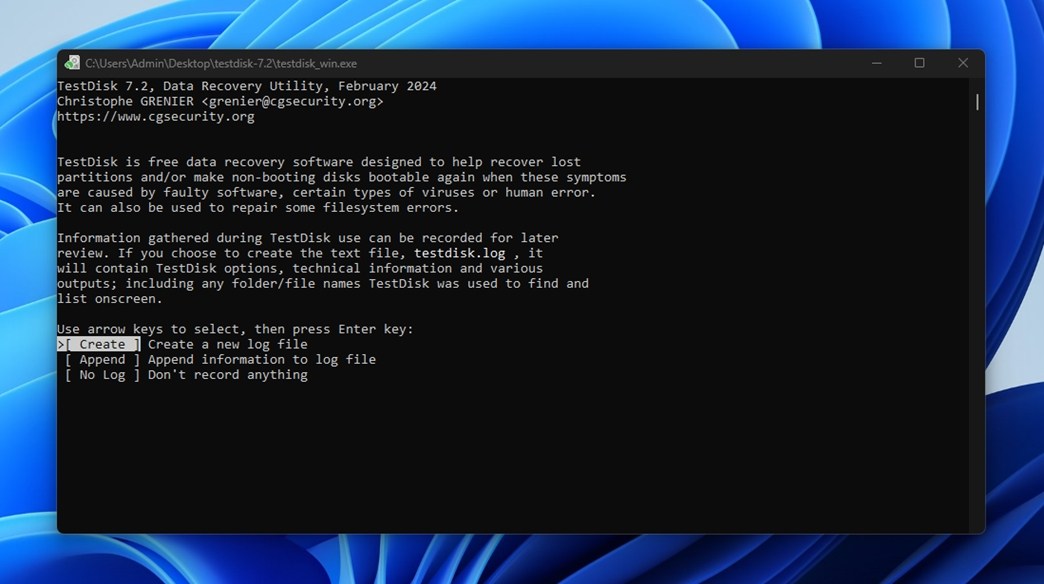
- Download and unzip TestDisk. Open testdisk_win.exe.
- Press Enter to create a new log file.
- Select the drive containing the RAW partition, then press Enter to proceed.
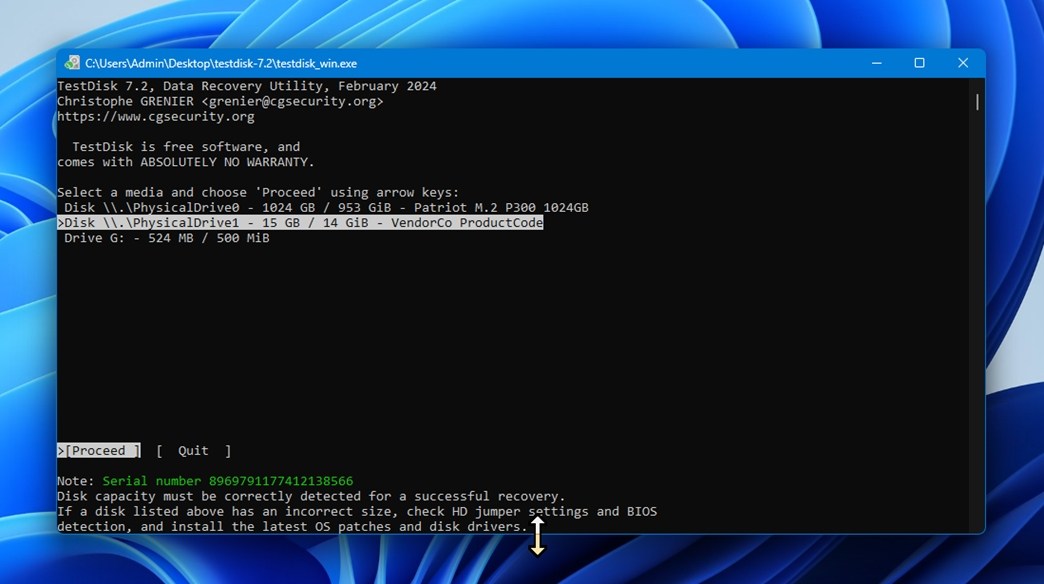
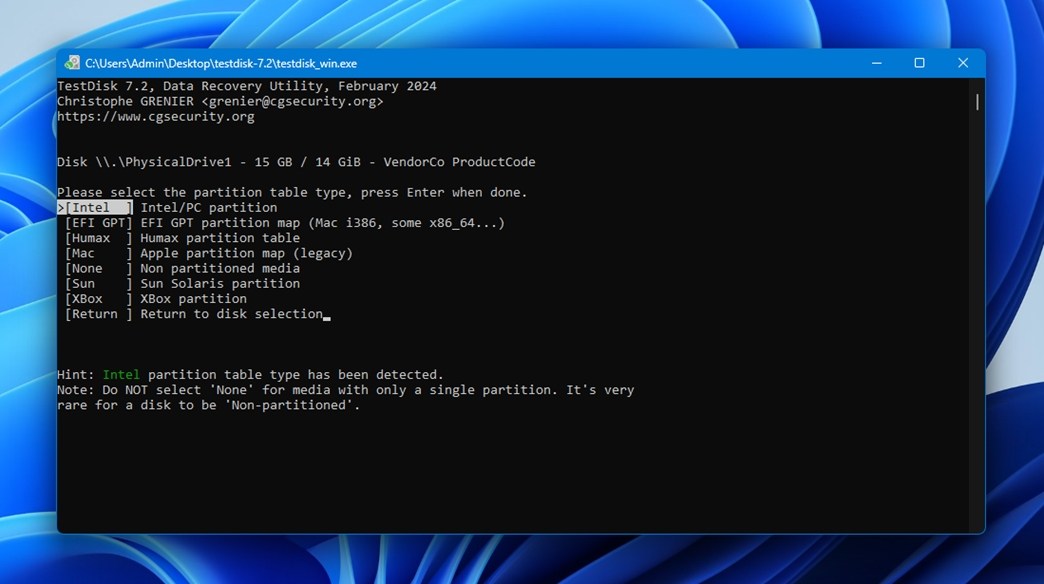
- Select the partition table type. TestDisk automatically selects the one it believes it used. Press Enter.
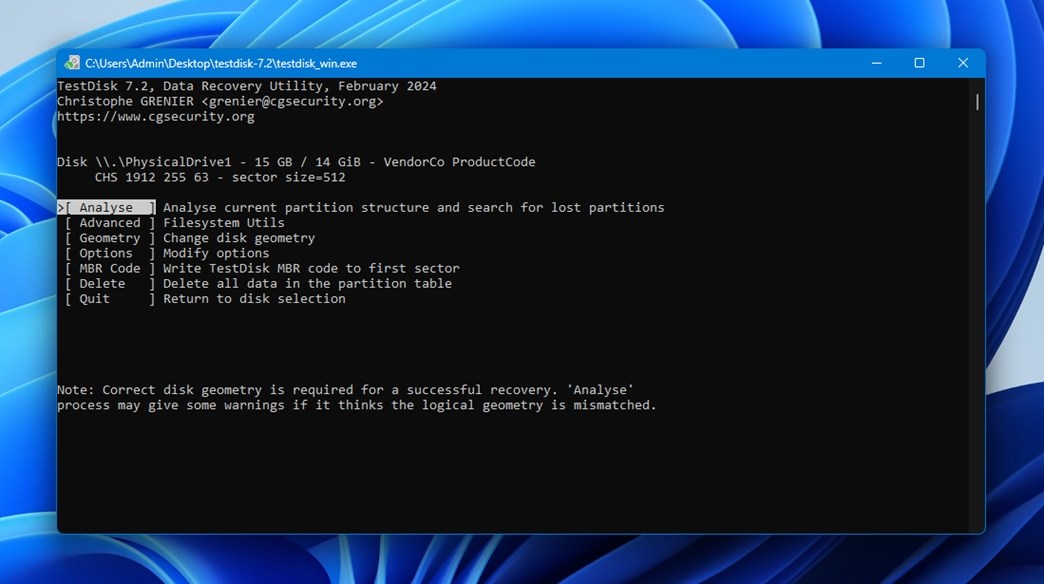
- Press Enter to analyze the partition structure and look for lost partitions.
- Press Enter again to begin the Quick Search.
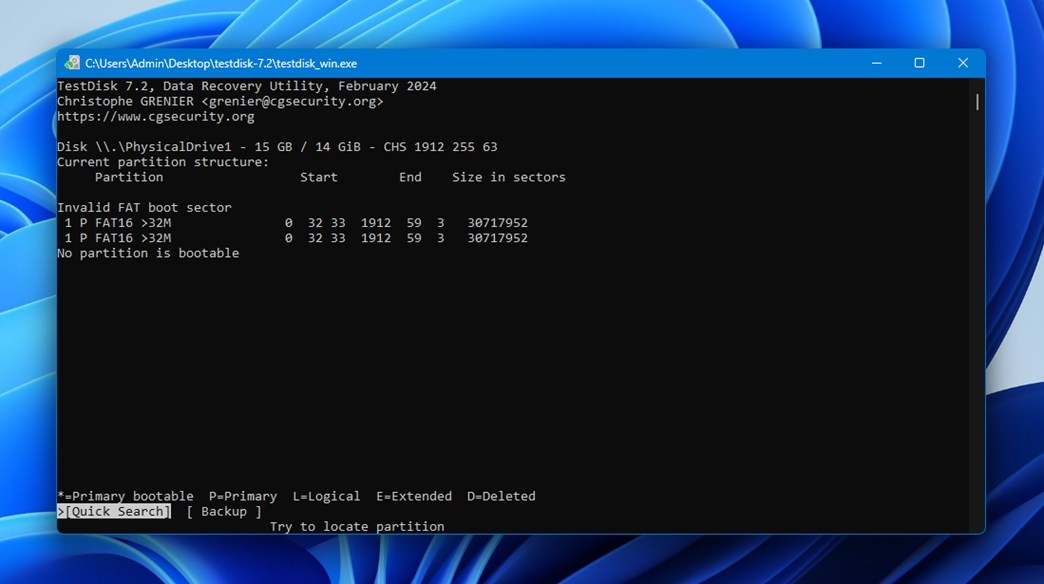
- When it’s done, press Enter.
- Select the partition, then press Enter.
- If nothing appears, select Deeper Search for an in-depth search.
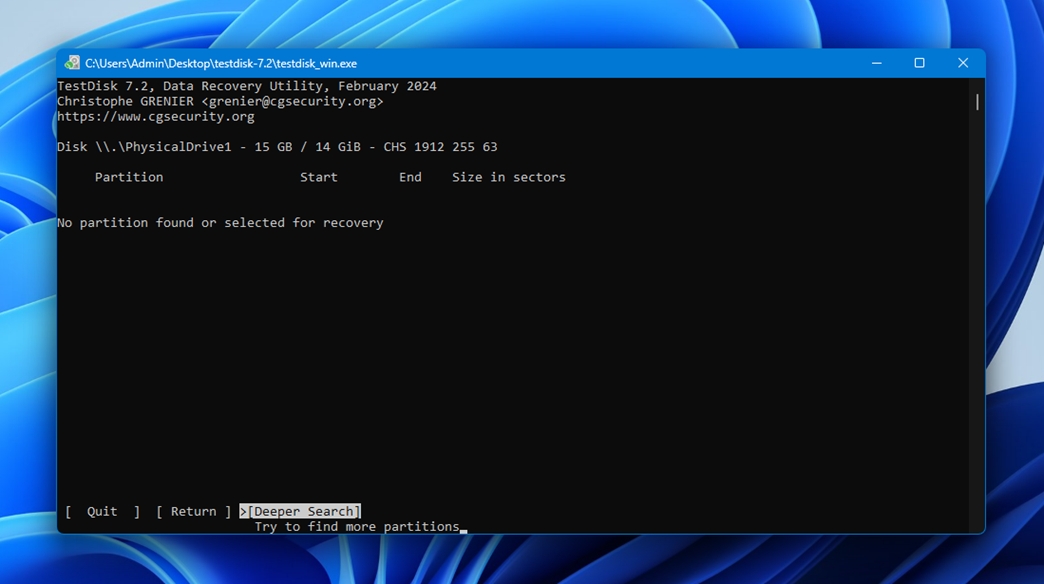
- Select Write when the partition is found.
- Press Y to confirm, then restart your computer once it’s finished.
If TestDisk successfully restores the partition and you can access your files normally again, your job is done here. There is no need to format or convert the drive unless you specifically want to change its file system.
Solution #3 Recover Using a Data Recovery Center
In most cases, the DIY methods we covered above are enough. But if the drive became RAW because of a physical problem, or you simply do not feel comfortable attempting the recovery yourself, a professional data recovery center is the safer option.
A professional lab can work with damaged hardware directly and use specialized tools that are not available in typical consumer recovery software. Using a data recovery center for recovery is often the most expensive option, but it’s also the option with the highest rate of success.
Here’s a general look at what you can expect if you choose to recover your data using a data recovery service:
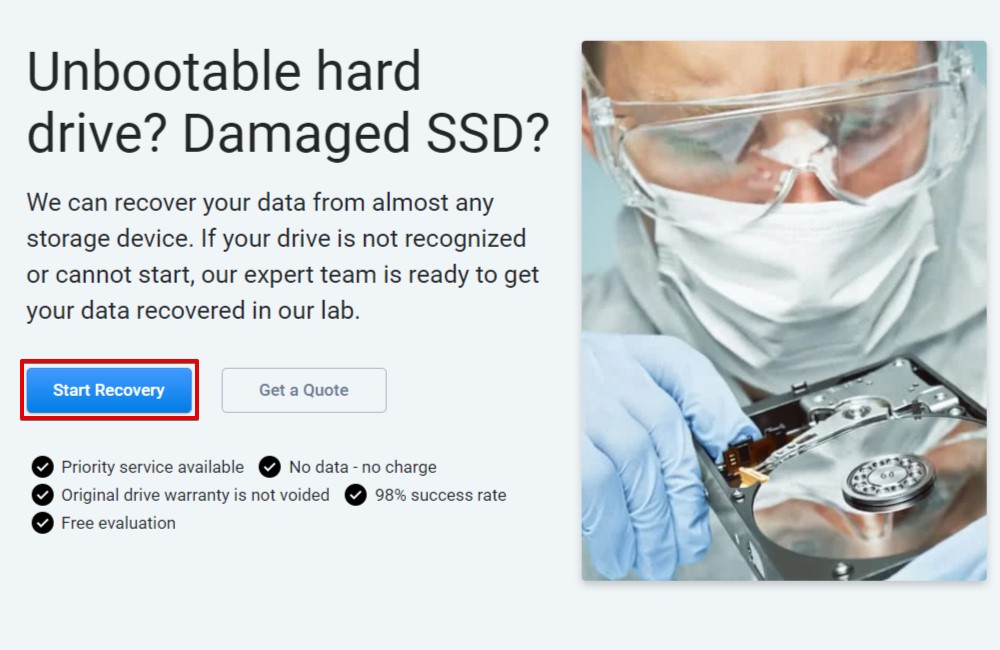
- Click Start Recovery.
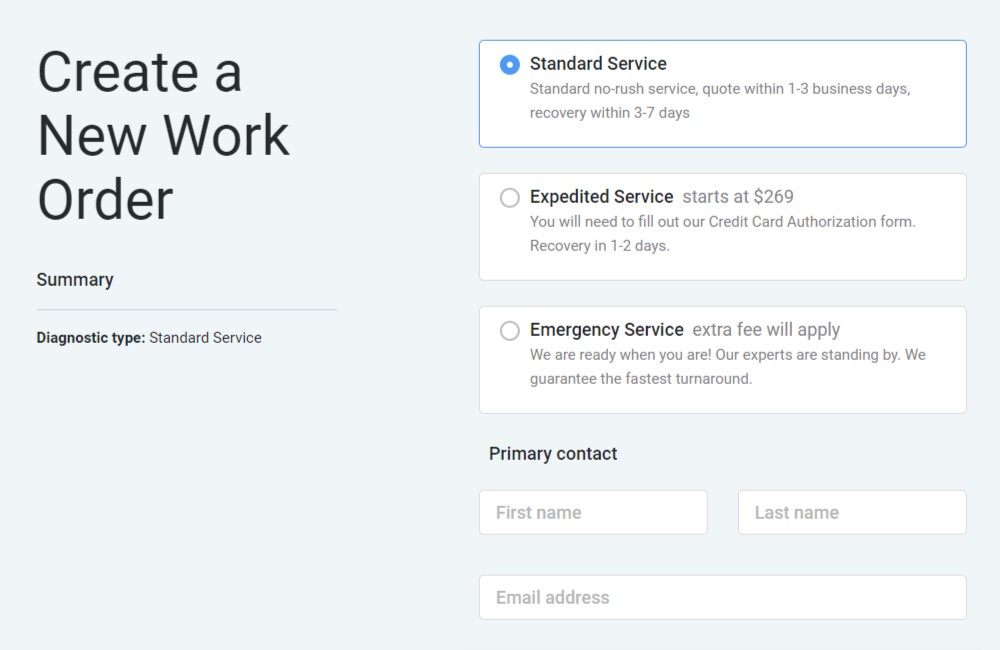
- Fill in all of the necessary information. This includes the type of service you want, your contact information, and any information pertaining to the drive.
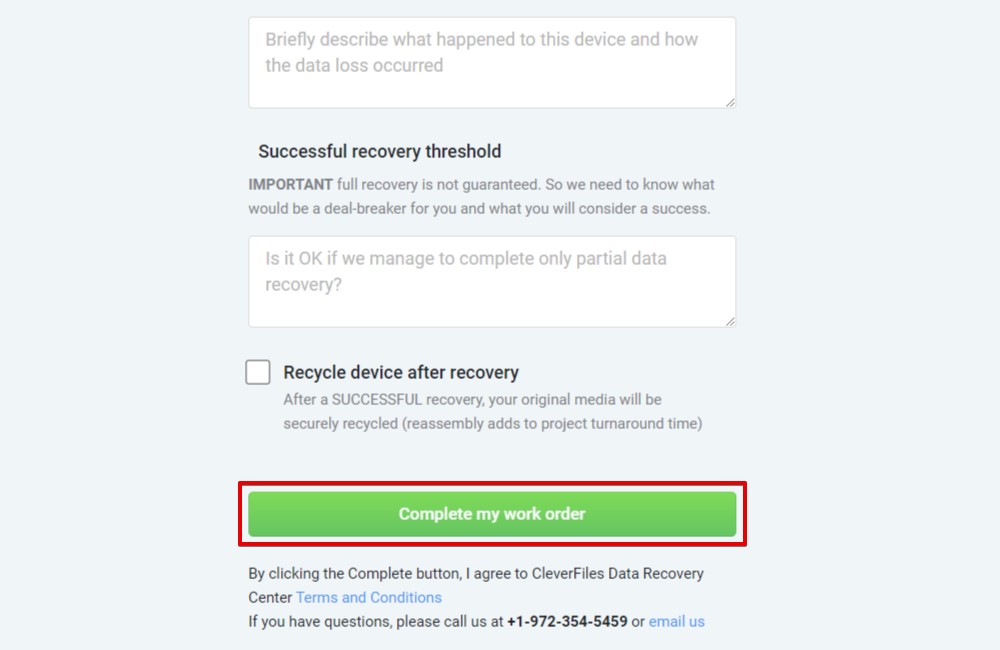
- Click Complete my work order when you’re ready to submit. From here, you will be advised to send your drive away for recovery.
Methods to Convert RAW to NTFS
After recovering your data, it’s time to look at fixing the drive. Generally speaking, fixing a RAW partition is fairly easy once you don’t have to worry about the loss of your data. All it involves is formatting the drive with a new file system to replace the damaged or incompatible one.
The below solutions will show you how to fix a RAW hard drive to NTFS and how to configure a drive.
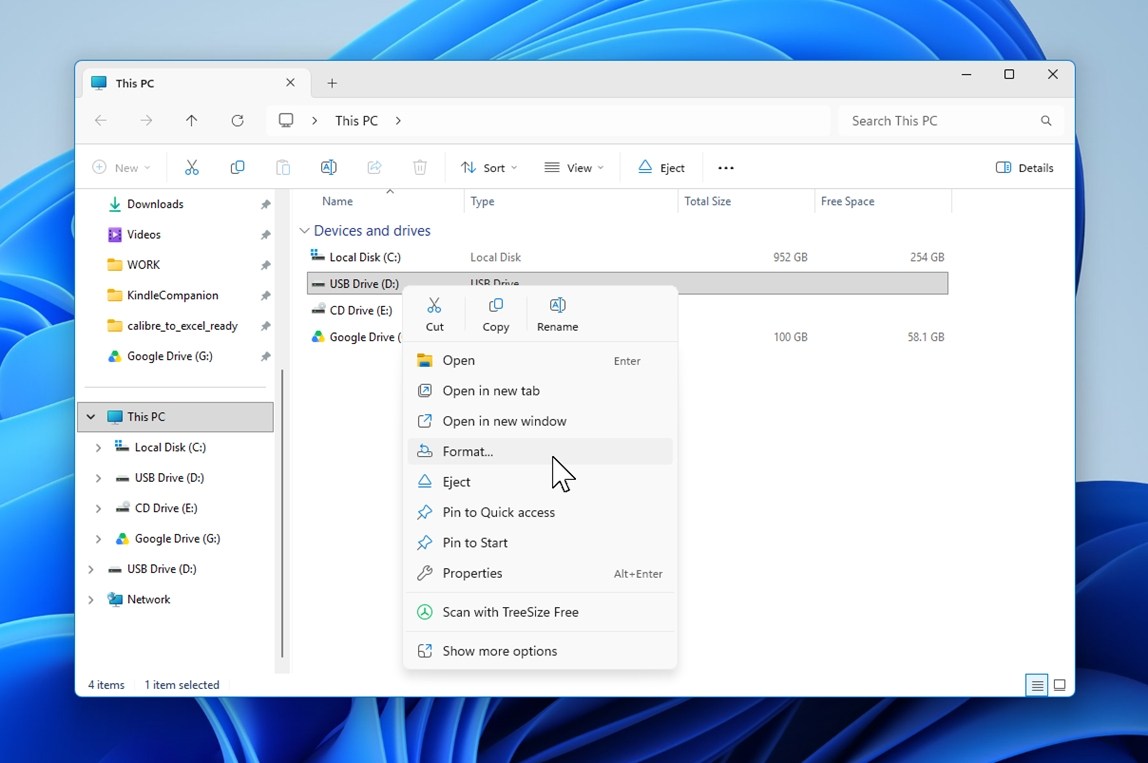
Method #1 Format with File Explorer
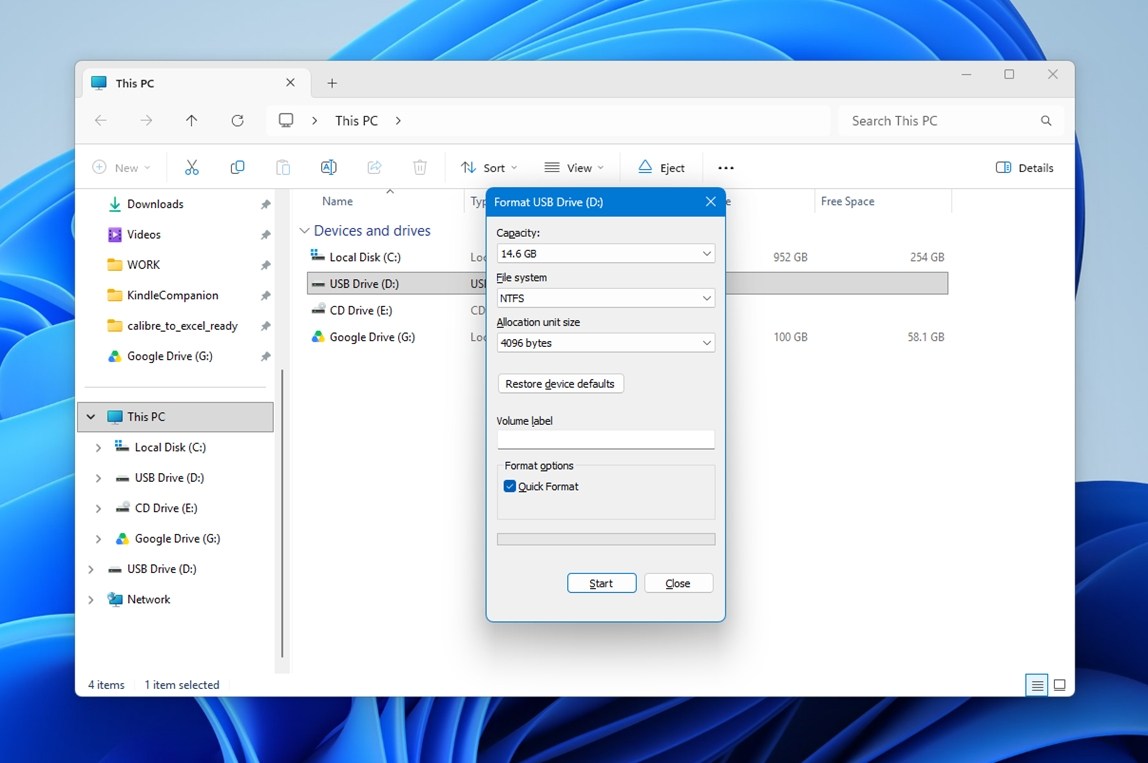
Formatting a drive through File Explorer is one of the easiest ways because it only takes a few clicks. If you’re unsure what values to use when formatting, simply click Restore device defaults when you’re about to finalize the format.
- Open File Explorer.
- In the left navigation pane, right-click the partition you want to format and click Format.
- Define the values for the format, click Start, then click OK to confirm the operation.
Method #2 Format with Disk Management
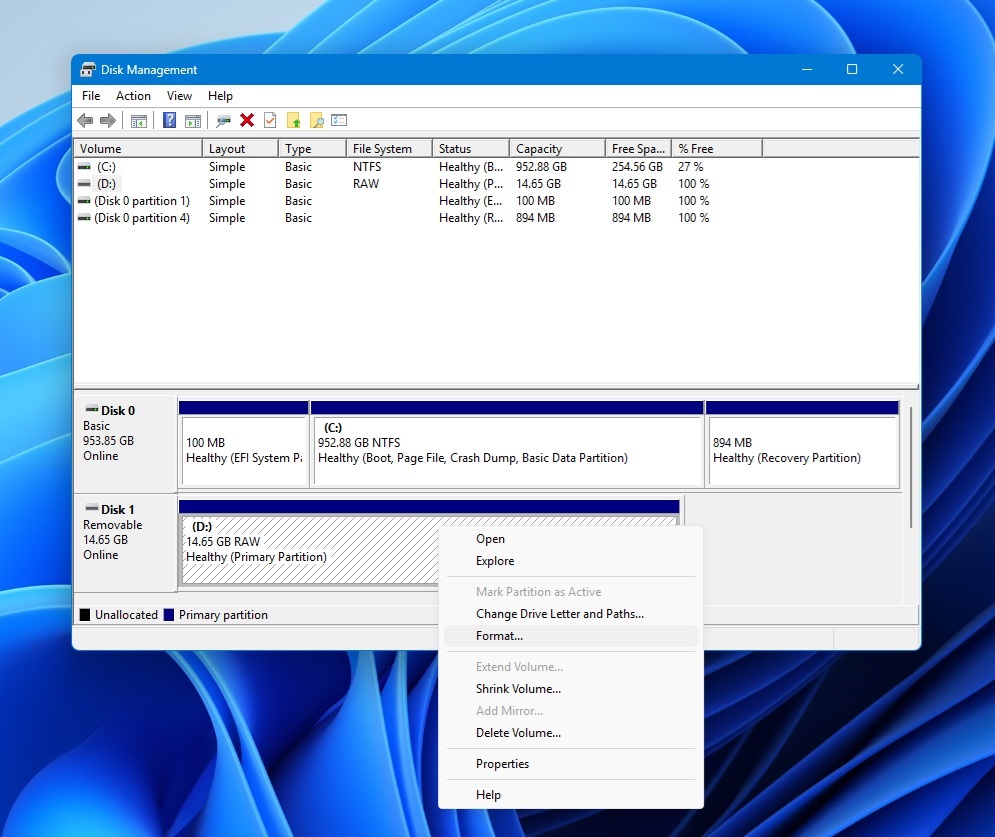
Disk Management is a Windows utility that allows you to review and make changes to your computer’s storage disks. It gives you a breakdown of the health of your drives and the data allocations of each. It can also be used to format your drives.
- Right-click Start and select Disk Management.
- Right-click the volume and select Format.
- Define the values for the format.
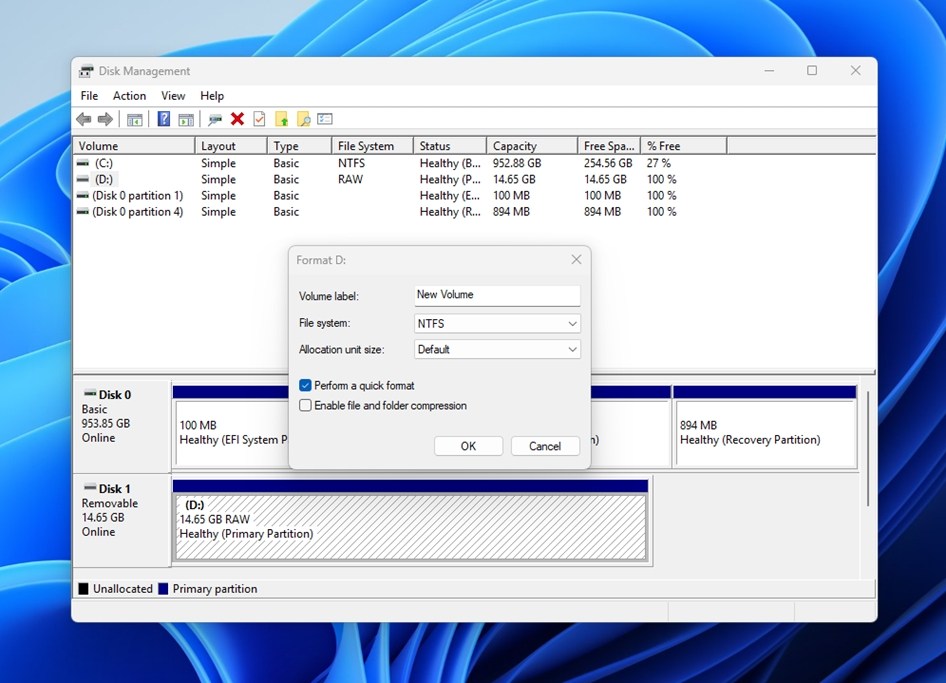
- Click OK, then confirm once more that you want to proceed.
- Click OK to confirm the format.
Method #3 Format with DiskPart
DiskPart is a powerful command interpreter that is similar to Disk Management in that it’s used to manage your computer’s storage disks, but it uses a command-line interface instead. We recommend using this method only if the previous two formatting options haven’t worked.
- Right-click Start and select Terminal (Admin).
- Type diskpart and press Enter.
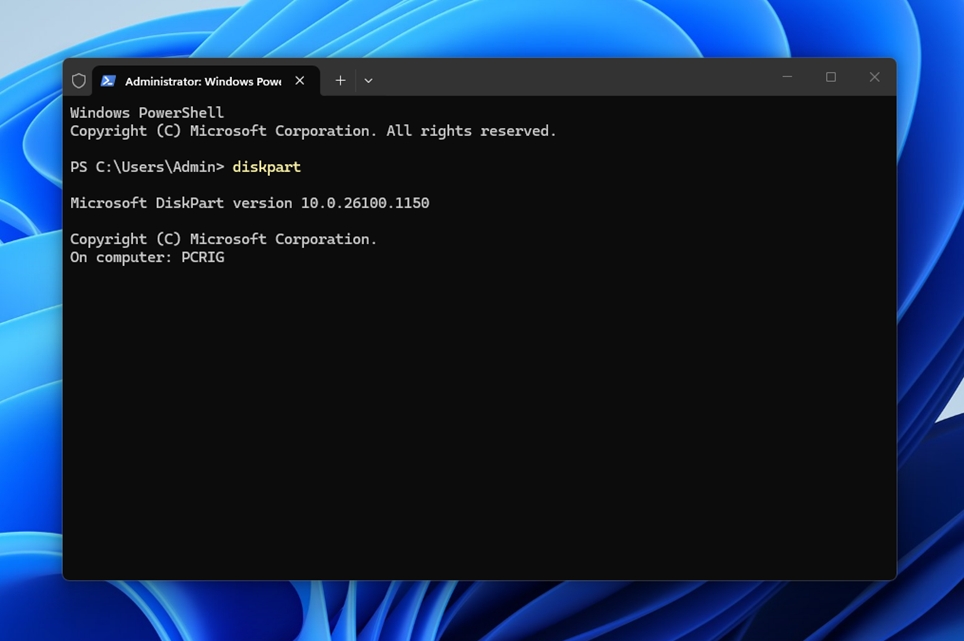
- Type list disk and press Enter. Make note of the disk number that has the RAW partition.
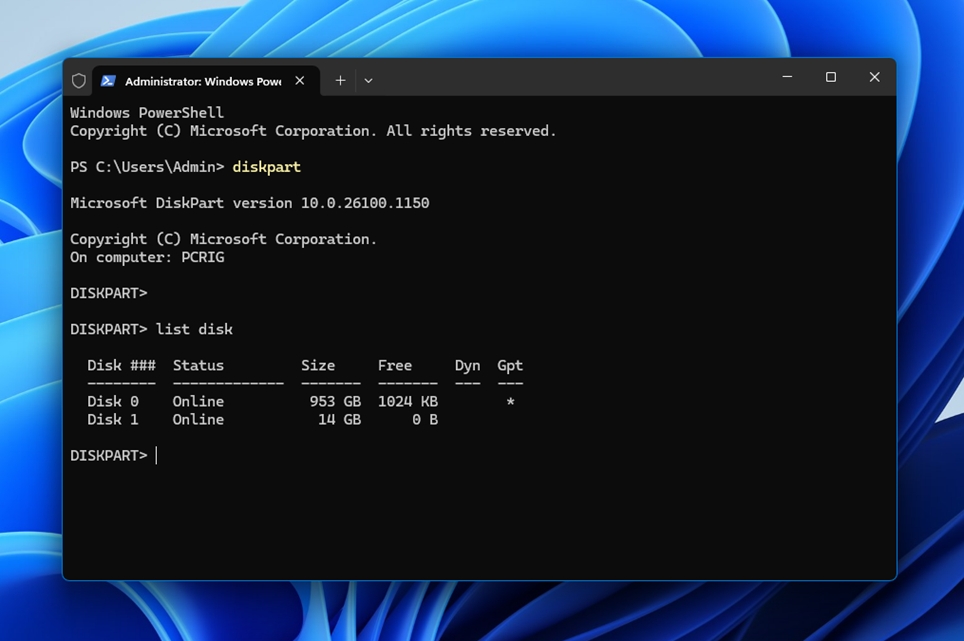
- Find the RAW drive by its size, then type select disk X (replace X with the correct disk number).
- Type clean and press Enter. This removes the existing partition information from the entire selected disk.
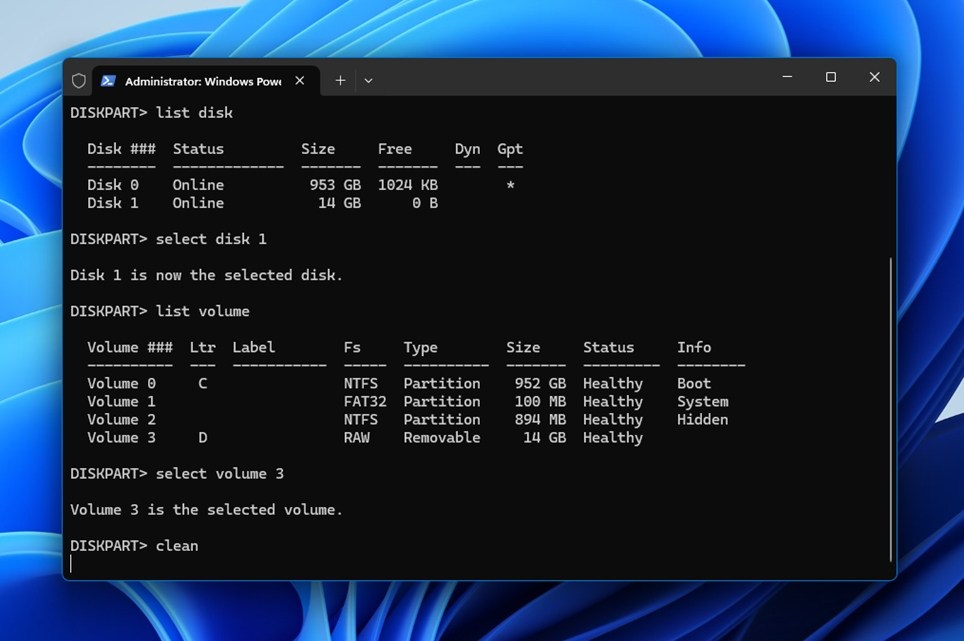
- Type create partition primary and press Enter.
- Type format fs=ntfs quick and press Enter.
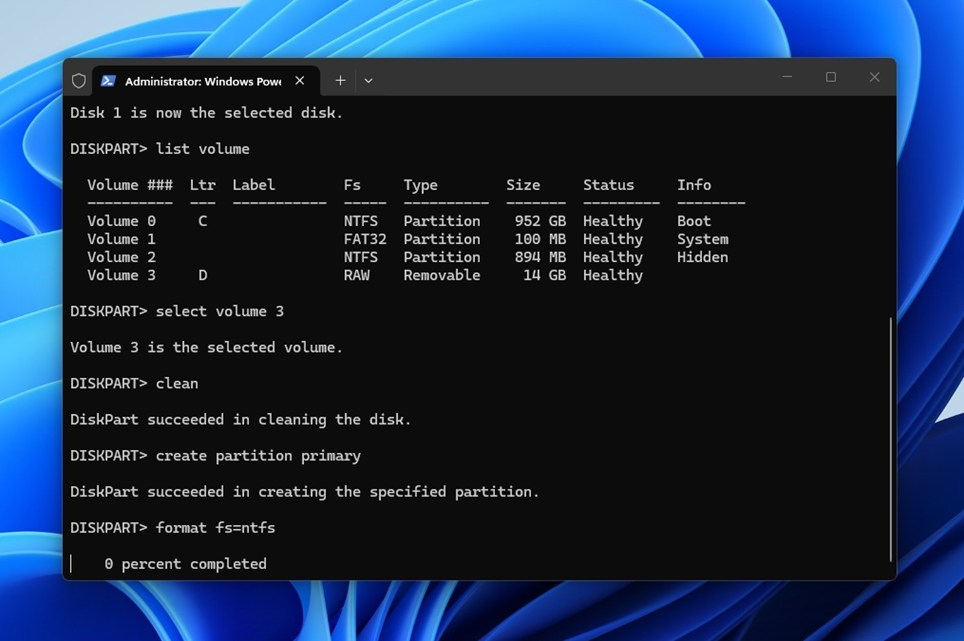
- Type assign and press Enter to give the new NTFS volume a drive letter.
- Type exit and press Enter to close DiskPart.
Tips to Prevent a Partition from Converting to RAW from NTFS
At this point, you’re probably wondering, “How can I prevent a partition from becoming RAW?” That’s a great question. After all, you don’t want to have to go through the process of RAW partition recovery every time you insert an SD card, a USB flash drive, or an external HDD into your computer. Fortunately, there are a couple of things you can do to help prevent this from happening.
- ❌ Never remove a USB drive or SD card without first ejecting or “Safely removing” it using your computer’s built-in function. If you simply remove the drive, without having your operating system safely unmount or eject the device, chances are good it will lead to a RAW partition.
- 💻 Format your drives with a file system that matches how you plan to use them. For drives that need to work on both Windows and macOS, exFAT is usually the best choice because both systems support reading and writing to it, and it does not have FAT32’s 4 GB file-size limit. NTFS is a good choice for Windows-only drives, but macOS can normally read NTFS without third-party software and cannot write to it natively. FAT32 still offers broad compatibility with older devices, but its limitations make it less practical for modern storage.
- 🔌 Shut your computer down properly. Immediate power loss can interrupt processes running on your computer. This can result in the corruption of your file system. When shutting down your computer, always do so safely instead of performing a force shutdown.
- 💾 Monitor your disk health. Using a disk monitoring tool that can read your drive’s SMART data can give you a heads-up to any potential issues your drive encounters as they happen. As issues appear, you can take immediate action to prevent further damage.
Conclusion
It’s pretty easy to avoid having to deal with a RAW partition or drive. However, when this occasion does arise, know that you have the tools available to solve the problem. With Disk Drill your chances of recovering data from a RAW drive or partition are quite good. If you’re unsure, download the free Basic version of Disk Drill and have it scan your RAW drive or partition. If Disk Drill is able to find your inaccessible data, purchase the Pro license, and recover that data safely.



FAQ
You can restore a RAW partition by formatting it with NTFS. Bear in mind that formatting the RAW partition with NTFS will delete any data currently stored on it, so be sure to recover what data you can before proceeding:
- Right-click Start and open Disk Management.
- Right-click the RAW partition, then click Format.
- Name the volume and make sure NTFS is the selected file system, then click OK.
- Click OK again to confirm.
You can recover your RAW partition using TestDisk, a free open-source recovery tool that can recover lost or missing partitions.
- Download and unzip TestDisk. Open testdisk_win.exe.
- Press Enter to create a new log file.
- Select the drive containing the RAW partition, then press Enter to proceed.
- Select the partition table type. Press Enter.
- Press Enter to look for lost partitions.
- Press Enter again to begin the Quick Search. When it’s done, press Enter.
- Select the partition, then press Enter.
- Select Write when the partition is found.
- Press Y to confirm, then restart your computer.
When a partition appears as RAW, it means the file system used by the partition is either:
- Corrupted, therefore unreadable
- Incompatible with the operating system
- Non-existent (there is no file system)
In order to access the files stored on the partition, you will need to repair the file system or connect it to an operating system that can read it. Or, alternatively, you can recover the data from the RAW partition using a data recovery tool like Disk Drill.
Yes, it is possible to convert RAW to NTFS without losing data, but it depends on why it shows as RAW. If the drive was originally NTFS and only limited file system corruption caused Windows to show it as RAW, CHKDSK may be able to repair the existing NTFS file system without formatting the drive.
If CHKDSK cannot recognize or repair the volume, the safer approach is to recover your files first with software like Disk Drill and then format the drive as NTFS.
If CheckDisk fails to fix your RAW partition by restoring a working version of NTFS, there is another way to convert a RAW partition to NTFS without formatting: use TestDisk.
TestDisk may still be able to restore access without formatting by repairing a damaged NTFS boot sector or restoring the correct partition structure. (However, TestDisk makes direct changes to the disk, so verify that it can see the expected partition and files before writing any changes.)
First, avoid formatting the drive if it contains files you still need. If the drive was originally NTFS and became RAW because of limited file system corruption, try CHKDSK.
If CHKDSK cannot run, TestDisk may be able to restore the partition structure or repair damaged file system metadata without formatting. If repair is unsuccessful, recover the files with data recovery software and save them to a different physical drive before formatting the RAW drive with a working file system.
