


Need to find similar and identical photos on your iPhone? The native Photos app is powerful, but it falls short when identifying similar photos that are not exact copies of each other. However, that doesn’t mean you’re stuck with finding them manually.
We’ll show you how to find similar photos on your iPhone, as well as identical ones, efficiently. We’ll use a free third-party app and native features on your iPhone that most users, and even guides, don’t talk about often (but actually work great for this purpose).
How to Find Identical Photos on iPhone
Before exploring how to find similar photos on your iPhone, we’ll first demonstrate how to find identical ones using the native Photos app. In Apple’s language, identical photos are “duplicates” or exact copies of the same image. They usually show up due to repeated downloads, file transfers, manual duplication, or saving the image more than once.
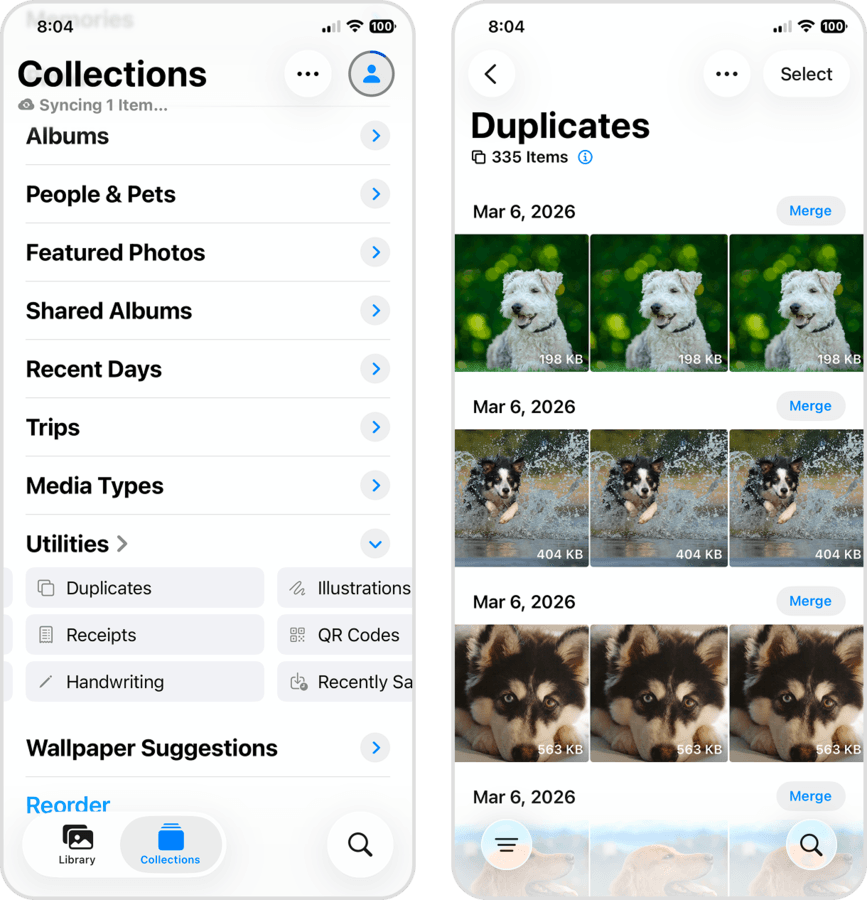
- On your iPhone, open the Photos app and navigate to the Collections page.
- Scroll down to the Utilities section and tap Duplicates. You’ll find all of your duplicate (or identical) photos are automatically grouped and sorted by date. At this point, you can also Merge duplicates into one image or delete photos individually.
How to Find Similar Photos on iPhone
In this section, we’ll demonstrate 2 reliable ways to find similar photos, whether they are exact duplicates or pictures that just look alike. Both methods are free and easy to do, but only the first method is truly automated–so we recommend starting with that.
1. Use a Cleaner App to Find Similar Photos on iPhone (Fastest Option)
The fastest and only automated way to find and clean up similar photos on your iPhone is by using a third-party app (the native Photos app just doesn’t have enough features). There are dozens you can choose from on the App Store, but we’ll be using an app called Clever Cleaner: AI Cleanup App for this demonstration.
The free version of the app is enough for everyday use without any noticeable limitations, and more importantly, its similar photo cleaning feature is extremely reliable. During our tests, we found that it was able to detect similar photos with reasonable variations (which is harder than it sounds), along with any exact duplicates in our library. We’ll show you exactly how it works in the guide below.
- Download Clever Cleaner: AI Cleanup App from the App Store.
- Open Clever Cleaner, and when prompted, grant Full Access to your photo library (don’t worry, we tested it for safety!).
- Let Clever Cleaner finish scanning and select Similars. On this page, you’ll see all of your duplicate and similar photos grouped in clusters.
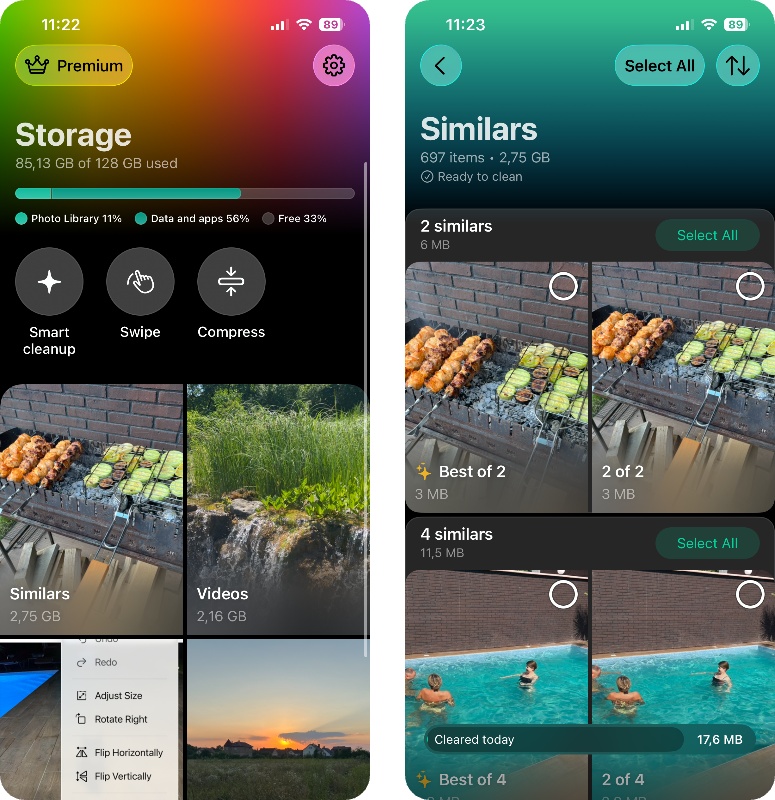
- You can either tap Select All at the top or go through each group manually and choose which ones you want to remove. (The app automatically marks what it considers the Best photo in each group, and we found its choices reliable, but you can always change the selection if you prefer another shot.)
- Once you’ve made your selection, tap Delete and confirm it. Clever Cleaner will remove the selected photos from your library.
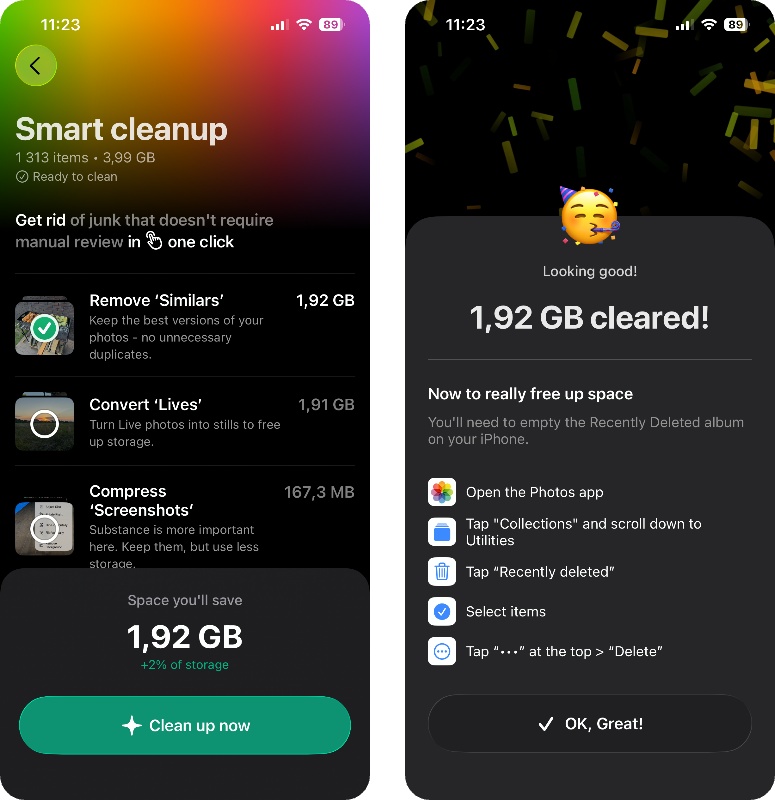
- There’s also a faster, fully automatic option. From the main menu, open Smart cleanup, select Remove ‘Similars’, and tap Clean up now. It will nuke everything at once, leaving one copy per group. (Before you do anything, the app also shows exactly how much storage space the cleanup will reclaim.)
After cleaning your similar and duplicate photos, we also recommend checking out Clever Cleaner’s other features while you’re at it. The app is designed to help eliminate all the different types of clutter that can accumulate on your device without you noticing (it happens to the best of us!), and it’s a good chance to free up a huge chunk of storage space in one sitting.
- Smart Cleanup – this is the quickest option if you want the app to do most of the work. It automatically clears similar photos, compresses screenshots, and converts Live Photos; it lets you clean them up in one pass.
- Videos – Clever Cleaner can sort videos by size or date, which makes it much easier to find the biggest storage hogs. You can delete them or compress videos to reduce their file size while keeping the originals watchable. The app can compress photos as well.
- Screenshots – all screenshots are collected in one place, where you can delete them in bulk, compress them, or review them individually before deciding what stays.
- Live photos – they take up more space than regular still images because they include a short video clip. This tool lets you convert them into regular photos in bulk, which can reclaim space without deleting the actual image. You can also remove Live Photos selectively or all at once.
- Swipe (completely unlimited in the free version) – for a more hands-on cleanup, Swipe mode shows your photos one at a time and lets you swipe to keep or delete them. You can browse by month and use filters to narrow things down.
2. Find Similar Photos on iPhone Through Native Photos App Features
Aside from the Duplicates feature, the Photos app has other useful features to help you find similar photos quickly. However, they are more context-dependent, and you need to use them manually. These features are most useful if you already have an idea of which photos are likely to have similars.
2.1 Use the Search Field
The Photos app has an intelligent Search tool that uses keywords to identify the photos you’re trying to find. For example, you can use dates, locations, contact names, and other identifiers to conveniently assemble all the photos that apply to those keywords.
Unfortunately, it doesn’t automatically select the right photos for you, but it makes a manual search a lot easier. We’ll show you how to search for similar images on your iPhone using this feature.
- Open the Photos app.
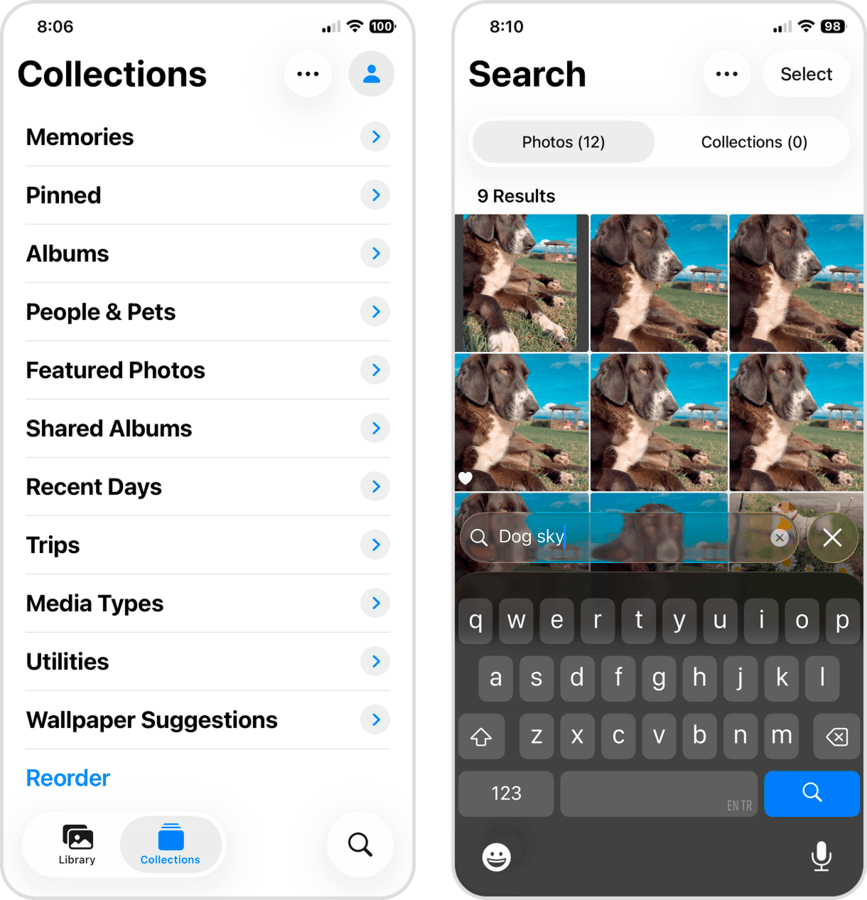
- Tap the search icon (magnifying glass) in the bottom right corner of your screen.
- In the text field that appears above your keyboard, type one or more keywords related to the photos you’re trying to find. As an example, we used the keywords “dog” and “sky”.
2.2 Rely on the Collections Tab
Another way to utilize the Photos app’s smart indexing capabilities is to review its auto-generated Collections. These are sets of photos that iOS automatically groups together based on specific factors (e.g., subject, location, type, etc.). Many of these Collections help make finding similar photos easier; however, you still need to look for them manually, unlike the Duplicates utility and Clever Cleaner.
- Media Types: This Collection automatically compiles different media into their own unique but logical categories, such as Selfies, Portrait, Bursts, Screen Recordings, RAW, and several more. If you took several selfies for the perfect post, for example, this is a great way to find them.
- People & Pets: If you have a lot of photos with the same people or animals, their faces are eventually recognized by iOS as familiar subjects. Depending on several factors (like whether the photos have been indexed), you can find similar photos taken with a recognized subject in this Collection. Do you have 10 identical photos of your cat (like me)? They might be here.
- Utilities: Aside from Duplicates, the Photos app has other utility categories like Receipts, Handwriting, Illustrations, QR Codes, Documents, and more. If you took multiple photos of papers or documents, you’ll find them here.
- Map: While also part of the Utilities category, the Map is uniquely helpful for finding identical photos that were taken in a specific location (e.g., photos of animals at a park or pictures with family at a beach).
Conclusion
In summary, here’s how to find similar and identical (or duplicate) photos on your iPhone:
- For exact duplicates, you can use the built-in Duplicates feature in the Photos app (Photos > Collections > Utilities).
- The only automated way to clean up similar (non-duplicate) photos on your iPhone is by using third-party apps, like Clever Cleaner.
- If you already have a good idea of which photos have similar copies, you can use other native features to find them manually. The Search feature identifies photos by keywords, while several Collections automatically group photos based on their context (e.g., Selfies).
Sadly, it’s almost impossible to completely avoid creating duplicate and similar photos on your iPhone. So, we recommend setting a cleanup routine to prevent your photo library from growing out of control.
If you’re hurting for storage space in general, we also have another guide on how to clean up your iPhone’s storage; not only do we cover more types of photo library clutter, but we also demonstrate how to eliminate other junk files that may potentially be taking up literal gigabytes of your storage space.
FAQ
The Duplicates utility in the Photos app on your iPhone is only capable of identifying exact copies of the same image as duplicates (e.g., a photo you saved more than once). Photos that only look similar are considered completely different images. Only third-party apps like Clever Cleaner can identify similar (non-duplicate) photos automatically.
Yes, Burst photos are considered similar photos, not identical or duplicate photos. Bursts are sets of pictures that were captured rapidly in succession–so they are all different images saved in one file.
No. The Duplicates utility in the Photos app completely ignores photos and videos that are hidden. You’ll need to unhide your photos and videos and wait for iOS to index them before they appear in the Duplicates utility.
Yes, you can automate the search for similar photos on your iPhone, but only using third-party apps like Clever Cleaner. The native Photos app can only identify exact duplicates, which are multiple copies of the same picture.
