


No longer able to access the files on your USB flash drive? Or maybe you’ve noticed it has been really slow lately. Either way, you’re looking for a way to fix it up.
There are plenty of options out there for diagnosing and fixing various USB drive-related issues, as well as recovering data that has been lost or made inaccessible. We’ve included the best ones in this article.
Our team spent time researching common issues that plague USB flash drive owners and tested each solution to confirm that it actually works. Therefore, you can rest assured that our findings are backed by the data needed to pair you with the right USB repair tool for the job.
What to Expect from a USB Flash Drive Repair Tool
Let’s start by clearing the air. There is no one-stop solution for flash drive repair, and any solution that claims to be is lying. While there are pen drive repair tools that may include several functions for fixing various problems, there are none that cover every possible scenario. Likewise, there are some USB-related issues that cannot be fixed with software, and some that can’t be fixed at all. That being said, let’s first distinguish when software can actually be helpful.
| What repair software CAN do: | What repair software CANNOT do: |
|
|
With these expectations in mind, we set out to find programs that served specific functions, like the ability to:
- Fix logical errors. Fixing logical errors restores access to data that may have been blocked behind error messages.
- Run diagnostics. Diagnostic tools help you determine where the problem resides and let you assess the health of the flash drive.
- Recover data. Data recovery tools let you recover data from drives suffering from logical corruption and access issues.
- Reset to a factory-clean slate. In times of severe logical corruption, resetting to factory settings is an effective way to quickly restore functionality.
This is why choosing the right tool depends entirely on what problem you’re actually facing.
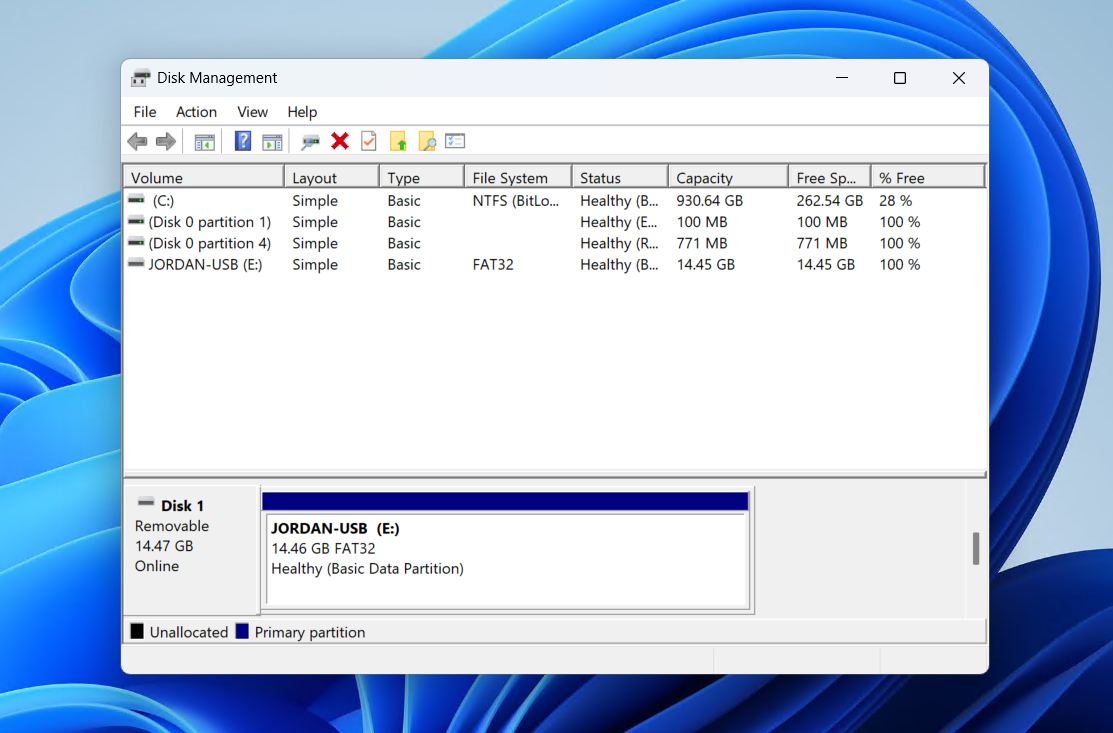
6 Best Flash Drive Repair Software for Each Scenario
Here are the best USB flash drive repair tools you can find on the web. We haven’t presented these tools in order of best to worst. Rather, each tool should be treated as the best in its class, each one intending to address a specific problem.
1. Disk Drill (Windows, Mac)
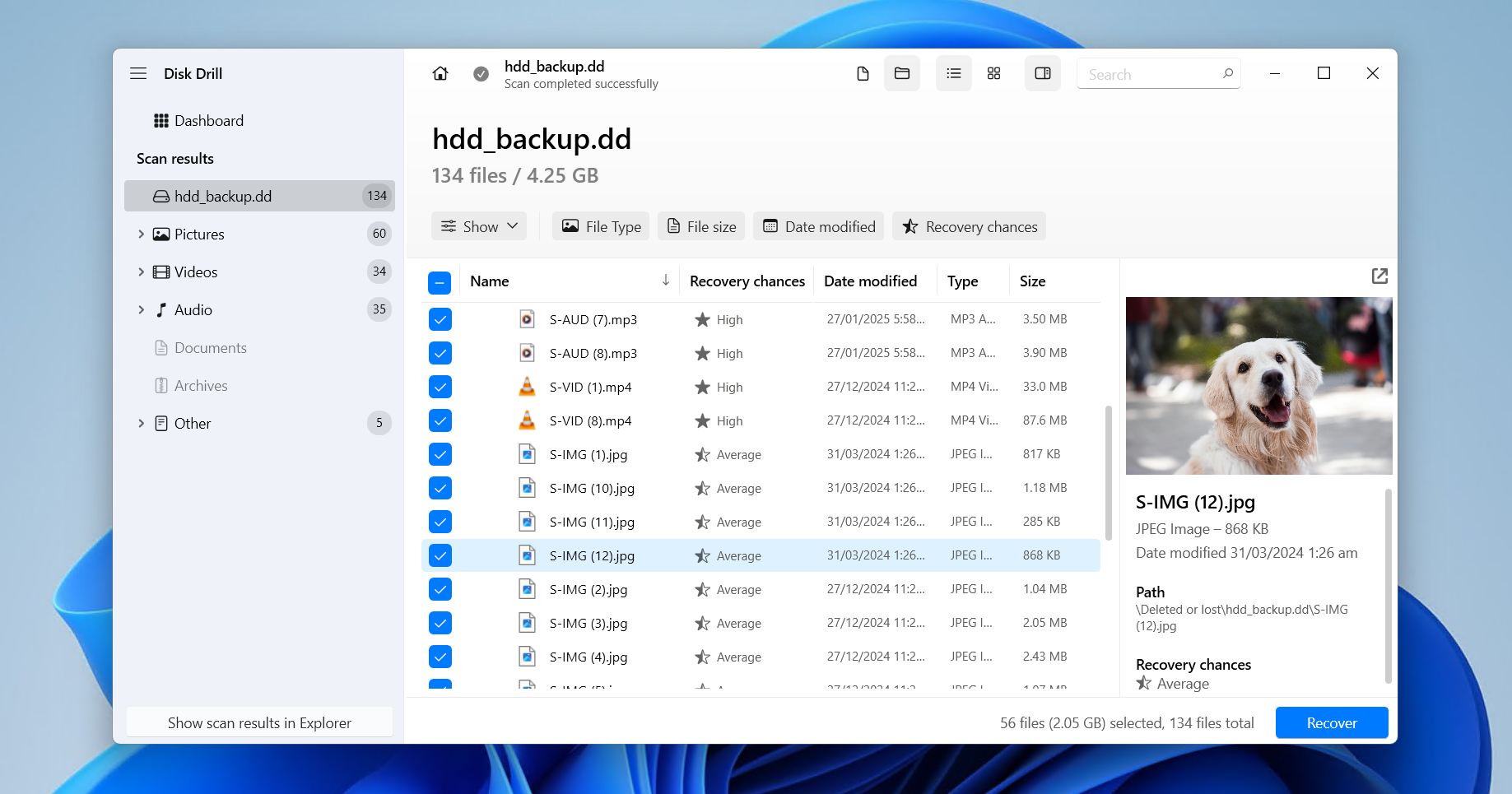
Disk Drill is a professional data recovery tool designed to recover lost files from USB flash drives (on Windows and Mac) impacted by corruption, accidental formatting, file system issues, and more. Instead of focusing on repairing flash drives, which come with their own risks of data loss, Disk Drill prioritizes the recovery of data so you can implement repairs without concern for your files.
- Excellent recovery results from corrupted, RAW, and even formatted USB flash drives.
- Advanced scan modes can bypass error messages and logical access issues.
- Supports hundreds of file types and common flash drive file systems, like FAT32 and exFAT
- Built-in byte-to-byte backup feature for when you’re working with unstable flash drives
- No phone support
- Free version lets you recover up to 100 MB (on Windows), enough to see what’s recoverable and test the software.
📝 Detailed overview:
Whenever we work with a corrupted USB flash drive, data recovery comes first. Our statistics show that most people who need to fix a flash drive are doing so because it contains critical data, which is why we put Disk Drill first on the list. Any action, including repairs, risks overwriting data and making it permanently unrecoverable. Disk Drill has been our go-to as it has consistently detected USB drives that are corrupted, RAW, unrecognized by native apps, or inundated with error messages, allowing us to extract files in virtually any data loss situation that doesn’t involve physical damage. Disk Drill can even recover data if you’ve already formatted your flash drive.
It’s especially useful when dealing with corrupted flash drives because it can create byte-to-byte backups. Byte-to-byte backups are an exact copy of your drive that you can scan and recover data from, just as if you were scanning the drive itself. The benefit is that, if the drive is unstable, you’re not accelerating degradation with repeated scans.
While Disk Drill is not a repair tool in the traditional sense, it is essential in almost any data loss scenario where a repair tool is needed. Just like with any physical tool you buy, quality matters, and Disk Drill remains a premium-quality option for safely recovering USB drive data while equipping you with features to mitigate future data loss.
2. HDDScan (Windows)
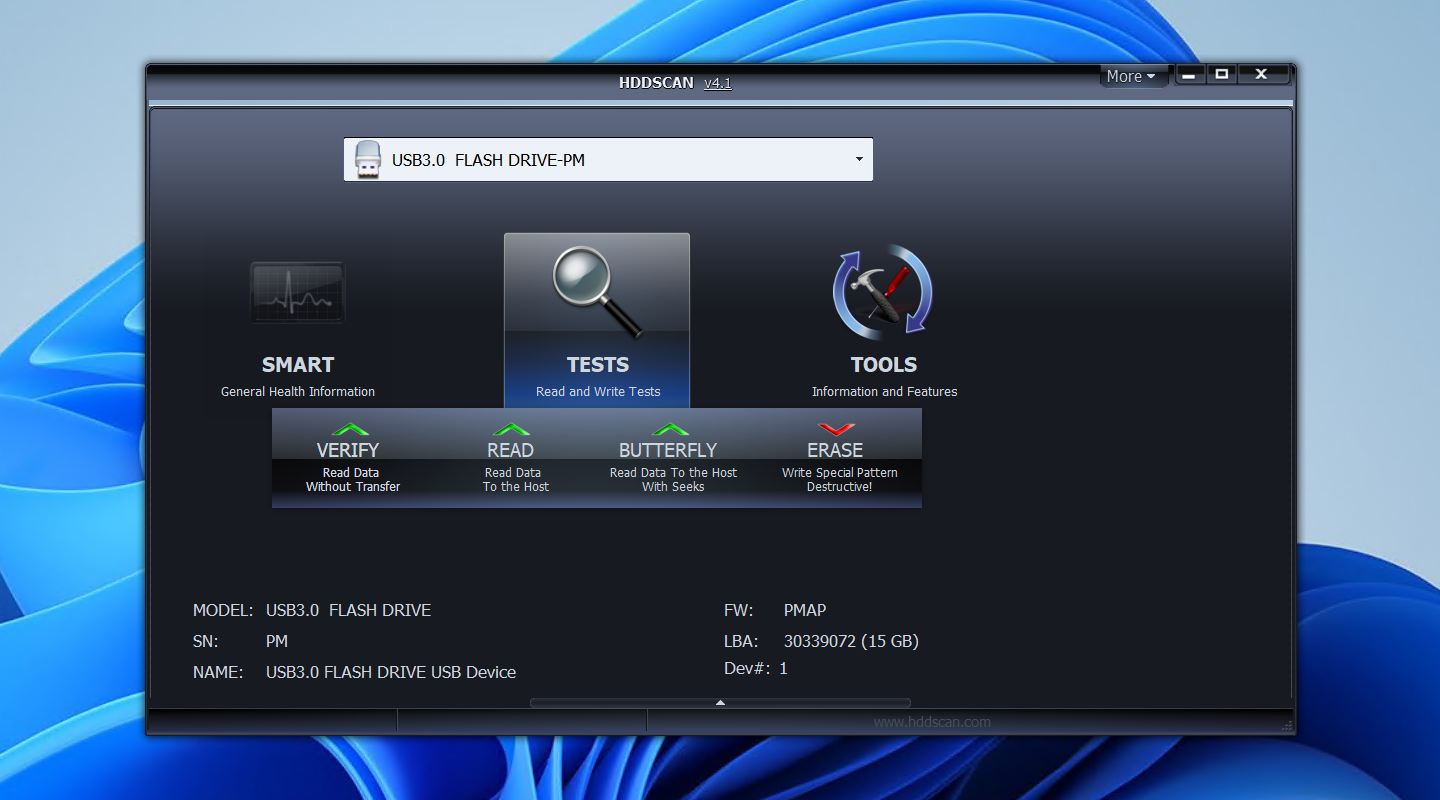
HDDScan is a free diagnostic utility designed to analyze the health and performance of storage devices, including USB flash drives. It’s specifically for identifying the underlying problem, like bad blocks, read delays, and S.M.A.R.T.-related issuesto determine if a flash drive is still safe to use.
- Free and portable.
- Identifies bad blocks through comprehensive surface tests.
- Choose from read, write, and verify test modes.
- Useful performance and health indicators.
- Interface can be intimidating for beginners.
- Windows only.
📝 Detailed overview:
We’ve relied on HDDScan heavily for identifying the true condition of problematic USB drives, which has helped determine long-term reliability and case-by-case recovery viability. Using surface tests, it will reveal slow or unreadable blocks, which are often the root cause of freezing, file copy errors, or sudden disconnections.
The level of detail provided by HDDScan’s read and verify tests has been immensely useful for quickly assessing a flash drive’s integrity to confirm the likelihood of early-stage degradation or widespread block failure. However, it’s not intended to fix these issues, but simply expose them. This limitation, if you could call it that, is intentional and makes it part of the repair workflow rather than the specific solution.
HDDScan is best paired with data recovery and repair tools, as it provides valuable information as to whether DIY recovery and repairs are possible or if the drive should be sent to a recovery professional.
3. H2testw (Windows)
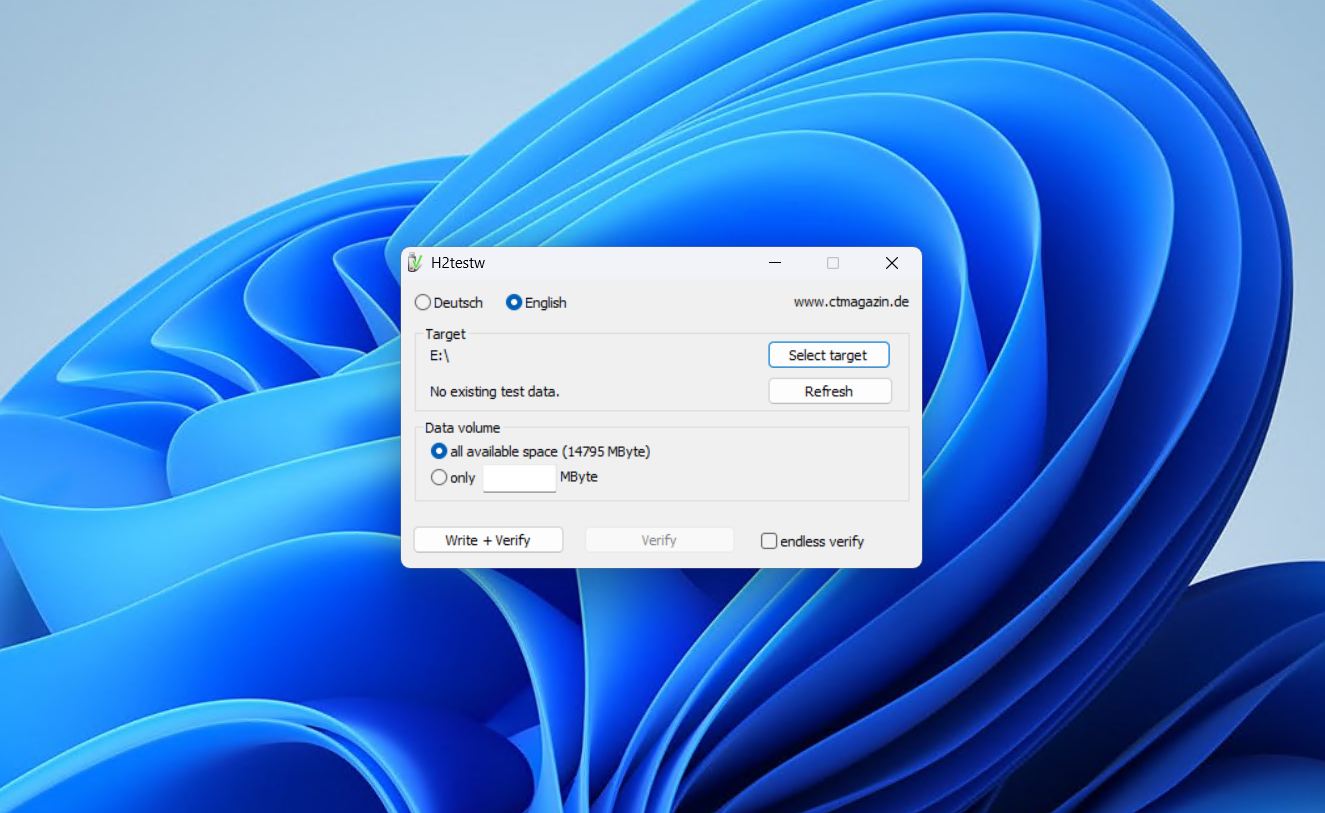
H2testw is a lightweight and portable utility designed to verify the actual capacity and reliability of USB flash drives. By performing full read and write tests, it helps identify fake drives, failing NAND cells, and early signs of flash degradation – all of which are issues that can cause data loss, corruption, and sudden write errors.
- Free and portable.
- Accurately detects fake or overstated flash drive capacity.
- Read/write tests expose failing memory blocks.
- Scan all available space or a specific amount of MB.
- Windows only.
- Full tests are time-consuming on larger flash drives.
📝 Detailed overview:
During testing, H2testw has proven invaluable for validating whether a USB flash drive could actually store and retain data reliably. It writes data across the entire reported capacity and then reads it back to expose drives with failing memory cells, as well as falsely advertised storage sizes – a major problem with flash drives sold online.
We’ve found H2testw ideal because of its simplicity. No installation is necessary; you work with a really basic interface, and it only serves one function. In many cases, the tests have confirmed partial degradation, where only a portion of the drive was still usable. Similarly, it has also revealed fake USB drives that contain modified controller firmware to show a higher capacity than what’s available.
H2testw is an excellent diagnostic companion after recovery and repairs are done, or even just after buying a new flash drive, as it can help save you a lot of time and prevent further data loss.
4. DiskGenius (Windows)
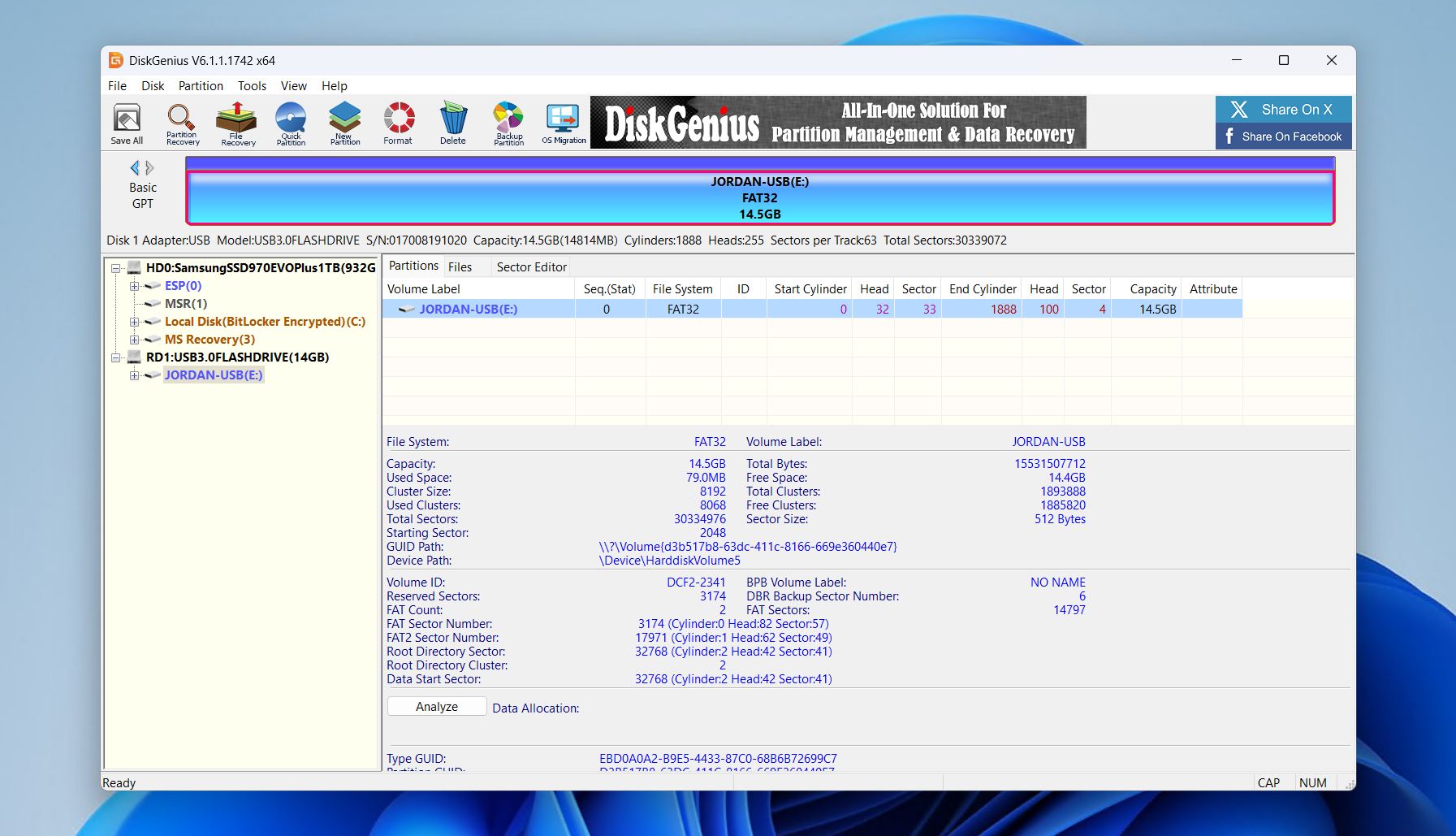
DiskGenius is a multifaceted flash drive repair software tool that offers data recovery, partition management, and file system repair features. For USB flash drives specifically, it can help recover lost files, repair logical file system errors, and rebuild damaged partition structures, making it a versatile option across many cases.
- Recovery, repair, and partition tools all in one interface.
- Supports FAT32, exFAT, NTFS, and EXT file systems.
- Can rebuild partition tables and repair file systems.
- Allows you to preview recoverable files.
- Interface is technical and can feel cluttered.
- Recovery is subpar compared to dedicated tools.
📝 Detailed overview:
We’ve used DiskGenius in many different capacities, and it continues to stand out as a flexible flash drive repair tool that can address several logical problems in one workflow. It has allowed us to scan USB flash drives with damaged file systems, rebuild corrupted partition tables, and attempt repairs without immediately resorting to formatting.
While its recovery and repair functionality may not stand up as a direct competitor to its dedicated counterparts, it’s helpful for fixing basic issues that have led to data becoming inaccessible as a result of logical corruption. DiskGenius lets you preview recoverable files first, then decide whether you want to repair the drive or extract what data it can.
DiskGenius can handle a range of logical issues, but it’s not as comprehensive as dedicated tools. Still, as a middle-ground solution between diagnostics and data recovery, it’s a strong contender.
5. TestDisk (Windows, Mac, Linux)
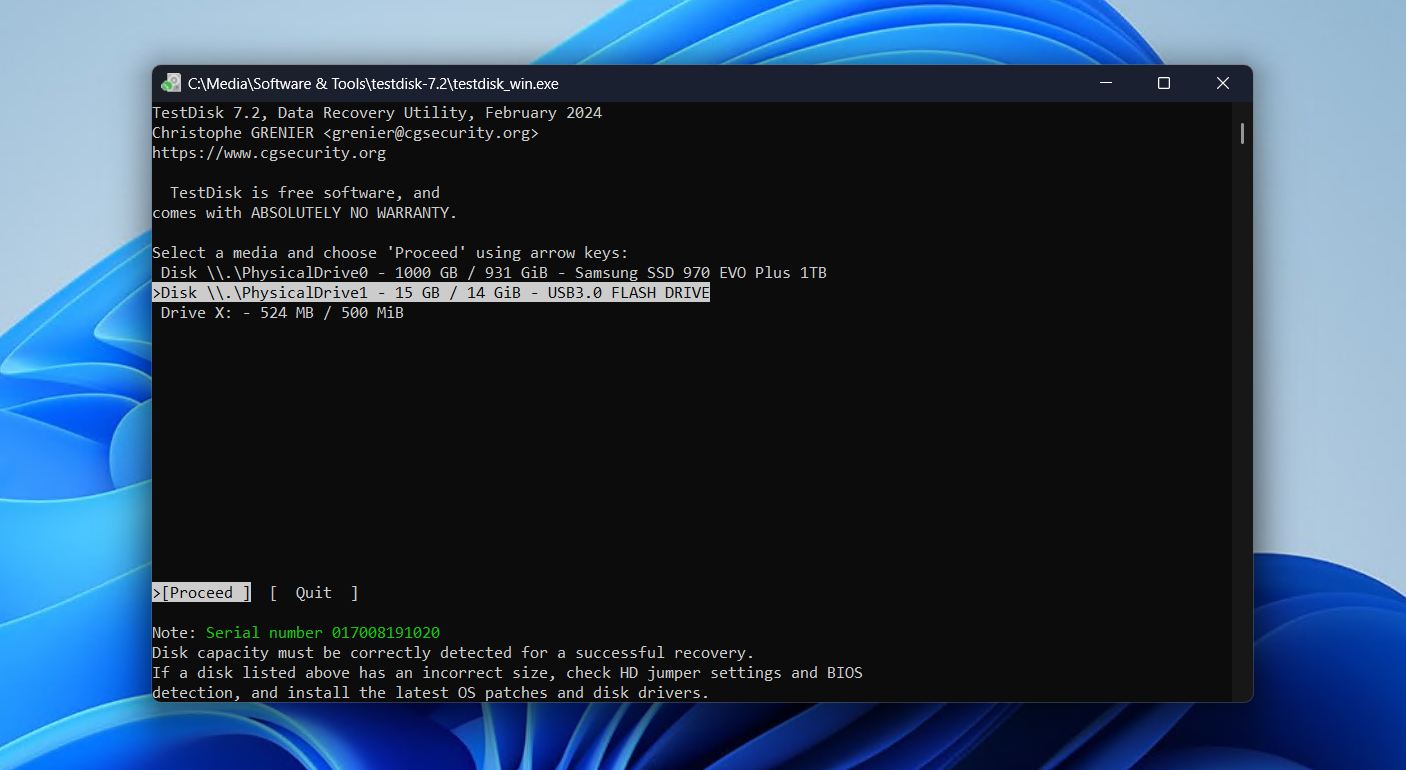
TestDisk is an open-source and free flash drive repair tool created to recover lost partitions by repairing the underlying issues with the partition table. It’s a little different from other tools on this list in that it uses a text-based interface, though this doesn’t impact how powerful it is.
- Free and open-source.
- Supports a wide range of file systems and platforms.
- Recovers entire partitions by repairing damage to the partition table.
- Lightweight and doesn’t require installation.
- Text-based workflow can be challenging for beginners.
- No option to preview recoverable files.
📝 Detailed overview:
We return to TestDisk regularly for partition-level recovery as it can rebuild partition tables and restore lost partitions without costing a dime, and it’s uncommon in that it can fix a corrupted USB flash drive on Mac and Windows to a high degree. It scans the drive sector by sector, identifies partition boundaries, and writes corrected metadata back to the partition table, effectively restoring access to files without modifying the underlying data.
In addition to working on Windows, macOS, and even Linux, it works with most flash drive file systems like FAT, exFAT, EXT2/3/4, HFS+, and APFS. Its strength lies in logical repair, ideal for drives that are detected but unreadable or have lost partition structures.
Despite its lack of a graphical user interface, which can make using it a challenge, it’s still a reliable tool used by novice and advanced users alike who need precise control over corrupted partition recovery.
6. HDD LLF Low Level Format Tool (Windows)
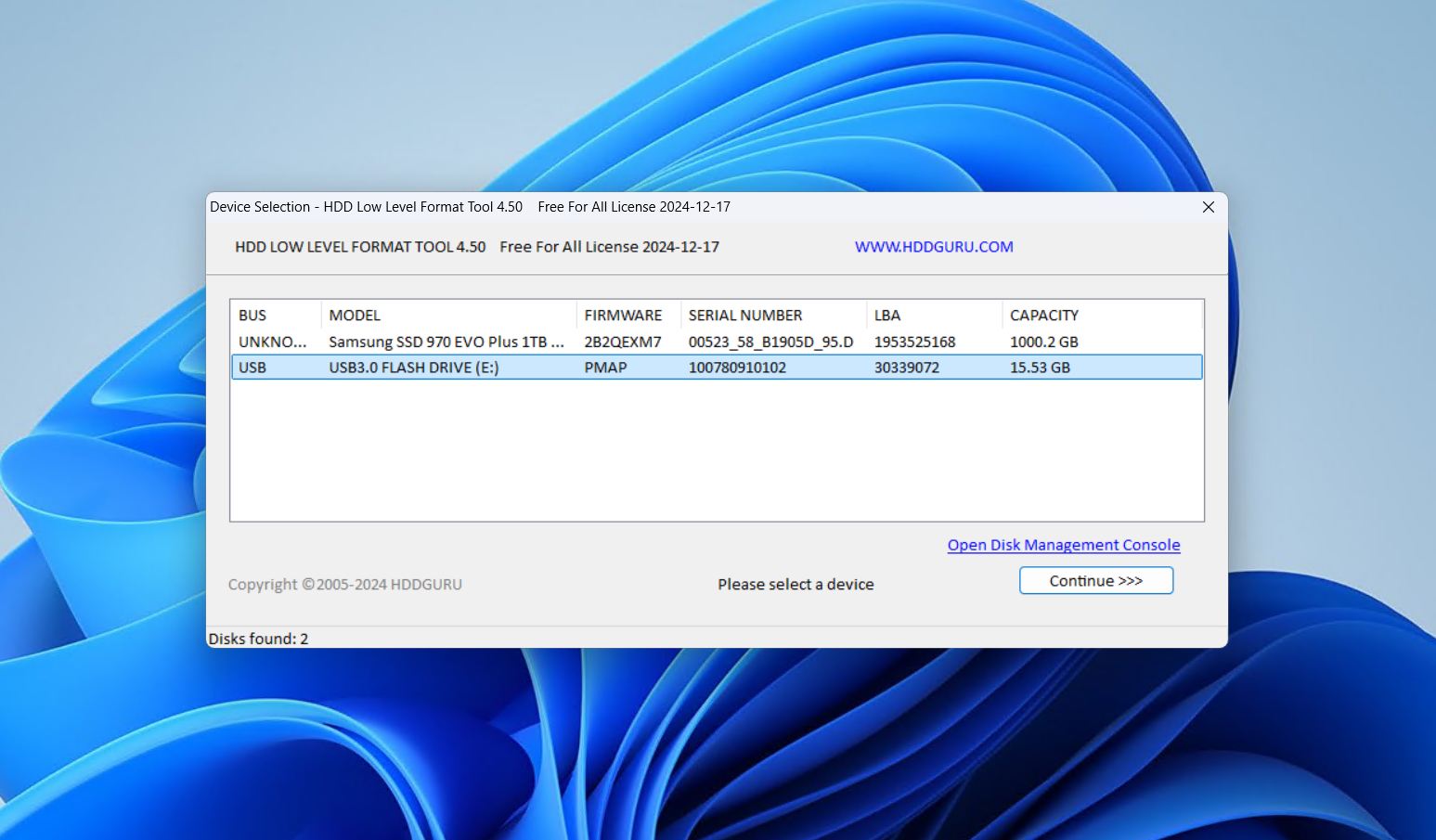
HDD LLF Low Level Format is a reliable way to perform a complete low-level format of storage devices that suffer from severe logical corruption, persistent write errors, or write protection issues. By overwriting the drive at the sector level, it can sometimes restore functionality that standard formatting options cannot achieve.
- Can reset drives that are heavily corrupted and sometimes write-protected.
- Works at the sector level for effective erasure.
- Free to use.
- Portable and lightweight.
- Erases data, rendering it unrecoverable.
- Will degrade NAND memory faster with repeated use.
📝 Detailed overview:
When no other means of formatting works, HDD LLF has never let us down when formatting is actually possible (i.e. the problem isn’t related to something physical), which may make it the best software to repair a USB flash drive when there’s no other option. Its low-level formatting approach overwrites every sector on the device, effectively clearing stubborn logical corruption and occasionally bypassing write-protection mechanisms.
However, keep in mind this is a last resort, and you should only use it when data recovery has already been performed or is unnecessary. Low-level formatting clears all data, but more importantly, repeated formats will exacerbate any physical issues present, accelerating degradation. Even if a low-level format works, the fact that it was necessary generally means the drive is no longer reliable. Even so, it fills a niche for extreme repair cases, providing a way to restore usability to problematic USB flash drives that otherwise seem irrecoverable.
Other Flash Drive Repair Tools Worth Mentioning
Third-party USB flash drive repair tools aren’t always necessary to repair flash drive-related issues. Sometimes the built-in repair tools provided by your OS will suffice. On Windows, you have CHKDSK, which addresses file system-related issues on USB flash drives. First Aid is the Mac equivalent, which can help fix USB drives not showing up on macOS.
Alternatively, there also exist vendor-specific repair tools that go beyond what’s offered by your OS. For example, Transcend’s JetFlash Online Recovery can rebuild the flash drive’s firmware, restore the correct capacity (provided the drive is legit), and fix write-protection problems caused by logical errors.
Apacer’s USB Flash Drive Repair Tool provides similar functionality, checking the drive health, formatting drives with the necessary file system, and recovering lost partitions (through repair rather than data recovery). It’s used exclusively with Apacer drives.
Similarly, HP’s USB Disk Storage Format Tool is an exclusive flash drive firmware repair tool used for formatting and repairing HP-branded USB drives. It can restore usability when Windows fails, create bootable drives, and wipe corrupted files.
Final Takeaways
When dealing with a corrupted or malfunctioning USB flash drive, there’s no single best flash drive repair tool that addresses every problem. Different issues, like data loss, logical errors, and underlying drive degradation, require different approaches. Based on our research and real-world testing, we recommend keeping the three tools on hand as part of your toolkit:
- Disk Drill for recovering lost or deleted files before they’re lost to further degradation or overwritten by action taken on the flash drive.
- HDDScan to run diagnostics and identify bad blocks, performance issues, or fake capacity to see if repairs are worth it.
- TestDisk for addressing logical file system corruption and broken partition tables to get the USB flash drive back up and running.
FAQ
Sometimes, but not always. In the event that write protection has been enabled due to a logical error, low-level formatting tools (or vendor-specific flash drive fix tools) have a chance of helping in certain cases. However, if write protection was triggered by failing NAND memory or a damaged controller, it is permanent, and you need to move the data across to a new flash drive.
Yes, a USB flash drive will prompt you to format because there is something wrong. It usually points towards file system corruption. Recover files from the corrupted flash drive with software like Disk Drill to recover the files first, then you can choose to repair the flash drive with CHKDSK or a third-party alternative like DiskGenius, or format it to restore usability.
Bad sectors, or bad blocks in the case of USB flash drives, come in two forms: logical and physical. Logical bad blocks are the only repairable ones, and can be fixed using CHKDSK, DiskGenius, or tools like Victoria, an excellent flash drive bad sector repair tool. However, physical bad blocks are irreparable and instead need to be marked as unusable, which is done with CHKDSK.
If the USB drive is reading 0 bytes and “No media” in Disk Management, this indicates USB controller failure. This is a hardware-level failure that’s not fixable at home, and recovery is not possible as the controller cannot communicate with the NAND memory. You must consult a data recovery professional. They won’t fix a broken USB stick, but they can attempt to recover the data and move it to another storage device.
