


Did you use the Reset this PC option in Windows 11/10 before backing up your files, and now aren’t sure if you can get them back? A lot of the time, recovery is possible, but the likelihood depends on how your PC was reset and whether your drive is an HDD or SSD. When no backups are present, the best course of action is to scan your drive from a second computer and recover the files to a separate drive. Our QA team have rigorously tested the most reliable methods and tools on real drives in controlled conditions to confirm what options you really have to recover files after factory reset on Windows 11.
What Affects Your Chances of Getting Files Back After a Factory Reset
Data recovery is always case-by-case, but generally speaking there are three important factors that impact your ability to recover files after factory reset: the options you chose during the reset, whether or not your drive is an SSD with TRIM, and the presence of backups.
- Reset options. If you chose “Keep my files”, Windows preserves the data in your user folder (Pictures, Videos, Documents, etc). “Remove everything” will delete everything, but still leave good chances of recovery (provided other factors align). However, if you enabled the “Clean data” option, a low-level overwrite would have rendered the data unrecoverable. The documentation from Microsoft goes into more detail.
- HDD vs SSD/NVMe. Given SSDs are quickly replacing HDDs as the system drives in computers, TRIM is oftentimes the biggest threat. Data deleted on an HDD will remain recoverable until it’s overwritten, whereas SSDs (especially NVMe drives) using TRIM will wipe data at the hardware level almost immediately. And considering the vast majority of modern SSDs do use TRIM, recovering data from an SSD without a backup is highly unlikely.
- Backups. If you have a backup saved by File History, OneDrive, or any third-party backup tool – use it. The data is likely still accessible, and restoring from a backup is leagues more reliable than trying to recover it with software. Without a backup, you’ll need recovery software capable of recovery by signature.
So, the answer to “Can you get files back after factory reset?” isn’t always clear right off the bat, and your choice of data recovery software has a direct impact.
Restore Files After Factory Reset with Data Recovery Software
When no backup exists, data recovery software is needed, which can find data by unique file signature after the drive is reset. Ideally, you want to remove the drive and scan it from a second computer. You should act quickly, as every passing moment the drive is in use, your recovery chances are reduced.
These steps show how to restore files after factory reset:
- Download and install Disk Drill. Don’t install it to the same drive we’re trying to recover the data from.
- Select the drive from the list of devices, then click Search for lost data.
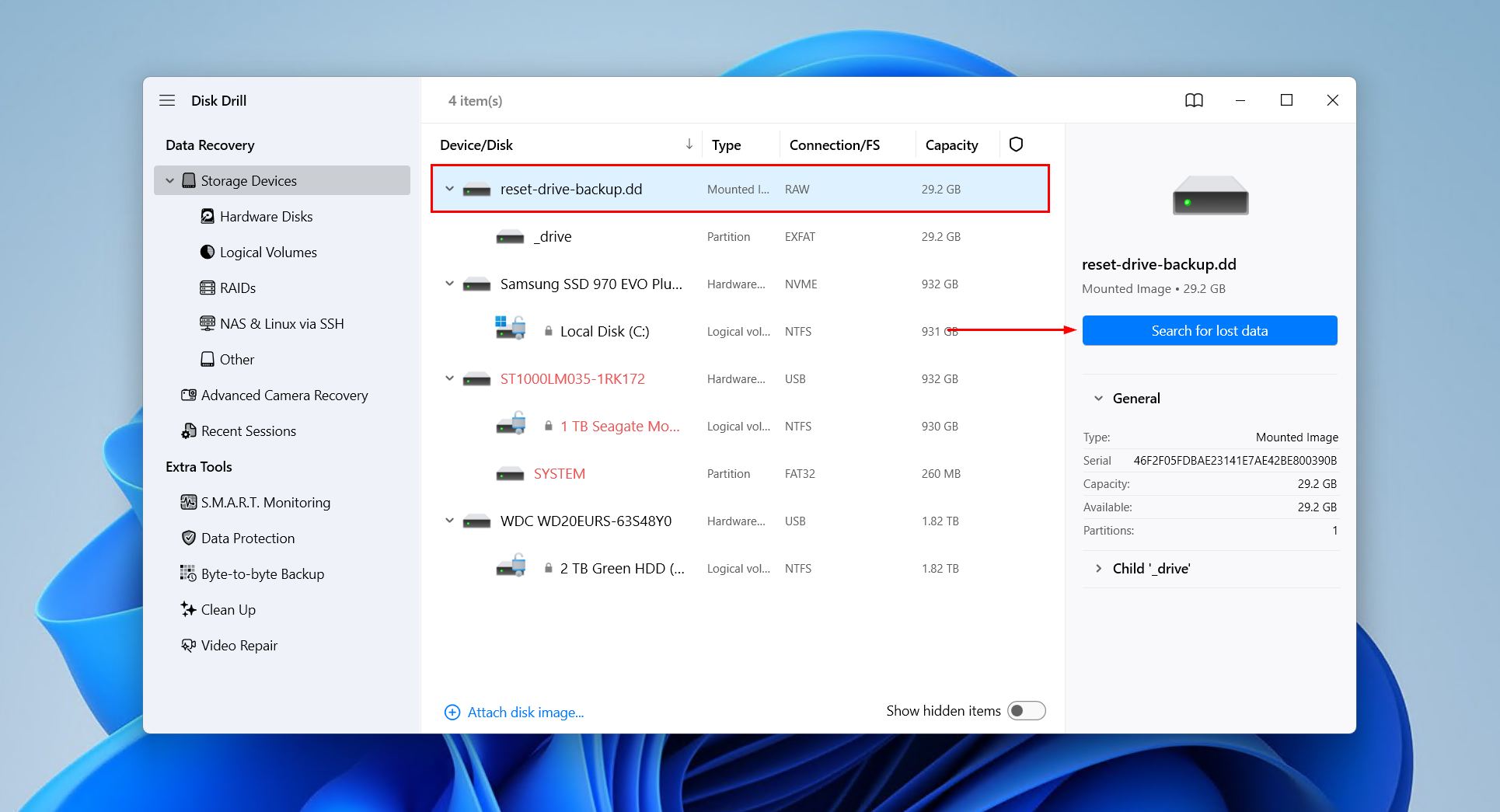
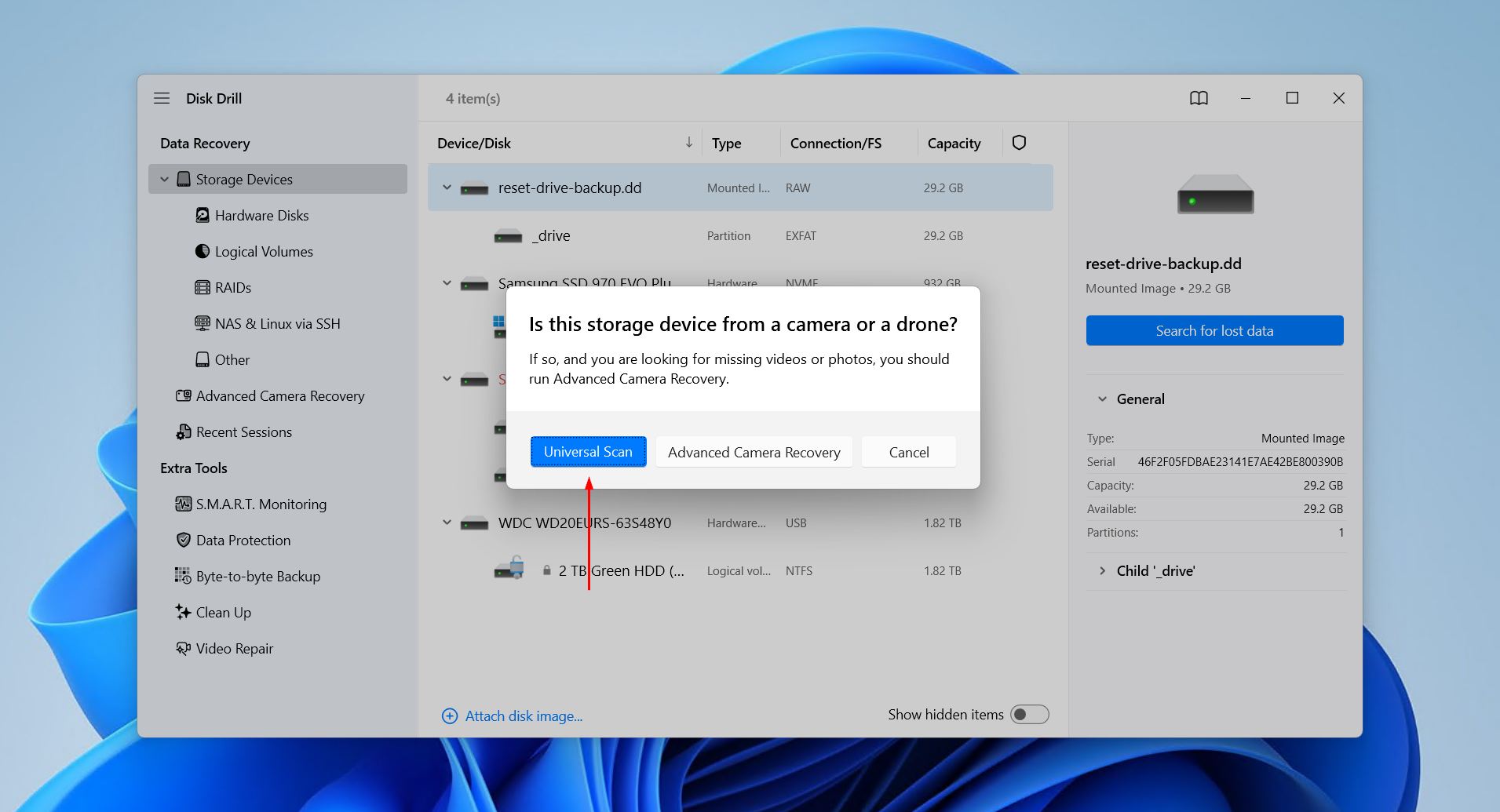
- Click Universal Scan if prompted to choose a scan type. Advanced Camera Recovery is best for restoring fragmented videos shot by cameras and drones.
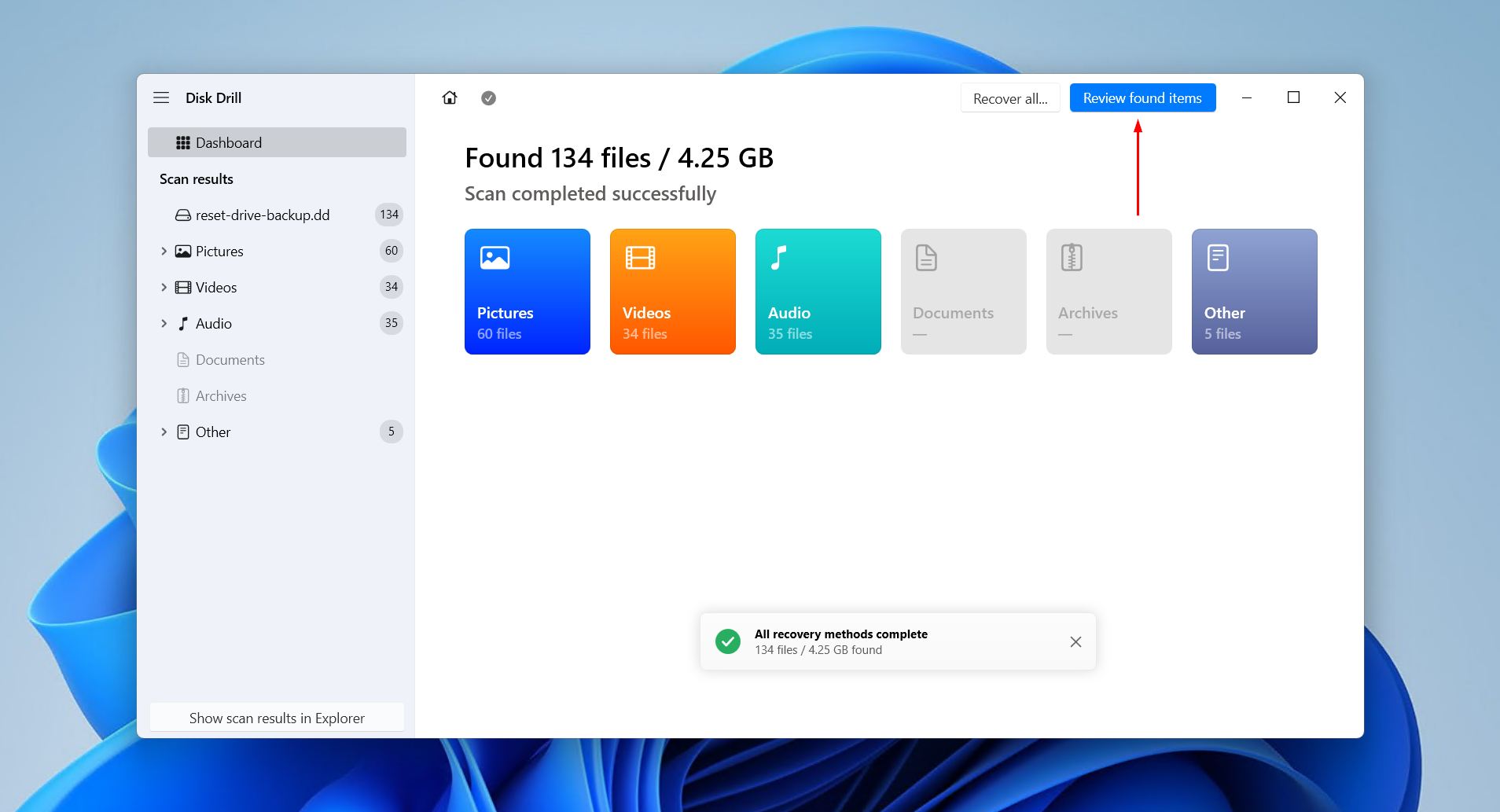
- Click Review found items to see what Disk Drill found. Click one of the colored file format icons to filter the results automatically, or click Recover all to restore everything straight away.
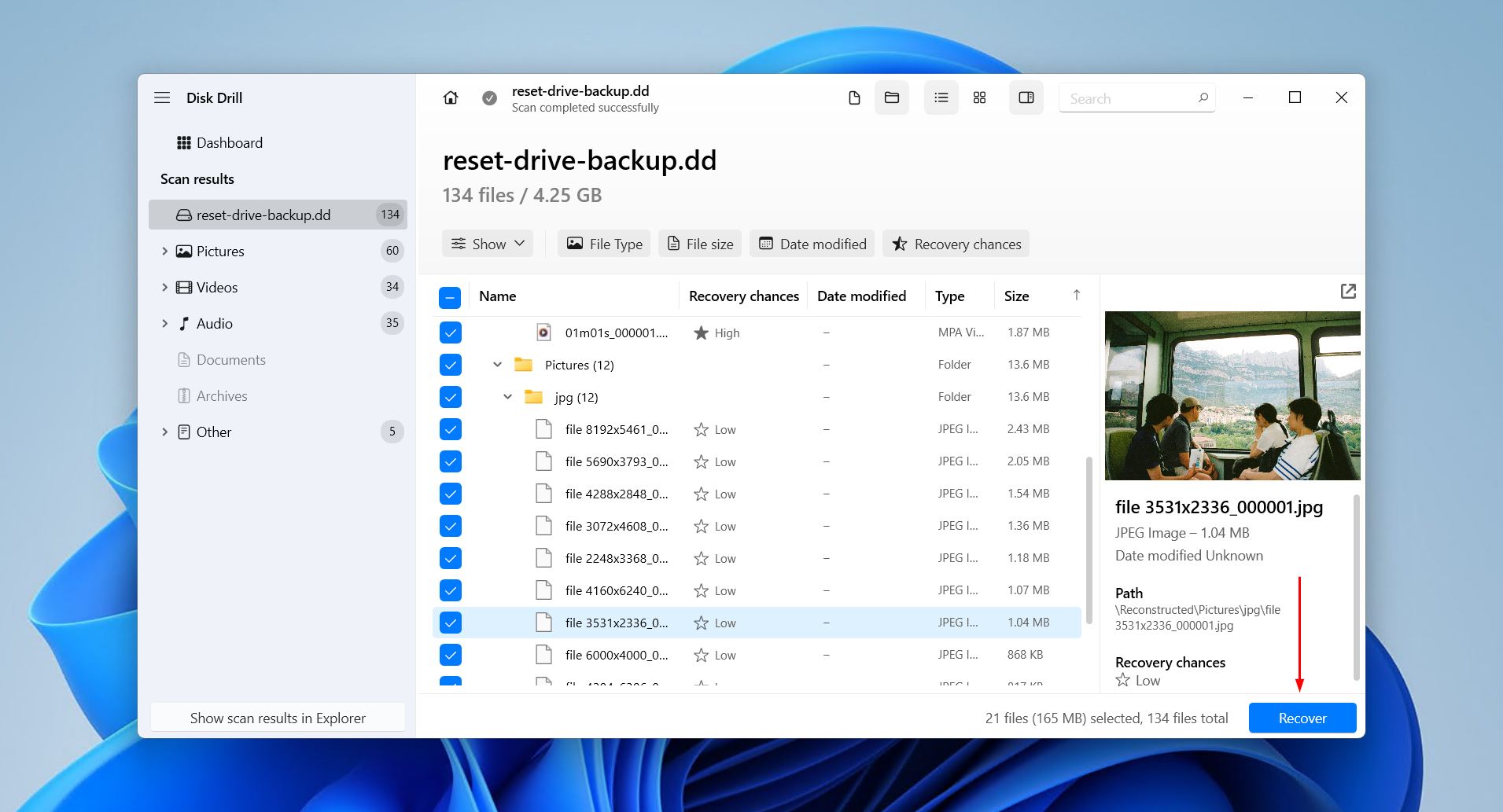
- Preview and select the files you want to recover. Given the lack of file system metadata, you’ll find the majority of your recoverable data under the Reconstructed dropdown. Click Recover when you’re ready.
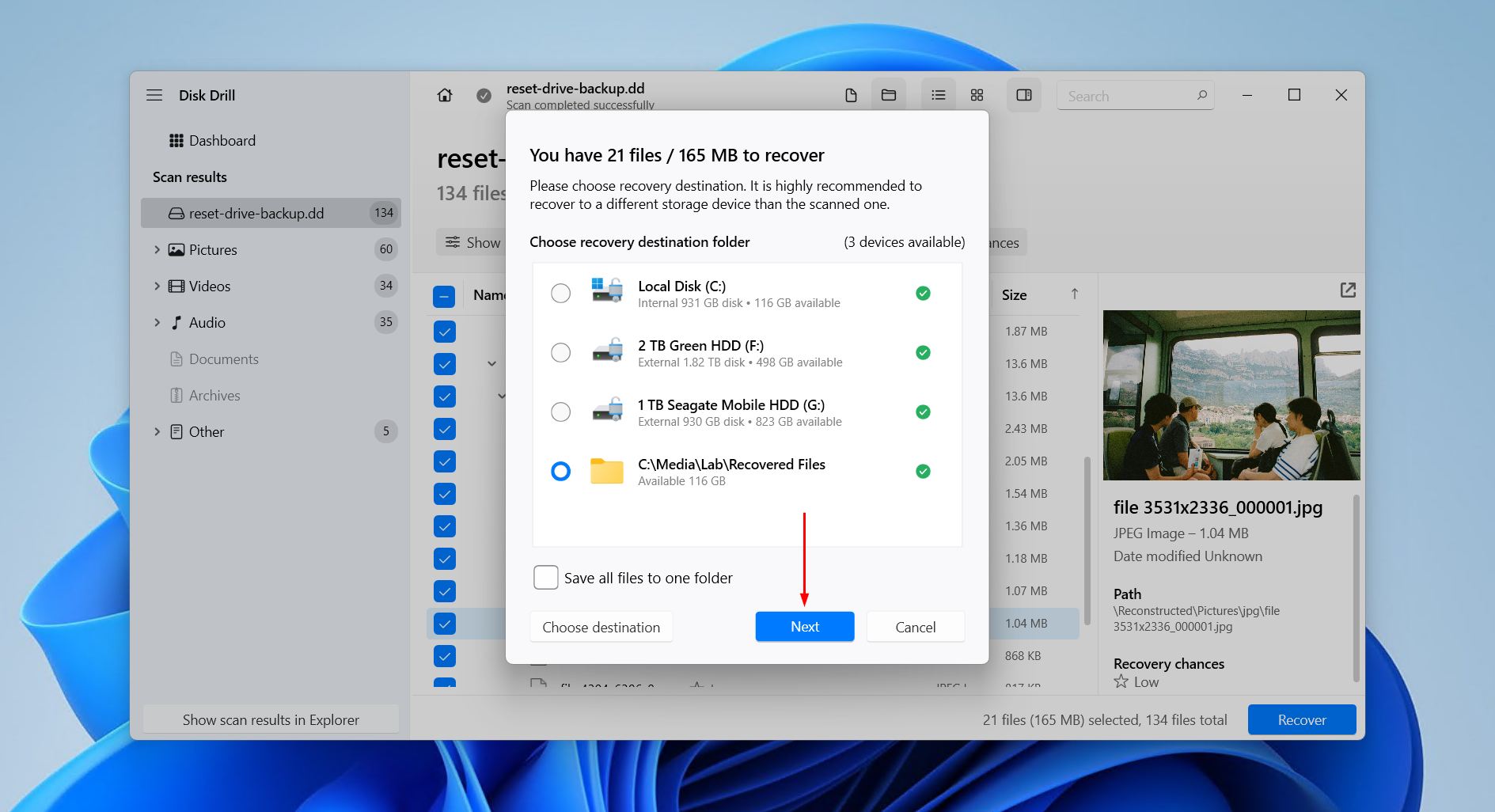
- Choose where the files will be stored. Avoid choosing somewhere on the same drive you’re recovering the data from. Click Next to finish recovery. Disk Drill recovers up to 100 MB for free, which is enough to recover critical files and confirm the software actually works before committing to full recovery.
File recovery after a Windows reset can be tricky because the Master File Table (MFT), directory structure, and file metadata are wiped clean. This is information recovery tools could otherwise use to find data more easily and restore it with its original folder structure and file names. Therefore, this is a unique instance where you need a strong recovery solution like Disk Drill that has a particular set of skills, such as:
- The ability to recognize and recover over 390 unique file formats.
- Convenient, file-by-file previews to check files before recovery.
- The option to remount disks in read-only mode.
- Hex view for quickly checking if TRIM has been run on the disk.
In addition to recovery software, we’ll show you a few native solutions for getting the data back.
4 Built-In Windows Recovery Options
The efficacy of some of these built-in options depends entirely on what was set up before the reset, and so many may not be useful to you. We’ll explain which ones apply to you before getting into the steps so you’re not wasting your time with each.
1. Restore from File History
File History is a backup option included with Windows that saves versioned backups of your files. If it was enabled and configured to back up your files to a secondary drive before the reset, your data will still be there. However, if it was configured to back up to the same partition as Windows, it would have been deleted with the “Remove everything” option.
This is how you check if File History was set up and restore data after a factory reset:
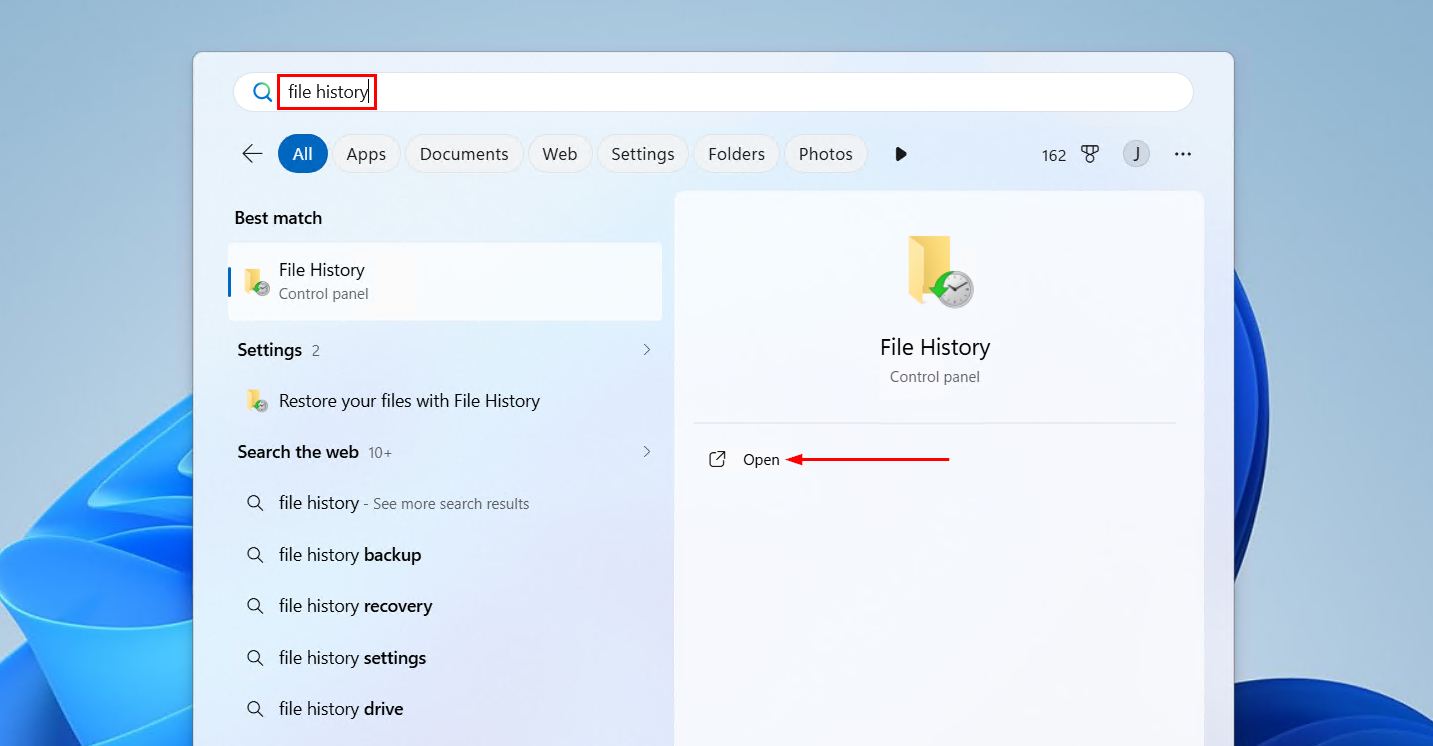
- Open Start, search for File History and open it.
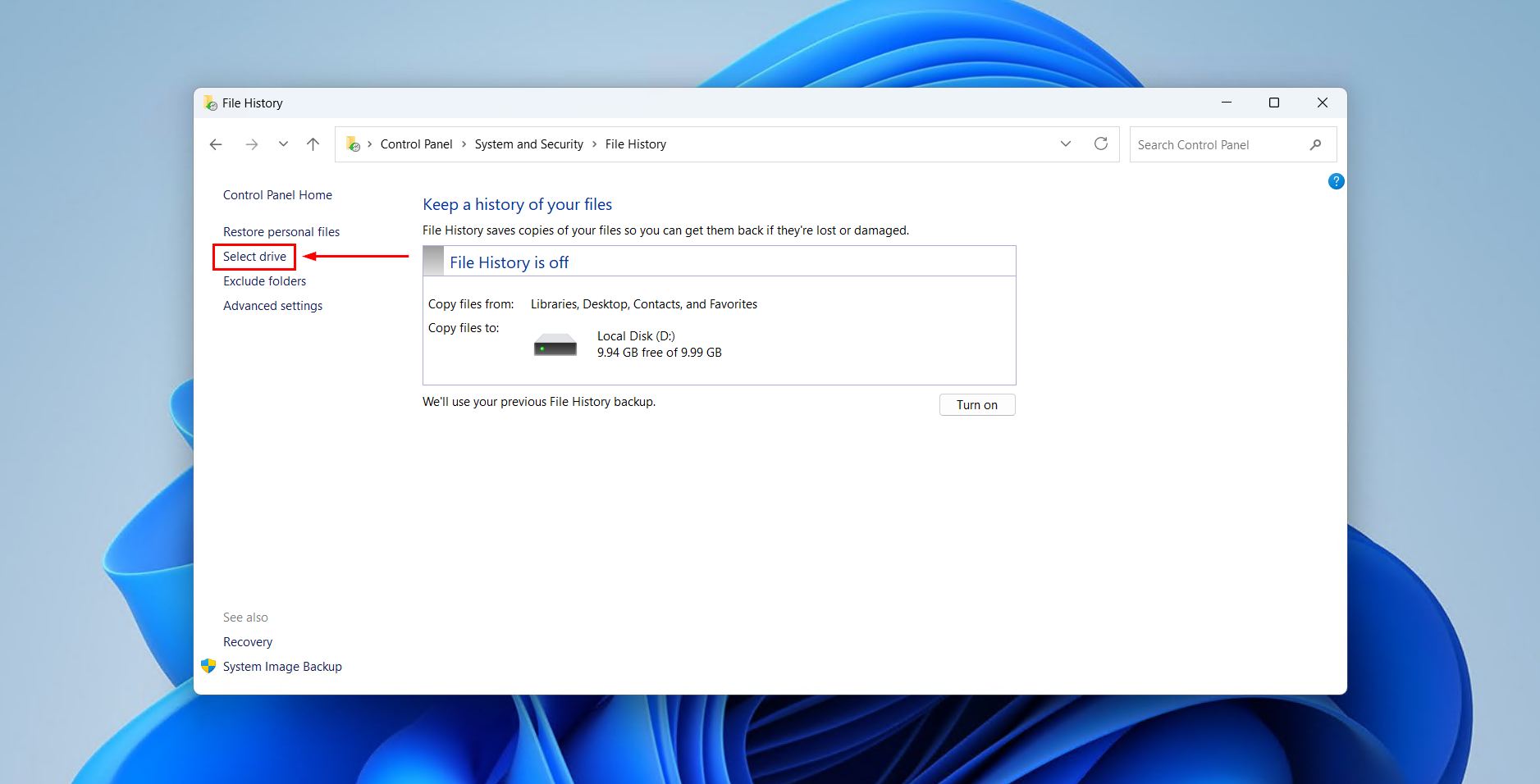
- Click Select drive.
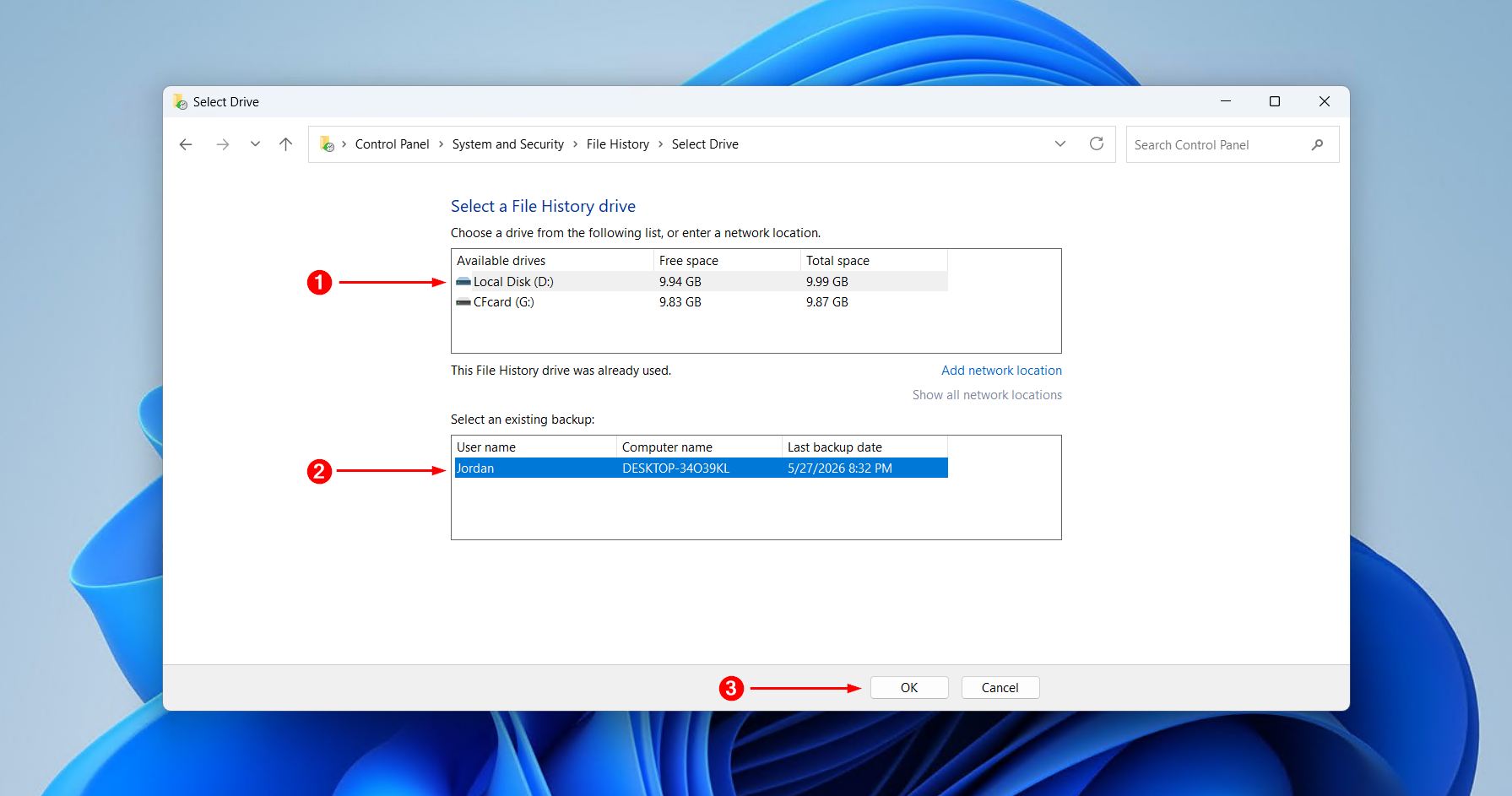
- Choose the drive containing the File History backup, and then select the existing backup. Click OK. If you have no existing backups, it means the backup was stored on your Windows partition (and wiped with the reset) or it wasn’t active beforehand.
- Click Restore personal files.
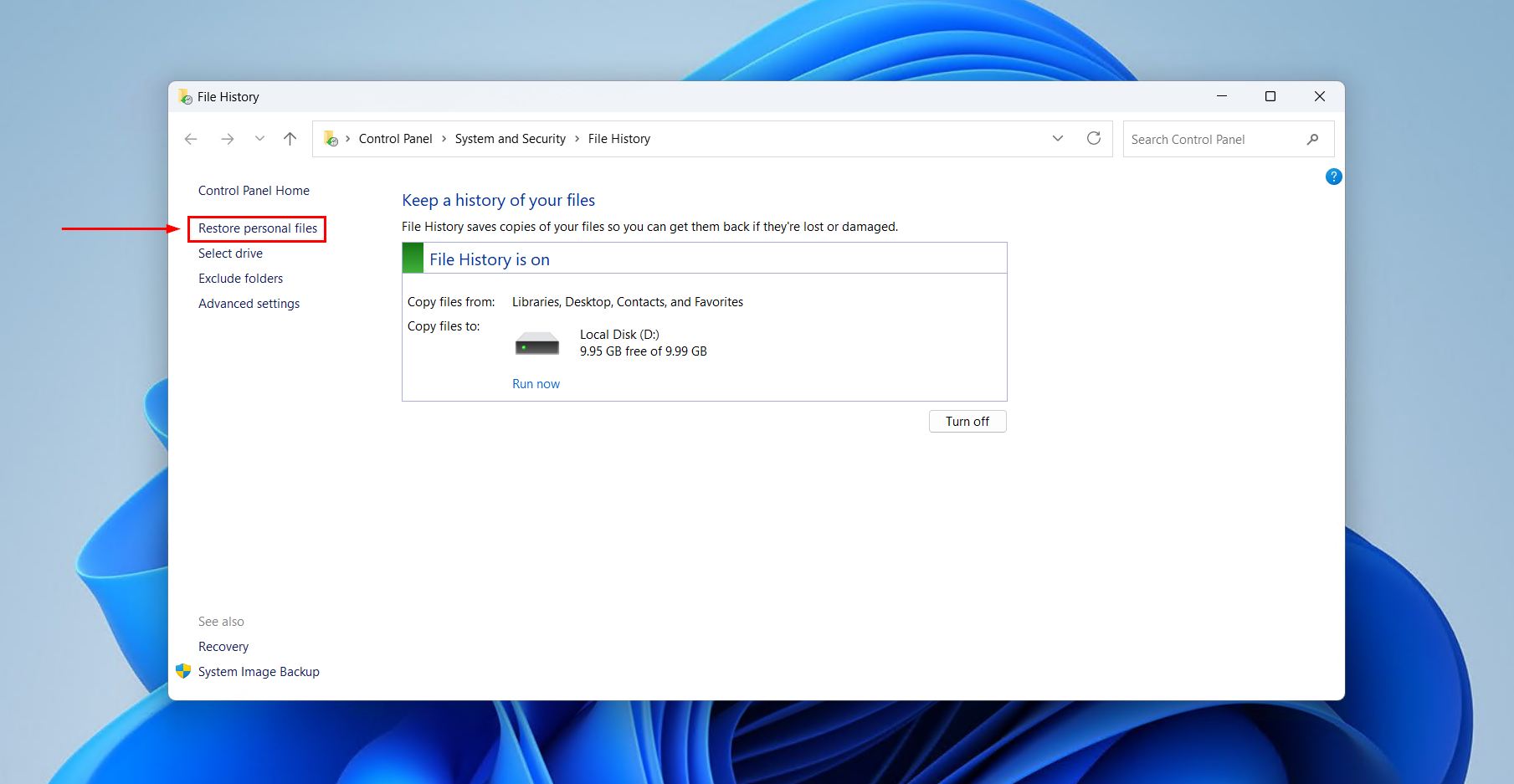
- Find and select the files you want to restore.
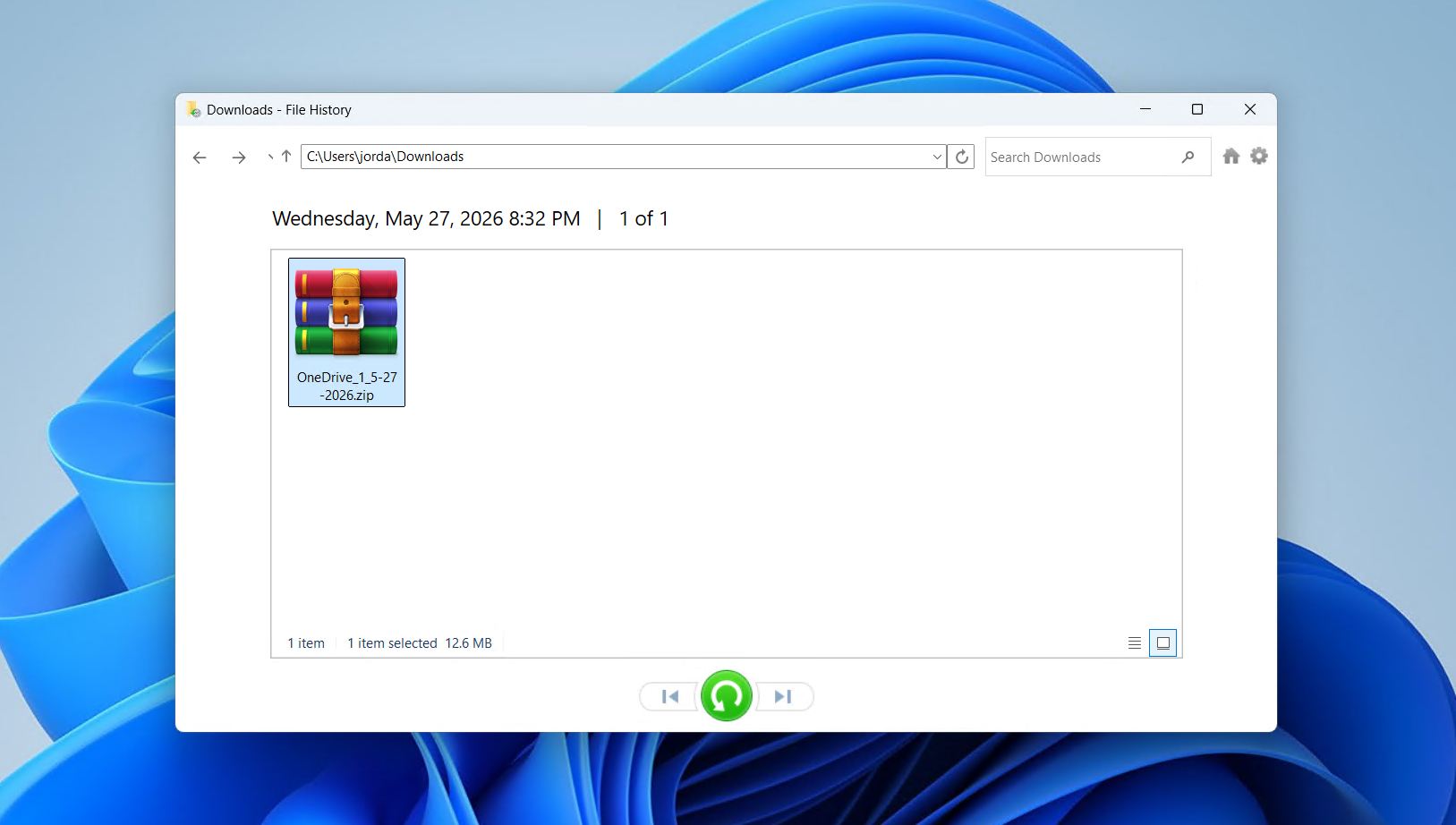
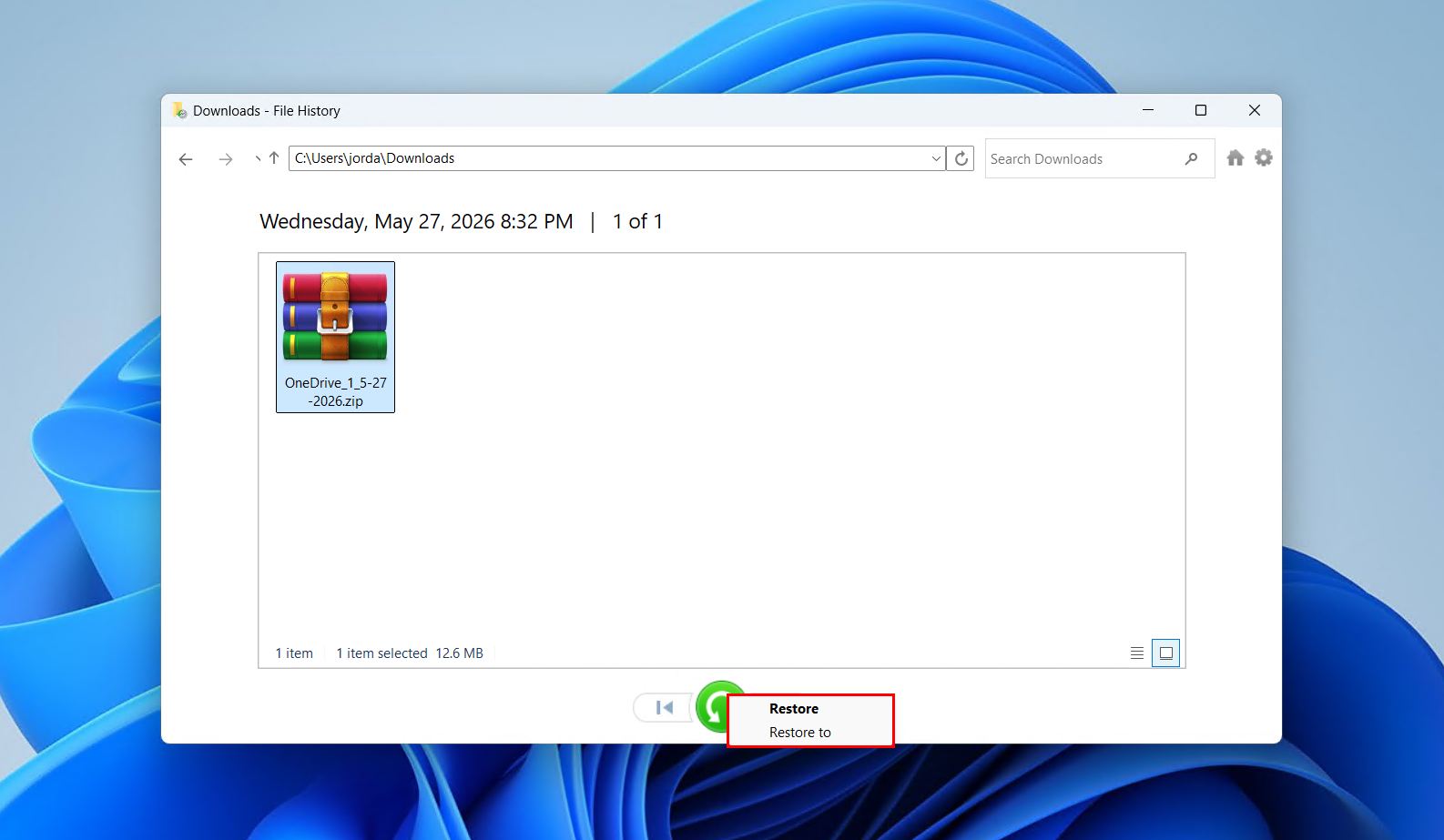
- Right-click the green Restore button. Choose Restore if you want to recover the files in place, or Restore to if you want to choose a new output location.
2. Recover Files from OneDrive
OneDrive comes preinstalled with Windows, and when you sign in to a Microsoft account, it automatically syncs your Desktop, Documents, and Pictures folders to the cloud. Windows resets don’t touch the files in your OneDrive, which gives you the opportunity to download them. It also has its own separate recycle bin, which may contain files that were deleted before the reset.
We’ll show you how to access your OneDrive and download any data backed up there:
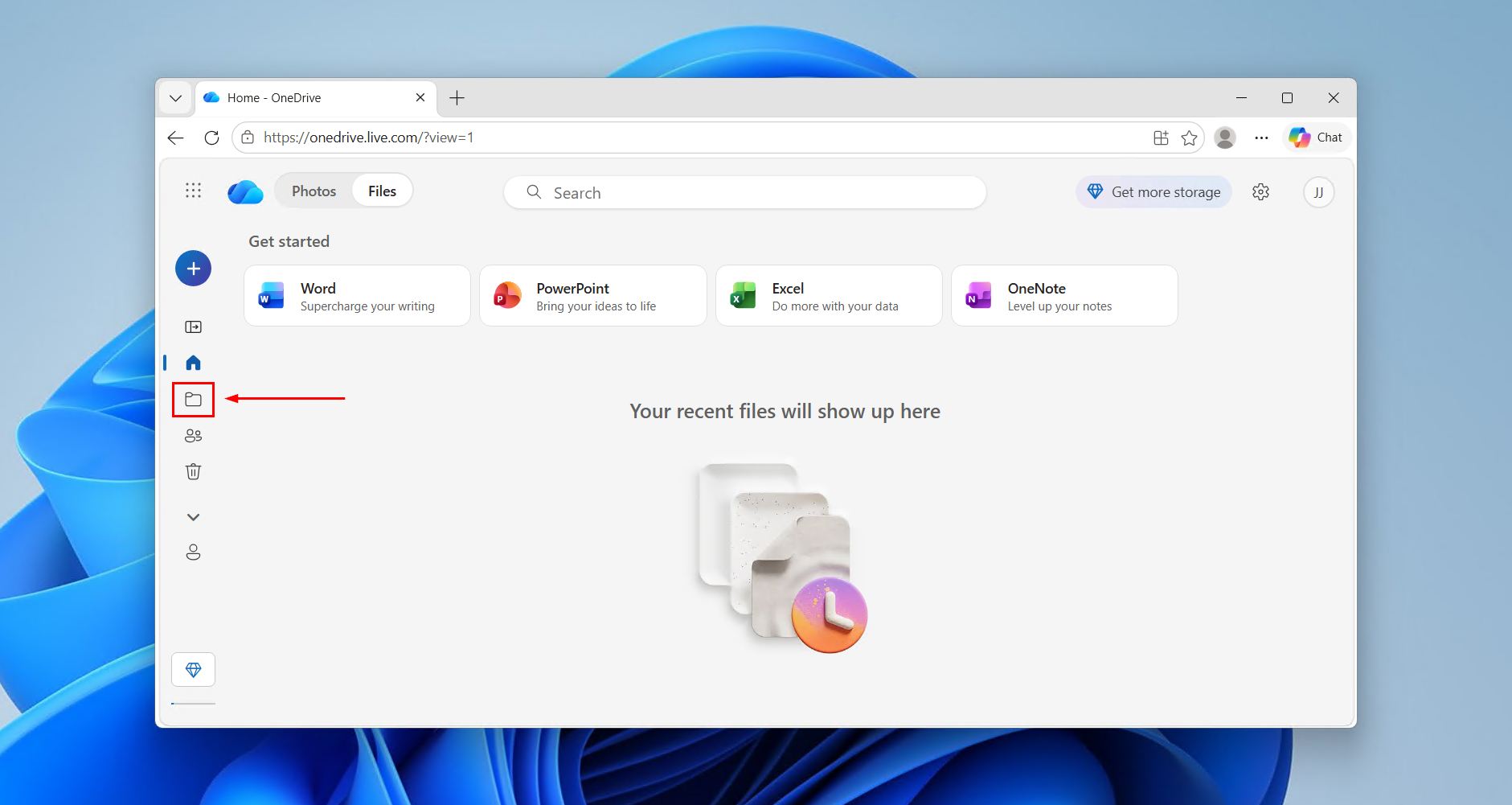
- Sign in to your OneDrive account, or open it from the taskbar.
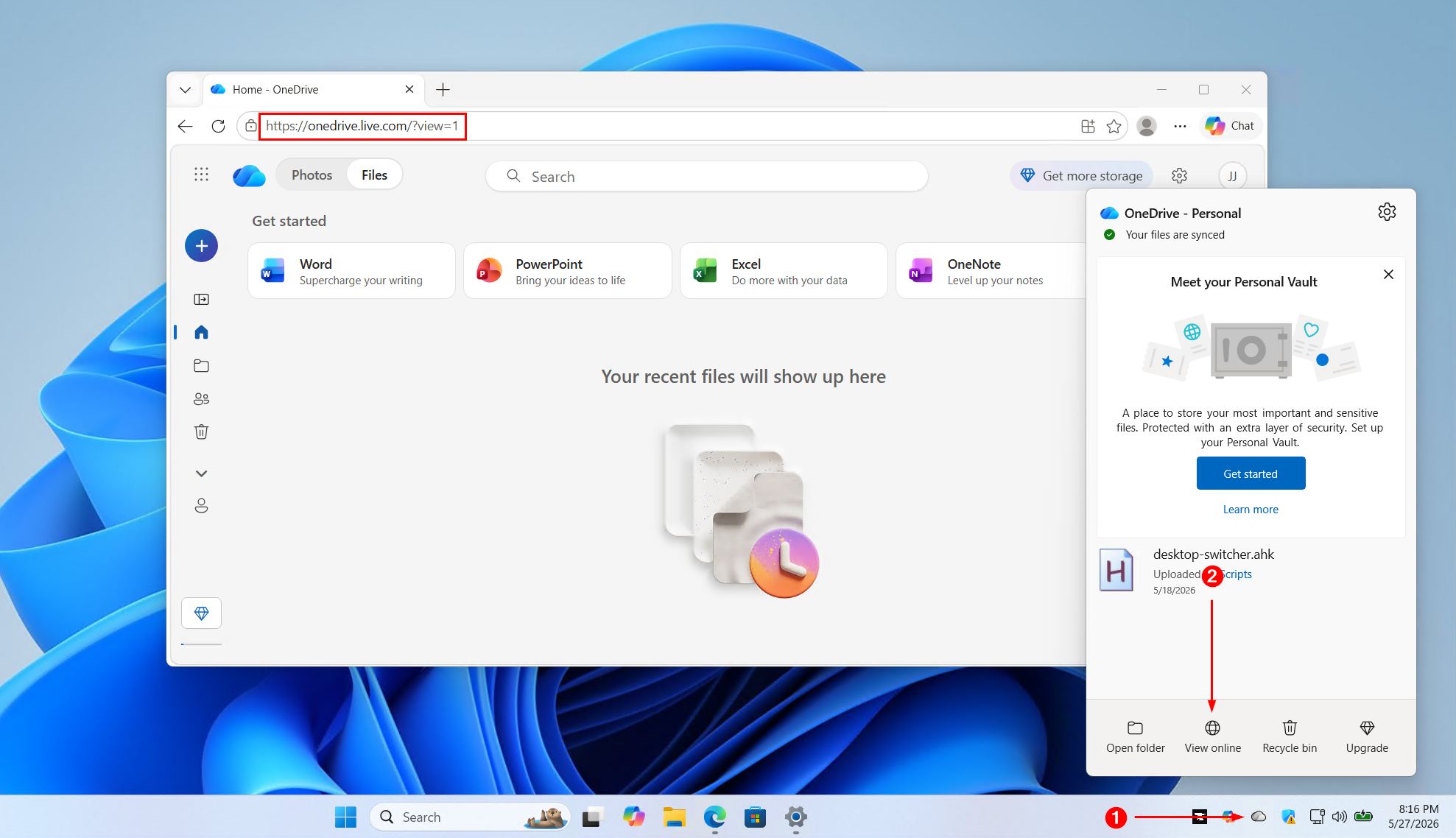
- Go to My files.
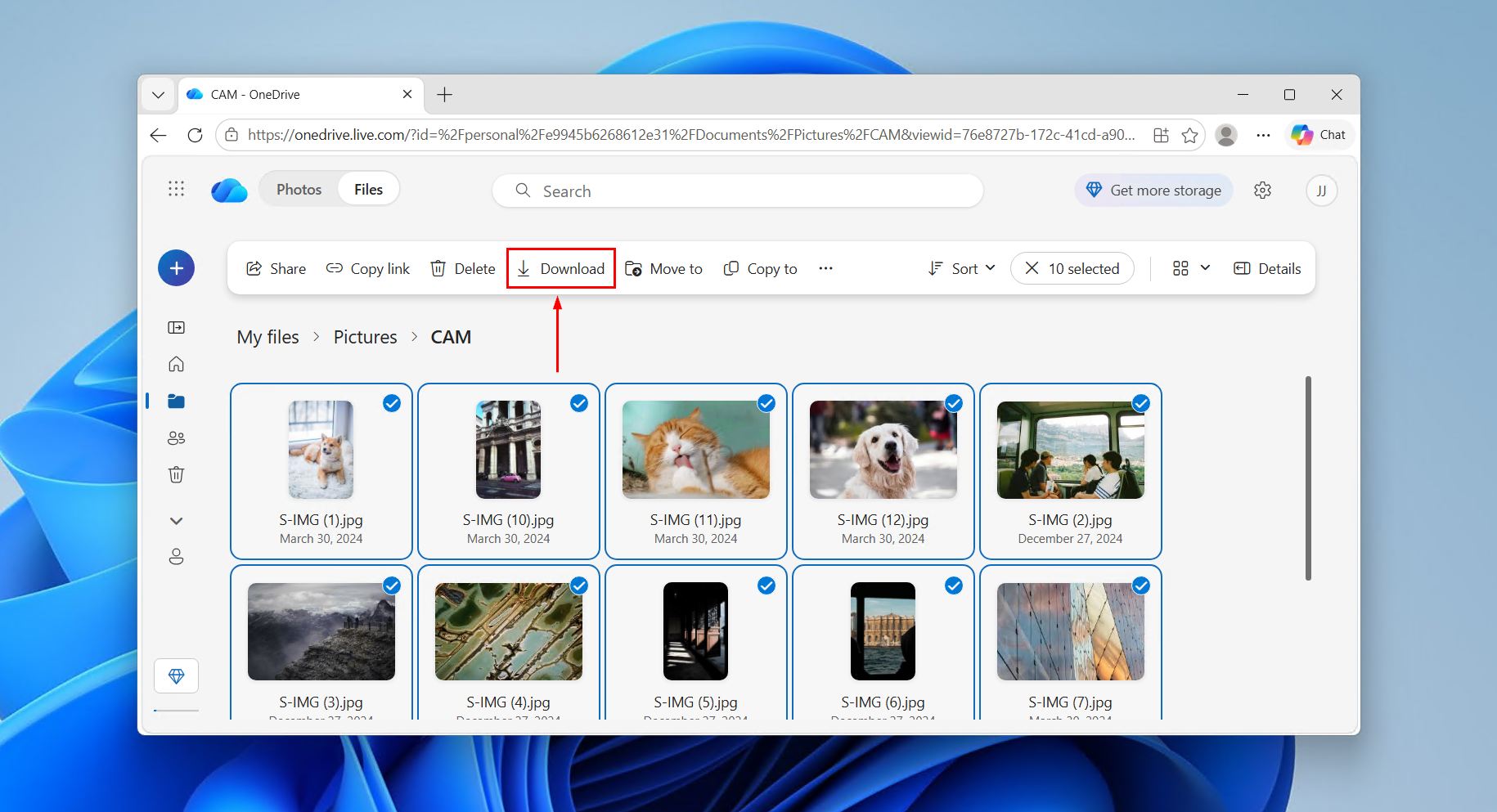
- Select your files and click Download.
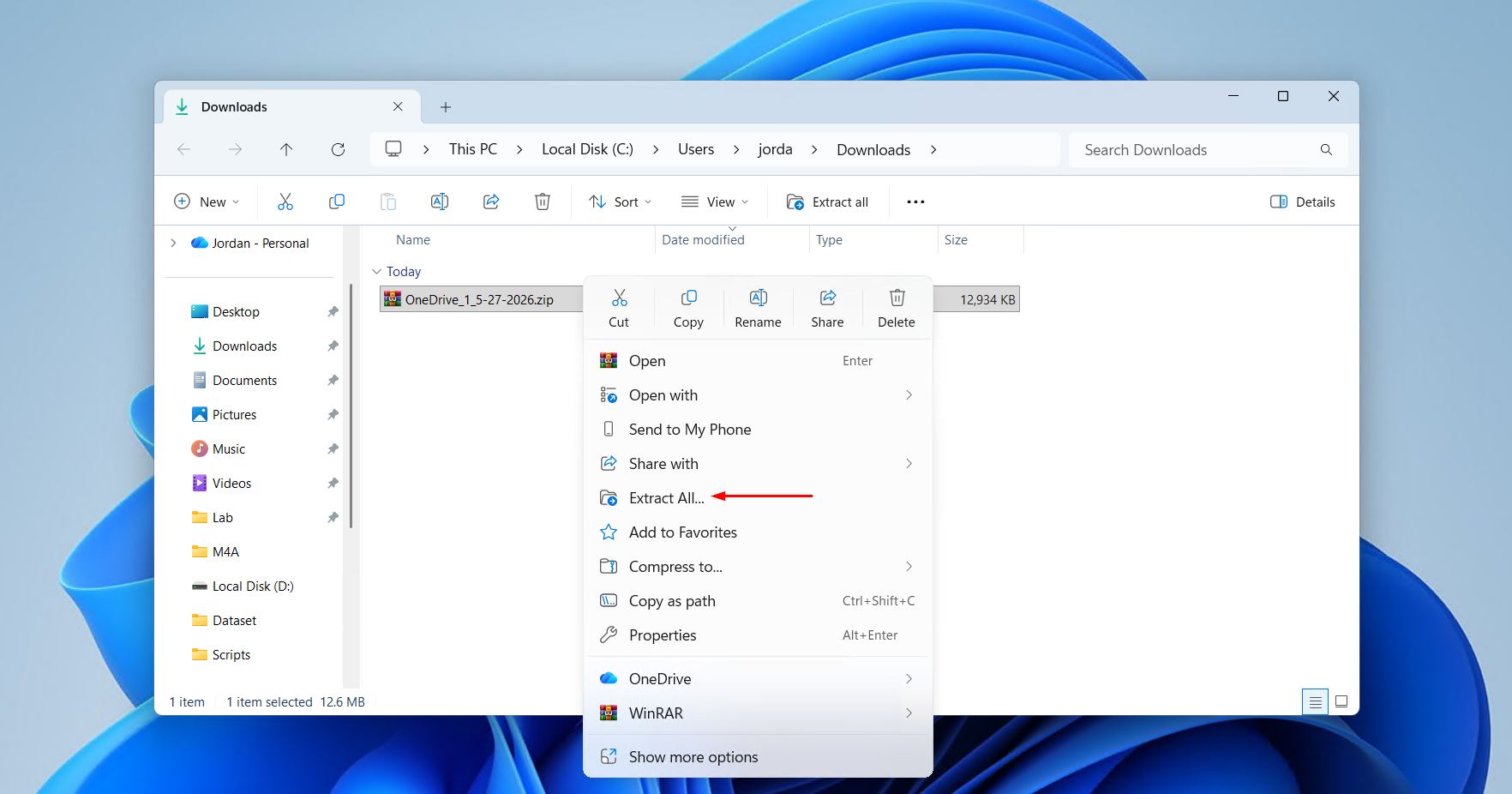
- Extract the zipped files.
3. Try Windows File Recovery Tool
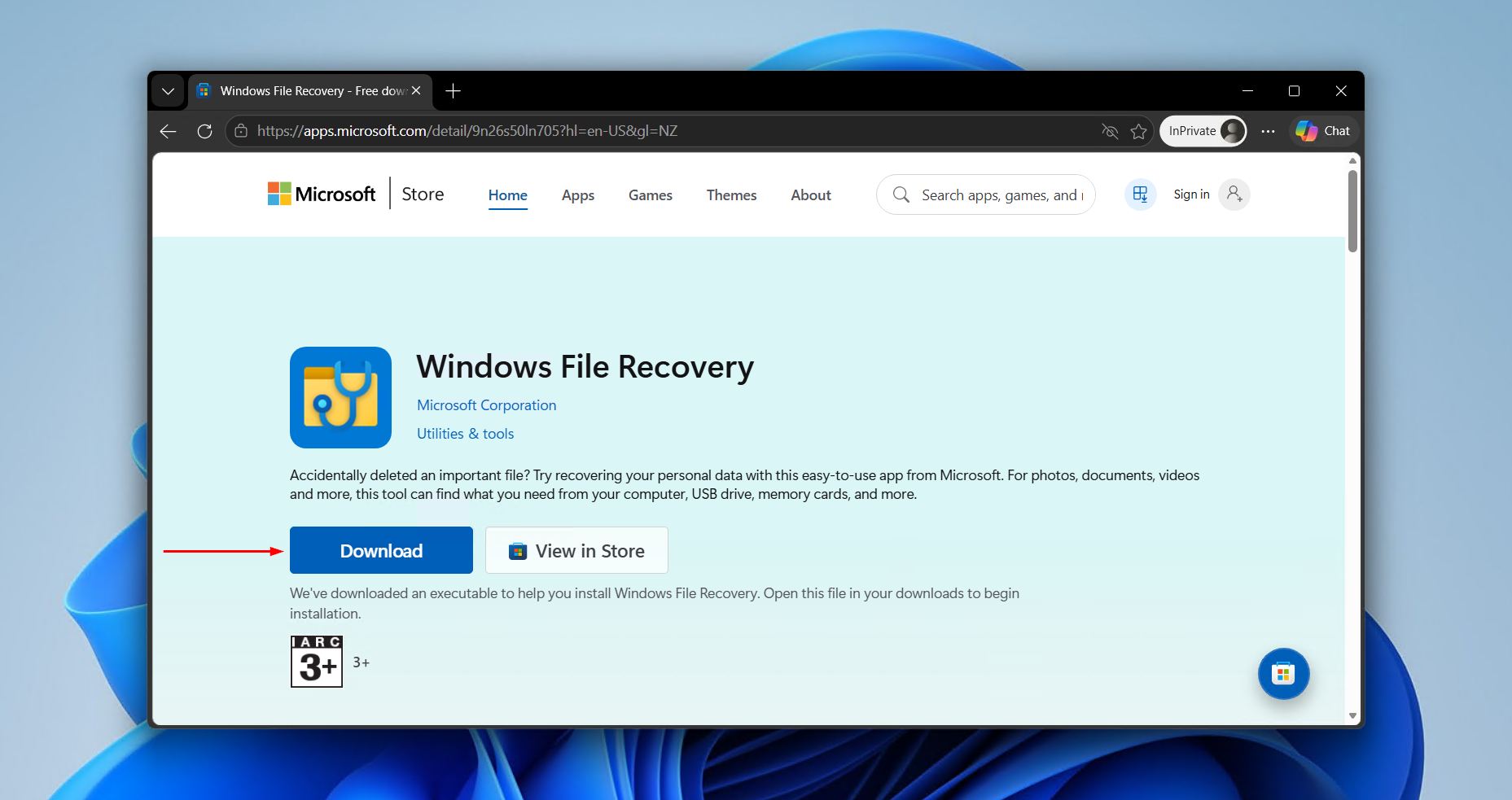
Windows File Recovery is Microsoft’s own recovery solution available via the Microsoft Store. Run from the command line, it works best with intact NTFS file systems using its Regular Mode. For other file systems (or lack thereof), you’ll need to use the Extensive Mode. During testing for our Windows File Recovery review, we found it only supports a handful of file signatures, making it the weaker option in some cases like when recovering data from a dead or reset hard drive. Even so, it’s a completely free first-party recovery option useful for recovering common file formats like JPEG, PNG, DOCX, XLSX, and PPTX.
To maximize recovery, we’ll be using the following command:
winfr source-drive: destination-folder /extensive
- Winfr – Invokes the application.
- source-drive: – The drive you’re recovering the data from (C:, for instance)
- destination-folder – Where the recovered files will be stored on a different drive.
- /extensive – Performs an extensive scan to find data by signature.
Follow these steps to perform an extensive scan with Windows File Recovery:
- Install and open Windows File Recovery from the Microsoft Store.
- Type the following command (replacing the source drive and destination folder as needed) and press Enter.
winfr C: G:\RecoveredFiles /extensive
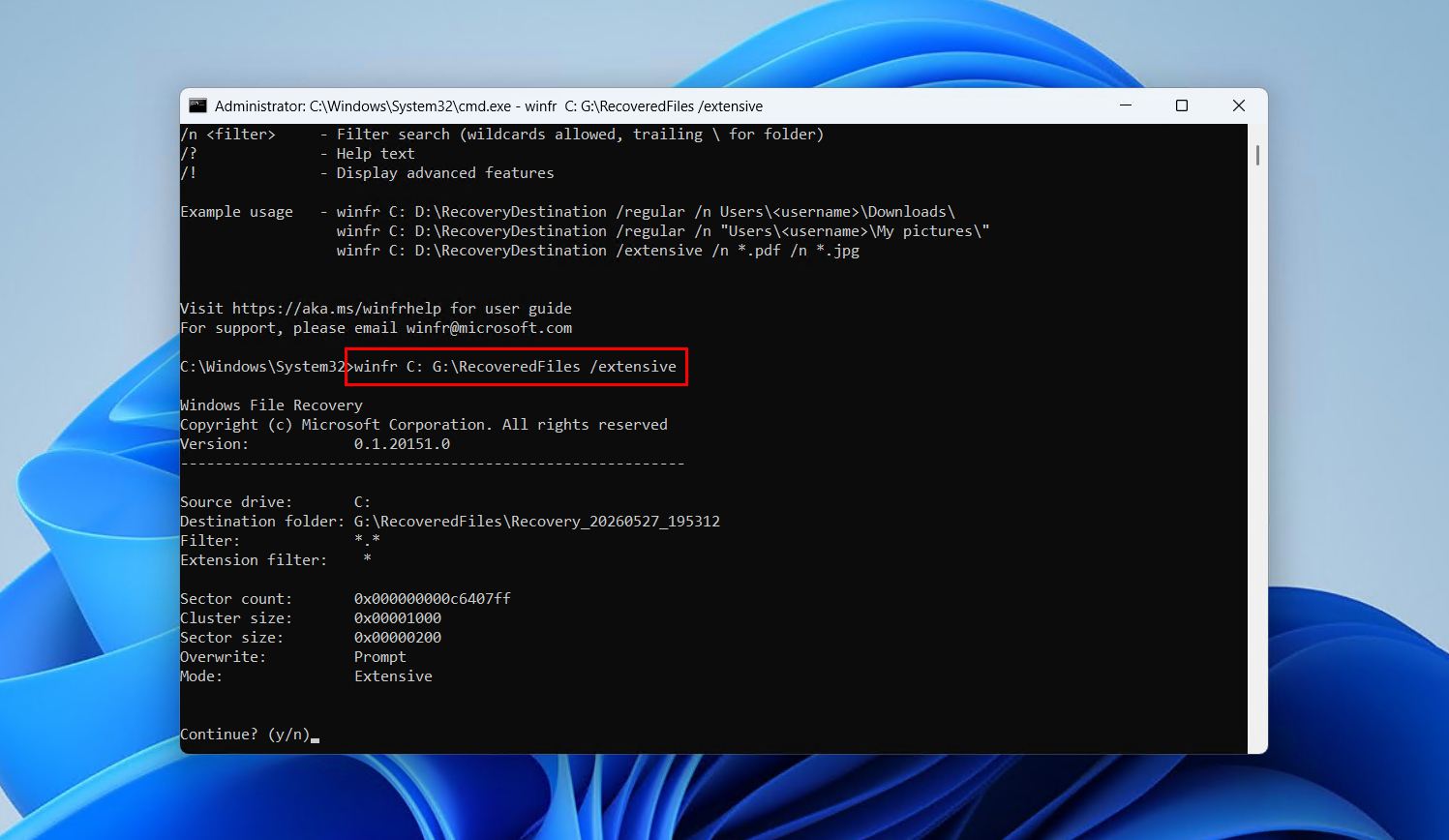 Press Y to confirm the scan.
Windows File Recovery will dump everything it recovers into the destination folder, so all you need to do is go through and look for your data after it’s complete.
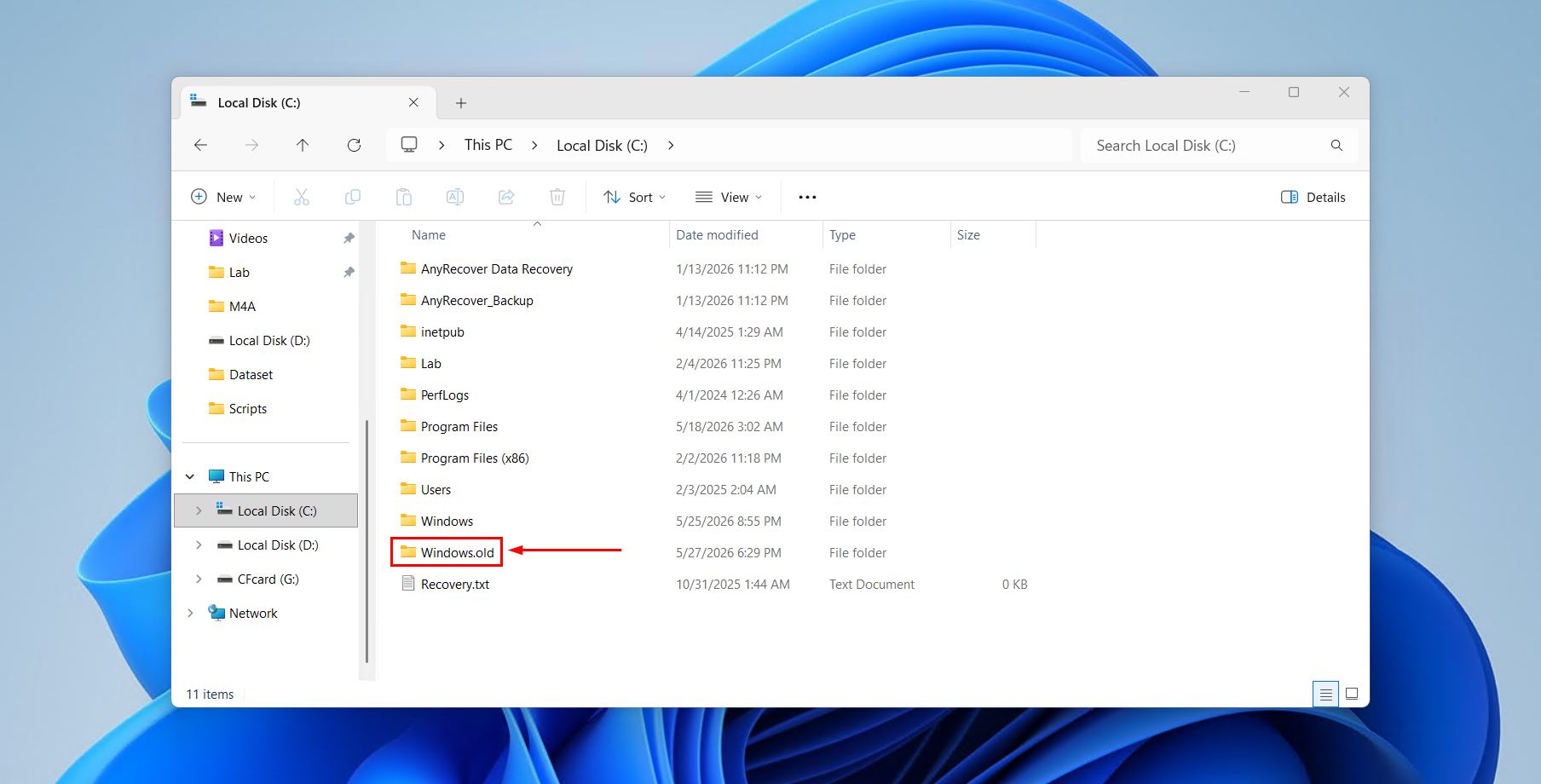
4. Check Windows.old Folder
Sometimes Windows preserves some of your files in a folder named Windows.old following a major operating system or feature update. There was even a point where Windows 11 24H2 created a Windows.old folder after a clean install as part of a bug. This folder isn’t guaranteed to exist, and it’s automatically deleted after 10 days, but you may be able to save some data from it before then.
This is how to restore data after factory reset without a backup if the Windows.old was created:
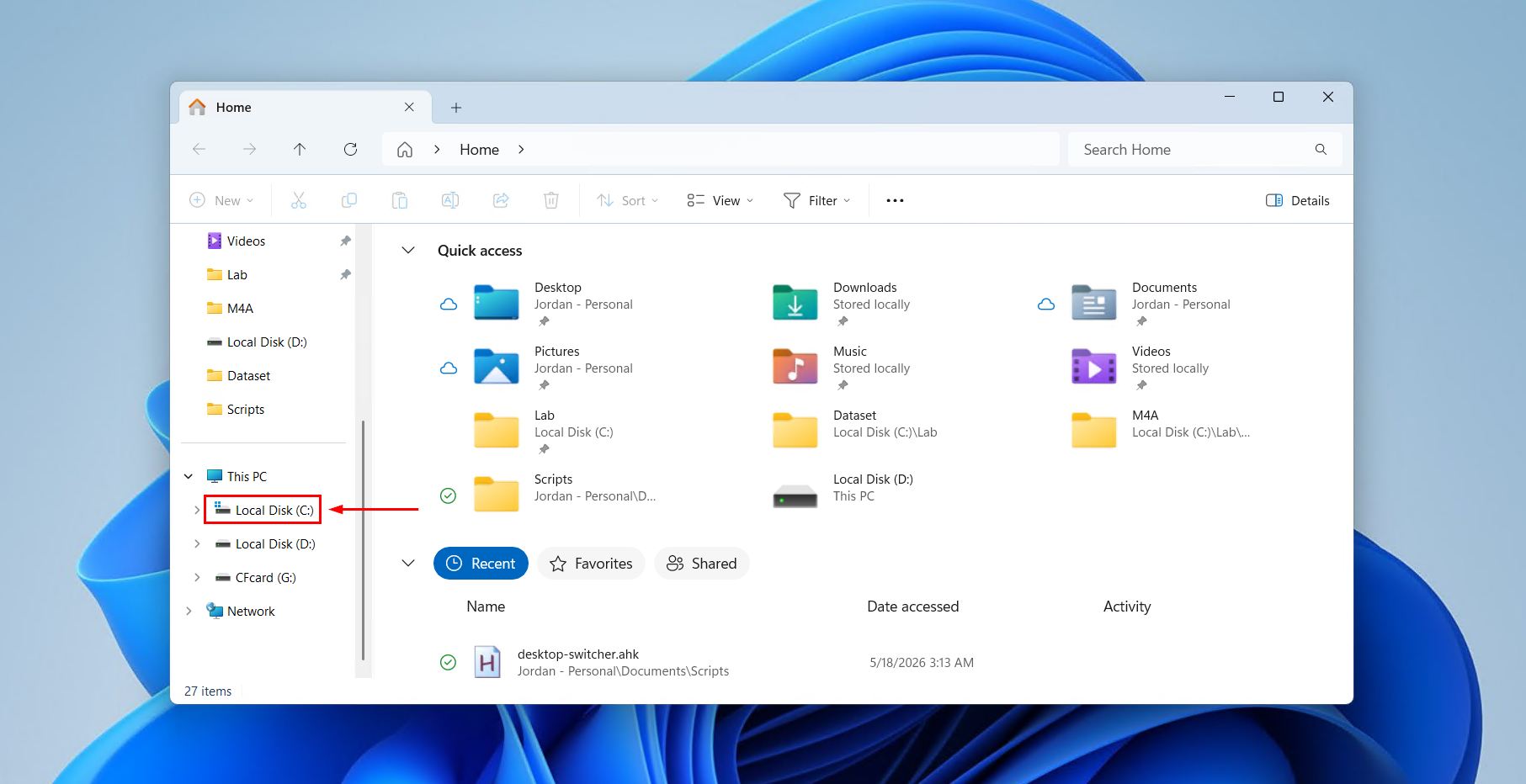
- Open File Explorer.
- Go to the root folder of your C: drive.
- Find Windows.old and search for any data you want to keep.
FAQ
Yes, it’s possible to get files back after performing a “Remove everything” PC reset. Just like with recovering data from a formatted hard drive, the data itself will remain recoverable for a time until it’s no longer recoverable. However, this is assuming the drive hasn’t been used extensively since the reset, and TRIM hasn’t run yet if it’s an SSD.
No, it merely determines where Windows pulls its installation files from. If downloading from the cloud, the files are written to the disk before your data is deleted, as opposed to after where it would be a problem. Instead, your recovery chances are determined by whether you chose “Keep my files” or “Remove everything,” and whether the “Clean data” option was enabled.
The same conditions apply whether it’s your system partition or another that is reset or deleted. If the partition was wiped or deleted, the data may still be recoverable using signature-based recovery techniques, provided you’re working with an HDD or an SSD before TRIM has been run.
Possibly, but your odds are lower than with a traditional HDD. Because SSDs use TRIM, which instructs the drive to erase deleted data blocks at the hardware level, there is no data left to recover after TRIM is executed. Unless you back up the drive or perform recovery before a TRIM command is issued (which is typically within minutes, at best) then your data is likely gone for good. Even so, it’s worth scanning the drive to see, or inspect the raw bits with a hex viewer to see if anything remains.
Yes, there is a difference between a Windows factory reset and an OEM factory reset. However, from a data recovery standpoint, the distinction is mostly about scope. On some OEM devices, the “Reset this PC” option is integrated with the OEM recovery partition. Likewise, it’s possible to reset using the manufacturer tool (from the likes of Dell, HP, Lenovo, etc). Both will restore the machine to exactly how it shipped – bloatware and all. For custom builds, clean installs, or otherwise non-OEM resets, a factory reset is a blank slate. When it comes to recovery, signature-based scanning with a tool like Disk Drill remains your best option in both instances when no backup exists.
