


SSD data recovery comes with its unique set of challenges, and the choice of the best SSD data recovery software matters just as much as how the software is used. We tested over a dozen recovery tools in our lab using real-world SSD failure scenarios to find which ones actually deliver results. If you’re searching for a tool after losing files (or you’ve already tried one without luck), then this article will help you find one that actually works for SSDs, and it will also show how to give yourself the best chance of getting your files back.
Does SSD Data Recovery Software Really Work?
Many people assume that recovering data from an SSD is nearly impossible, and in some cases, they’re right.
It is, indeed, impossible to recover data from an SSD when it has already been erased by TRIM, a feature that tells the SSD to prepare data blocks for reuse by proactively wiping them so that there’s nothing standing in the way of fast write operations when new data arrives.
What you might not realize is that TRIM isn’t always executed.
External SSDs connected via USB typically behave like traditional hard drives because TRIM commands don’t pass through most USB connections1. As a result, standard SSD recovery software can scan and recover files the same way it would from an HDD.
Even when it comes to internal SSDs, some chance of successful recovery does exist because TRIM isn’t always triggered. Recovery from internal SSDs is often possible when the file system is damaged or corrupted, since TRIM relies on a functional file system to operate. Similarly, if an entire partition was deleted (rather than individual files), the data may still be intact as long as you don’t create a new partition in the same location.
In any case, the key is to act quickly and follow the right steps:
- Set the drive to read-only as soon as you notice data loss. This prevents the operating system from triggering TRIM or overwriting recoverable data. To do this, you can use DiskPart’s attributes disk set readonly on Windows or the diskutil’s rdonly mounting option on macOS.
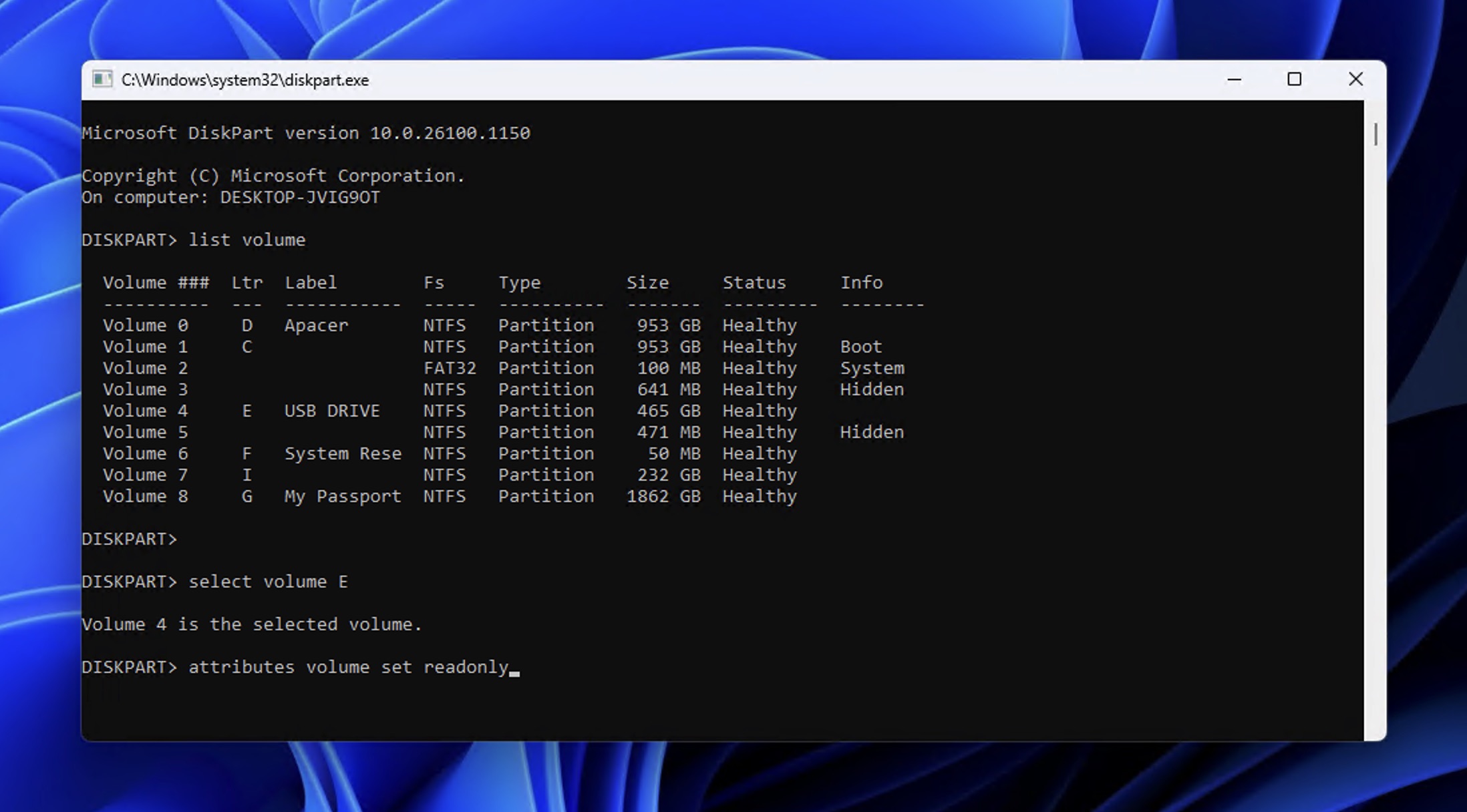
- If possible, remove the internal SSD and connect it to another computer via a USB adapter (USB 2.0 is safest2).
- Before scanning, make a byte-to-byte backup of the drive to preserve the current state so that you can attempt recovery without risking further data loss.
With the right data recovery software for SSD drives, completing the three steps is easy.
Best SSD Recovery Tool For Windows and Mac: Disk Drill
Disk Drill is our favorite SSD file recovery software because it includes everything you need for successful SSD recovery in one package.
| Platform | Windows, Mac |
| Free Recovery | 100 MB (Windows) |
| Write Protection | ✓ |
| Hex Viewer | ✓ |
| Disk Imaging | ✓ |
| File Signatures | ~400 |
| Best For | All-in-one SSD recovery workflow |

The moment you launch Disk Drill, you can enable write protection on your drive by right-clicking the device and selecting Remount volume as read-only. With the volume mounted in read-only mode, TRIM won’t be able to erase your lost data. (Note: this option is available for non-system drives only.)
More advanced users can then open the hex view to check whether the lost data is actually still on the drive or if TRIM has already wiped it. This quick confirmation takes just a minute, and it can be both reassuring if the data is confirmed to still be there and time-saving if TRIM has already done its job because then you know not to waste time on a futile recovery attempt.
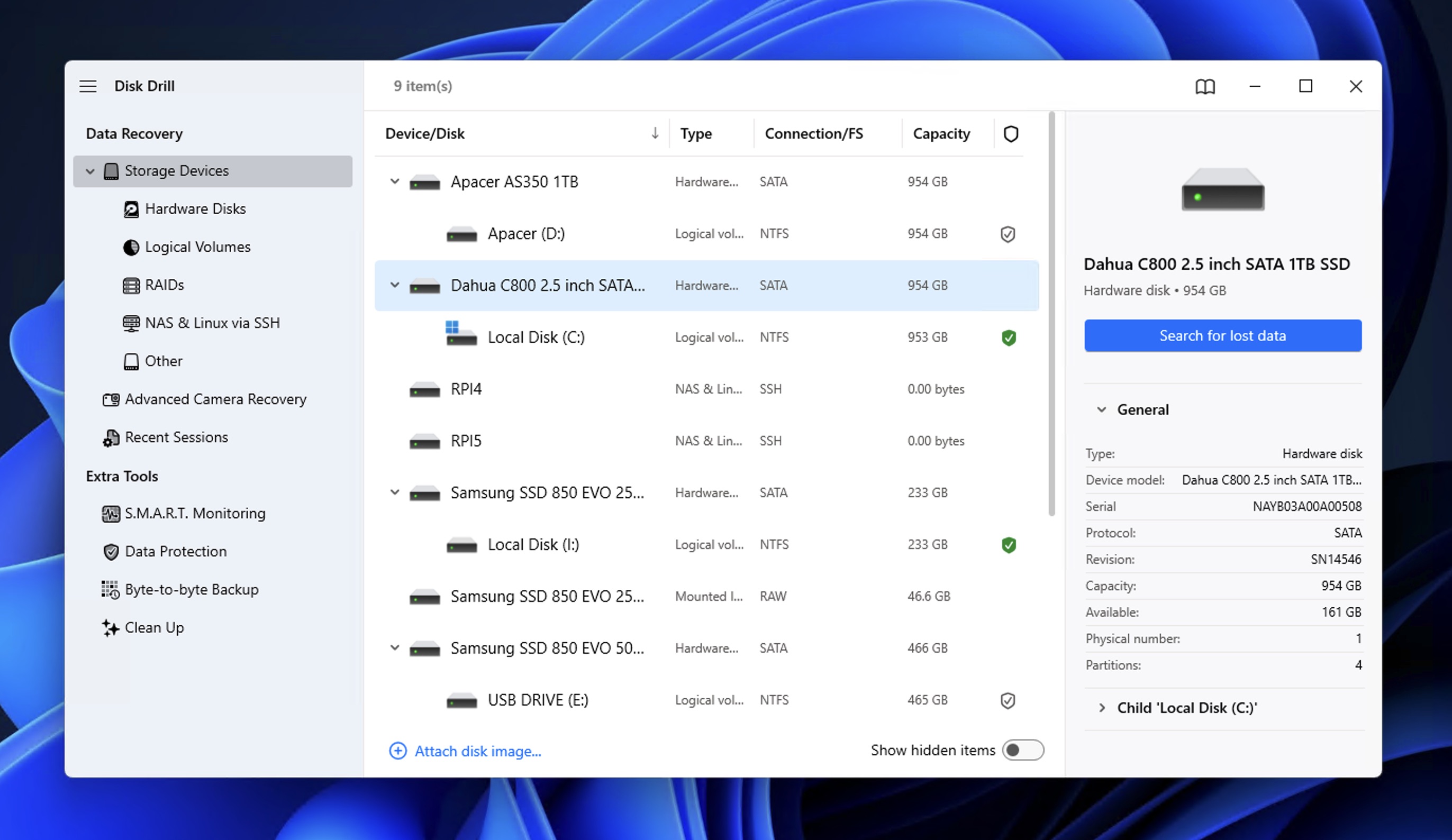
Once you’ve confirmed recoverable data exists, Disk Drill lets you create a byte-to-byte backup of the entire drive (so you use the original drive as little as possible to completely eliminate the risk of something rendering the original data unrecoverable). If you’re dealing with a failed SSD, then having a byte-to-byte backup is especially important since every read operation on a failing drive risks further damage.
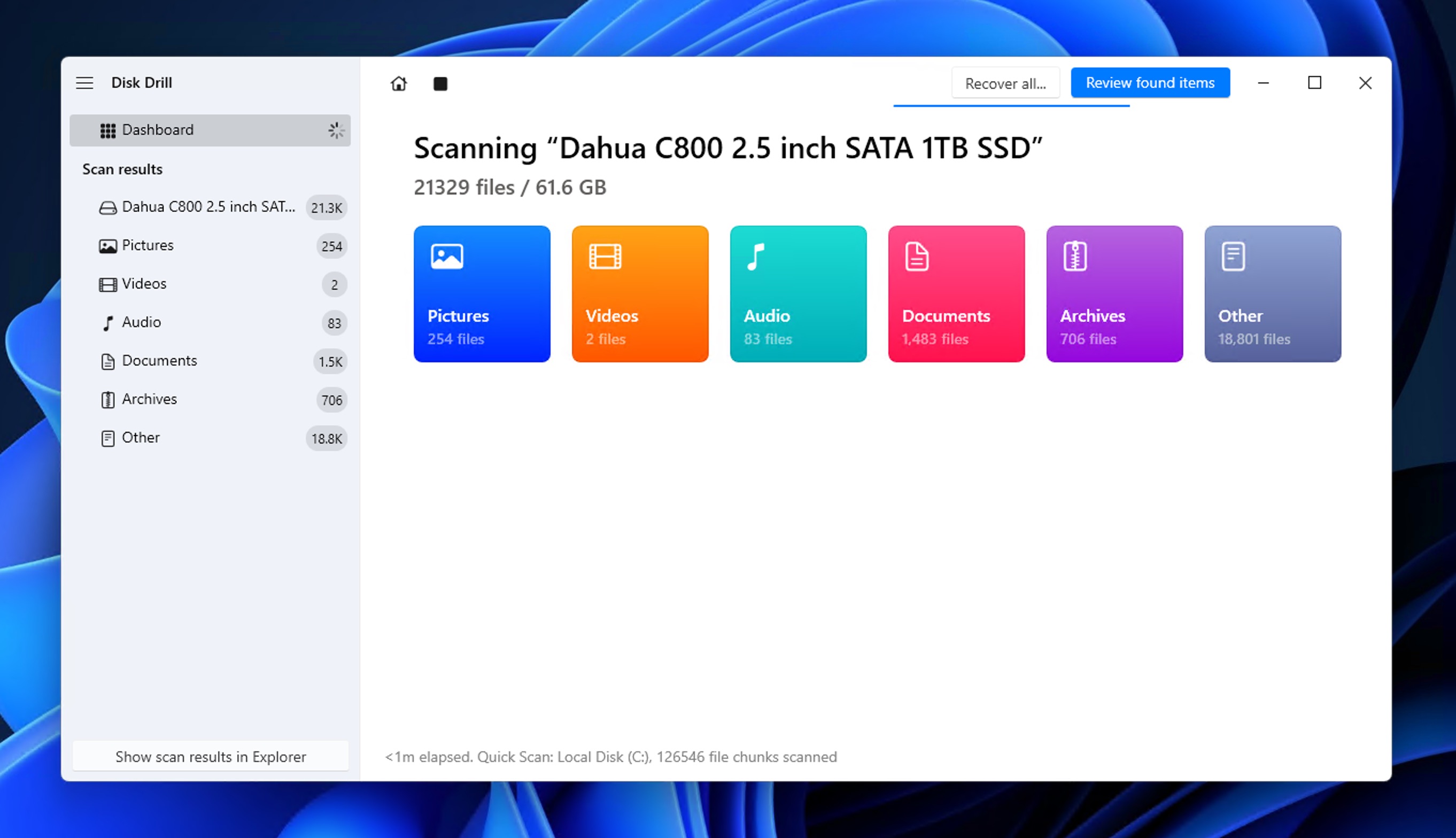
Disk Drill offers two scan types to choose from: Universal Scan for general file recovery and Advanced Camera Recovery (ACR), a specialized algorithm that pieces together fragmented video files. The latter is available for external SSD drives and is particularly useful if videos are the main type of data you want to recover from your SSD.
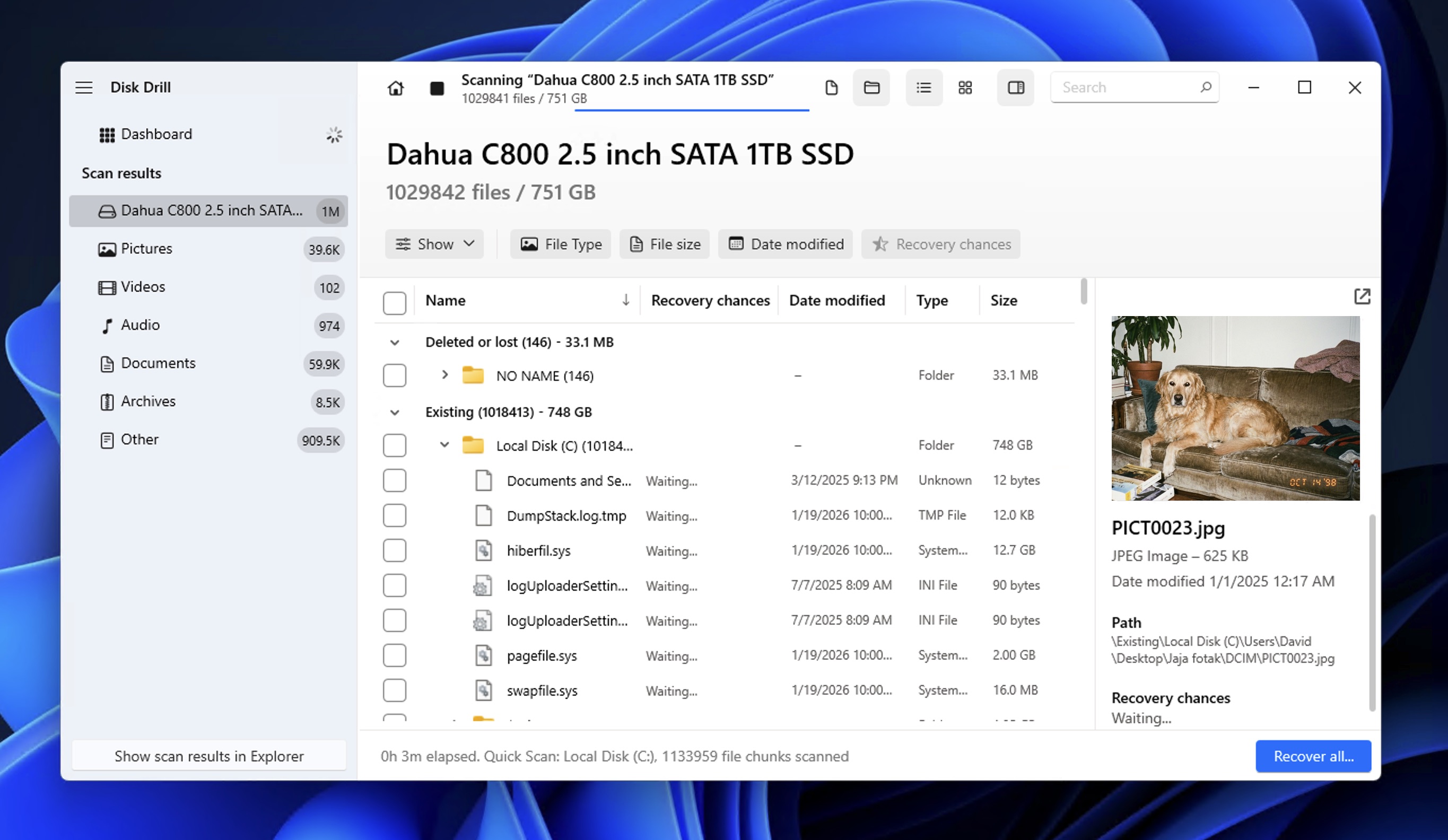
Disk Drill displays recoverable files as they’re found, complete with previews, filters, and recovery chance indicators. The software recognizes files using both file system information and about 400 file signatures, so your chances of finding what you need remain high even when the file system is damaged or completely gone. It also warns against recovering files to the source drive, and the free version for Windows lets you recover up to 100 MB, which is enough for minor data loss incidents and to verify the software works before committing to a purchase.
- Built-in write protection prevents TRIM during recovery
- Hex viewer confirms data presence before scanning
- Byte-to-byte backup feature for safe recovery attempts
- Works on both Windows and Mac with the same license
- Clean interface that doesn't require technical expertise
- Advanced Camera Recovery reconstructs fragmented video
- Recovers files using both file system data and about 400 file signatures for maximum results
- Full recovery requires a paid license on Mac
Other Notable Features
Beyond recovery, Disk Drill offers tools to prevent future data loss on your SSD. Recovery Vault (on Windows) and Guaranteed Recovery (on macOS) work by keeping track of deleted files and storing metadata that makes future recovery attempts far more reliable. Recovery Vault adds a safety net to your Recycle Bin, while Guaranteed Recovery creates hidden copies of files from Trash and folders you specify.
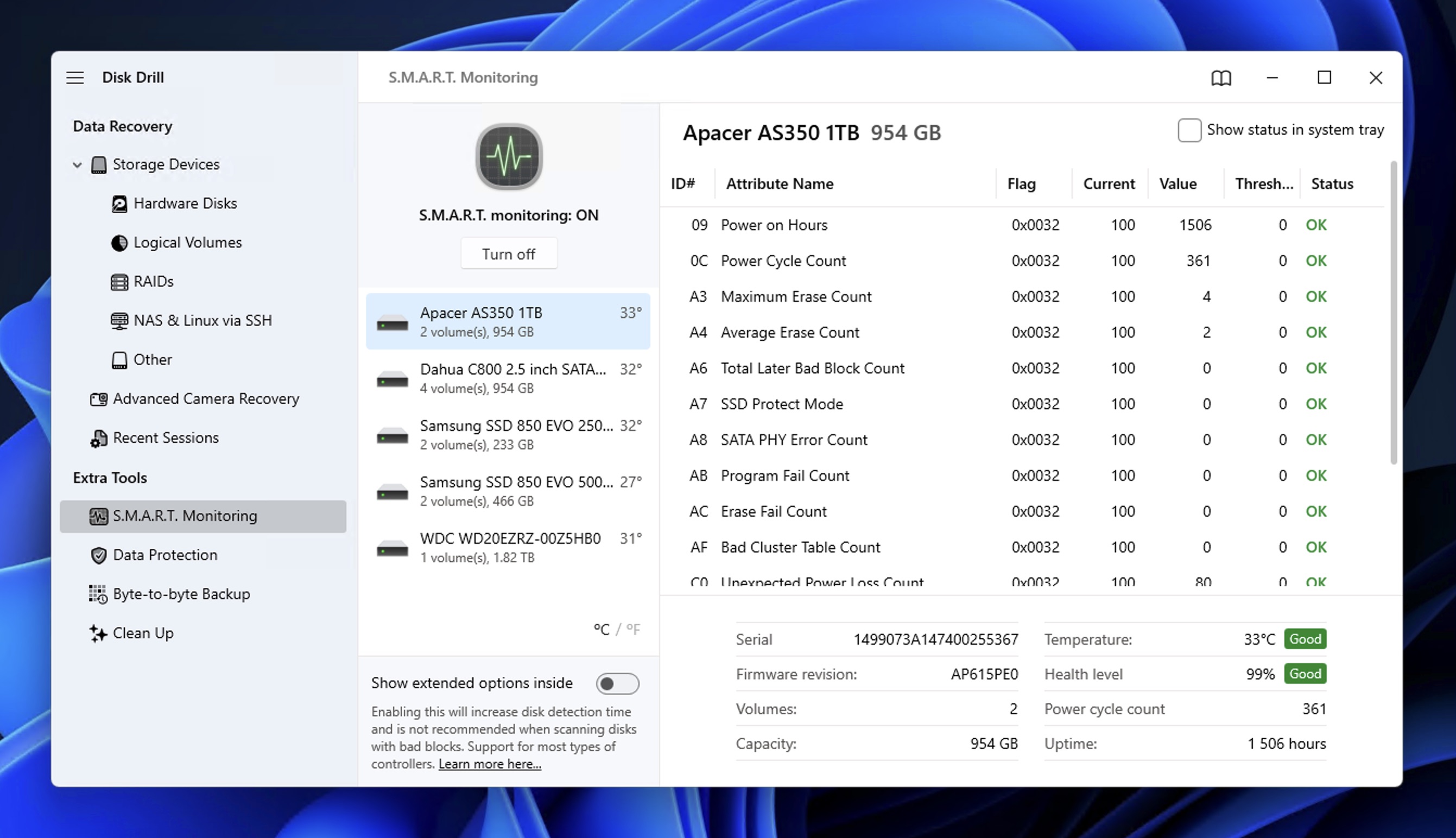
Disk Drill also includes S.M.A.R.T. monitoring that analyzes your SSD’s health in real time. SSDs can fail without warning, and S.M.A.R.T. data gives you early indicators like temperature spikes, reallocated sectors, or wear leveling counts that suggest trouble ahead.
Other Notable SSD Recovery Software
Disk Drill took our top spot as the best SSD file recovery software, but that doesn’t mean it’s the only SSD recovery software worth considering. The five alternatives below each bring something different to the table, such as advanced Mac SSD recovery capabilities or unlimited free recovery.
1. DiskGenius (Windows)
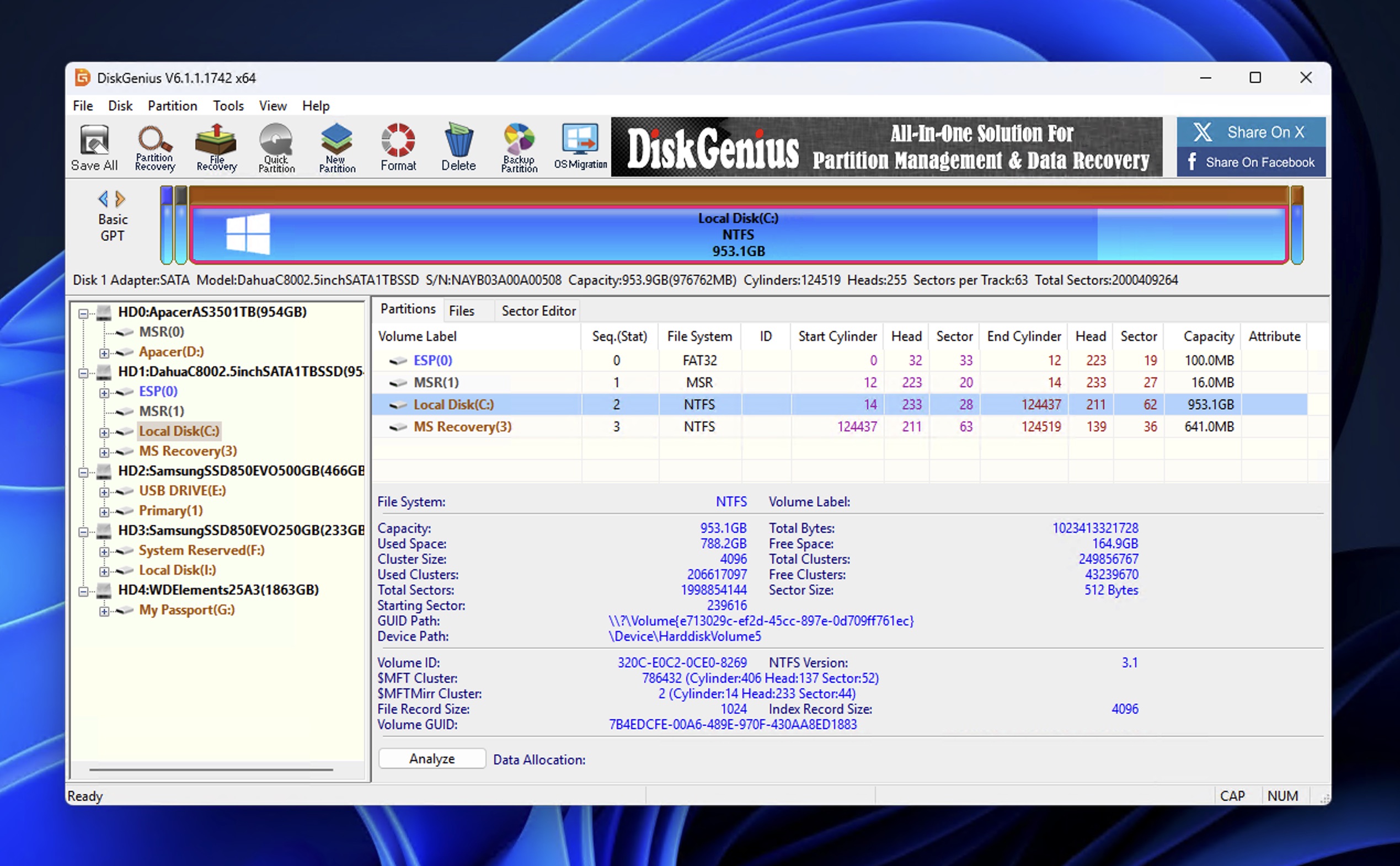
DiskGenius is a Windows-only tool that combines data recovery with serious disk management capabilities. What earned it a spot on this list is the sheer number of SSD-friendly utilities packed into one application. You get a built-in hex editor to verify whether your data survived TRIM, disk imaging for safe recovery attempts, and partition recovery tools that can locate and restore lost volumes. The interface looks dated and takes some getting used to, but underneath that old-school exterior is a genuinely capable recovery engine that performed well across FAT32, exFAT, NTFS, and EXT4 file systems in our testing.
- Hex editor lets you check raw sectors before committing to a full scan
- Disk cloning and imaging for safe SSD recovery workflows
- Strong recovery results across multiple file systems
- Partition management tools are included at no extra cost
- Supports RAID recovery for complex storage setups
- Can recover data from BitLocker-encrypted drives
- Windows only
- Free version limited to files under 64 KB
- Outdated interface with a steep learning curve
- Video recovery is inconsistent compared to photos and documents
Notable Features
Beyond standard recovery, DiskGenius includes tools for long-term SSD health. The 4K alignment detection identifies misaligned partitions that can slow down your drive and increase wear, and the S.M.A.R.T. viewer provides diagnostic data to help you spot potential failures before they happen. There’s also a bad sector scanner that can locate and attempt repairs on damaged areas of your drive.
While DiskGenius isn’t the best free SSD recovery software due to its 64 KB file size limit on the free tier (check the third option for a completely free alternative), the paid versions ($69.90 for Standard, $99.90 for Professional) offer solid value if you need an all-in-one disk management and recovery solution for Windows.
2. R-Studio (Windows, Mac, Linux)
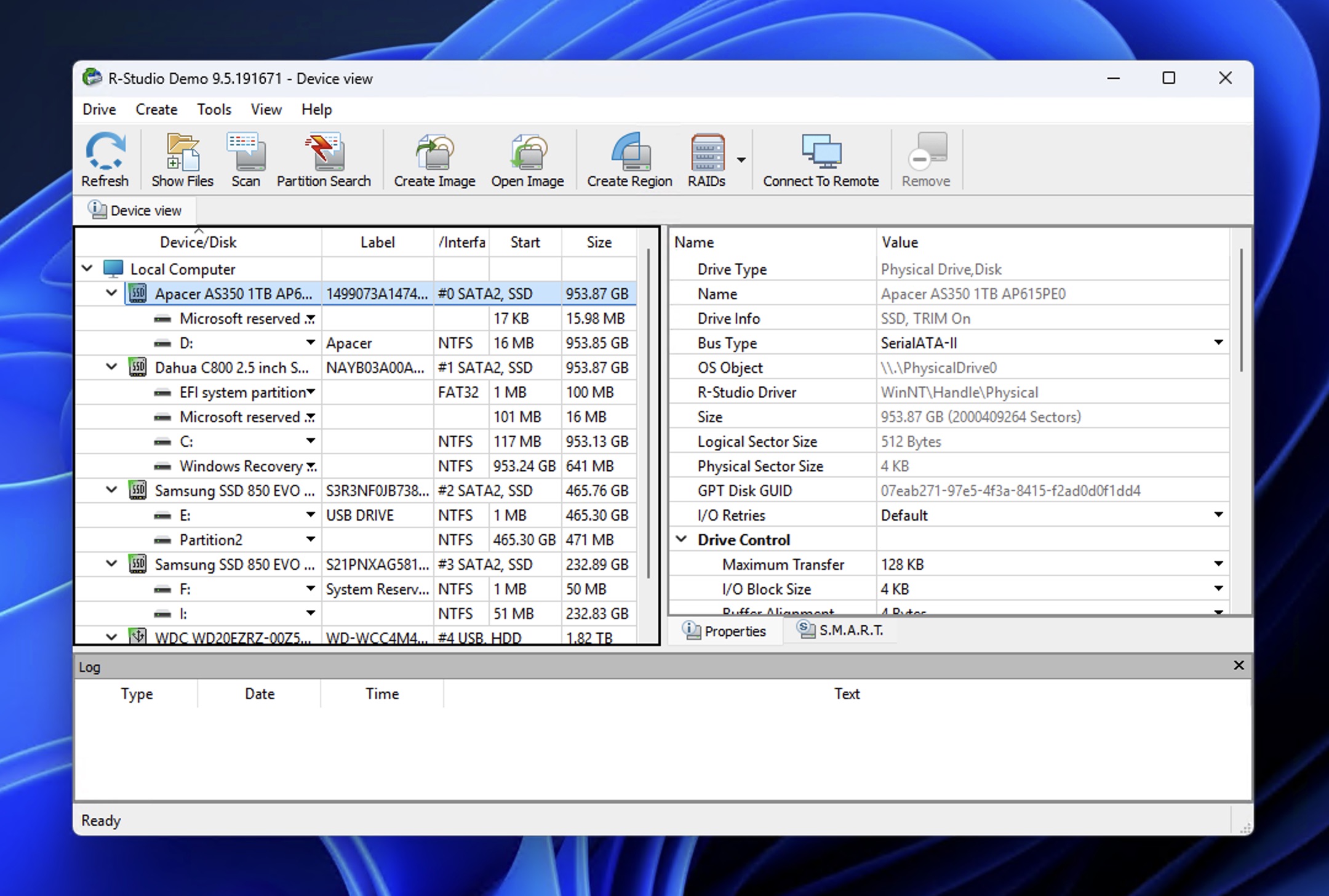
R-Studio is the tool data recovery professionals reach for when things get complicated. But even if you’re not a professional, you should still consider it for its excellent cross-platform support (Windows, Mac, and Linux all covered), solid disk imaging capabilities, and the kind of deep technical controls that matter when recovering data from SSDs. Just know that the interface feels dated and assumes you already know what you’re doing.
- Available for Windows, Mac, and Linux with the same feature set
- Hex editor for raw sector inspection before scanning
- Byte-to-byte disk imaging protects your source drive during recovery
- S.M.A.R.T. monitoring shows drive health status
- Strong recovery results on NTFS, exFAT, HFS+, and EXT4 file systems
- Supports custom file signatures for unusual file types
- RAID recovery and configuration module for complex storage setups
- Interface is cluttered and overwhelming for beginners
- Free version limited to files under 256 KB
- No estimated completion times during scans
- Files can't be recovered until the scan finishes completely
- Expensive compared to consumer-focused alternatives
Notable Features
R-Studio includes the standard SSD recovery toolkit (disk imaging, hex editor, S.M.A.R.T. monitoring), but what sets it apart is the ability to create custom file signatures. Most recovery software comes with a fixed list of file types it can recognize, and if your files aren’t on that list, you’re out of luck. R-Studio lets you define your own signatures for proprietary or unusual file formats, which is a lifesaver if you’re working with specialized industry software, legacy formats, or files that mainstream tools simply don’t recognize.
At $59.99 for the standard license, R-Studio sits in the middle of the price range for the best SSD recovery software options. The free demo only recovers files under 256 KB, so it’s really just useful for testing whether your data is recoverable before committing to a purchase.
3. Recuva (Windows)
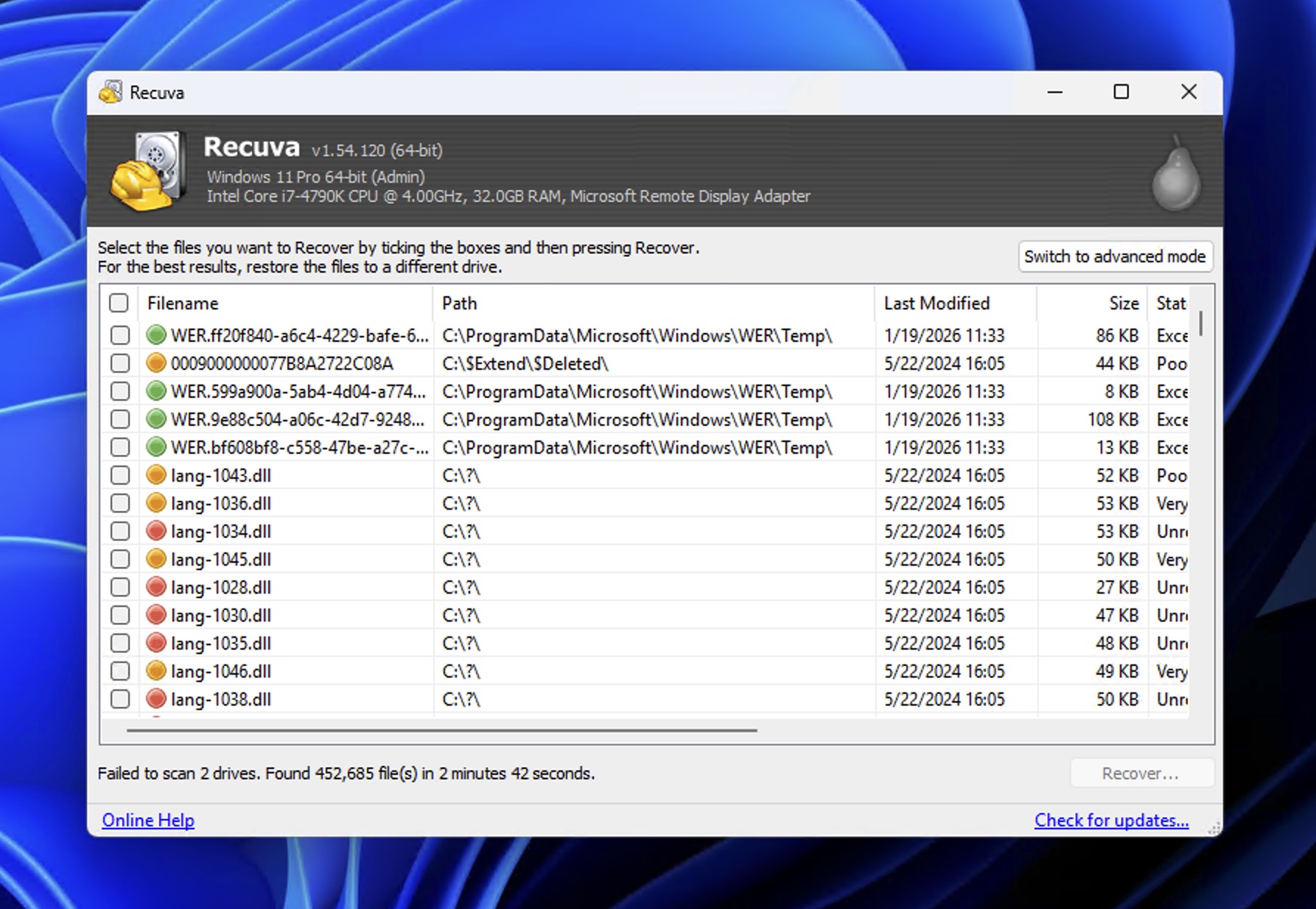
Recuva frequently appears in lists of the best data recovery software for Windows, and our SSD-focused ranking is no exception. It’s a genuinely free tool with no file size limits or recovery caps. While the free version lacks the SSD-specific tools found in many paid alternatives (no write protection, no disk-level hex viewer, no disk imaging in the free version), it can still scan and recover files from SSDs that haven’t been wiped by TRIM. The software comes from Piriform, the same company behind CCleaner, so it’s trustworthy and lightweight at just 7 MB.
- Completely free with unlimited recovery (no file size caps)
- Fast scanning, even deep scans finish in under 10 minutes
- Tiny file size won't eat into your storage
- Portable version available for USB drives
- Simple wizard-based interface guides you through recovery
- Trusted developer with a long track record
- Windows only, no Mac support
- No write protection to prevent TRIM during recovery
- No disk-level hex viewer for SSD workflows (though you can view hex headers of recovered files)
- Can only scan partitions, not entire disks
- Recovery results are inconsistent, especially for RAW photos and videos
- Hasn't received major updates since 2022
Notable Features
Recuva’s strength is simplicity. The wizard walks you through selecting file types and locations, then scans and displays recoverable files with color-coded recovery chances. Deep scan mode searches for file signatures when regular scanning comes up empty, which helps when file system data is damaged.
The software also includes a secure overwrite feature if you need to permanently erase sensitive data from your SSD. Just keep in mind that Recuva won’t protect your drive from TRIM during the recovery process, so you’ll want to disconnect internal SSDs and connect them via USB before scanning.
4. UFS Explorer (Windows, Mac)
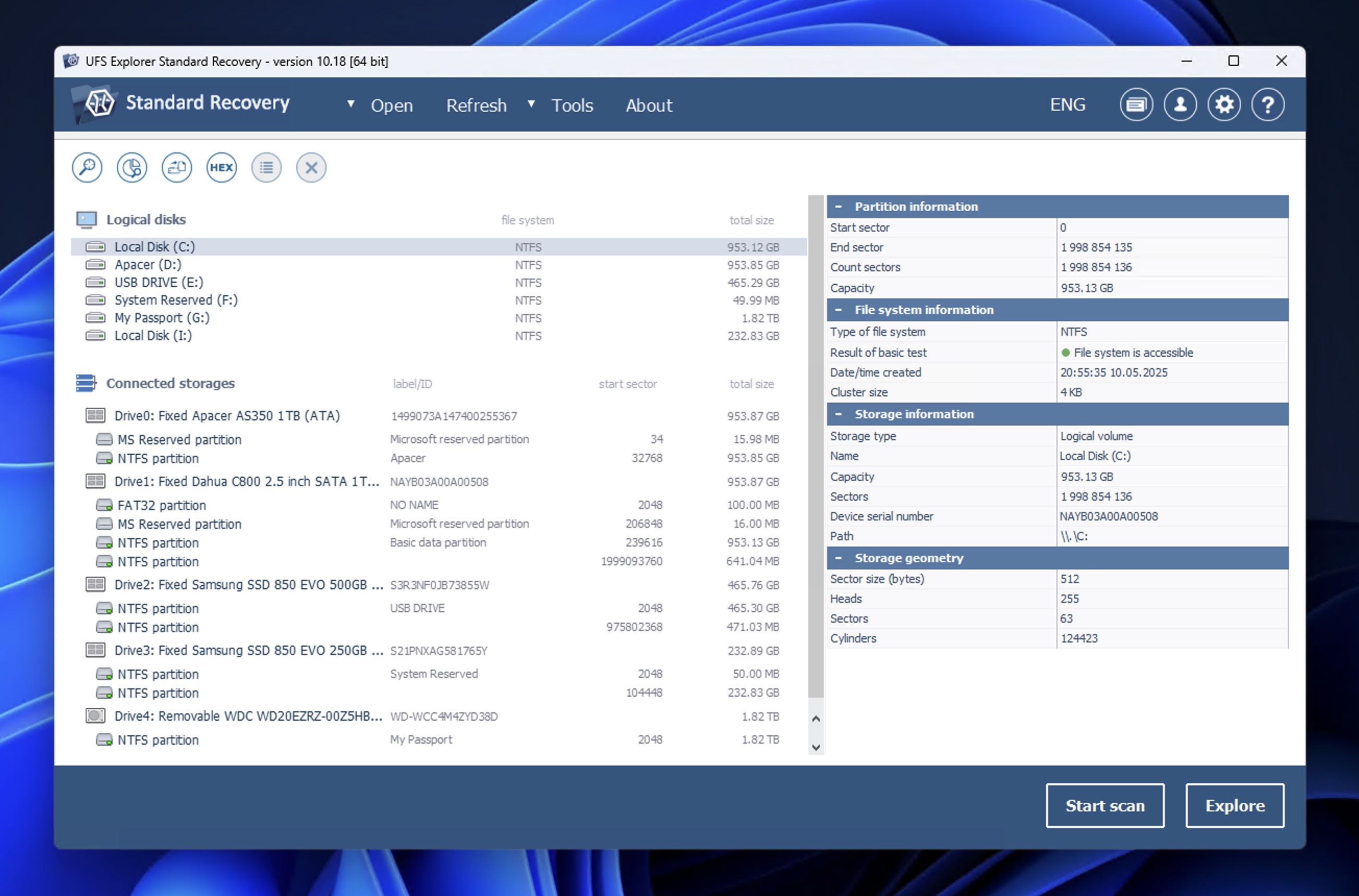
UFS Explorer has a lot in common with R-Studio because both are professional-grade tools with hex editors, disk imaging, and interfaces that assume you already know your way around data recovery. What sets it apart the most is its native support for encrypted drives.
- Disk imaging creates byte-to-byte backups for safe SSD recovery
- Hex editor lets you inspect raw sectors before committing to a full scan
- Recovers from BitLocker, FileVault 2, and LUKS encrypted drives
- S.M.A.R.T. monitoring warns about drive health issues
- Strong file system support including APFS for Mac users
- Read-only scanning protects source drive from modification
- Supports virtual machines and network storage recovery
- Interface is outdated and overwhelming for beginners
- Trial version limited to files under 768 KB
- Extremely expensive (€599.95 for commercial license)
- Slow file previews, especially with large files
- Cannot recover files until the scan finishes completely
- S.M.A.R.T. monitoring only works with internal drives
Notable Features
UFS Explorer’s most unique and relevant tool for SSD data recovery is encrypted drive support. Most recovery tools choke when they encounter BitLocker or FileVault 2 encryption, but UFS Explorer handles decryption natively as long as you have the password or recovery key. This makes it the best SSD recovery tool for users who enabled encryption on their drives and now need to recover lost files.
At €599.95 for the commercial license, UFS Explorer is priced for professionals and enterprise users. Home users looking for a more affordable option should consider UFS Explorer Standard Recovery (from €59.95), which lacks RAID and encryption support but handles basic recovery scenarios just fine. The trial version only recovers files under 768 KB, so it’s really only useful for confirming your data is recoverable before purchasing.
5. DMDE (Windows, Mac, Linux)
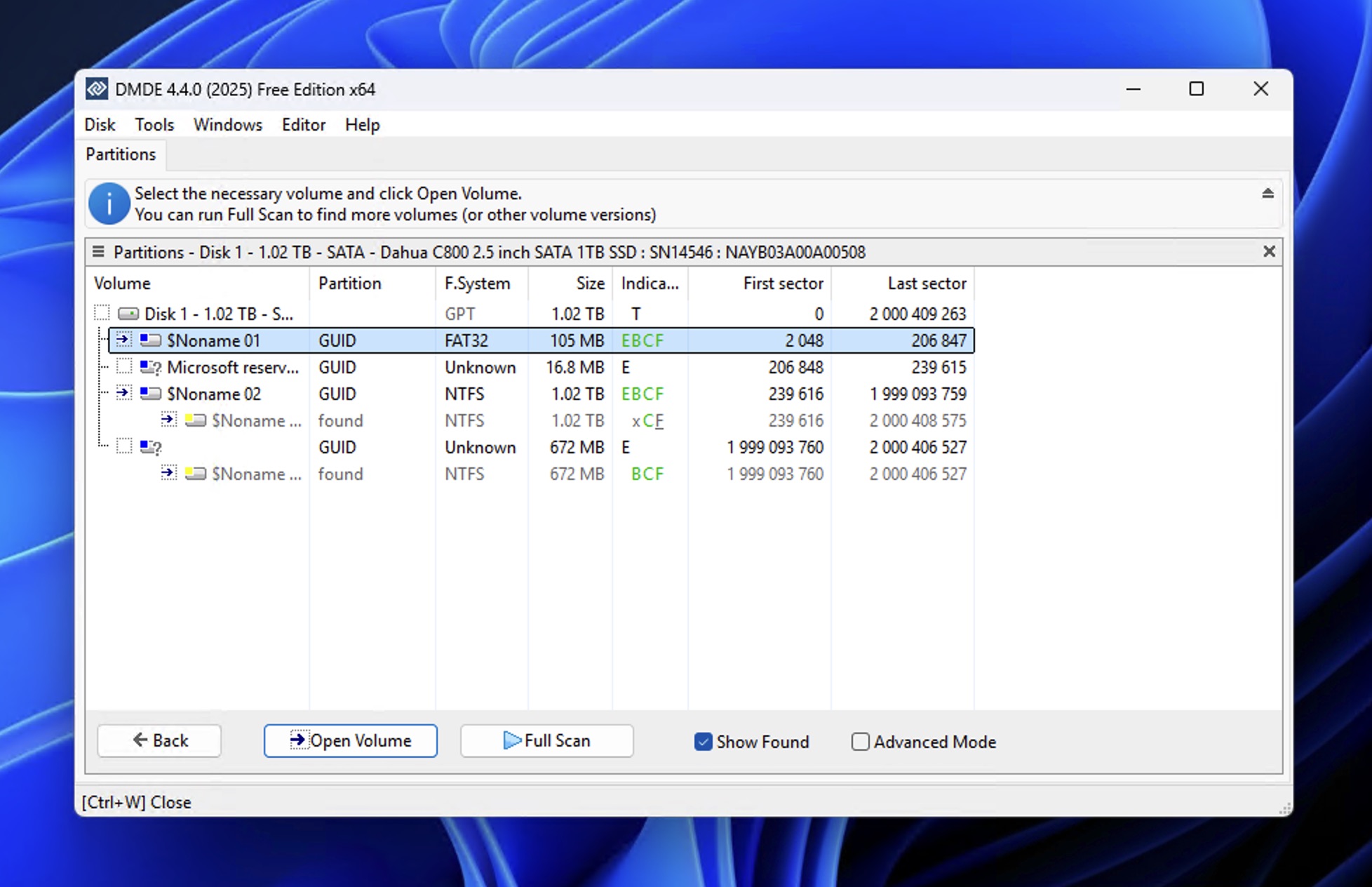
DMDE rounds out our list as the most affordable cross-platform option for SSD recovery. It runs on Windows, Mac, Linux, and even DOS, and includes a global read-only mode that prevents any writes to your source drive during recovery. The biggest downside is that the interface looks like it belongs in the 1990s and assumes you have technical experience.
- Global read-only mode prevents TRIM and accidental writes during recovery
- Disk cloning creates byte-to-byte backups for safe SSD recovery
- Built-in disk editor for raw sector inspection
- Runs on Windows, Mac, Linux, and DOS
- Fully portable version works from USB drives
- Extremely affordable ($48 for Standard license)
- Free version recovers up to 4000 files per folder
- Interface is outdated and confusing for beginners
- Designed for professionals, steep learning curve
- Free version is limited to recovering from one folder at a time
- No file preview before recovery
- Documentation assumes technical knowledge
Notable Features
DMDE’s global read-only mode is its most valuable feature for SSD recovery. Once enabled, the software won’t write anything to your source drive. There’s also a disk cloning tool capable of creating complete byte-to-byte images of your SSD, and a built-in disk editor that lets you inspect raw sectors to verify whether your data survived TRIM before committing to a full scan.
The free version of this best data recovery software for SSD allows users to recover up to 4000 files per folder, which should be more than enough to handle common data loss scenarios. The Standard license costs $48, so even completely unlimited recovery isn’t too expensive.
SSD Recovery Software Comparison
| Tool | Platform | Free Version | Disk Imaging | Hex View |
| Disk Drill | Windows, Mac | 100 MB recovery (Windows) | ✓ | ✓ |
| DiskGenius | Windows | Files under 64 KB | ✓ | ✓ |
| R-Studio | Windows, Mac, Linux | Files under 256 KB | ✓ | ✓ |
| Recuva | Windows | Unlimited | ✗ | ✗ (headers only) |
| UFS Explorer | Windows, Mac | Files under 768 KB | ✓ | ✓ |
| DMDE | Windows, Mac, Linux, DOS | 4000 files per folder | ✓ | ✓ |
How We Evaluate the Best SSD Data Recovery Software
Our testing focused on parameters that lead to successful SSD recovery outcomes. Here’s what we looked for:
- Safe data extraction capabilities: SSDs require a careful approach where every unnecessary read or write could make recovery harder. For this reason, we prioritized tools that offer read-only scanning modes, write protection toggles, and byte-to-byte disk imaging.
- Disk and data condition assessment: Before committing to a lengthy scan, it helps to know whether your data is actually still on the drive, so we looked for hex viewers that let you inspect raw sectors and confirm whether TRIM has already zeroed out your files.
- Scanning depth and file signature support: When file system data is damaged or missing entirely, recovery software falls back on signature-based scanning to identify files by their binary patterns. We tested how many file types each tool recognizes and how well it handles deep scans on corrupted partitions.
- Trial versions and value for money: No one wants to pay for software only to discover it can’t find their files. That’s why we preferred freemium tools that let you scan and preview recoverable files before purchasing, so you know exactly what you’re getting. We also considered the overall quality-to-price ratio, since the most expensive option isn’t always the best fit for every user’s needs.
The tools recommended above performed best across these criteria in our SSD data recovery testing.
FAQ
Among the tools in our shortlist, Recuva is the only completely free option with no file size limits, but it lacks SSD-specific features like write protection and disk imaging. For small recovery jobs, Disk Drill’s free Windows version (100 MB limit) offers a better SSD workflow with hex viewing and byte-to-byte backups included. DMDE’s free version recovers up to 4,000 files per folder, which covers most home user scenarios, but the software has a clunky user interface.
R-Studio and UFS Explorer are the go-to choices for data recovery professionals because of their advanced features like custom file signatures, RAID reconstruction, and encrypted drive support. Both tools assume technical knowledge and have interfaces built for efficiency rather than ease of use. There are also tools like Disk Drill, which can easily deliver professional-grade performance but are intuitive to use. Even professionals often turn to Disk Drill when dealing with fragmented videos, thanks to its Advanced Camera Recovery algorithm.
It depends on whether TRIM was executed during or after formatting. Quick formats on external SSDs connected via USB usually don’t trigger TRIM, so recovery is often possible. Internal SSDs are more problematic because modern operating systems typically send TRIM commands during formatting.
Disk Drill, DiskGenius, R-Studio, UFS Explorer, and DMDE all include byte-to-byte imaging features that can clone a damaged SSD to a healthy drive or image file. There are standalone cloning tools that can create images for use with separate recovery software, but why bother when most solid recovery tools already offer both capabilities in one package?
