


If you’re looking for a way to handle xD card recovery, the good news is that these old Olympus and Fujifilm cards are often still recoverable. Whether you simply deleted a few photos, formatted the card, or found an old xD card and now want to pull important pictures off it, we’ll cover the best way to do it.
What is xD-Picture Card?
An xD-Picture Card or the Extreme Digital Picture Card is a type of flash memory-card format used in a limited range of electronic devices. They were most commonly used with Fujifilm and Olympus digital cameras. The xD-Picture card was available in various holding capacities – from 16 MB going up to 2 GB for the type H and M/M+ versions.
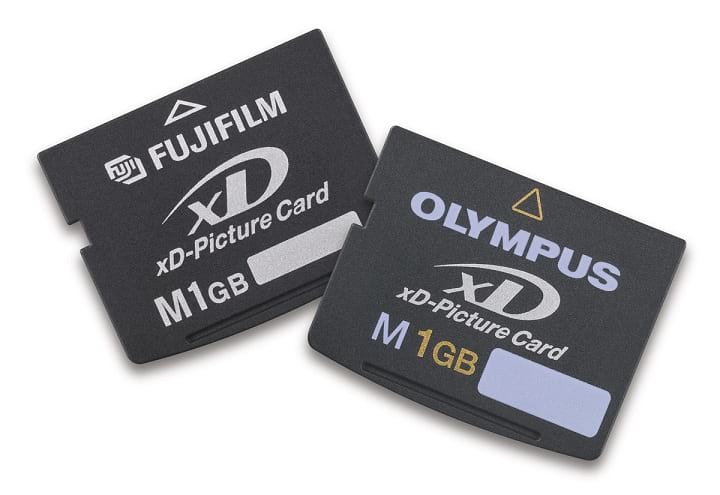
Co-developed and introduced by Fuji and Olympus in 2002, the xD cards were the smallest flash memory cards on the market back then. If you’re trying to recover data from one today, the card likely contains the kinds of files those cameras usually produced – JPEG photos, Olympus ORF RAW files, Fujifilm RAF RAW files, sometimes short video clips.
From a data recovery perspective, that matters more than the card’s specs. These cards often show up now in very specific situations: someone deleted photos by accident, formatted the card (in-camera or on a computer), found an old xD card in storage, stopped using it years ago after the camera started showing read errors or warnings.
If the card is still (physically) detectable, DIY recovery is often possible – xD card recovery software can still scan it and search for recoverable files directly.
Advantages and Disadvantages of Using the xD-Picture Card
Even though xD-Picture cards became obsolete and consequently discontinued by the 2010s, several users depended on them. Let’s look at some of the advantages and disadvantages of xD cards.
Advantages:
- ✨ One advantage of xD-Picture Cards in recovery is that they were usually used in a fairly narrow range of older Olympus and Fujifilm cameras, so the types of files found on them are often predictable, which makes recovery workflows a bit more straightforward.
- 💯 Another plus is that xD cards usually came in relatively small capacities. In recovery it can actually help: smaller cards scan faster, create smaller backups, and are generally easier to work through than large modern memory cards packed with years of mixed data.
- 🛩️ Their age can also work in your favor in one specific way: many xD cards were used, filled, and then stored away. If the card was not reused much after files were deleted or after a format, there may be a better chance that the old data was never overwritten.
Disadvantages:
- 📷 The biggest downside for recovery today is compatibility – connecting one to a modern computer can be a hassle.
- 💰 Another problem is that replacement readers, adapters, or even spare xD cards can be harder to find now, and often cost more than you’d expect for such an old format.
- 💾 Capacity is also a mixed bag. While smaller cards are easier to scan, they were often used heavily and repeatedly in the same camera, which means deleted files may have been overwritten many times over the years.
- 💻 Finally, age itself is a disadvantage. These cards are old, and some have simply degraded physically.
How to Recover Deleted Files from xD Card with Disk Drill
Disk Drill is an industry-leading data recovery software that’s easy to use, even if you’ve never done this before. It makes a lot of sense for xD cards because it performs really well with the file systems these cards usually use (most often FAT16 or FAT32). And if the file system is damaged or missing, Disk Drill can still run a deep scan and recover files based on their signatures. That matters for xD cards, since they were mostly used in older Olympus and Fujifilm cameras and often contain JPEGs, RAW photos like ORF and RAF, and short video clips (AVI or MOV). Disk Drill supports all of those and lets you preview recoverable files before restoring them.
Another useful bonus is its Byte-to-Byte Backup feature. Since xD cards are old and sometimes unstable, creating an image can be the safer move. That way, you can scan the copy instead of stressing the original card further.
You can follow these steps to recover deleted files from xd-Picture cards via Disk Drill:
- Download and Install Disk Drill from its official website. You can download the free trial on both Windows and macOS.
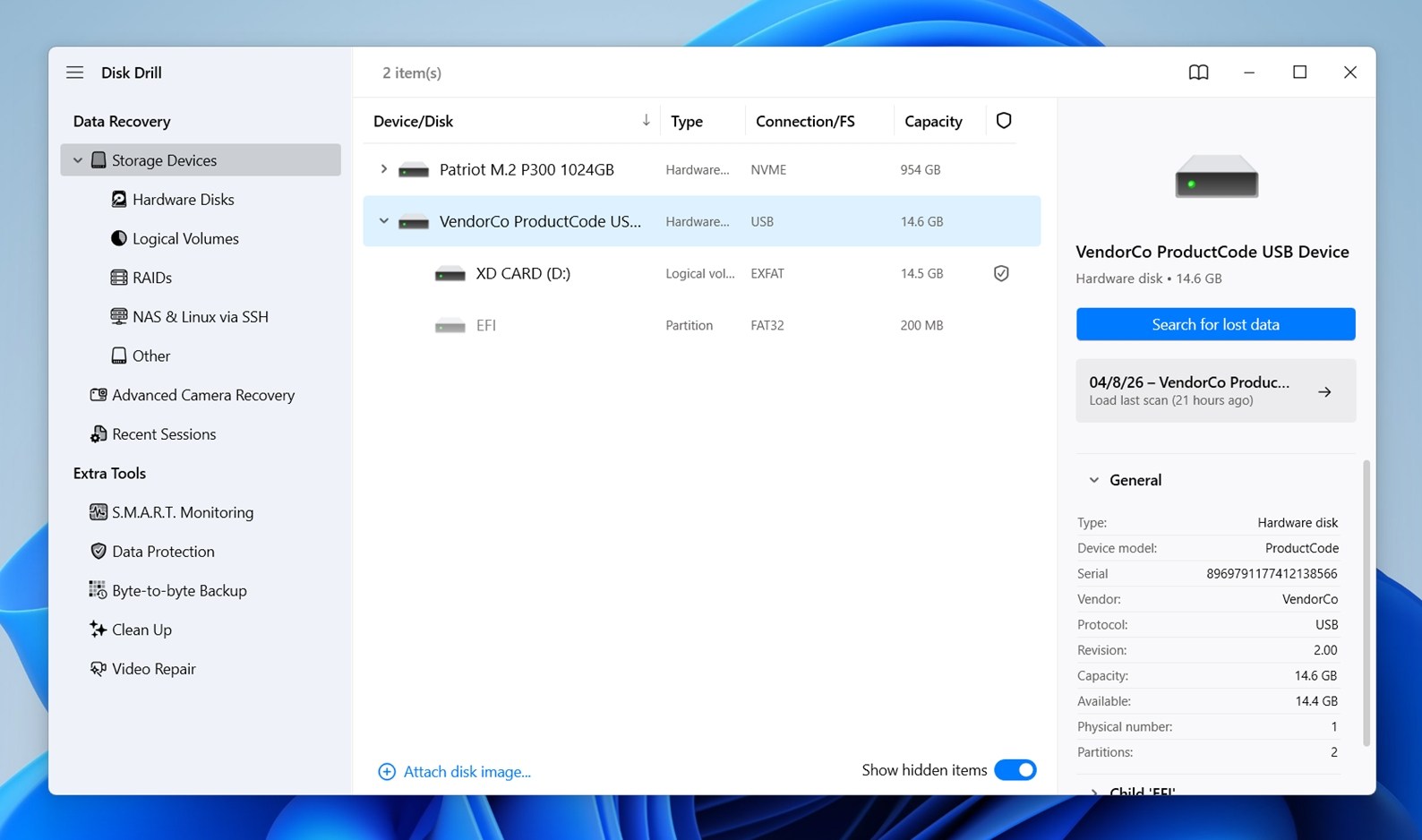
- Once the installation process is complete, connect your xD card to your PC. You can use an all-in-one external memory card reader to do this, or if you have a specialized xD card reader.
- Now, launch Disk Drill. From the list of connected storage devices, identify your xD card. Select it and click Search for lost data.
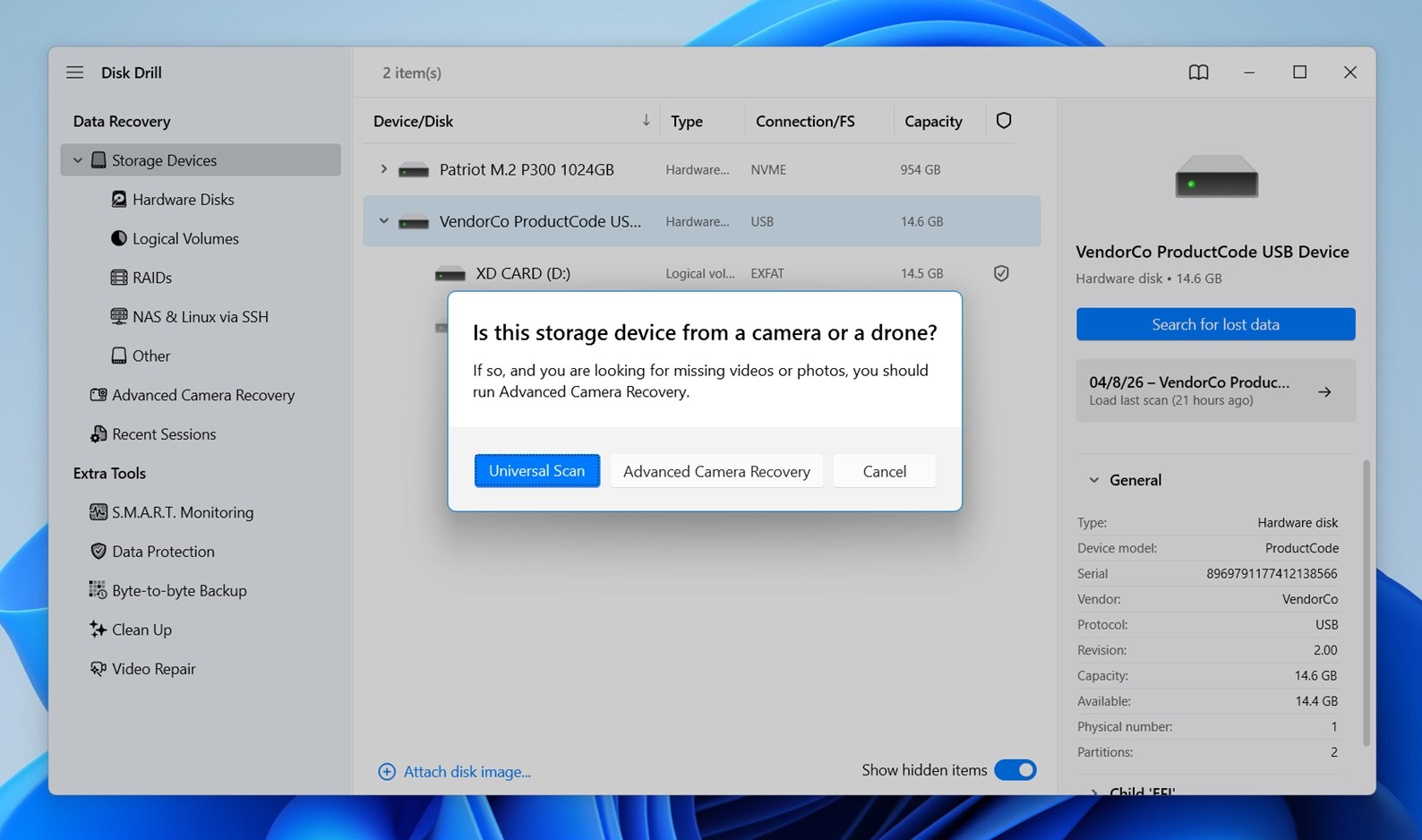
- Pick Universal Scan first. It’s the best starting point for most xD card recovery cases. If the scan finds your files but some recovered videos don’t play properly, run Advanced Camera Recovery afterward. That mode is better suited to video files affected by camera-specific write issues, interrupted recording, fragmentation.
- Disk Drill will automatically scan the card for all deleted files. You can monitor the scan’s progress from the progress bar in the lower-left corner. Once the scan is complete, click Review found items.
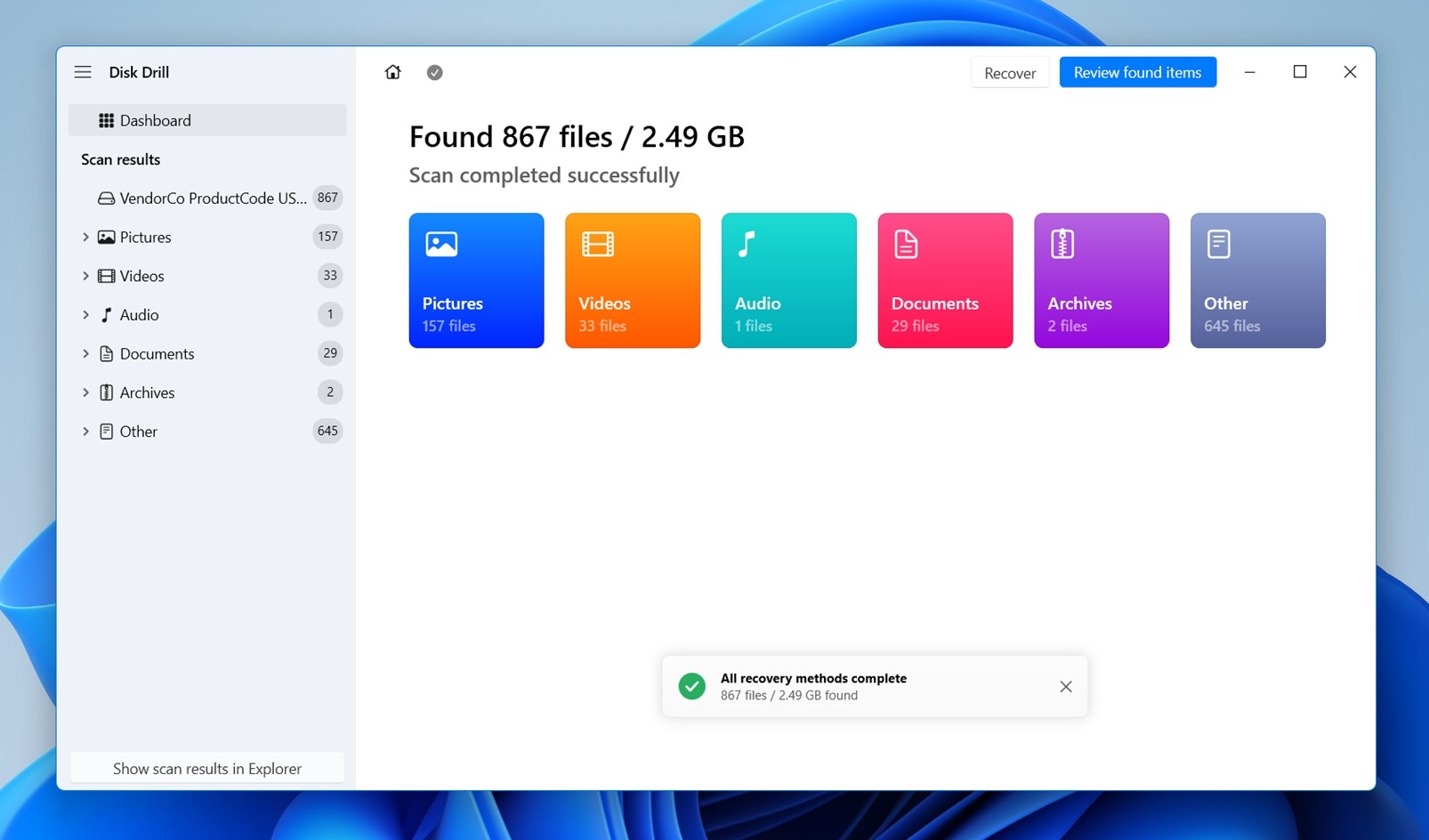
⏯️ Pro Tip: You can also pause scans midway and review files. If the results aren’t effective, you can simply resume the scan again. - When going through found items, you can use Disk Drill’s search filters to locate specific files (by typing .jpg into the search bar) and even preview the files you want to recover – just click a file to see its preview.
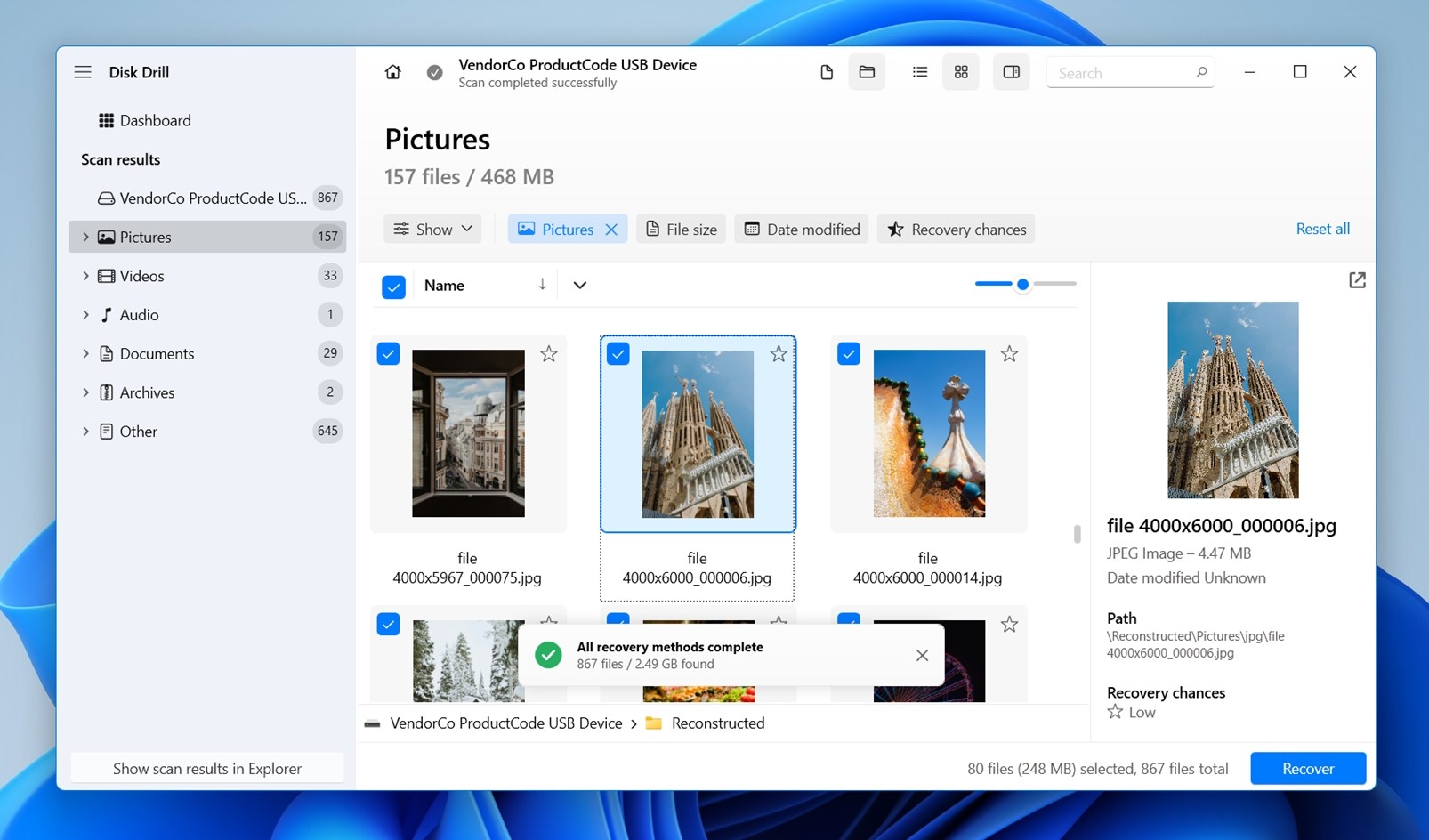 If the preview panel doesn’t appear on the right, click this button at the top to turn it on.
 - Select the files you want to retrieve, and press the Recover button.
- Disk Drill will ask you to select the recovery location. Ensure that you choose a location other than the xD card from which you are recovering data to avoid overwriting. Finally, click Next.
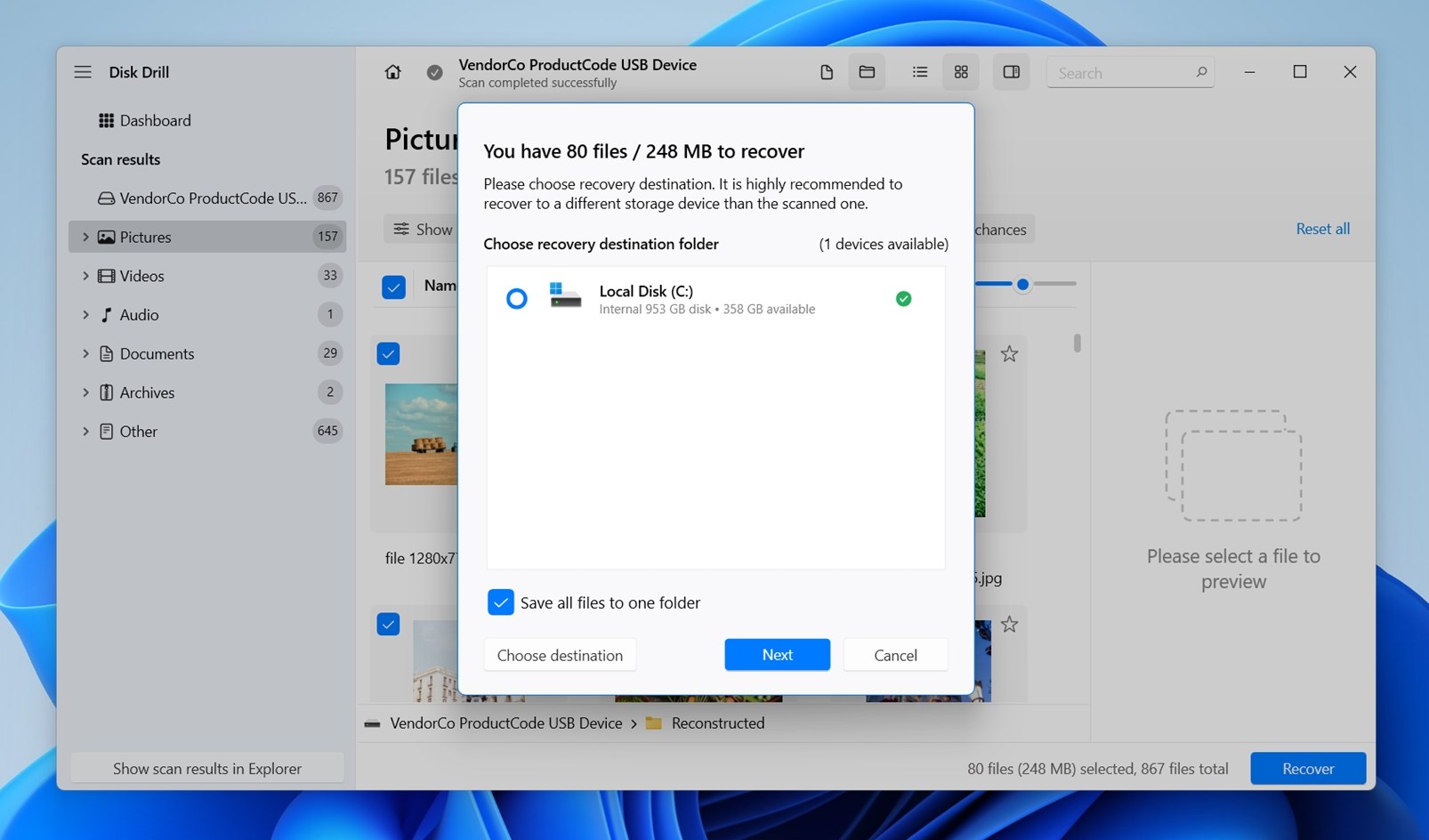

As we mentioned earlier, xD cards are old and sometimes fragile, so they may be less cooperative during recovery. A card can freeze, disconnect, slow down badly. If that happens, the safer move is to create an image first and work with that copy instead of stressing the original card.
Here’s how to do it:
- In the left-hand sidebar, find Extra Tools.
- Choose Byte-to-byte Backup from the tools list.
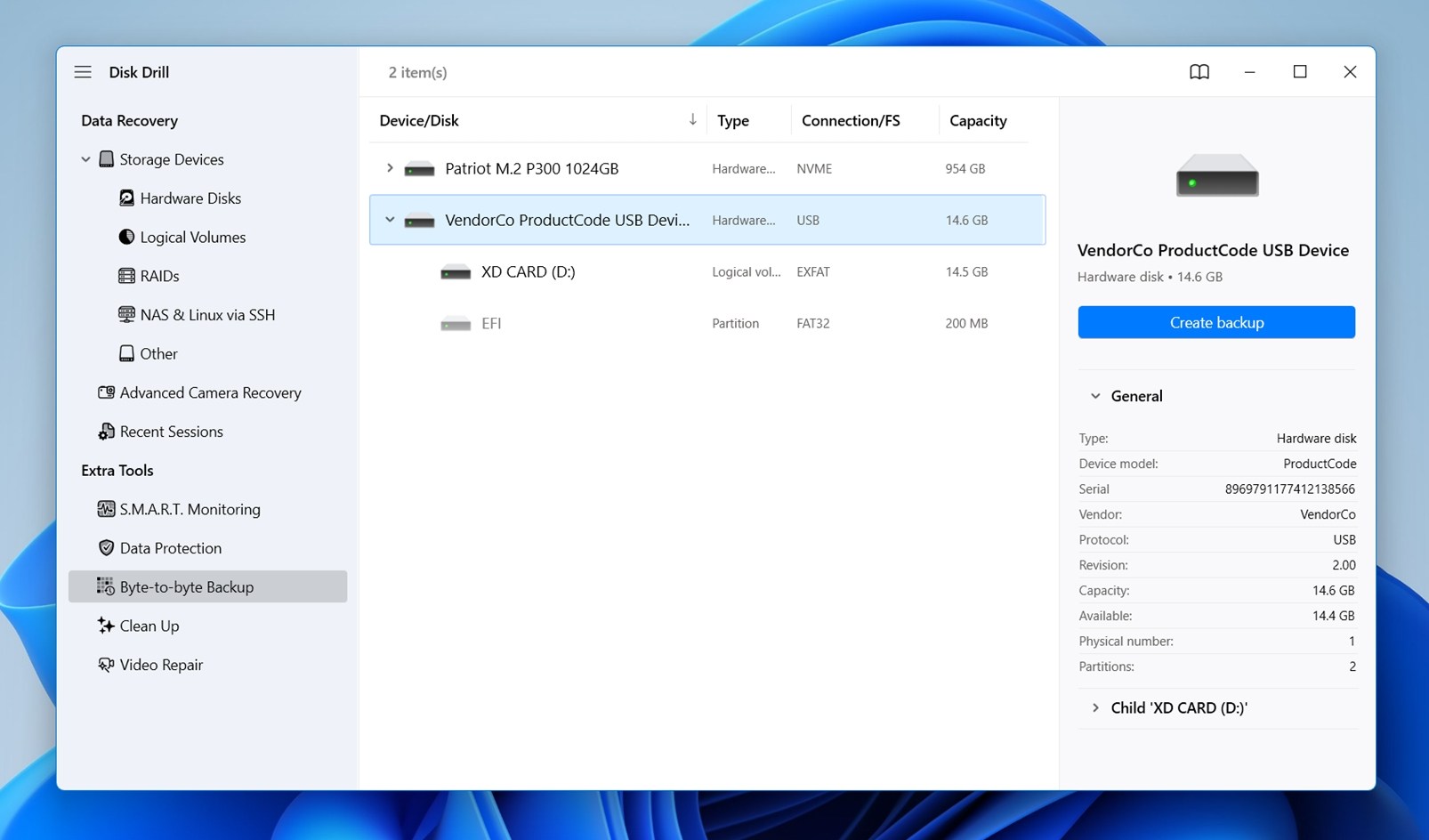
- Find your xD card in the list of available devices and select it.
- Click Create Backup, then choose a save location on a different drive and click OK.
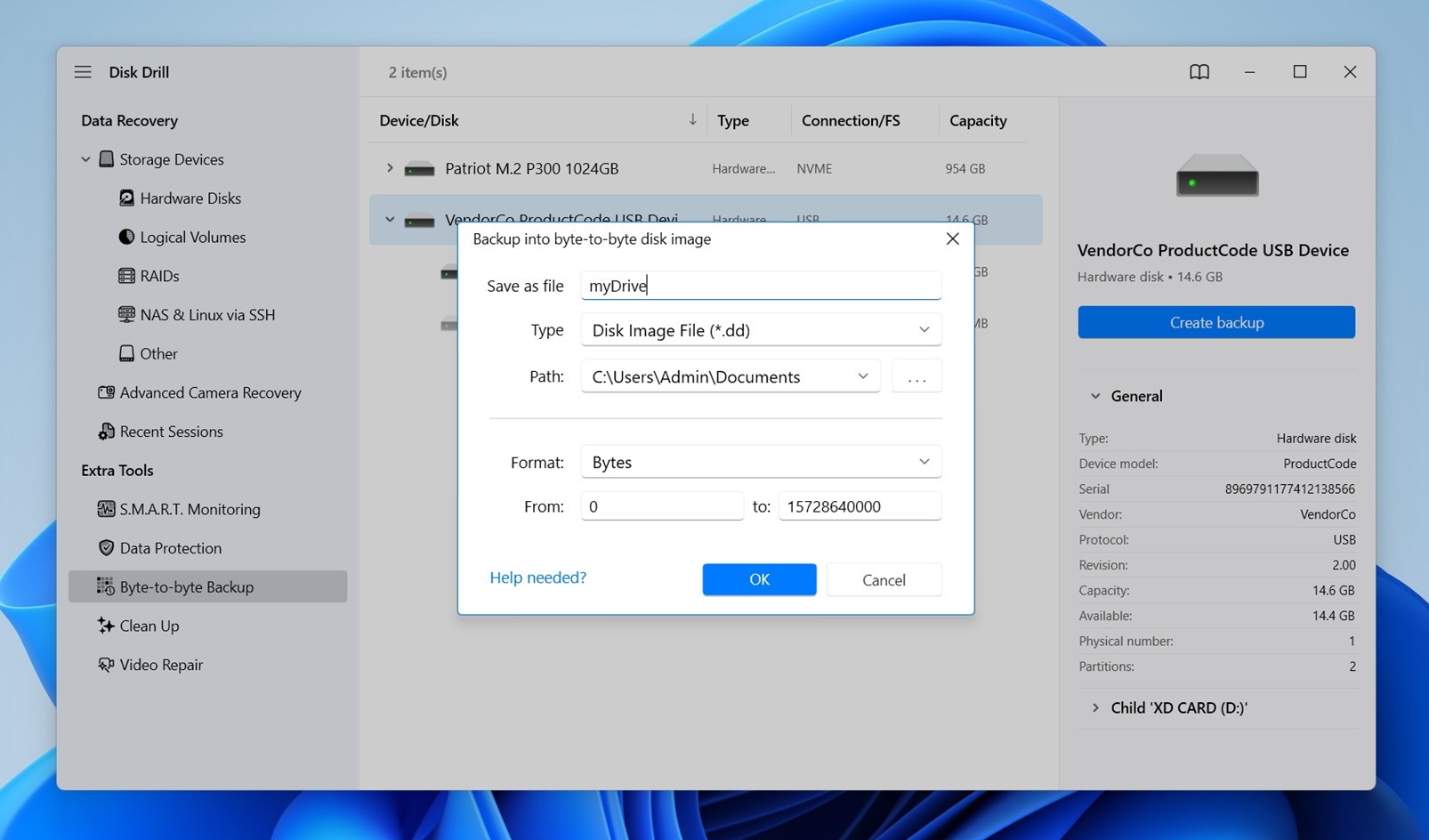
- Once the backup is ready, go back to Storage Devices.
- Click Attach disk image in Disk Drill, open the image file you just created, and scan it the same way you would the original card.
Other Tools You Can Try for xD-Picture Card Recovery
It may also help to know a few other tools that can work for xD-Picture Card recovery, if you want to compare results or try a different approach.
Here are a few worth knowing about:
TestDisk
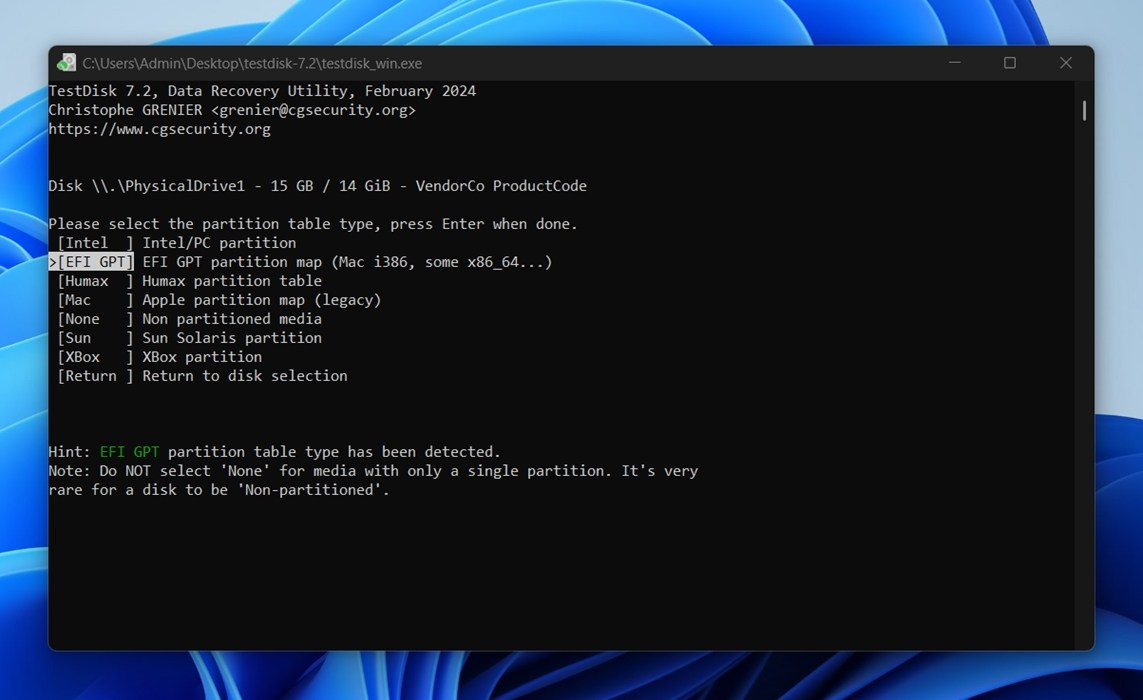
TestDisk is not really an xD photo recovery tool first. It’s more of a partition repair utility. That means it may be useful if your xD card suddenly appears as unreadable, unallocated, or seems to have a damaged partition.
For a standard “I deleted my photos” case, it’s usually not the most direct option. But if the card itself has structural issues, TestDisk can sometimes help restore access before you even move on to file recovery.
Windows File Recovery (WinFR)
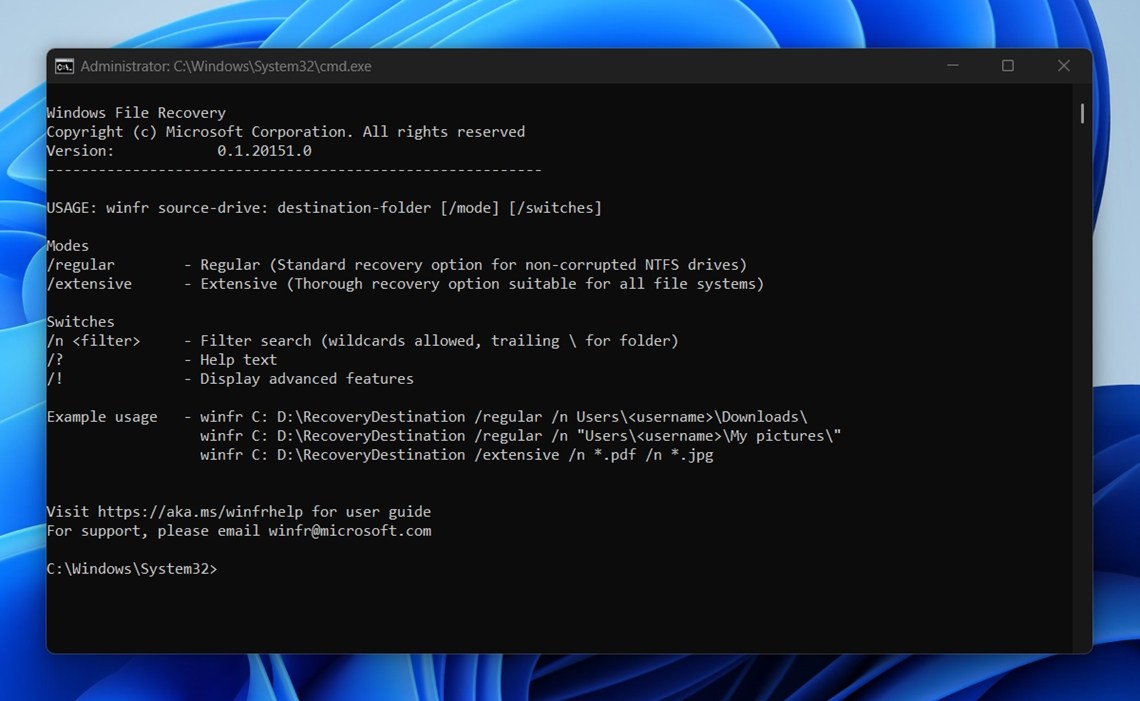
Windows File Recovery is Microsoft’s free command-line recovery tool. It can be worth trying if you’re on Windows and want a no-cost option, especially for basic deletions on FAT-based media, which is relevant here since xD cards often use FAT16 or FAT32.
That said, it’s not especially convenient for memory card photo recovery. There’s no visual browser, no real preview workflow, and less flexibility compared with dedicated recovery apps. It’s more of a “worth a shot” tool than one we’d rely on for a smooth xD recovery.
How to Repair xD-Picture Card
After you recover your files, you may also need to repair the xD-Picture Card itself if you want to keep using it. In most cases, the best fix is simply to reformat the card, that gives it a clean file system again. Sometimes, though, minor file system issues can be fixed with a tool like CHKDSK.
Method 1: Repair the xD Card with CHKDSK
If your xD card is detected by Windows but shows errors, you can try CHKDSK first. This tool checks the file system for logical errors and attempts to fix them.
To fix your xD card with CMD, follow these steps:
- Connect your xD card to your PC using a card reader.
- Press Win + S, then type cmd in the search bar.
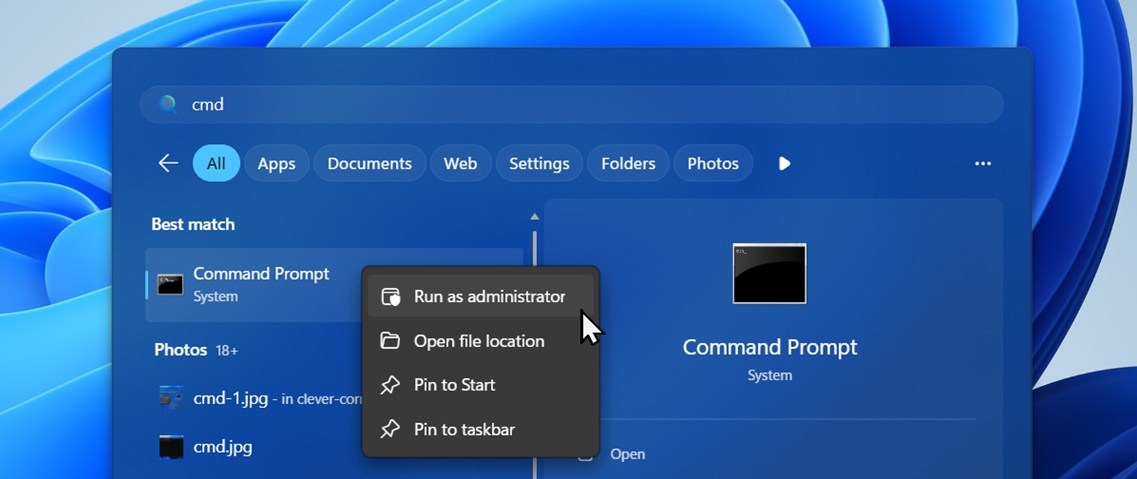
- Now select Run as administrator.
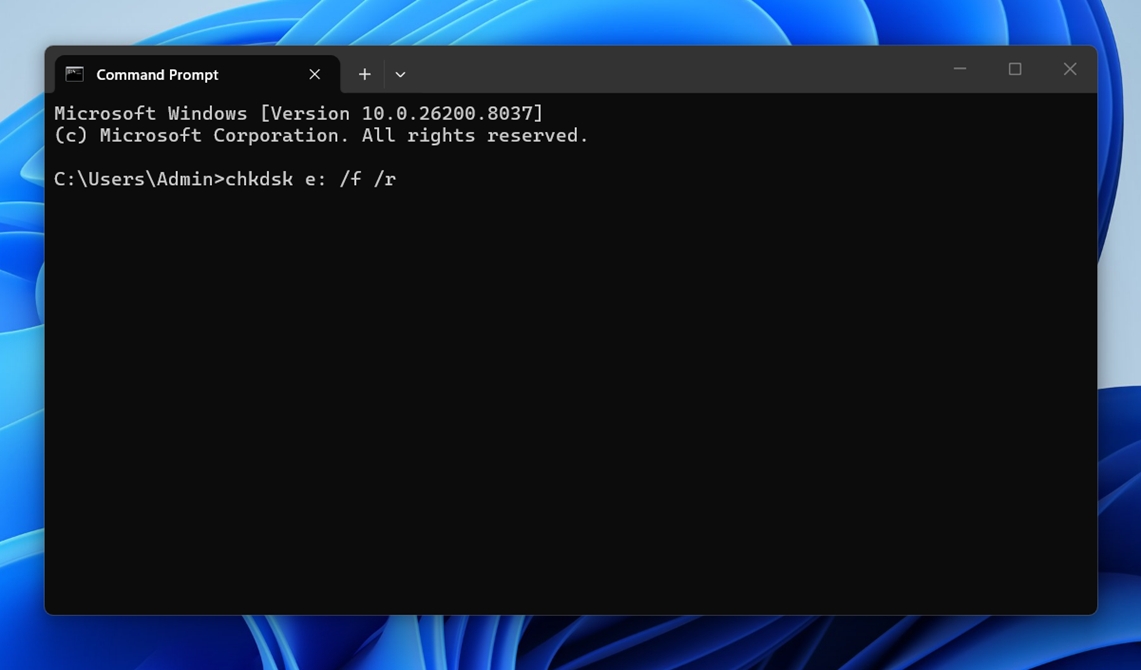
- Now, type the following command into the CMD window and hit enter.
chkdsk e: /f /r
Method 2: Reformat the xD Card
Formatting usually fixes most logical issues on an xD card because it rebuilds the file system structure and clears out corruption that may be preventing the card from working. It won’t fix physical damage, but for read errors, access problems, or cards that suddenly became unusable, it’s often the best repair step.
- Connect the xD Card to the system.
- Press Win + X and click Disk Management.
- Find your xD card in the list of drives. Double-check the size so you don’t pick the wrong device.
- Right-click the card’s partition and click Format.
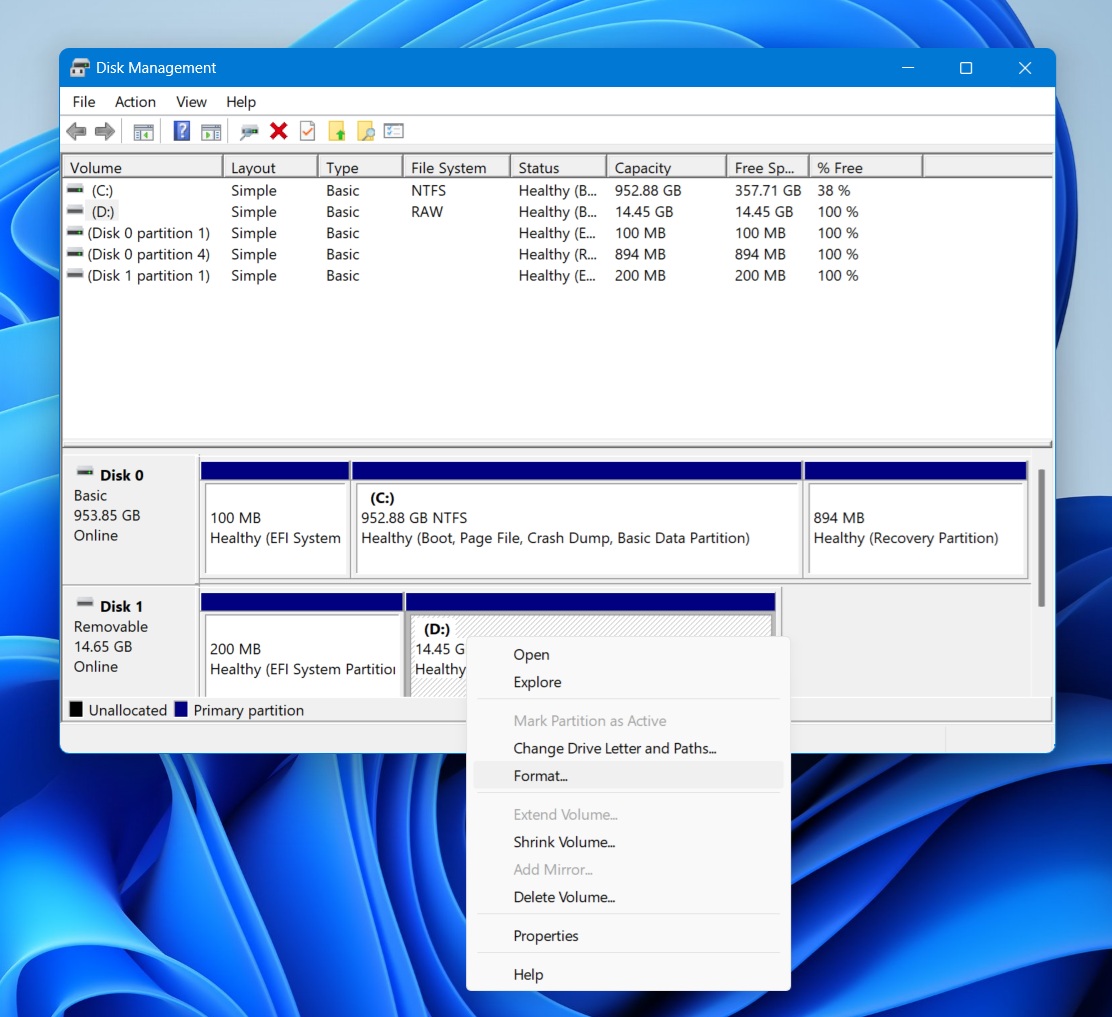
- Choose the available file system, leave the allocation unit size at the default setting, and enter a volume label if you want.
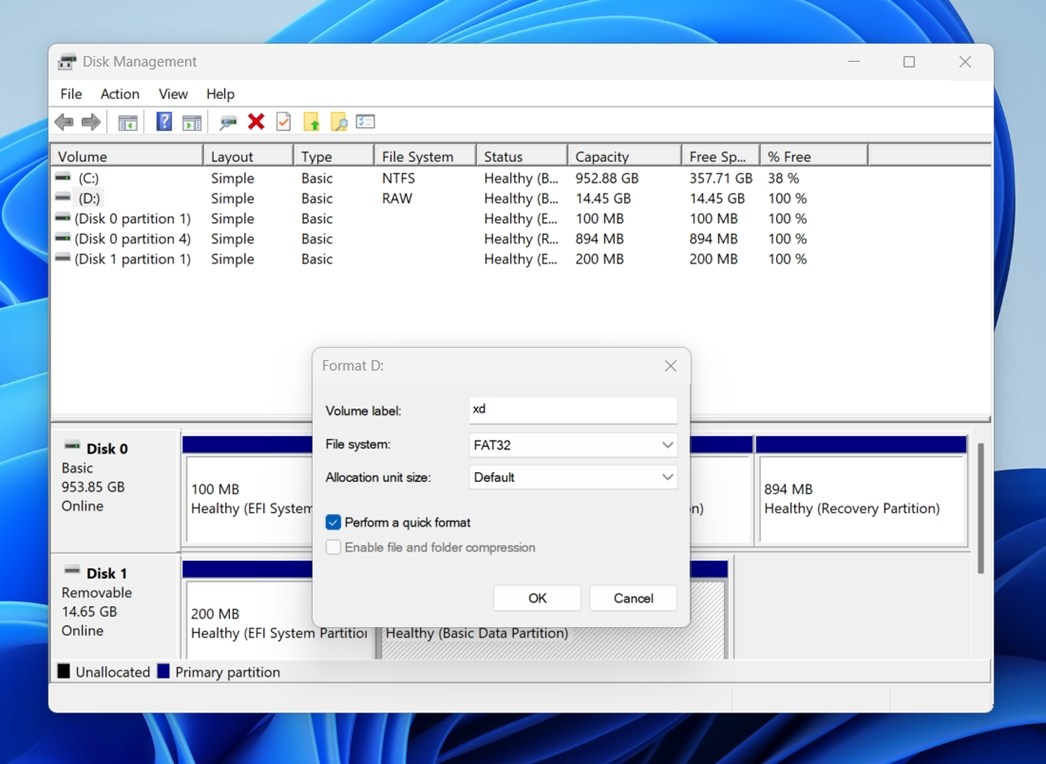
- Keep Perform a quick format checked. A quick format is faster and is usually all you need to rebuild the file system on an xD card. A full format takes longer and puts more stress on the card, which usually isn’t ideal for older media (unless you have a specific reason to do it).
- Click OK, then confirm the warning to start formatting.
Wait for the process to finish, then close Disk Management and check whether the card opens normally again.


Conclusion
xD-Picture memory card recovery is still more than doable, even though this format is old and mostly long gone from modern devices. If the card is still physically fine and your computer can detect it (in Disk Management), there’s a good chance of getting your files back.
In many cases, the process is actually pretty straightforward with a tool like Disk Drill. You connect the card, scan it, preview what was found, and recover what you need. That’s often enough for deleted photos, formatted cards, and even cases where the file system is damaged.
If the card has a physical problem (doesn’t power up properly, isn’t detected at all), then it’s no longer a normal software recovery case. At that point, you may need a professional data recovery lab. Those services can help in severe cases, but they’re usually expensive, and in our experience, most xD card data loss cases do not start there. That’s why it makes the most sense to try a proper recovery scan first, exactly like we showed above. It’s the cheaper, easier, and in many cases the right place to start.
FAQ
To read an xD Picture Card on Windows 11:
- Connect it through a compatible xD card reader or through the original camera with a USB cable.
- Once Windows detects it, open File Explorer.
- Look for the card under This PC as a removable drive.
If it does not appear, try a different USB port, another reader, or check Disk Management to see whether Windows sees the card but hasn’t assigned it a drive letter. If the card shows up but asks to format, don’t do that until you’ve tried data recovery first.
Data recovery software can often help with xD cards in cases like:
- Accidental file deletion
- Accidental formatting (quick format)
- Corrupted or damaged file system
- Card shows as empty (even though files were there before)
- The camera says the card needs to be formatted
- The xD card is inaccessible
- The card shows read errors
In short, recovery software can help in most logical data loss cases – that is, when the data was deleted, hidden, or made inaccessible through software or file system problems.
Not really (at least not if we’re talking about actual data recovery). Windows includes a few basic tools that can help repair or reformat an xD card, such as CHKDSK, Disk Management, and the standard Format option in File Explorer. Those can sometimes make the card usable again, but they are not proper recovery tools and should only be used after you’ve tried to recover your files with third-party software.
And just to avoid confusion: Windows File Recovery (WinFR) is made by Microsoft, but it’s not a built-in native Windows utility in the same way CHKDSK or Disk Management are. You have to install it separately.
