


Looking to retrieve lost files from a WD My Passport on your Mac? These hard drives are built to last, and they can be quite durable. But there’s always a risk that something can go wrong and you find yourself without some valuable data. Here are some tips that should help you extract your missing files with a little bit of luck.
Common Data Loss Associated with a WD My Passport Drive
Various things can lead to data loss from a WD My Passport drive. Some of those situations are easy to fix, while others can get quite tricky.
🗑️ Deletion
Files can be deleted without much thought, especially when you’re going through folders and trying to clean things up. On a Mac, they usually end up in the Trash first, so there’s still a chance to get them back from there. But once it’s emptied (or you use the Option + Command + Delete shortcut), the files are no longer visible on the drive. That doesn’t always mean they’re gone right away, though. If you already understand that this is your case, you can skip ahead to the recovery section and start from there.
💽 Formatting
Formatting a WD My Passport drive on a Mac also leads to data loss. After that, the drive appears empty, even if it wasn’t before. The files are no longer accessible, but the data may still remain on the drive for some time, depending on what happens next.
👩🏾🔧 Physical Damage
Hard drives are very sensitive to physical damage. The technology is based on metal plates spinning in an isolated environment. Hitting a drive too hard can cause those plates to hit the magnetic heads close to them, which could dent the drive and damage it permanently.
This type of problem is not something you can resolve on your own in most cases. It requires specialized support from recovery experts, who usually do their job in a controlled laboratory environment.
⚙️ Incorrect Disconnection
Unplugging a hard drive from your computer without following the necessary precautions, like “ejecting” it from your operating system, can sometimes cause the drive to not be recognized afterwards. This is usually easily fixable, though it could occasionally lead to corrupted data. If an application was writing to the drive right as you unplugged it, this could cause problems not just with that data, but with other files on the drive. Improper removal can, in rare cases, even cause physical issues—for example, if the read/write heads don’t park properly.
🔒 Corruption
In many cases, data corruption isn’t a separate issue, but the result of things like improper disconnection, interrupted data transfers, or underlying hardware problems. These can damage the filesystem or individual files, making data partially or completely unreadable. While drives can sometimes isolate damaged areas (“bad sectors”) and avoid using them, their appearance usually points to wear and signals that the drive may fail soon.
Can You Restore a WD My Passport on Mac?
A WD My Passport drive can be restored on a Mac with the right tools and a little bit of technical knowledge. You don’t need any in-depth skills to do that in most cases, but it can help to know what each tool is designed to do and when a situation calls for it.
At the same time, the tools you use for My Passport data recovery are only part of the picture. The result also depends on what you do right after the data loss happens, so the best thing you can do is nothing at all. It’s a good idea to set the drive aside until you figure out your next steps. Adding or moving files to it can overwrite the data you’re trying to recover, and if that happens, WD Passport recovery may no longer be possible.
How to Retrieve Files from WD My Passport on a Mac
There are many ways to approach WD My Passport data recovery when you’re using a Mac. In this guide, we’ll focus on the more common situation where files were deleted.
If your WD My Passport is not showing up on your Mac, this usually requires a different approach. In that case, it’s better to follow a dedicated guide that covers detection issues. And if you suspect your drive is corrupted, you can check out our guide on fixing a corrupted hard drive. It also covers the data recovery part for those situations.
Method 1: Using Data Recovery Software
The most effective method to make a WD My Passport recovery is to use data recovery software. These tools scan the file system for deleted files. If those files haven’t been overwritten or erased yet, they can be recovered.
Disk Drill is a great option for recovering lost files from a WD My Passport on a Mac. To use it, simply follow these steps:
- Download and install Disk Drill.
- Start Disk Drill.
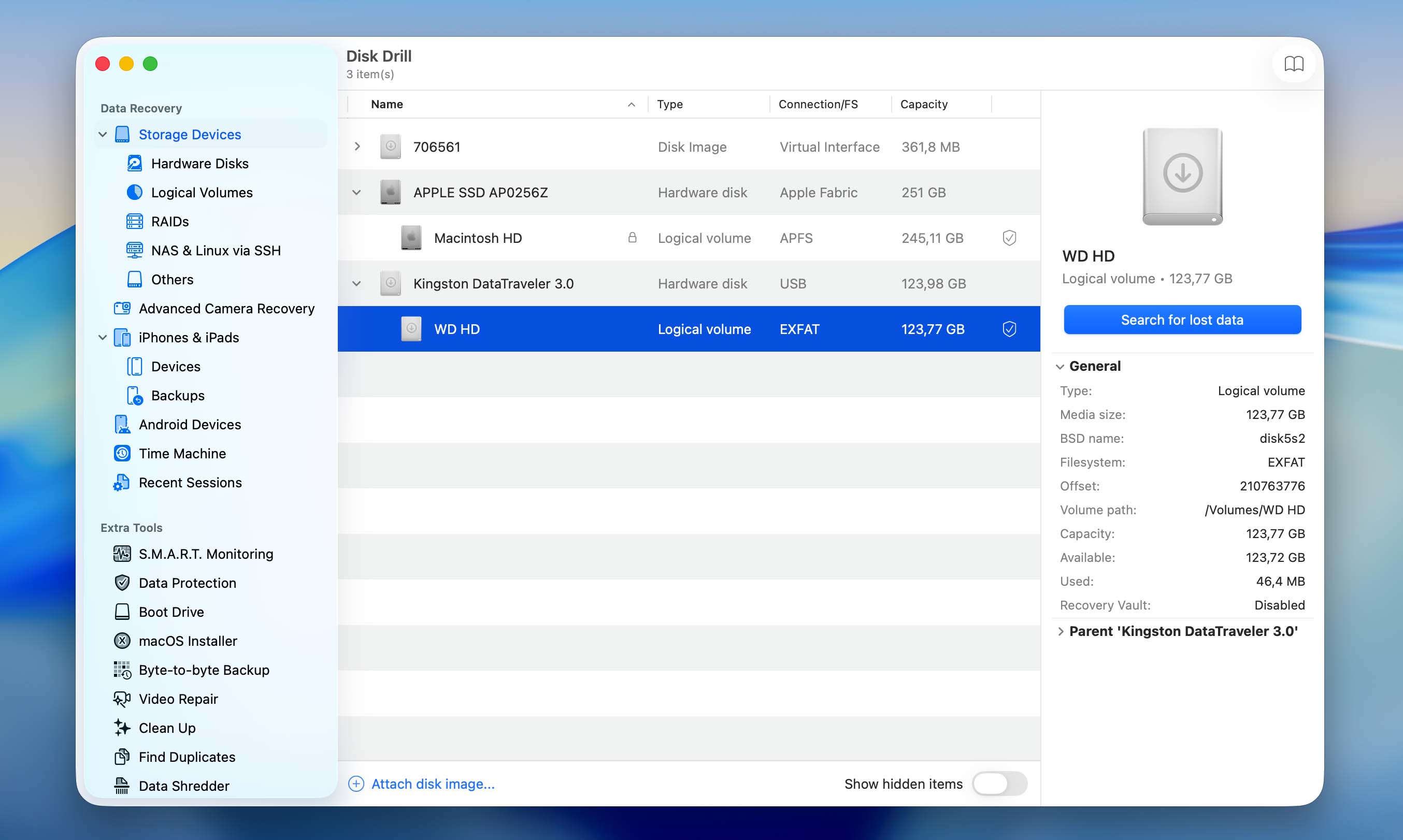
- Select your WD My Passport drive and click Search for lost data.
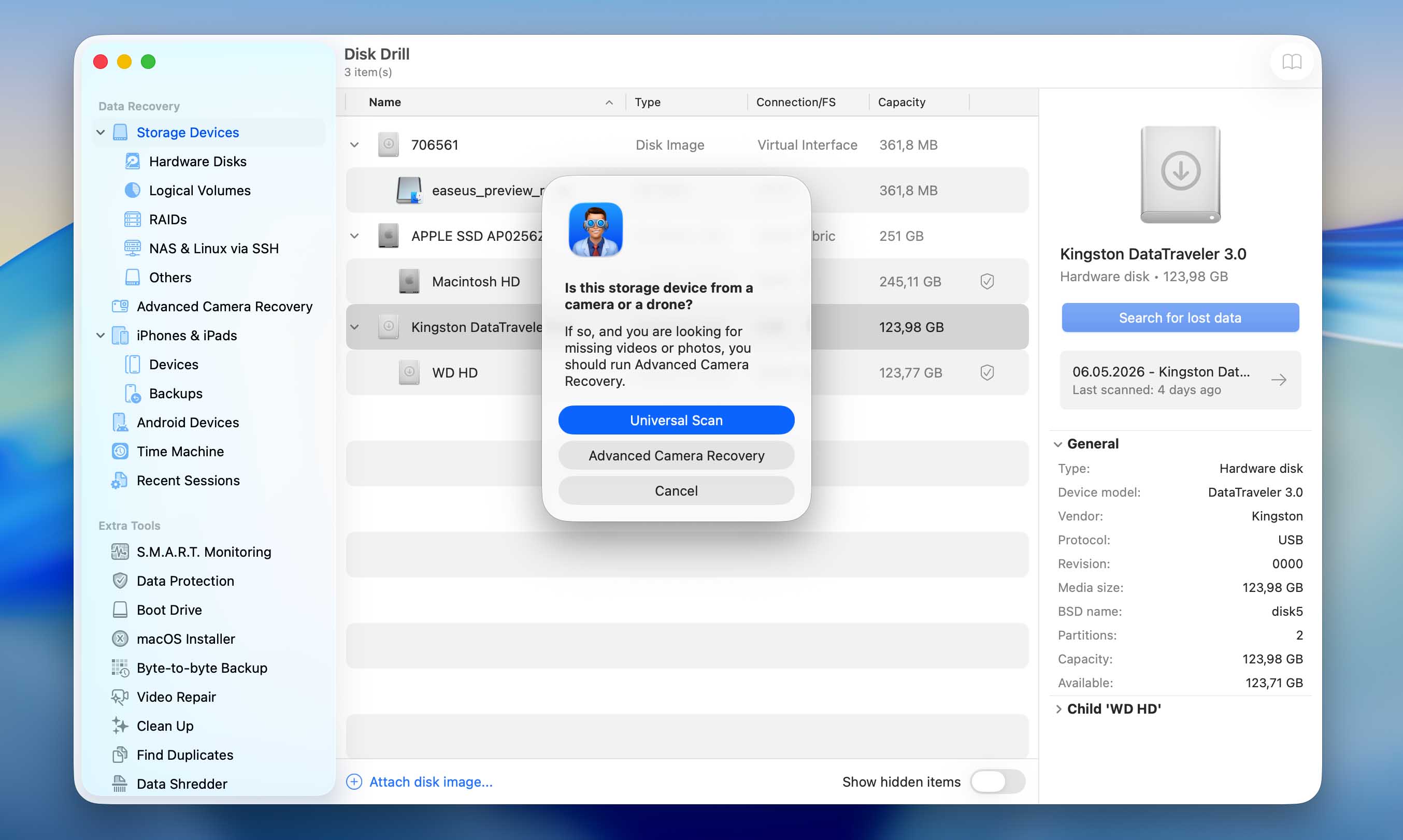
- You’ll see different scan options. Start with the Universal scan. If you’re trying to recover videos originally recorded on a camera or drone, you can run Advanced Camera Recovery as a second scan.
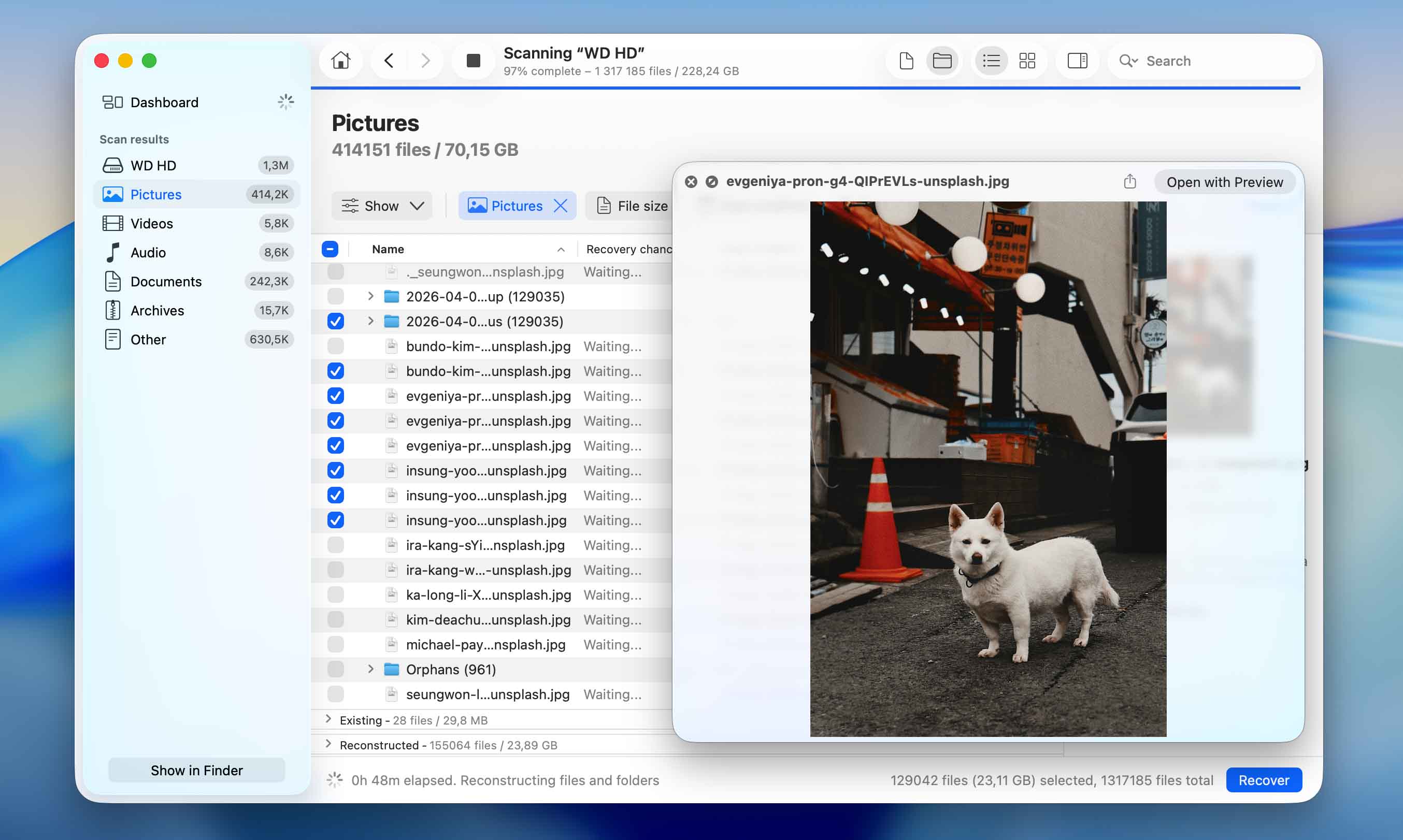
- Wait for the scan to finish.
- Go through the discovered results and select the files you want to recover. You can use filters by file type or search by name to narrow things down.
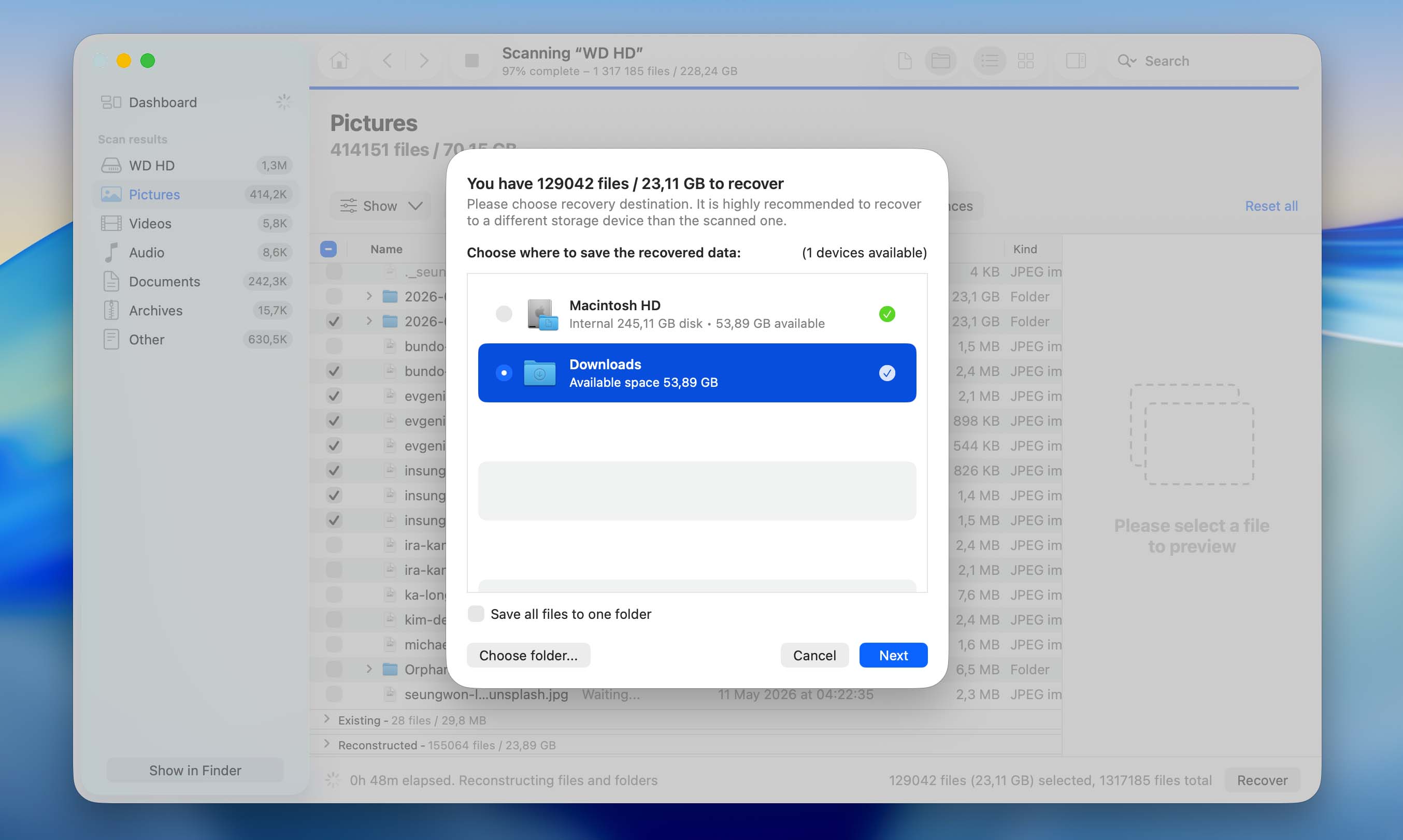
- Choose a recovery destination. Make sure to recover your files to a separate drive. Using the same drive may corrupt your data!

- You can create a byte-to-byte backup of the drive before you start. This way you don’t work with the original disk, and if something goes wrong, you still have a copy.
- It can find files by their internal structure, not just by file system data. This helps in cases where the drive looks empty or some parts are damaged.
- You can open files right in the results before recovering them. It’s an easy way to check if what you found is actually usable.
- There’s also a S.M.A.R.T. section that shows the current state of the drive. It can give you a hint if the disk is starting to fail or has issues already.
Method 2: Ask Your Mac to Show You Hidden Files
Sometimes the files you need may just be hidden. Knowing how to view your files on a WD My Passport on a Mac in this case comes down to a couple of simple steps:
- Open Finder.
- Navigate to your WD My Passport Drive.
- Press Command + Shift + . on your keyboard to show hidden files.
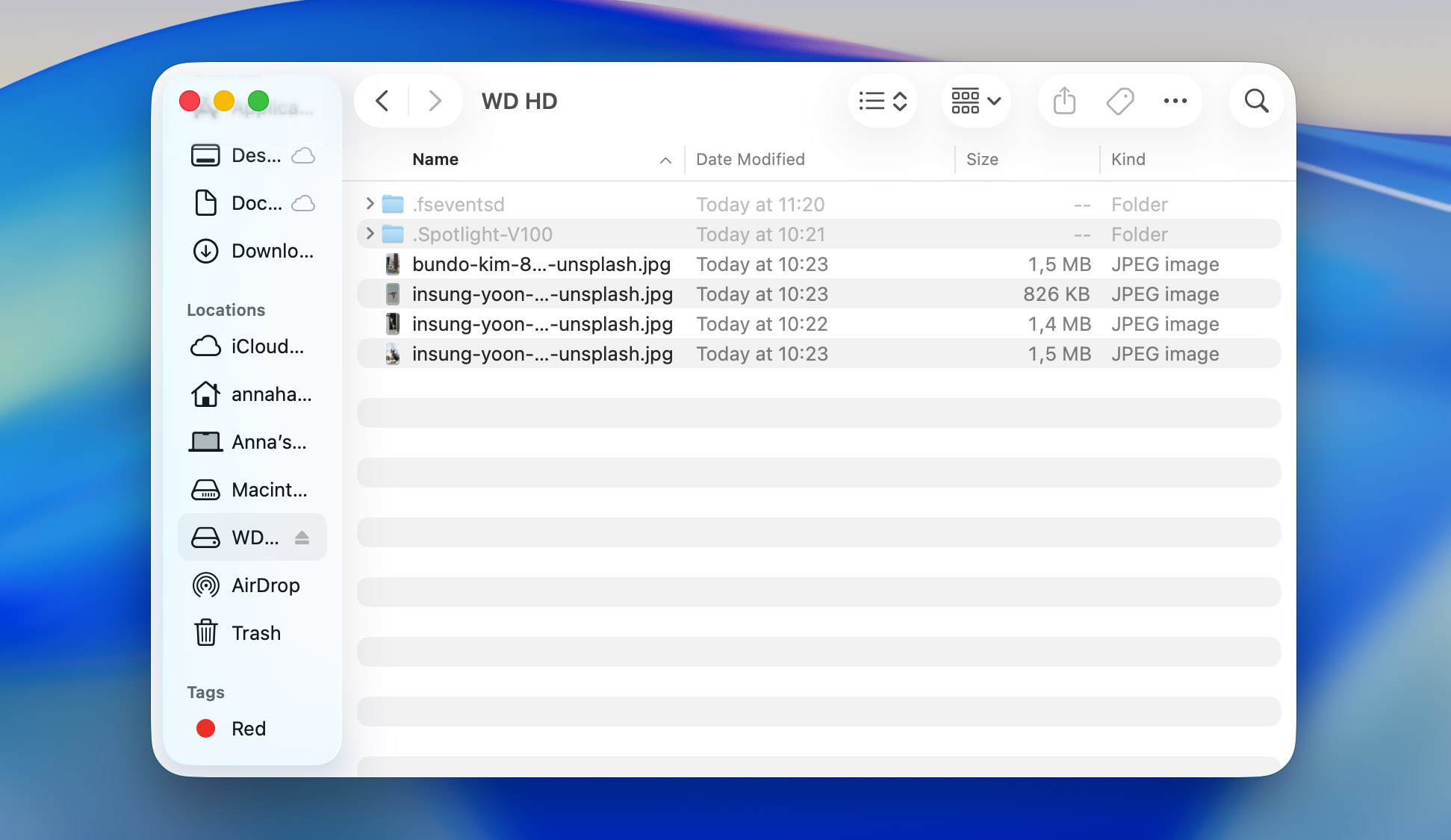
Take a look around to see if anything shows up that was originally hidden.
Method 3: Run Disk Utility First Aid
Your Mac doesn’t really have a built-in tool for data recovery. But there is First Aid in Disk Utility, and it can sometimes help. It checks the file system and tries to fix issues with it. In some cases, files may seem missing because something in the directory is broken, not because the files are actually gone.
It’s better to run it after you create a backup of the drive, just to avoid making changes to the original disk right away.
- Open Disk Utility.
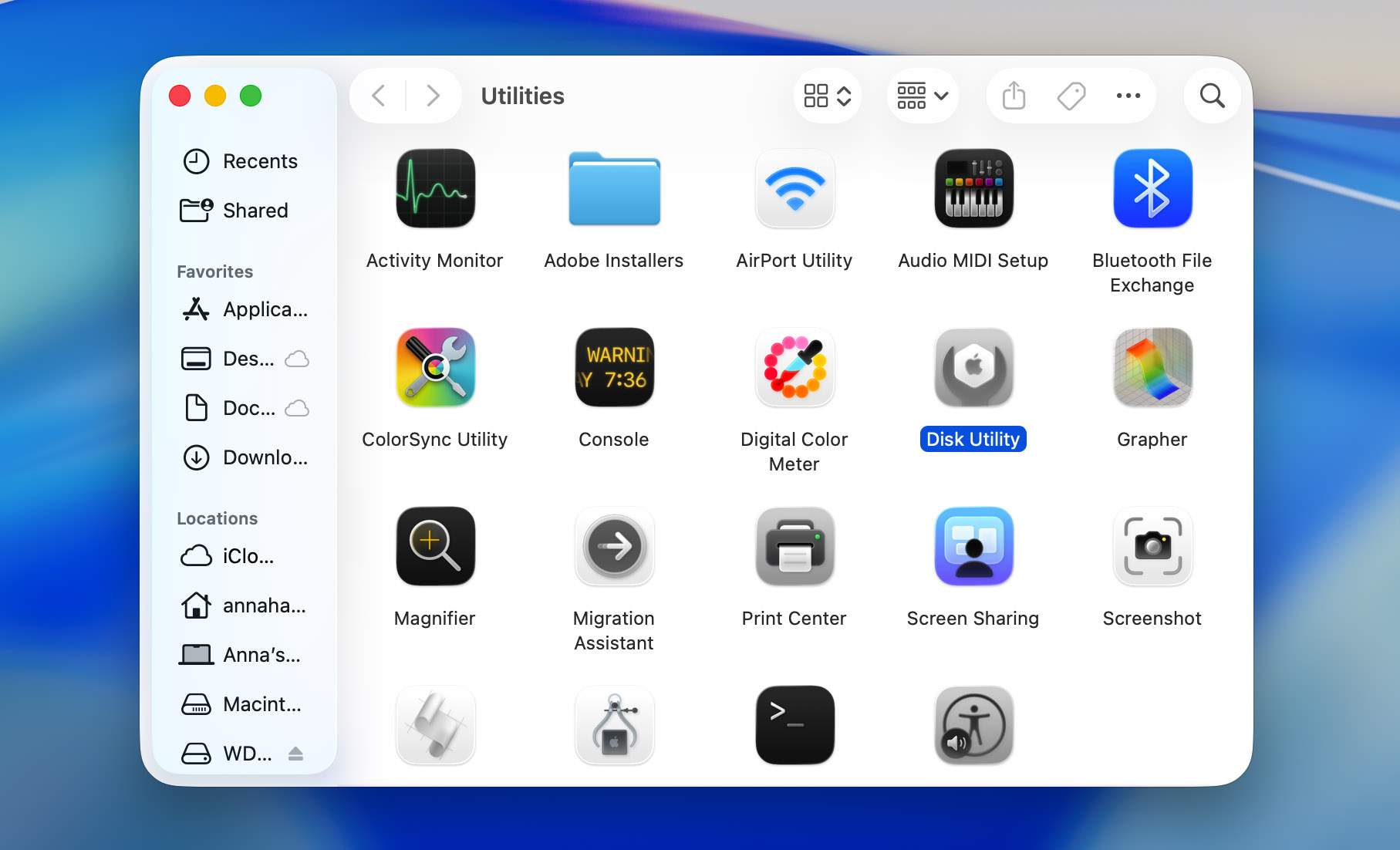
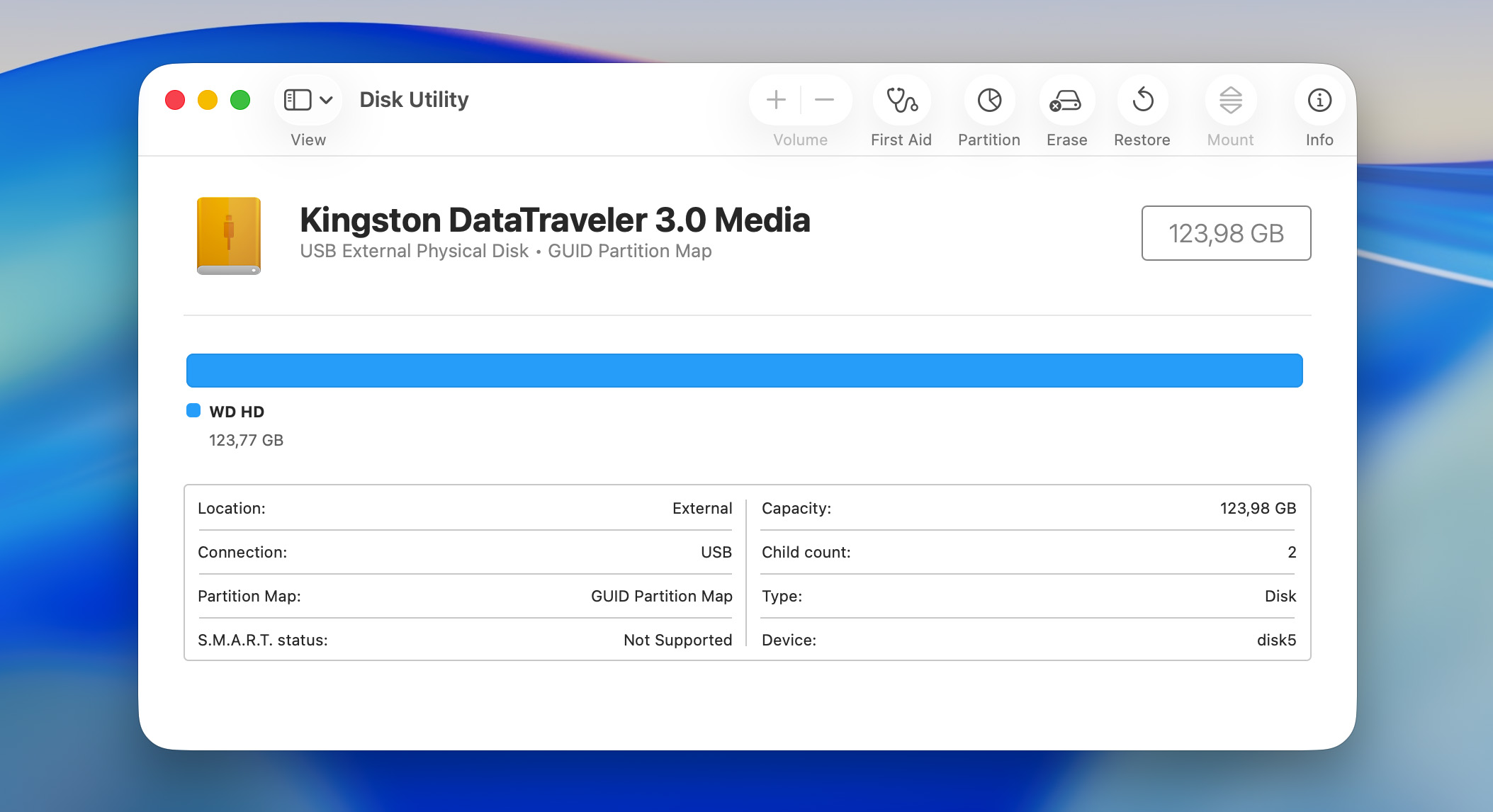
- Select your WD My Passport in the menu on the side.
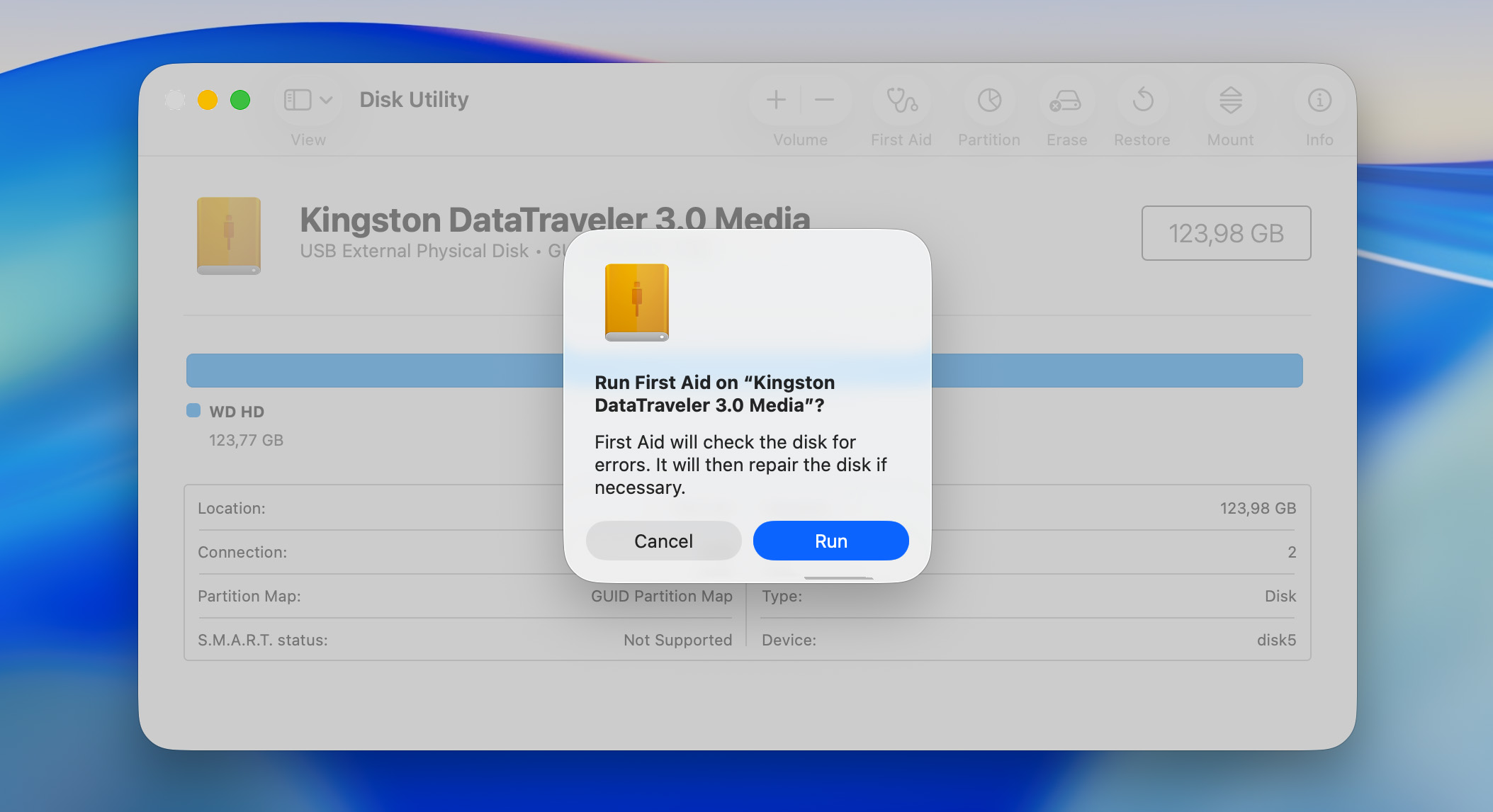
- Click First Aid.
- Click Run and follow the instructions.
Method 4: Use Professional Recovery Services
A professional data recovery company can help you if nothing else works. They will know how to open the drive in a controlled environment to extract any data they can from it. Keep in mind that this can be expensive and can take a long time.
Many companies will usually take a few weeks to get back to you. Some provide express services, but as you can expect those cost more. The CleverFiles Data Recovery Center is a good starting point if you need a reliable service provider that will understand your needs.
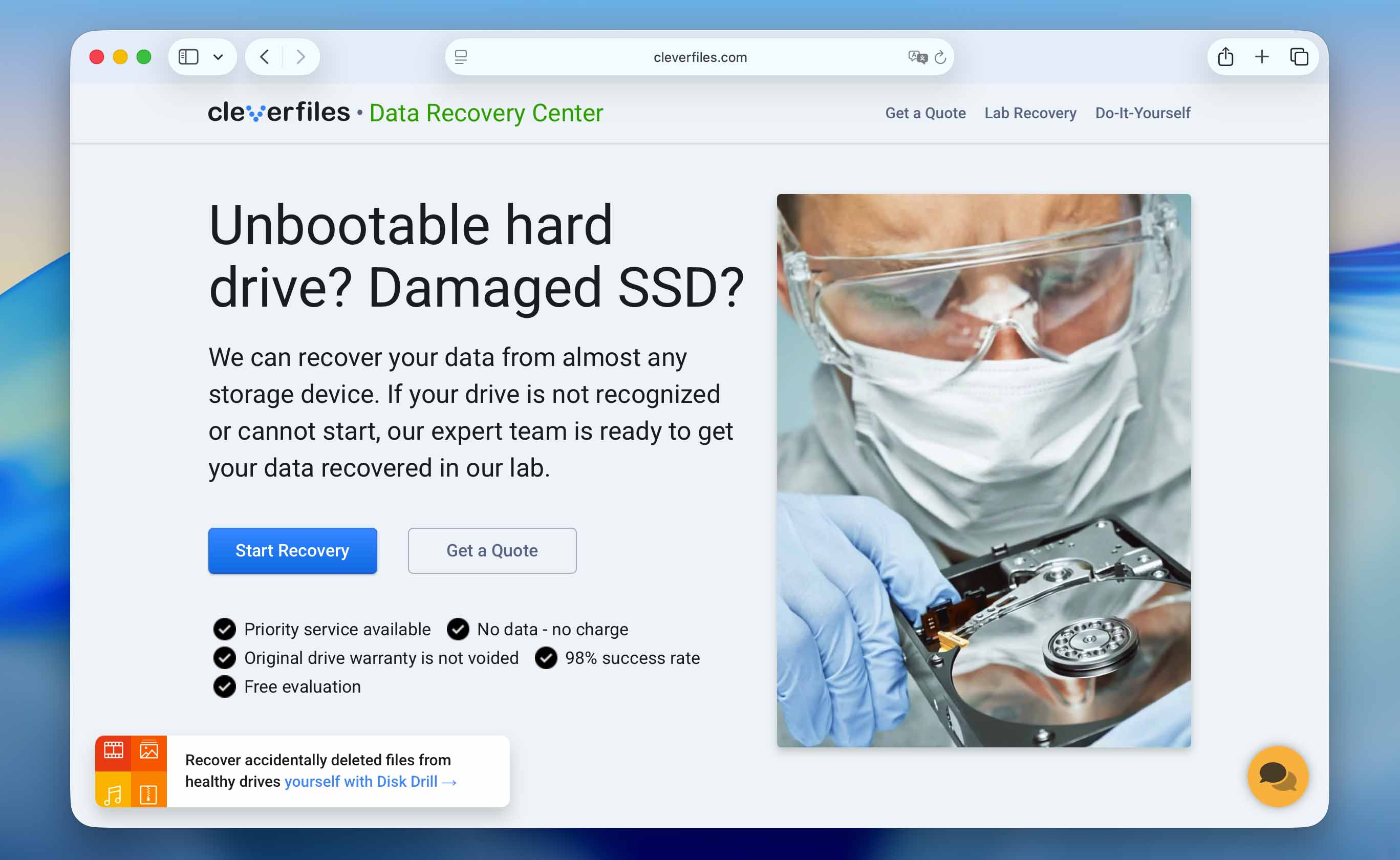
If your drive has physical damage, like the issues mentioned earlier, contacting professionals is usually the only way to perform My Passport data recovery. Working with such drives on your own can lead to a complete failure of the device and permanent data loss.
Conclusion
Now that you know how to retrieve files from a WD My Passport on Mac, you should take some steps to protect your data in the first place.
- 🛡️ Always eject the drive properly from the operating system before unplugging it. This will minimize the risk of corruption resulting from a botched save and will allow all programs to finish writing their data safely.
- 🧰 Keep your WD My Passport protected when on the go. Investing in a carry case is not a bad idea. While it will not make your drive indestructible, it will go a long way towards preventing some accidental damage.
- 🧹 Regularly clean your drive, removing files you no longer need – especially large ones.
If you ever run into data loss again, you can also check the sections on our site that cover data recovery on Mac, as well as the one focused on hard drive recovery tips. There are quite a few different cases covered there, so it’s easier to find something that matches your situation.




FAQ
Start with the basics. If the files were deleted recently, they might still be in the Trash, so it’s worth checking first. If there’s nothing there, you can use a data recovery tool like Disk Drill:
- Download and install Disk Drill
- Open the app
- Select your WD My Passport drive and start the scan
- Wait for it to finish and review what was found
- Pick the files you need and recover them to a different drive
If the files you need to access are hidden, you can follow these steps to reveal them:
- Open Finder
- Navigate to your WD My Passport Drive
- Press Command + Shift + . on your keyboard to show hidden files
If that doesn’t change anything, run a scan with a data recovery tool and check if it finds them. If it does, select the files you need and recover them.
If your WD My Passport is not showing up on your Mac, this could be due to a faulty cable or USB port. If that’s not the reason, this could indicate more serious failure of the drive itself. In some cases you can only recover your files through a professional service.
Yes, WD My Passport drives work with the MacBook Pro without any issues.
