


Is your external hard drive not showing up on your Mac? This usually points to (a) a connection issue or (b) some form of corruption.
Below, we’ll walk you through every common fix–from troubleshooting your connections to handling serious corruption (safely)–while protecting your data throughout the process. We only included solutions that actually worked, as vetted by our in-house data recovery team on real external hard drives.
How to Determine Why an External Drive Is Not Showing Up on Mac
If your external hard drive is not showing up, the first thing to figure out is whether macOS can see it anywhere at all. Check Finder, Disk Utility, and System Information, in that order. Where the drive appears helps narrow down the problem and tells you which fixes are worth trying.
Check Finder
Finder is the simplest place to start because this is where a working, mounted external drive normally appears.
- Open Finder.
- Look under Locations in the sidebar for your external drive.
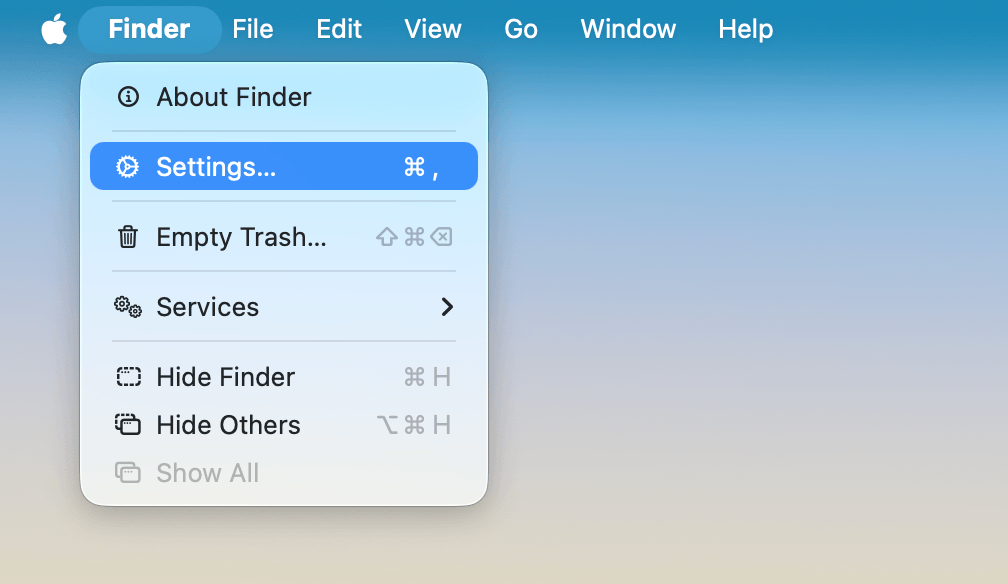
- If you don’t see it, click Finder > Settings.
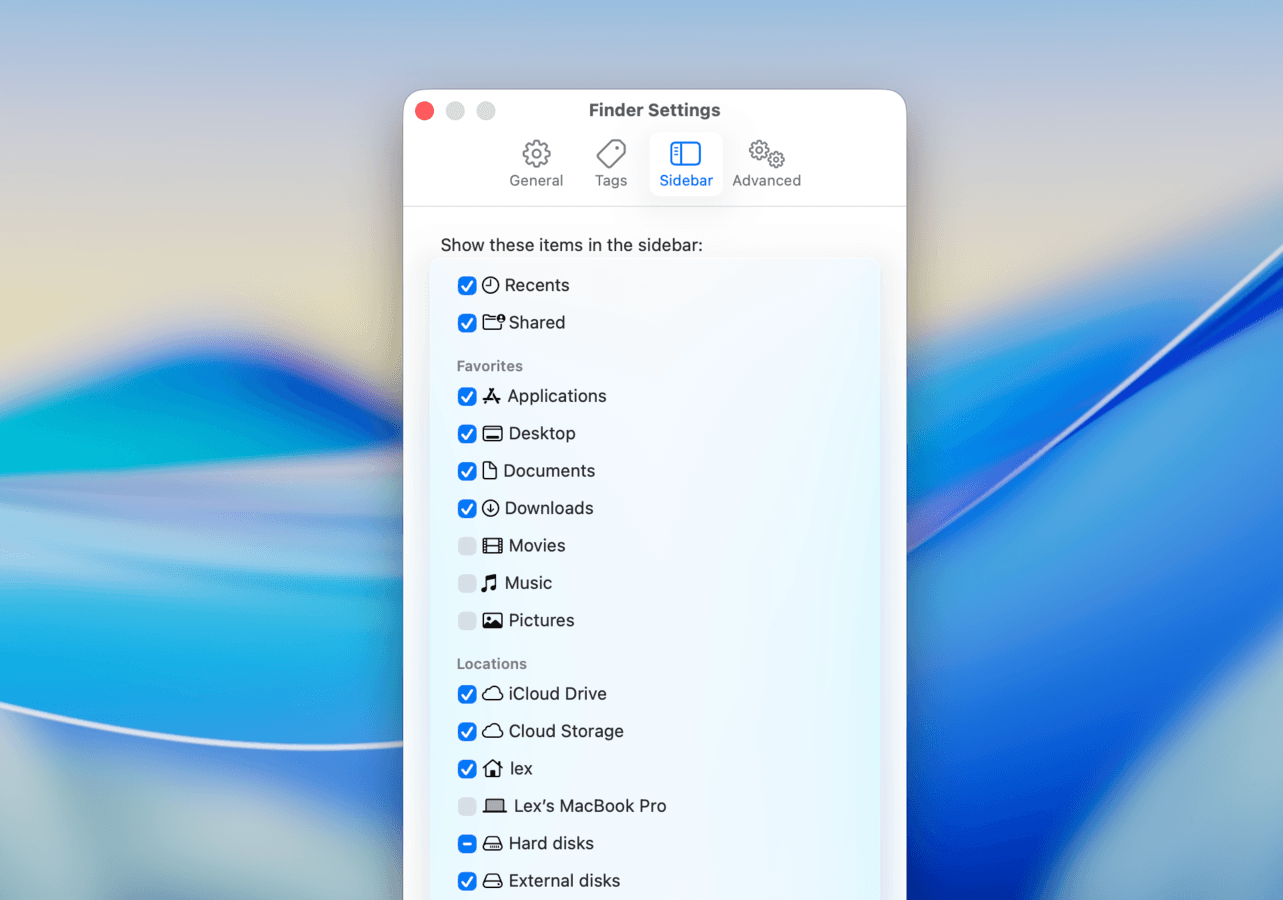
- Find the Sidebar and make sure external disks are enabled.
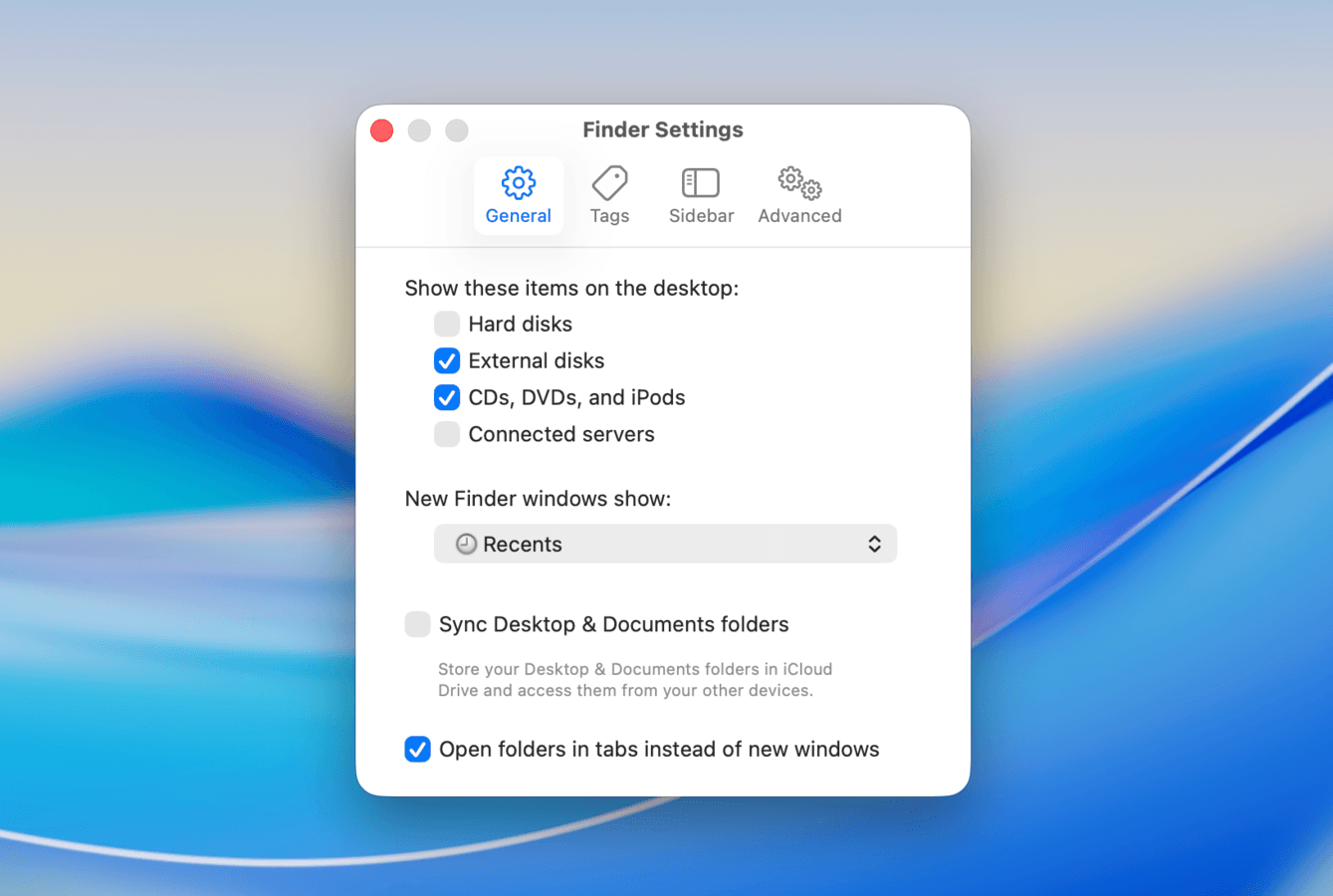
- You can also check in General if you want external disks to appear on the Desktop.
If the drive shows up in Finder, macOS has mounted it successfully. If it was simply hidden from the sidebar or Desktop, changing the Finder settings may be all you need.
If the external drive is not showing up in Finder even with the correct settings, the next place to check is Disk Utility. The drive may still be connected and visible to macOS but unable to mount normally.
Check Disk Utility
Disk Utility can show physical drives and volumes even when they don’t appear in Finder.
- Open Disk Utility from Applications > Utilities.
- Click View in the menu bar.
- Select Show All Devices.
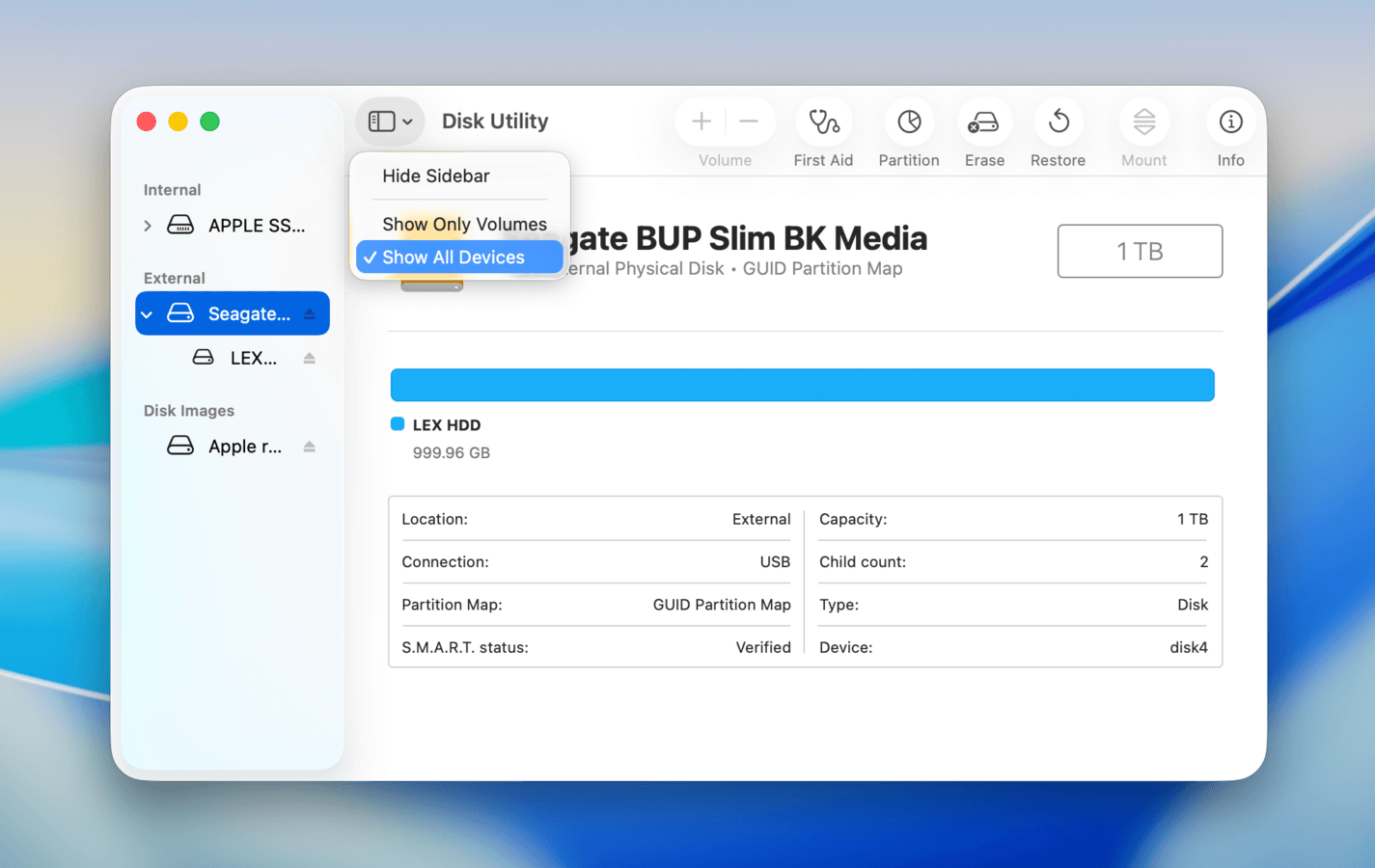
- Look for your external hard drive in the sidebar. Check both the physical device and any volumes listed underneath it.
If the drive shows up in Disk Utility, that’s a good sign: macOS can access the storage device, but something is preventing the volume from appearing normally in Finder. For example, the volume may be unmounted or its file system may have errors.
To fix the issue, you can try mounting the drive manually, running First Aid, or, as a last resort, formatting the external drive. Before trying the last two methods, though, make sure you’ve protected any important data on the drive!
Check System Information
If the external hard drive is not showing up in Disk Utility, move on to System Information. This will tell you whether your Mac can at least see the device at the hardware connection level. A drive can sometimes appear here even when Disk Utility has nothing to work with.
- Open System Settings. Go to General, then About.
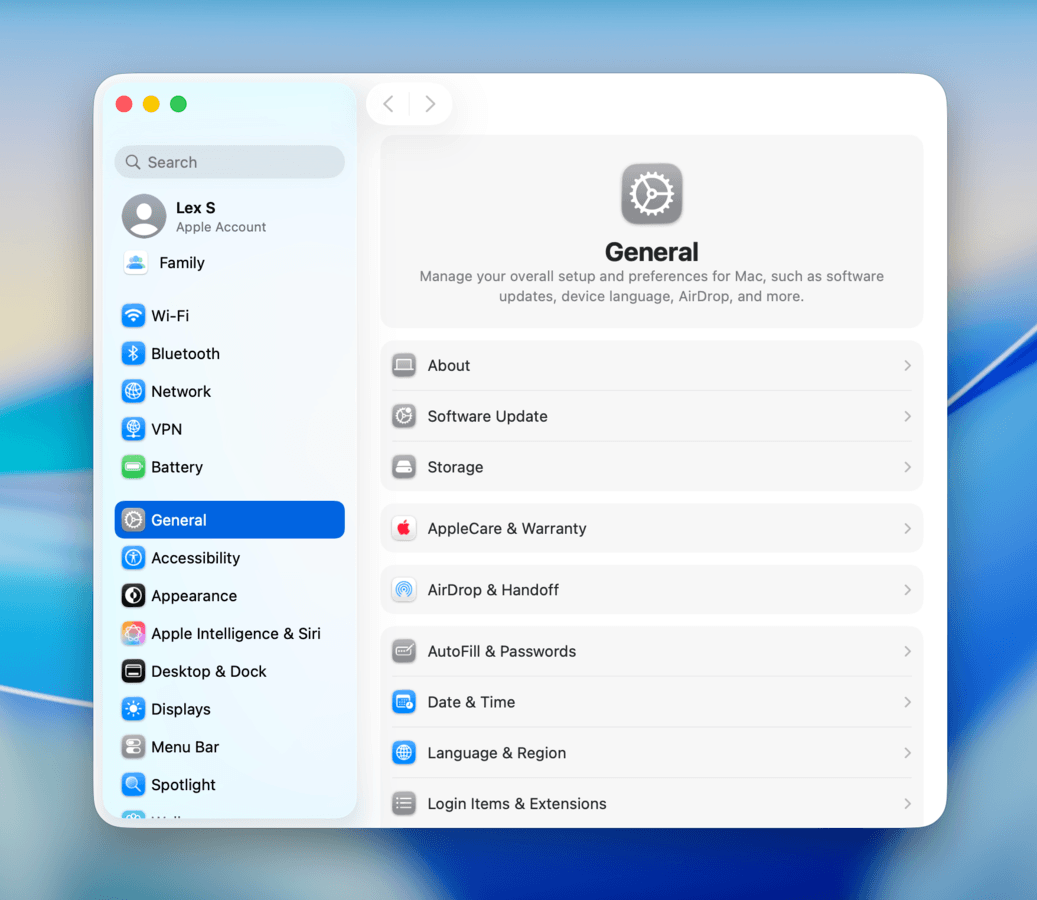
- Scroll down and click System Report.
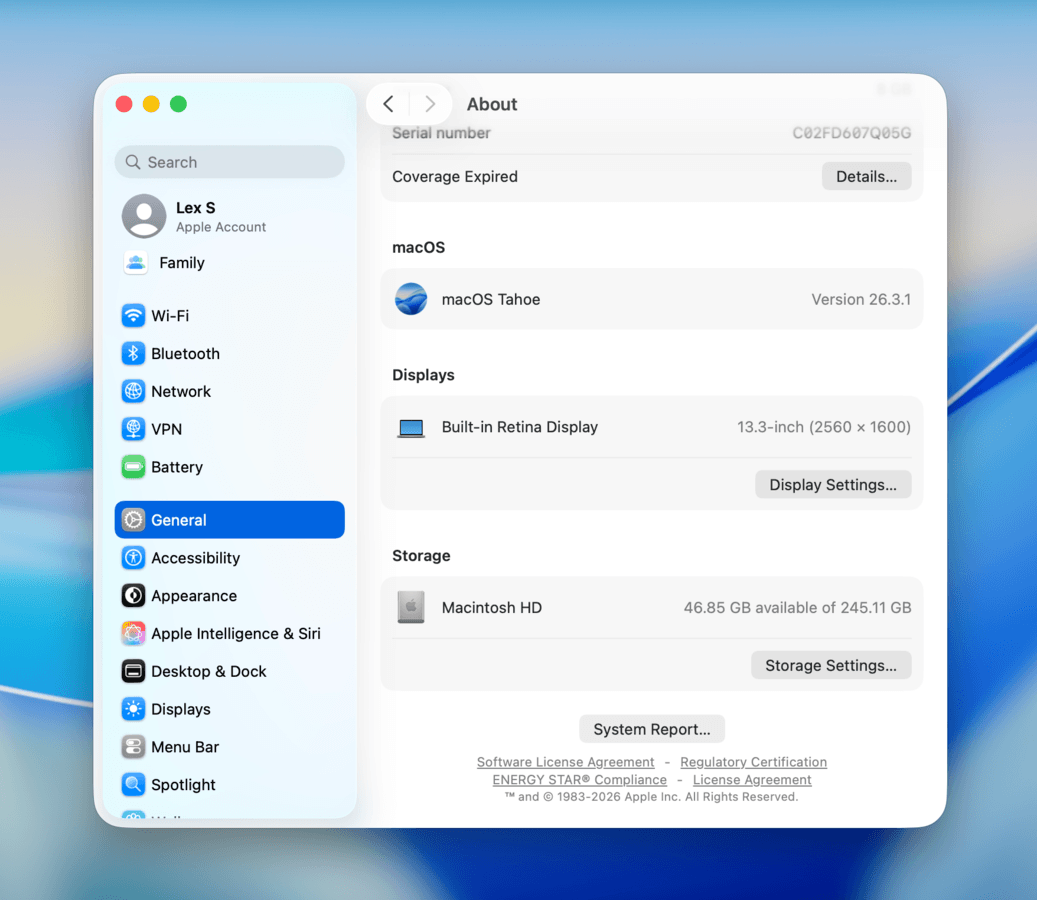
- In the new window that appears, select the Storage option under the Hardware category in the left sidebar. At the very top of the page, you’ll see a list of volumes. Select your external hard drive, then check if its storage information is correct.
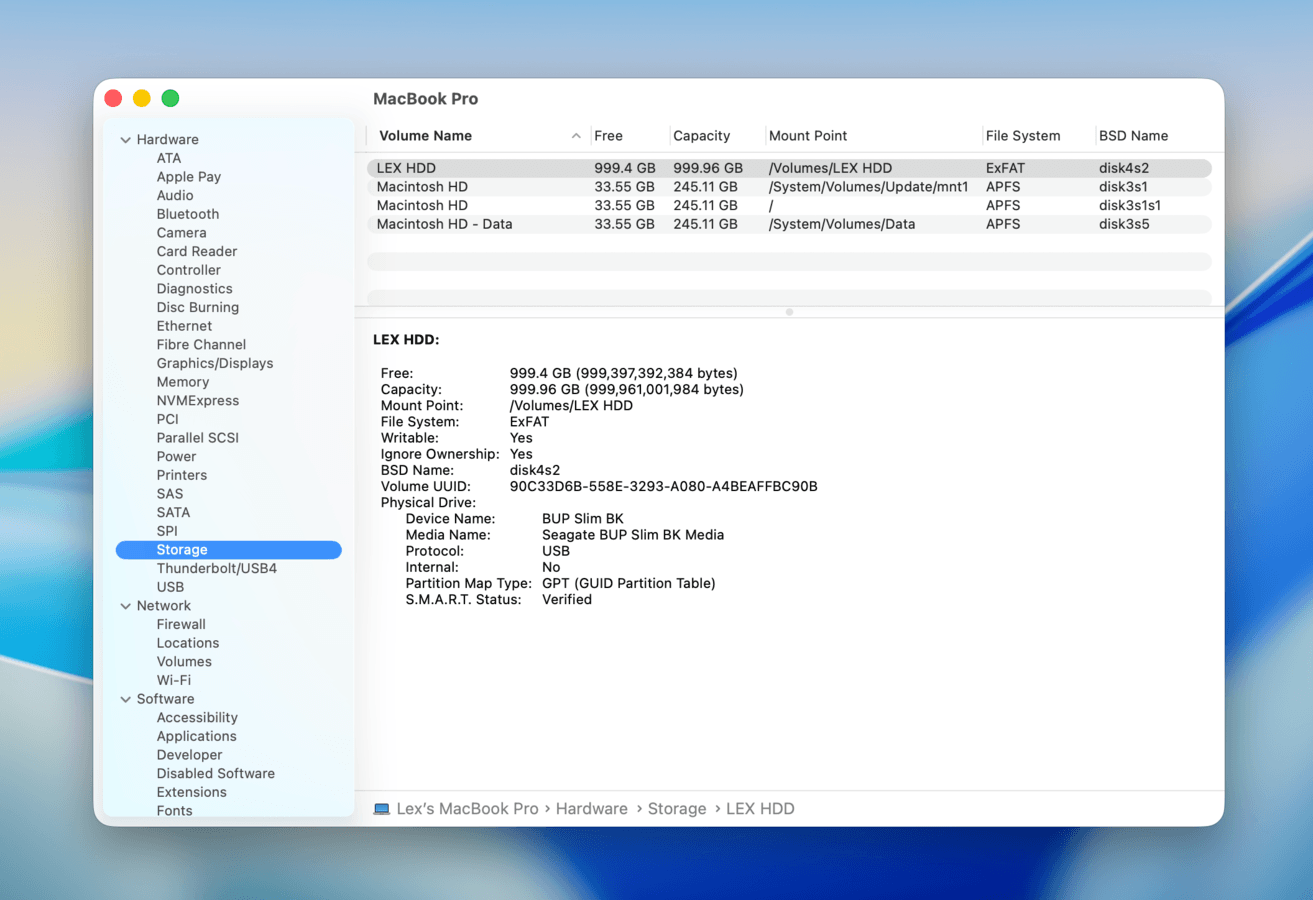
If the drive appears in System Information but not Disk Utility, your Mac is communicating with the connected hardware, but macOS isn’t presenting the disk as an available storage device.
That shifts the troubleshooting toward the connection, enclosure, or power supply (Eliminate Connection & Power Issues).
On Mac laptops with Apple silicon, also check System Settings > Privacy & Security > Accessories. macOS may require you to approve a new USB or Thunderbolt accessory before it can connect.
How to Protect Data on the External Drive that Is Not Showing up on a Mac
If your drive shows up in Disk Utility, but you can’t access your data, the very first thing you should do is secure your files (if they matter to you). Data loss is a real possibility during or even after the repair process.
For this guide, we’ll be using Mac hard drive recovery software because it can do 2 important things: (1) create a byte-to-byte image backup, and (2) recover lost data from an external hard drive–even if it’s corrupted. Notably, it can perform a data recovery scan on the image backup file instead of the drive itself–which can prevent your drive from enduring further wear during the process.
- While your drive is disconnected from your Mac, download and install Disk Drill.
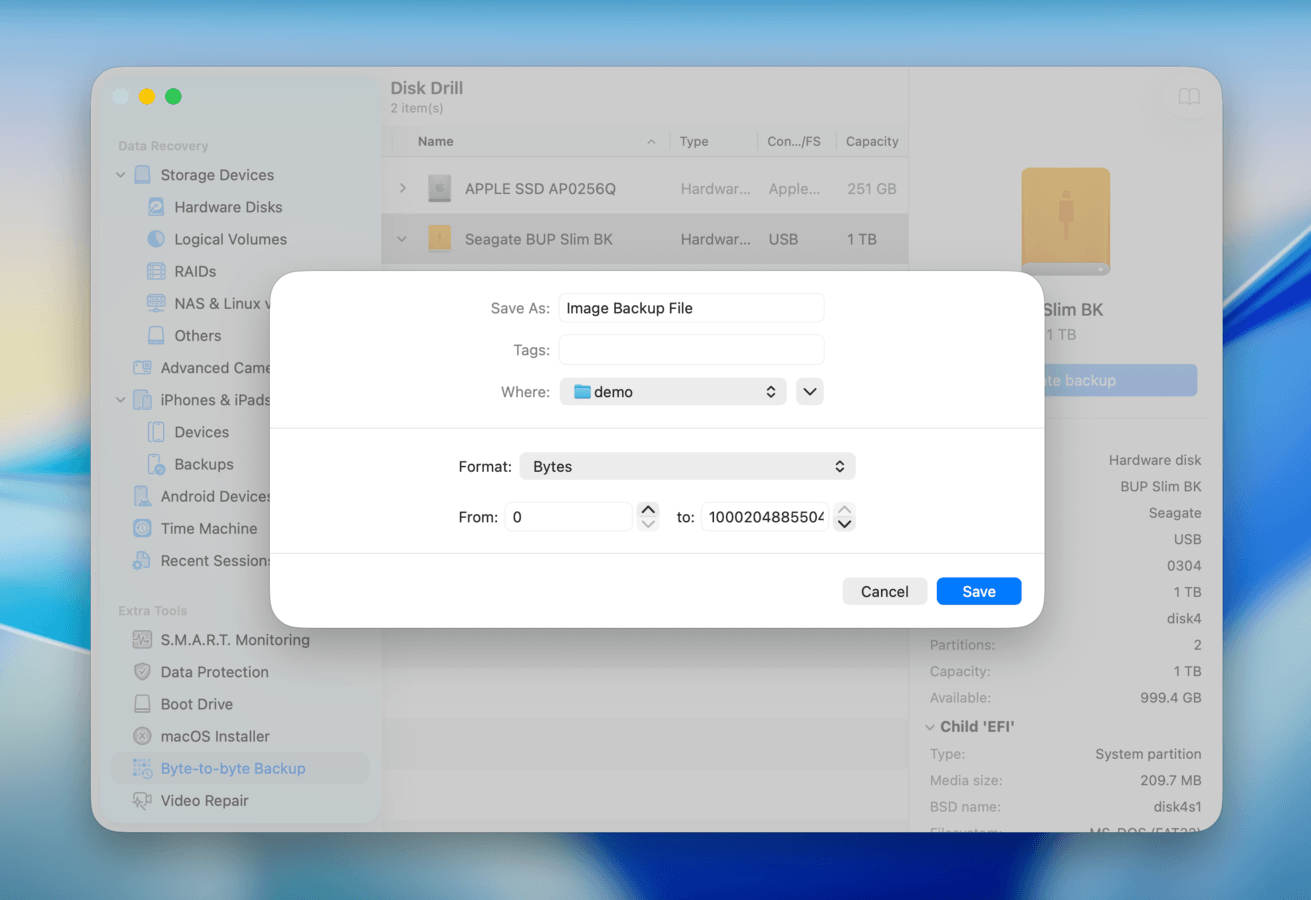
- Open Disk Drill. If you don’t want to create a backup, jump to step 6. If you want to create a Byte-to-byte backup (recommended), click Byte-to-byte Backup in the left sidebar. Then, select your drive from the list and click Create backup.
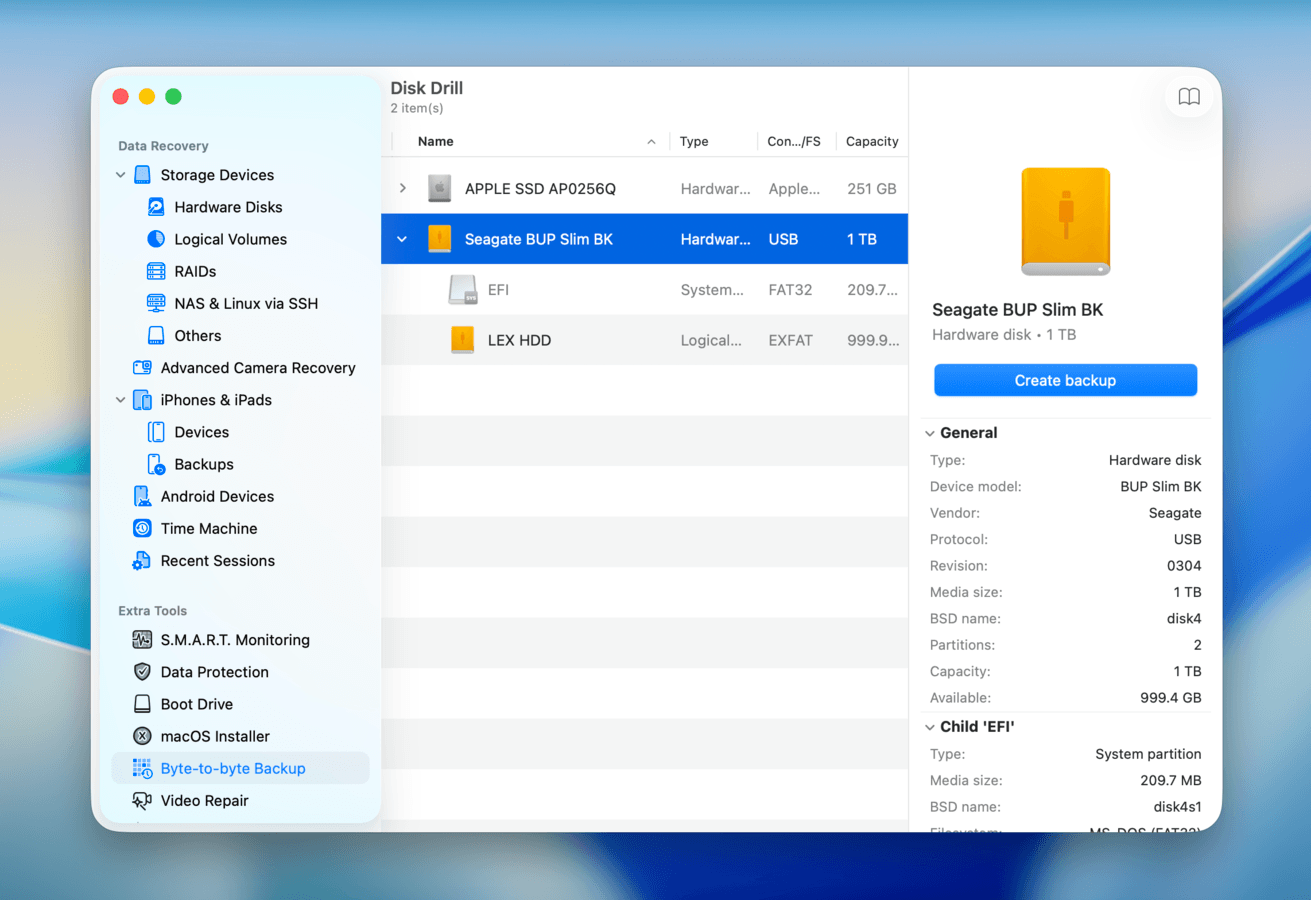
- Choose a name and location for the image backup file–make sure to select a folder on your Mac, not on your external hard drive (you’ll also need enough free space to accommodate the full capacity of the external drive). Then, click Save.
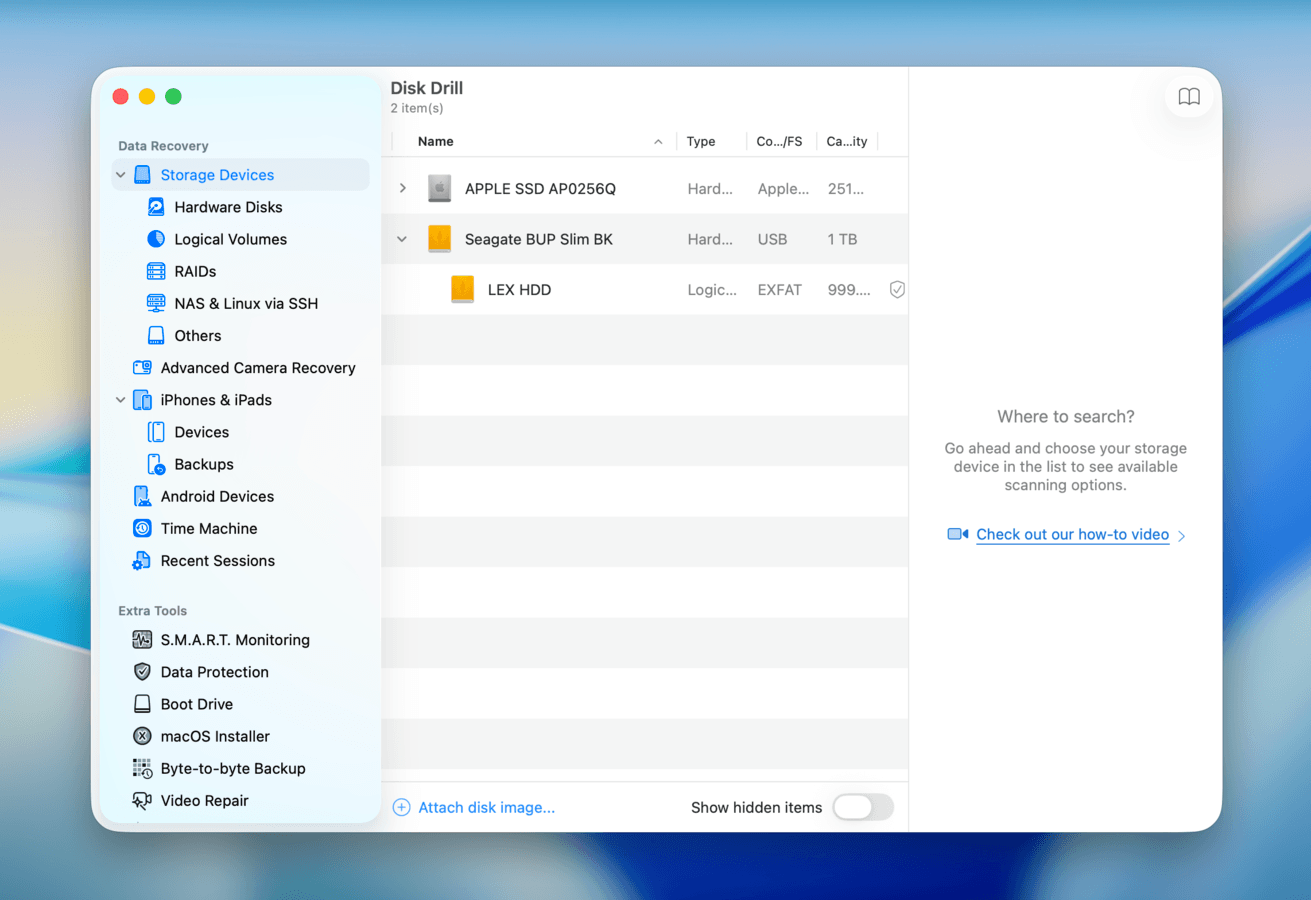
- After creating the backup file, return to Disk Drill’s main menu. Then, on the left sidebar, select Storage Devices. Click the Attach disk image button at the bottom of the window.
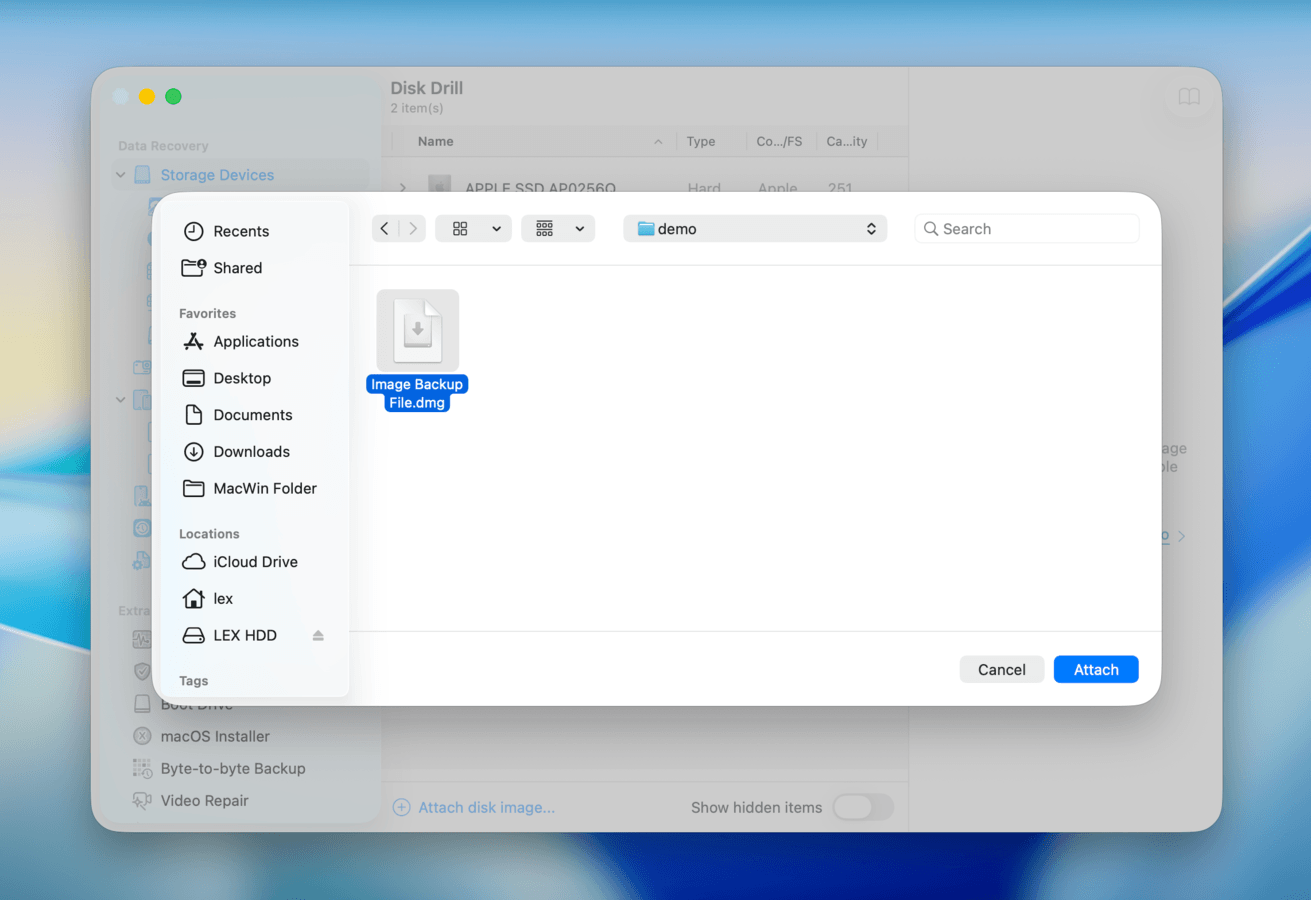
- Locate and select the backup file you created in step 3. Then, click the Attach button.
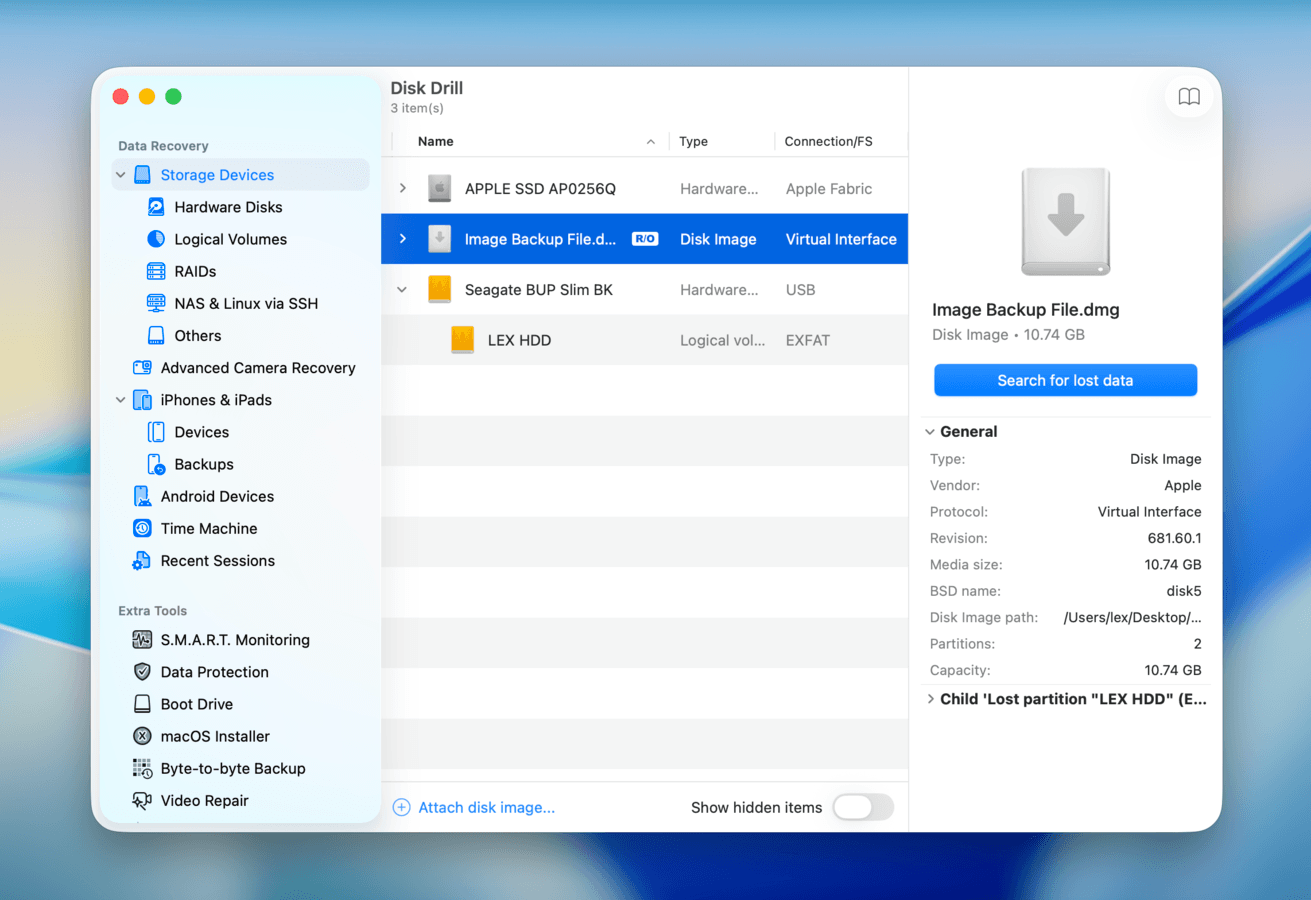
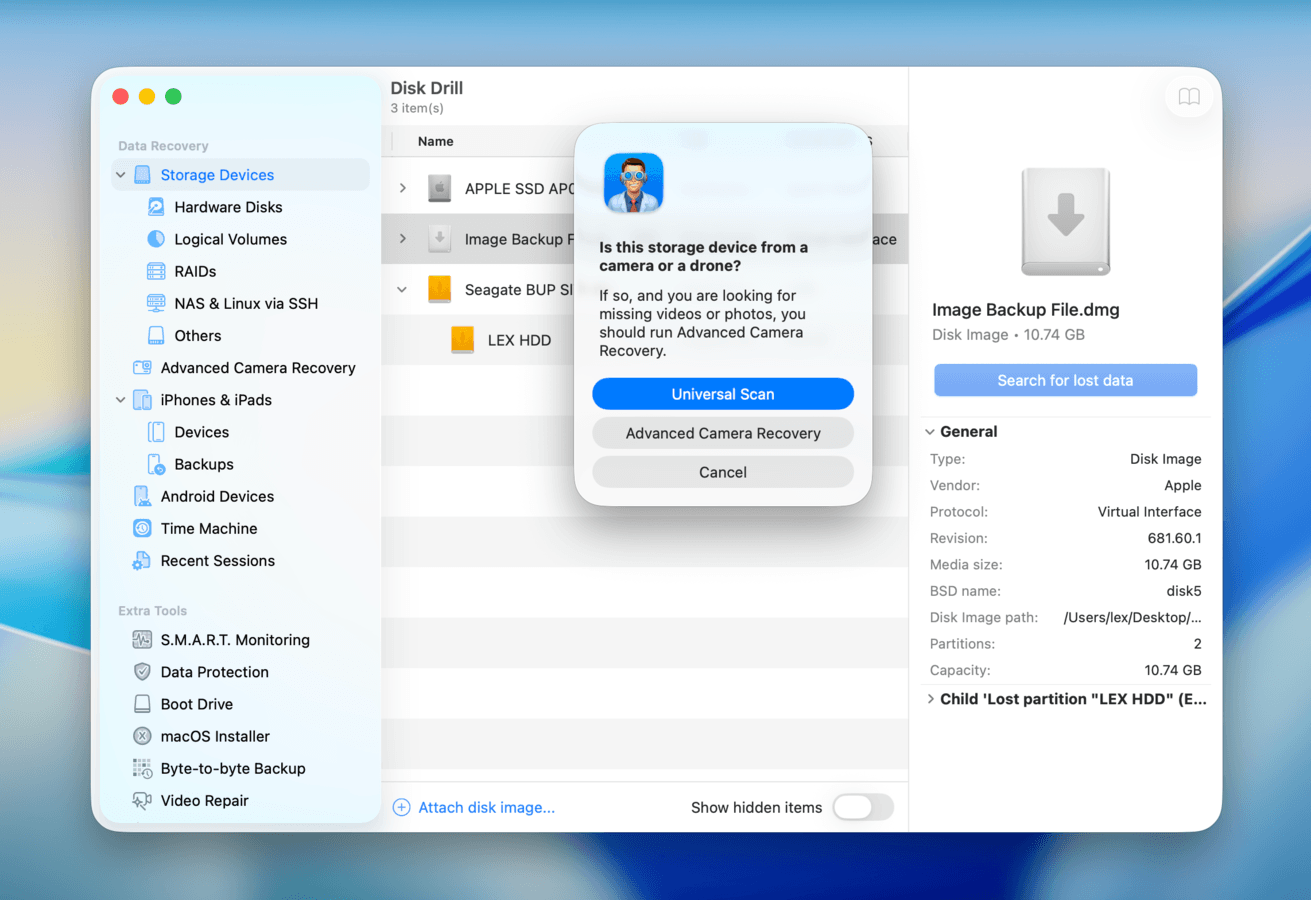
- If you didn’t create a backup in step 2, select your drive. If you did create a backup, select the newly attached disk image. Then click Search for lost data.
- A pop-up may appear, asking you to choose which scan type Disk Drill should use for your drive. We recommend starting with the Universal scan. If any unedited videos you recovered end up unplayable, scan your drive again with Advanced Camera Recovery.
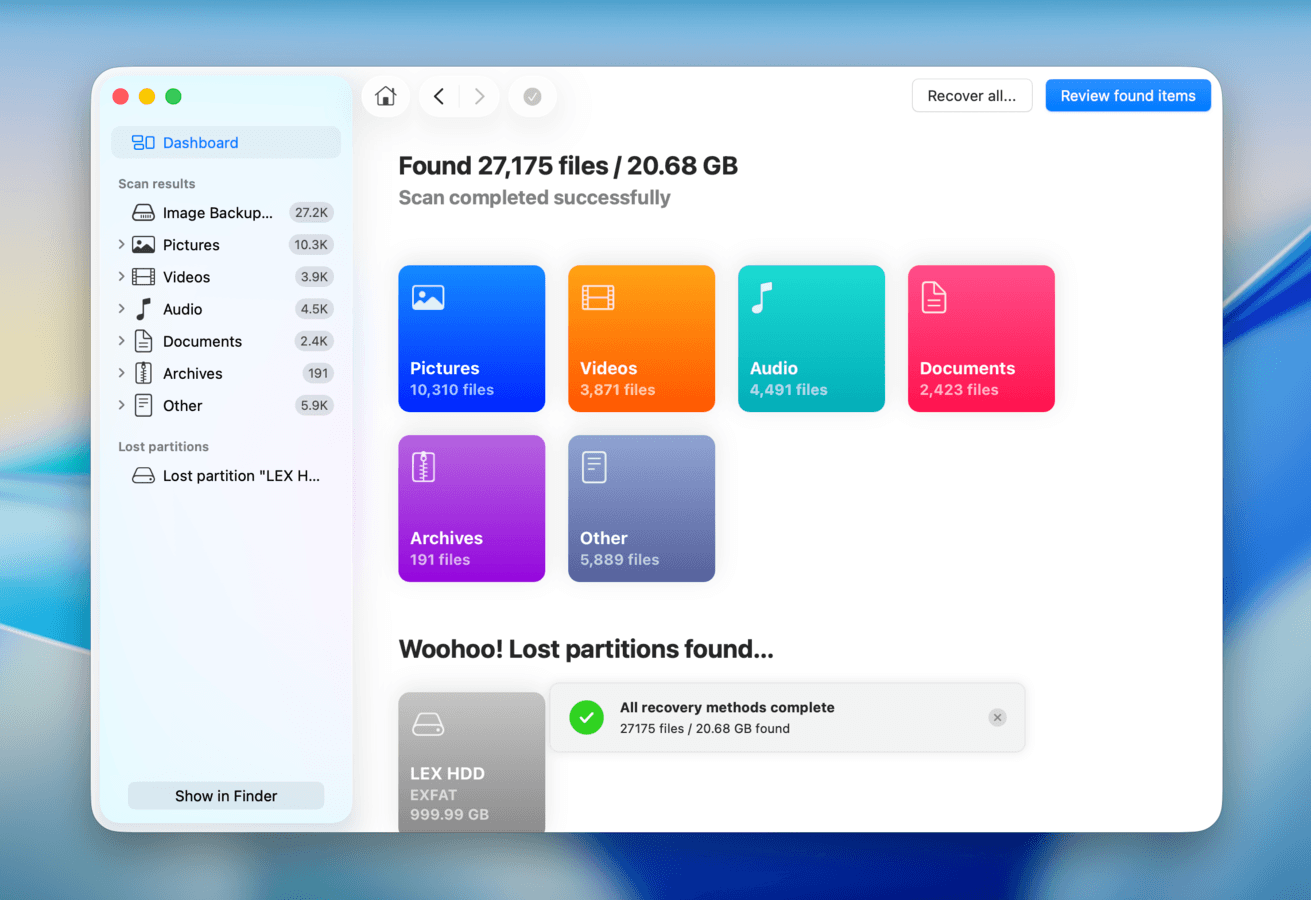
- Once Disk Drill is done scanning your drive, click Review found items.
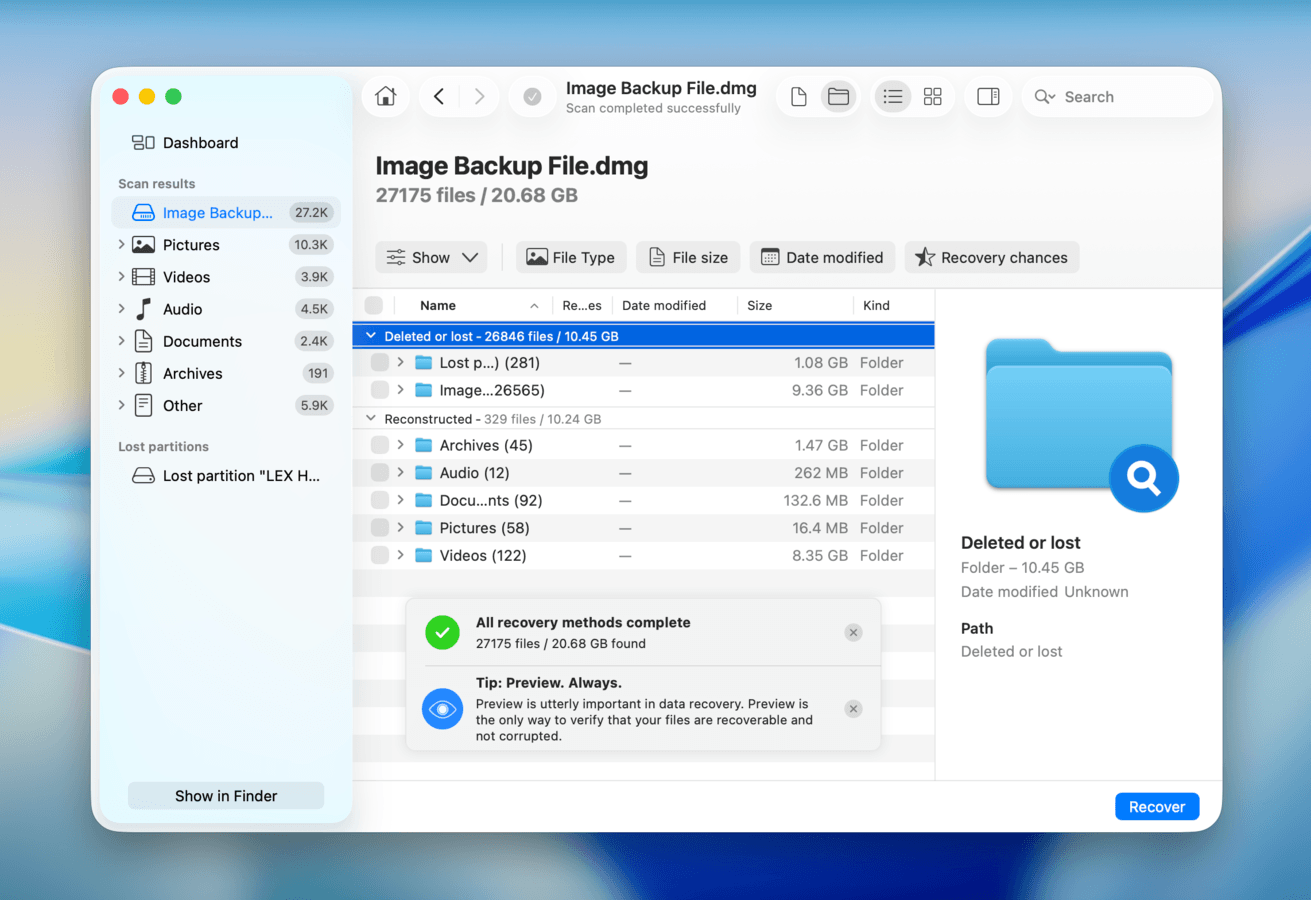
- If you simply lost access to your drive data, focus on the Existing section. If your files aren’t there, try the Deleted or lost and Reconstructed sections. You can also use the search tool in the top right corner, as well as the filters in the left sidebar, to narrow down Disk Drill’s scan results and locate your files faster.
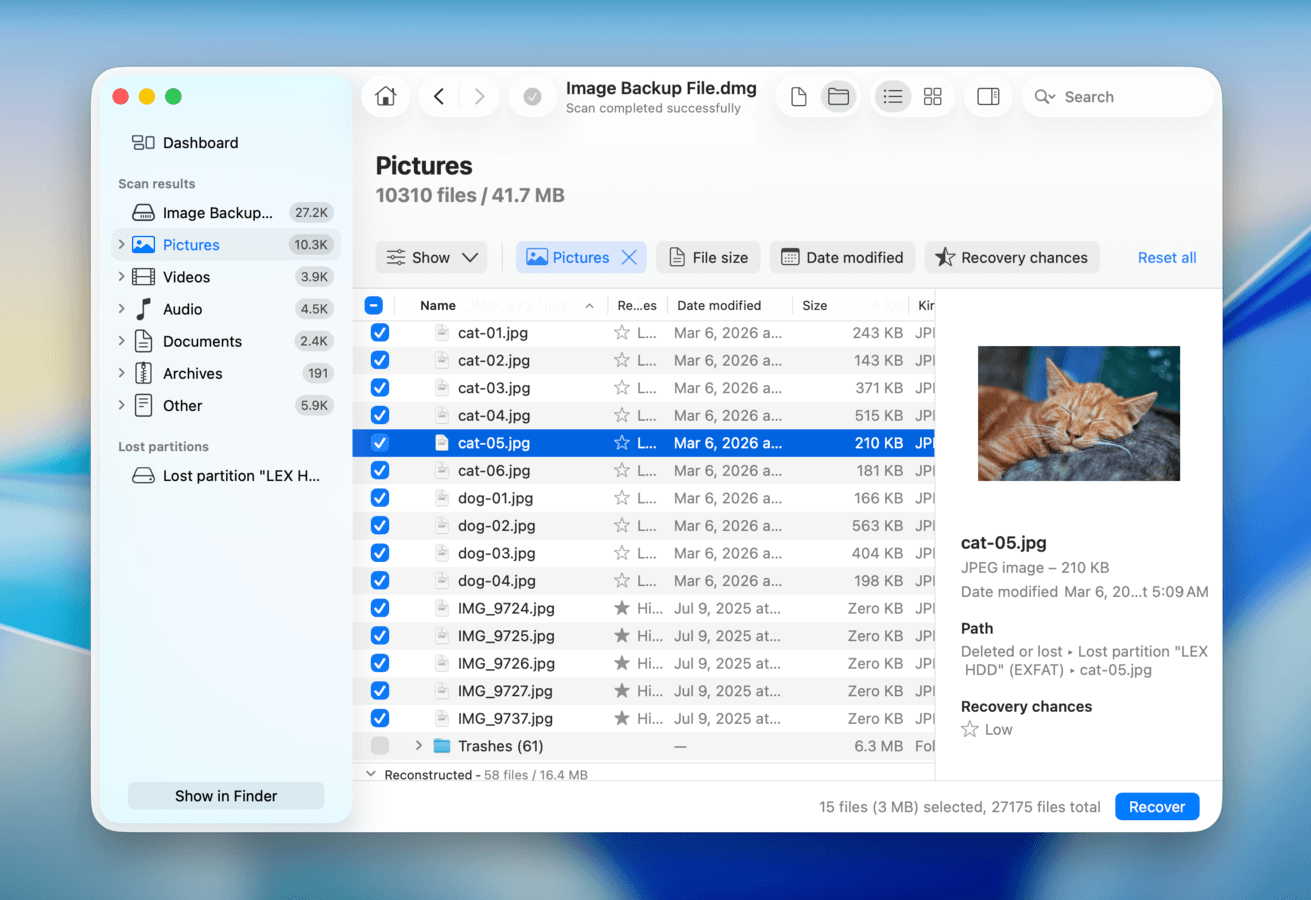
- When you find your files, make sure to click each file once to preview it–this allows you to verify what data is actually recoverable. Then, select the files you want to restore and click Recover.
- Choose a folder where you want Disk Drill to save your recovered files. Make sure to select a folder on your Mac–not on your external hard drive; you might overwrite the data you’re actively trying to restore. Finally, click Next.
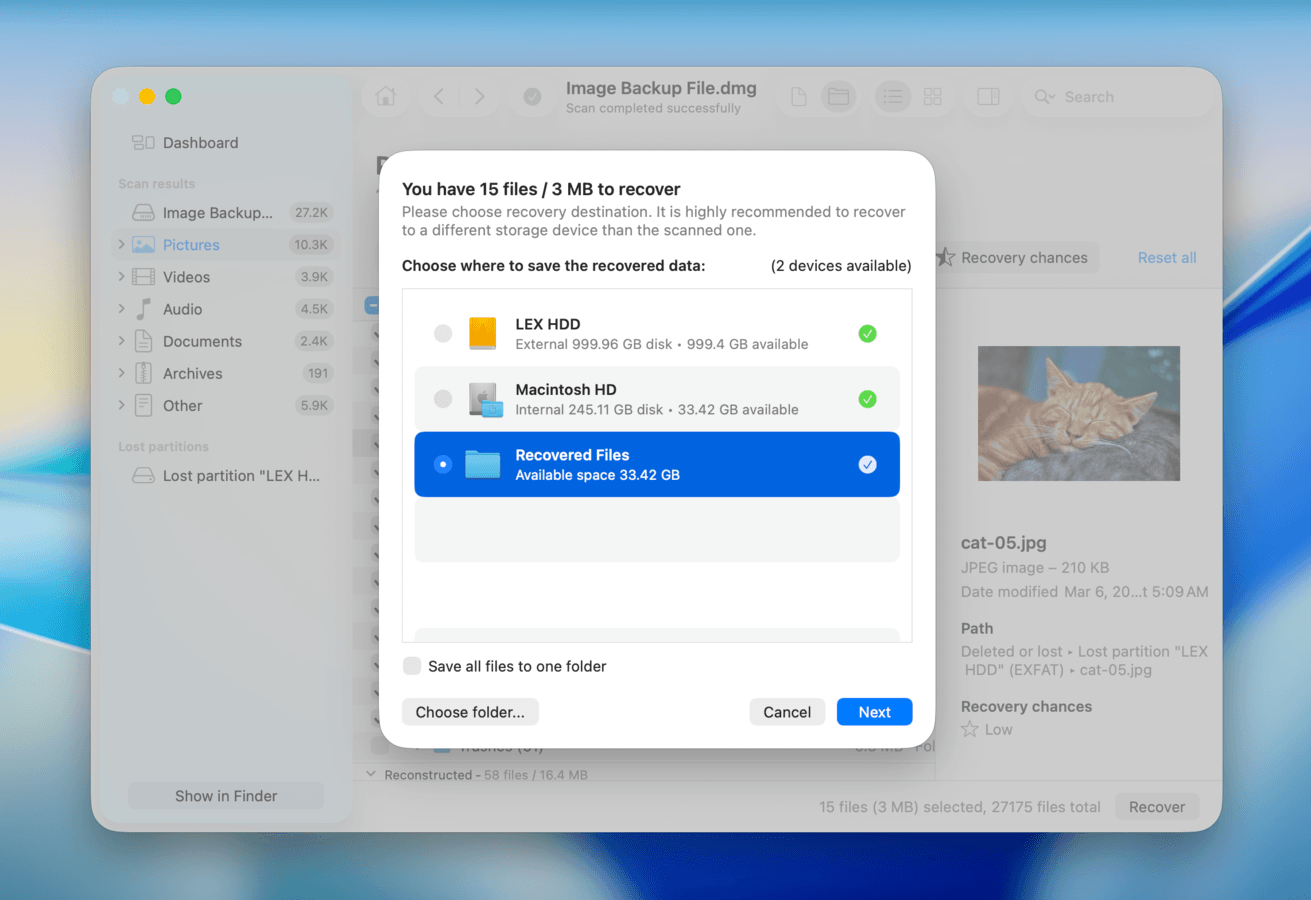
Here are some other key advantages of Disk Drill that can help you restore data:
- Scanning algorithms: Disk Drill has a powerful signature scanner (that recognizes about 400 file signatures), which is the most reliable way to restore data from corrupted drives that don’t appear.
- Partition recovery: In case of lost partitions (common in malfunctioning drives), you can restore entire disk partitions while preserving the original folder structure and file names.
- Reliable preview: Disk Drill has a very reliable and completely free preview feature that works with almost any file type–including videos and RAW photos. Use it to check if your files are still recoverable.
- Advanced camera recovery: Many videos end up unplayable post-recovery due to fragmentation, which commonly happens with drives with visibility problems. Disk Drill’s ACR module automatically “stitches” videos together whenever it finds data fragments during the recovery process.
- Diagnostic tools: The S.M.A.R.T. (Self-Monitoring, Analysis, and Reporting Tool) feature can scan your external hard drive for damage, and you can have it monitor disk health in real-time by adding it to your Mac’s menu bar.
- Session management: Disk Drill is very good at detecting disconnections and picking up where the scan or backup last stopped. This is a huge advantage in case your drive glitches out mid-recovery.
How to Fix a Hard Drive Not Showing Up on a Mac
Now, this part of our guide goes into the methods we mentioned earlier, with detailed step-by-step instructions and screenshots showing how everything looks in the latest version of macOS. (If you haven’t updated your Mac yet, that’s okay; there haven’t been any major changes to the tools or settings we cover here.
Let’s get started.
Method 1: Eliminate Connection & Power Issues
External devices need a reliable connection to work; not only does it carry your data, but it also routes power from the Mac to your drive to keep the disk spinning. A faulty hardware connection is a very common root cause for storage device issues, and you should systematically rule them out early in your repair process.
Here’s a simple checklist that you can follow:
Info: We also recommend turning off your Mac, disconnecting ALL peripherals, then turning it back on again. Do this at least once before proceeding to allow your computer to redistribute power to its ports.
- Damaged cable: If your cable is damaged, it’s possible that the wires that actually carry your data to and from your drive are broken. Even if the drive lights up, it may still not appear in macOS. Replace your cable ASAP, and make sure the new one has fast enough speeds to support your drive.
- Damaged ports: Ports house the microscopic pins or “teeth” that, when connected, produce required electrical circuit. If any of the pins are bent or corroded, or the port is damaged or blocked by debris, macOS can’t establish a reliable connection (if at all). Test different ports on your Mac or try connecting your drive to a completely different computer.
- Inappropriate cable: If you use a cable only suitable for standard charging, it may lack the USB speeds required by modern external drives. Try upgrading your cable.
- Power issues: Many modern external drives require a lot of power to work; if you have several devices connected to your Mac, they may use up power that your drive needs to operate. Keep your Mac connected to a power source and disconnect all external devices, other than your hard drive.
Method 2: Mount the Drive Manually
macOS usually mounts drives automatically, but there are cases when that process encounters an error. In these situations, you can manually initialize the mount process yourself. There are two ways to do it: (a) using Disk Utility’s Mount tool or (b) running the mountDisk command in the Terminal app.
We recommend trying Disk Utility first, since you literally only need to click one button to mount your drive (with a bit of setup). However, in case the Mount button is greyed out for your drive in Disk Utility, or your drive doesn’t appear in the app at all (but it shows up in System Information–Step 1), Terminal commands can bypass these issues and “force” your drive to mount.
Mount your drive in Disk Utility:
- Open the Disk Utility app (Finder > Applications > Utilities).
- Click the View button and select Show All Devices.
- On the left sidebar, select your external hard drive. Then, on Disk Utility’s toolbar, click Mount. Make sure to select Mount when the confirmation pop-up appears.
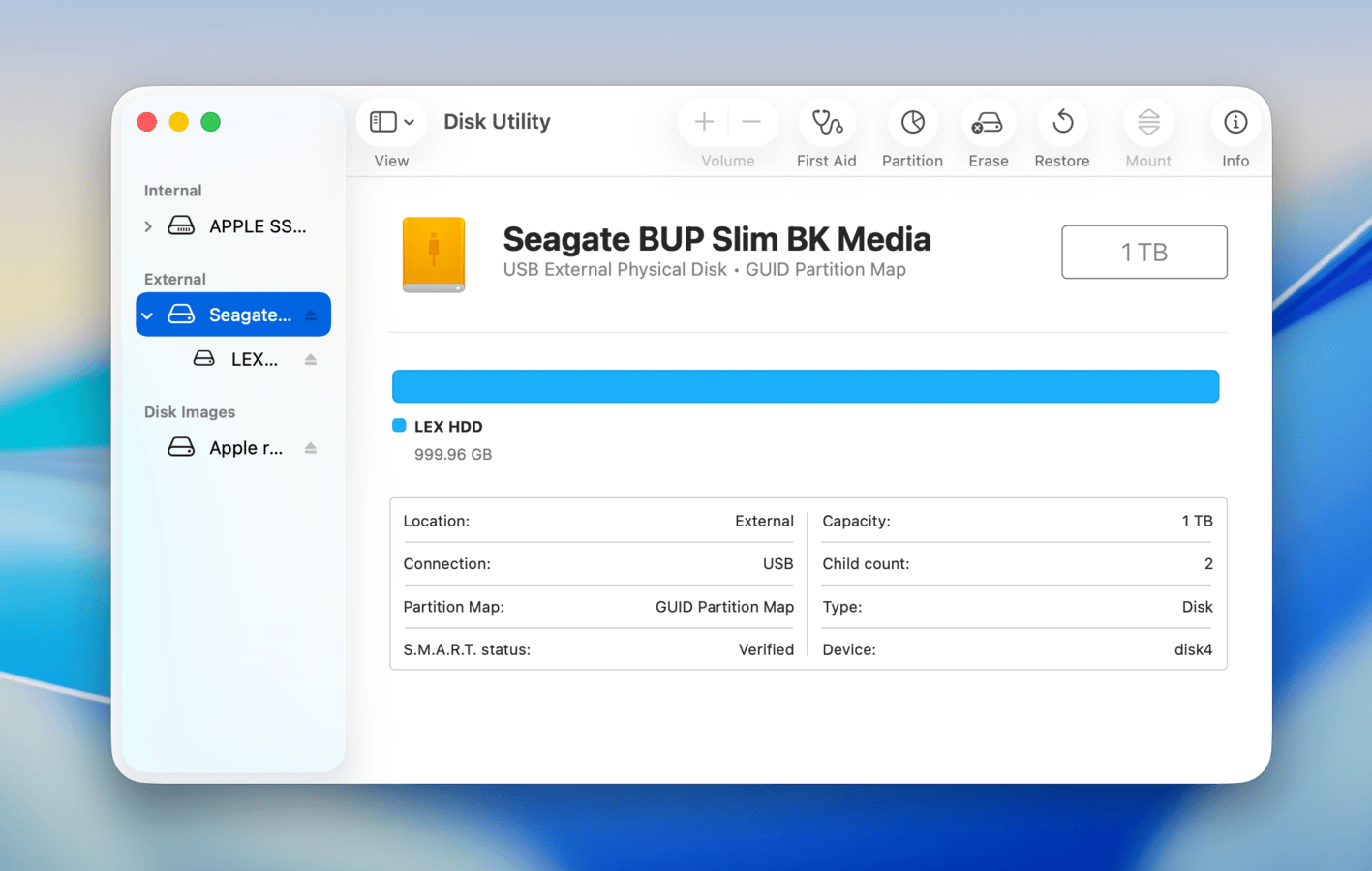
Mount your drive using Terminal Commands:
- Open the Terminal app (Finder > Applications > Utilities).
- Use the following command to list all the disks macOS can “see” and find out your drive’s identifier (ours is disk4):
diskutil list
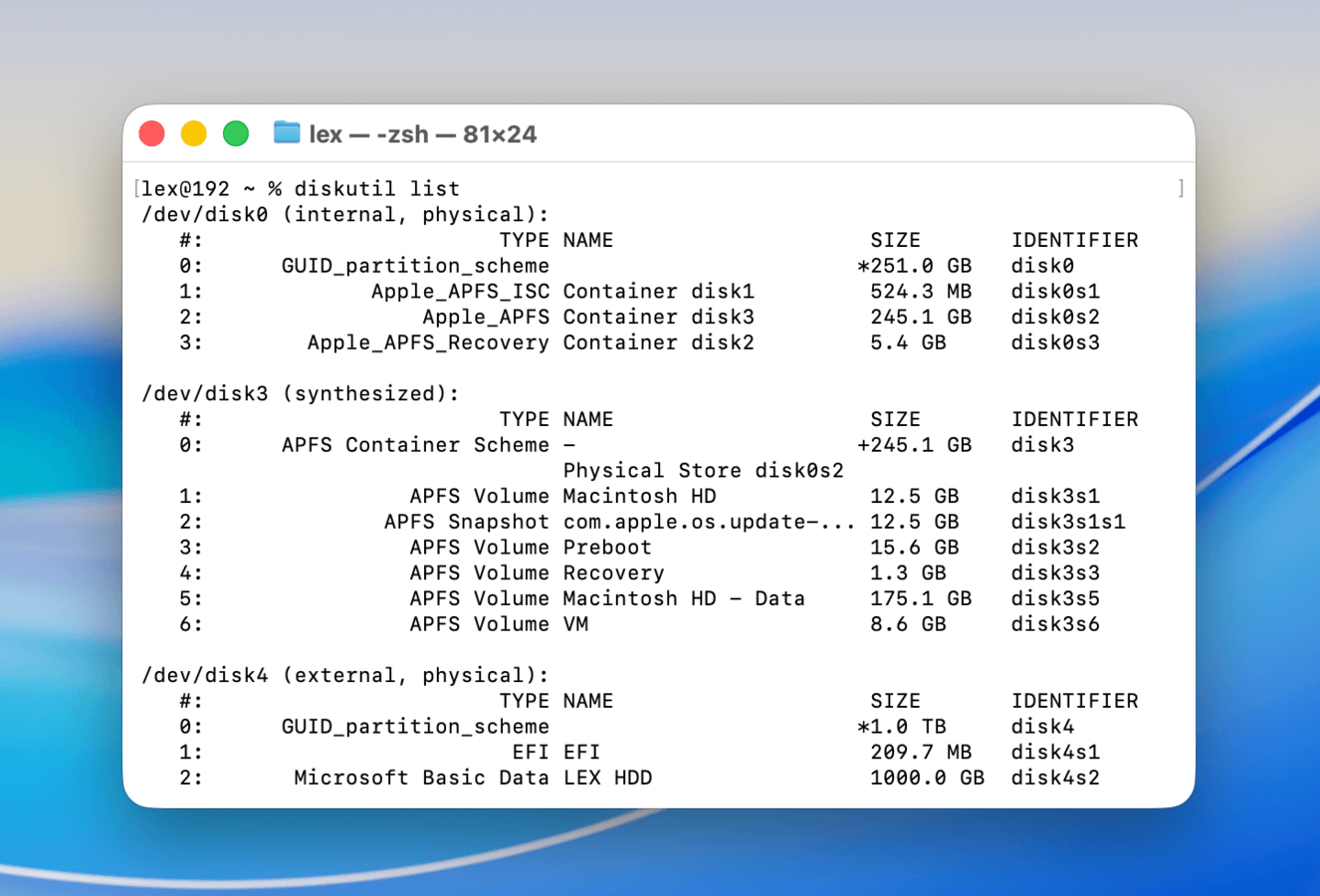
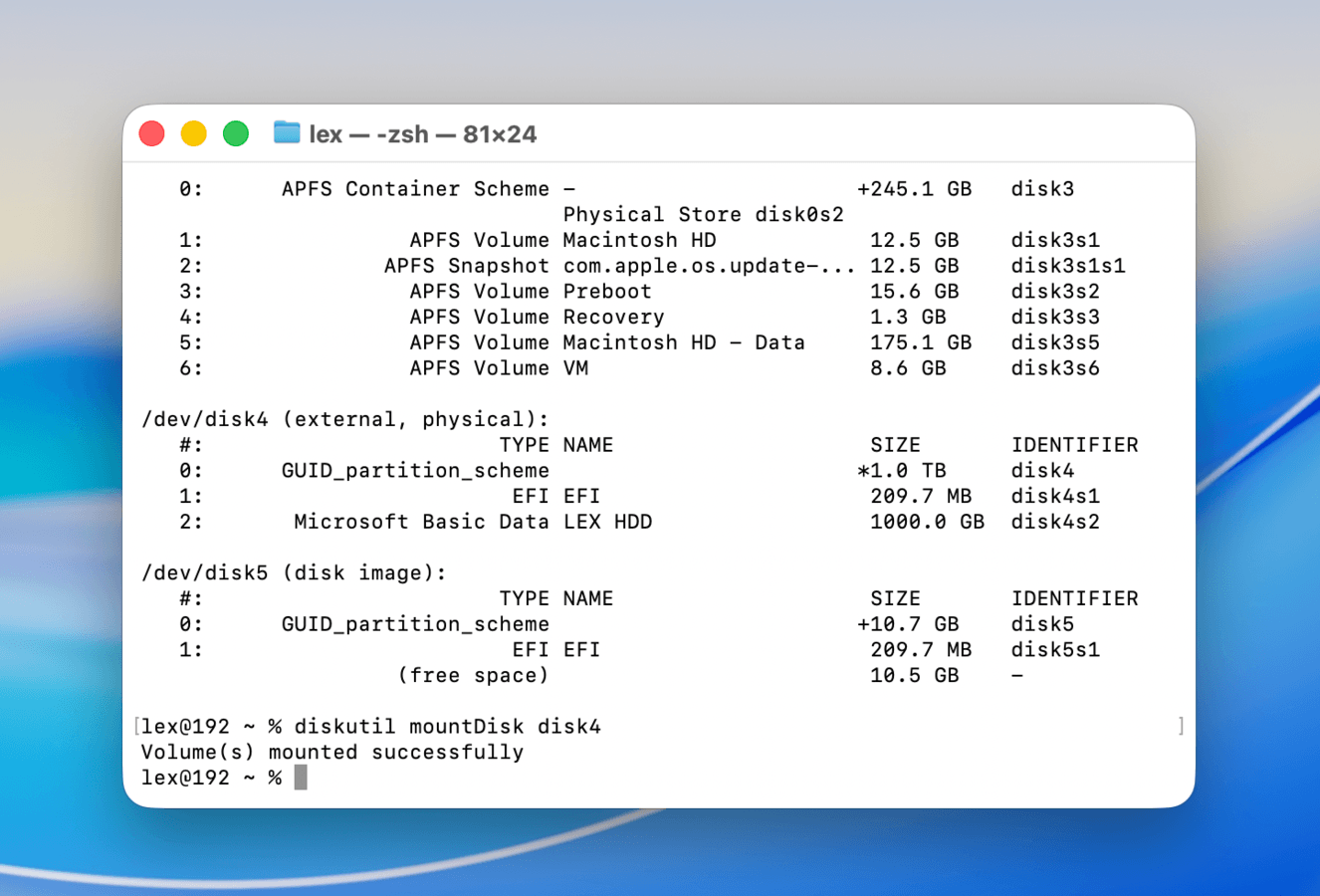
- Finally, mount your drive using the following command (replace /dev/disk4 with your own drive’s identifier):
diskutil mountDisk disk4
Method 3: Run First Aid
First Aid is a Disk Utility tool that can fix corrupted hard drives by repairing minor file system errors and soft corruption. While it can’t fix severe corruption or physical damage, it’s a simple and low-risk step worth trying before attempting harder repair methods.
- Open Disk Utility (Finder > Applications > Utilities).
- Click the View button and select Show All Devices.
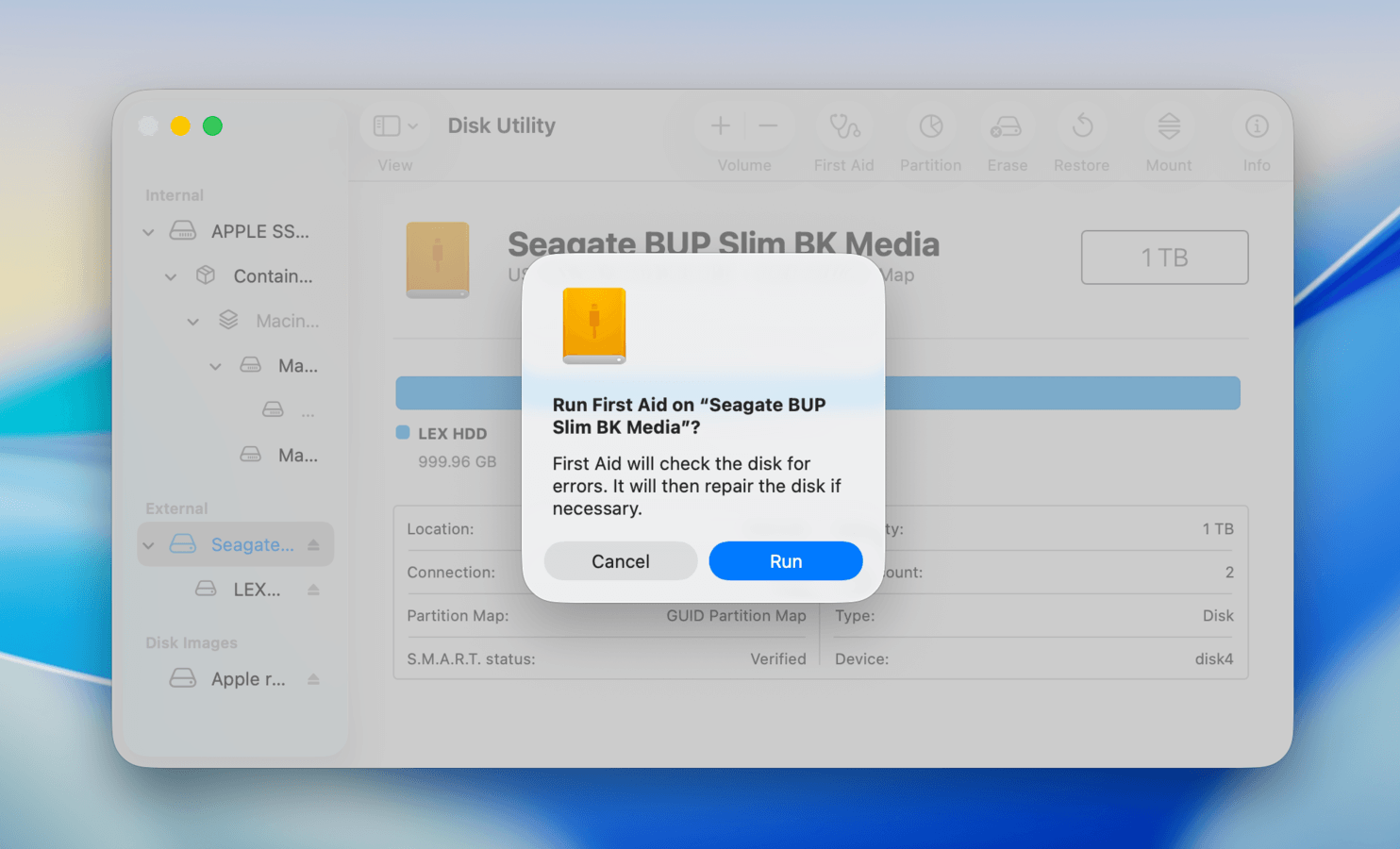
- On the left sidebar, select your external hard drive. Then, click First Aid on Disk Utility’s toolbar.
- In the pop-up dialog that appears, select Run to confirm the action.
Method 4: Format External Drive
Formatting your external hard drive rebuilds its file system from scratch, which removes any corruption and ensures its compatibility with your Mac. However, it also completely wipes out your data, which means that this method should be your last resort.
Note that this method won’t work if your drive doesn’t show up at all (which is why it comes last in this guide). If you can’t see your external drive anywhere on your Mac, start from Step 1.
- Open Disk Utility (Finder > Applications Utilities).
- Click the View button and select Show All Devices.
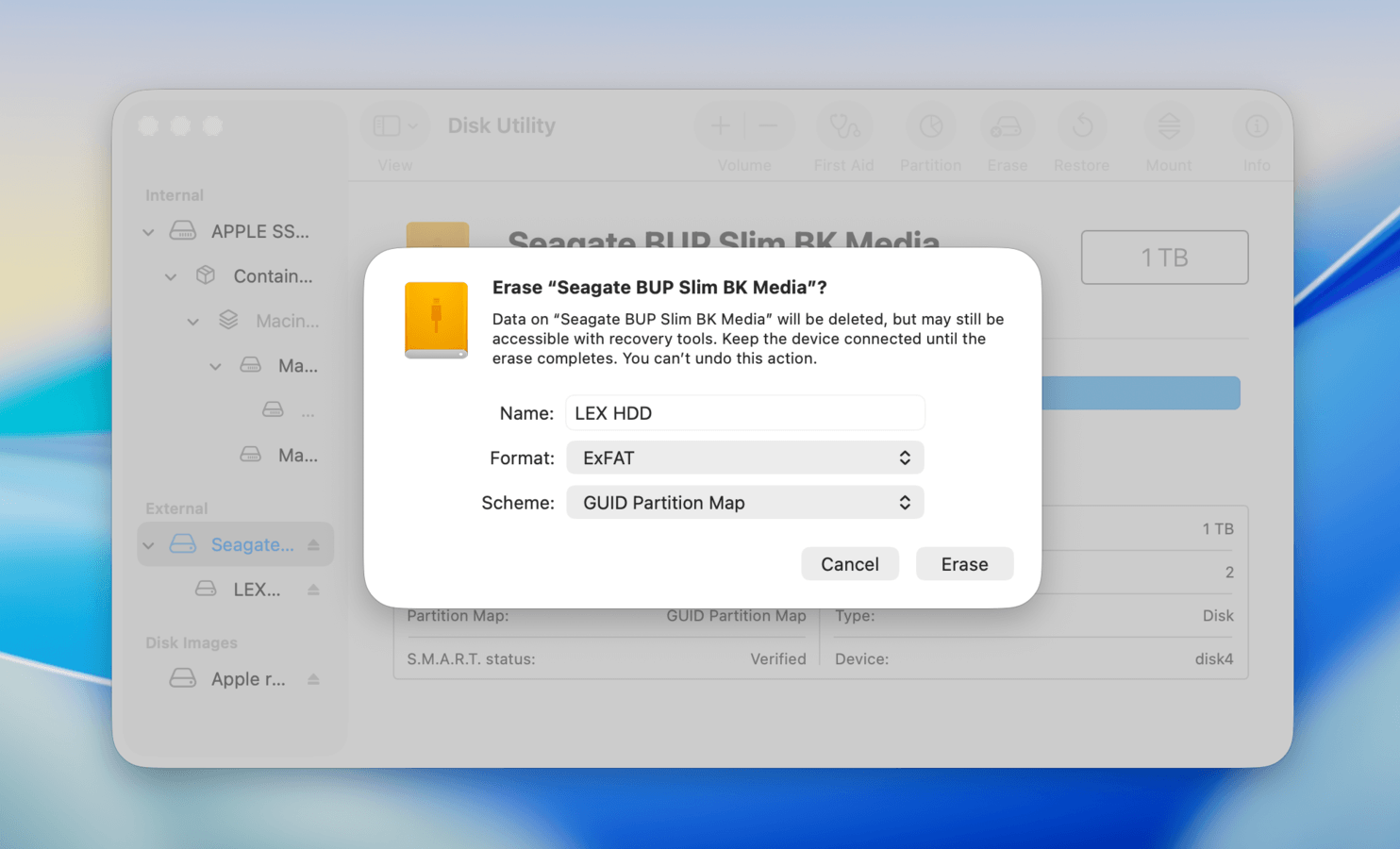
- On the left sidebar, select your external hard drive. Then, click Erase on the toolbar.
- In the pop-up dialog that appears, choose a Name for your drive. Then, select a Format and Scheme (we recommend ExFAT and GUID Partition Map, respectively). Finally, click the Erase button.
When It’s Time to Consider Data Recovery Services
In our team’s experience, most cases where an external hard drive is not showing up on a Mac can be resolved with the tools and troubleshooting steps we covered above. But there are still cases where you’re dealing with a basically dead or physically damaged drive; something no macOS utility or recovery software can fix.
Here are some strong signs that the problem may be beyond DIY recovery and it’s time to consider a professional data recovery service:
- The drive doesn’t show up anywhere, including Disk Utility and System Information, even after you’ve tried another cable, port, and computer.
- The drive makes clicking, grinding, beeping, or other unusual sounds.
- The drive doesn’t spin up or power on, despite using a known-good cable and power source.
- The drive was dropped, hit, exposed to water, otherwise physically damaged.
If any of these sound familiar and the files are important, it’s usually better to stop experimenting with the drive. It can make its condition worse. A professional data recovery lab has specialized hardware and clean-room equipment that can work with drives that normal software simply can’t access.
Conclusion
In summary, the key to successfully fixing a disappearing drive is correctly diagnosing the root cause and following the appropriate steps to eliminate it. The best starting point is finding where the drive is visible. If your drive only shows up in System Information, check your drive connection, restart your Mac, and make sure external devices are enabled in Finder’s settings.
If it shows up in Disk Utility, run First Aid or mount your drive manually (if it appears unmounted). As a last resort, consider formatting your drive. If it doesn’t show up at all, try using other ports on your computer or connecting your drive to another Mac to isolate the problem.
FAQ
If your drive appears only in System Information but not in Finder or Disk Utility, then its physical connection to your Mac works; it’s the software layer that is failing to mount it. Do these steps in order to troubleshoot your drive:
- Try mounting the disk manually using Terminal commands (diskutil mountDisk /dev/diskX), which can bypass potential UI errors with Disk Utility.
- Restart your Mac while your drive is connected. This still refreshes any stuck processes without having to non-safely eject the drive.
- Once your drive appears (at least in Disk Utility), use data recovery software ASAP to secure your files, in case the device fails again.
Mounting errors in Disk Utility can either mean file system errors or system lag. Follow these troubleshooting steps in order (until your drive works):
- If the files on your drive are important, use data recovery software (or reach out to a professional data recovery service) before attempting repair. Data loss can occur during the process.
- Restart your Mac while your drive is connected to it.
- Repair your drive using First Aid in Disk Utility or a third-party tool like DiskWarrior.
- Format your drive (causes 100% data loss).
If all of your external devices have gone missing after updating macOS, it’s usually a sign of a security permission mismatch, driver conflicts, or system errors. Here are several fixes you can try:
- Open System Settings > Privacy & Security. Then, scroll down to the Security section and click Accessories to change permission settings for external devices.
- Completely shut down your Mac. After 30 seconds, turn it back on.
- For Intel Macs, reset your SMC and NVRAM.
When only the volumes of your drive appear in Disk Utility, issues can range from simple UI settings to a lack of power being routed to the drive, or even minor or severe partition map corruption. Do the following steps in strict order to troubleshoot your drive:
- Use data recovery software or contact a professional data recovery service before proceeding with any fix.
- Ensure Show All Devices is enabled in Disk Utility (Disk Utility > click View > select Show All Devices).
- Connect your Mac to a power source and disconnect all other external devices except for your drive. If using a USB hub, connect your drive directly to your Mac’s port instead.
- Use the First Aid tool in Disk Utility on your drive, which can repair minor partition errors.
- If none of the above fixes work, format your drive.
