


We’ve all done it, and most of us will do it again at some point in the future. We’re talking, of course, about permanently deleting important files on Windows 10. Most commonly, this is through the use of the Shift + Delete shortcut, but it can also happen because the Recycle Bin is emptied, a file exceeds its storage limit, or the feature is disabled.
The good news is that not all hope is lost, and there are, in fact, many options for how to recover permanently deleted files on Windows 10. We’re going to share some of these data recovery methods with you in this article.
| Data Loss Scenarios | Recommended Solution |
| Accidentally deleted files in Windows 10 and they are in the Recycle Bin | Recover files from the Recycle Bin. |
| Deleted files using Shift + Delete shortcut or files deleted on Windows 10 without a backup | Use third-party software like Disk Drill ✅. |
| Files deleted and Recycle Bin emptied | Use data recovery software or restore the data using File History or Backup and Restore (Windows 7). |
| Files lost due to system crash or disk corruption | Use data recovery software or restore the data using File History or Backup and Restore (Windows 7). |
| Files missing, but backups are available | Restore files using File History or Backup and Restore (Windows 7). |
💡 Tip: To give yourself the best chance of recovering your deleted files, try not to use the drive where they were stored. Saving new data there might accidentally overwrite the deleted files. Also, it’s best to install any recovery software on a different physical drive, or at least another partition, if one is available.
Recover Permanently Deleted Files Using Data Recovery Software ✅
Using data recovery software is most often the best way to recover permanently deleted files because it’s quick, simple, and convenient. Based on page visitor data, we found that most readers who’ve ended up here have already emptied their Recycle Bin and/or don’t have backups, and so data recovery software is often the only realistic option in cases like accidental deletion.
To recover permanently deleted files in Windows 10, follow these steps:
- Download Disk Drill and install it as you would any other Windows 10 application. Be sure to install it on a separate physical disk to avoid overwriting your data. When installed, open it.
- Select the drive containing the permanently deleted files, then click the Search for lost data button. Disk Drill will automatically utilize all available scanning methods.
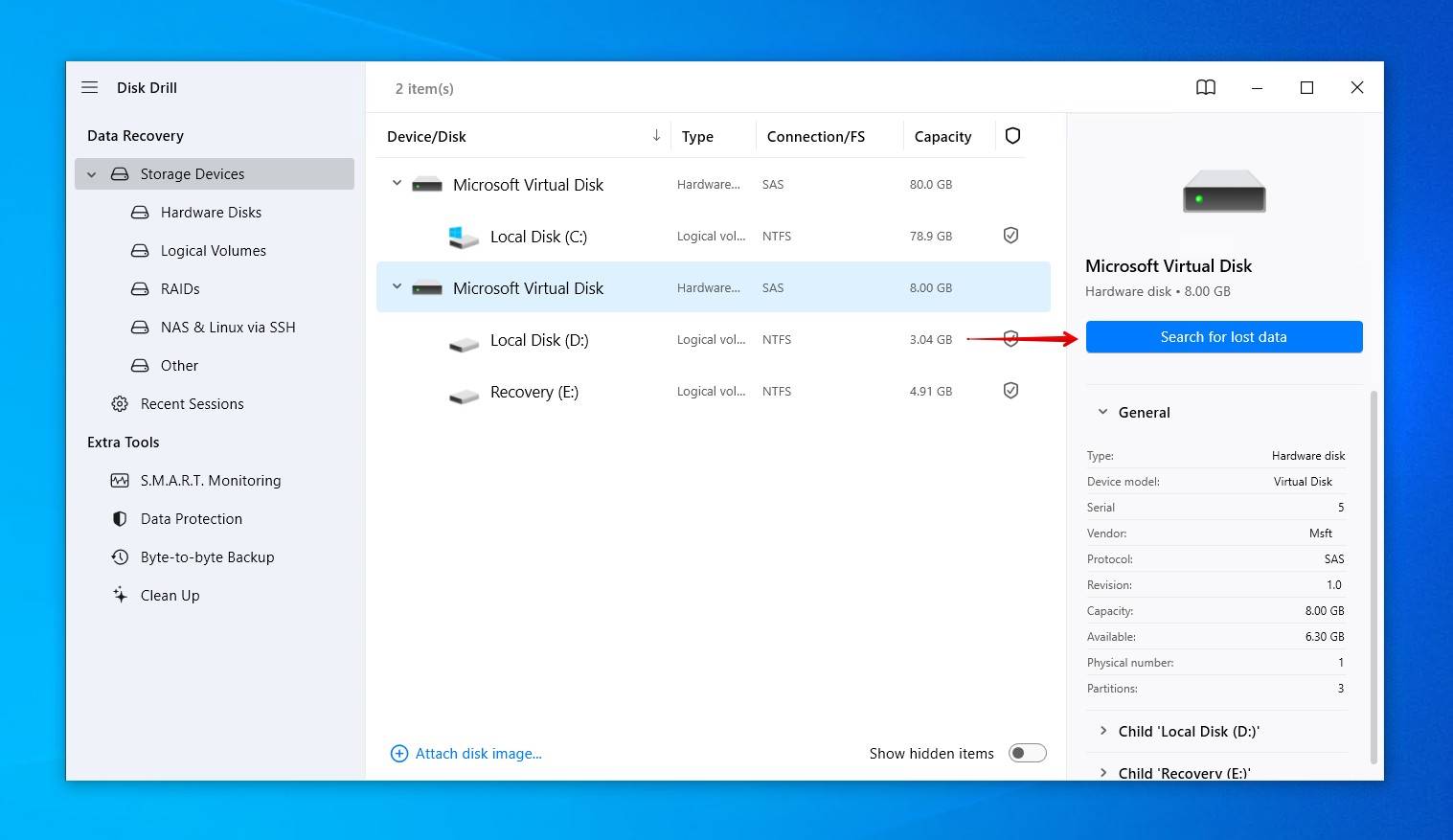 💬 If prompted to choose a scan type, click Universal Scan.
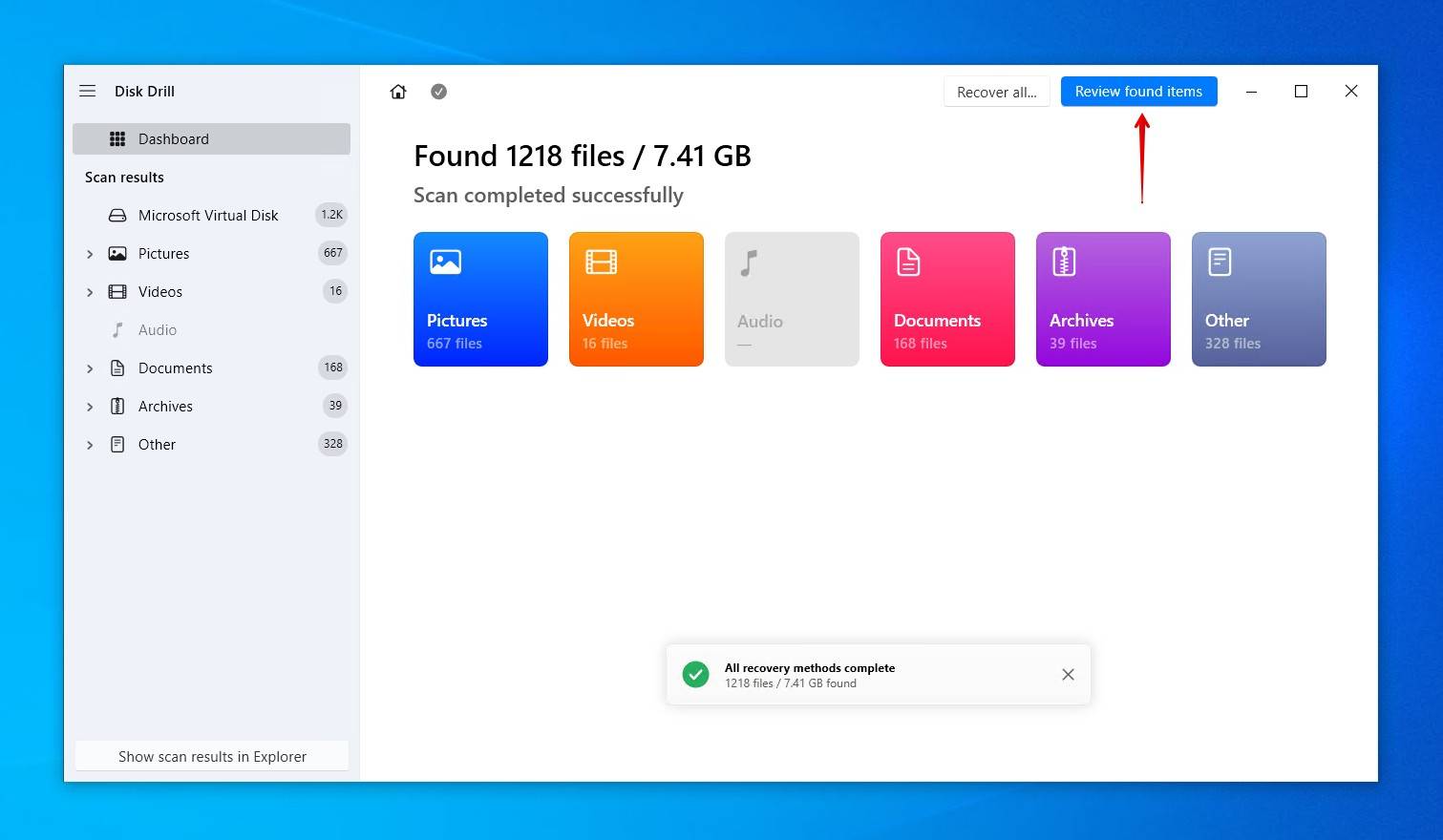
 - Click Review found items at any point during the scan to view what Disk Drill has found. Alternatively, you can click one of the colored file type icons to filter the results, or click Recover all to restore everything that was found.
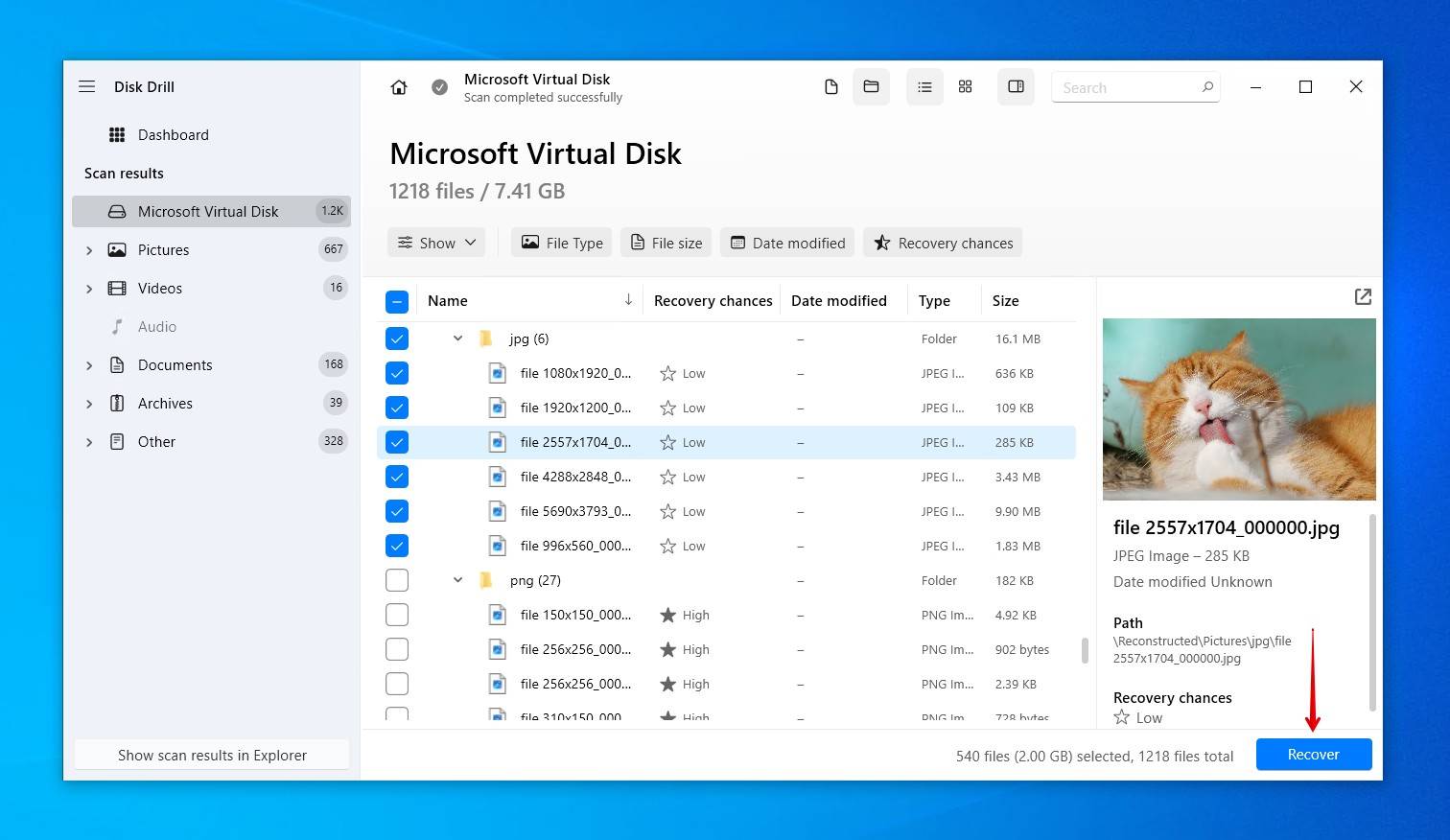
- Select which files you want to recover. It’s recommended that you preview the files you wish to recover to confirm they’re intact. If you’re facing a mountainous list of files, use the filter options above the recovery results screen to hide irrelevant files. When you’re ready, click Recover.
- Choose a recovery location on a separate physical drive. When you’re ready, click Next.

Disk Drill lets you recover up to 100 MB for free, which is enough for a series of photos or your most valuable documents. From there, if you need to recover more data, consider upgrading to the PRO version.
Still not sure if Disk Drill can help you? Here are some examples of why Disk Drill has proven to be an effective solution:
- It works great with NTFS disks. This is useful in instances where you’ve deleted something on Windows 10 and emptied the Recycle Bin, or if the deleted file bypasses the bin entirely.
- It recovers a wide range of files. Disk Drill doesn’t just recover common file types, but even file signatures used by third-party software for storing projects, assets, and archives.
- Scans drives blocked by error messages or requests to format. The storage device is scanned directly, bypassing any messages that would usually prevent you from accessing it through normal means.
- Supports external drives, RAID arrays, NAS devices, and Microsoft Storage Spaces. It provides broad coverage across a wide range of storage setups.
How to Recover Deleted Files from a Recycle Bin in Windows 10
As you may know, when you normally select a file in Windows 10 and hit Delete on your keyboard, the file moves to the Recycle Bin, where it sits until you manually empty the Recycle Bin (or it’s automatically emptied by Storage Sense, if enabled), giving you time to change your mind and easily rescue the deleted file.
Regular file deletion, in which the data is sent to the Recycle Bin, differs from permanent file deletion. Permanent deletion occurs if you delete a file using the Shift + Delete shortcut, or the file exceeds the file size limits imposed by the Recycle Bin. Recovering shift-deleted files and those bypassed due to size is done by means of software or through restoring from a backup. However, if you check your Recycle Bin and the file is there, it’s simply a means of retrieving it.
To recover deleted files from the Recycle Bin on Windows 10:
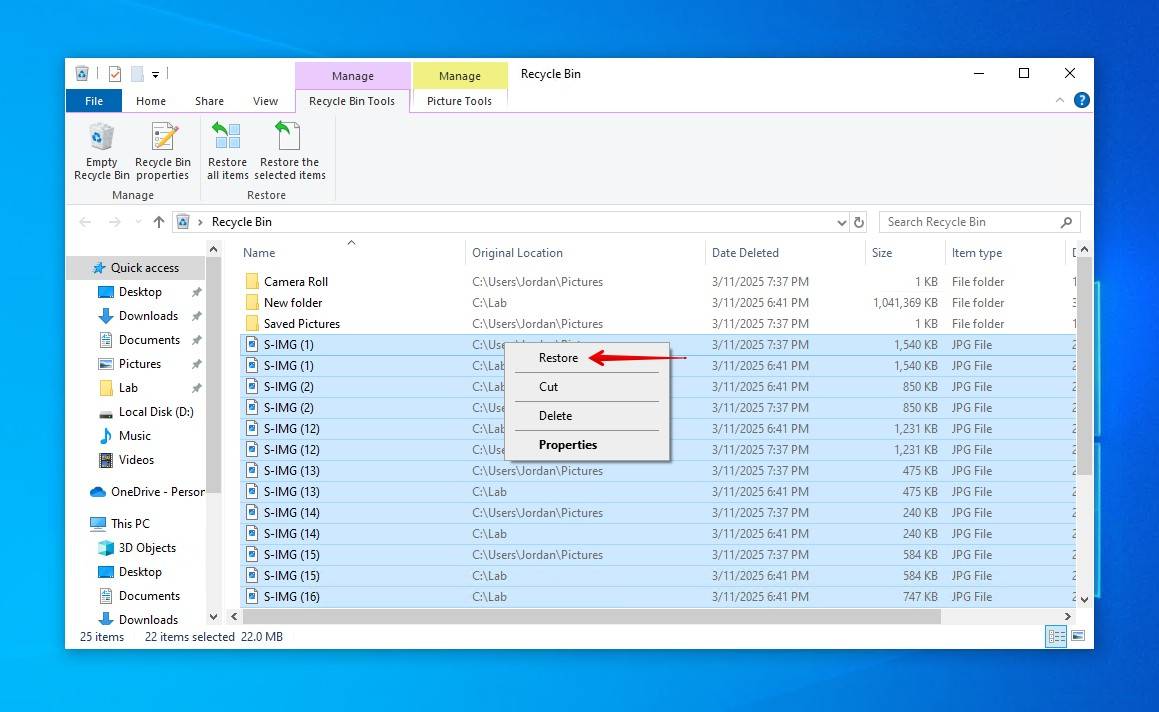
- Open the Recycle Bin, which is located on the Desktop.
- Check the box to the left of the filename you want to restore.
- Right-click on a selected file and choose ‘Restore’ to recover the file to its original location on Windows 10.
If you find that many of your files are automatically skipping the Recycle Bin due to their size, you can increase how much space is allocated to the Recycle Bin so that larger files (within the limit) will no longer skip it. To increase the allocated limit, right-click the Recycle Bin icon and click Properties. From there, you can specify a custom size (in MB), which determines how much data can be sent and stored there.
In any case, whenever you’re confronted with the need to recover permanently deleted files (i.e. deleted data that’s not in the Recycle Bin), just keep in mind that you need to act quickly and recover them before they get overwritten.
Recover Deleted Files Using Windows File Recovery Tool
Microsoft has released its own data recovery tool, called Windows File Recovery, which you can use to recover deleted files in Windows 10, even after emptying the Recycle Bin. It uses a command-line interface (CLI), so it’s not nearly as intuitive as Disk Drill and other graphical data recovery tools. Even so, it does have its use cases where it’s helpful, like when you need to recover recently deleted documents and photos of common file types that don’t require deep scanning.
<p>Here is the command we’ll be running:
winfr D: E:\Recovered /regular
- winfr – Invokes Windows File Recovery Tool.
- D: – The drive letter of the partition that is being scanned. Replace this with your own.
- E:\Recovered – Where the recovered data will be stored. Replace this with your own.
- /regular – Performs a regular scan, the standard option for NTFS drives. Can be replaced with /extensive for a more thorough search.
You can find more information about the available recovery modes and switches on the official support page.
Here’s an example of how the latest version of the Windows File Recovery tool can be used to recover permanently deleted files:
- Right-click Start and click Windows PowerShell (Admin).
- Type the following command, then press Enter.
winfr D: E:\Recovered /regular
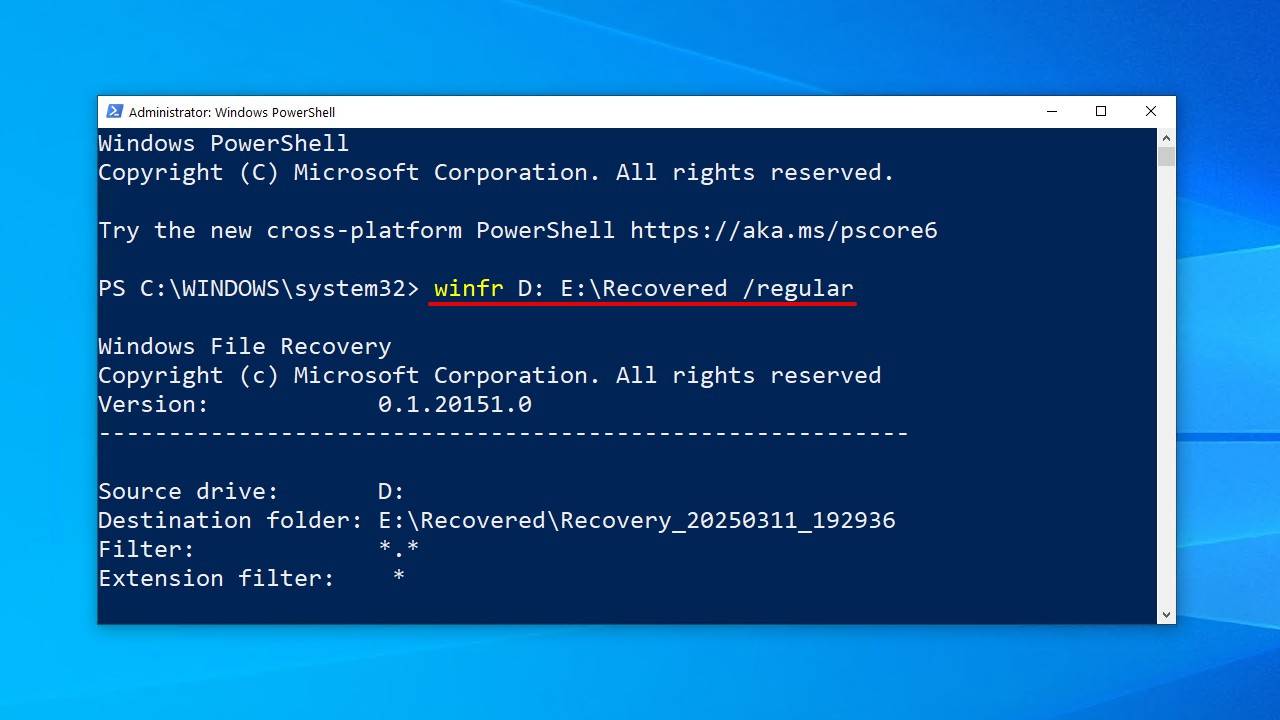
- Press Y to start the recovery.
Windows File Recovery won’t let you recover files to the same partition they’re coming from, but it’s a good idea to be extra safe and restore the files to a separate physical disk.
Recover Deleted Files in Windows 10 Without Third-Party Software
Using software to recover deleted files is still the most effective option in the absence of a backup. However, there are other recovery options that don’t require software and may be preferable in specific, less common situations. These include cases where data is inaccessible due to a corrupted file system or where backups exist but may not be immediately apparent. For example, when working with an SSD, restoring from a backup may be the only viable option due to TRIM permanently erasing deleted data.
Recover Permanently Deleted Files Using CMD
Files disappearing isn’t an immediate sign that they’ve been permanently deleted. In many cases, the data may still physically reside on the drive. For instance, file system errors can cause the data to become inaccessible, or files can be hidden by a bug or malware and prevent them from showing like normal. The first option we’ll cover involves using CMD to (1) fix any file system issues that have caused the files to become temporarily lost, and (2) unhide any data that may have been hidden unintentionally.
This is how you can restore access to lost data using CMD:
- Right-click Start and click Windows PowerShell (Admin).
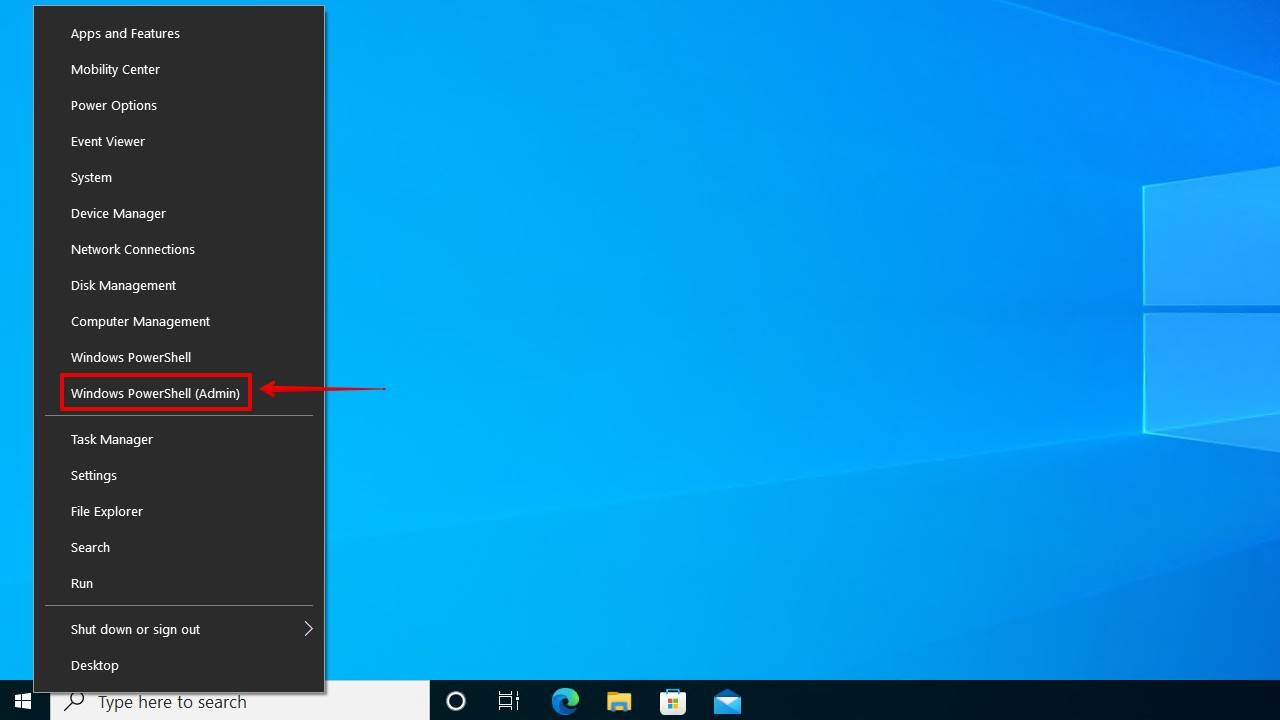
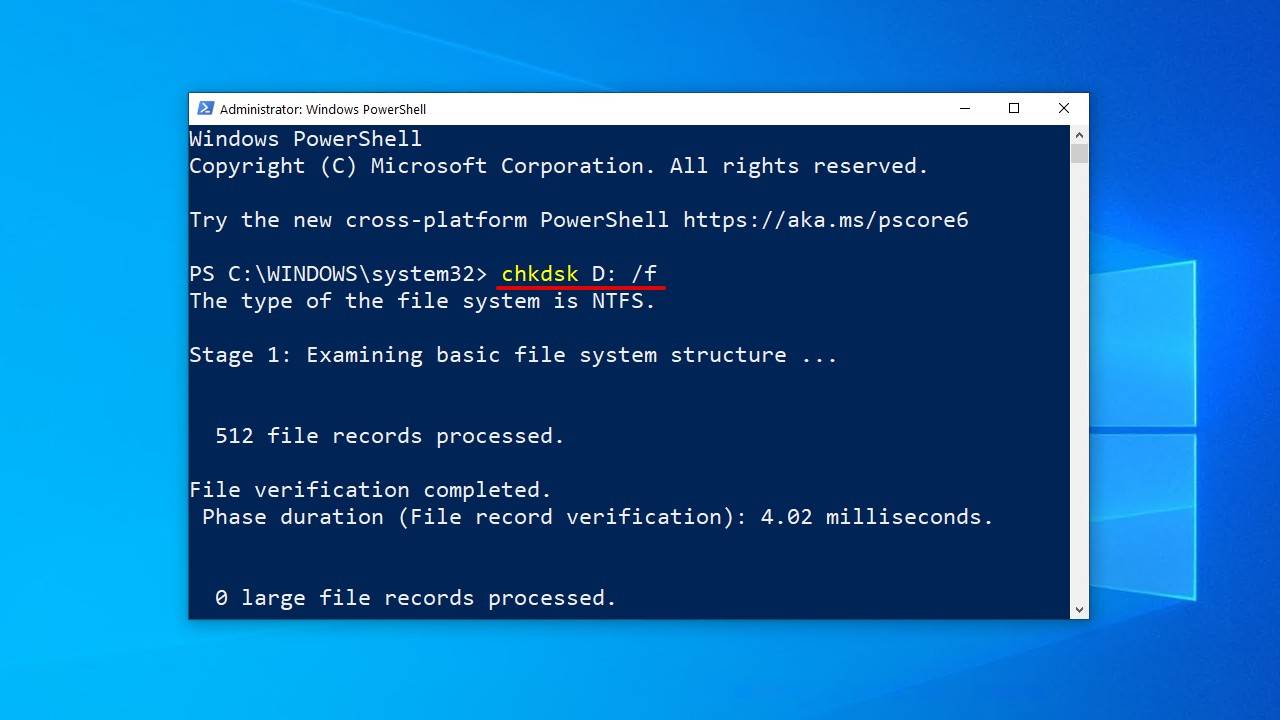
- Type chkdsk X: /f and hit Enter on your keyboard. Replace X with the letter of your hard drive.
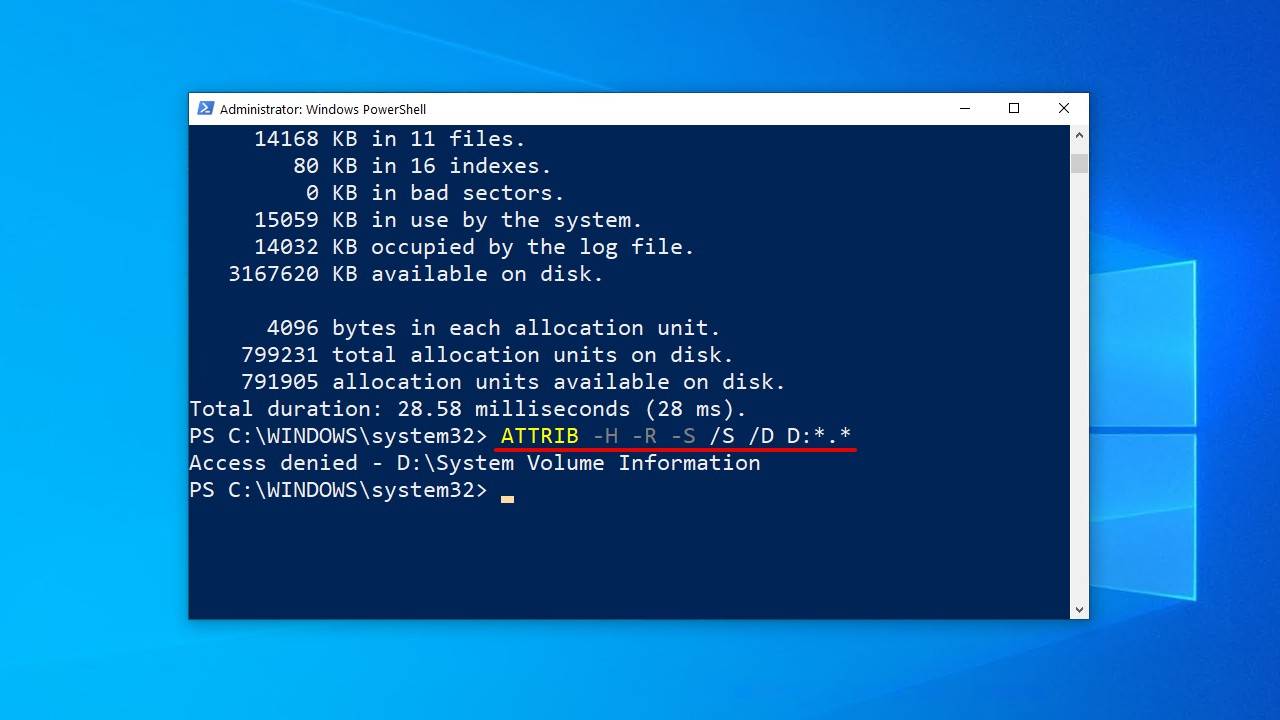
- Type ATTRIB -H -R -S /S /D X:*.* and hit Enter. Again, replace X with the letter of your hard drive.
Once the scan has started, CHKDSK can take some time to finish. You should avoid interrupting the process, as this can cause further damage to your file system.
Recover Permanently Deleted Files from an Older Backup
Windows Vista introduced a new data recovery component called Backup and Restore, which allowed users to create backups that can be used to restore files from. It also included the ability to create a backup of your system files, allowing for quick recovery in the event of a system crash.
- Open the Start menu.
- Type “Backup” and hit Enter on your keyboard.
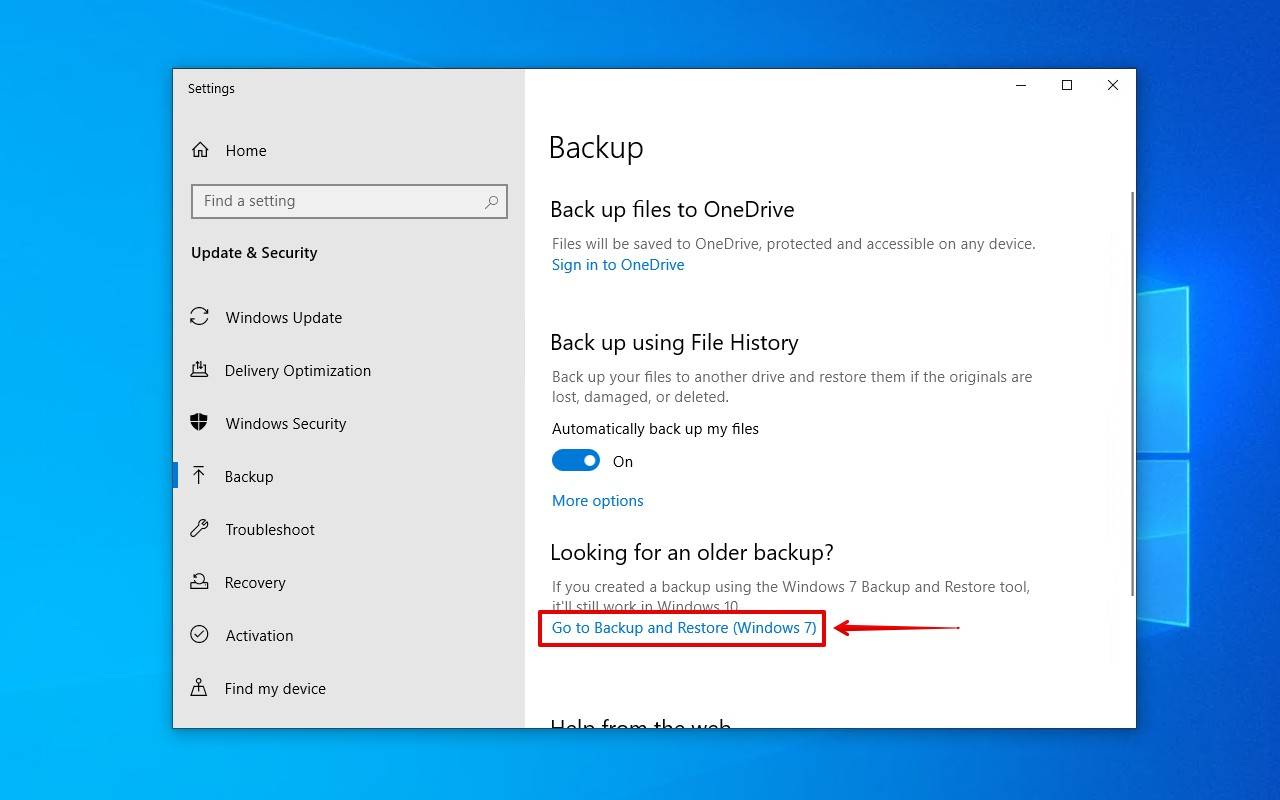
- Select the Go to Backup and Restore (Windows 7) option under Looking for an older backup?.
- Click Restore my files.
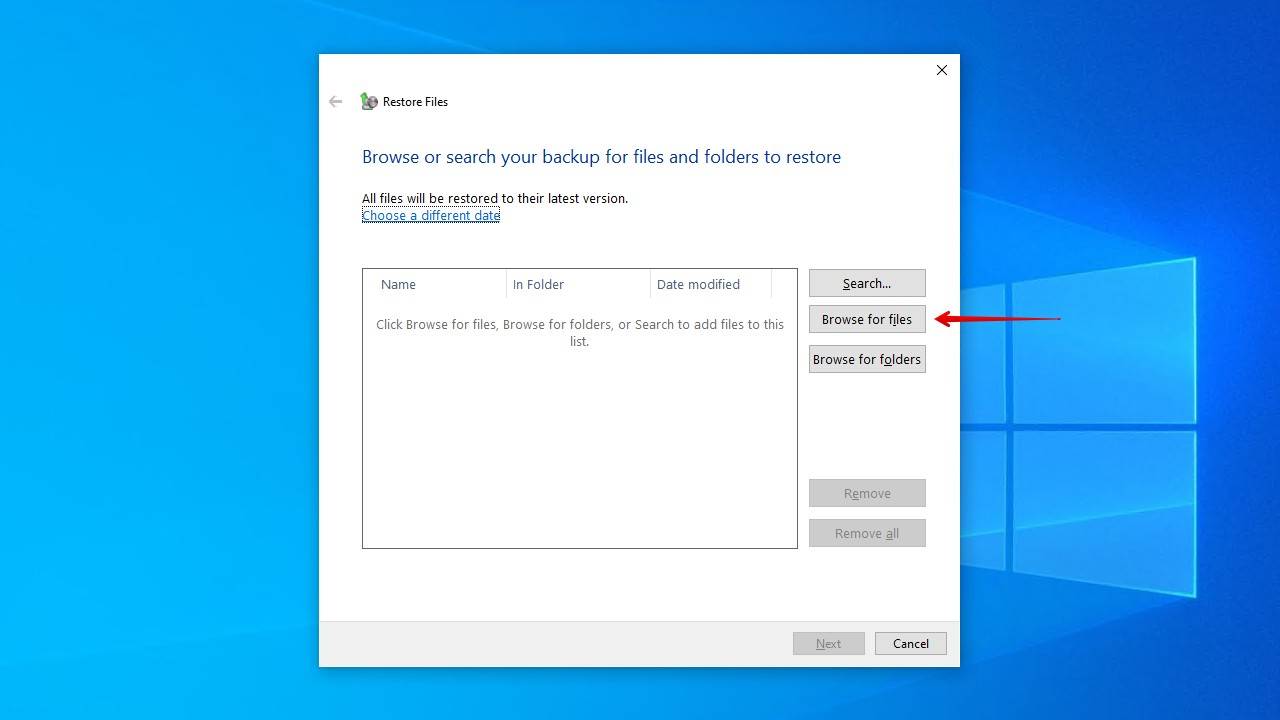
- Click Browse for files and select the permanently deleted files you want to restore.
- Click Next.
- Choose where you want to restore the files, then click Restore.

Restore Permanently Deleted Files in Windows 10 for Free from a File History Backup
File History is the primary backup utility in Windows 10. It differs from Backup and Restore in that not only does it store a copy of your data but also several versions of each file. This allows you to restore a specific version of a file in case one of them has been mistakenly overwritten with unwanted changes. In addition to being able to restore overwritten files, it’s perfect for when working with SSDs, as data recovery software is often rendered null when faced with TRIM.
To recover deleted files on Windows 10 for free:
- Open the Start menu.
- Type “Restore files” and hit Enter on your keyboard.
- Locate and select the permanently deleted files.
- Select the Restore button in the middle to undelete Windows 10 files to their original location.
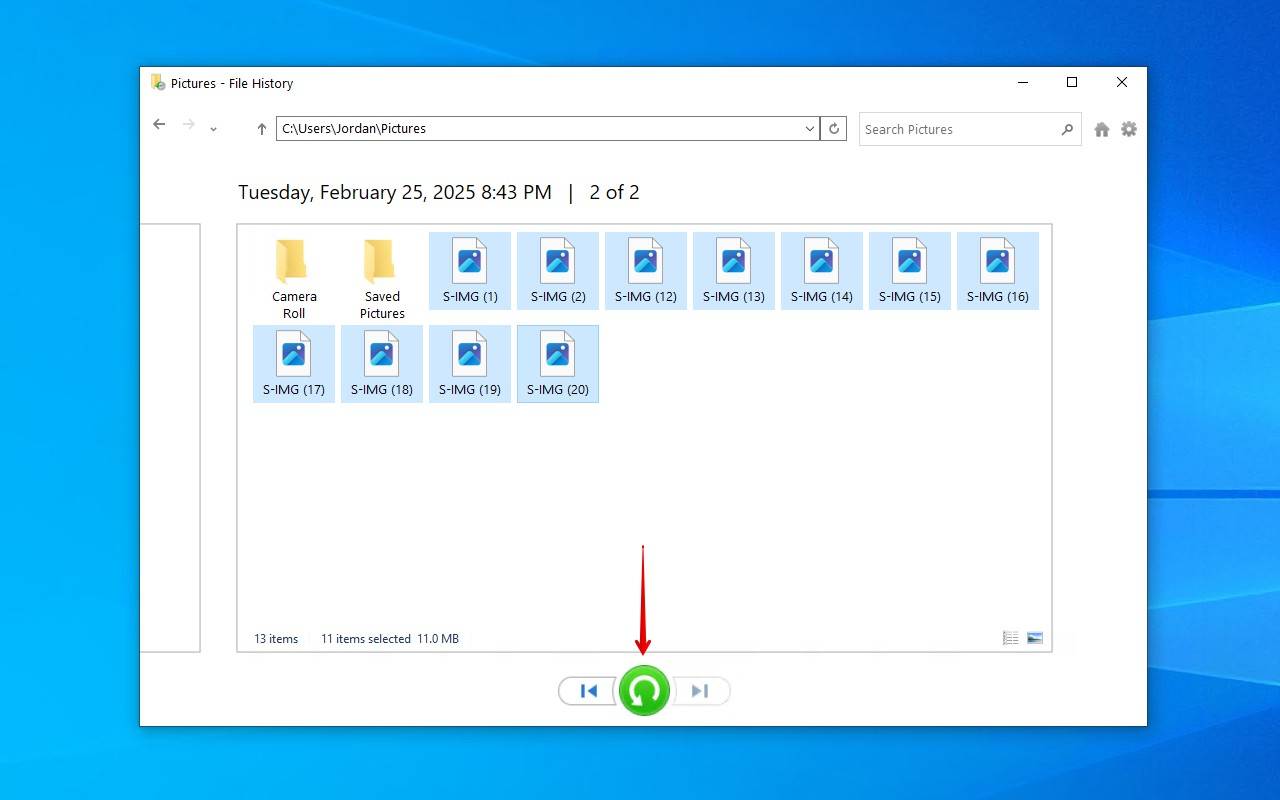
If you cannot see any folders, that’s probably because File History is turned off. In that case, you should see an option to turn it on. It’s important to mention that File History doesn’t back up every file by default. Instead, it only backs up your default libraries. For other folders and files, you must manually add them under Backup options.
Use the Restore Previous Versions Feature
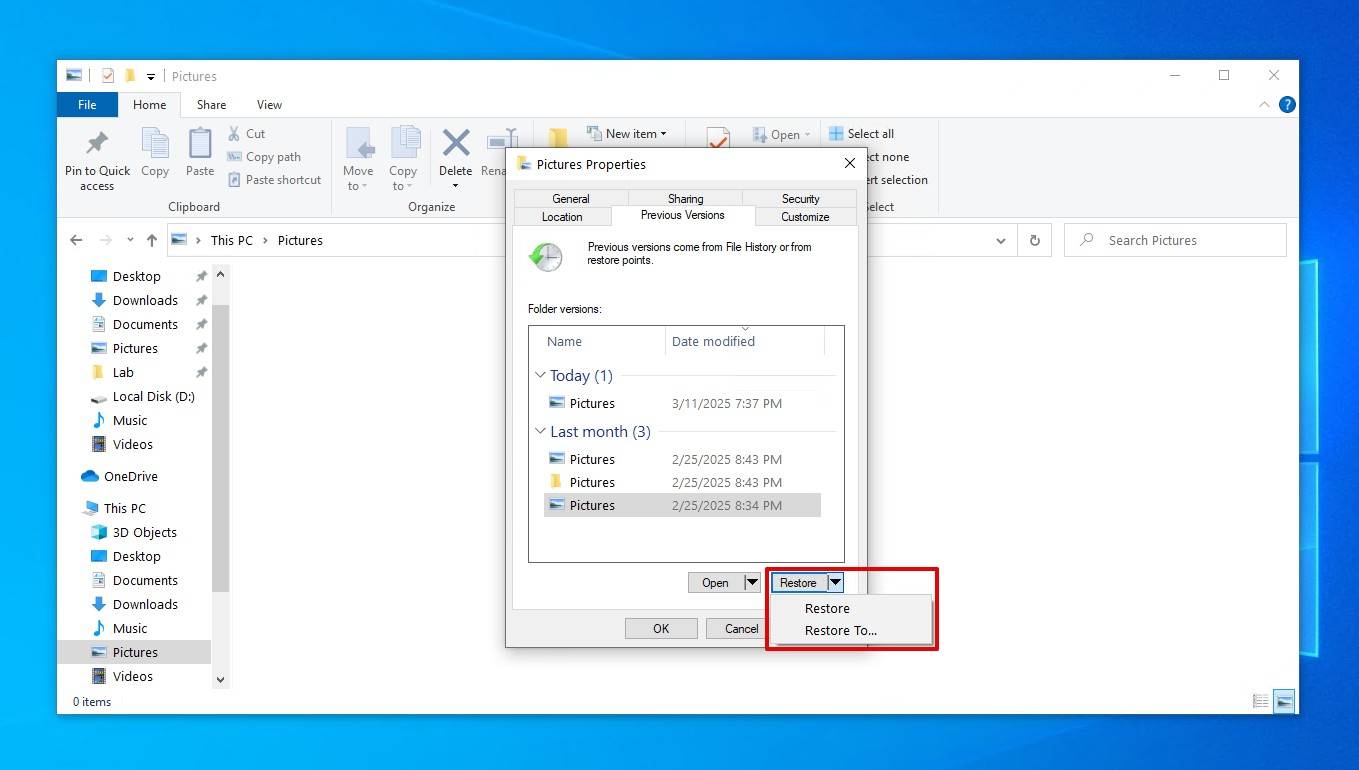
File History gives you another way of restoring files directly from the location they were last stored, provided a backup was run before they were lost. This is through the use of the Previous Versions function that File History uses, which allows you to restore a folder to a previous point in time when it contained the data that was lost.
Here’s how to recover deleted files in Windows 10 that are not in the Recycle Bin using the ‘Previous Versions’ method:
- Navigate to the folder that contained the files before they were deleted.
- Right-click an empty space in the folder, then click Properties.
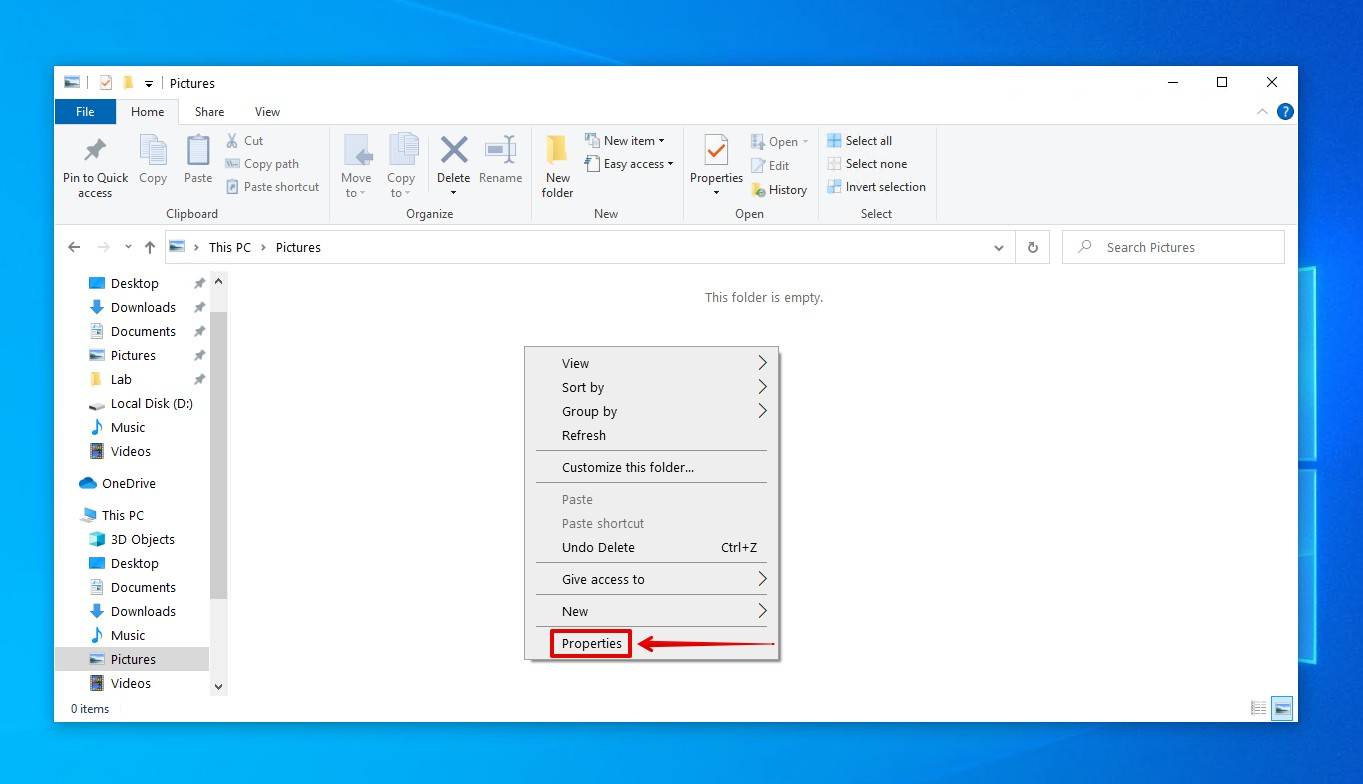
- Click Previous versions.

- Select the version you’d like to restore, then click Restore. Alternatively, you can choose Restore To to restore the files somewhere else.
How to Recover Permanently Deleted Files from OneDrive
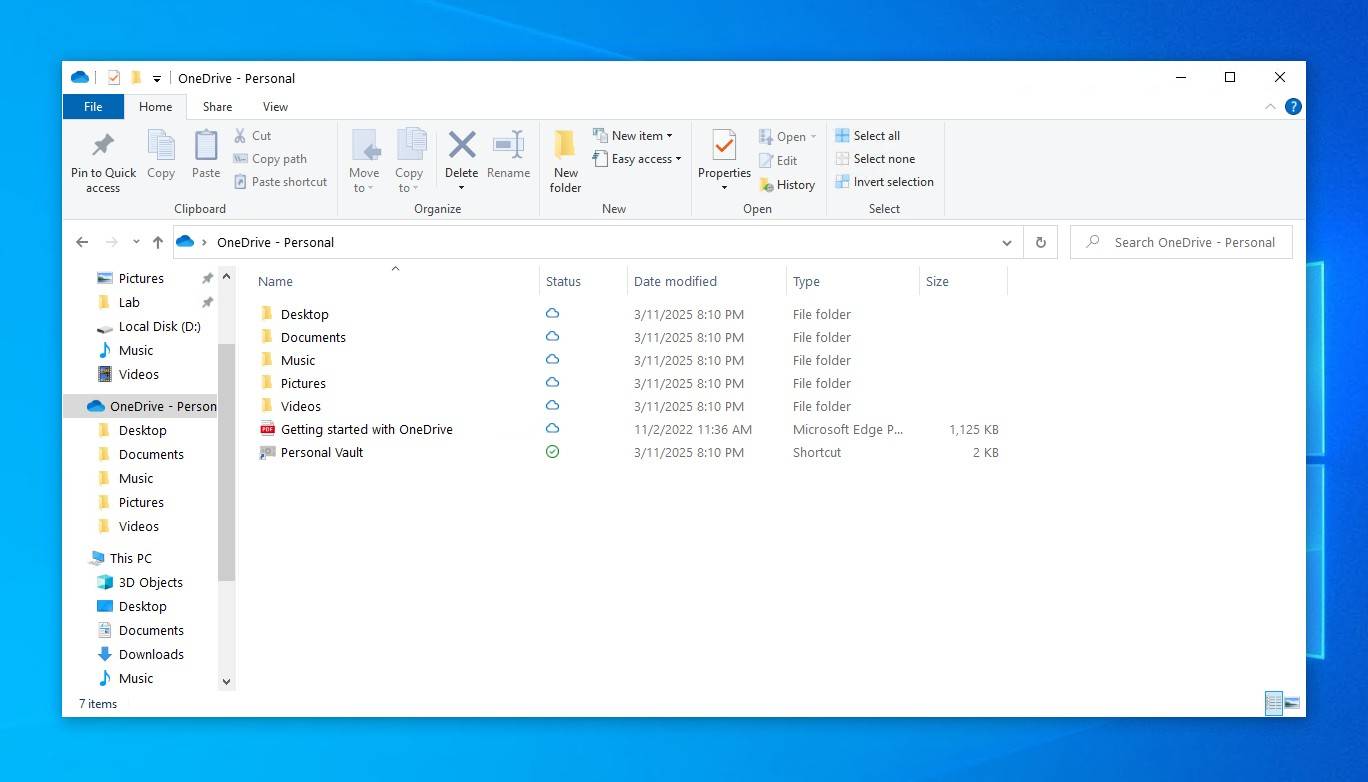
Windows has its own cloud storage service, OneDrive. OneDrive comes preinstalled with Windows 10, and you’ve probably seen it once or twice. As part of the Windows setup process, OneDrive is suggested to be enabled. If you choose to enable it, OneDrive will automatically back up all files in your Desktop, Documents, Pictures, Music, and Video folders by default.
You should check your OneDrive folder to see if a copy of your data is stored there. On your computer, a OneDrive option is located in the left pane of File Explorer. Otherwise, you can access your OneDrive through a browser by logging in at onedrive.live.com/login. Keep in mind the recycle bin used by OneDrive (and other cloud services) is independent of the Windows Recycle Bin, and so you should check your particular cloud service’s bin via the web interface.
Why Windows 10 Data Recovery Still Matters in 2026
Data loss on Windows 10 is still a very common issue, and will probably remain so for a long time. However, data shows that more and more users are gradually making the move to Windows 11. Google Ads data shows a noticeable decline in queries like “recover deleted files windows 10” throughout 2025. For example, the term averaged around 4,400 monthly desktop searches worldwide in January 2025, dropping to approximately 1,600 by December 2025. In 2024, the same query was significantly higher, reaching 8,100 in January and 5,400 in December.
This drop in search volume is unlikely to be an uptick in users backing up their data. Rather, it closely mirrors the steady decline in Windows 10’s overall market share. Our internal statistics also confirm that Windows 11 has now overtaken Windows 10, with roughly 25% more of our readers running Windows 11 than Windows 10. In the second half of 2025, even global search interest in recovery-related questions for Windows 11 surpassed Windows 10.
Despite this, Windows 10 is still installed on millions of active devices worldwide. And, many businesses, schools, and home users will continue to rely on it, whether to support legacy systems or simply out of familiarity and convenience. As long as Windows 10 remains in use, knowing how to recover files from it will continue to be relevant.
Conclusion
As you can see, even when files are “permanently deleted” in Windows 10, there’s still a very real possibility that they can be recovered. As long as you know what to do and act quickly enough, data recovery software can be a saving grace in a data loss scenario like this.
Going forward, the best thing you can do is set up a backup schedule. As useful as data recovery software is, it’s not a replacement for a proper backup. Many experts recommend investing in a few extra drives and following the 3-2-1 backup rule, which includes keeping 3 copies of your data across 2 storage mediums, keeping 1 of them off-site.


FAQ
You won’t find a recovery tool preinstalled that can recover lost files on Windows 10 if they weren’t backed up already. However, if you happened to enable File History or Backup and Restore, you can restore a copy of the deleted data from one of these backups. Alternatively, Microsoft has Windows File Recovery which is available from the Microsoft Store. See our Windows File Recovery review for more in-depth info.
You can recover deleted files in Windows 10 without software using built-in tools and backups. If the files disappeared but weren’t truly deleted, you can use CHKDSK through CMD to fix file system errors that may have rendered them inaccessible, and unhide hidden files using the ATTRIB command. If the files were indeed deleted, you can restore a copy from existing Backup and Restore or File History backups. It’s best to also check out cloud services, like OneDrive, that may have backed up the data before it was lost.
Yes, there are several free data recovery software solutions for Windows 10 that you can download for free, many of which made it onto our list of the best data recovery software:
- Disk Drill (user-friendly UI, great performance)
- TestDisk (command-line interface, average performance)
- Windows File Recovery (command-line interface, average performance)
- PhotoRec (command-line interface, average performance)
- Recuva (graphical user interface, low performance)
That depends on two things: your luck and whether you’re backing up your data. If you’re lucky, the deleted file is still present on your hard drive, which means that you can recover it with data recovery software. Of course, backups, such as those created with File History, can be used to recover any file regardless of how long it has been deleted.
When you either empty the Recycle Bin with deleted files or use the Shift + Delete shortcut to delete files, Windows marks the files as deleted and removes all pointers to them, which is why such files become invisible for the user.
Moreover, the space that was used by the deleted files becomes marked as free space. So technically, the deleted files will still be physically present on your computer until Windows overwrites them with new data, giving you the opportunity to recover files from Recycle Bin after it has been emptied.
Without a backup, the only way to recover permanently deleted files in Windows 10 is through the use of data recovery software. Such software will scan your drive for the deleted data and give you the chance to recover it if it hasn’t been overwritten.
