


If your iPhone storage is still full after deleting photos (maybe you deleted a few hundred photos and found the storage bar exactly where it was before), you’re not imagining things, and your phone isn’t broken. In almost every case, the photos weren’t fully removed, or something else is quietly eating the space you cleared. I’ve experienced and successfully fixed this problem on more iPhones than I can count. Below, I’ll share what I’ve learned from fixing them, starting with the mistake almost everyone makes.
Why Didn’t iPhone Storage Go Down After Deleting Photos?
There are two likely explanations, and both have everything to do with how the photo deletion process works on iOS:
- The most important fact you need to know is that iOS doesn’t erase photos the moment you delete them. Instead, it moves them to the Recently Deleted album, where they sit for up to 30 days in case you change your mind. So if you’re wondering, do recently deleted photos take up storage on iPhone, the answer is yes. They occupy exactly as much space as they did before you deleted them.
- Second, you may have deleted photos but iPhone storage is still full because the batch you removed was smaller than it felt. A hundred photos sounds like a lot, but it often adds up to less than a gigabyte.
The two steps below address both of the above-described causes of your iPhone storage not going down after deleting photos. But if you’ve already emptied Recently Deleted and cleared out a serious chunk of your library, skip straight to the fixes, where I cover the less obvious causes.
Step 1: Complete the Deletion by Emptying the Recently Deleted
Emptying the Recently Deleted album is what actually frees the space, since recently deleted photos take up storage on your iPhone until you do. Here are the steps you need to complete on your device:
- Open the Photos app and tap Collections at the bottom of the screen.
- Scroll down to the Utilities section and tap Recently Deleted.
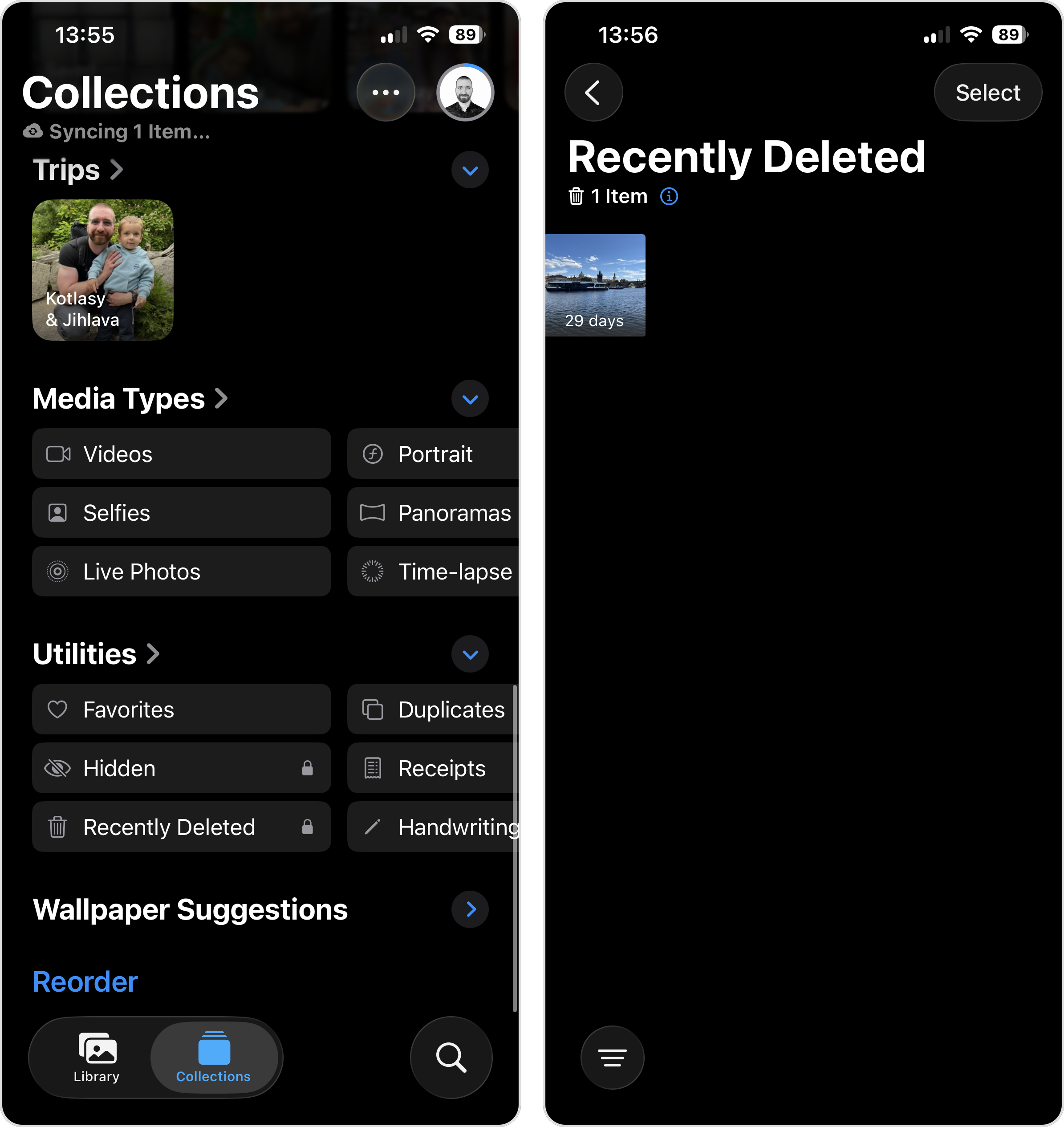
- Confirm with Face ID or your passcode to open the album.
- Tap Select in the top right corner.
- Tap the three-dot menu, then tap Delete.
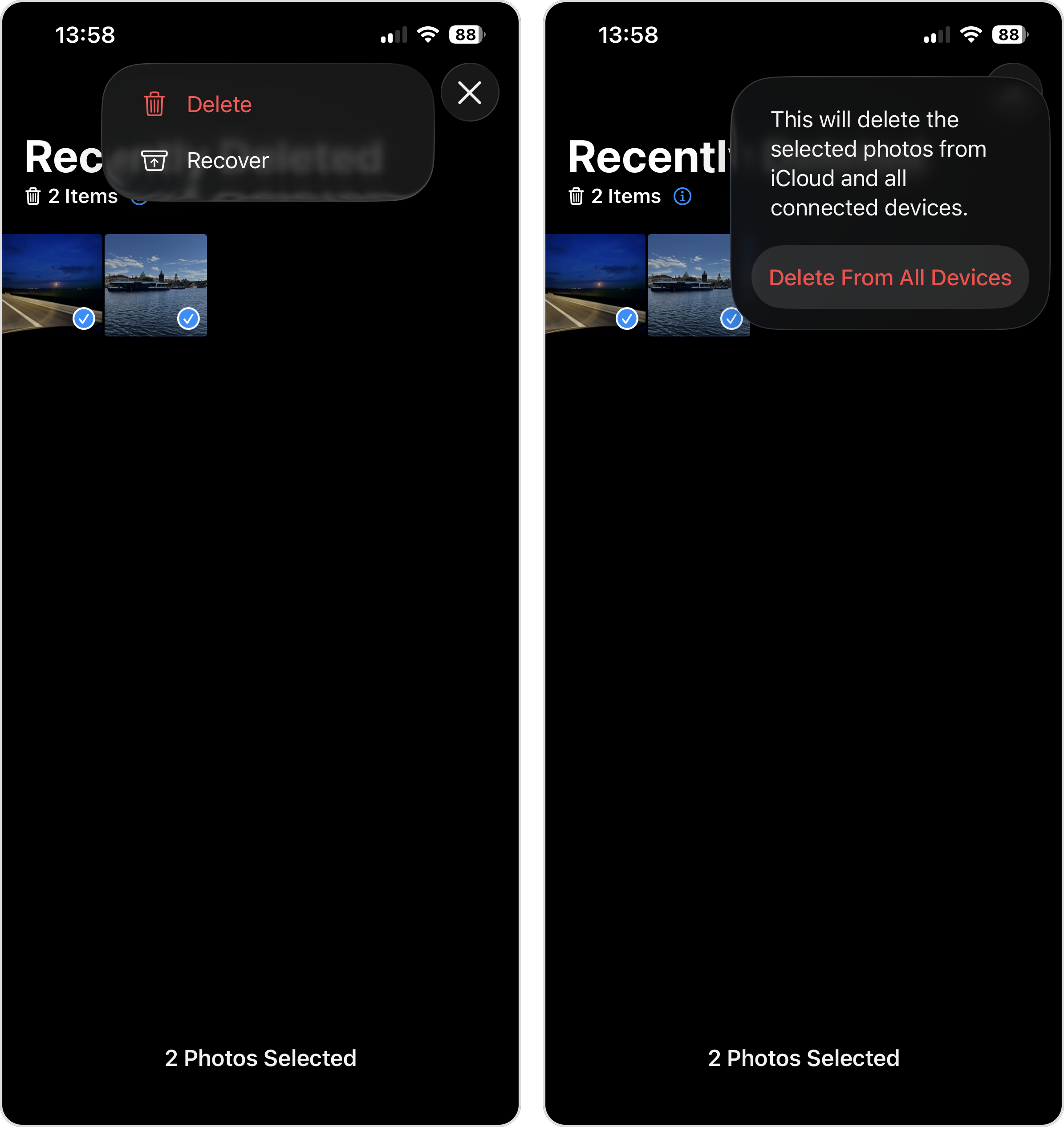
- Confirm by tapping Delete From All Devices.
The final confirmation may say Delete from This iPhone instead. The wording depends on whether iCloud Photos is turned on. Either way, once you confirm, the space those files occupied is released. Give iOS a few minutes to catch up before you check the numbers.
Step 2: Delete More Photos
Let’s say your goal is to free up 10 GB of storage space. On average, you need to delete approximately 4,000 to 5,000 photos because a 12 MP HEIC photo from a modern iPhone is about 2 MB, so a few hundred deletions barely register against a library that size.
If you have a lot of free time, then you can keep picking off photos by hand, and you’ll get there eventually. But a cleaner app can get you there MUCH faster, and it’s what I reach for when iPhone photos storage is not going down fast enough with manual cleanup.
The one I recommend is Clever Cleaner: AI CleanUp App. It’s free to use, shows no ads, and works without a subscription. The app itself also has a small install size (installing a bulky cleanup app on an already full iPhone would defeat the point).
The 3.0 update expanded the Clever Cleaner app to seven tools. Here’s what they do better than manual cleanup:
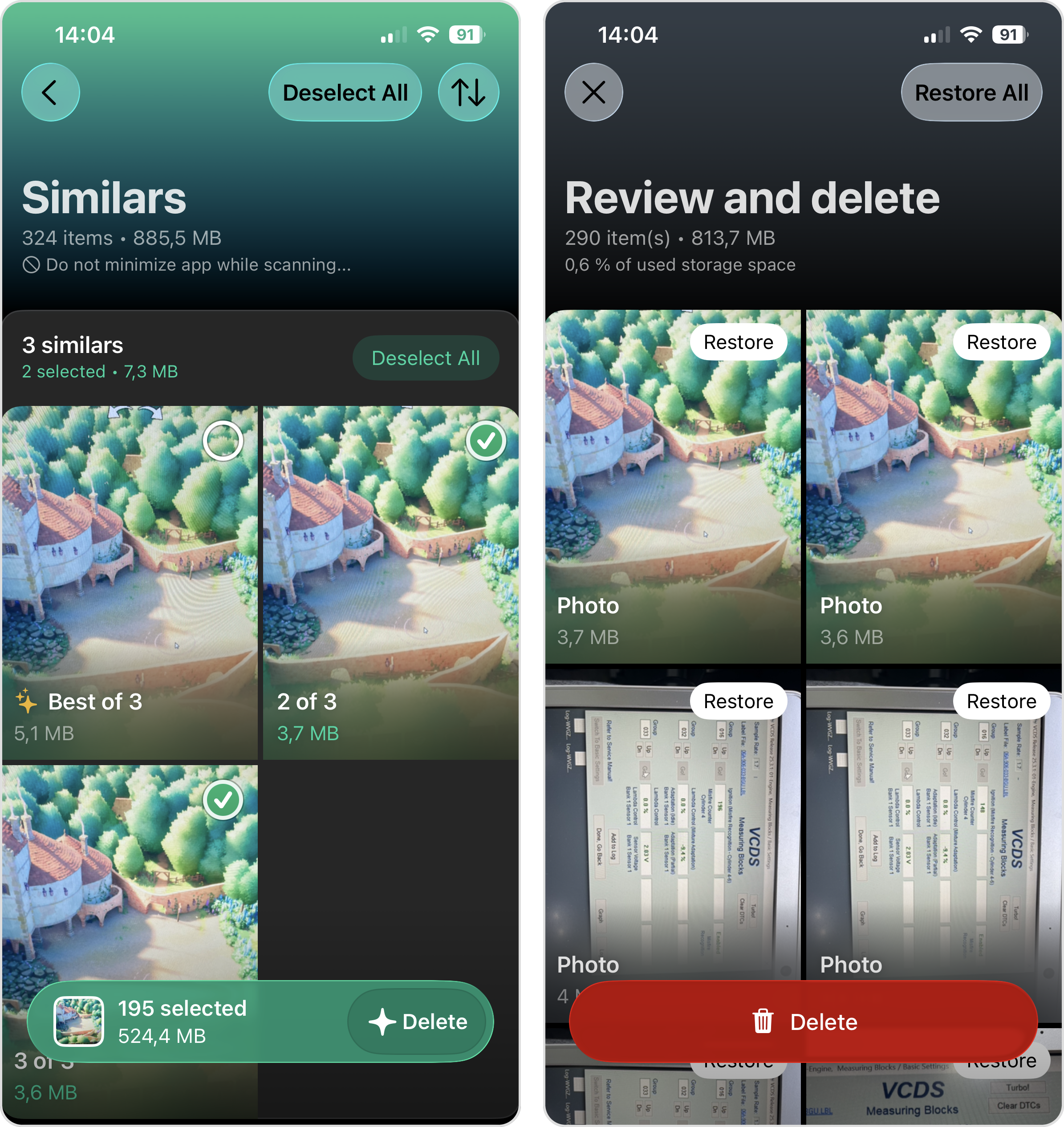
- Similars scans your library and groups exact duplicates together with near-identical shots, like the five almost-matching photos of the same sunset. The app picks the best shot in each group so you can delete the rest with one tap, and you can now sort the results based on your preferences.
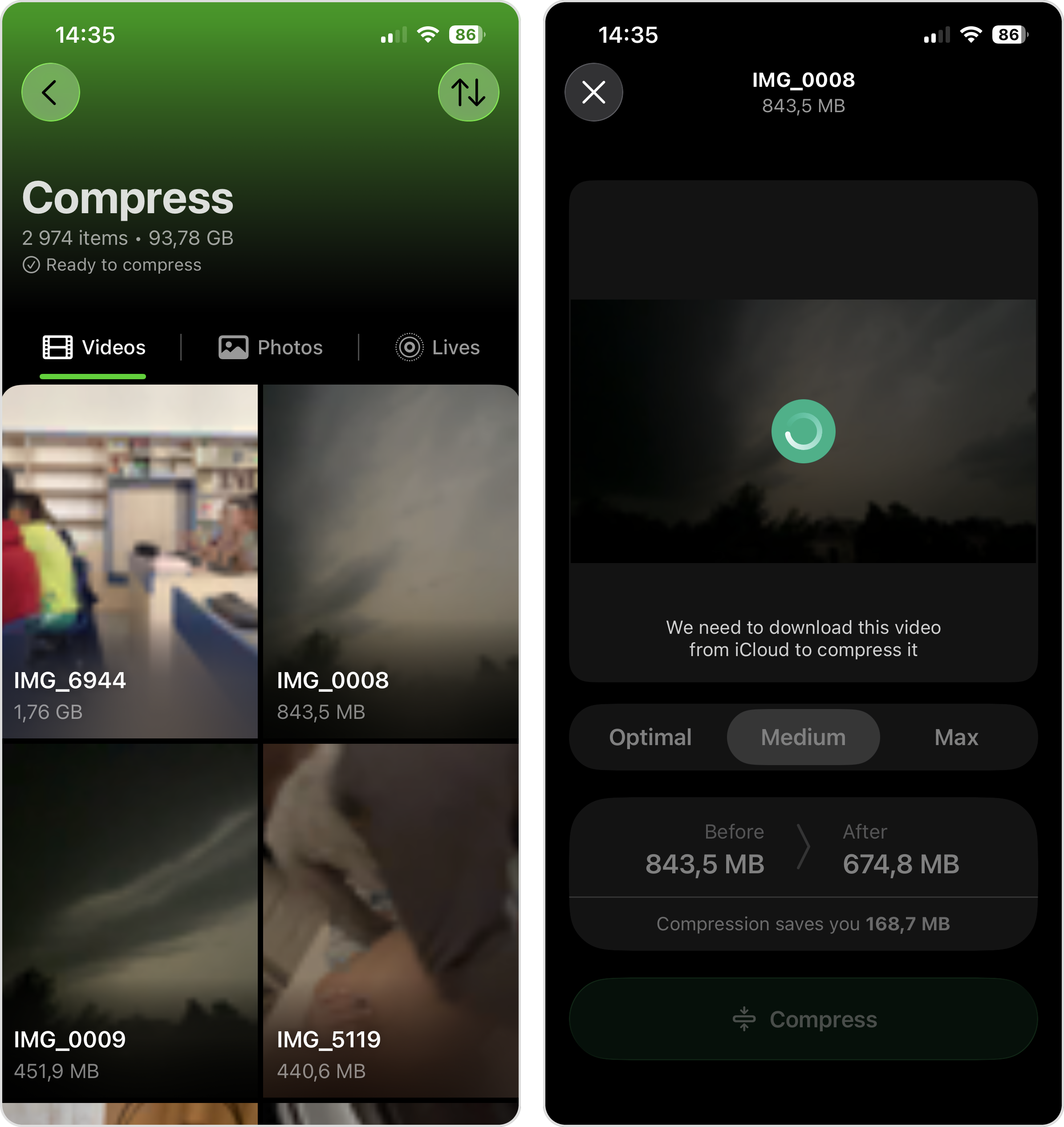
- Videos (called Heavies before version 3.0) list your videos sorted by size, so the biggest space hogs appear first. If you’d rather not delete a video, you can compress it and keep a smaller copy instead. We explain both in our guides on how to sort videos by size on iPhone and how to compress a video on iPhone.

- Live photos finds Live Photos and strips out the short video clip attached to each one, keeping the still image. You can also delete Live Photos outright now, not just convert them. Our guide on how to remove Live Photos on iPhone shows the kind of savings to expect.
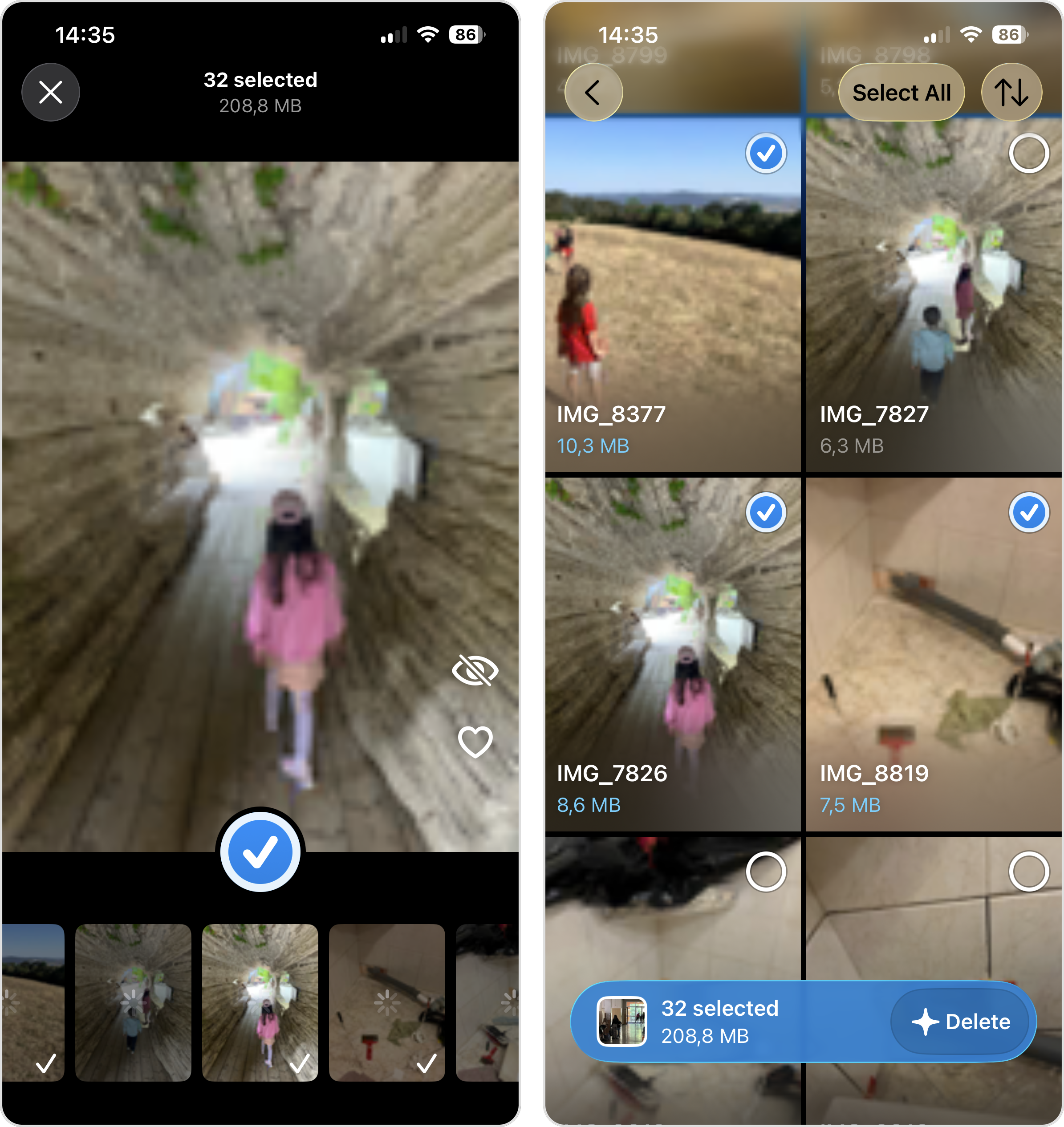
- Screenshots pile up faster than almost anything else in a photo library, and it’s convenient to have them displayed in a single place. Just like similar shots, you can now sort your screenshots before you clear them out, which helps find the right items to delete quickly.
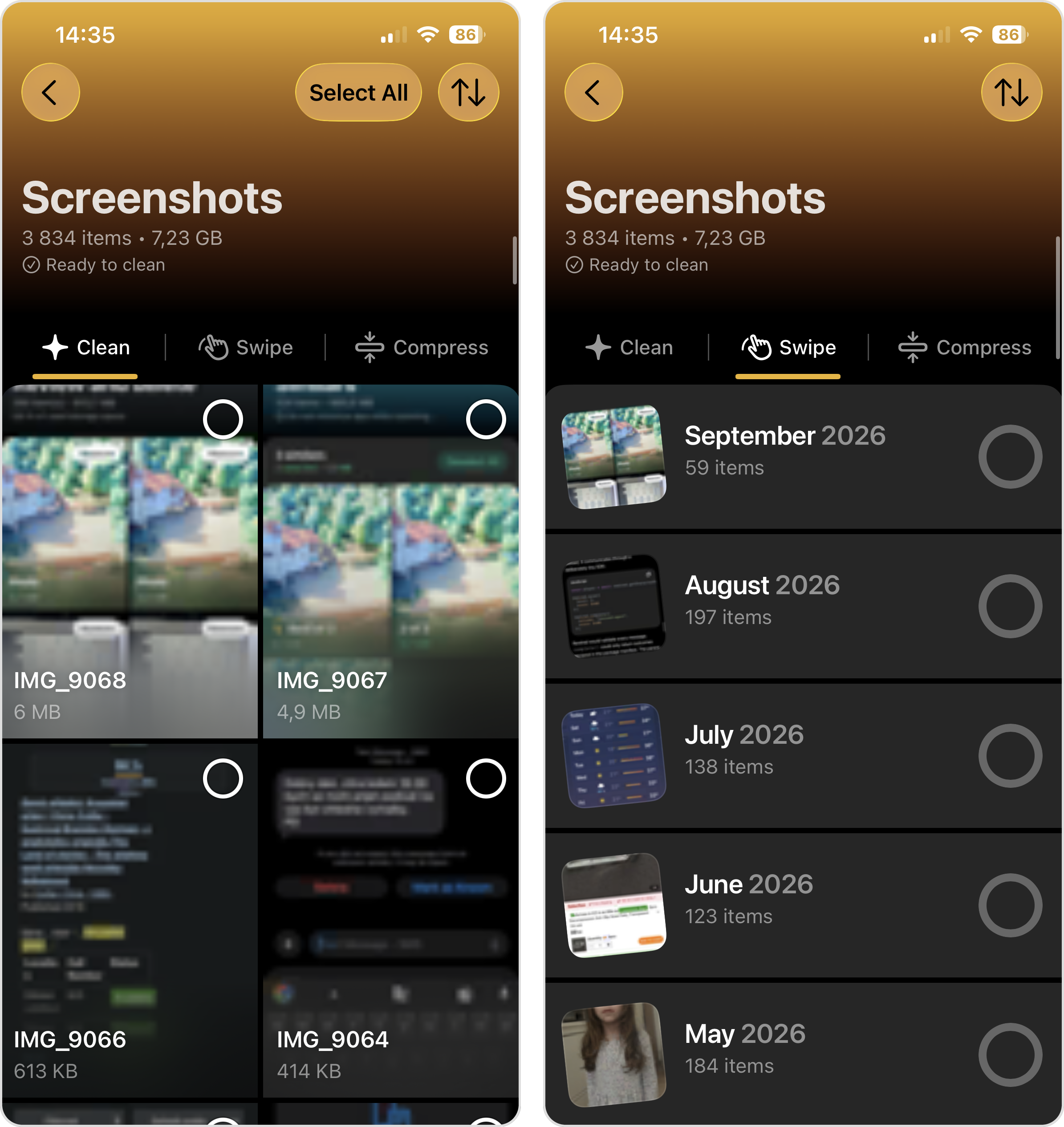
- Compress shrinks files so you can keep them without the full storage cost. Compression used to be limited to videos. Now it covers screenshots, Live Photos, and, on newer iOS versions, regular photos.
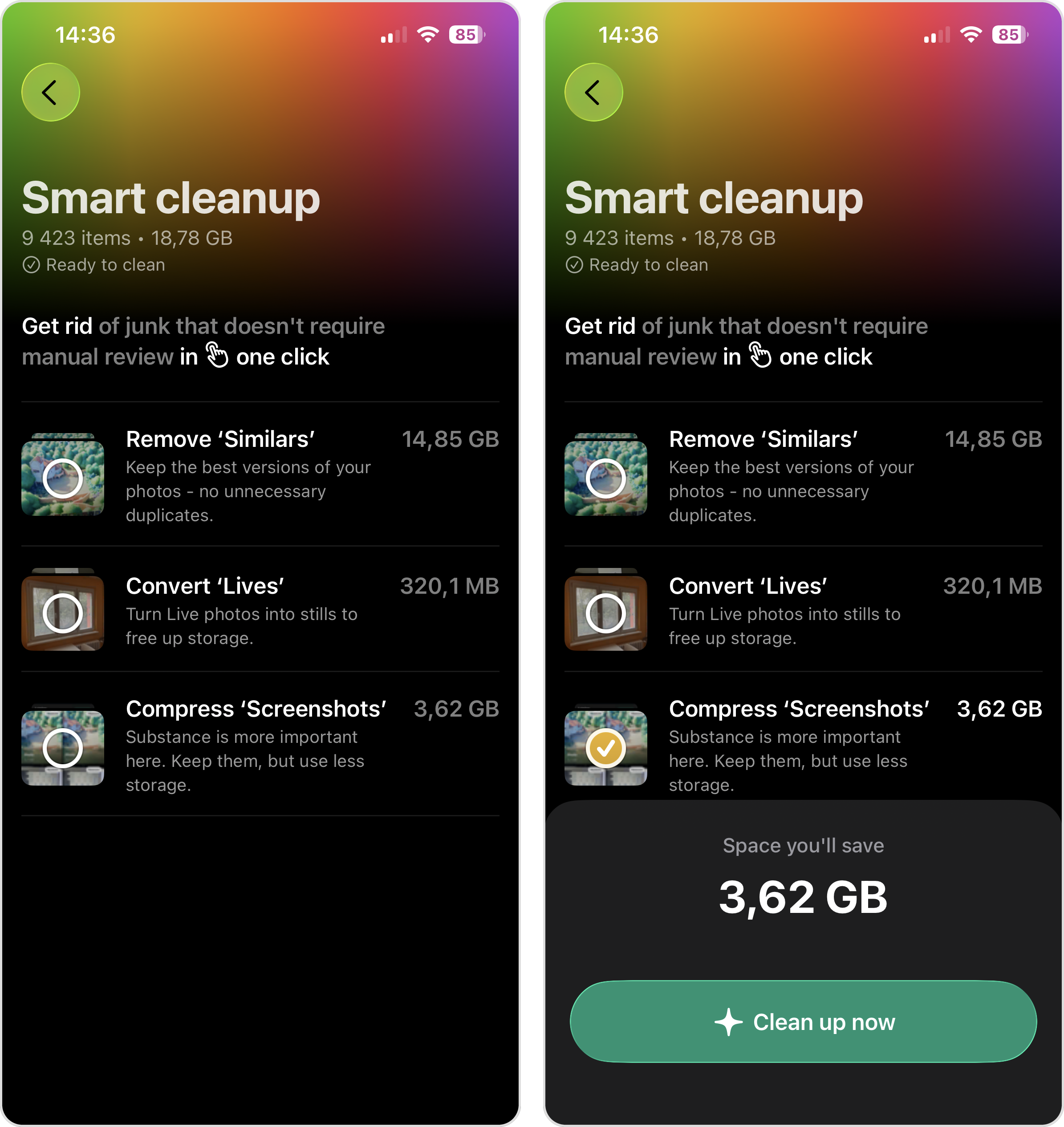
- Smart cleanup handles the whole cleanup for you. It deletes similar photos and compresses your Live Photos and screenshots. This used to be a single button in the previous version, but it’s been promoted to a standalone tool.
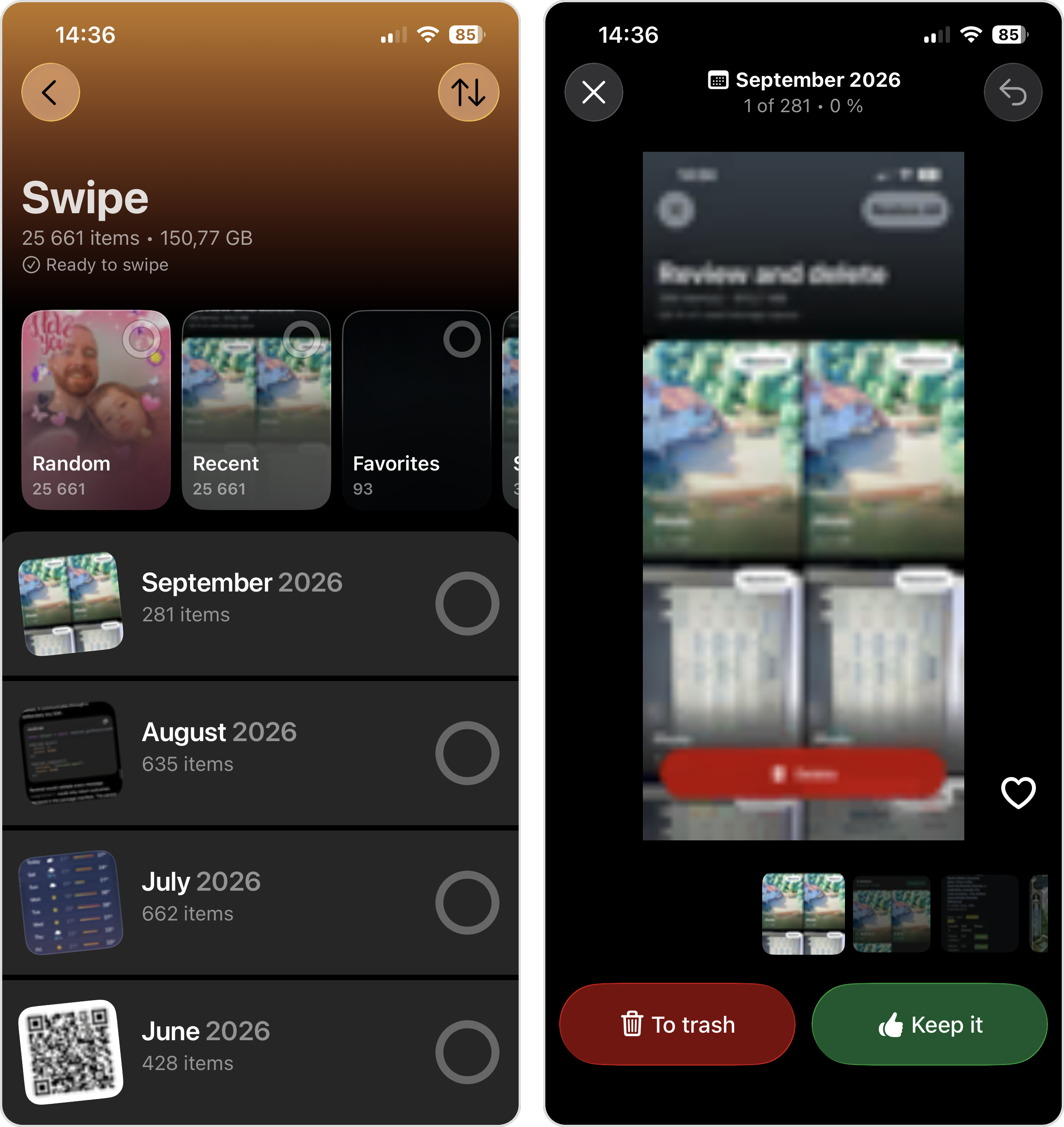
- Swipe turns cleanup into a quick sorting game. Swipe left to delete, swipe right to keep. You can turn on Swipe Filters to focus on just screenshots, videos, favorites, or a random mix. I often turn on this feature when waiting in line at a grocery store. Instead of doom-scrolling on the internet, I keep my library organized, so it’s great that this feature is unlimited even for free users.
Just know that photos removed with any cleaner app land in the same Recently Deleted album as manual deletions. So, make sure to go back to Step 1 after a cleanup session and empty the Recently Deleted album.
iPhone Storage Still Not Going Down? Try These Fixes
Deleted plenty, emptied the album, and your iPhone storage is not going down after deleting photos? Then the deletion isn’t the problem anymore. Something that can be addressed with one or more of the four fixes below almost certainly is. I’ve ordered them from the quickest to the most drastic, so work through them in the same order in which they are presented.
Fix 1: Restart Your iPhone and Give It Some Time
The storage information in the Settings app is a calculation, not a live meter. iOS adds up the categories in the background, and that math can lag behind reality or get stuck outright. When people ask why does my iPhone storage go up when I delete things, a stale calculation is usually the reason.
A restart is how to refresh iPhone storage after deleting photos when the readout freezes because restarting can prompt iOS to refresh its background processes and storage estimate:
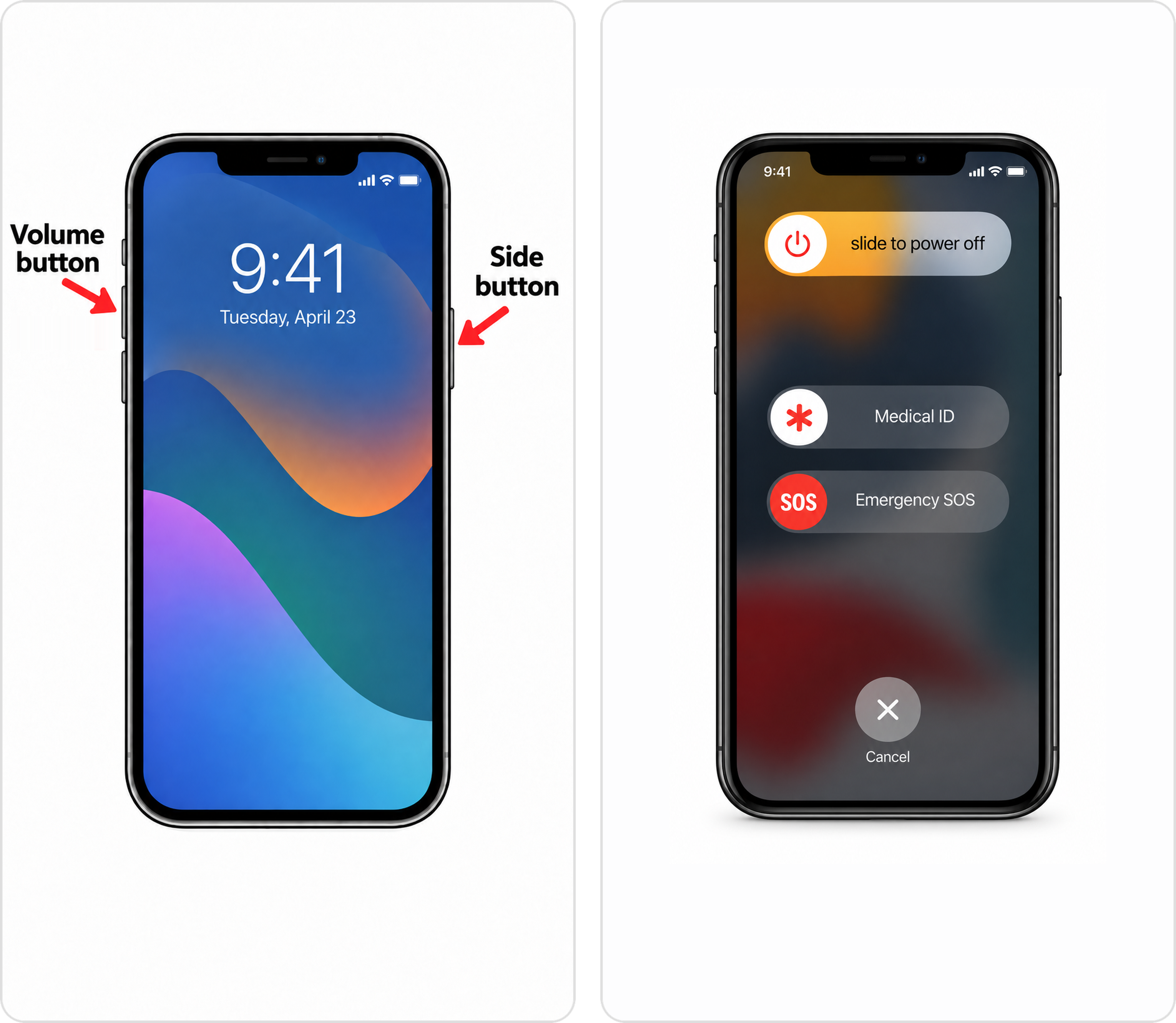
- Press and hold the side button and either volume button until the power slider appears. (On iPhones with a Home button, hold the side or top button instead.)
- Drag the slider, then wait about 30 seconds for the phone to shut down fully.
- Press and hold the side button until the Apple logo appears.
- After the phone boots, open Settings > General > iPhone Storage and give the graph a minute to load.
If the number still looks wrong, wait. iOS sometimes needs a few hours, or an overnight charge, to finish all background tasks. If your iPhone storage is not updating after deleting photos a full day later, even after a restart, move on to the next fix.
Fix 2: Check iCloud Photos Sync If You Use It
This fix is for a specific version of the problem where you delete photos, the space frees up, and then the photos come back. If you’ve been asking why do my photos keep reappearing after I delete them on iPhone, iCloud Photos sync is the answer in nearly every case.
If iCloud Photos was turned off (or the phone was offline) when you deleted the pictures, then they were only removed from local storage, and the originals stayed in iCloud. When syncing resumed, iCloud noticed the photos were “missing” from your device and politely downloaded them all back. The solution is to make sure syncing is active before you delete:
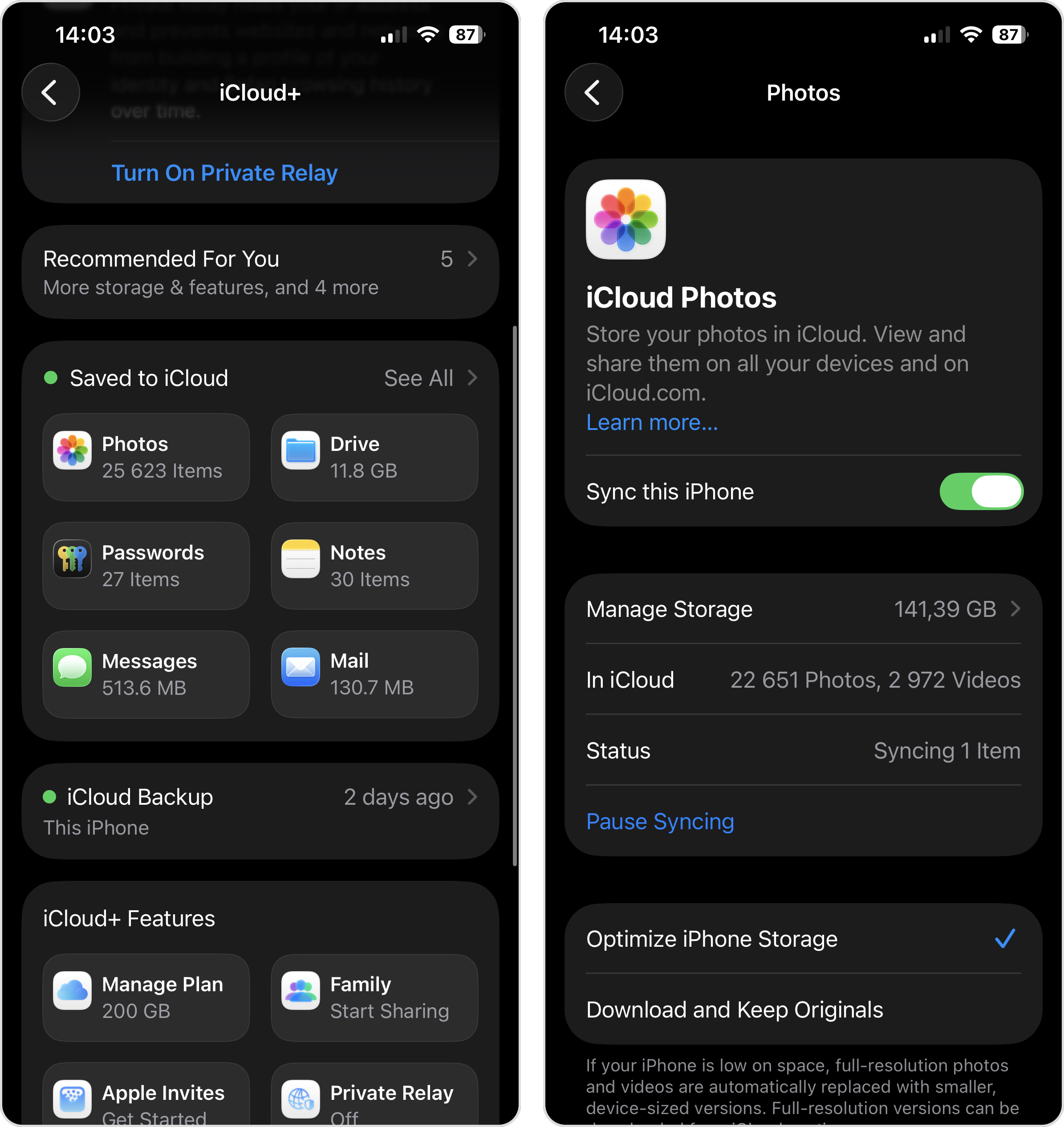
- Open Settings and tap your name at the top.
- Tap iCloud, then tap Photos.
- Check that Sync this iPhone is turned on and that the status under the toggle shows no sync errors.
- Delete the photos again and empty Recently Deleted. This time, confirm Delete From All Devices when prompted.
With sync on, the deletion reaches iCloud and every other device on your account, so nothing comes back.
Fix 3: Check That Photos Are the Reason Your Storage Is Full
It’s also possible that photos are not the main problem. If apps and their data take up 100 GB while your entire photo library uses 6 GB, you could delete every picture, and it wouldn’t help much, which is why people sometimes ask why is my iPhone storage full after deleting everything.
The simplest step you can take is to check where your storage actually goes:
- Open Settings and tap General.
- Tap iPhone Storage.
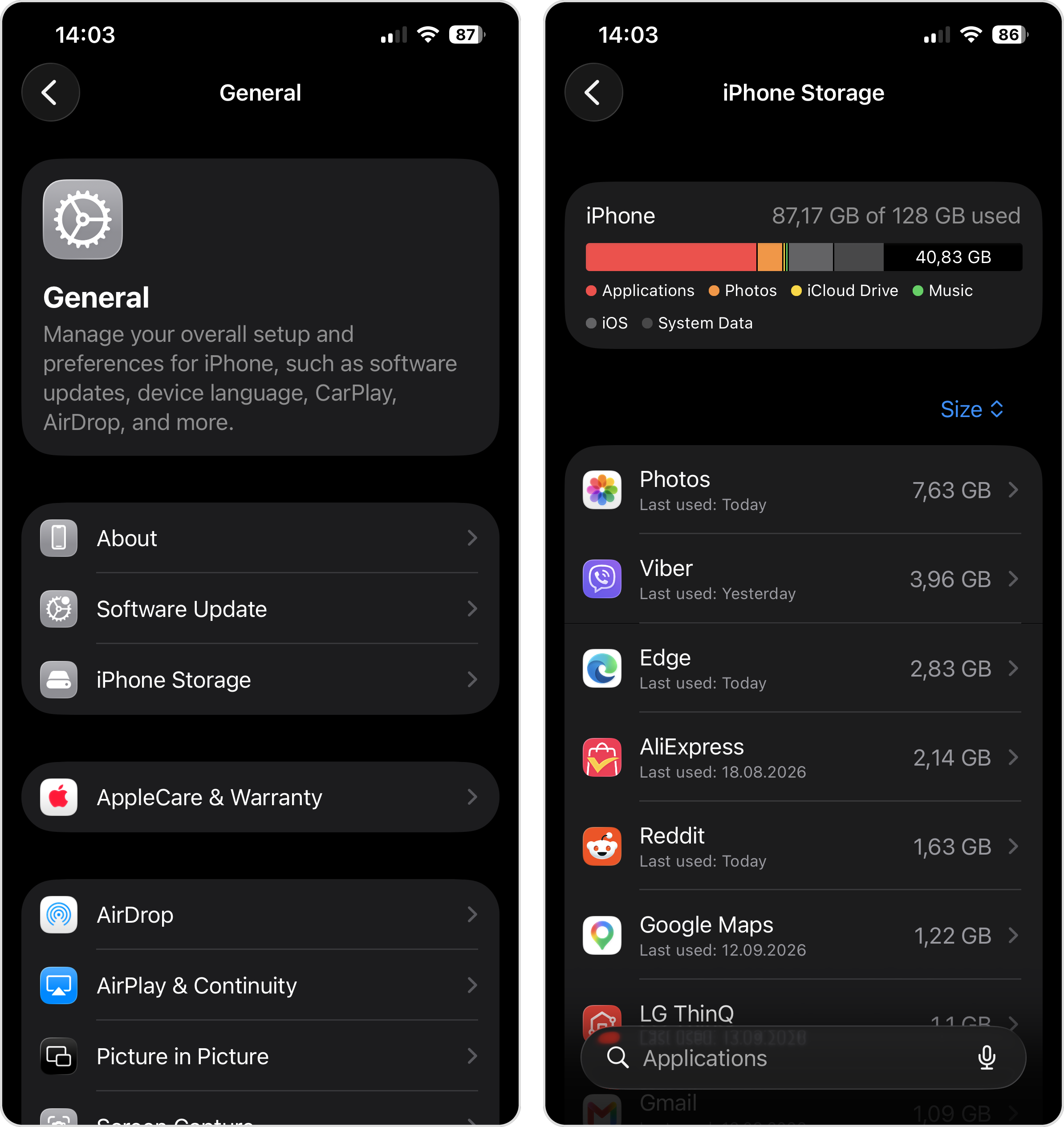
- Study the color-coded bar at the top. Each color is a category (Apps, Photos, Media, Messages, System Data, and so on).
One category that deserves special mention is System Data. It’s the vaguest slice of the graph and the hardest one to shrink, since iOS alone decides what goes into it. There are still ways to trim it, and we collected them in our guide on how to clear System Data on iPhone. Other common targets include unused apps and their data, large Messages attachments, offline media, files in Downloads, and old podcast or music downloads.
In the iPhone Storage section, iOS usually lists its own recommendations, such as Review Large Attachments or an offer to turn on optimization, and these recommendations are a great place to start because they let you reclaim gigabytes with just a few taps.
Fix 4: Reset Your iPhone If Nothing Else Works
If nothing above helped and your iPhone storage is not going down no matter what you remove, a factory reset is the remaining option. A reset can clear corrupted local data and rebuild the indexes used to calculate storage.
Once your backup is done:
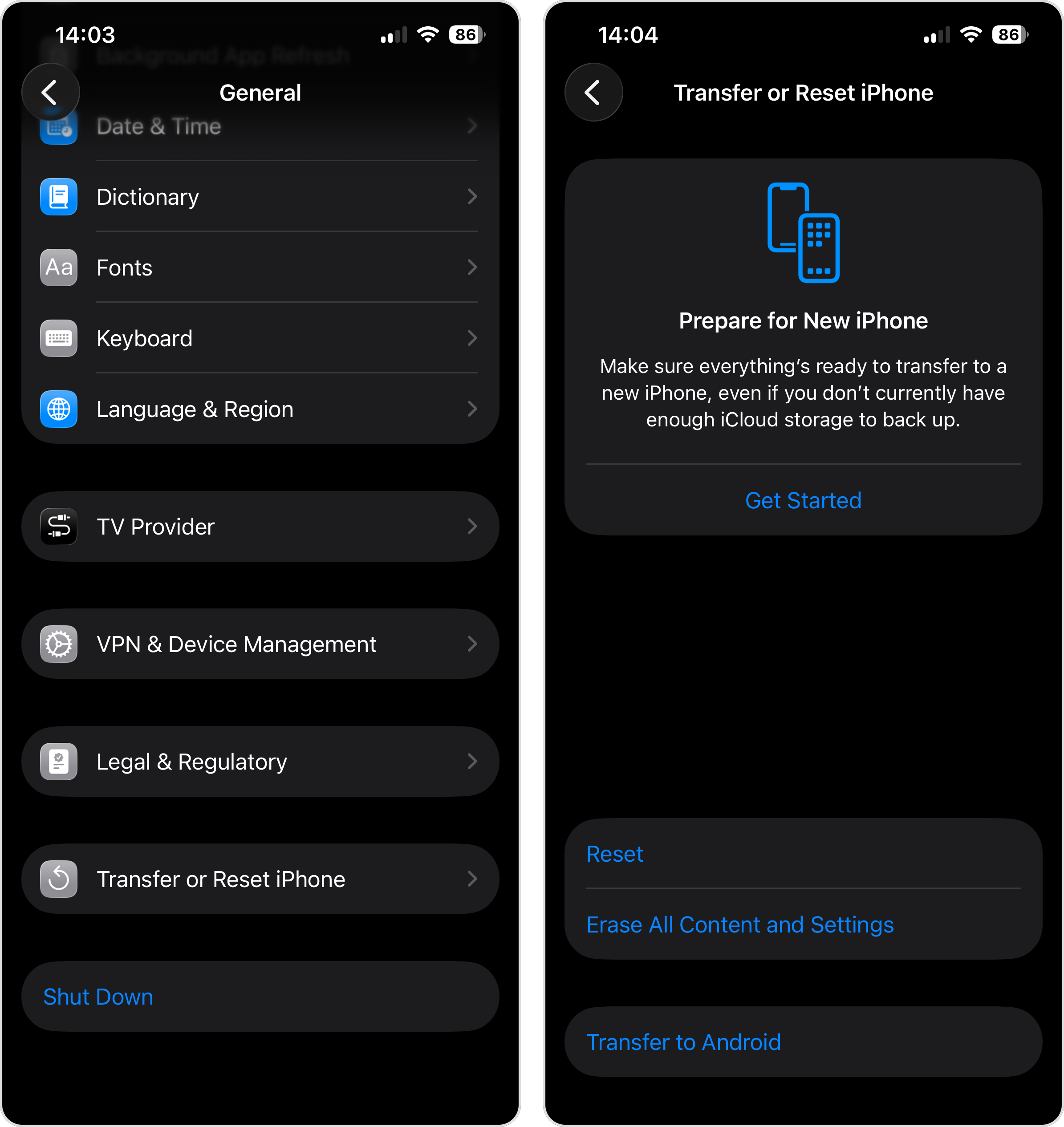
- Open Settings and tap General.
- Scroll down and tap Transfer or Reset iPhone.
- Tap Erase All Content and Settings.
- Enter your passcode and Apple Account password to confirm.
- Temporarily set up the phone as new and check iPhone Storage. If the values are normal, erase the phone again and restore your backup during setup.
If the storage readout still misbehaves after a full reset, you may be dealing with a deeper iOS bug or, less commonly, a hardware fault. Report the issue through the Apple Feedback form, but don’t expect a personal reply. Apple primarily uses the reports to identify problems and improve future updates. You may need to wait for an iOS update that includes a fix.
You can also try reproducing the issue under the same conditions on another iPhone. If it doesn’t happen on another device, the problem may be specific to your device, in which case you should schedule an appointment at an Apple Store or with an authorized service provider.
Conclusion
When your storage won’t move after a cleanup, the cause is nearly always a full Recently Deleted album, too few deleted photos, a stuck storage calculation, iCloud sync restoring what you removed, or space consumed by something other than photos. Work through the fixes described in this article, and there’s a very high chance that the problem will be gone.
Of course, it’s best to never let storage get critically low in the first place (try to keep around 20 GB free at all times so you have plenty of space for iOS updates and other system tasks). A few minutes in Clever Cleaner’s Swipe mode now and then keeps your photo library from becoming too messy. Combine that with keeping an eye on the other categories, especially apps, Messages, and downloaded files, and you’ll be in good long-term shape.
FAQ
Usually a few minutes, once Recently Deleted has been emptied. The information in Settings is calculated in the background, so it can lag by an hour or more after a big cleanup, and heavy reindexing sometimes takes overnight. If the number hasn’t moved after a full day, restart your iPhone to force a fresh calculation.
Because iCloud Photos is restoring them. If sync was off or interrupted when you deleted the photos, they were only removed locally, and iCloud downloaded them back the next time it connected. Turn on Sync this iPhone in Settings > your name > iCloud > Photos, delete the photos again, empty Recently Deleted, and confirm Delete From All Devices so the removal reaches iCloud as well.
Photos sitting in Recently Deleted still count against your storage for up to 30 days, so empty that album first. If you already did, open Settings > General > iPhone Storage and read the category bar. Apps, Messages attachments, and System Data often take far more space than photos. System Data alone can balloon to tens of gigabytes. And if the bar itself looks wrong, restart the phone, since the info is a background calculation that sometimes gets stuck.
The figure next to Photos in iPhone Storage counts more than your visible library. It includes items in Recently Deleted, cached thumbnails, and the local copies iCloud keeps on the device, which shrink or grow depending on whether Optimize iPhone Storage is on. That’s why the number rarely matches the library size shown in iCloud, and why it can change even when you haven’t added or deleted anything.
Sometimes. Apple ships storage accounting fixes in updates fairly regularly, so if your storage info is stuck because of a bug, an update can solve it. The one potential problem is that installing an update needs several gigabytes of free space, which is exactly what you’re short on. Do your best to free up what you can first, or install the update through a computer, which requires less free space on the phone itself.
