


You formatted an SD card and only then remembered what was on it. A trip’s worth of photos, a project, or the only copy of a video. The good news is that formatting rarely wipes the files straight away, so you can often unformat an SD card by recovering what’s still on it with data recovery software, or by restoring copies from a backup. It’s typical of an accidental format to occur when you don’t have a backup prepared, so this guide starts with the method that works without one. We’ll be honest about the cases where recovery won’t work, and give you the same steps we always use when working with formatted SD card recovery.
Can You Unformat an SD Card?
Yes, often you can. There’s no Undo button for a format, though, so you can’t undo formatting an SD card the way you’d undo a typo. When people say they want to unformat an SD card, what they really need is to recover data from the formatted SD card with a tool that reads the card directly and finds the files the format left behind.
Your chances depend on what kind of format ran. A quick format, which is the default when you format an SD card in Windows, only resets the file system (the card’s index of what’s stored where). The files themselves stay put until something new is written over them. A full format or a secure erase writes over the card’s storage, and that destroys the data.
| What happened | Chances of recovery |
| Quick format, card not used since | Good |
| Quick format, then new photos or files saved | Depends on how much was overwritten, but often still good |
| Full format, secure erase, or overwrite | Unlikely, but still worth a scan |
What to Do Before You Try to Undo the Format
Before you try to undo formatting on the SD card, take these three steps. They protect the files that are still there.
- 🛑 Stop using the card. Don’t take photos, record video, or copy anything to it. Every new file can land on top of one you want back.
- ⏏️ Eject it safely. Power off the camera or safely eject the card from your device, then connect it to a Windows PC or a Mac with a reliable card reader.
- 💾 Recover to a different drive. Install the recovery tool on your computer and save recovered files to its internal drive or another disk, never back to the SD card.
How to Undo Formatting on an SD Card
There are two realistic ways to undo a format. SD card recovery software comes first here, because most people who formatted a card by mistake don’t have a backup of it, and software is the method that works without one. The second method is quicker when it applies, but it assumes you copied, synced, or backed up the files somewhere else before the format. If you don’t have a computer, skip ahead to how to unformat an SD card on a phone.
Method 1: Recover Files with SD Card Recovery Software
Without a backup, this is your best option. Memory card data recovery software scans the card itself, finds the files that are still stored on it, and copies them to safety. Disk Drill is one of the best tools for this job, and it runs on both Windows and Mac.
Formatting does more damage than a simple delete, and Disk Drill is built to handle it. No matter how your camera, phone, or computer formatted the card, it can work with what’s left: a card given a different file system, a card formatted again with the same one (which tends to overwrite old records), or a card with no file system at all (showing up as RAW). Disk Drill uses surviving file system records and also recognizes almost 400 file signatures, the unique patterns each file type (JPG, RAW, MP4, etc.) starts with.
Follow these steps to unformat an SD card with Disk Drill:
- Download Disk Drill and install it on your computer, not on the SD card. When it’s installed, open it.
- Select your SD card in the list of devices, then click Search for lost data.
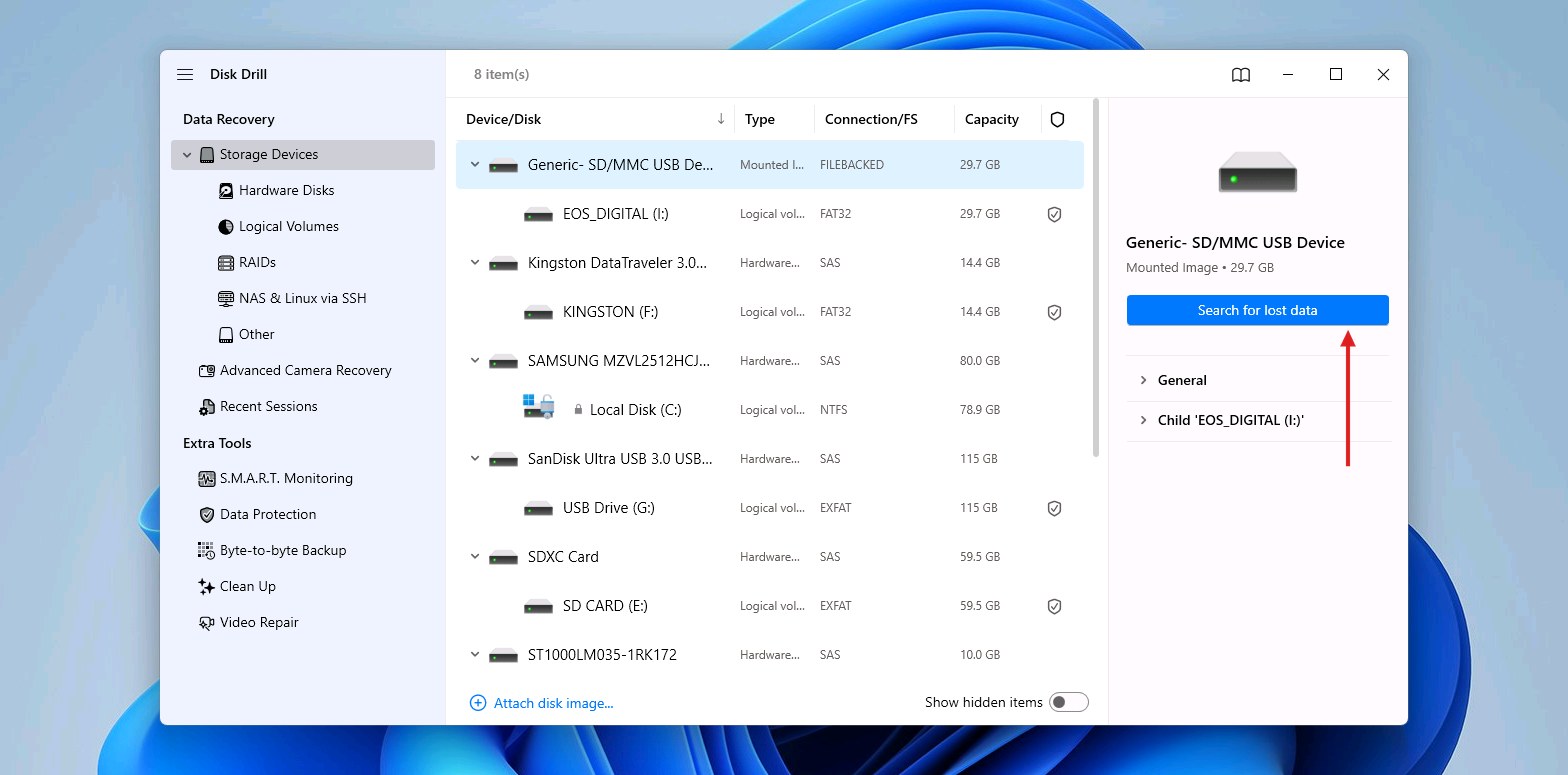
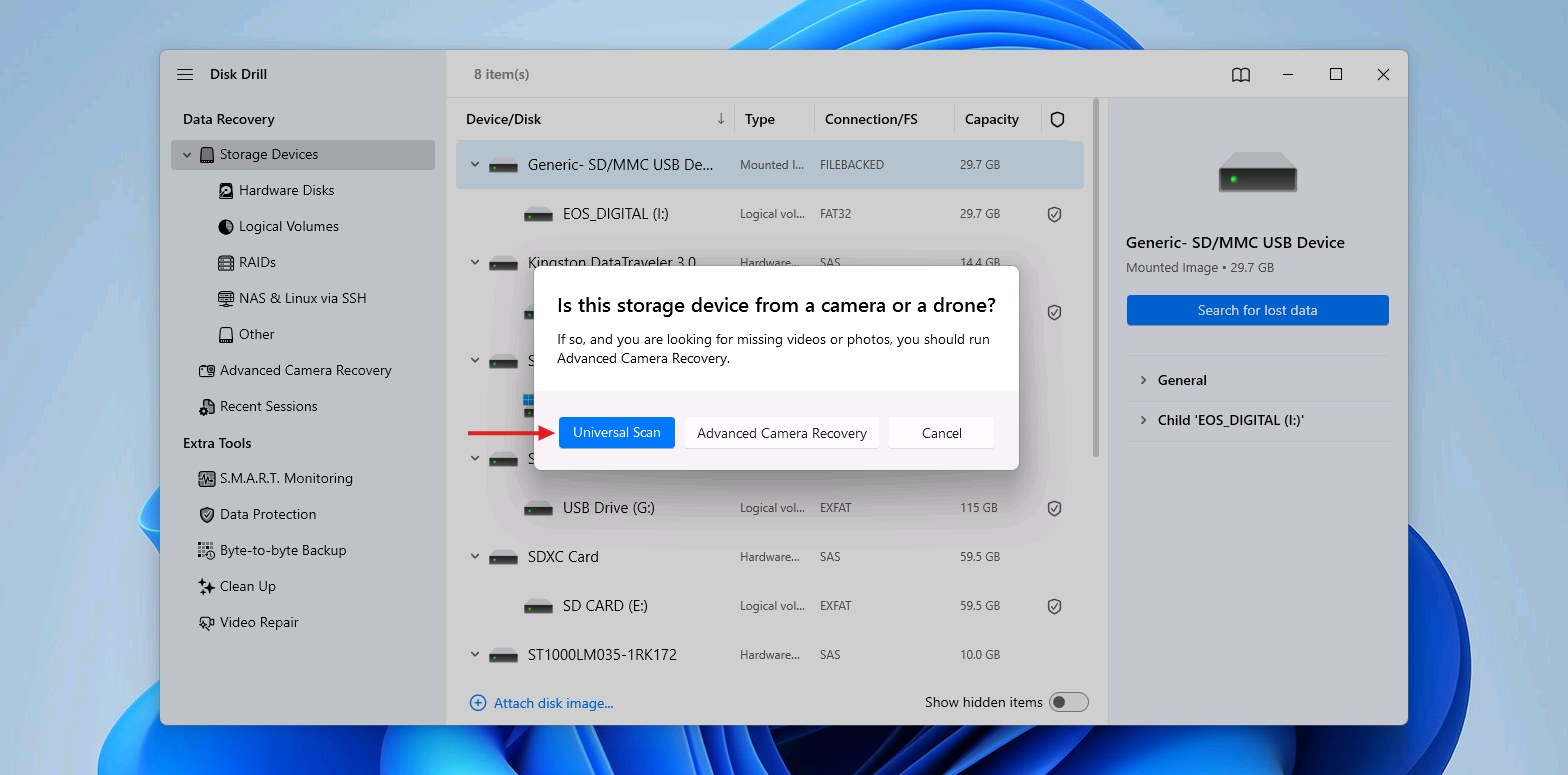
- Choose Universal Scan when Disk Drill asks for a scan type. It looks for every kind of file, including photos, videos, and documents.
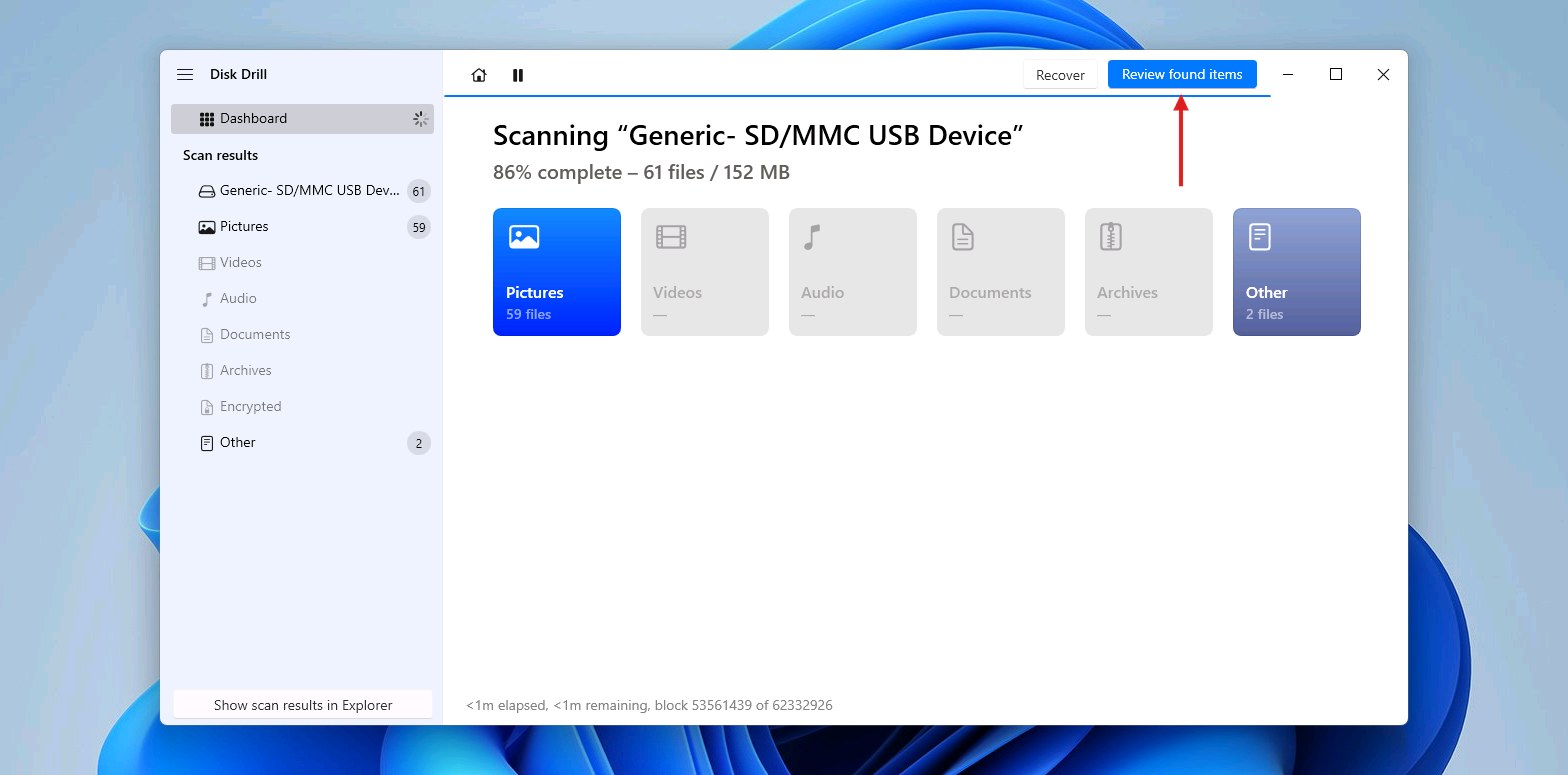
- Click Review found items to see what Disk Drill has found. You can do this while the scan is still running, but the full results appear when it finishes.
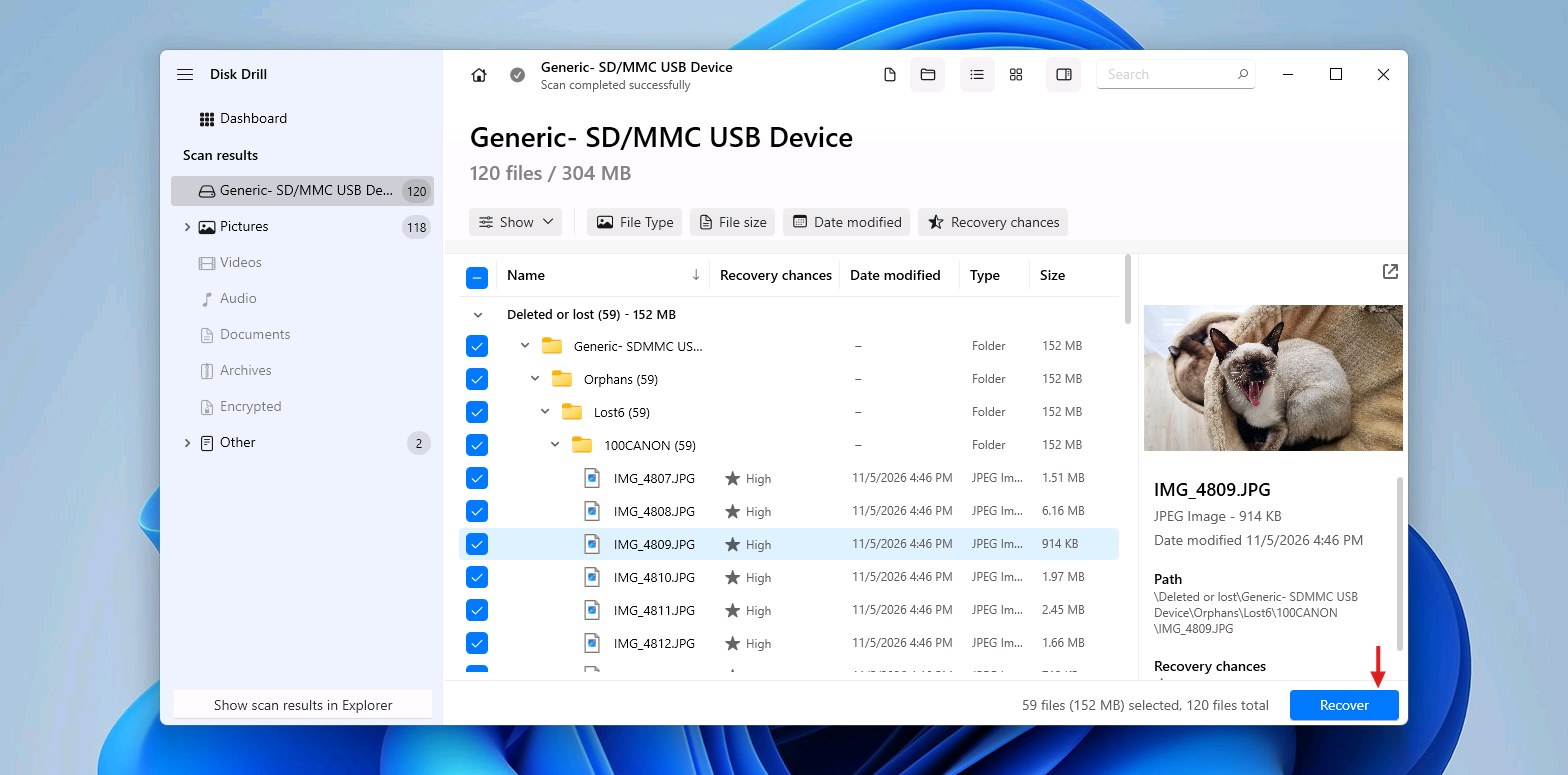
- Look through the results and click a file to preview it. Files under Deleted or lost keep their original names, while files under Reconstructed were found by their signature and may have new names. A file that previews properly can usually be recovered.
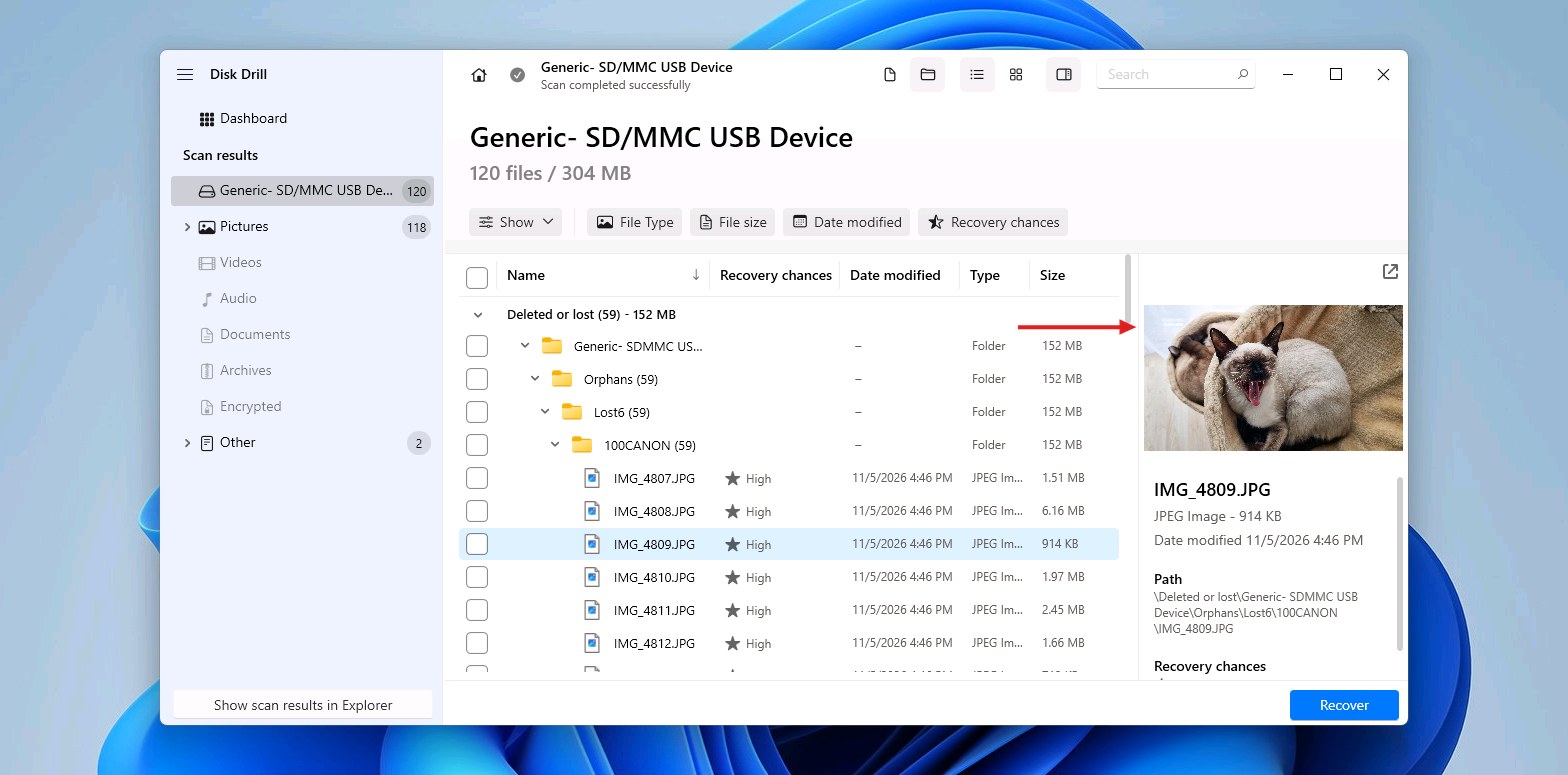
- Tick the files you want back and click Recover. On Windows, Disk Drill lets you recover up to 100 MB for free, which is enough to test a handful of files before you upgrade.
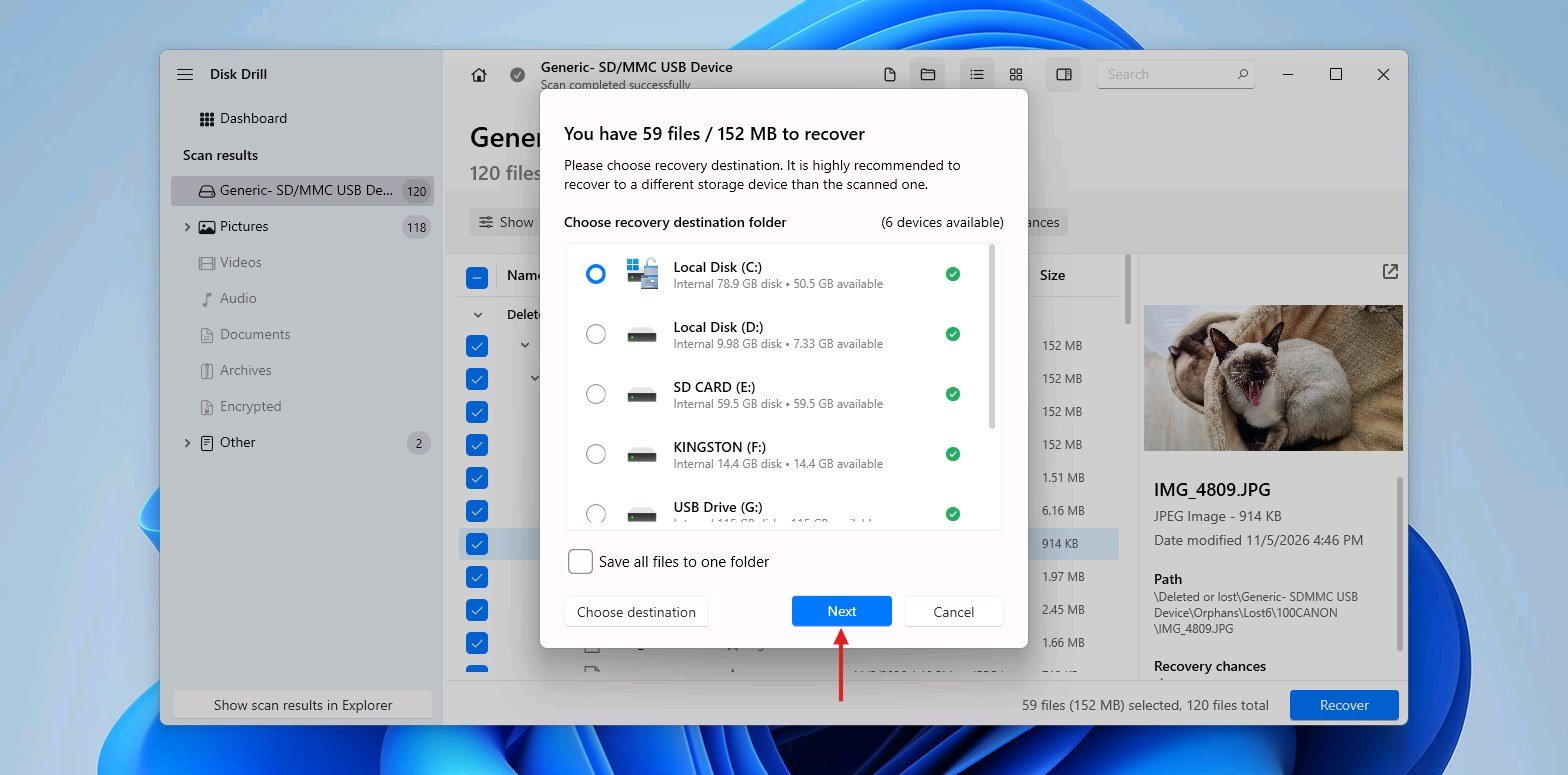
- Choose a folder on your computer’s internal drive or another disk as the recovery location, then click Next. Saving back to the SD card could overwrite files Disk Drill hasn’t recovered yet.

If some videos are missing from the results, or won’t play once recovered, scan the card again with Advanced Camera Recovery (ACR) instead of Universal Scan in step 3. Cameras, drones, and action cameras such as GoPro, DJI, and Insta360 save long videos in scattered pieces, and ACR is designed to find those pieces and rebuild them into playable files.
Method 2: Restore Files from a Backup or Cloud Copy
A saved copy is often simpler than a scan, and the files come back exactly as they were. But it only helps if they were copied or synced somewhere before you formatted the card.
Think back to where your photos usually end up. You may have imported them to your computer, or your phone may have uploaded them to Google Photos, iCloud Photos, OneDrive, or another service.
Some camera makers have their own services and apps too. Canon’s image.canon can upload photos from a connected camera, and Nikon’s Imaging Cloud does the same over Wi-Fi for a few recent Z cameras. Both keep the originals for 30 days, so they’re worth checking if the photos on the card were uploaded within the last month. Nikon’s SnapBridge sends photos from the camera to your phone as you shoot, but the phone isn’t automatically backed up to the cloud. These features aren’t always turned on by default, so check each app and account you use.
Here’s how to download files from Google Photos to your computer:
- Open photos.google.com in a browser and sign in with the Google account your phone uses.
- Find the photos from the formatted card. Searching for the place or date you took them is the quickest way.
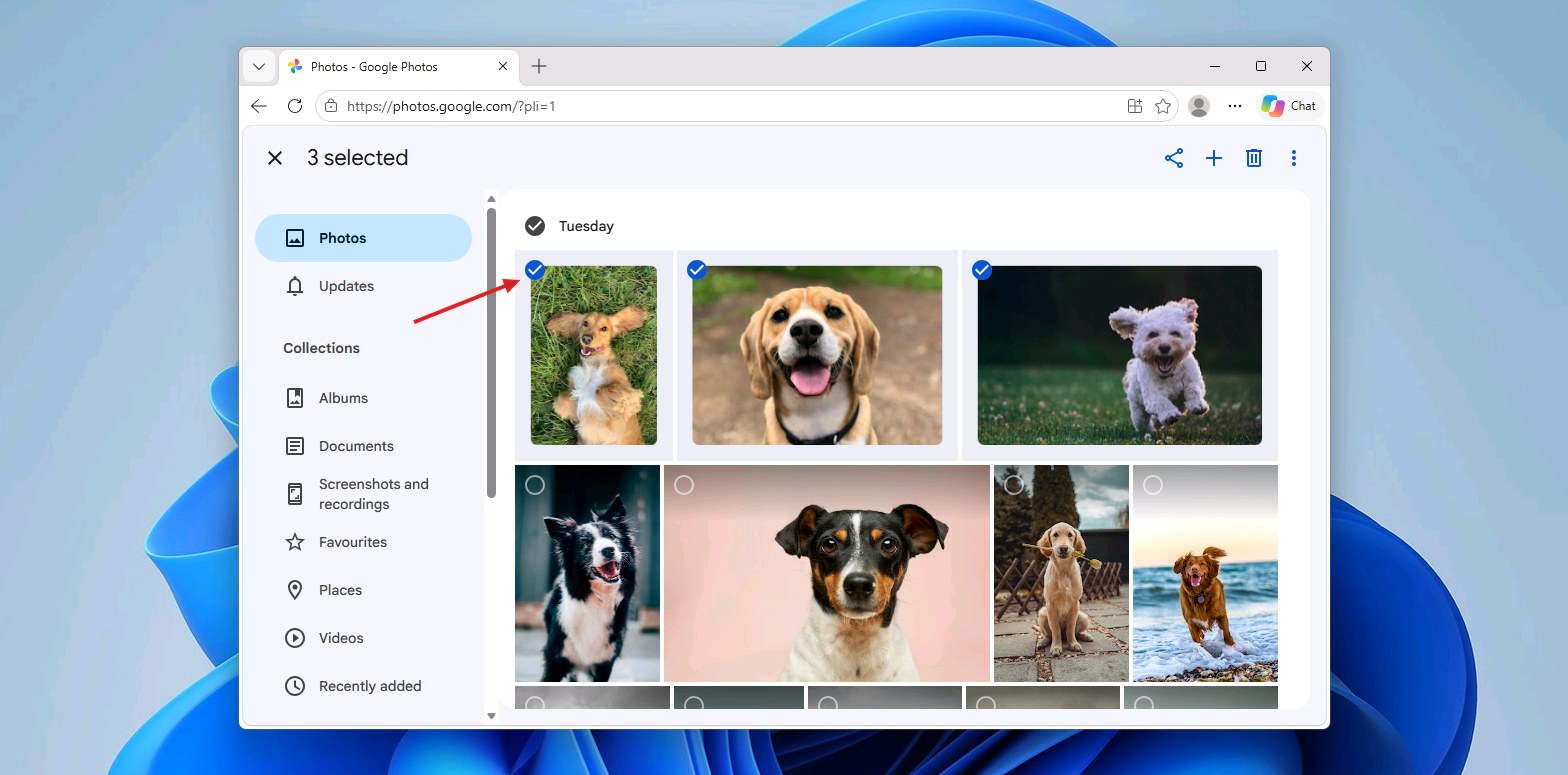
- Hover over a photo and click the check mark in its corner to select it, then select the rest.
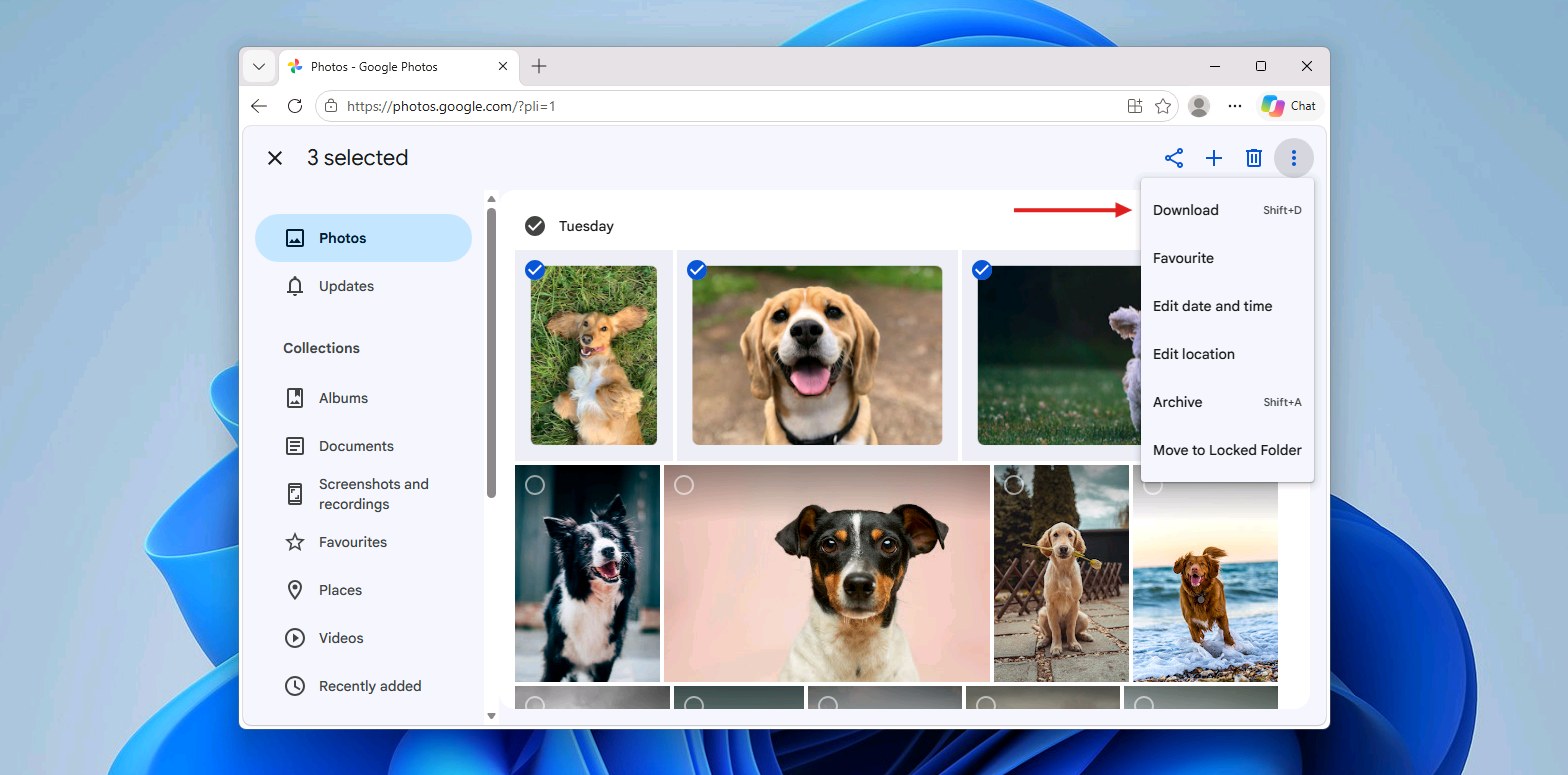
- Click More options (the three dots) at the top right and choose Download.
- Copy the files wherever you want to keep them. Several photos at once will need to be unzipped first.
How to Unformat an SD Card on a Phone
If you don’t have a Windows or Mac computer, you can try to recover files on your Android phone. Be aware from the start that Android recovery apps are much more limited than desktop recovery software.
DiskDigger is one of the most popular. Its free basic scan doesn’t need root access (full control over the phone’s system), but it mostly finds images the phone can still reach and the small thumbnail copies it keeps in its cache. A thorough full scan requires root. We don’t recommend rooting your phone just for the sake of recovery, as it doesn’t help with files after they’re already lost, and it can require you to wipe the phone’s data, which makes recovery even less likely.
Follow these steps to scan for lost photos with DiskDigger:
- Install DiskDigger from Google Play and open it.
- Tap Search for lost photos and wait for the results to fill in.
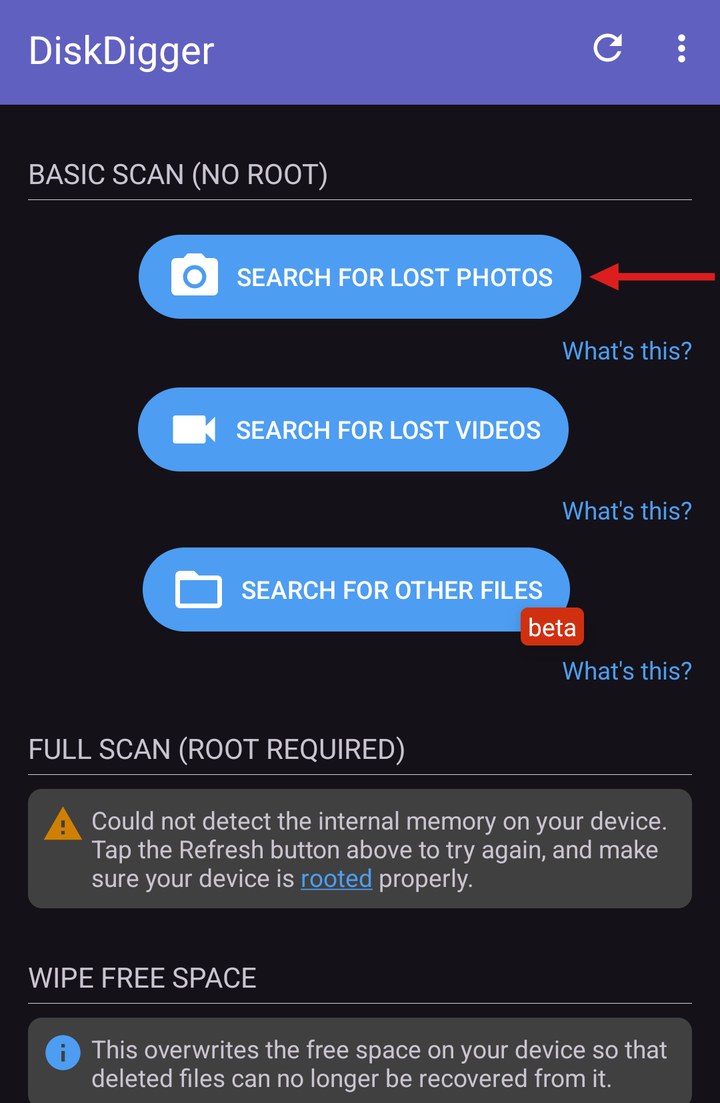
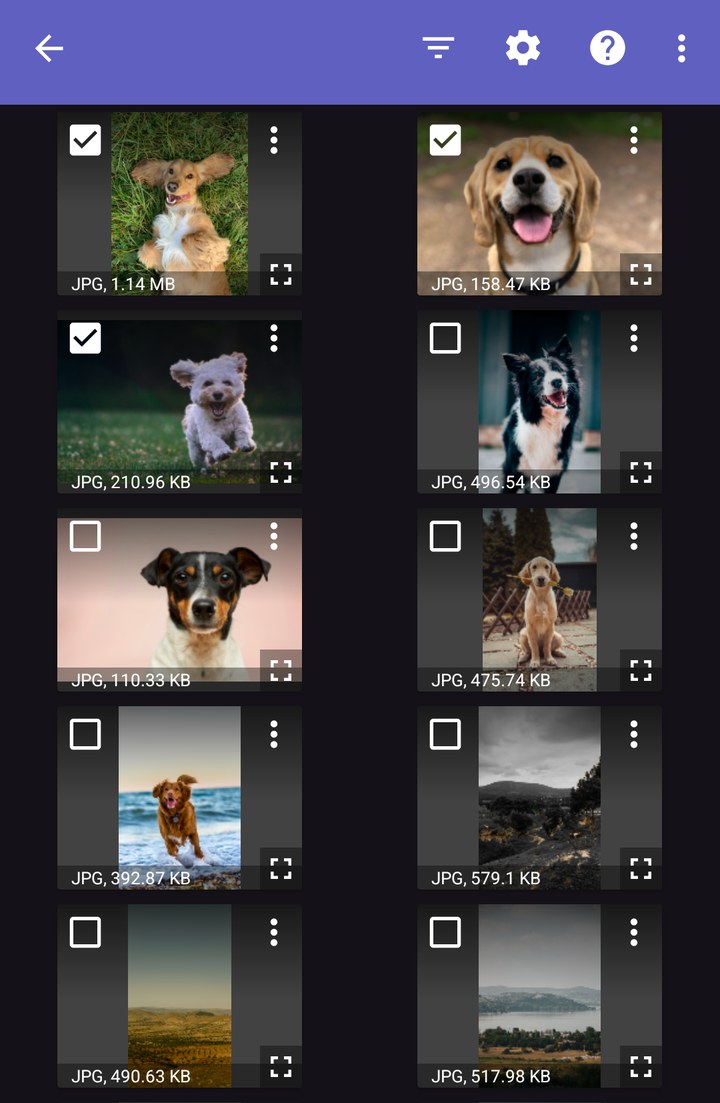
- Tap the photos you want to recover to select them.
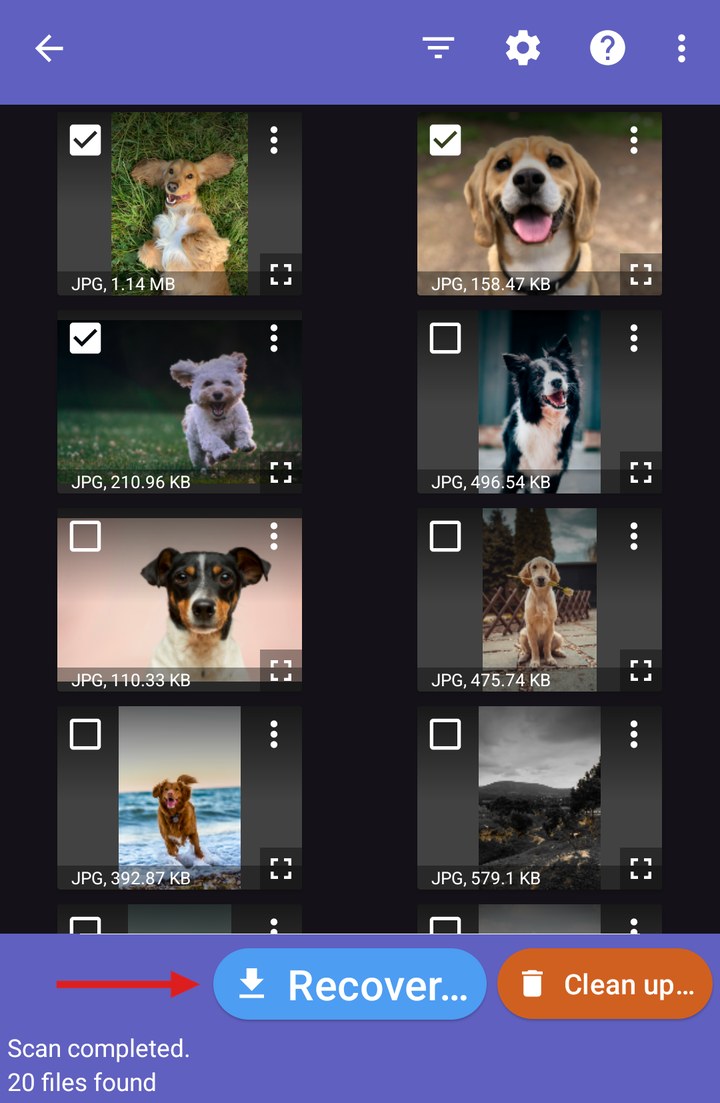
- Tap Recover at the bottom of the screen.
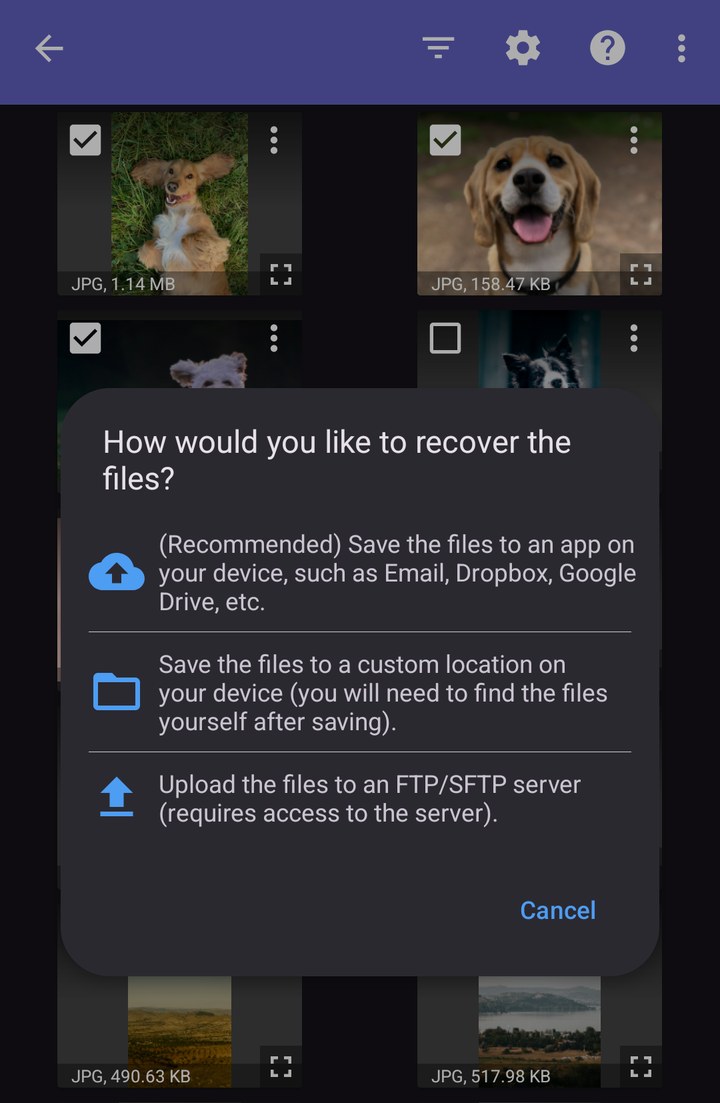
- Choose where to save them. Save to an app (such as Google Drive) or to a folder in the phone’s internal storage, not to the SD card.
Go in with realistic expectations. DiskDigger may only find low-resolution thumbnails or cached copies, not the original photos. If that’s all it finds, it’s better to find a computer, connect the SD card via a card reader, and scan it with desktop recovery software. It offers much better chances of recovering the original files.
Recovery Recap
You can’t undo a format, but the files on a quick-formatted SD card usually survive until something overwrites them. If you have no backup, data recovery software like Disk Drill is the most practical way to unformat a memory card. Scan it, preview the files, then recover your data to another drive, like the computer’s internal drive or a USB flash drive. Once they’re safe, copy them back to the SD card, and consider syncing them to Google Photos, iCloud Photos, or OneDrive.
FAQ
Flashing writes a disk image, such as an operating system for a Raspberry Pi, over the start of the card, so anything there is overwritten and unrecoverable, though files further in may survive. If you’re using “flash” to mean “format”, then formatting resets the card’s file system, so after a quick format your files usually survive and you can recover them with the methods above. Either way, scan the card with data recovery software before you use it again.
Only if your files exist somewhere else. You can restore them from your computer, a cloud service such as Google Photos or iCloud Photos, or the app of your camera maker. Without a copy, you need data recovery software to find the files still stored on the card.
If you’re wondering how to unformat an SD card on a camera, you can’t, as cameras have no option to undo a format. Take the card out, connect it to a computer with a card reader, and scan it with recovery software like Disk Drill. Note that some cameras, including some Sony models, wipe the card completely when they format it, and nothing can recover those files.
Often, yes. New files only overwrite part of the card, so older files in the untouched areas can still be recovered. The more you’ve saved since the format, the fewer files will come back, so stop using the card and scan it as soon as you can.
Partly. On Android, an app like DiskDigger can scan for lost photos without a computer, but without root it mostly finds thumbnails and cached copies. To unformat a memory card properly and get the original files back, scan it on a Windows PC or Mac.
