300+ Million
TOTAL DOWNLOADS
Search the website

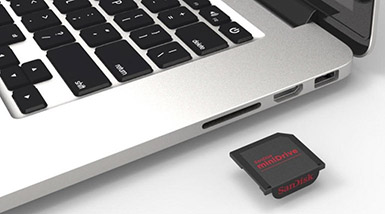
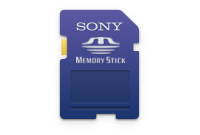
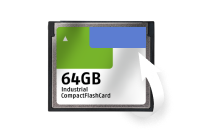
Disk Drill is an effective and reliable SD card recovery software for Macs running macOS 10.15+, including macOS Sequoia. It can recover deleted files on all types of SD cards on Mac OS X, including SDHC, SDXC, MicroSD, CompactFlash Cards, XD Cards, Sony Memory Sticks, MMC Cards, and virtually any other card your Mac can read. In this article, we will show you how to use Disk Drill as well as other methods to recover lost data from an SD card on Mac. macOS Tahoe Ready!
Disk Drill can recover files from memory cards even in some of the most challenging data loss situations, but every data recovery tool has its limits. For example, there's no tool capable of recovering physically overwritten data.
At CleverFiles, we're aware of the anxiety this uncertainty can cause, which is why Disk Drill offers a no-risk approach to data recovery. It's free to try and operates in a read-only mode, which means it never exacerbates your data loss problem. You will need to upgrade to Disk Drill PRO only when you've confirmed the recoverability of your SD card data.
Below is a quick overview of the steps required to recover deleted files from an SD card on Mac using Disk Drill. For more detailed guidance, our Knowledge base includes many comprehensive tutorials, including How to Install Disk Drill and How to Recover Lost Files with Disk Drill Basic.
Download and install the free version of Disk Drill for Mac. Since you will be recovering data from an external memory card, it’s safe to install the software on your computer’s main disk.
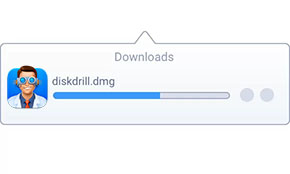
Download Disk Drill
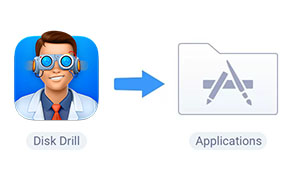
Drag to Applications Folder

Launch Disk Drill
With your SD card connected, you can launch Disk Drill and choose your SD card in three different ways depending on your specific data loss situation and the condition of your memory card.
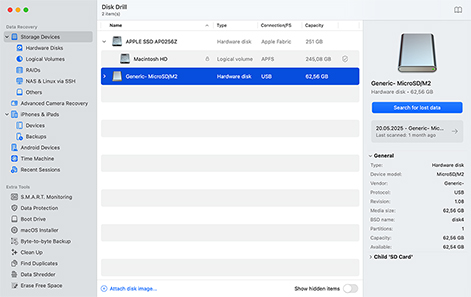
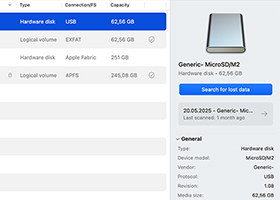
The standard recovery method works best when you need to recover non-video files like photos, music, documents, and other data types. In such cases, you can simply select your card in the Storage Devices section before beginning SD card data recovery on your Mac as explained in the next step. While this method can technically recover video files too, we recommend using the Advanced Camera Recovery (ACR) module instead because it performs better on average when dealing with deleted or formatted files.
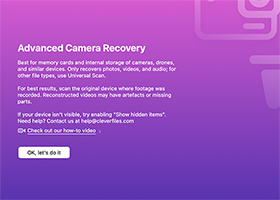
If you've lost GoPro videos, DJI drone footage, or any camera recordings due to accidental deletion or formatting, then you should navigate to the Advanced Camera Recovery (ACR) module instead and choose your SD card there because it can piece together fragmented video streams. The module will ask about your camera model and cluster settings. If you don't know, then it can usually figure out the correct settings automatically.
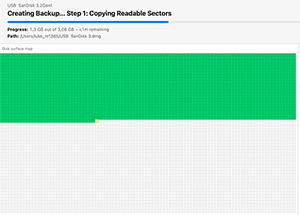
If you suspect that your SD card is corrupted because it has been showing read/write errors, disconnecting randomly, or otherwise acting strangely, then it's best to use Disk Drill's improved Byte-to-Byte Backup module to create a complete sector-by-sector copy of your SD card as a DMG file. Once the backup is complete, click Attach disk image in the Storage Devices tab and select the attached image instead of your SD card.
With your memory card or memory card image selected, you can click the Search for lost data button to start Disk Drill's scanning process. As the scan progresses, you will see an intuitive display of the scan's progress, including a time estimate for completion and a list of files being found in real-time. Should you need to pause the scan for any reason, Disk Drill offers the flexibility to do so.
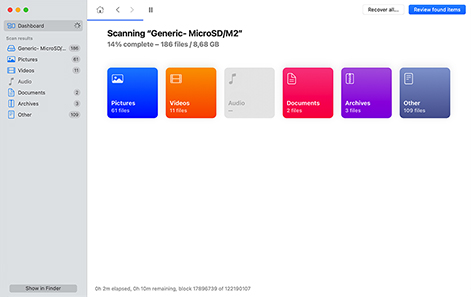
After the scan completes, you'll see all recoverable files. If there are too many results, use Disk Drill's filtering options to find what you need quickly. You can search by filename, filter by date, or select specific file types. You can also switch between different view modes. The tree view is great when you want to examine specific folders, while the icon view lets you quickly spot images and videos by their thumbnails.
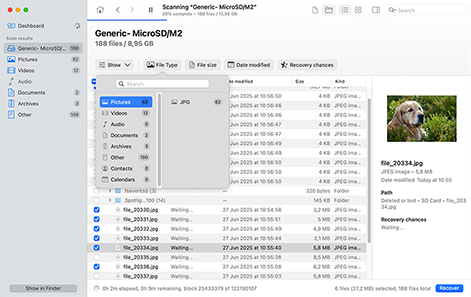
Use Disk Drill's preview feature to verify that files are recoverable before proceeding. To do so, hover your mouse cursor over the file you want to preview and click the "eye" icon. If the preview looks good, the file will recover perfectly. You can select a single file by clicking on it directly, multiple files by ticking their individual checkboxes, or all files at once using the checkbox above the file list.
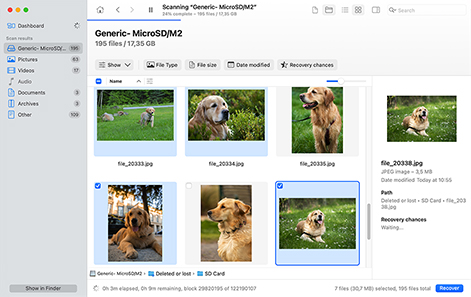
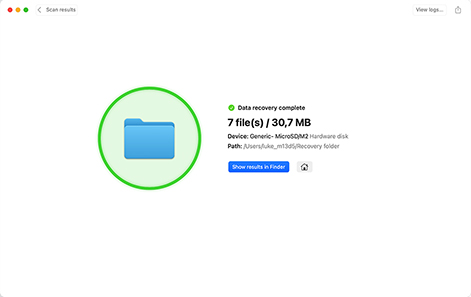
Finally, click the Recover button and choose a safe destination on your Mac to save the recovered files. This destination should be different from the memory card you're recovering to prevent overwriting. At this point, if you're using the free version of Disk Drill, you'll need to upgrade to Disk Drill Pro to complete the recovery process.

Keep in mind that the less you use the memory card from which you want to recover data, the higher the chance of successful SD card data recovery on Mac. Most cameras don't wipe deleted or even formatted data completely to speed things up. Instead, they only erase the file system references that point to your data, while your photos, video, or other types of deleted data remain on the memory card until they are overwritten.
By continuing to use the card (taking new photos, recording videos, or saving any files), you're essentially writing new data over the space where your deleted files still exist. That's why Disk Drill has a very good chance of recovering recently deleted files, but if you've already filled the card with new content after deletion, those original files may be gone for good.
When your memory card has been formatted or shows signs of corruption, we recommend starting with Deep Scan because this more time-consuming method gives you the best chance of recovery by examining your card at the deepest level possible using its advanced signature scanning technology that recognizes about 400 different file types, including some of the latest ones. To use Deep Scan, simply right-click on your memory card in Disk Drill's list of Storage Devices and select Deep Scan from the menu.
There are multiple reasons that you might experience data loss on an SD card. Here are some of the most common causes of lost files on your memory card.

Accidentally deleting files from an SD card is very easy to do. All it takes is a second and a misplaced command or incorrect click and you can lose a lot of valuable data quickly.

Accidentally formatting the wrong SD card can wipe out all your data in seconds. Even using the same card between different devices (like cameras and computers) can trigger data-loss-causing reformatting if they use incompatible file systems.

Infection with malware or a virus can lead to data loss and SD card corruption. Exposing your SD cards to strange devices or computers increases the probability that you will pick up an infection that potentially compromises your data.

Physical damage to an SD card can result in the loss of all of the files that were on the storage device. Cards can easily be damaged by being crushed in the bottom of a bag or by too much heat or moisture.

Your card's file system structures get damaged for many possible reasons, including removing the card during write operations, malware infections, switching between devices with incompatible file systems, faulty card readers, bad sectors, or NAND flash degradation.

A power failure that occurs while you are reading or writing to the card can result in files being lost or corrupted. Make sure you have enough battery power in your device before using it to transfer data.
Disk Drill is compatible with any type of memory card from all manufacturers such as SanDisk, Lexar, Sony, and Olympus. If you can connect the device to your Mac, Disk Drill can scan it and recover its lost files. Easily restore photos, videos, and other data from SD cards in digital cameras, smartphones, drones, and other types of digital devices.

SanDisk®, Sony®, Lexar®

PNY®, Genuine SanDisk®, Lexar®

Delkin®, Verbatim®, Silicon Power®

Transcend®, Johnziny®, Canon®

Olympus®, xD-Picture®, Fujifilm®

MyMemory®, EgoDisk®, Delkin®
Tip: To recover data from a damaged SD card that cannot be accessed by your computer, contact Cleverfiles Data Recovery Center.
Disk Drill recognizes and can reconstruct and recover over 400 different file signatures when performing a deep scan. This means that virtually any type of file can be recovered with this flexible recovery application. Below we have listed just some of the filetypes that can be recovered with Disk Drill.

JP2, BMP, TIFF, JPEG, GIF, PSP, DNG (Digital Negative), CDR (CorelDRAW), VSD (Visio Drawing file). Mac OS X Icon: ICNS. Polaroid/Sigma: X3F. Adobe: AI, IDML, INDB, INDD, PSD and more


AAC (Advanced Audio Coding), CAF (Core Audio File), MP3 (MPEG Audio Stream, Layer III), ALP (Ableton Live Pack), M4A (Apple Lossless Audio), WAV (DTS-WAV), VOC (Creative Labs Voice) and more

ZIP (Extended Zip File), JAR (Java Archive), DMG (Mac OS X Disk Image), RAR (WinRAR Compressed Archive), ISO (ISO-9660 CD Disc Image), MBX (Apple Mail mailbox file), 7Z (7-Zip Compressed) and more


DD (Forensic DD images), ISO (Uncompressed disk images), ACCDB (Microsoft Database), OTF (OpenType Font), SQL (bundled SQL queries), BIN (Generic disk images), VMDK (Virtual VMWare disks) and more
There are several ways to recover lost files from an SD card without using data recovery software. Here are three methods that you can try.
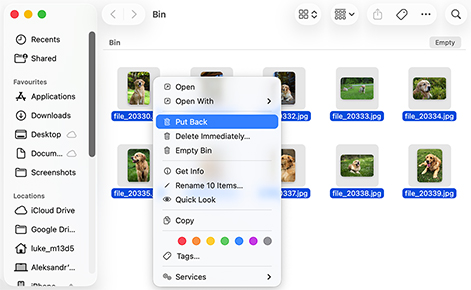
Files deleted from an SD card while it's connected to your Mac end up in a hidden Trash folder on the card itself. As long as your card is connected to your computer, the content of the hidden Trash folder is automatically displayed when you open your Mac's regular Trash by following these steps:
Important: If you deleted files directly on your camera or another device, they won't appear in your Mac's Trash.
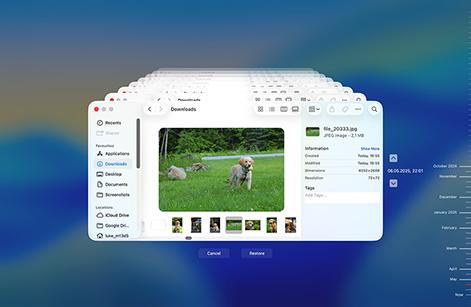
Your Mac comes equipped with a backup and recovery tool called Time Machine. Since Time Machine is designed to back up your Mac's system drive, it can help you recover your SD card's files only in situations where those files were previously copied to your Mac and included in a scheduled backup. If you believe that such a situation might have happened, here's how to check:
Many camera manufacturers offer companion apps that automatically transfer photos and videos from your SD card to your phone or tablet. If you've been using apps like Canon Camera Connect, Nikon SnapBridge, Sony Imaging Edge Mobile, Fujifilm Camera Remote, or Panasonic Image App, your missing files might already be safely stored on your mobile device, so make sure to check your device's gallery. And if you use an automatic cloud backup solution or sometimes back up files to the cloud manually, then check that too.
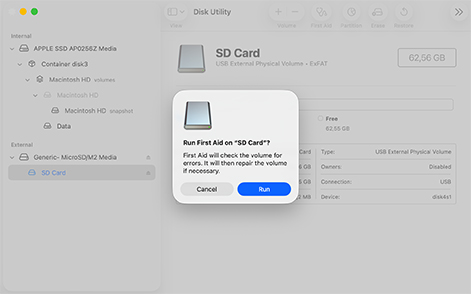
If you're getting errors when trying to access files on your memory card, the file system itself may be corrupted. While macOS's First Aid tool can fix these issues, repairs can sometimes make data recovery more difficult. That's why we strongly recommend following the Safe Recovery method described in Step 3.3 above to create a byte-to-byte backup of your SD card using Disk Drill first, then run recovery on the backup image.
When you've backed up your data (or if you're willing to proceed without a backup), you can instruct First Aid to repair the file system issues:
Disk Drill 6 introduces Advanced Camera Recovery (ACR) technology that can reconstruct fragmented video files from cameras, action cameras, drones, and other devices, which is something standard recovery methods often fail to do because such files are often split across multiple locations on the SD card.

Canon: EOS R5, PowerShot G7 X, EOS Rebel T8i; Sony: Alpha a7 III, ZV-E10, RX100 VII; Nikon: Z6 II, D850, COOLPIX P1000; Fujifilm: X-T5, X100V, GFX100; Panasonic: Lumix GH6, Lumix S5, HC-VX1

GoPro: HERO10, HERO9, MAX; Insta360: ONE X2, GO 3, X3; DJI: Osmo Action 4; iCatch: SPCA6330M, SPCA6350

Drones: DJI Air 3, Pocket 2; Security cameras: Appcam Solo+, Guardian G955; Body cameras: Boblov PD70, W1, KJ21
Here are some tips that can help you reduce the probability that you will lose data from an SD card. Following these recommendations will also make it more likely that you can perform a successful recovery with data recovery software.

Stop using the card as soon as you suspect that data loss has occurred. Continued use of the device exposes its contents to being overwritten or corrupted.

Backing up your data is the best defense against any type of data loss scenario. You should make it a regular habit to create a backup of all of your valuable data.

Use high-quality SD cards from reputable manufacturers such as SanDisk. Saving a little money can come back to bite you when the card fails and you lose data.

Try to keep your SD cards free of virus infection by limiting the number of unverified devices you connect it to and using antivirus software on your Mac.

Take good care of your SD cards and they will last longer and keep your data safe. Keep them away from excessive heat and moisture and protect them in a case.

Removing the card while data is being transferred can cause corruption and result in the loss of data. Make sure the process is complete before taking out the card.
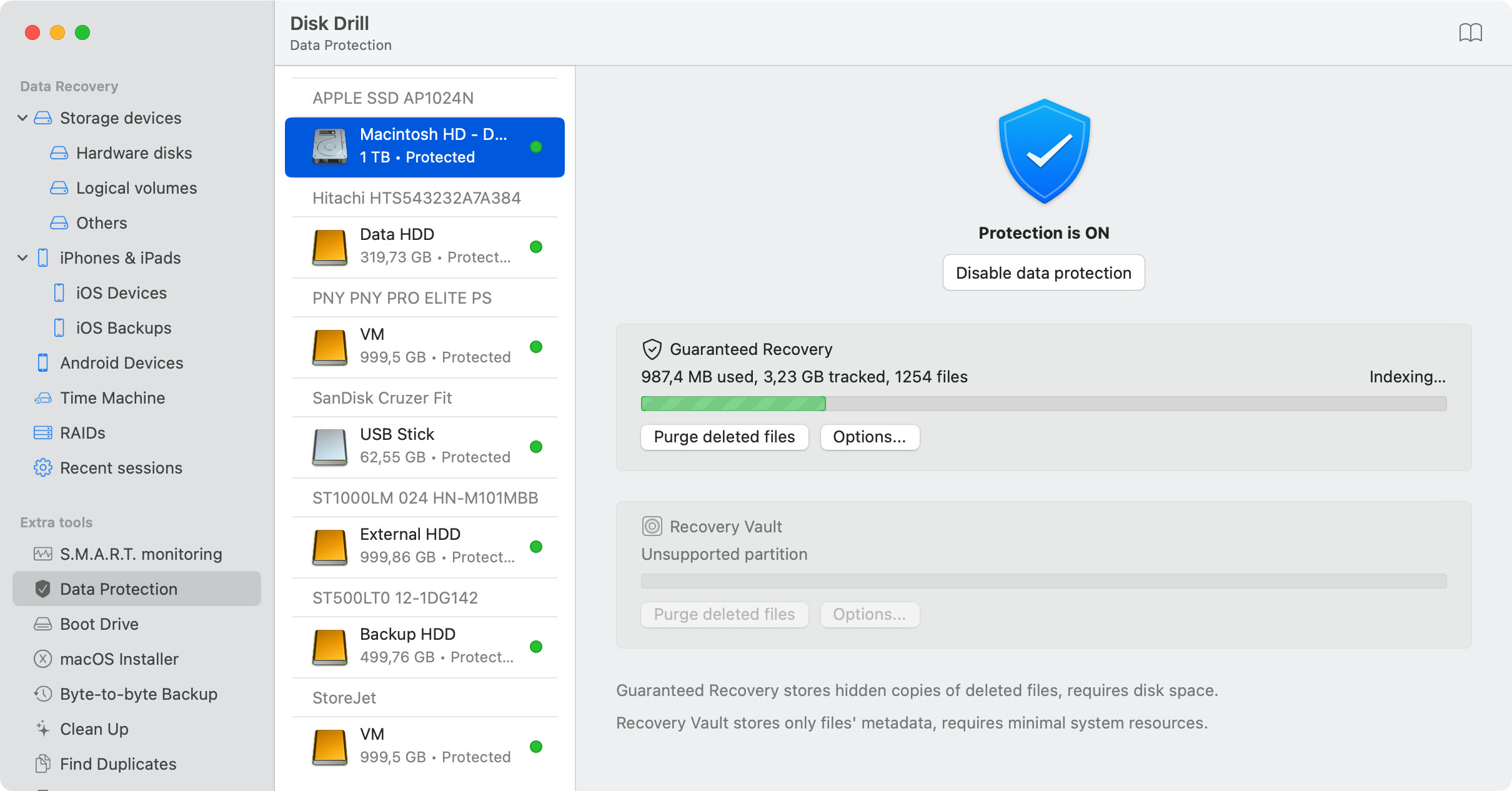
While Disk Drill excels at recovering lost files from SD cards, the best strategy is to prevent data loss in the first place. For data that you regularly transfer from your SD card to your Mac, Disk Drill offers two free protection features that can make recovery instant if you accidentally delete it from your computer:

Versions of Disk Drill are available for all versions of macOS from 10.5 through the newest version macOS Tahoe (26.1).

FAT16/FAT32/exFAT, NTFS, NTFS5, ReFS, HFS, HFS+, APFS, EXT2/EXT3/EXT4, BTRFS and any RAW disk

Disk Space: 1GB minimum free space
CPU: 64-bit (x86-64) or ARM compatible CPU 1.0 GHz or faster
RAM: at least 4GB
by Disk Drill Team
There are many methods we have covered that you can use to recover deleted files from SD card on Mac. However, in most cases, you will have to turn to data recovery software and follow these simple steps:
The recovery of corrupted SD cards on Mac is tricky because the corruption can unexpectedly get worse or the card may stop working entirely. That's why it's best to always start with the creation of a complete backup of the card using something like the Byte-to-byte Backup feature in Disk Drill. You can then mount the image in Disk Drill using the Attach disk image option at the bottom of the Storage Devices section. After mounting, you can recover data from the image just like you would from a normal SD card, but without the risk of further damaging the original corrupted card.
To recover deleted files from your SD card without spending any money:
If the card hasn't been overwritten during formatting (full format options in many cameras or the secure format options on Mac do overwrite all data), then you can recover it by connecting it to your Mac and scanning it with Disk Drill or another Mac-compatible tool capable of locating and restoring leftover data structures.
Follow this procedure to format an SD card on your Mac.
Here are some of the signs that indicate your memory card has experienced some form of corruption.
You can use an external card reader or the one built into your Mac. Follow these steps.
The process is no different from the recovery of a regular SD card. First, stop writing new data to the card so that the deleted files don't become overwritten. Next, connect the microSD to your Mac using a suitable memory card reader and run a scan with Disk Drill or another Mac-compatible recovery tool. If the card is not recognized, then you should check for physical damage. MicroSD cards are tiny, so it doesn't take much to crack them. If you do notice physical damage, then your best course of action is to send the card to a professional data recovery service for an assessment.
SDHC cards hold only up to 32 GB of data, and that's not much in this day and age. A couple of 4K videos written to your SDHC card after the deletion of your files could easily overwrite most of the available storage space and make their recovery impossible. Except for this urgency, the recovery process is the same: connect to Mac, download recovery software like Disk Drill, and run the recovery scan.
Deleted photos can be restored from an SD card with this procedure:
In many cases, all you need to do is perform standard data recovery using software like Disk Drill. Some cameras, however, record multiple streams of data to different parts of the memory card at once, and this fragmentation can make standard data recovery techniques less effective. That's where Disk Drill shines. Its Advanced Camera Recovery feature (available in version 6) can reconstruct fragmented video files from GoPro, DJI, and similar cameras. You can preview recoverable videos at no cost before deciding to upgrade.
In most cases, Disk Drill is the best choice for SD card recovery on Mac, as it combines ease of use with comprehensive functionality for recovering all kinds of data. Tech-savvy users who are willing to sacrifice some usability for granular control over the recovery process should also check out R-Studio because it allows you to edit file signatures and scan specific portions of your SD card.
If you're looking for completely free solutions, then PhotoRec is your best bet on macOS even though it lacks a graphical user interface and recovers files based only on their signatures, so you won't retain original file names or folder structures.
You have several options to try with an unreadable SD card including:
The most effective way to recover lost videos from an SD card is to use the Advanced Camera Recovery (ACR) module in Disk Drill 6. This module is designed to reconstruct fragmented video files (like those from GoPro or drone footage) by automatically detecting file fragments and stitching them together in their correct sequence. For the ACR module to work correctly, make sure you connect the original SD card to your Mac via an external card reader, as opposed to keeping it inserted in the video recording device and connecting the device to your Mac using a USB cable.

REQUIREMENTS
macOS 10.15.7–26.x, 72.1 MB
Use Disk Drill 1.x-5.x for OS X 10.5+
AVERAGE USER RANK
NEWEST RELEASE

TOTAL DOWNLOADS

PRO CLIENTS

in 160+ countries

Disk Drill, just recovered over 500MB of photos from an SD card at work an hour ago using the tool. It's easy to use and has a high success rate.
"For the most part, Disk Drill 5 recovered almost all the images I was hoping for. The memory card tested was a Lexar 600x 16GB micro SD card." - Feroz Khan.