


Did some of your drone footage disappear following a crash? Or maybe you accidentally deleted everything before getting a chance to back it up. Whatever happened, it’s clear that some of your footage is no longer visible. We’ll show you the most effective methods for DJI data recovery. We’ve seen this countless times, and in most cases, recovery is very much possible if you act fast.
When Is It Possible to Recover Files from a DJI Drone?
The main method of DJI file recovery is using specialized recovery software that scans the drone’s microSD card or internal storage for data that’s still physically present, even if the file appears deleted. If the original data is there, it can be restored to a safe location. However, this is only until it’s overwritten by new data, which is why it’s imperative that recovery is a priority.
When it comes to recovery, it’s also very context-dependent. You have better odds of recovering a video straight after deletion than if the card was used for five more flights, but you’re also facing different variables if, say, your drone crashed into water. The table below covers some common scenarios and your chances of recovery.
| Scenario | Recovery chances | What this means |
| DJI videos/photos were deleted | High | One of the the most common cases for DJI file recovery. If the files weren’t overwritten, recovery software has a strong chance of finding them. |
| DJI microSD card was quick-formatted | Medium to High | A quick format removes file references, not the actual video data. Recovery is often possible if the storage hasn’t been written to since. |
| DJI card shows errors or asks to be formatted | Medium to High | The files may still be there but inaccessible due to file system damage. Use recovery software before formatting or running any repair tools. |
| DJI video recording was interrupted | Medium | The file may be incomplete or missing its final metadata. Recovery software may be able to extract it, but the file will still need to be repaired. |
| DJI drone crashed, but the SD card is physically fine | Medium | Recovery is still realistic if the storage survived and can be read. Remove the card carefully and avoid using it before recovery. |
| Full format was performed | Low | A full format erases data by overwriting it. You can attempt recovery anyway, but go in with low expectations. |
| The card is not detected at all, or has physical damage | Low/Professional help needed | DIY software cannot scan a card the computer cannot read. A professional data recovery lab may be the only realistic option. |
How to Recover Deleted Videos from DJI Drone Camera
We’ve tested multiple options, so start with the first method and work your way through.
Method 1. Recover DJI Footage with Disk Drill
When DJI footage is deleted, formatted, or lost, data recovery software is usually the most reliable route. However, not every recovery app equally supports drone video. DJI footage is often large and fragmented across the card, so you need software that can account for this and piece it together. Disk Drill is a strong choice, as its Advanced Camera Recovery module is designed to reconstruct large, fragmented camera recordings like the ones DJI drones record.
These steps demonstrate DJI file recovery using Disk Drill:
- Download and install Disk Drill.
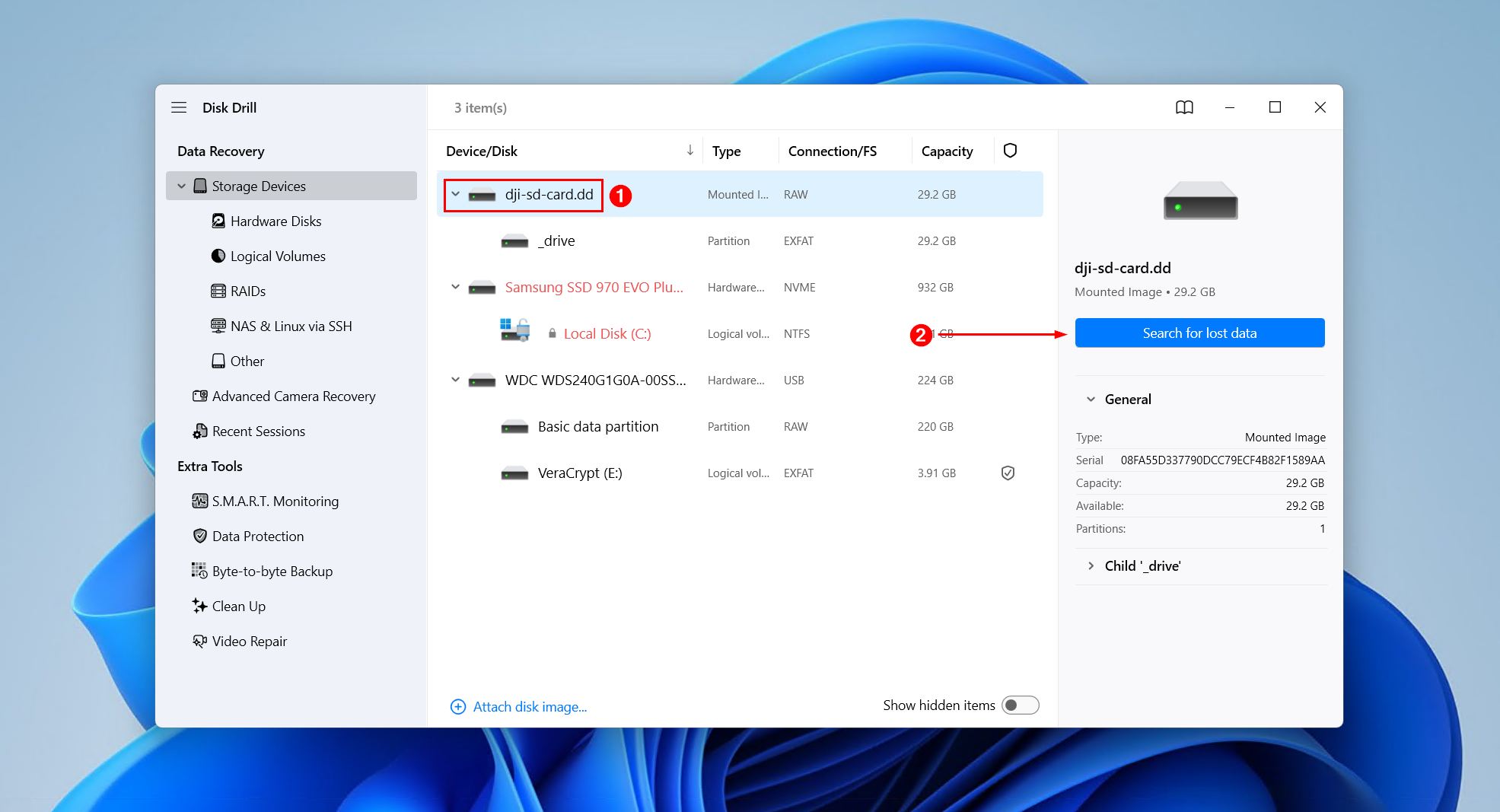
- Connect your storage device to the computer and select it from the list. Click Search for lost data.
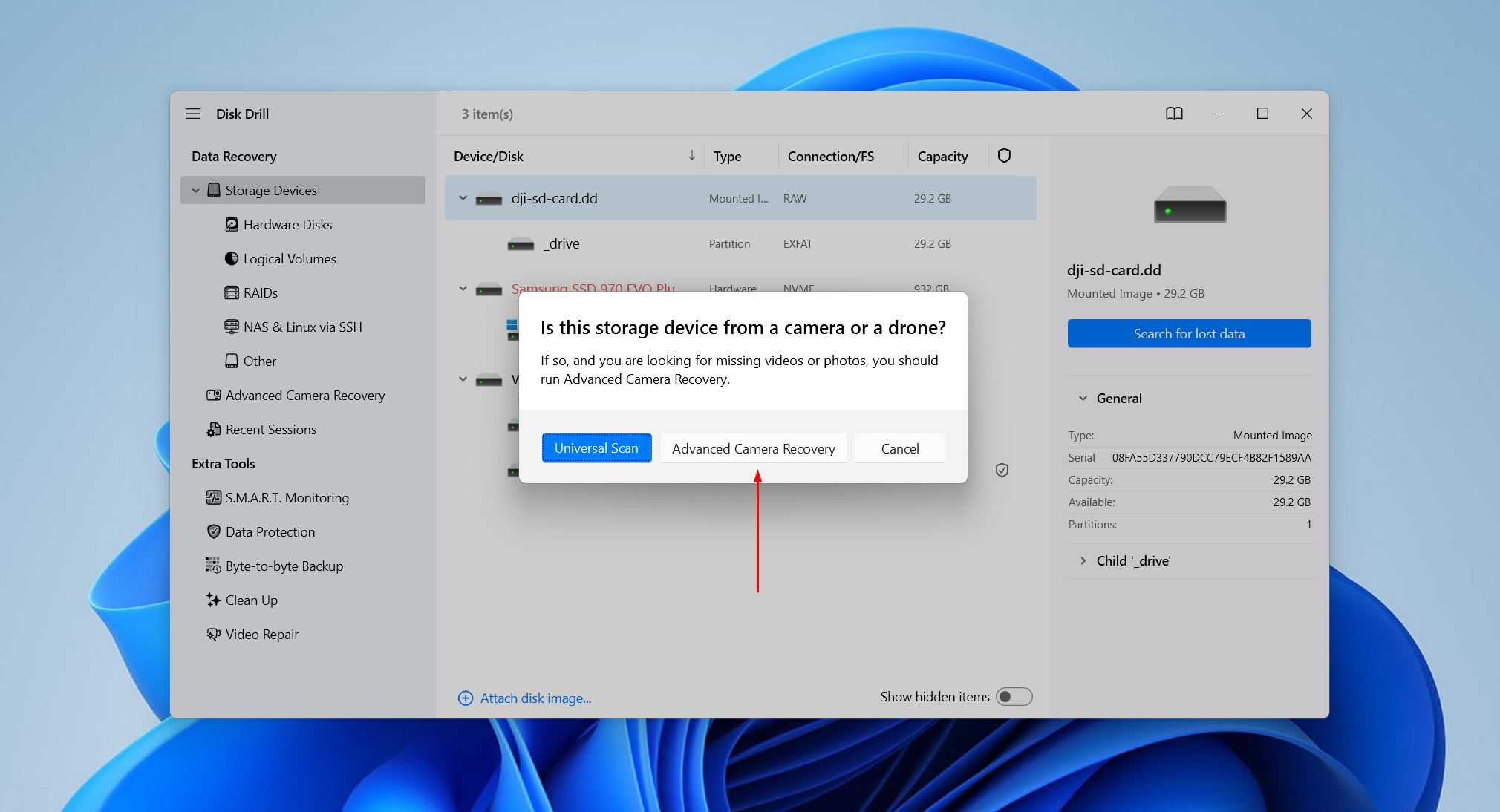
- Click Advanced Camera Recovery, the scan type built for recovering photos and videos from cameras and drones. It’s the best choice for footage lost to formatting, and often for damaged or corrupted files. For simply deleted files, try the Universal Scan first and switch to ACR if it finds nothing.
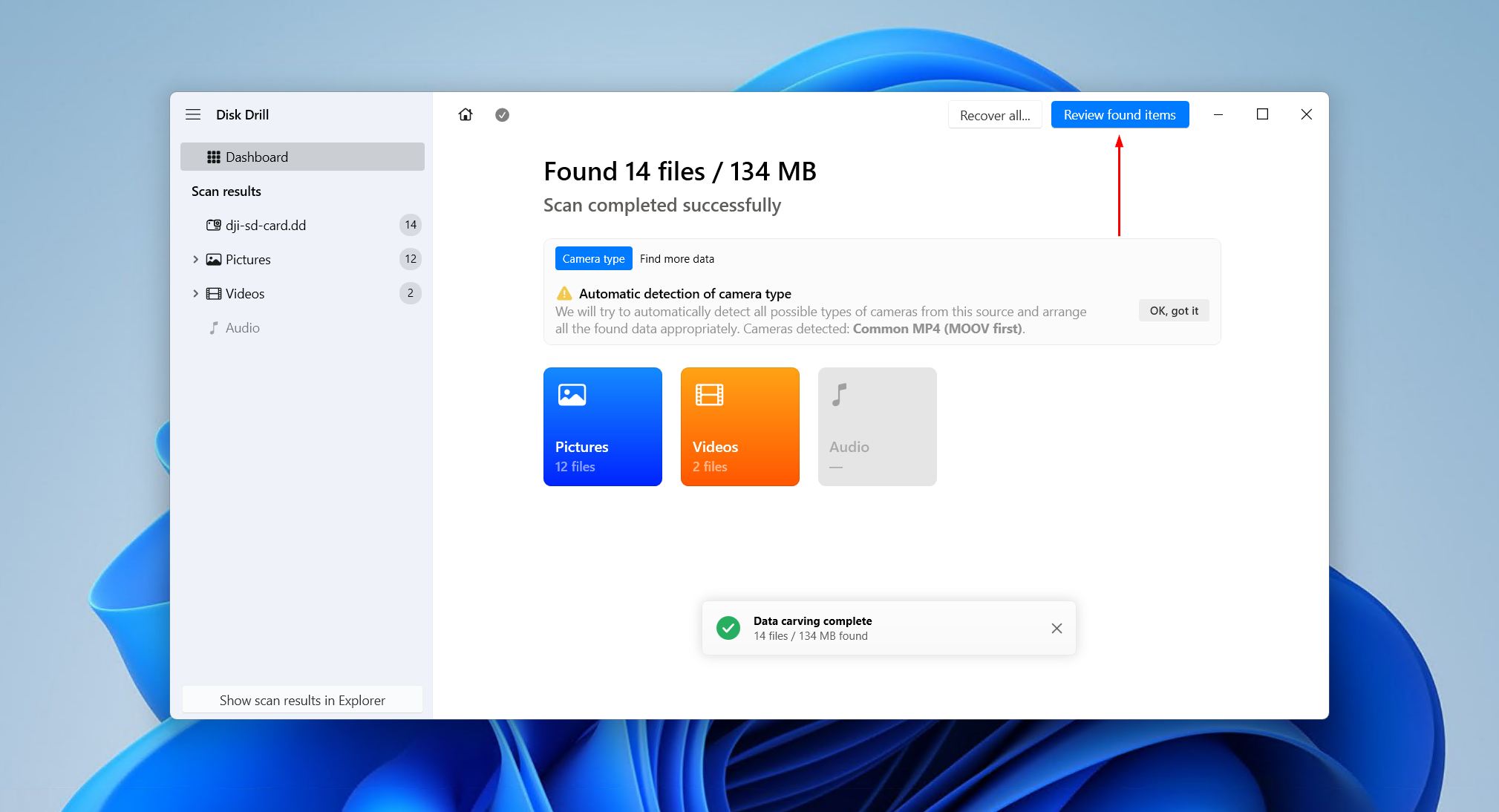
- Click Review found items once the scan is complete to see everything that was found. Alternatively, click one of the colored file format icons to filter the results, or Recover all to restore everything immediately.
- Preview your footage. You can make it easier by filtering out all other data besides video files. Videos shot by your DJI drone are directly previewable in the app before recovery, and a recovery chance is assigned based on the integrity of the data.
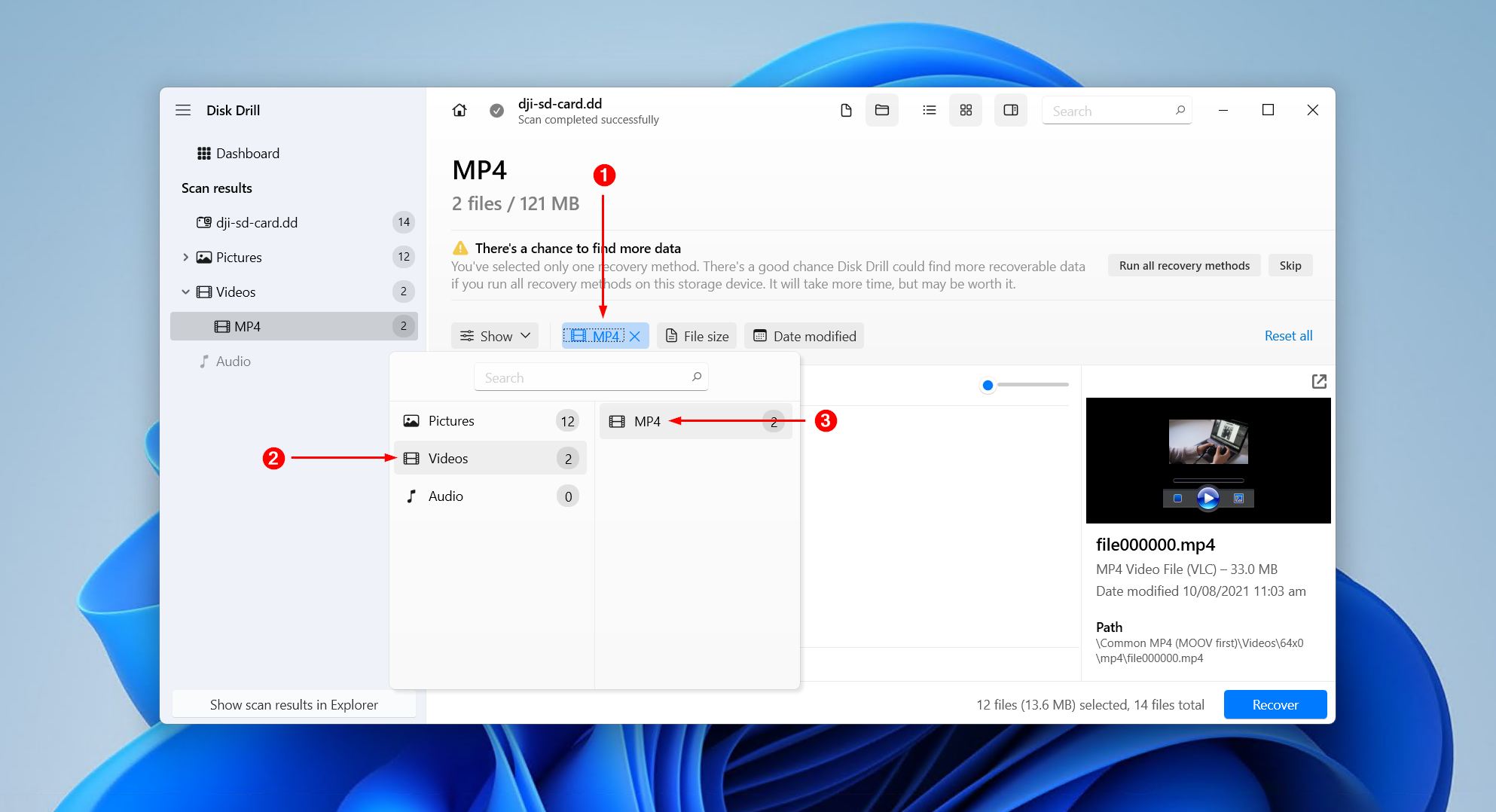
- Select your video files. Tick the checkbox next to each file. Disk Drill lets you recover up to 100 MB for free, enough to recover a short clip and make sure the software works. Click Recover when you’re ready.
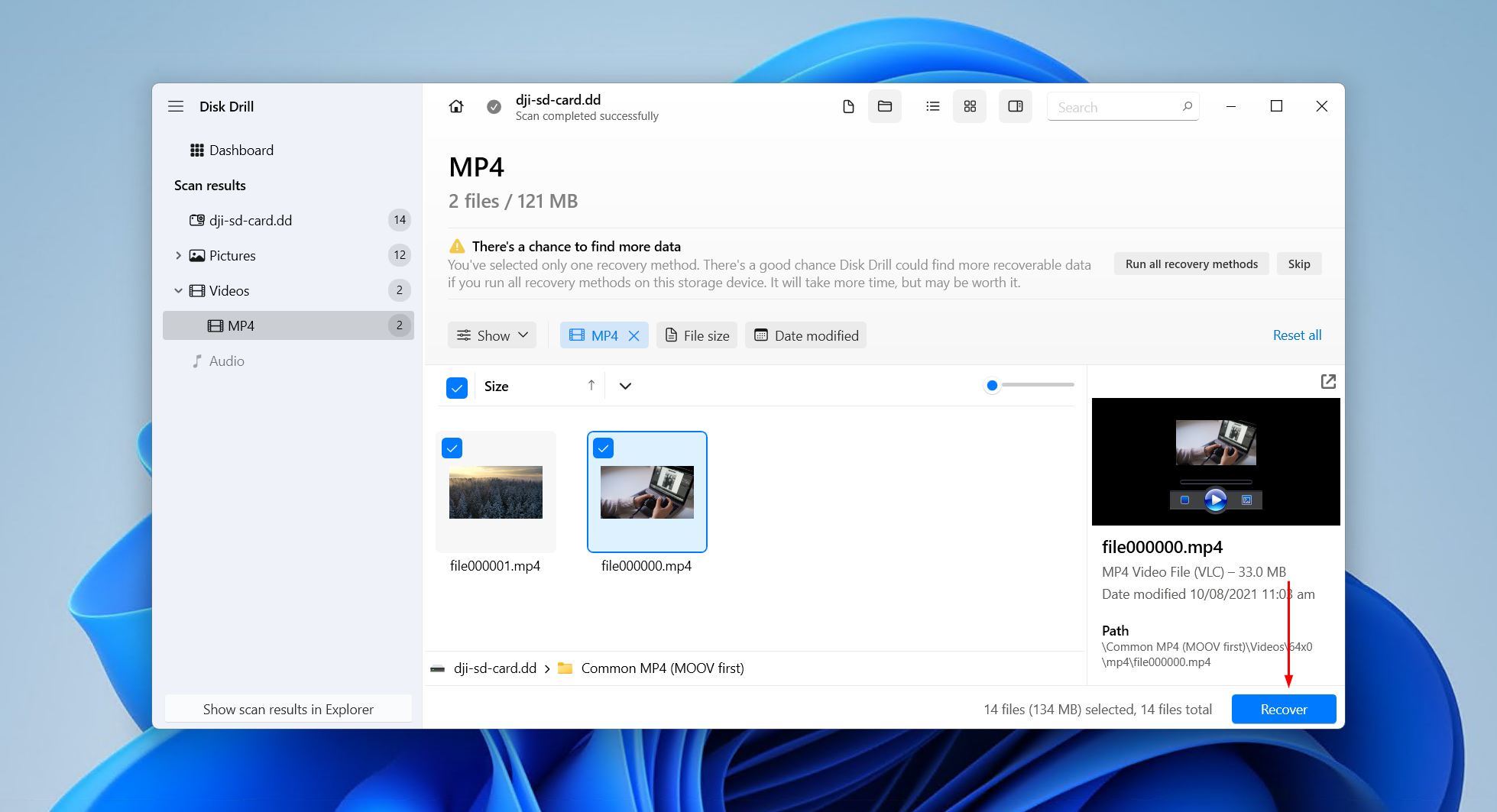
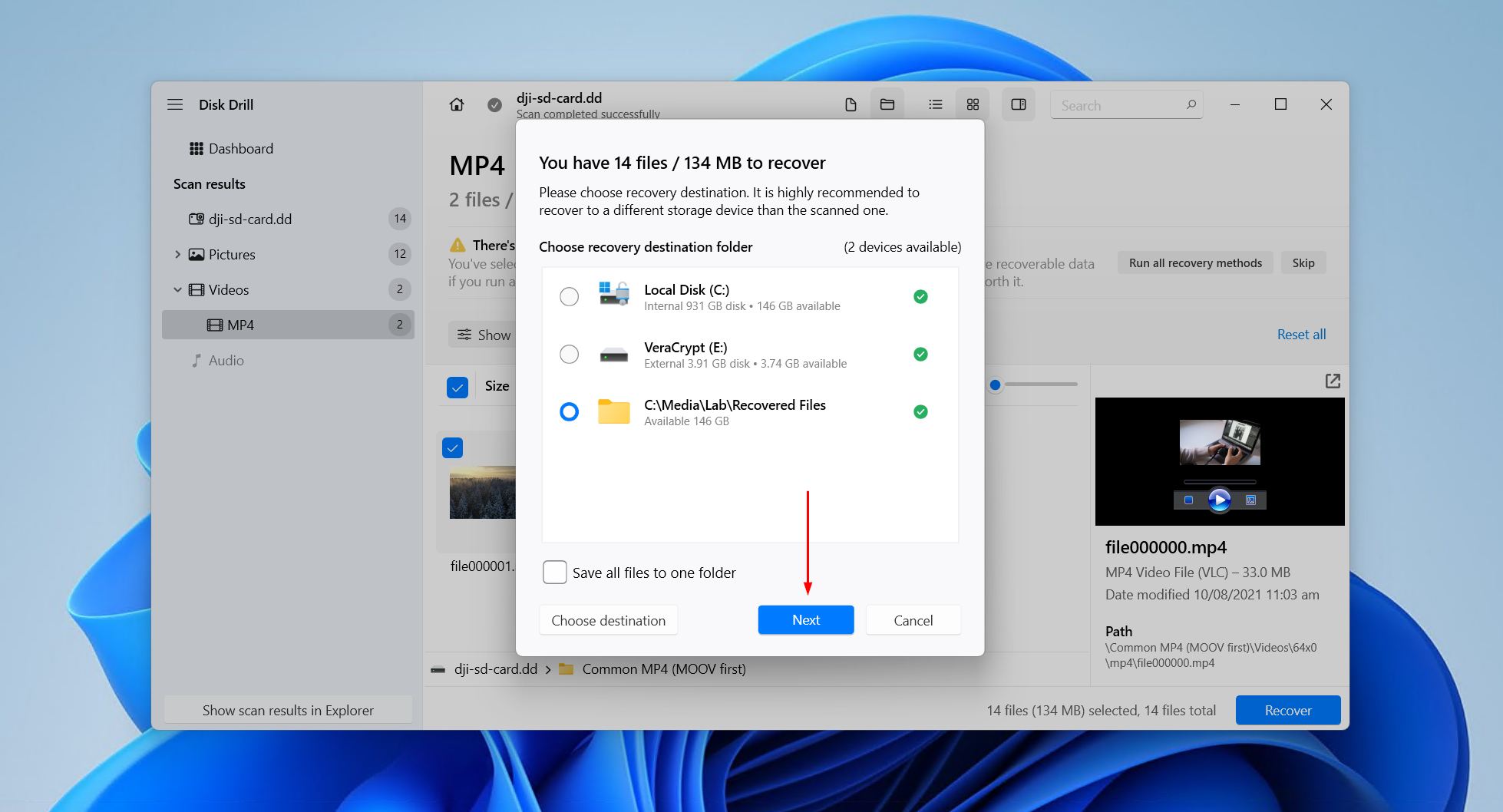
- Choose where you want to store the recovered files. Make sure you don’t choose somewhere on the same device we’re recovering from. Click Next to finish recovery.
Disk Drill’s a reliable option to recover files from DJI drones because it offers excellent support for MP4 and MOV formats, the preferred format used by DJI drones for video capture. Likewise, it’s efficient at recovering JPG and raw DNG files in case you had photos on there too.
Method 2. Check DJI GO/DJI Fly
Before assuming the footage was deleted, it’s a good idea to check whether the DJI app saved a copy locally on your phone or tablet.
The app you use depends on your drone model, and the folder names and locations may vary by app version and phone operating system. Newer DJI drones use the DJI Fly app. Older models use DJI GO4 or DJI GO. Given the differences, these steps aren’t meant to be one universal solution, but rather a guide for you to find the typical locations where DJI footage, downloaded files, and cached videos may appear.
The steps below demonstrate how you can find your footage using the DJI Fly app:
- Open DJI Fly on your iOS or Android device.
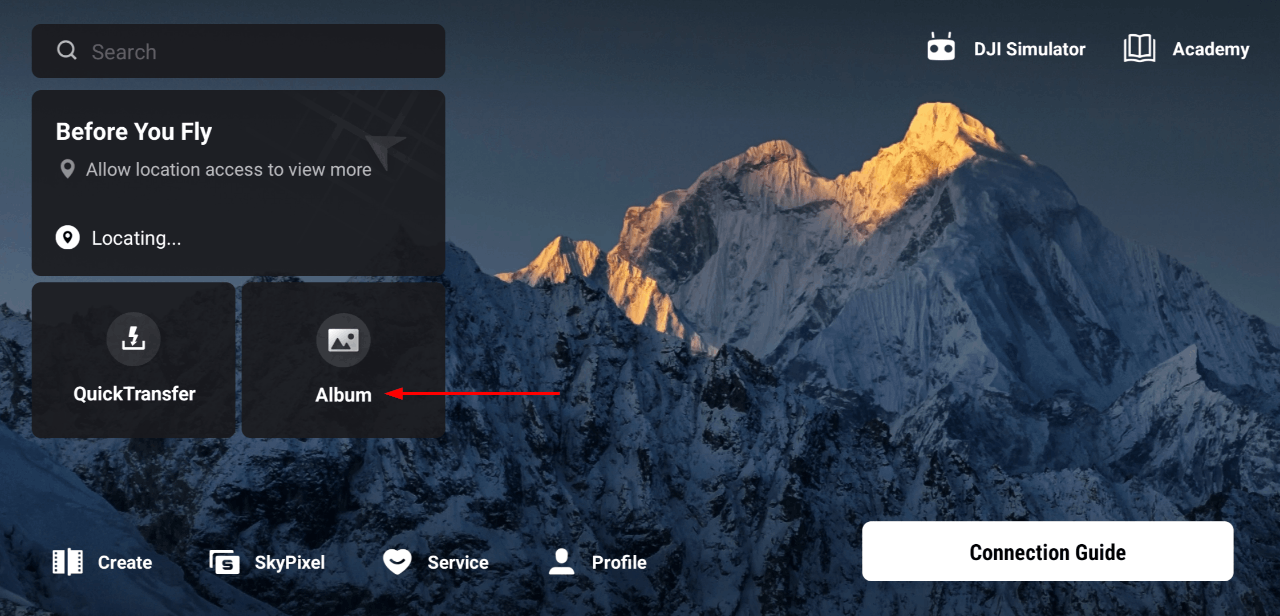
- Go to Album.
- Go to Aircraft Album to see if your footage is there.
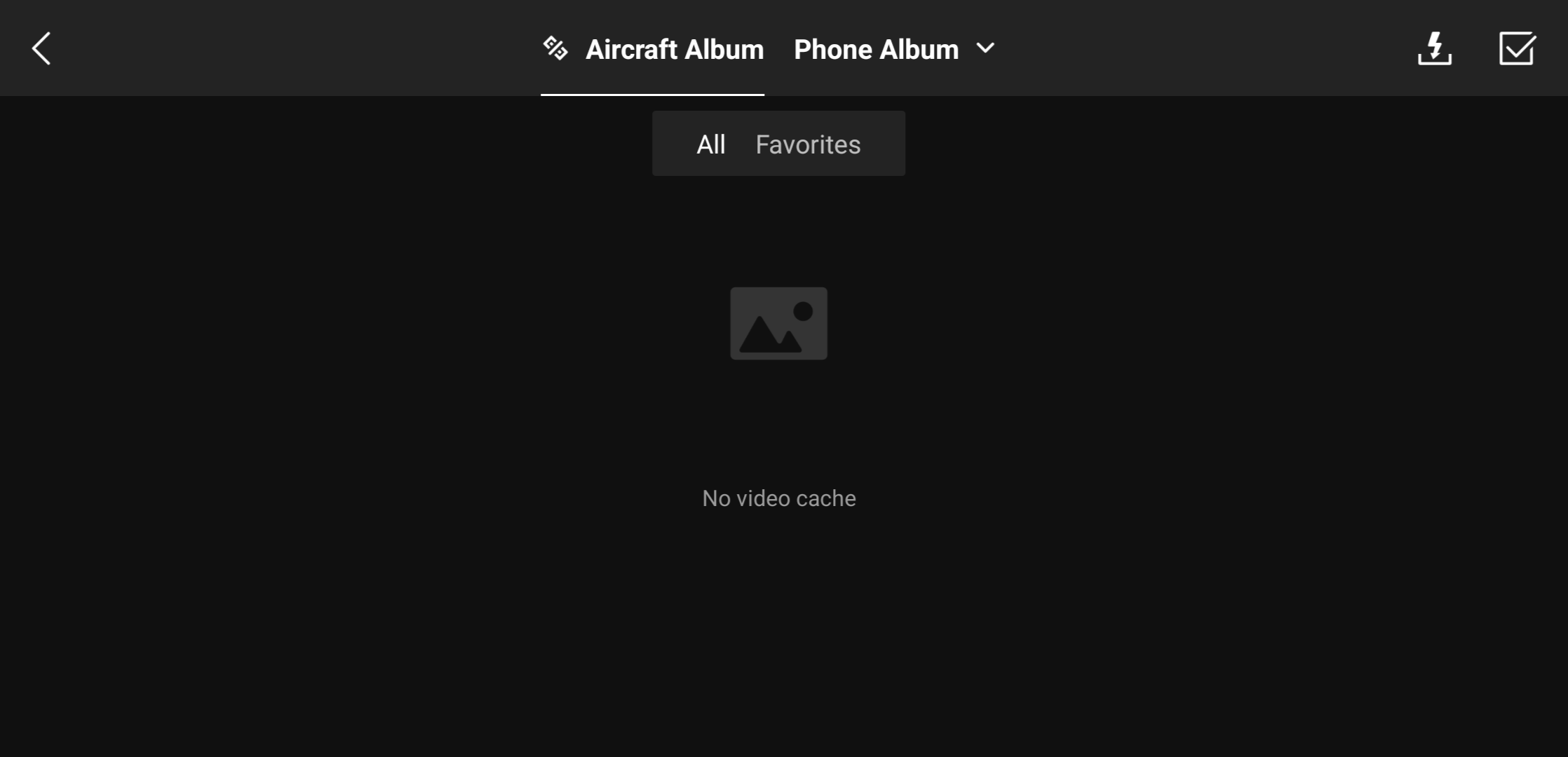
If it’s not there, check Phone Album for any videos that were stored to your device. It will show you all videos on your device, not just those shot by your drone.
Method 3. Restore DJI Footage from Backups or Synced Copies
Struck out with the last two methods? Your last option is to check for backups or synced copies of the footage on the off-chance they were (1) transferred from the drone, SD card, controller, phone, or DJI app to a computer or another device before it was lost, and (2) that device had backup or cloud sync active at the time. If these two conditions are met, some footage may be restorable without even having to scan the original DJI card.
We’ll run you through two scenarios: the first covers if you transferred the videos to a Windows PC and then they were backed up with File History, and the second covers how to recover deleted videos from DJI that were synced to the OneDrive cloud service.
Restoring a video from File History:
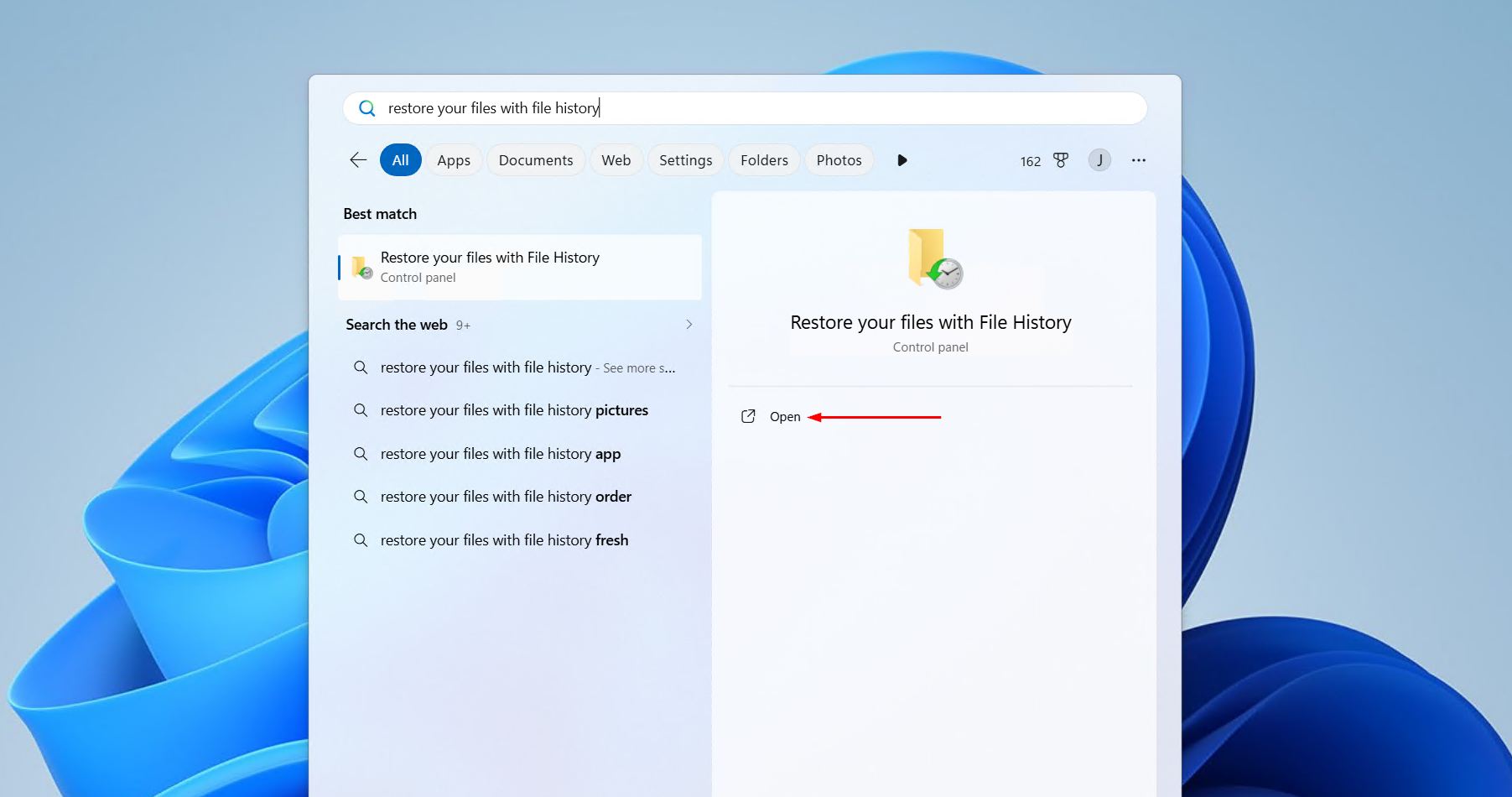
- Open Start and search “Restore your files with File History”. Open the best match result.
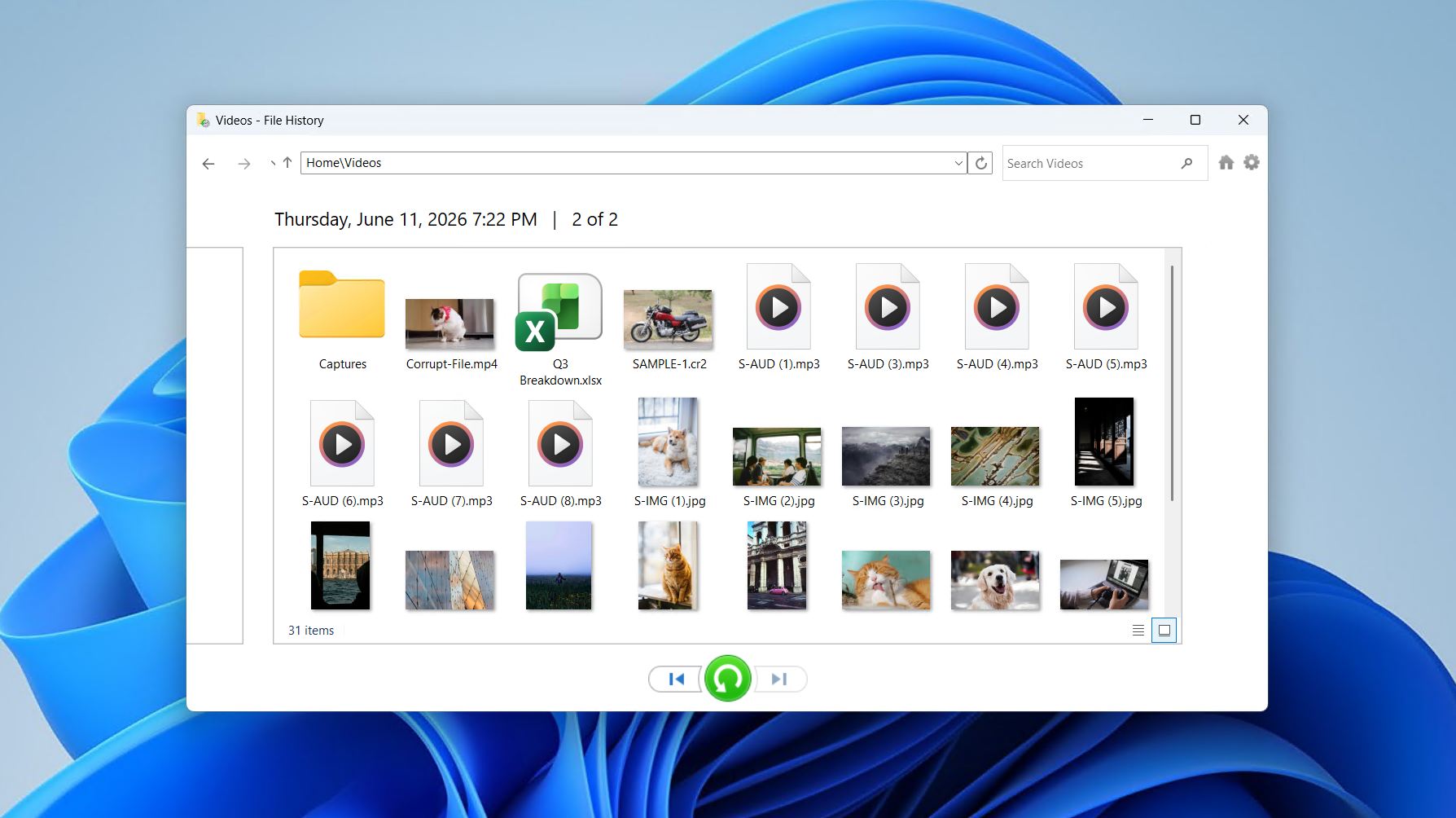
- Navigate to where the DJI footage was last stored.
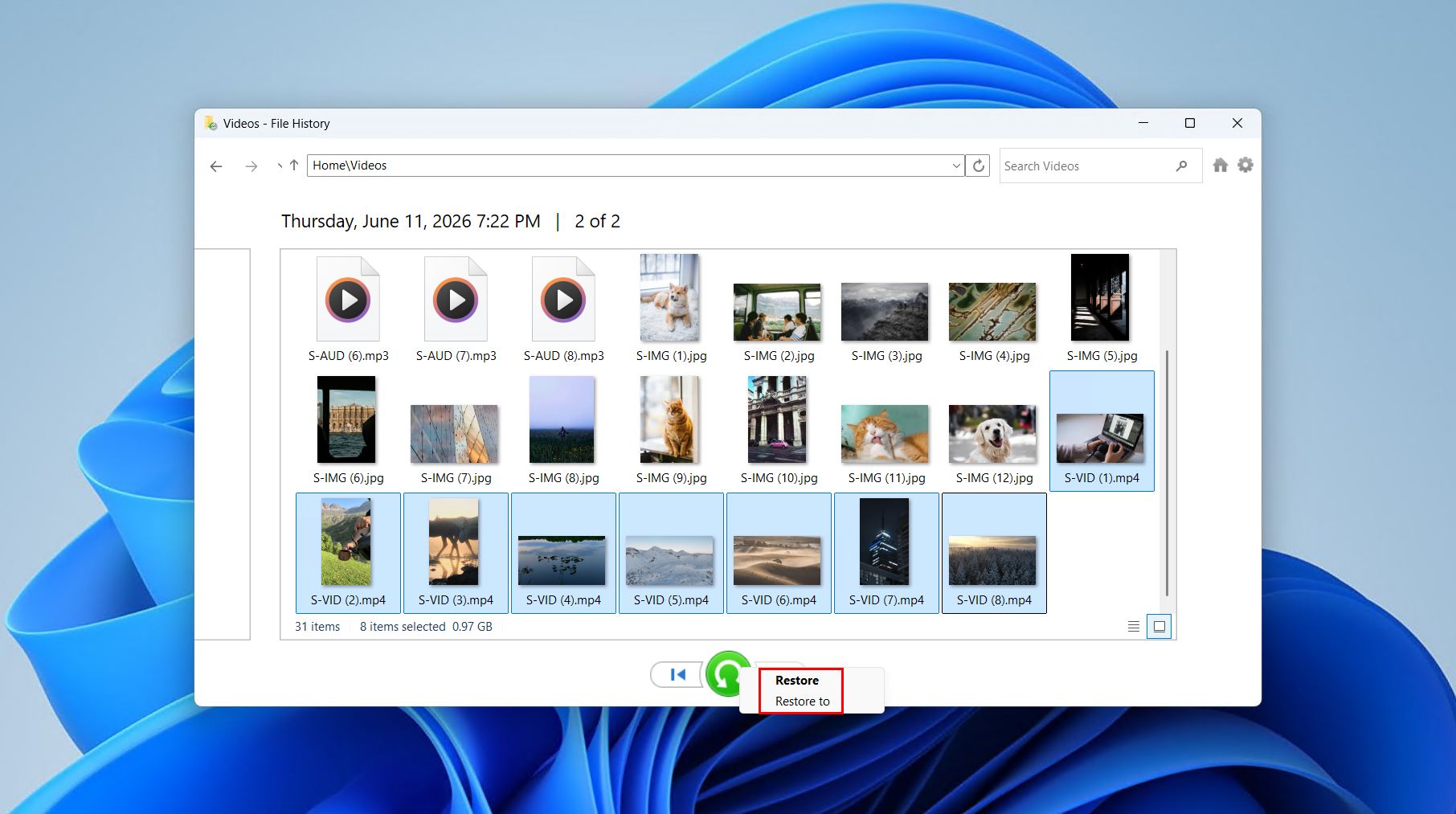
- Select the files you wish to restore. Right-click the green restore button, then click Restore to restore the files to their original location, or Restore to if you want to save them elsewhere.
Downloading a video from OneDrive:
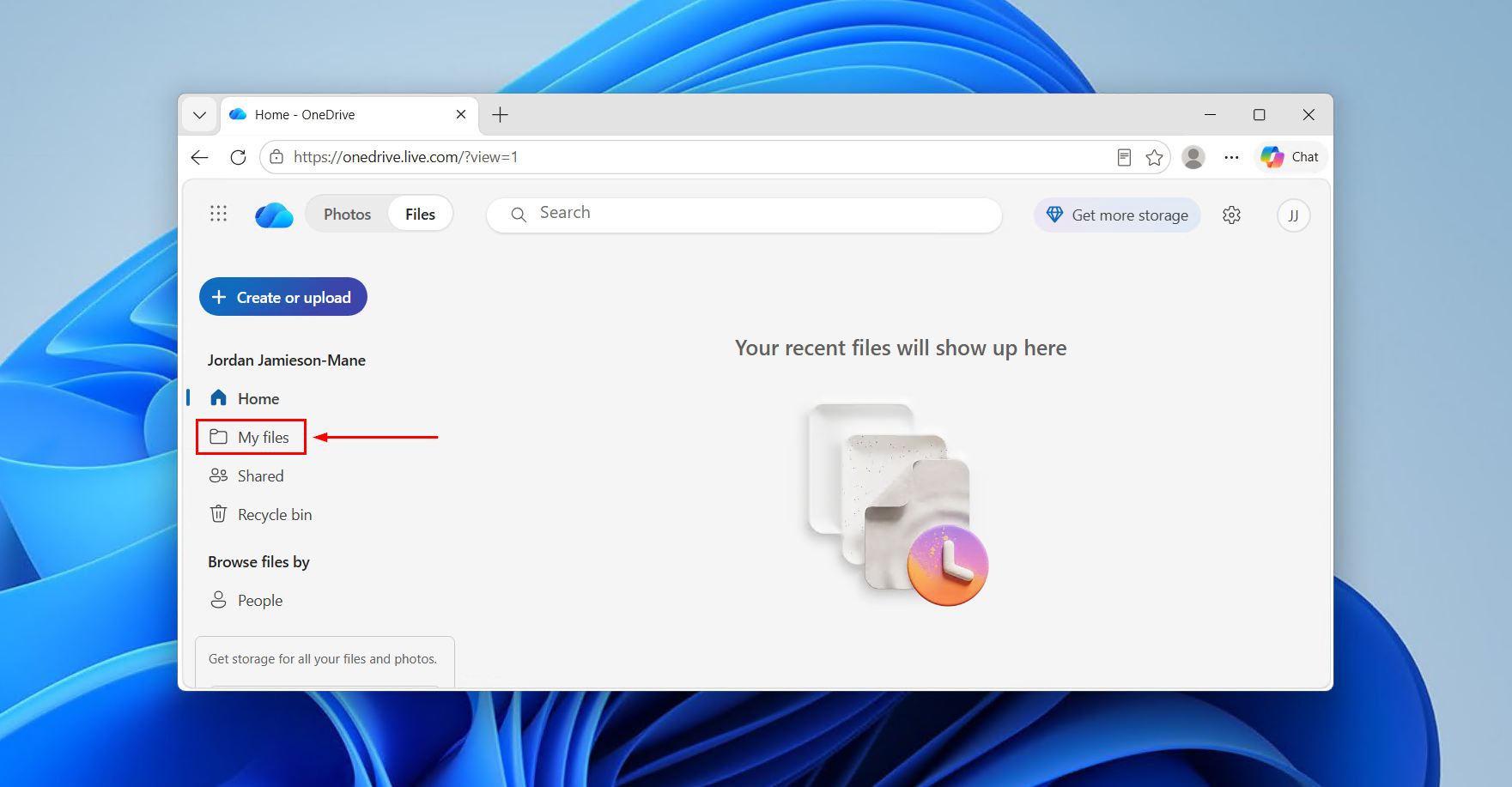
- Sign in to OneDrive in your browser, or click the OneDrive app and click View online.
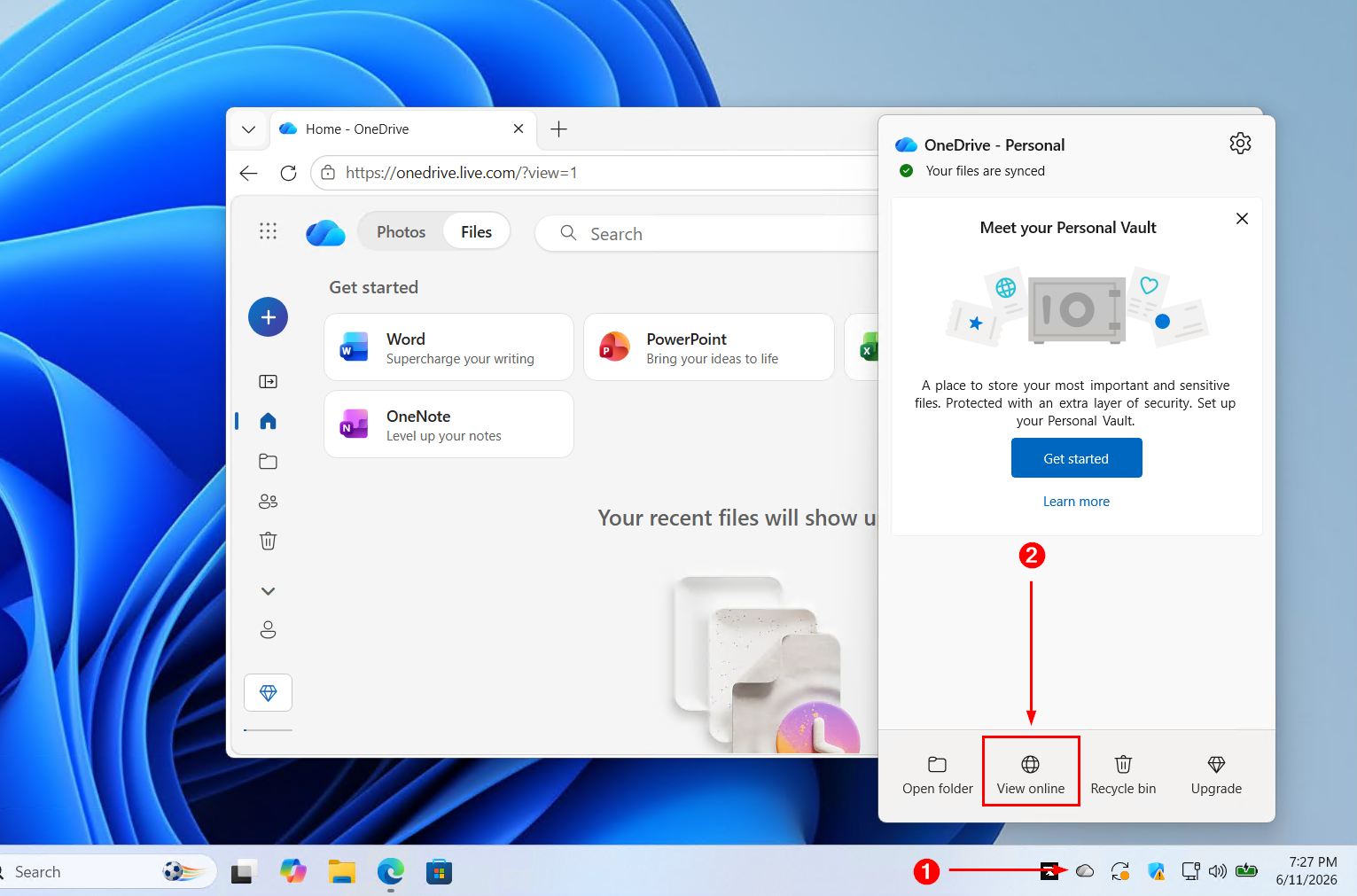
- Go to My files and find your DJI footage.
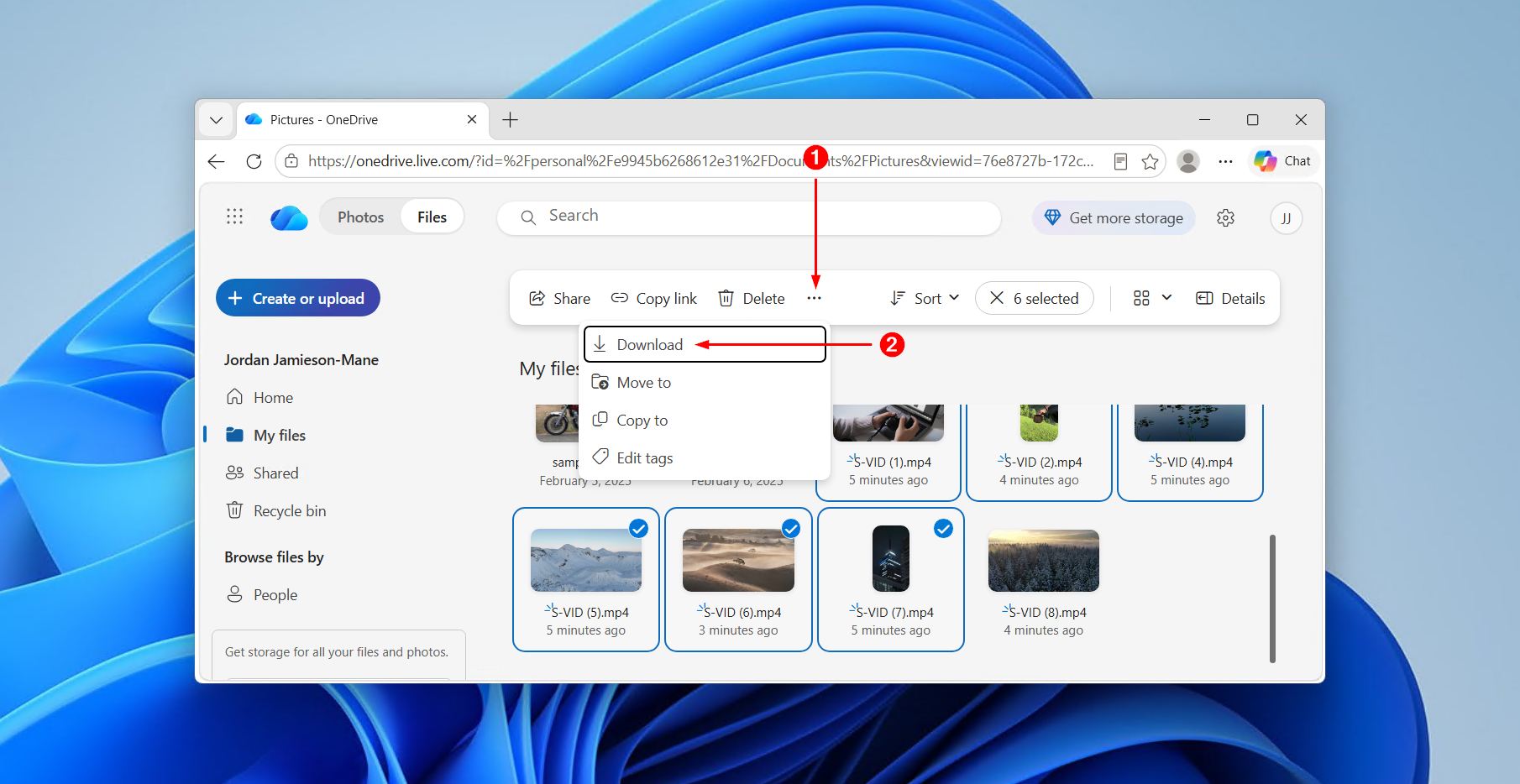
- Select the footage you want to recover, then click Download.
Recovered DJI Drone Camera Recordings Won’t Play?
Got your files back, but now they won’t play? DJI footage can be tricky, and forum threads complaining about DJI footage corruption are not uncommon.
Recovered videos from DJI drone camera may be in an incomplete state due to fragmented parts of the file being overwritten by newer footage. In other cases, the file could’ve become corrupted before recovery due to the drone losing power, crashing, overheating, or anything else that could’ve resulted in the recording being interrupted before the drone could finish writing the file to storage.
Thankfully, video repair software and online repair services can sometimes repair these files by rebuilding the container structure using a profile preset or healthy, intact reference file. Clever Online Video Repair is an option that’s available for free with an existing Disk Drill license (accessed via the side menu of Disk Drill). It supports MP4 and MOV formats and works with H.264 and H.265/HEVC video streams, which are common formats and codecs used by DJI drones.
Video repair is really simple with the following steps:
- Open Clever Online Video Repair.
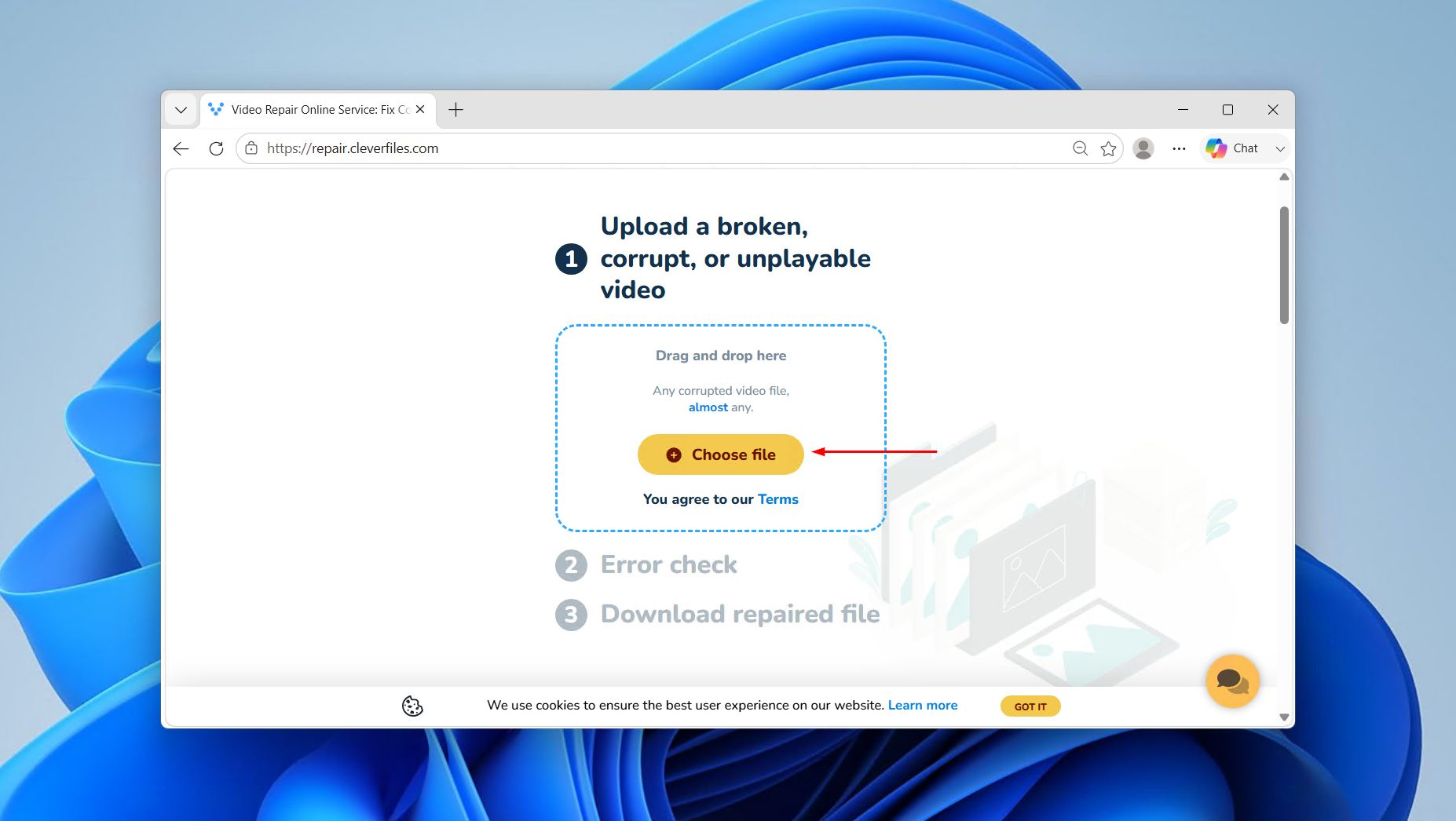
- Click Choose file and upload your corrupted DJI footage and wait for it to upload.
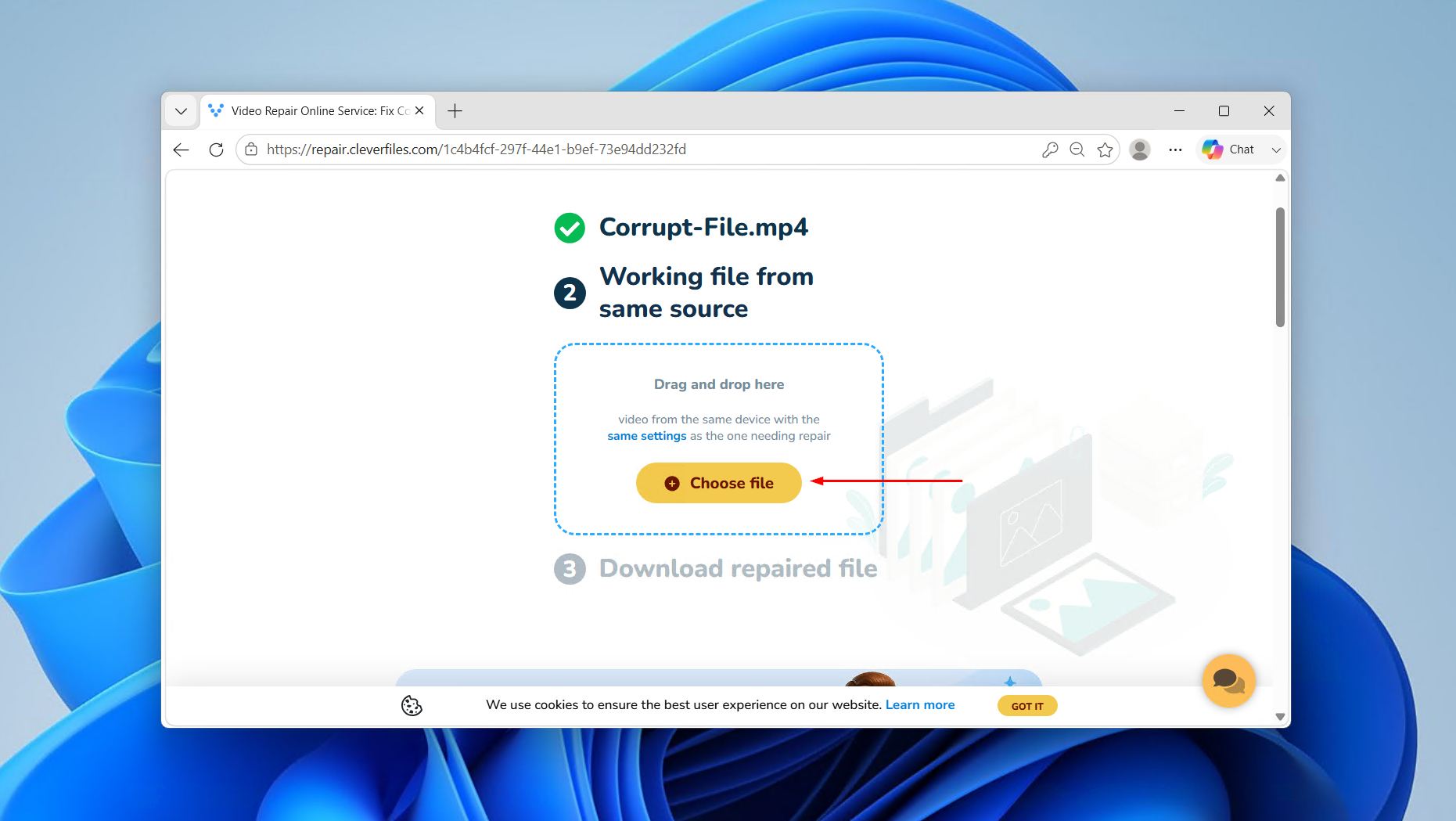
- Automatic repairs using a database of known container structures are attempted first. If automatic repairs didn’t work, you can click My sample to upload a reference file shot by the same drone to try more comprehensive repairs.
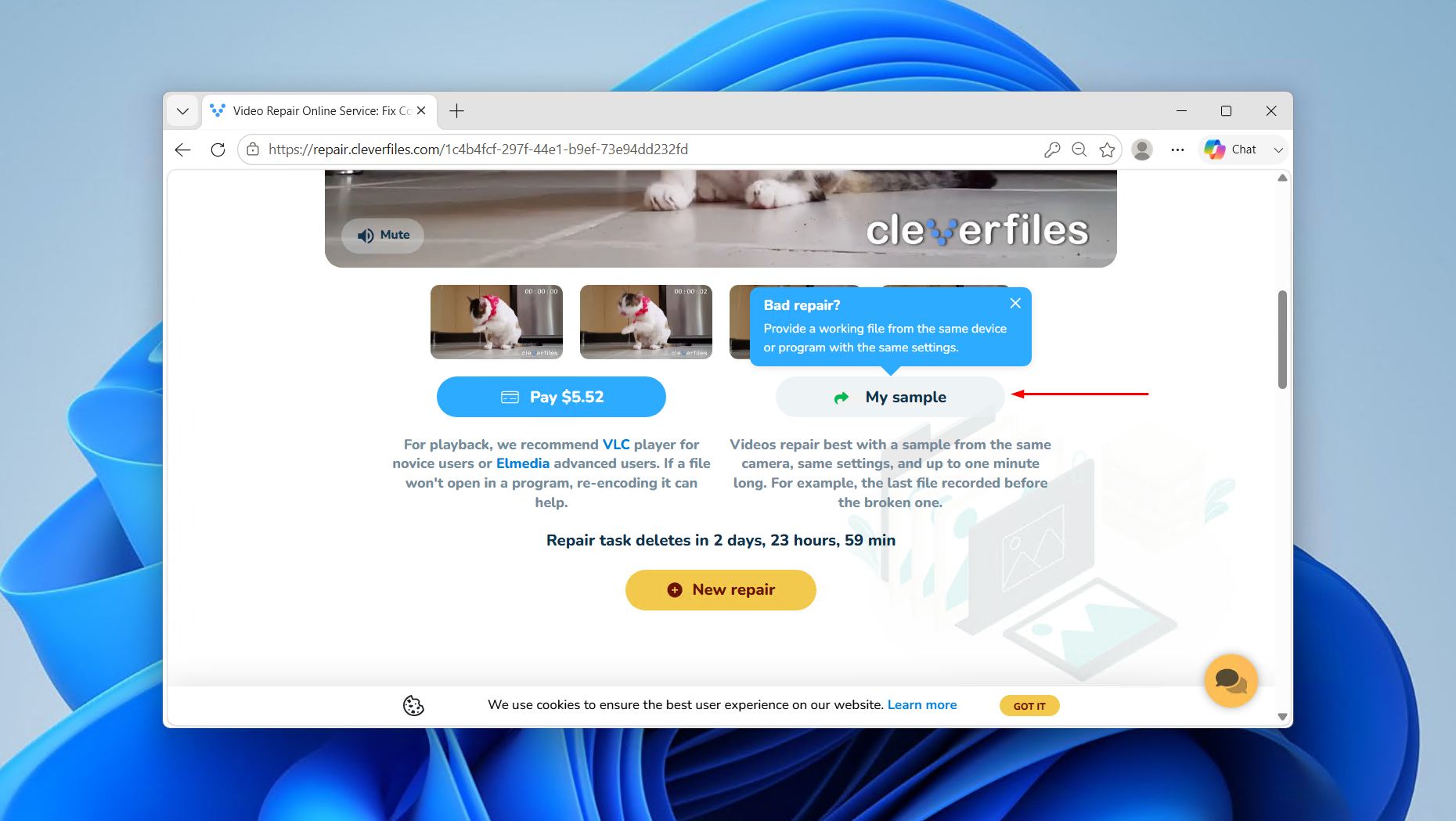
- Click Choose file and attach a reference video file that was shot with the same settings as the one being repaired.
- Download your repaired video.
Once the repair task is complete, you have 3 days from the time of repair to download it before it’s automatically deleted from the system. After which, you’ll need to repair it again.
Conclusion
Hands down the best way to retrieve deleted or lost DJI drone camera recordings is with recovery software. Connect the device to your PC, scan it with Disk Drill, preview the footage and photos, choose what you want, and recover to another device. That’s the entire DJI file recovery workflow in a nutshell.
It’s definitely possible to get your data back following accidental deletion, card formatting, SD card errors, interrupted recordings, and even a DJI drone crash, provided the storage itself survived. The inherent fragmentation of large DJI video files makes them tricky to recover intact sometimes, which is why dedicated camera recovery support matters. The key is to act fast, stop using the card or internal storage immediately, and run the scan before anything new gets recorded over your missing footage.
FAQ
No, DJI doesn’t offer an official data recovery service for lost or deleted footage. Recovery must be handled by third-party software like Disk Drill or, for physically damaged storage, a professional data recovery lab.
DJI videos can become lost due to accidental deletion, SD card formatting, an interrupted recording (the drone lost power or crashed mid-flight), a corrupted file system on the card, or the card naturally encountering errors as it reaches its finite number of read/write cycles.
Most DJI drones save camera recordings to a microSD card inserted into the drone or gimbal. Some models also have internal aircraft storage. When connected to the DJI Fly or DJI GO apps, lower-resolution copies may also appear in your phone’s internal storage.
Yes, you can recover photos from DJI internal storage – at least in Disk Drill, and provided the internal storage is still physically intact and powers on. Connect the drone to your computer via USB, and it should appear as a scannable device. From there, you can perform an Advanced Camera Recovery scan to get your DJI photos and videos back.
Check the Recently Deleted album of the DJI Mimo app to see if the videos were sent there first. It’s also good to check your phone’s DCIM folder, where most photos and videos are stored locally. If nothing’s there, try connecting your Osmo device to a computer and scanning it with data recovery software.
Yes, if the storage device containing the footage is still physically intact and readable, data recovery software can do the job following a DJI drone crash. However, if the device was physically damaged, submerged in water, or no longer powers on at all, a data recovery service is the best option going forward.
