


After Windows just finished updating, your desktop is now empty. The wallpaper is back to the default, Documents has nothing in it, and for whatever reason it appears Windows Update has deleted your files. This might not be the case, and it may be that Windows has signed you into a temp profile, opened the wrong account, or set your old files aside in a folder you never knew about. Even if it was Windows Update deleting files, you do still have options. We’ll explain what happened and show you how to recover the files an update really did delete, the same way our recovery experts have done it many times before.
Why Are My Files Missing After a Windows Update?
Usually because Windows is showing you a different profile or folder from the one your files are in, not because the update erased them. Updates are designed to leave personal files alone, so they’re more often misplaced instead of gone. Real deletions have happened, though. The Windows 10 October 2018 Update deleted files for some users, and in 2020, KB4532693 was widely reported to sign people in to a temporary profile that made their desktops look wiped. So if you’re thinking “a Windows update deleted my files”, check the table below before assuming the worst.
| What you see | What has most likely happened | Where to go |
| Default wallpaper, empty Desktop, settings reset, and a notification about a temporary profile | Windows couldn’t load your profile and signed you in to a temporary one. | Restart and check for a temporary profile |
| You’re signed in to an account you don’t recognize, or the update asked you to create or sign in with a Microsoft account | You’re in a different or new user profile, and your files are in the old one under C:\Users. | Search the PC and check user and OneDrive folders |
| Some files are missing and others are fine. | The files have moved to another folder or drive. | Search the PC and check user and OneDrive folders |
| Desktop, Documents, or Pictures are empty or hold a shortcut called “Where are my files”. | OneDrive folder backup changed where those folders live. | Search the PC and check user and OneDrive folders |
| Files disappeared after a major upgrade, such as Windows 10 to Windows 11. | Your old user folders were moved to C:\Windows.old. | Check the Windows.old folder |
| The update failed or rolled back, and now files won’t open or Windows reports drive errors. | The update damaged the file system and caused real data loss. | Use data recovery software |
| None of the checks above turn anything up. | The files were deleted or corrupted during the update. | Use data recovery software, or restore from a backup if you have one |
If your files are misplaced, work through the three checks coming up next. If you’re clearly dealing with a case where Windows update deleted files, skip straight to data recovery software.
How to Find Files Missing After a Windows 10/11 Update
These three checks take a few minutes each and are completely safe, as nothing writes to the drive. If you find your files, copy them to another drive first if you have one.
Method 1: Restart and Check for a Temporary Profile
Your user profile holds everything that makes the PC yours, including your Desktop, Documents, and Pictures folders. If Windows can’t load your profile, it will use a temporary profile instead so you can still use the computer. A temporary profile looks like a brand-new account, with the default wallpaper and all, so it’s easy to think “Windows update deleted all my files” when they’re all on the drive.
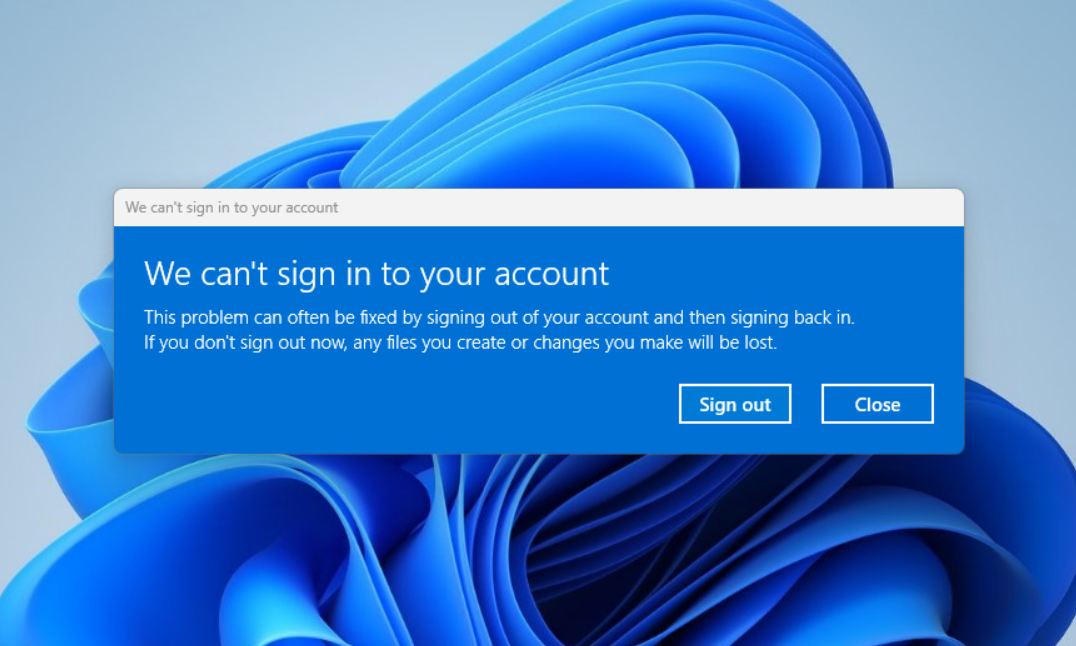
Windows usually displays a message saying “You’ve been signed in with a temporary profile” or “We can’t sign in to your account”, but here’s another way to find out:
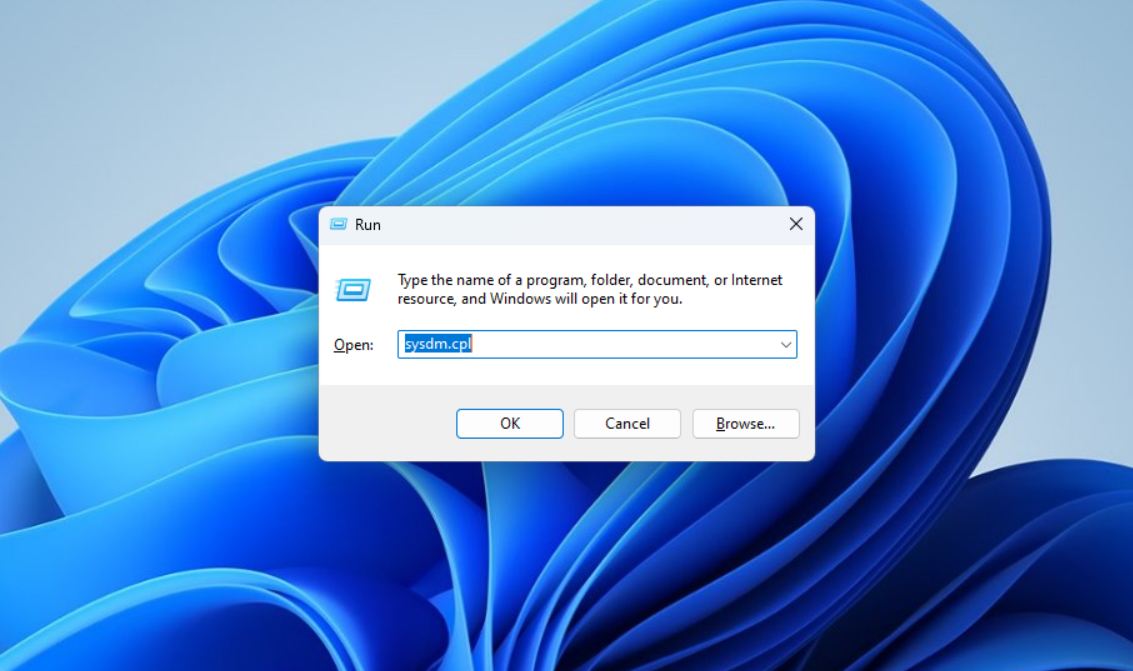
- Press Windows + R and type sysdm.cpl. Press Enter.
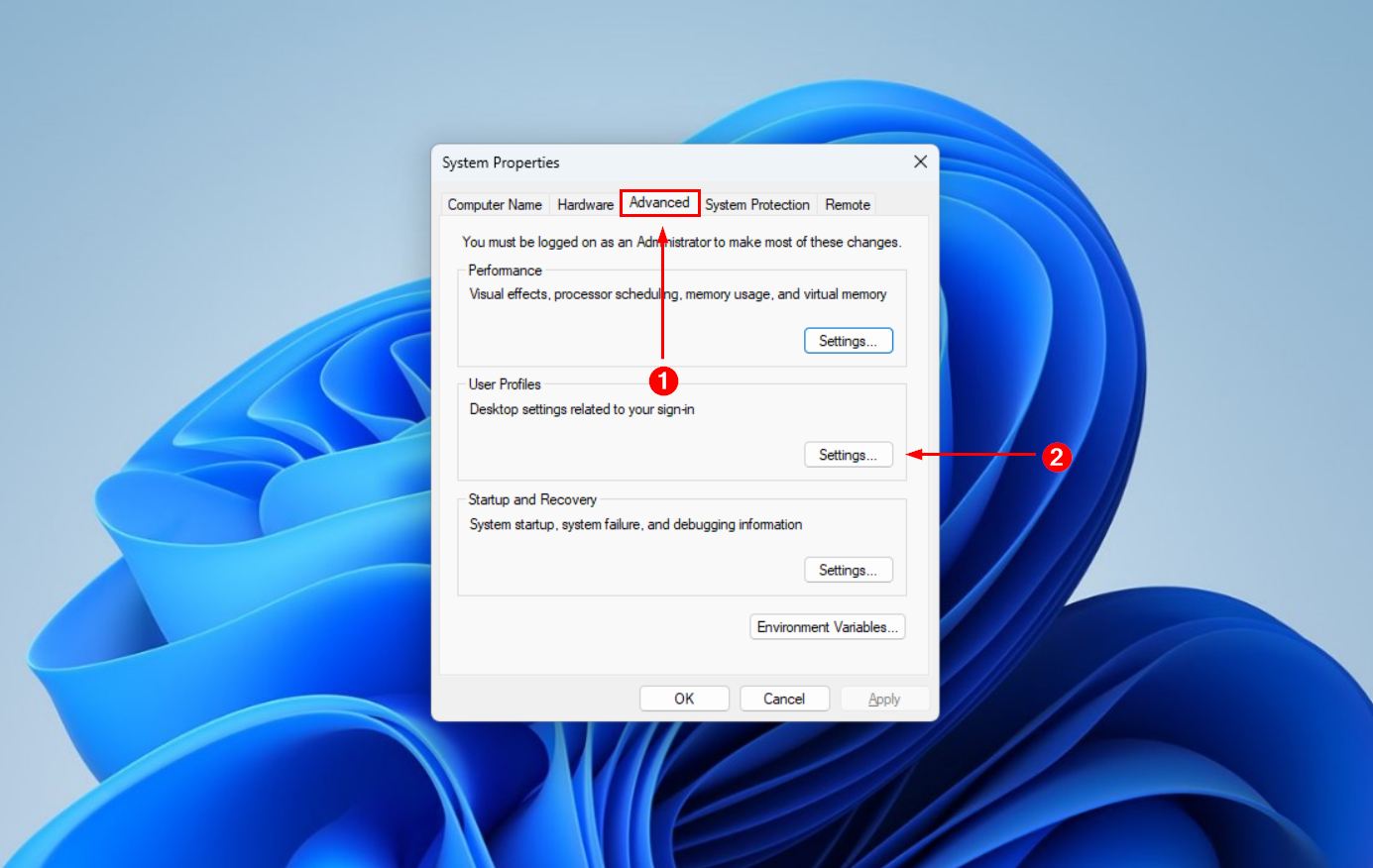
- Go to the Advanced tab, then click Settings under User Profiles.
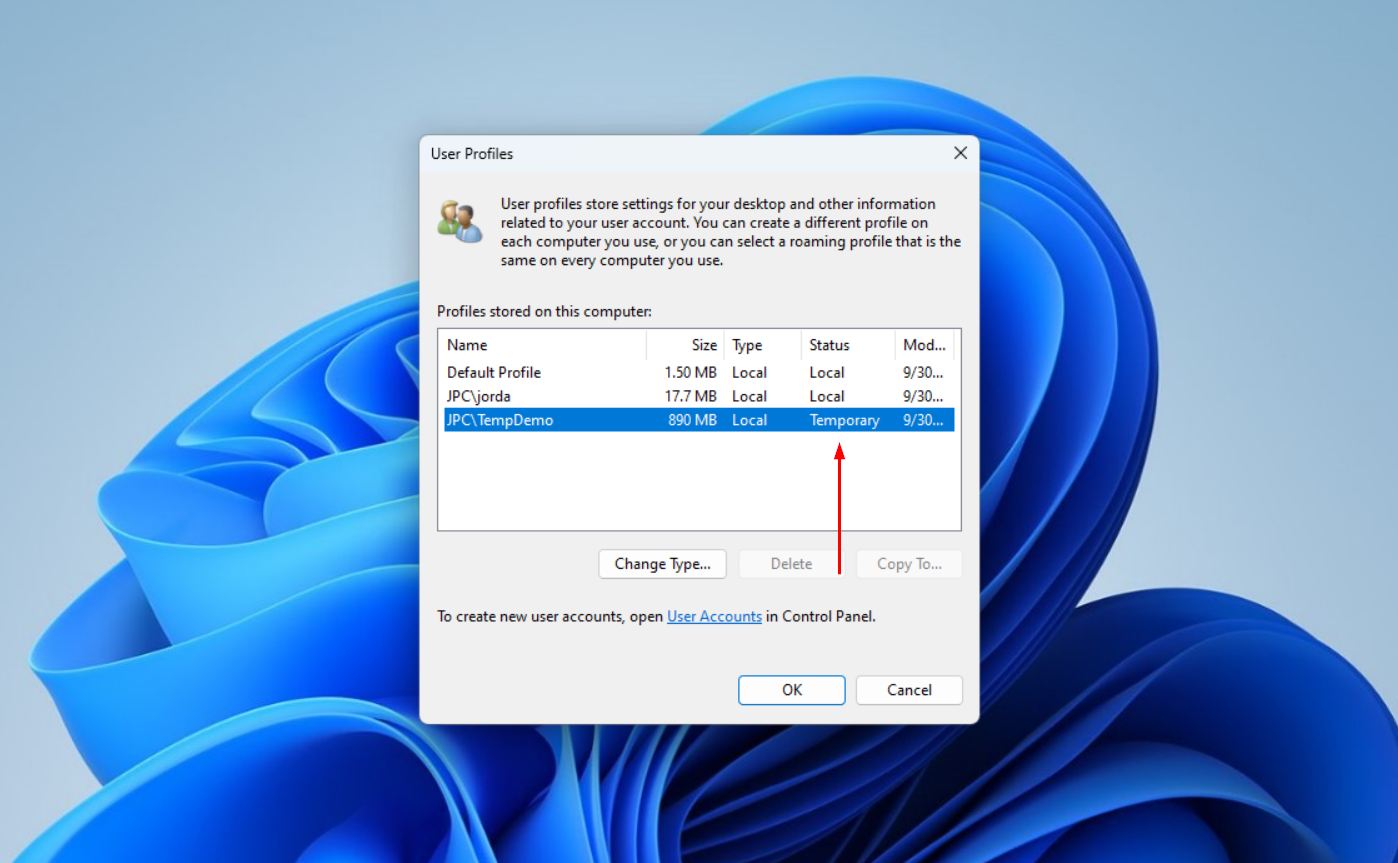
- Find your account. If it says Temporary in the Status column, you’re on a temp profile. If it says Local, go to Method 2.
Before you restart, copy anything you’ve saved since the update to another drive because anything saved in a temp profile is deleted when you sign out. Then restart your PC. If it still doesn’t load your profile, you can still access your data by copying it from C:\Users\<your username> onto another drive. On Windows 10, you can also check in Settings > Accounts > Sync your settings, which shows a message at the top if you’re signed in to a temporary profile.
Method 2: Search the PC and Check User/OneDrive Folders
It could be that the files were moved or pasted to the wrong location. The quickest way to test this is to search for one or two files by name, then use the folder they turn up in as a clue to where the rest are. Microsoft recommends the same approach to finding files after upgrading Windows. If a folder on your PC now holds only a shortcut called “Where are my files”, open it to go straight to the OneDrive copy.
Follow these steps to search your whole PC with File Explorer:
- Open File Explorer, found in your taskbar or with Windows + E.
- Click This PC in the left panel. Searching from here covers every folder on the PC.
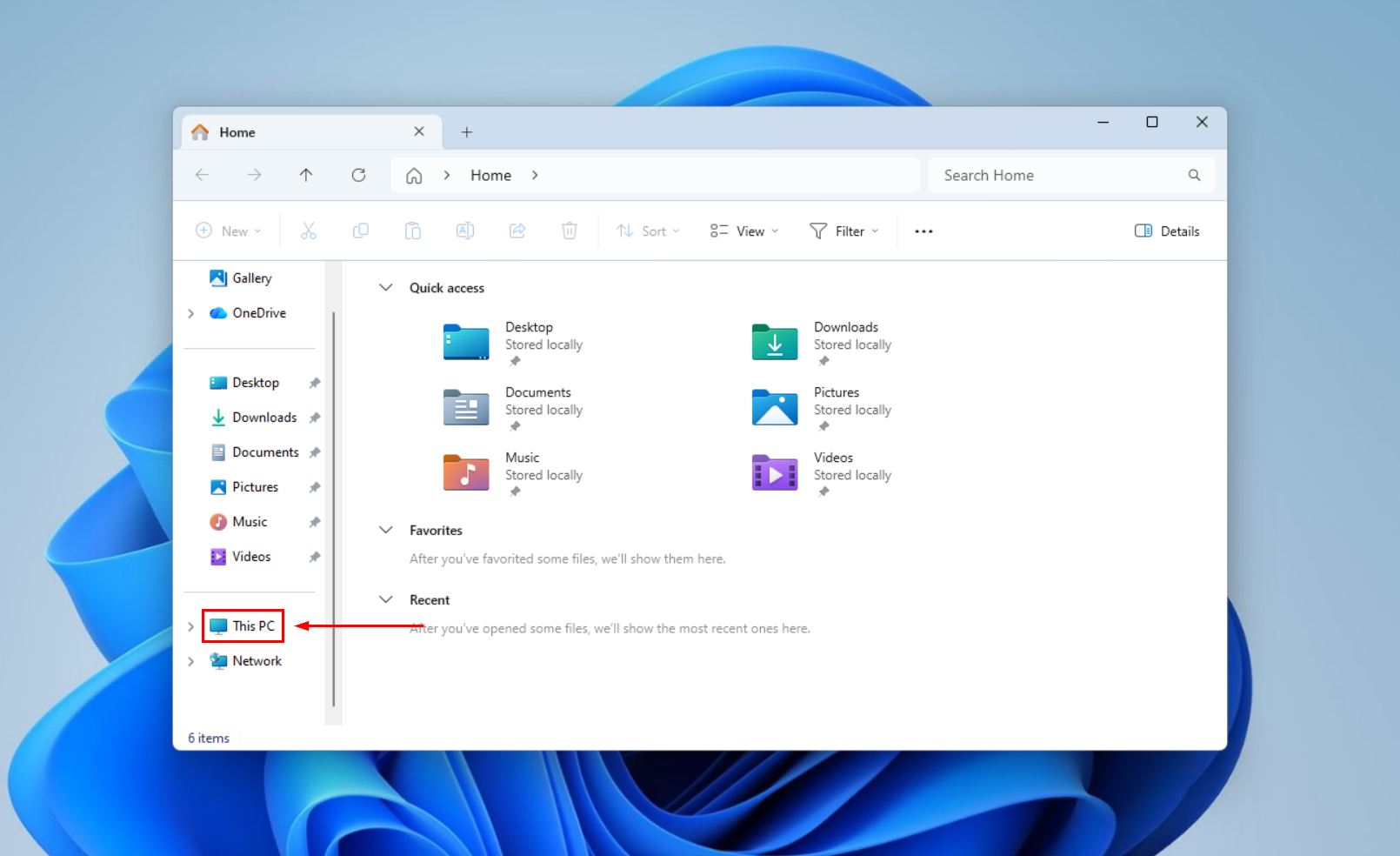
- Type the name of a missing file into the search box in the top-right corner. If you can only remember the file type, type an asterisk followed by the extension (e.g. *.jpg, *.docx, etc.).
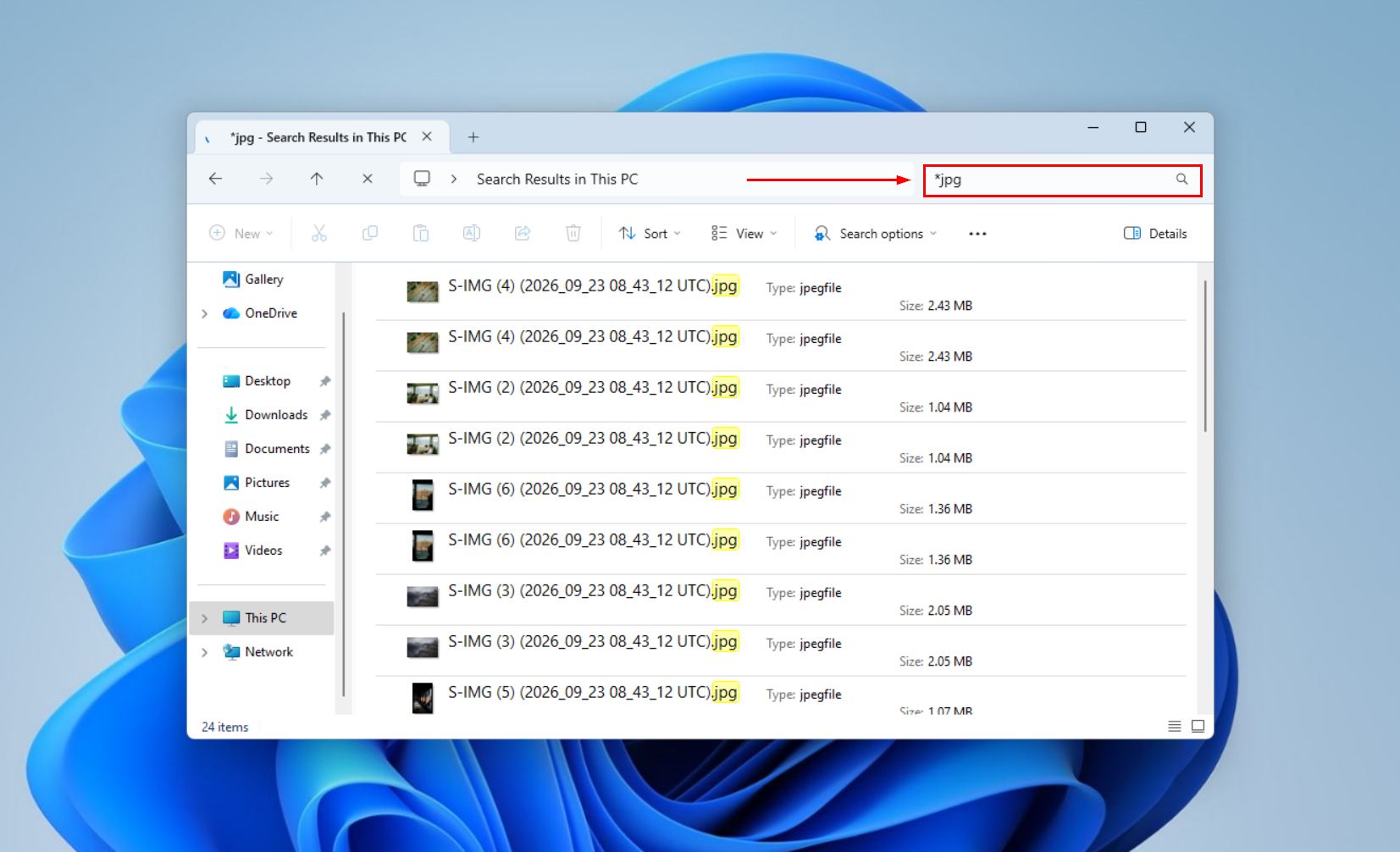
- Once the search has finished, right-click a result that matches your missing file and select Open file location.
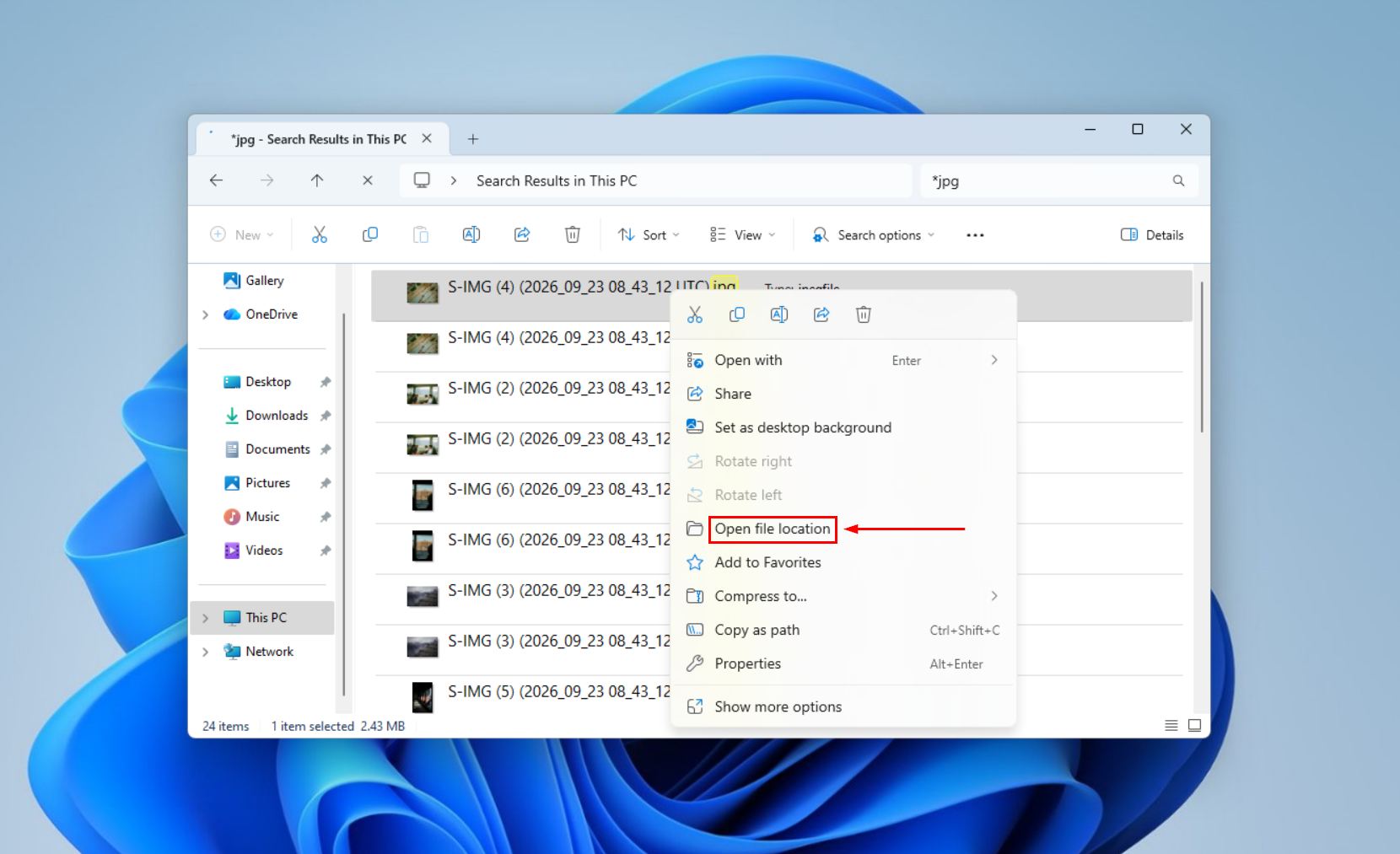
- Check the folder path in the top bar, and open that folder to see if the rest of your data is there. If the data turns up in another folder under C:\Users, just copy the files to your current profile.
Check OneDrive too, especially if you’re thinking, “the Windows 11 update deleted my files”. If you sign in with a Microsoft account, OneDrive can be turned on automatically and backs up your Desktop, Documents, Pictures, Music, and Videos folders. If you weren’t able to find your files locally, they may be sitting in the cloud.
Follow these steps to check OneDrive:
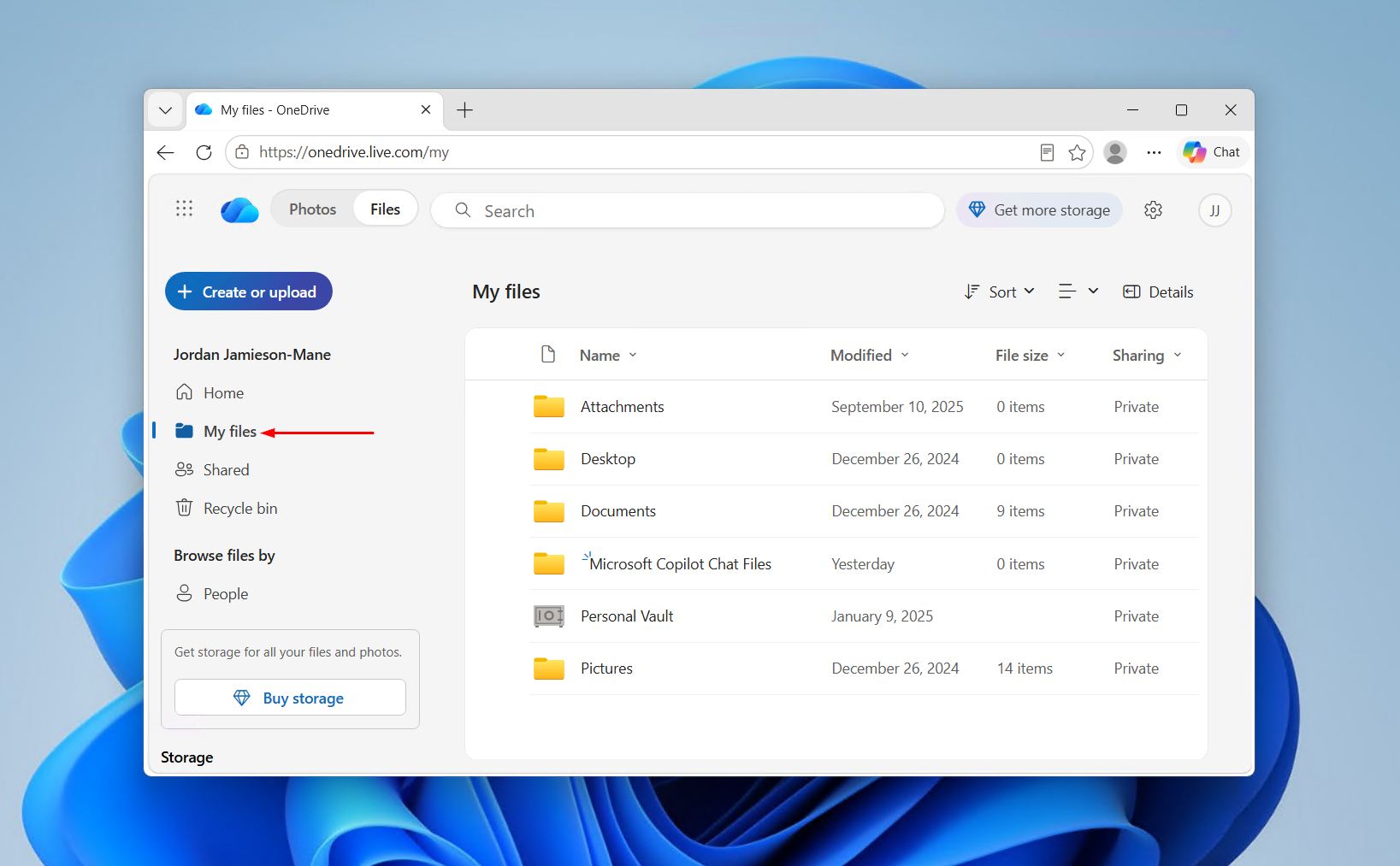
- Click the OneDrive icon in your taskbar and click View online, or go to onedrive.live.com.
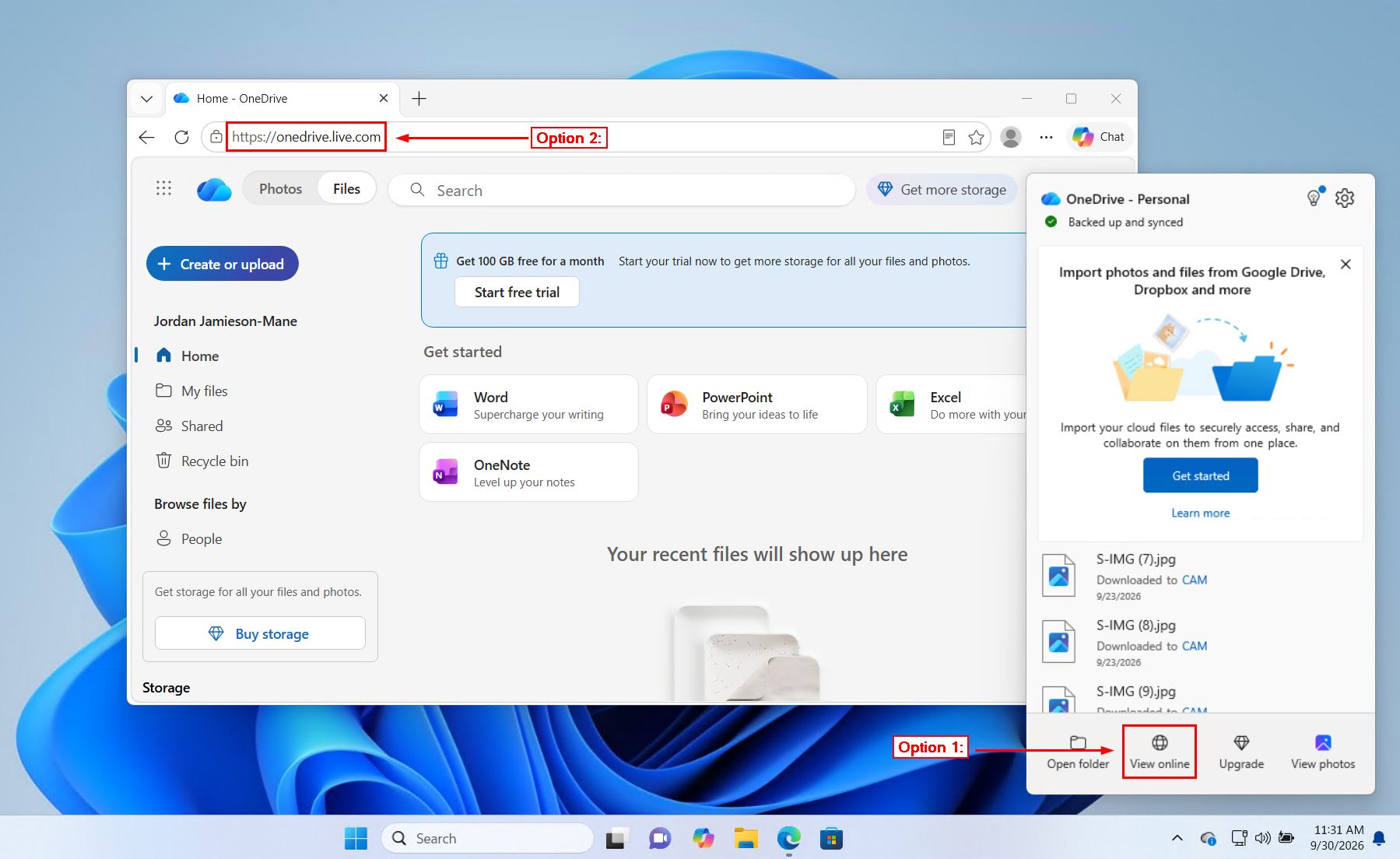
- Click My Files and see if your data is located in any of the folders.
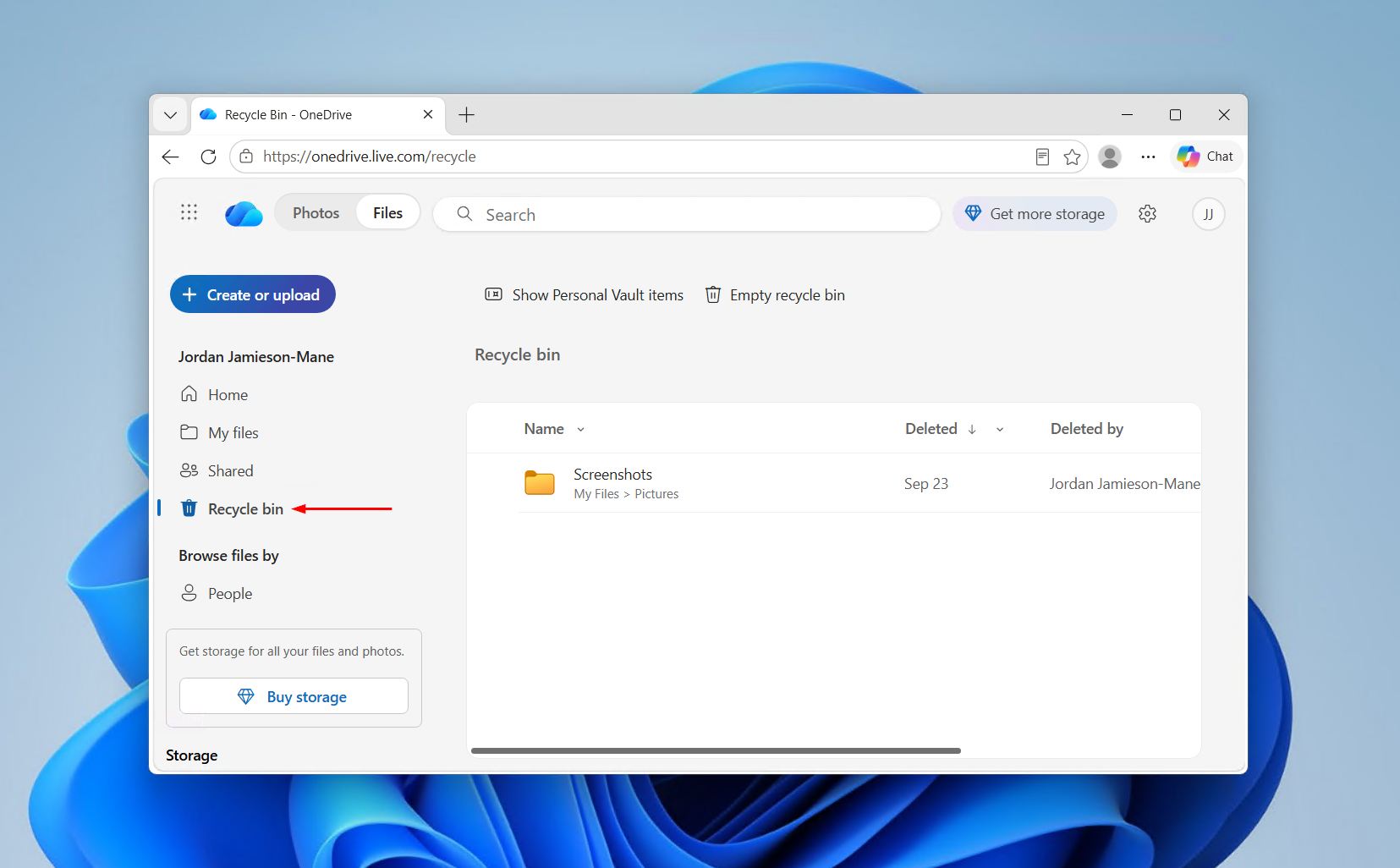
- Check the Recycle bin too, in case they were accidentally deleted.
Method 3: Check the Windows.old Folder
Following a major upgrade like moving from Windows 10 to Windows 11, Windows keeps a copy of your previous installation in a folder called Windows.old on the C: drive. This includes the old user folders, like your Desktop, Documents, and Pictures. You can find it at:
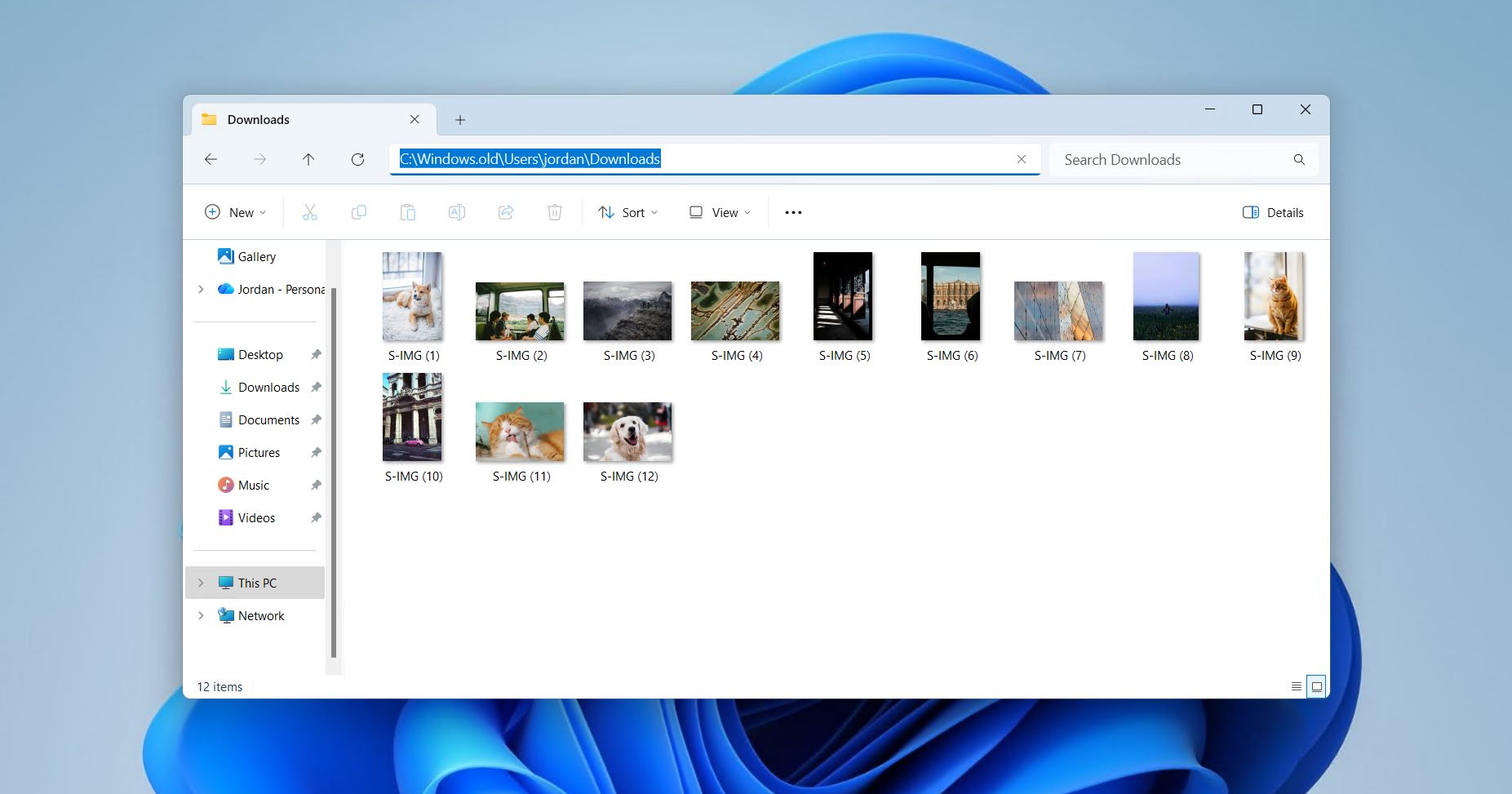
C:\Windows.old\Users\<your username>
This is a good place to look when “Windows update wiped my computer” feels like the only explanation, because everything seems like it was wiped when it’s actually just set aside. However, you should check it soon, as Windows only keeps this folder around for 10 days after the upgrade.
Here’s how you get to the Windows.old folder:
- Sign in to an account with admin privileges, as admin rights are required to open another installation’s user folder.
- Open File Explorer, then click This PC.
- Open the C: drive, then open the Windows.old folder.
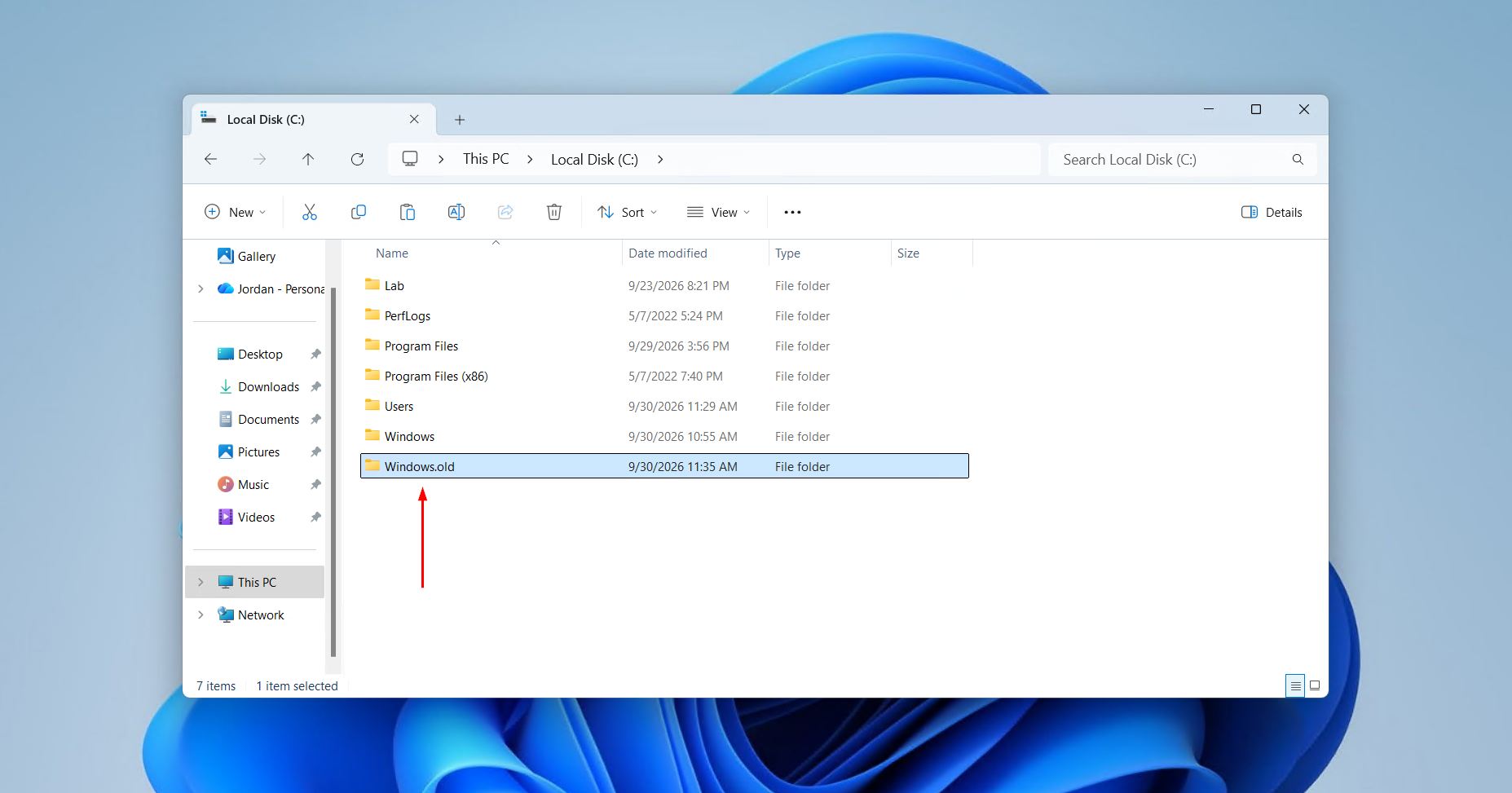
- Find your old username and explore the folders inside.
If you weren’t able to find a Windows.old folder, it may be because there isn’t one. Not every Windows reset method keeps it (notably the Reset this PC option), and so you should be looking at recovery instead.
How to Recover Files Deleted by a Windows 10/11 Update
If you haven’t found your files by now, they were most likely deleted or damaged during the update. There are two realistic ways to get them back:
- Data recovery software. It scans the drive for the deleted files themselves and works without any preparation on your part, which is why it comes first.
- Restoring from a backup. Gives you your files exactly as they were, but only if a backup was already running before the update.
In our experience, most people who tell us “a Windows 10 update deleted my files” have no backup from before it happened, so data recovery software is the only viable option that applies to nearly everyone.
Method 1: Use Data Recovery Software
As soon as you notice files are missing, stop using the affected drive as much as possible. Deleted files usually stay on the drive until new data is written over them, so data recovery software can still find them. On an SSD, recovery may fail due to TRIM on the system drive (see whether data can be recovered when TRIM is enabled). Disk Drill’s free version includes up to 100 MB of risk-free data recovery, so you can check that your files come back first.

Follow these steps to recover files deleted after a Windows update with Disk Drill:
- Download and install Disk Drill to a different drive than the one the files disappeared from. Once installed, open it.
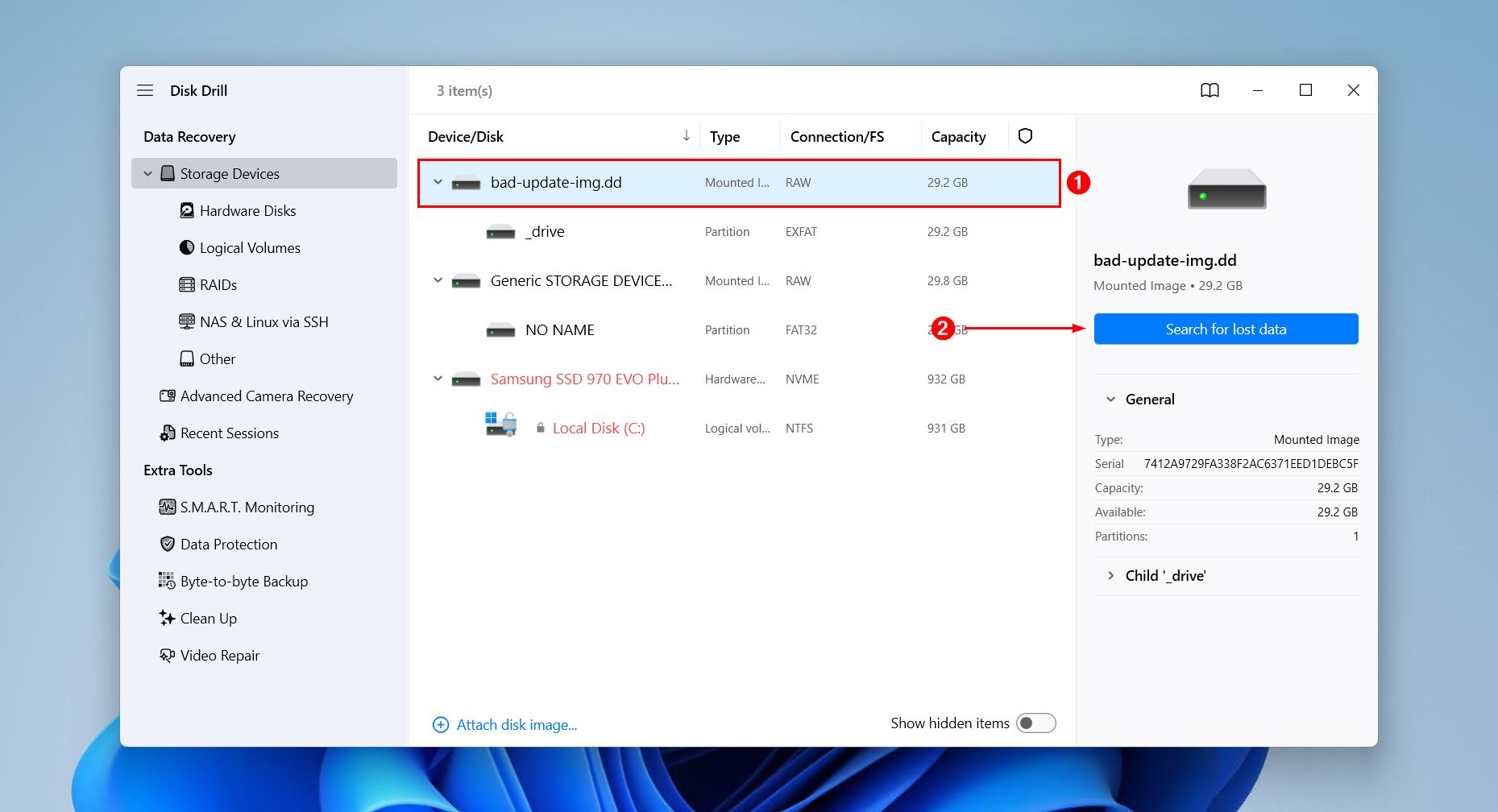
- Select the drive where the files were lost, then click Search for lost data.
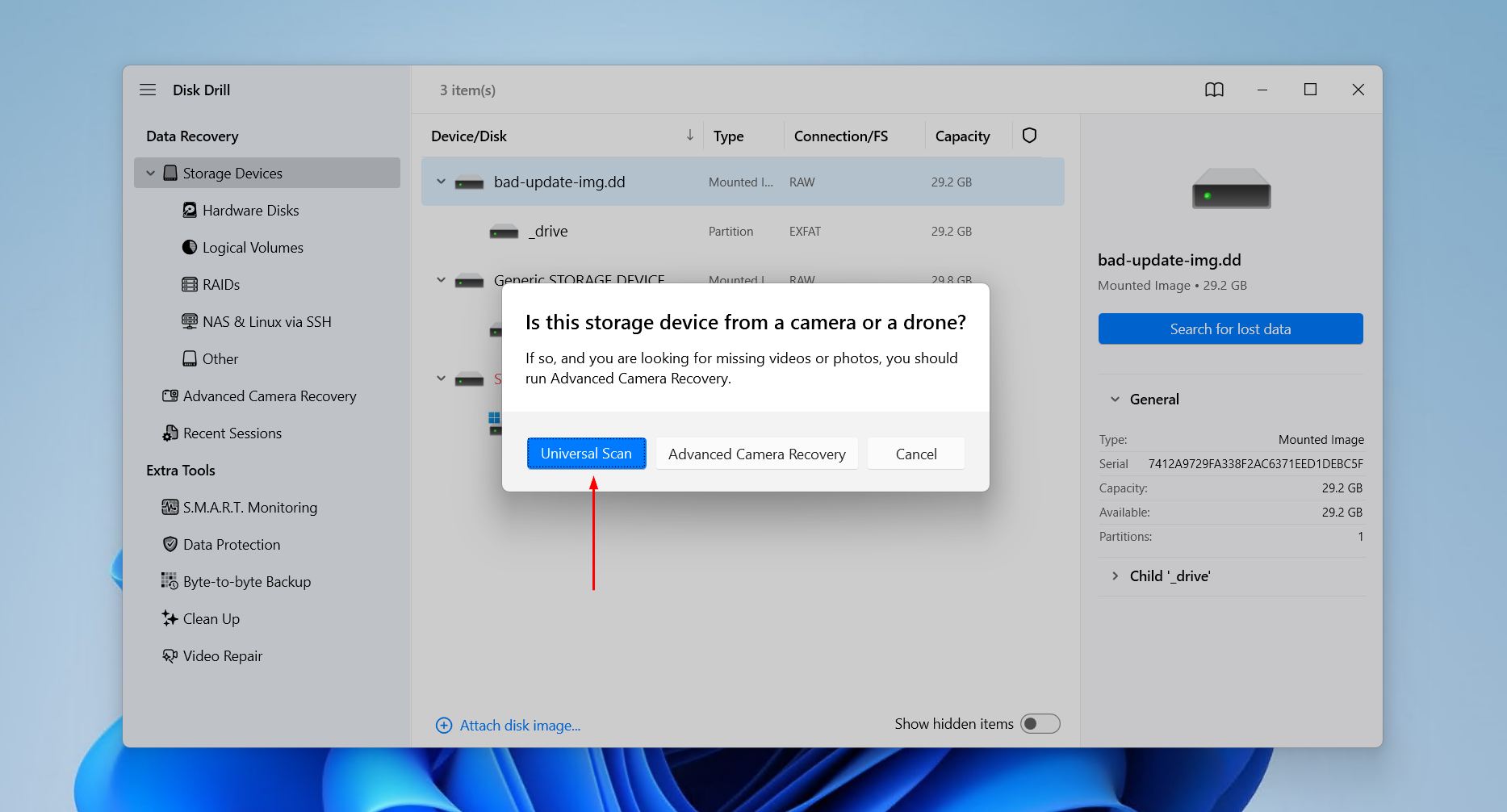
- If prompted, click Universal Scan to search for all possible data.
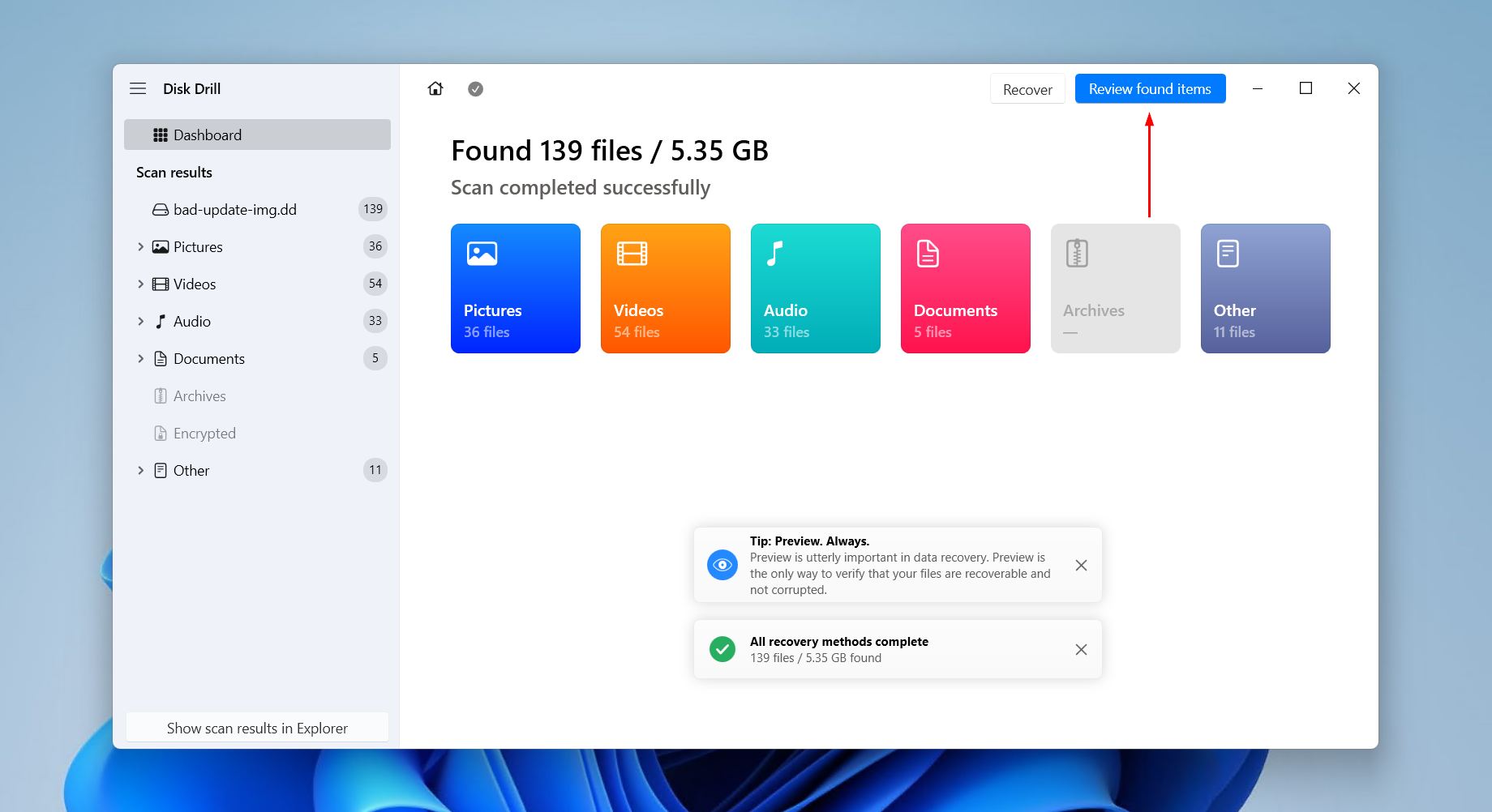
- Click Review found items once the scan is complete.
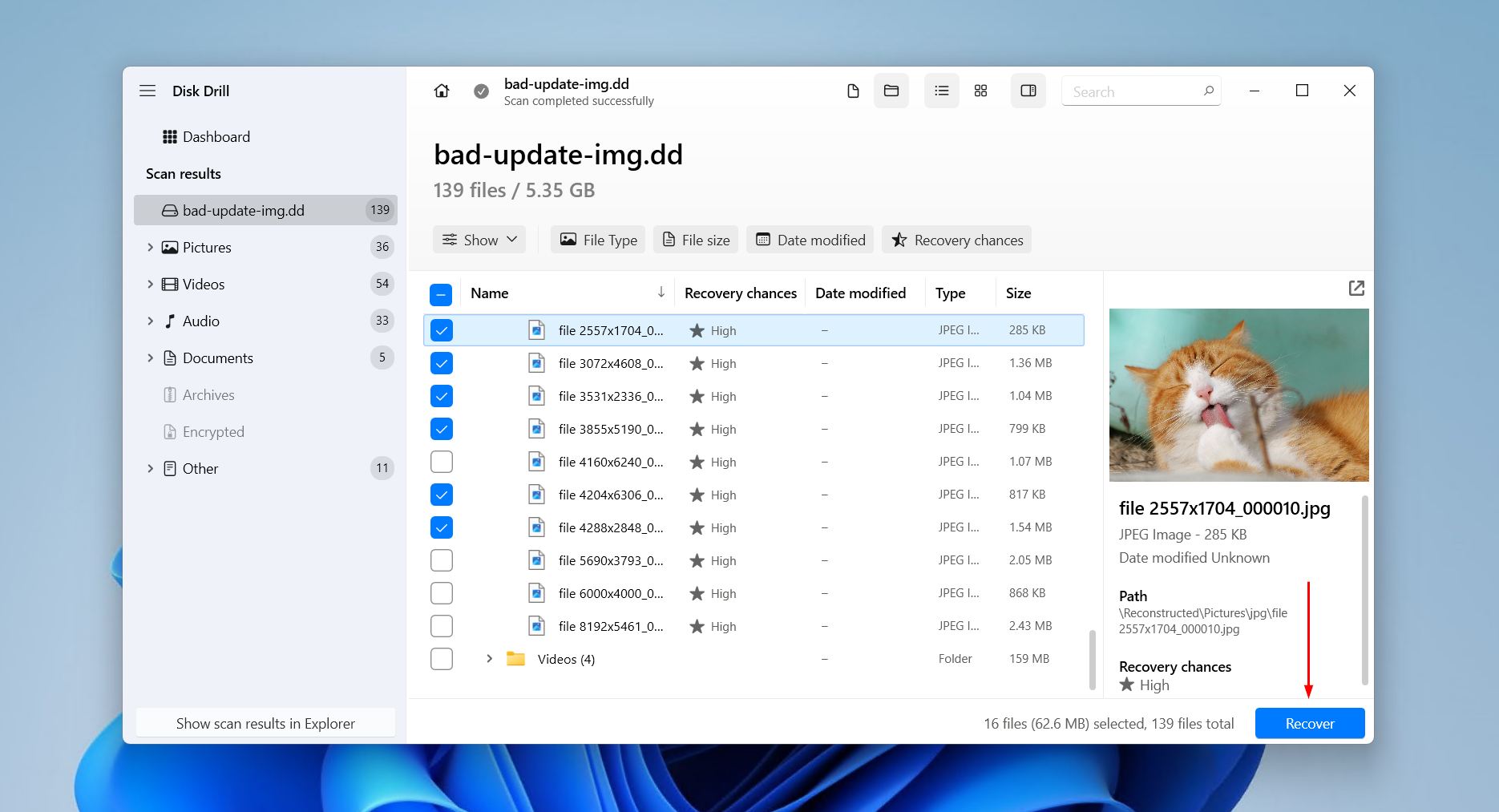
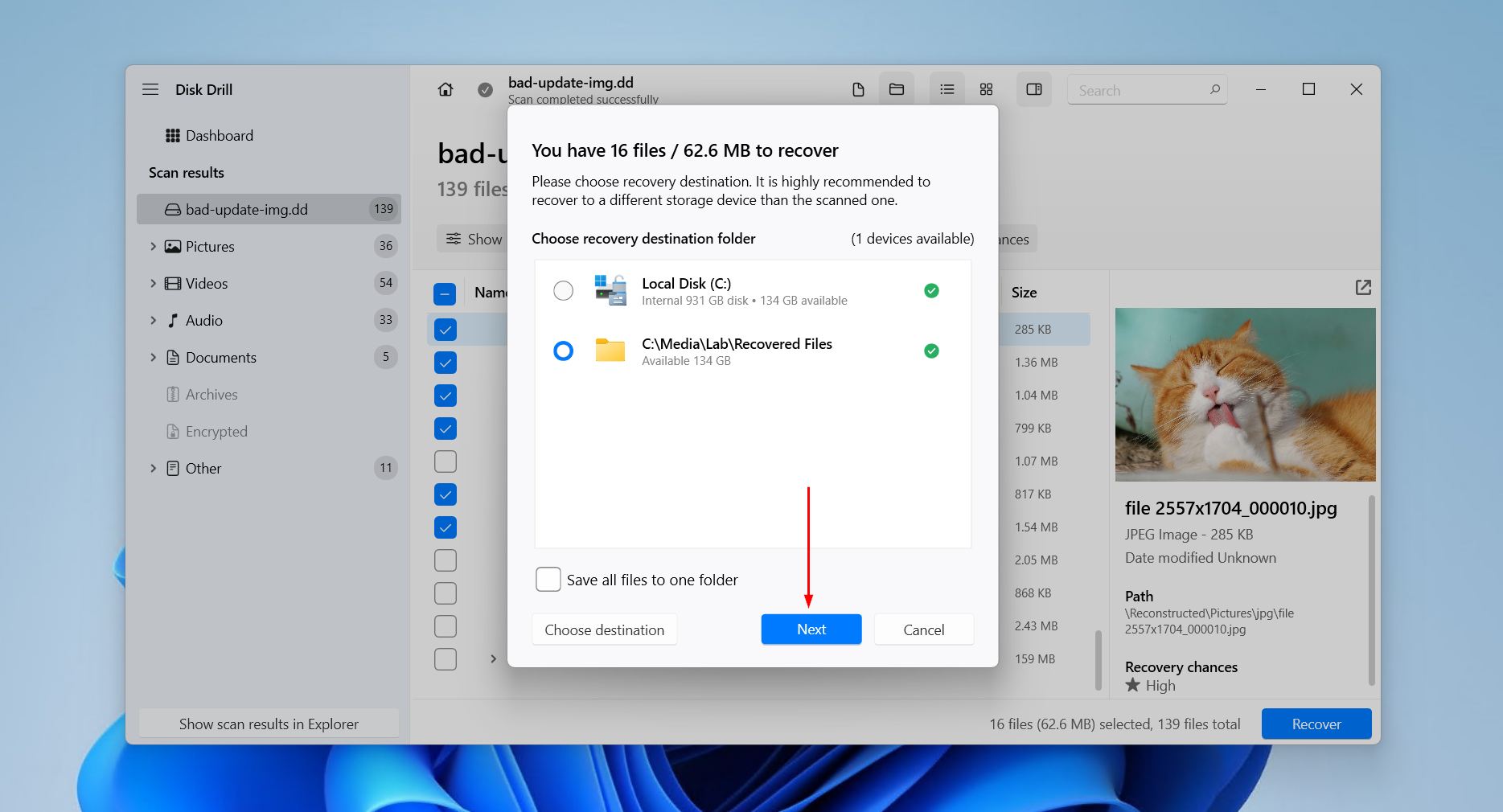
- Preview and select the files you want to restore, notably in Deleted or lost and Reconstructed for files that were lost during the update. Click Recover when you’re ready.
- Pick where you want to store the recovered files on a separate physical drive, then click Next.
Method 2: Restore Files From a Backup
If you had a backup running before the update, restoring from it gets your files back exactly as they were. Windows 10 and 11 both include File History, which saves versioned copies of your Desktop, Documents, Pictures, Videos, and Music folders to an external drive or network location.
Follow these steps to restore your files with File History:
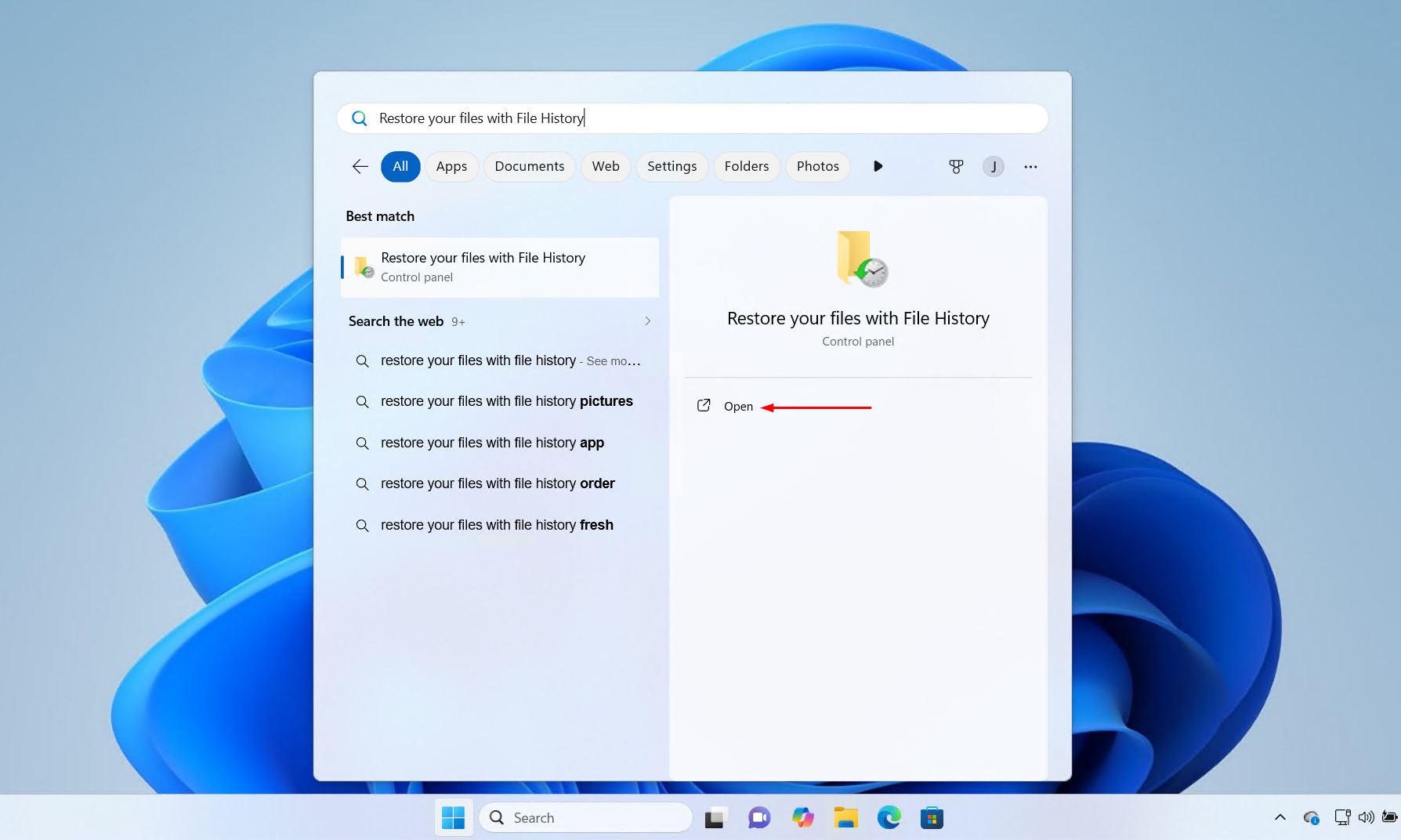
- Open Start and search “Restore your files with File History”. Open the first option.
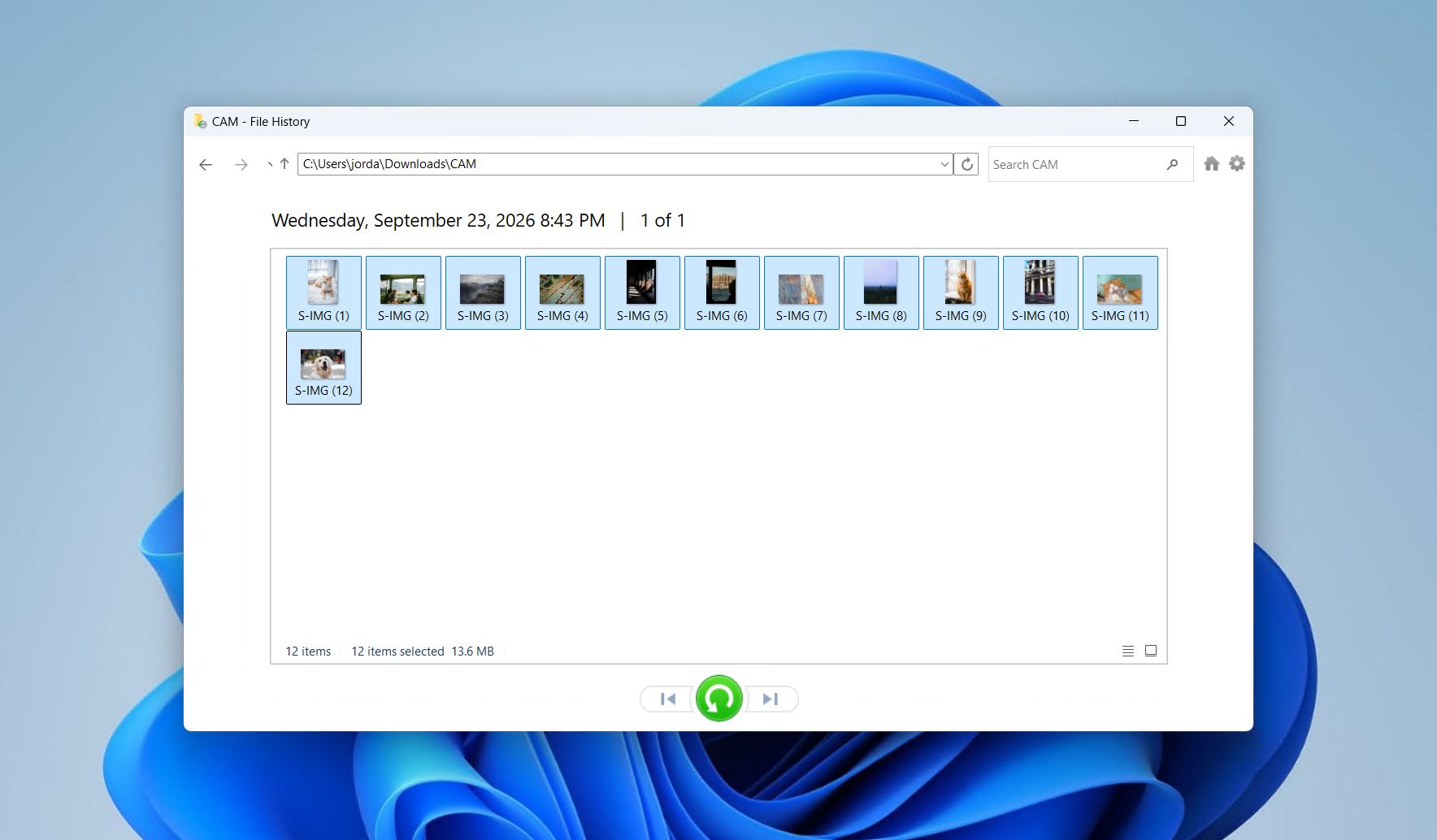
- Locate and select the files you want to restore. You can use the left and right arrows to choose between previous versions.
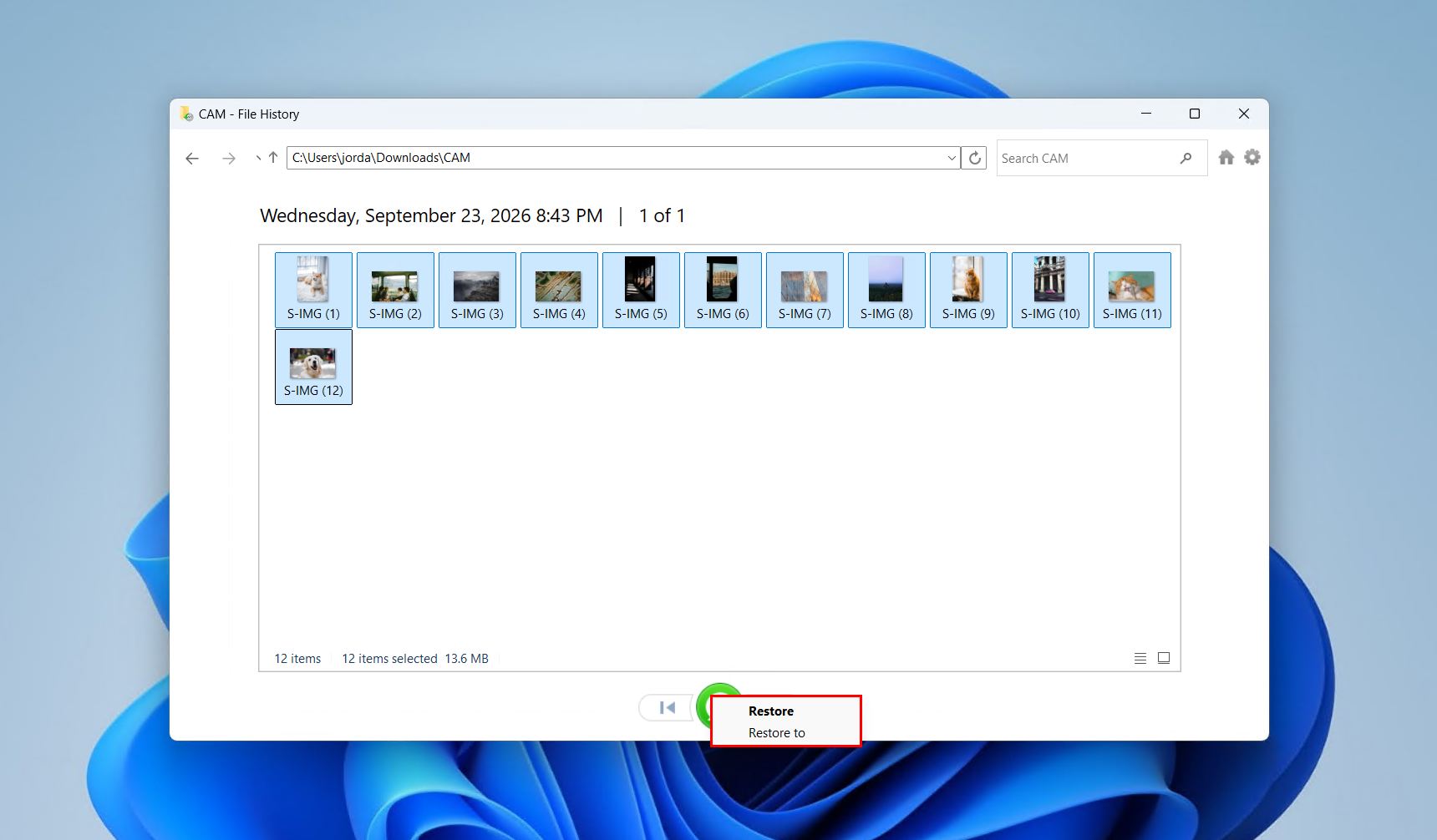
- Right-click the green restore button and either click Restore if you want to restore the files in place, or Restore to if you want to save them elsewhere.
Conclusion
When a Windows update seems to have deleted your files, check for a temporary profile, search This PC, and look in OneDrive and C:\Windows.old first, because the files are usually misplaced rather than erased. If they really are gone, stop using the drive and scan it with data recovery software, or restore them from a backup made before the update. To avoid a repeat, keep File History or OneDrive backup running, and copy anything important to an external drive before a major upgrade.
FAQ
No. System Restore rolls back system files, settings, and installed programs, but it doesn’t affect your personal files. It can undo a problem update, but it can’t bring back documents or photos the update deleted. For those, use data recovery software or a backup.
You can’t stop an update from having a bug, but you can make sure it costs you nothing. Keep File History or OneDrive folder backup running, and copy important files to an external drive before any major upgrade, such as Windows 10 to Windows 11.
It’s not supposed to, but Windows Update can delete personal files if there is a bug. It has happened with the Windows 10 October 2018 Update, but far more often the files are hidden by a temporary profile, another user account, OneDrive, or the Windows.old folder. A clean install, or Reset this PC with ‘Remove everything’, deletes them by design.
Stop saving files to the PC, and don’t reset or reinstall Windows, because that deletes the Windows.old folder. Check for a temporary profile, look through C:\Users and your OneDrive folder, and open C:\Windows.old. If none of them has your files, scan the drive with data recovery software.
Restart to rule out a temporary profile, search This PC for a missing file, and check your OneDrive folder, since Windows 11 often backs up Desktop and Documents there. After an upgrade from Windows 10, check C:\Windows.old. If the files are really gone, recover them with Disk Drill or restore them from File History.
