SD Card Troubleshooting Guide
Is your SD card acting up, preventing you from accessing those hundreds of pictures you took during your last vacation? Our SD card troubleshooting guide is here to help you solve your SD card problems.
Common Problems Responsible for SD Cards Not Showing Up on Mac
It’s difficult to fix issues with your SD card not showing up on Mac if you don’t know what’s wrong with it. To help you determine the root cause of your issues, let’s go over common problems responsible for SD cards not showing up on Mac:
- Card reader not working: Memory card readers are relatively simple devices with no moving parts, but that doesn’t mean they can’t stop working. The good news is that a brand-new memory card reader costs just a few dollars, so buying one just to verify that the one you have right now is faulty isn’t a huge expense.
- Data corruption: If you remember VHS and cassette tapes, then you’ve probably seen and heard the consequences of data corruption with your own eyes and ears. Well, digital data can become corrupted as well, and digital data corruption can even make your entire SD card inaccessible.
- Physical damage: The standard SD card measures just 32.0×24.0×2.1 mm, and the actual flash memory chip where data is stored is even smaller. As such, it’s easy to mechanically damage the SD card and make it unreadable.
- Incompatible file system: The latest version of macOS supports several file systems, including APFS, HFS+, FAT32, and exFAT. However, there are dozens and dozens of other file systems that macOS doesn’t support. If you use one of them, your Mac won’t read the SD card at all.
- Problems with macOS: Known for its reliability, macOS may not be a known troublemaker as far as operating systems go, but that doesn’t mean that users never experience issues with it. Sometimes, all it takes for macOS to stop working as it should is one malware infection.
How to Fix Mac Not Reading or Recognizing SD My Card?
If your SD card won’t show up on your Mac, there are a couple of fixes that you can try to solve the problem. Let’s go over them one by one, providing detailed step-by-step instructions for each.
1. Check Your Finder Desktop and Sidebar Settings
When you connect an SD card to your Mac, the SD card should show up in the Finder’s sidebar as well as on your desktop. If it doesn’t, it’s possible that you’ve changed your Finder desktop and sidebar preferences.
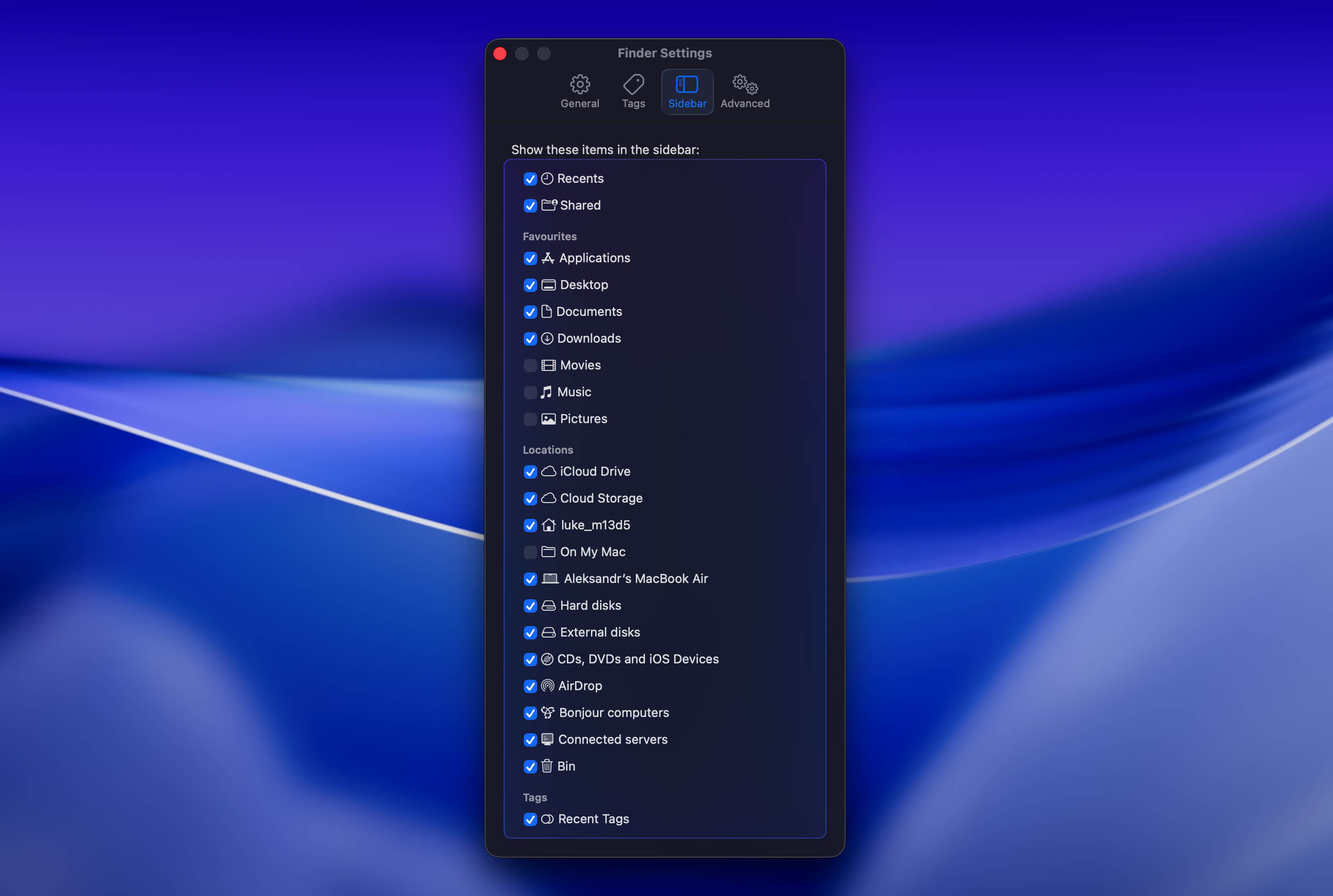
Here’s what you need to do to display your SD card in the Finder’s sidebar:
- Launch Finder.
- Click on Finder on the top bar and select Settings…
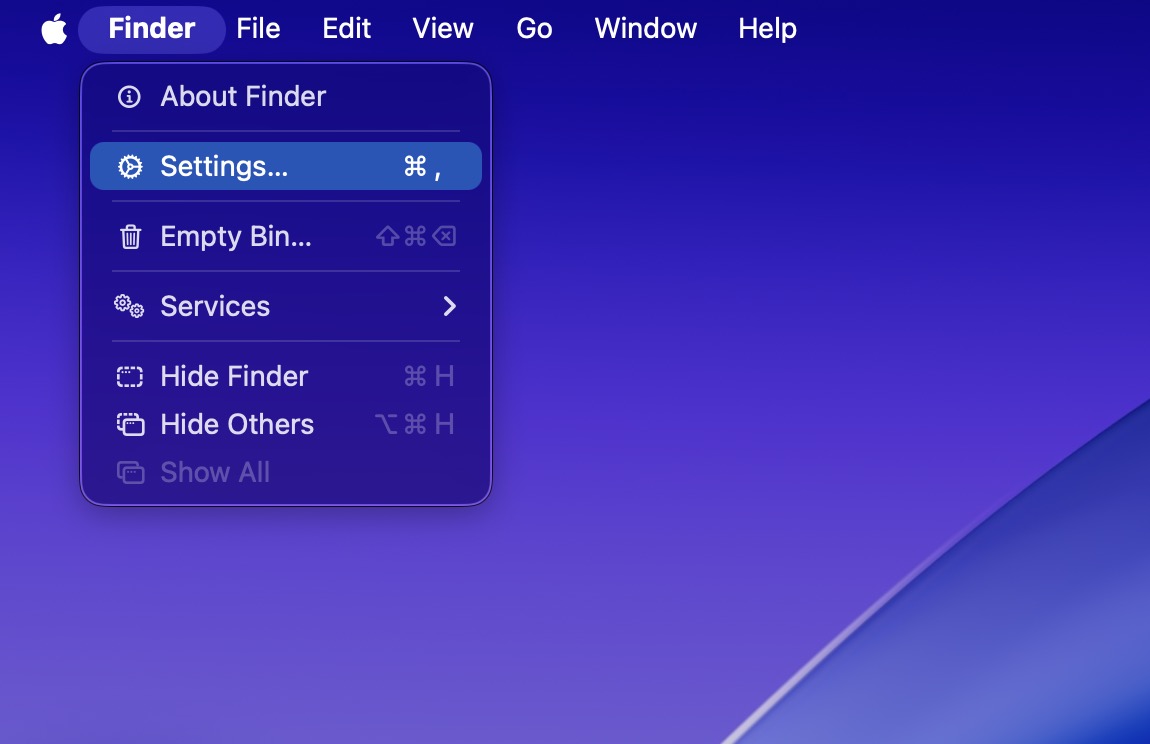
- Navigate to the Sidebar tab.
- Make sure all items under Locations are checked.
To also display the SD card on your desktop:
- Launch Finder.
- Click on Finder on the top bar and select select Settings…
- Navigate to the General tab.
- Make sure External disks under “Show these items on the desktop” is checked.
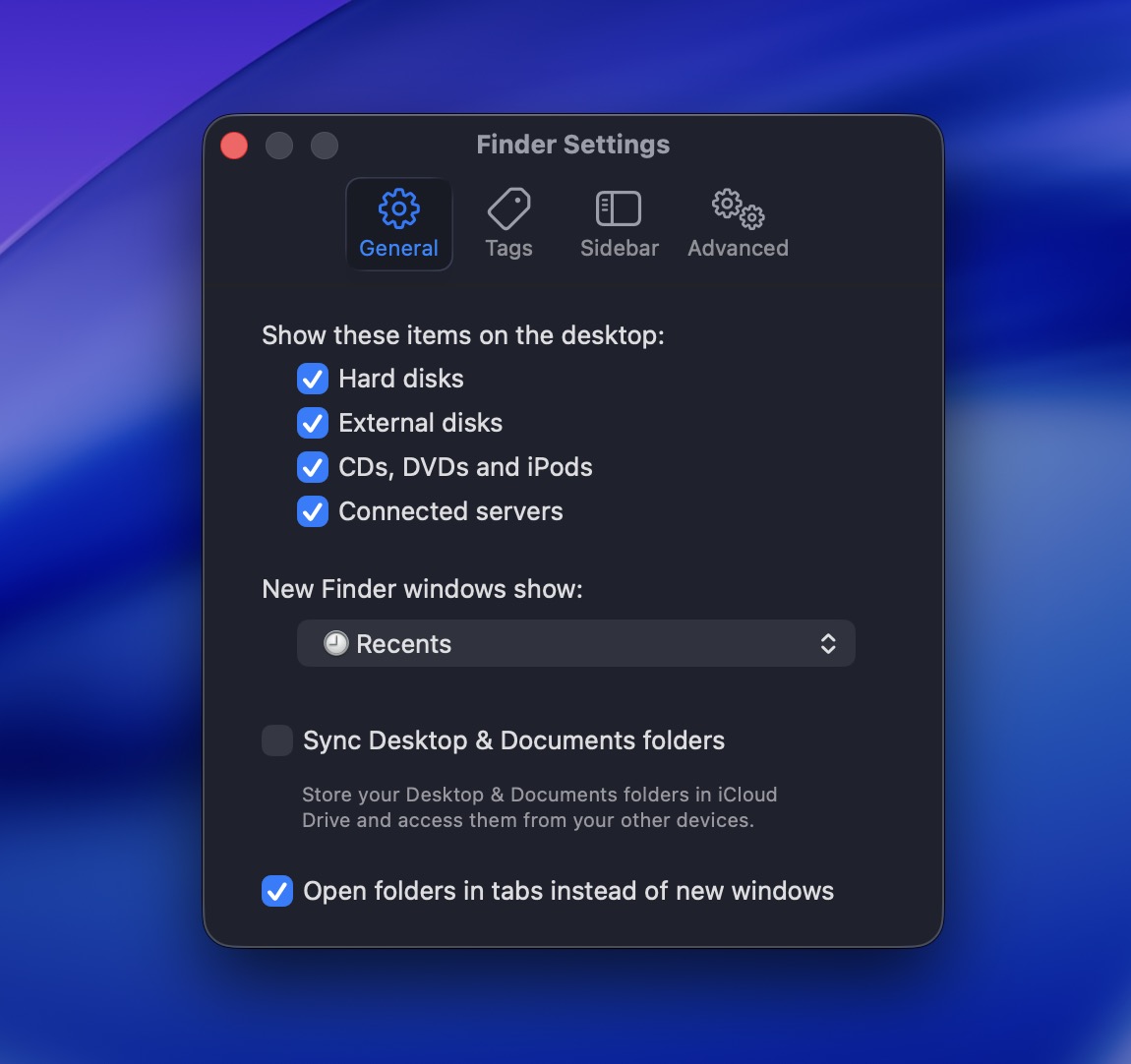
After doing that, your SD card – and any other external storage devices you might have – will now show up in Finder. You might have to refresh your view to see the changes.
2. Restart Your Mac
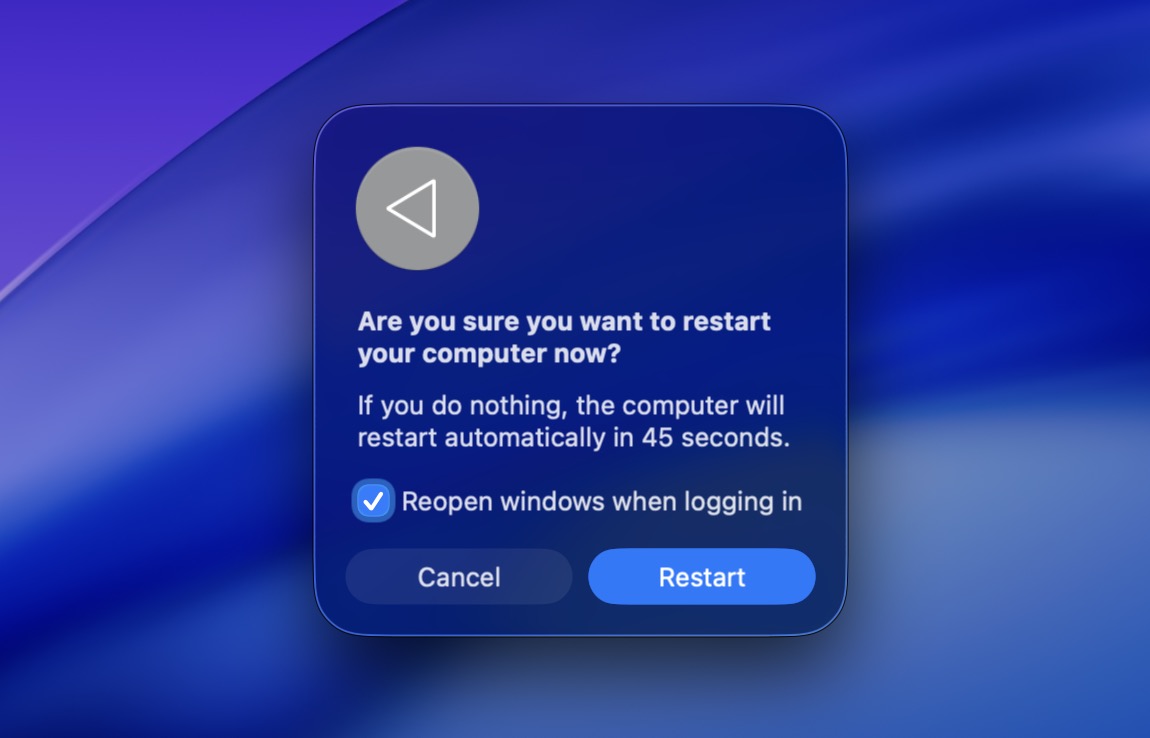
Have you tried turning it off and on again? Seriously, have you? Because a simple restart is often all it takes to fix a Mac that doesn’t recognize an SD card.
Why does a restart fix so many problems? Because modern operating systems are incredibly complex, consisting of hundreds and thousands of individual processes, services, and applications, all of which must work correctly for the operating system to behave as expected.
When you restart your Mac, you force all these parts to relaunch with a clean slate, and that’s often all it takes to fix all kinds of problems.
3. Check if SD Card Reader Is Working
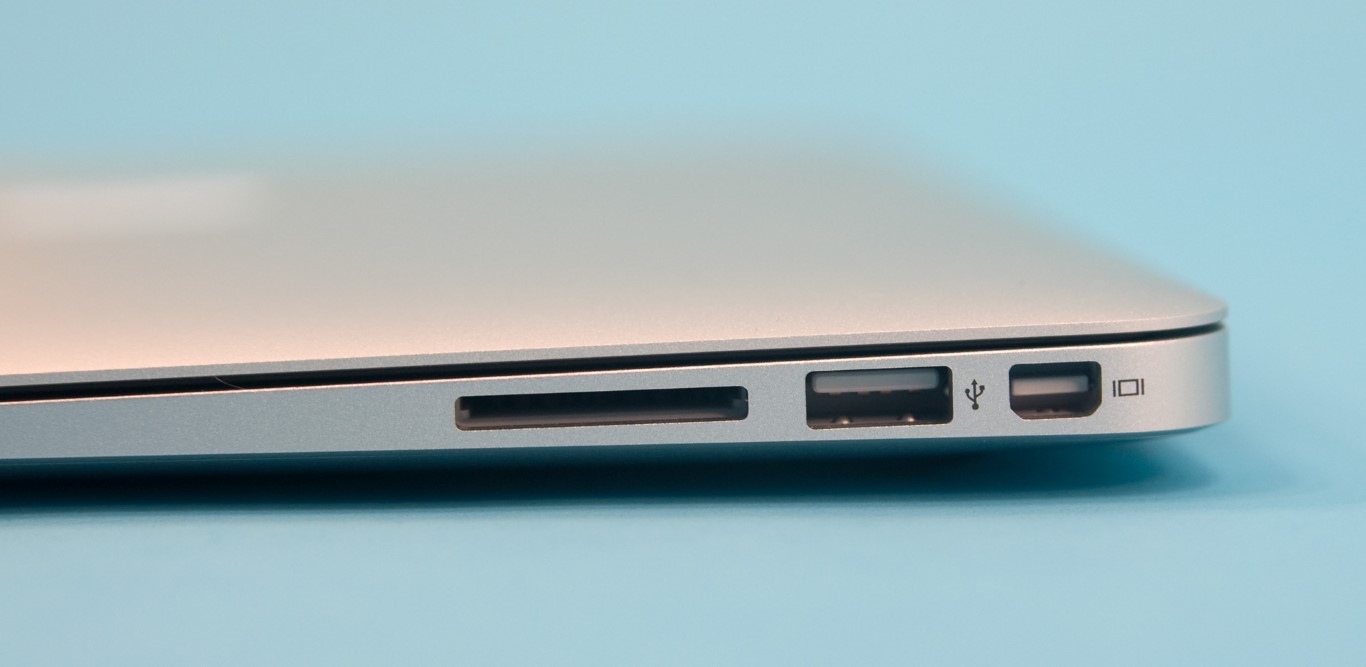
As we’ve explained earlier in this article, SD card readers are not 100% reliable, so you should check if your reader is working as it should before you move on to other fixes described in this article.
Do you have another memory card reader that accepts SD cards? If so, connect it to your Mac and insert the SD card again. You can also open Disk Utility and check whether the SD card appears in the sidebar. If it does (even if it’s grayed out) your Mac can still detect the card, which means the card reader is working.
If you don’t have another reader, then you can ask a friend to let you use their laptop for a while and use its built-in memory card reader instead.
4. Check for USB and Other Connection Issues
Memory card readers transfer data via USB, or Universal Serial Bus, which is a data interface that enables communication between devices (readers, USB flash drives, external drives) and a host controller (your computer).
Controlling this interface on macOS is the so-called USB daemon, a background process responsible for device mounting, configuration management, and all other aspects of transferring data via USB. If this daemon stops working correctly, it’s very likely that your Mac won’t be able to recognize your SD card.
There are some ways to restart the USB daemon manually through Terminal, but we don’t recommend that route for most users. It can interrupt other connected devices and may create extra complications if the command is used incorrectly. A simple Mac restart achieves a similar reset in a safe way.
5. Check if SD Card Is Locked
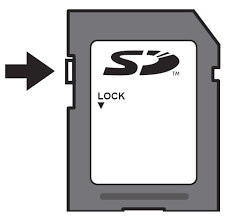 Many guides recommend checking the Lock switch when an SD card isn’t reading or recognized on a Mac. It might be worth a quick look, but based on our tests, the Lock switch usually isn’t connected to this specific problem.
The Lock switch on a full-size SD card is designed to prevent write operations. In other words, it can stop you from deleting files, modifying files, saving new data to the card. But it shouldn’t prevent your Mac from reading the card or detecting it in Disk Utility.
So if the SD card doesn’t show up at all, the cause is probably something else, such as the card reader, USB connection, or file system corruption.
6. Insert the SD Card into a Different Device
One of the best ways to determine why you can’t access your SD card is to insert it into a different device. Try another Mac, a Windows PC, or a device with a built-in SD card slot. If the card works there, the issue is probably not the card itself.
If another device detects the card, copy the important files from it right away. Don’t use that device to format or “fix” the card unless you already recovered the data you need first.
7. Format the Card
If your SD card now appears in Disk Utility, but you still can’t access it in Finder, formatting may help make it usable again. This usually applies to cases where the card has a corrupted file system, appears as RAW, or uses a file system macOS can’t mount.
To format your SD card, follow these steps:
- Open Disk Utility
- Select your SD card from the list
- Click on Erase
- Give the card a name if you want to – this is not required
- Choose exFAT for the file system format if the card is larger than 64 GB, otherwise choose FAT32
- Click Erase
Once the process is finished, you should have a freshly formatted SD card with no data on it.
9. Use a Professional Data Recovery Service
Sometimes you’re simply not able to recover a malfunctioning SD card yourself no matter what you do. If your card has a damaged controller, worn-out memory chip, cracked body, bent contacts, or serious electrical failure, there’s not much most people can do at home.
In this case, using a professional data recovery service might be your only option. These companies work in specialized facilities with advanced equipment that allows them to access malfunctioning storage devices and recover data from them when everything else fails.
Keep in mind that this option has some downsides. It takes a long time – usually a couple of weeks – and it can cost quite a bit of money. You might also not be comfortable with sending your data to a company that will be able to access it.
If your data is important enough and you want to try this, you can start with a company like Cleverfiles Data Recovery Center. Note that even with a professional service like this, success is still not guaranteed. But on the other hand, if this doesn’t work out, you’ll at least know you’ve exhausted all options before giving up.
How to Recover Files That Were Stored on My SD Card and Now Are Missing?
Have you managed to figure out how to read your SD card on Mac, only to discover that important files that were stored on it are now missing? Then you need to use data recovery software to get them back.
One data recovery software application that supports all common SD card file systems is Disk Drill. This easy-to-use software can be recommended to beginners and pros alike thanks to its intuitive user interface and powerful data recovery algorithms.
Here’s how easy it is to recover missing files with Disk Drill:
- Download and install Disk Drill on your Mac.
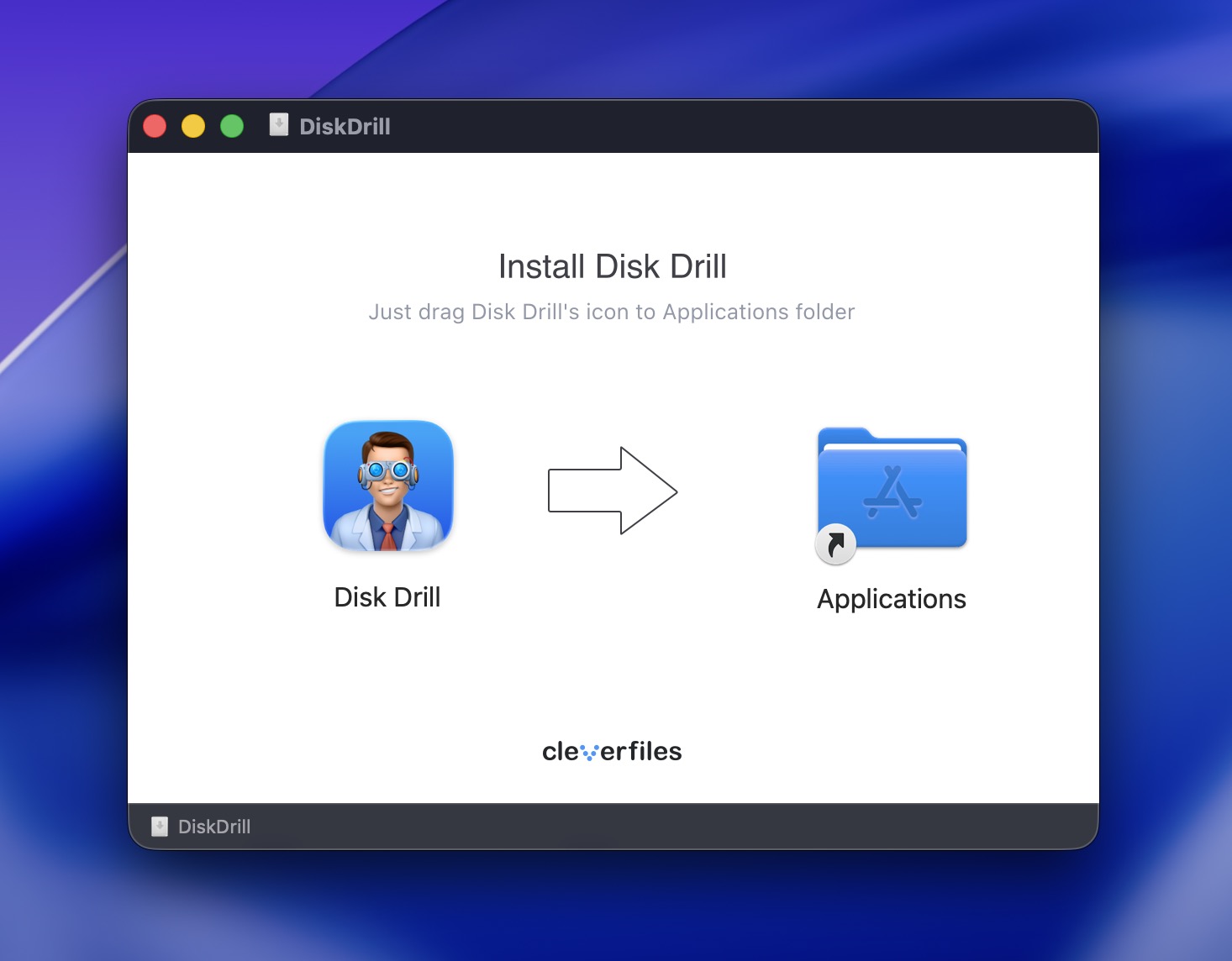
- Connect the SD card.
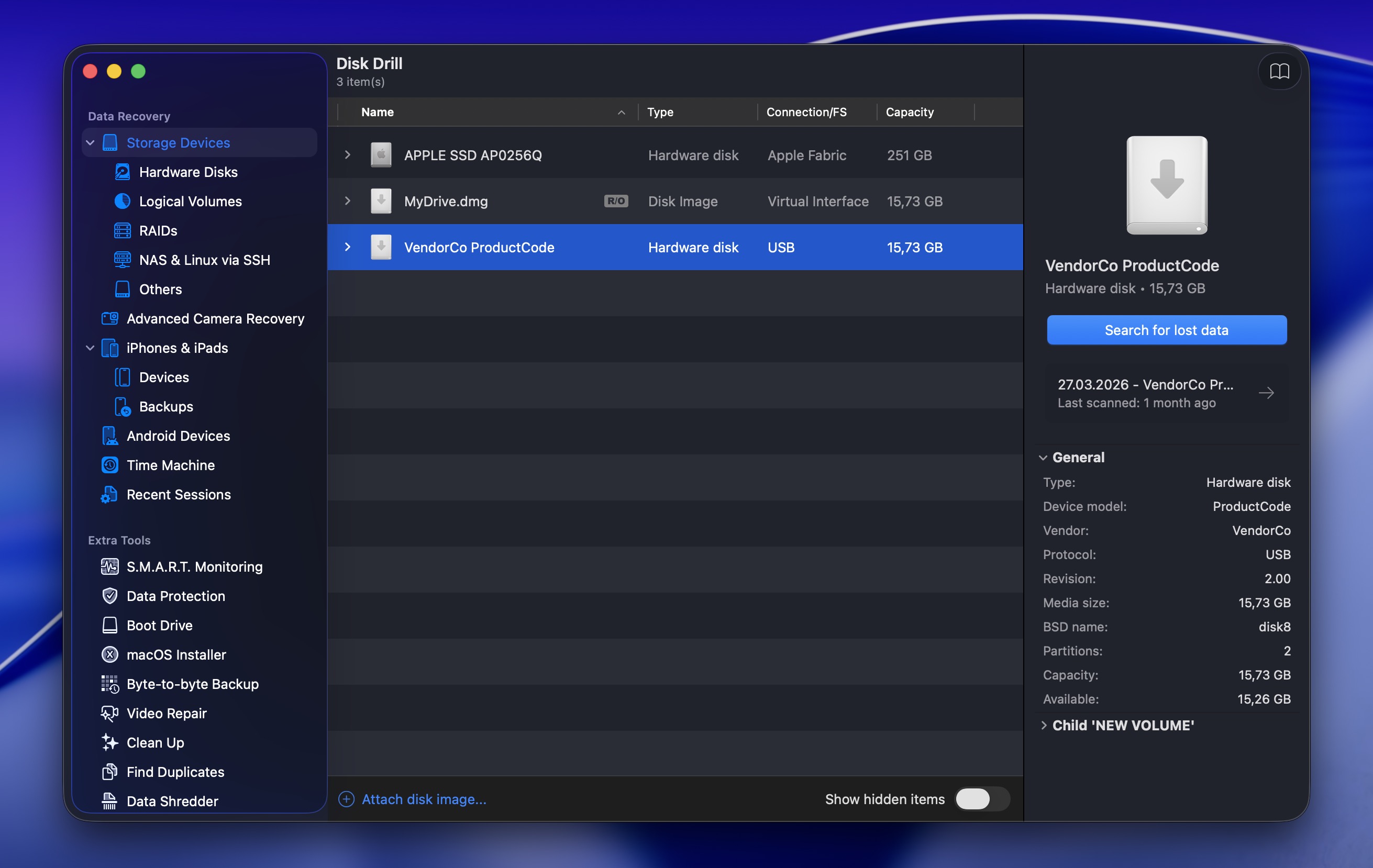
- Launch Disk Drill and select the SD card.
- Click Search for lost data and choose a scan type. For most cases, go with Universal Scan.
(Choose Advanced Camera Recovery if the SD card contains video footage from a camera, drone, dashcam, action camera, or similar device.)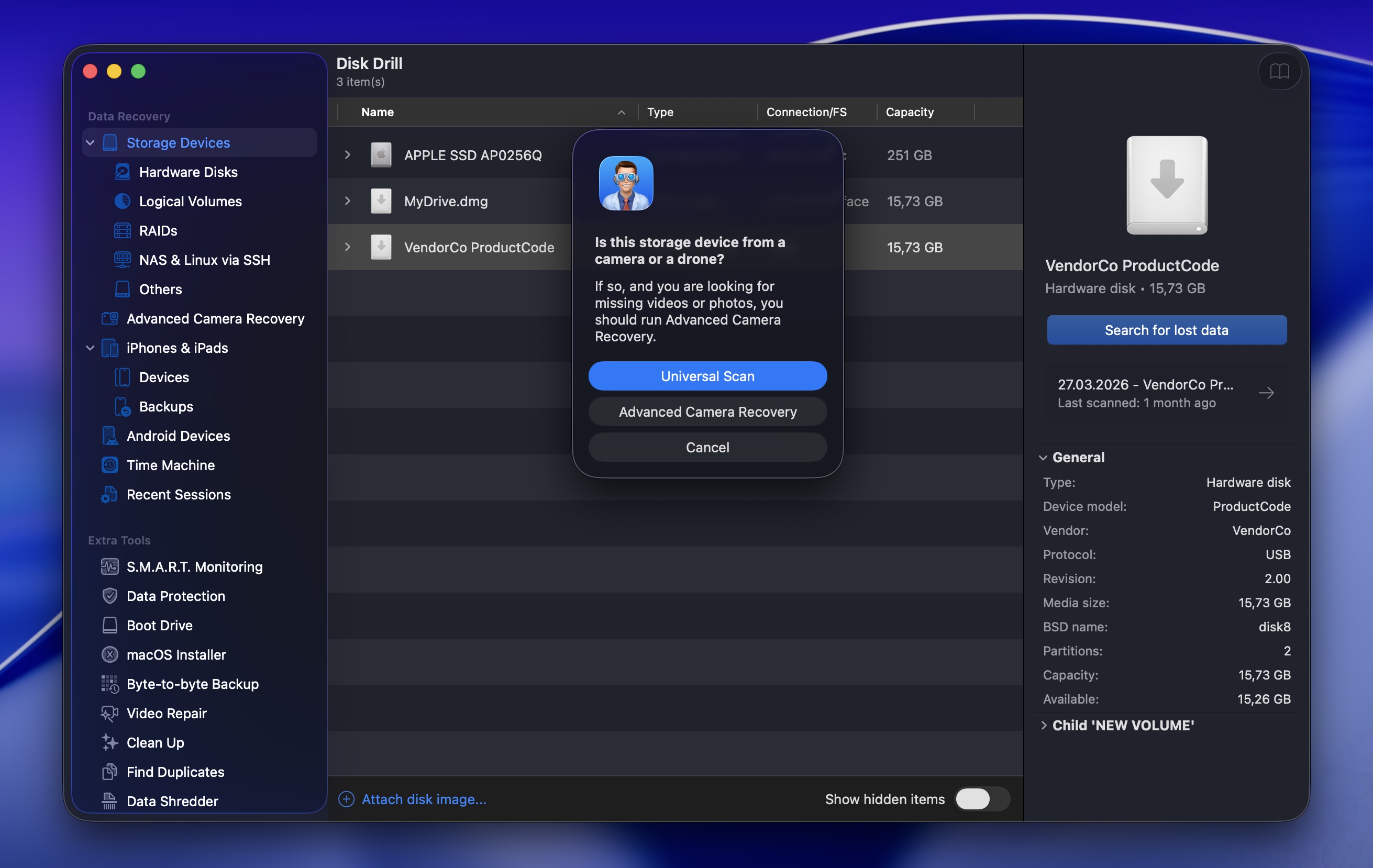
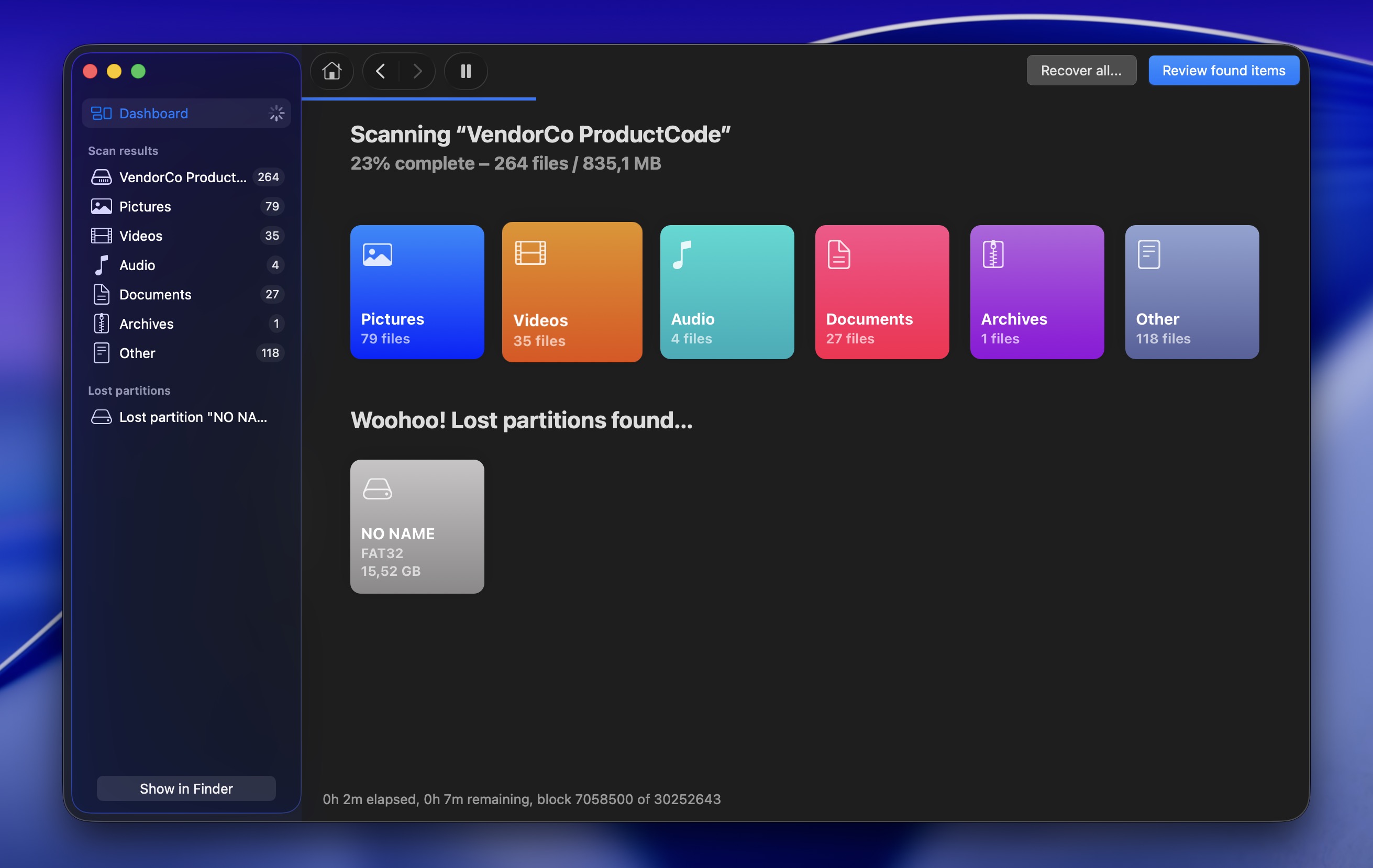
- Click Review found items or open the relevant file category, such as Pictures, Video, Audio, Documents, or Archives.
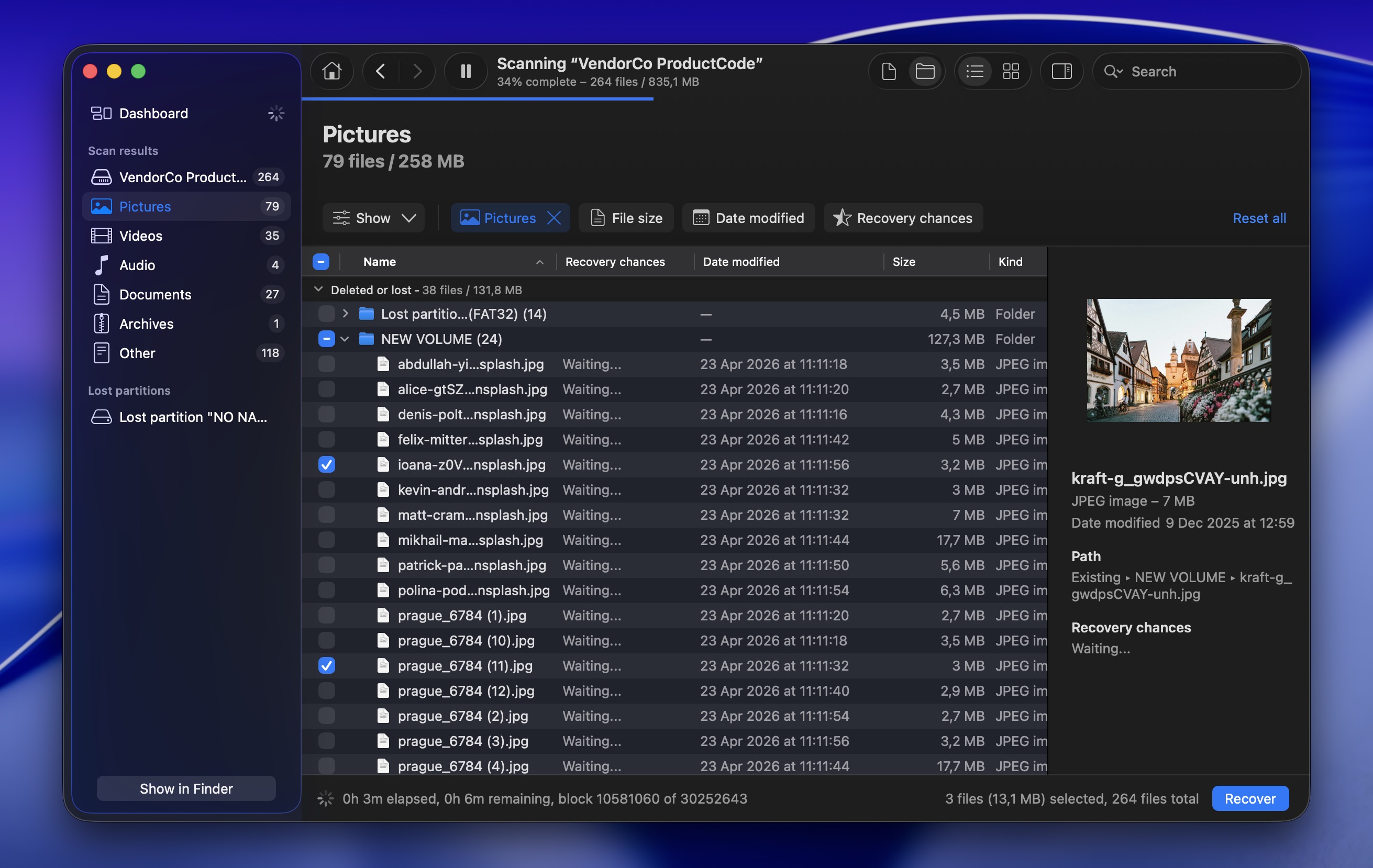
- Preview recoverable files and select those that you want to get back.
- Click Recover and select a safe recovery location.
How to Avoid ‘SD Card Not Showing Up’ in the Future?
Most issues with SD cards not showing up can be avoided by adhering to the following tips:
- Use only brand-name SD cards, even if it means paying extra. No-name SD cards often use flash memory chips that didn’t make it past the quality control stage, and such chips may stop working at any time.
- Eject your SD card before you remove it. That extra second or two it takes to click the Eject button can go a long way in helping you avoid data corruption, and all the problems associated with it.
- Protect the SD card from physical damage by keeping it away from moisture, excessive heat, and extremely cold temperatures. When not in use, place the SD card inside a protective case.
Conclusion
Issues with SD cards not reading properly on Mac computers have many possible causes and just as many possible solutions. We covered the easiest checks first: Finder settings, restart, card reader issues, USB connection problems, testing the card on another device.
If you rule out physical damage and macOS-related issues, the problem is often tied to the file system issues. In many cases, formatting the SD card can make it usable again. But don’t rush into that step if the card still contains important files. Formatting erases the card from the user’s point of view and can make recovery harder, so recover your data first with software like Disk Drill, or contact a professional recovery service if the card appears physically damaged or can’t be detected at all.
FAQ
Whenever you experience issues with your Mac not recognizing your SD card, the first thing you need to do is figure out the origin of the problem by answering the following questions: Is your memory card reader working? Can the SD card be access from another computer? Has the SD card been damaged? Once you pinpoint the problem, you can use one of the fixes described in this article to solve it.
.There are several common reasons why your SD card might not be showing up on your Mac, including physical damage, memory card reader issues, and problems with macOS.
Assuming the SD card reader isn’t damaged, there’s a chance that it’s not working properly because there’s something wrong with the macOS USB daemon. Often, a simple restart of your computer is enough to fix this issue.
To start with, the SD card must have a file system that’s supported by macOS. FAT32 is the safest choice, but you can also use exFAT if you want to store files larger than 4 GB. Then you need a compatible memory card reader, preferably one that’s been designed specifically for Mac computers.
If your microSD card isn’t detected properly by your Mac, then you need to figure out the reason why. Basically, there are three possible culprits: the microSD card itself, your memory card reader, and your macOS operating system.
Here’s how to make your SD card show up on your Mac:
- Click the Finder icon on the Dock to open it.
- From the menu on top of the screen, click Finder > Settings.
- Click the General tab. All of the items under the Show these items on the desktop section should be checked. If not, click the box near the item to select it.
- Click the Sidebar tab and check whether all of the items under the Locations section are selected. If not, click the item to place a checkmark.
If you have trouble getting your Mac to read an SD card, here’s what you should do:
- Check the Finder settings. Go to Finder > Settings > General and make sure the External disks option is selected. Then go to the Sidebar tab and make sure the External disks option is also chosen.
- Restart your Mac.
- Head to Launchpad > Disk Utility and look at whether the SD card is listed in the sidebar. If it is grayed out, click the Mount button on the top of the screen.
If your SD card is not showing up on your Mac, then in most cases, there’s something wrong with the SD card. Usually, the best option for you is to recover the data from the SD card to your Mac or a different drive and format the SD card.
Here’s how to do it:
- Connect the SD card to your Mac.
- Download and install Disk Drill.
- From the list of devices, choose the SD card. Click Search for lost data.
- Choose the files that you want to restore and click the Recover button.
- Head to Launchpad > Disk Utility.
- Choose your SD card and click the Erase button. Type in a new name for your SD card and choose a suitable format. Click Erase.
If your SD card is not showing up on your Mac, there are several things you can try. You can:
- Adjust your Finder settings to explicitly show external drives
- Check if the SD card reader is broken or malfunctioning
- Restart your Mac
- Format the SD card
- Use data recovery software
- Send the card to a professional data recovery center