Cosa fare se il tuo hard disk smette improvvisamente di funzionare come dovrebbe? Come capire se si tratta di un semplice errore del file system, di un settore che sta cedendo o di qualcosa di più serio? E, con tutti i software che si presentano come il miglior programma per riparare hard disk, come distinguere quelli davvero affidabili?
Puoi stare tranquillo: alcune soluzioni software funzionano davvero e possono risolvere molti problemi degli hard disk. Nessuna può riparare danni fisici gravi, ma gli strumenti giusti possono riparare file system corrotti, recuperare partizioni perse, ripristinare l’accesso a dischi che non si avviano, riparare settori danneggiati e persino aiutarti a proteggere i dati per il futuro.
I 15 migliori programmi per riparare hard disk, monitorarli e recuperarne i dati
L’elenco qui sotto comprende soluzioni per Windows, macOS o entrambi. Nel complesso, coprono un’ampia gamma di esigenze e ti permettono di analizzare, prevenire e risolvere praticamente tutti i problemi più comuni degli hard disk.
1. Disk Drill – Il migliore per recuperare dati dagli hard disk
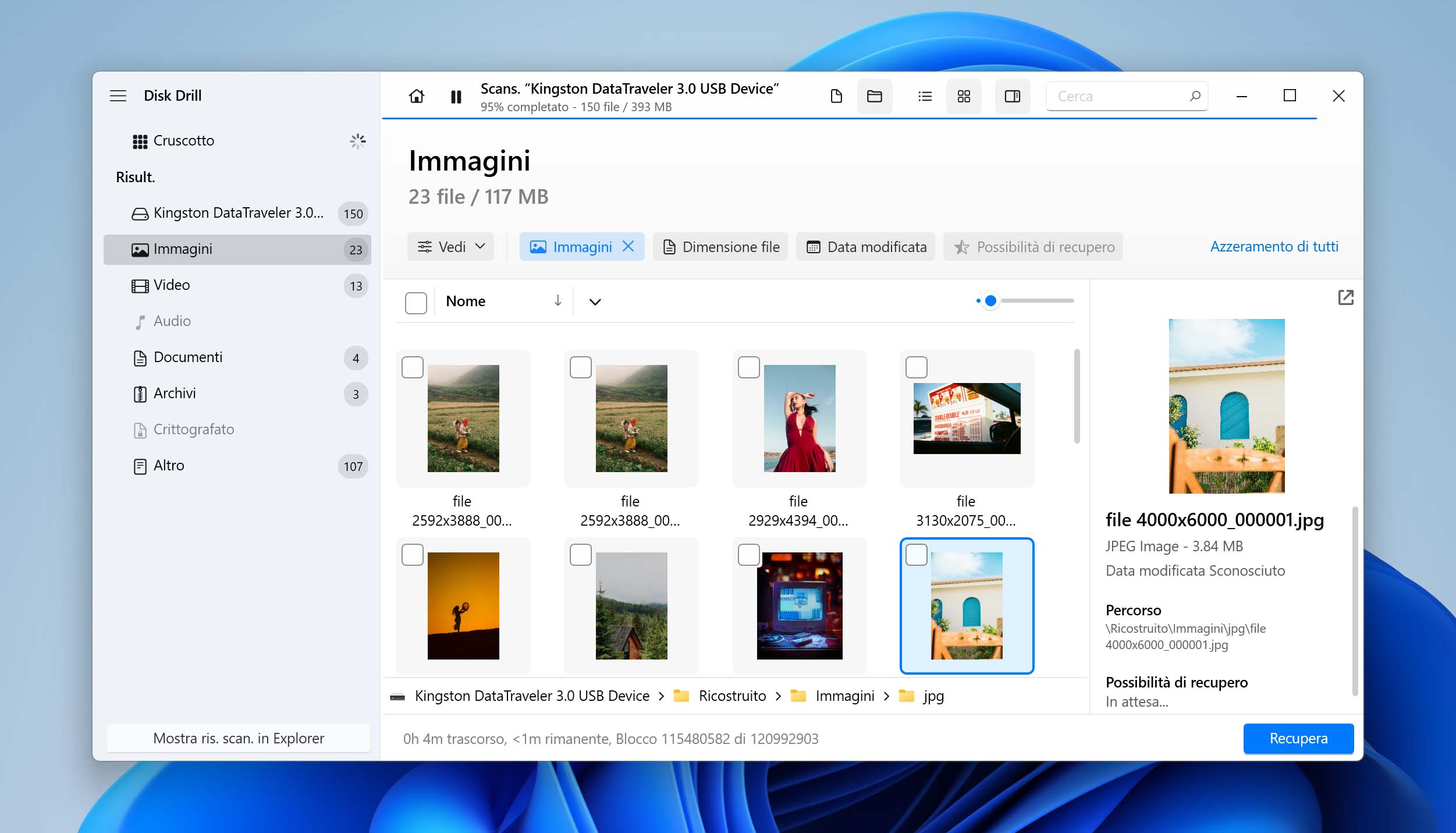
⚙️ Sistemi operativi supportati: Windows 10/11 e macOS 10.15 o successivi; la versione attuale di Disk Drill supporta anche Windows 11 ARM e le versioni recenti di Windows Server. Per chi utilizza un sistema meno recente, esistono versioni precedenti di Disk Drill compatibili con Windows XP, Vista, 7, 8 e 8.1. Su Mac, le versioni precedenti supportano i sistemi a partire da Mac OS X 10.5.
🧰 Funzionalità principali: Recupero di dati eliminati o persi e da dischi RAW, corrotti o non avviabili; recupero dei dati dalle partizioni; monitoraggio S.M.A.R.T.; backup byte per byte; anteprima dei file; pausa e ripresa delle scansioni; modulo Recupero Avanzato della Camera; strumenti di protezione dei dati.
💰 Prezzi: I piani PRO a pagamento sono disponibili con licenza a vita (149 $) o abbonamento annuale (89 $), mentre i prezzi della versione Enterprise sono disponibili su richiesta.
🕹️ Versione demo/di prova: Sì. L’edizione gratuita Basic permette di eseguire scansioni e visualizzare in anteprima i file recuperabili prima dell’acquisto. Su Windows consente anche di recuperare gratuitamente fino a 100 MB (anche i file protetti con Recovery Vault su Windows o Guaranteed Recovery su macOS possono essere ripristinati gratuitamente).
🧑💻 Livello di difficoltà: Facile. L’interfaccia è adatta ai principianti e semplice da usare.
Disk Drill è uno strumento professionale per il recupero dei dati dagli hard disk, facile da usare e progettato per recuperare dati persi o eliminati anche dai dischi più problematici. Può ripristinare partizioni perse, recuperare file da dischi corrotti, non avviabili, in avaria o RAW e gestire array RAID o dispositivi NAS.
Utilizza una scansione unificata che combina l’analisi dei metadati con quella basata sulle firme dei file per individuare quanti più dati possibile sul disco problematico. Include inoltre un esclusivo modulo Recupero Avanzato della Camera per ricostruire file video frammentati da supporti danneggiati. Puoi anche aggiungere dischi virtuali e immagini disco, così da effettuare il recupero senza il disco fisico. Supporta inoltre le scansioni multipiattaforma tra Windows e macOS.
Oltre al recupero, Disk Drill offre alcune funzionalità gratuite per proteggere e gestire i dischi. Include il monitoraggio S.M.A.R.T. attivo, che opera in background e ti avvisa di possibili guasti imminenti. Il modulo avanzato di backup byte per byte utilizza un algoritmo a più passaggi per lavorare efficacemente con dischi in avaria e crea una mappa visiva che evidenzia i settori danneggiati.
👤 Esperienza degli utenti:
«Procuratevi assolutamente DiskDrill. Sono riuscito a recuperare file da hard disk danneggiati che persino i centri di riparazione dicevano di non poter sistemare senza mandarli in laboratorio e sottoporli a un intervento fisico completo da 10.000 $.»
– @Quincinerate, utente di X
✅ Vantaggi:
- Permette di accedere ai dati o recuperarli da dischi problematici, compresi quelli corrotti, non avviabili, in avaria o RAW.
- Funziona con tutti i dischi, inclusi quelli interni, esterni, RAID software, NAS e virtuali.
- Include un modulo avanzato di backup byte per byte per lavorare con dischi in avaria.
- Permette di aggiungere dischi virtuali e immagini disco creati con il programma o su altri sistemi, per effettuare il recupero senza che il disco fisico sia presente.
- Consente di mettere in pausa e riprendere le scansioni, una funzione utile per dischi di grandi dimensioni o sessioni interrotte.
- Offre strumenti gratuiti come il monitoraggio S.M.A.R.T. attivo.
- Include anteprime dei file, filtri, ordinamento e opzioni di ricerca per individuare i file durante il recupero.
- Offre una versione gratuita per recuperi di piccola entità, fino a 100 MB.
🙁 Svantaggi:
- Non include funzioni di gestione delle partizioni e di riparazione dei blocchi danneggiati.
- Non è disponibile assistenza telefonica.
- Non offre strumenti integrati per riparare video o foto (questi strumenti sono disponibili separatamente senza costi aggiuntivi con le licenze a pagamento).
- La scansione può richiedere molto tempo sui dischi di grandi dimensioni.
2. TestDisk – Il migliore per recuperare partizioni e riparare dischi che non si avviano
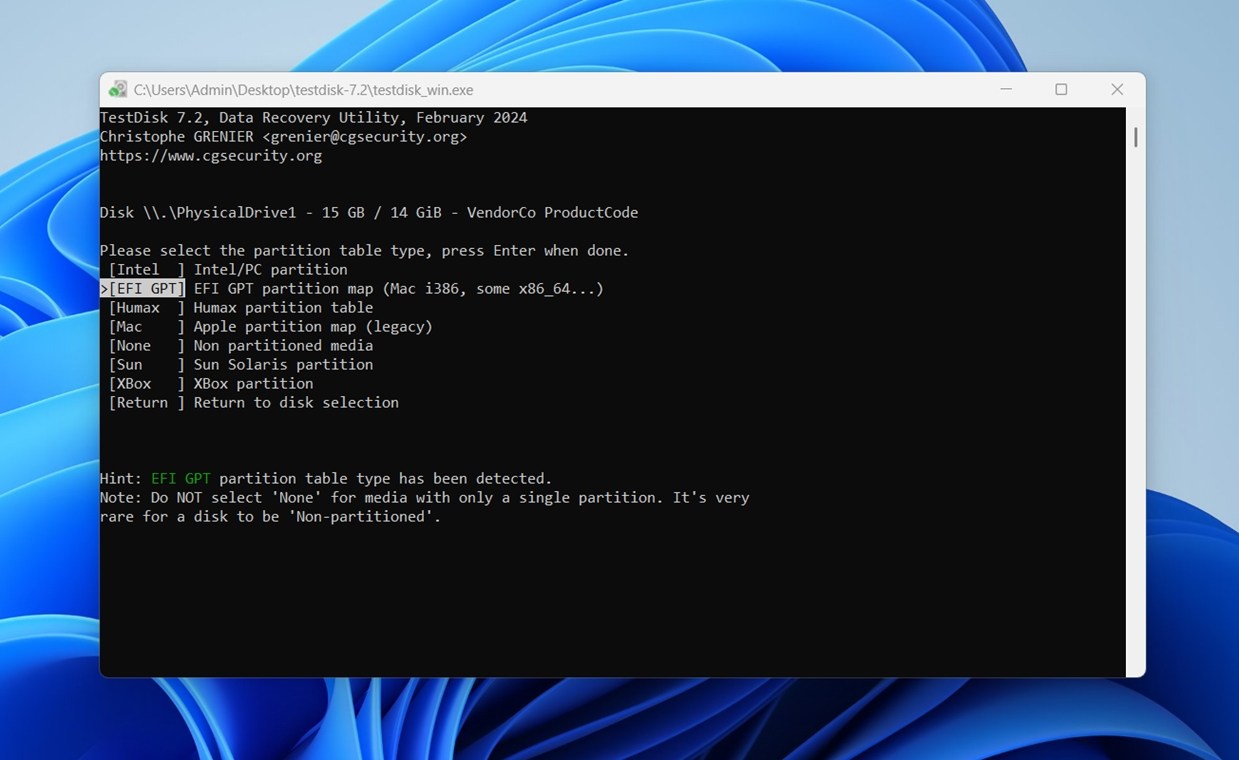
⚙️ Sistemi operativi supportati: Windows, macOS, Linux e DOS. TestDisk è una delle soluzioni più flessibili di questo elenco in termini di piattaforme supportate, ed è anche per questo che continua a essere consigliato così spesso.
🧰 Funzionalità principali: Recupero di partizioni perse; riparazione della tabella delle partizioni; riparazione dei settori di avvio NTFS e FAT; riparazione della MFT; recupero di file eliminati su FAT, exFAT, NTFS ed ext2; recupero dei superblocchi ext2/ext3/ext4.
💰 Prezzi: Gratuito. TestDisk è completamente open source.
🕹️ Versione demo/di prova: Sì, nel senso che la versione completa è gratuita e utilizzabile senza restrizioni.
🧑💻 Livello di difficoltà: Difficile. Il programma ha un’interfaccia testuale, senza interfaccia grafica, e richiede almeno una conoscenza di base delle partizioni, dei settori di avvio e della struttura dei dischi.
TestDisk è un potente e apprezzato software per riparare hard disk e, se cerchi un programma ripara hard disk danneggiato gratis, è una delle opzioni più complete per il recupero delle strutture del disco. Dà il meglio di sé quando il problema riguarda partizioni perse, tabelle delle partizioni danneggiate, settori di avvio compromessi o dischi che risultano RAW o impossibili da montare.
Se vuoi riparare le strutture di un hard disk e ripristinare l’accesso a un disco che non funziona più normalmente, questa è una delle migliori soluzioni gratuite disponibili.
TestDisk può ricostruire le tabelle delle partizioni, recuperare partizioni eliminate, riparare settori di avvio NTFS, ripristinare tabelle FAT e individuare superblocchi utilizzabili nei file system Linux. Può anche recuperare file eliminati da alcuni file system, anche se non è il suo punto di forza. Per questo tipo di recupero a livello di file, puoi usare PhotoRec, incluso nel pacchetto. Sebbene TestDisk sia a tutti gli effetti un valido software di riparazione degli hard disk, funziona al meglio quando il problema è esclusivamente strutturale.
Un altro motivo per cui gli utenti esperti continuano a usarlo è l’ampio supporto di file system e piattaforme. Funziona su Windows, macOS, Linux, BSD e DOS e supporta un lungo elenco di file system e schemi di partizionamento. È quindi un ottimo candidato quando serve uno strumento per riparare hard disk in ambienti misti, sistemi meno recenti o configurazioni insolite. È anche leggero, portatile e spesso incluso negli ambienti di ripristino, caratteristiche che ne aumentano il valore come strumento professionale di riparazione degli HDD per utenti avanzati e tecnici.
👤 Esperienza degli utenti:
«TestDisk è un ottimo programmino. Se ho un disco che sta cedendo o è corrotto, prima ne creo un’immagine, poi eseguo TestDisk sull’immagine per recuperare i dati. Lo stesso sviluppatore realizza anche PhotoRec, utile se si vuole recuperare solo un certo tipo di file, per esempio tutti i file *.doc da un HDD.»
– Utente di Reddit
✅ Vantaggi:
- Completamente gratuito e open source.
- Eccellente per recuperare partizioni e riparare settori di avvio.
- Funziona su Windows, macOS, Linux, DOS e altri sistemi.
- Leggero e portatile.
- Gestisce bene dischi RAW, impossibili da montare o con strutture danneggiate.
- Supporta un’ampia gamma di file system e tipi di partizioni.
- Spesso incluso negli ambienti di ripristino avviabili.
🙁 Svantaggi:
- L’assenza di un’interfaccia grafica lo rende difficile da usare per i principianti.
- Non è l’ideale per recuperare singoli file eliminati.
- Non offre anteprime, filtri o una struttura ad albero dei file recuperabili.
- Non permette di salvare le sessioni o riprendere le scansioni.
- È facile commettere errori se non si ha dimestichezza con le partizioni e le strutture del disco a basso livello.
3. Clonezilla – Il migliore per creare immagini disco
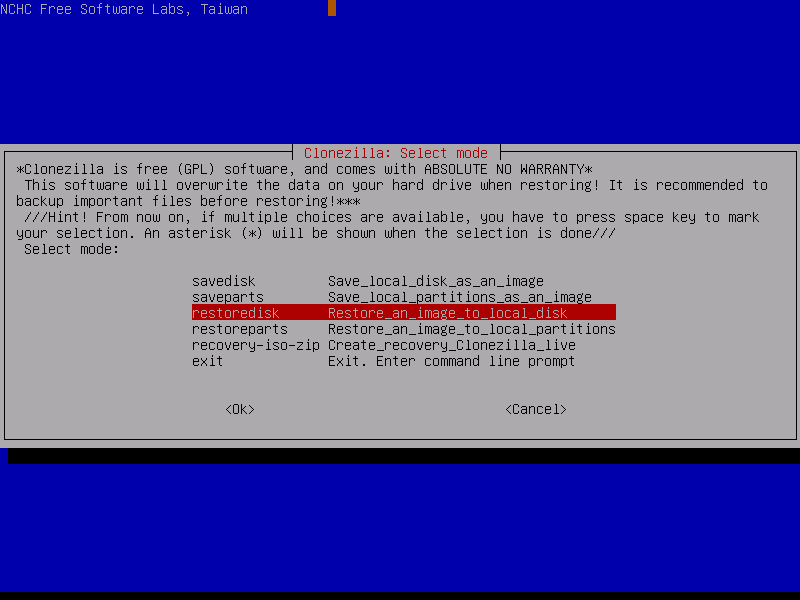
⚙️ Sistemi operativi supportati: Windows, macOS, Linux, BSD e altri sistemi, poiché Clonezilla funziona come ambiente live avviabile anziché come una normale applicazione desktop installata.
🧰 Funzionalità principali: Creazione di immagini disco e clonazione dei dischi; backup e ripristino delle partizioni; copia dei blocchi utilizzati per i file system supportati; copia settore per settore per quelli non supportati; supporto dei boot loader; supporto MBR e GPT; modalità automatica senza intervento dell’utente; crittografia e compressione; archiviazione delle immagini in locale o tramite SSH, Samba e NFS.
💰 Prezzi: Gratuito (software open source con licenza GNU GPL).
🕹️ Versione demo/di prova: La versione completa è gratuita e non presenta limitazioni legate a funzionalità a pagamento.
🧑💻 Livello di difficoltà: Difficile. Clonezilla si esegue da un supporto di avvio e prevede una procedura tecnica con interfaccia testuale.
Clonezilla è una delle migliori soluzioni per creare immagini di backup dei dischi o delle partizioni. Quando un problema colpisce il disco e causa una perdita di dati, il primo passo è creare un backup byte per byte del disco. Perché? Perché ne conserva lo stato attuale, evita ulteriori perdite e consente di effettuare il recupero in un secondo momento.
Il programma supporta un’ampia varietà di file system, compresi quelli usati da Windows, macOS e Linux. Può anche comprimere le immagini disco ed eseguire riparazioni di base per ripristinare sistemi che non si avviano. Abbiamo però scelto Clonezilla per questa categoria per la sua flessibilità e affidabilità senza pari rispetto a strumenti open source simili. È particolarmente utile quando occorre clonare più computer, migrare su nuovo hardware o creare un backup sicuro prima di apportare modifiche rischiose al sistema.
Sebbene richieda più tempo per imparare a usarlo rispetto ad alternative simili, le sue capacità lo rendono una delle soluzioni gratuite più efficaci disponibili.
👤 Esperienza degli utenti:
«Clonezilla è gratuito (ed è open source). Gran parte di ciò che fanno Macrium e TrueImage si può fare anche con Clonezilla.»
– Splendid, moderatore del forum Tomshardware.
✅ Vantaggi:
- Completamente gratuito e open source.
- Supporta diversi file system per Windows, macOS, Linux, BSD e VMware.
- Permette di crittografare e comprimere i backup.
- Può ripristinare i boot loader e gestisce gli schemi di partizionamento MBR e GPT.
🙁 Svantaggi:
- Richiede un supporto di avvio esterno (CD/DVD/USB) per funzionare.
- È difficile da imparare a usare per chi non ha competenze tecniche.
- Le partizioni devono essere smontate prima di crearne un’immagine.
4. DiskGenius – Il migliore come pacchetto di base
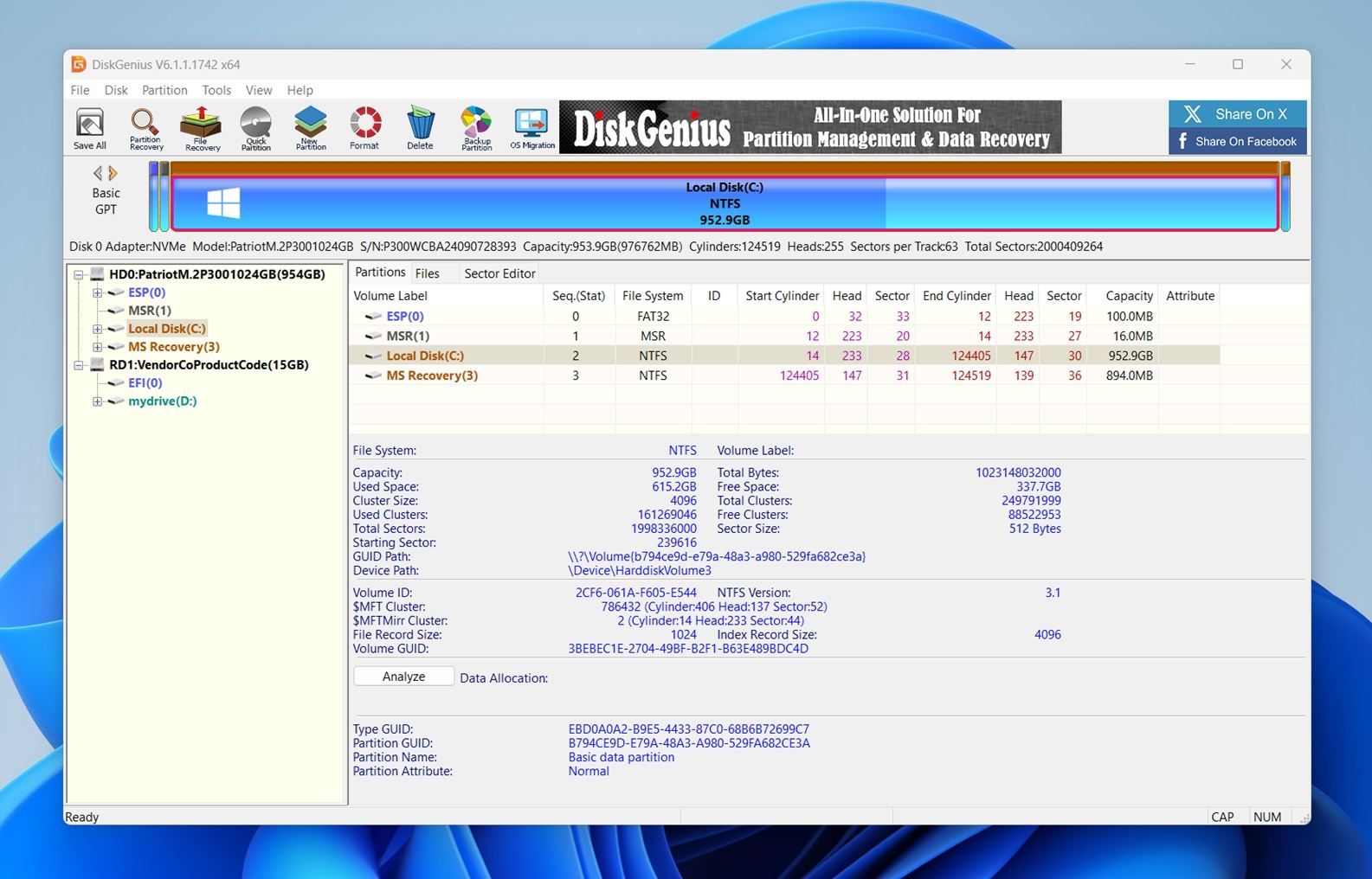
⚙️ Sistemi operativi supportati: DiskGenius è principalmente uno strumento per Windows. Dispone anche di una modalità DOS per alcune operazioni offline.
🧰 Funzionalità principali: Recupero dei dati; recupero di partizioni perse; gestione delle partizioni; clonazione di dischi e partizioni; migrazione del sistema operativo; backup e ripristino; controllo e riparazione dei settori danneggiati; monitoraggio dello stato dei dischi; cancellazione sicura; supporto per RAID, BitLocker, dischi virtuali e Spazi di archiviazione di Windows (nelle edizioni superiori).
💰 Prezzi: Licenze personali mensili (69,90 $), annuali (99,90 $) e a vita (129,90 $).
🕹️ Versione demo/di prova: Sì. DiskGenius offre un’edizione gratuita e una prova gratuita per valutarlo prima dell’acquisto, ma il recupero e le funzioni avanzate sono limitati senza passare a un’edizione superiore.
🧑💻 Livello di difficoltà: Medio. L’interfaccia è grafica e più accessibile rispetto a strumenti come TestDisk o Clonezilla, ma alcune operazioni richiedono comunque una conoscenza delle partizioni e della struttura dei dischi.
DiskGenius è uno strumento completo per riparare dischi che riunisce funzioni di recupero dati, gestione delle partizioni e utilità di base in un unico pacchetto. Pur non offrendo lo stesso livello di approfondimento nelle funzioni specialistiche di altri strumenti citati, il suo punto di forza è la versatilità. Per chi non vuole combinare diversi programmi per la riparazione dei dischi, DiskGenius offre un modo semplice per gestire i problemi più comuni senza passare da un software all’altro.
Il software può recuperare file e partizioni persi, riparare alcuni errori del disco e settori danneggiati, ridimensionare o clonare partizioni e persino effettuare backup dei dati. Supporta anche la modifica esadecimale per la risoluzione avanzata dei problemi, risultando sorprendentemente flessibile per uno strumento generico. Inoltre, se hai un array RAID danneggiato, può ricostruirlo virtualmente al volo.
Nel complesso, DiskGenius è particolarmente adatto a chi desidera un po’ di tutto. Potrebbe non eguagliare le capacità di recupero approfondito di Disk Drill o quelle di Clonezilla nella distribuzione di immagini di sistema, ma per la riparazione e la gestione quotidiana dei dischi è una scelta pratica e affidabile.
👤 Esperienza degli utenti:
«Nella mia esperienza, Diskgenius non solo è gratuito, ma funziona in modo costante e corretto dove i prodotti di altre aziende non riescono.»
– Linkticus, utente di Reddit.
✅ Vantaggi:
- Riunisce funzioni di recupero, gestione delle partizioni e backup.
- Supporta la ricostruzione dei RAID e la gestione dei dischi virtuali.
- Cancella in modo sicuro tutti i dati dall’hard disk.
- Funziona anche al di fuori del sistema operativo.
- Include una funzione di modifica esadecimale integrata.
🙁 Svantaggi:
- Richiede un supporto di avvio esterno.
- Non può effettuare la cancellazione completa delle unità a stato solido.
5. SeaTools – Il migliore per la diagnostica dei dischi
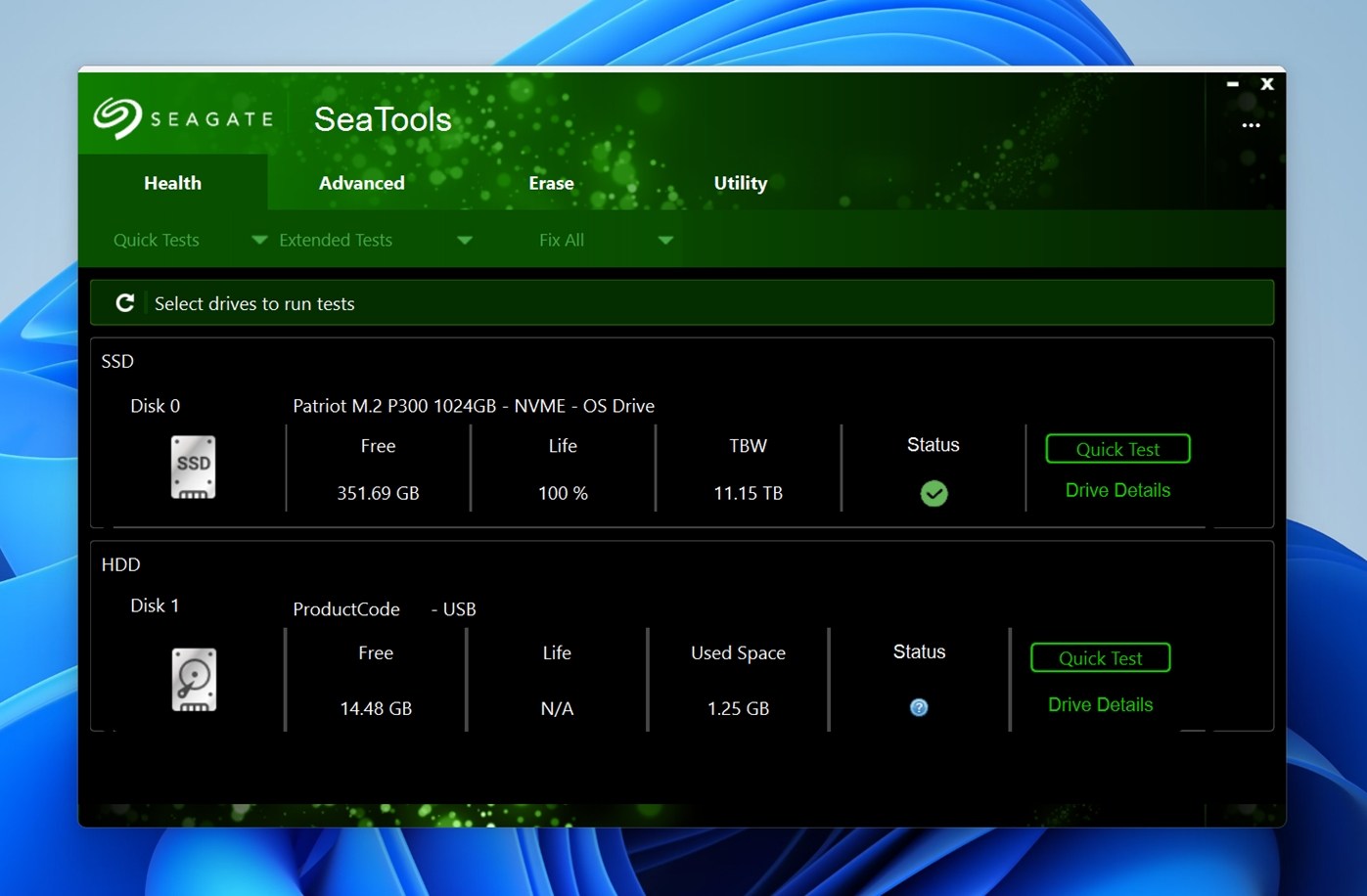
⚙️ Sistemi operativi supportati: Windows tramite SeaTools for Windows, oltre a varianti avviabili e basate su Linux per i sistemi che richiedono una diagnostica al di fuori del sistema operativo installato. In passato SeaTools ha avuto anche edizioni basate su DOS.
🧰 Funzionalità principali: Controlli dello stato S.M.A.R.T.; test diagnostici brevi e lunghi dei dischi; test generici della superficie; diagnostica da supporto di avvio; monitoraggio degli SSD; registri dei test e report dei risultati. SeaTools nasce come utilità di diagnostica e riparazione degli hard disk: serve quindi a verificare lo stato del disco, individuare segnali di guasto e, in alcuni casi, avviare test a livello di firmware già supportati dal disco.
💰 Prezzi: Gratuito. SeaTools è disponibile gratuitamente sul sito di Seagate.
🕹️ Versione demo/di prova: Non necessaria.
🧑💻 Livello di difficoltà: Da facile a medio. La versione per Windows è accessibile alla maggior parte degli utenti, mentre quella avviabile richiede un po’ più di lavoro: occorre creare un supporto USB e avviare il computer da quest’ultimo.
L’utilità ufficiale di Seagate per la diagnostica degli hard disk è una delle soluzioni più conosciute tra i software di riparazione degli hard disk quando l’obiettivo è la diagnosi. È progettata per testare gli hard disk e monitorare gli SSD, quindi è utile quando un disco comincia a comportarsi in modo anomalo e devi capire se il problema riguarda il file system, l’hardware che sta cedendo o un disco ormai prossimo al guasto. Se vuoi uno strumento per riparare hard disk che ti aiuti a rispondere alla domanda «Questo disco è ancora abbastanza sano da potermi fidare?», SeaTools è un buon punto di partenza.
La sua utilità sta nella combinazione di test rapidi e diagnostica approfondita. A seconda della versione, SeaTools può eseguire autotest brevi, test generici brevi, autotest lunghi, test generici lunghi e un test generico di 2 minuti. In parole semplici, offre diversi modi per verificare se il disco riesce ancora a leggere correttamente il supporto e se le informazioni interne sul suo stato mostrano qualcosa di preoccupante. È quindi soprattutto uno strumento per valutare lo stato degli HDD in chiave diagnostica, non un software che recupera file persi o ricostruisce partizioni danneggiate.
Un altro vantaggio è che SeaTools non si limita ai dischi interni Seagate. Può essere usato per testare dischi Seagate e Maxtor e, in molti casi, anche dischi di altri produttori.
👤 Esperienza degli utenti:
«L’unico programma che ha rilevato correttamente che l’HDD stava cedendo è stato Seagate Seatools con il test generico lungo (i test brevi li aveva superati).»
– Membro della community Covecube
✅ Vantaggi:
- Gratuito da scaricare e utilizzare.
- Valido per la diagnostica rapida e approfondita dei dischi.
- Può leggere le informazioni sullo stato del disco e lo stato S.M.A.R.T.
- La versione avviabile è utile quando il sistema operativo installato è instabile o non si avvia.
- Utile sia per i dischi interni sia per molti dischi esterni.
- Un pratico software di riparazione degli HDD da usare come primo passo prima di procedere a un recupero più approfondito.
🙁 Svantaggi:
- La procedura da supporto di avvio è meno comoda di una normale applicazione desktop.
- Dopo i test potrebbe comunque servire un altro strumento per riparare i settori danneggiati, un’applicazione per creare immagini disco o una suite di recupero dati.
6. CrystalDiskInfo – Il migliore per monitorare lo stato dei dischi
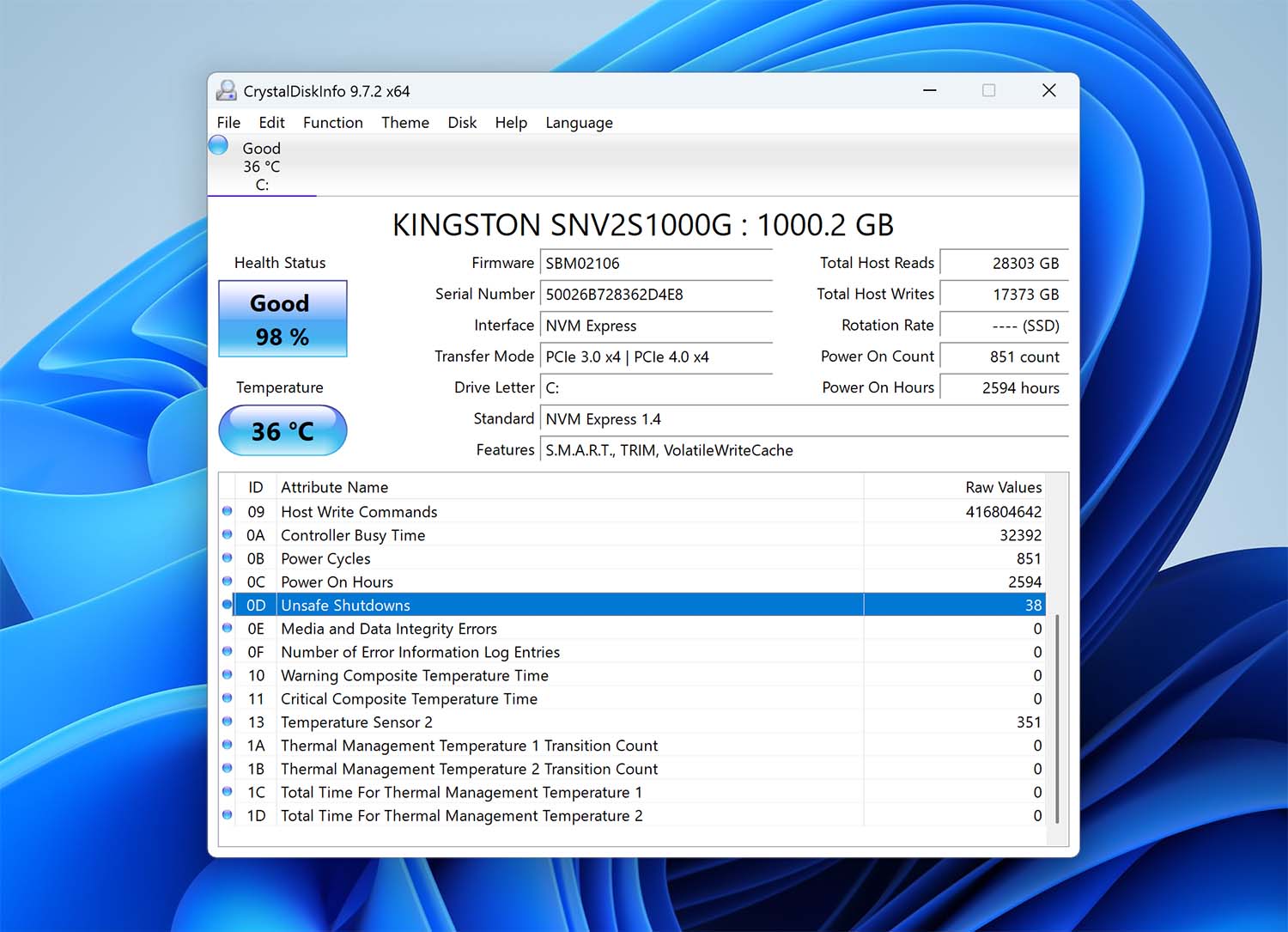
⚙️ Sistemi operativi supportati: Windows. CrystalDiskInfo supporta Windows 11, 10, 8.1, 8, 7, Vista e XP, oltre a diverse versioni di Windows Server.
🧰 Funzionalità principali: Monitoraggio S.M.A.R.T.; stato di salute del disco; monitoraggio della temperatura; avvisi in tempo reale; grafici storici; controllo AAM/APM sui dischi supportati; monitoraggio nell’area di notifica; supporto per molti HDD, SSD, dischi NVMe e alcune configurazioni USB e RAID.
💰 Prezzi: Gratuito. CrystalDiskInfo è un software open source con licenza MIT.
🕹️ Versione demo/di prova: Utilizzabile gratuitamente, senza dover passare a una versione a pagamento.
🧑💻 Livello di difficoltà: Facile. L’interfaccia è abbastanza semplice per l’uso quotidiano ed è uno degli strumenti più accessibili per controllare lo stato dei dischi.
CrystalDiskInfo è un’utilità di monitoraggio dei dischi estremamente pratica, da usare soprattutto come misura preventiva anziché come soluzione di riparazione di ultima istanza. Può leggere i dati S.M.A.R.T. (Self-Monitoring, Analysis and Reporting Technology) degli hard disk. Questi dati comprendono, per esempio, il tasso di errori di lettura, il tasso di errori di posizionamento delle testine e il tempo di avvio della rotazione. I valori S.M.A.R.T. sono indicatori che possono avvisarti di un guasto imminente, rendendo CrystalDiskInfo uno strumento utile da avere a disposizione.
Consente anche di impostare avvisi personalizzati per essere informato quando vengono superate determinate soglie. Poiché si concentra principalmente sul monitoraggio, non offre molte funzioni aggiuntive come le altre soluzioni citate. Include però grafici storici delle temperature, il controllo AAM/APM per regolare le impostazioni di rumorosità e consumo energetico e una versione portatile utilizzabile senza installazione.
👤 Esperienza degli utenti:
«Ti suggerirei di controllare la tua unità NVMe o SSD con Crystaldiskinfo. È valido, lo uso spesso per tenere d’occhio lo stato del mio hard disk.»
– @404Usernam, utente di X.
✅ Vantaggi:
- Può essere configurato per inviare avvisi in base agli eventi.
- Offre una panoramica approfondita degli hard disk.
- Completamente gratuito e open source.
- Disponibile anche in edizioni a tema anime.
🙁 Svantaggi:
- L’interfaccia affollata può risultare poco chiara.
- Mancano istruzioni o guide chiare.
7. GSmartControl – Il migliore per la diagnostica SMART
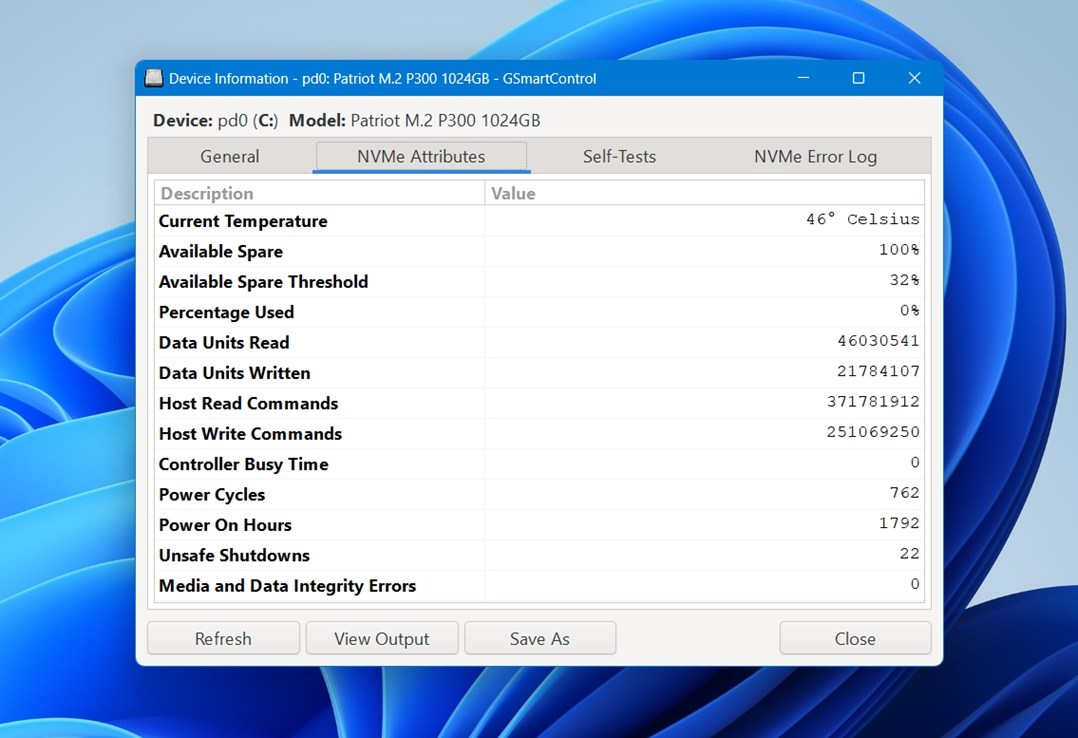
⚙️ Sistemi operativi supportati: Windows, macOS, Linux e BSD. Essendo un’interfaccia grafica per smartctl del pacchetto smartmontools, GSmartControl offre un ampio supporto multipiattaforma e funziona bene negli ambienti misti.
🧰 Funzionalità principali: Controllo dello stato S.M.A.R.T.; visualizzazione degli attributi e dei registri degli errori; autotest brevi ed estesi; evidenziazione automatica dei valori preoccupanti; supporto per HDD e SSD. È progettato per controllare lo stato dei dischi e fare diagnostica, non per recuperare file o riparare partizioni.
💰 Prezzi: Gratuito. GSmartControl è un software open source senza edizioni a pagamento.
🕹️ Versione demo/di prova: Non necessaria.
🧑💻 Livello di difficoltà: Medio. L’interfaccia è molto più intuitiva di smartctl usato direttamente, ma i dati sono più utili se si conosce almeno il significato di base degli attributi S.M.A.R.T. e degli autotest.
GSmartControl è uno strumento open source per la riparazione degli hard disk in senso diagnostico, sviluppato come interfaccia grafica per smartctl. Sotto molti aspetti svolge un ruolo simile a CrystalDiskInfo. Se vuoi uno strumento gratuito per controllare lo stato degli HDD e individuare i segnali d’allarme prima che il disco peggiori, questa è una delle soluzioni migliori.
Si occupa di monitoraggio e autotest. Puoi esaminare gli attributi relativi allo stato del disco, leggere i registri degli errori ed eseguire i test integrati senza passare alla riga di comando. Questo lo rende più accessibile rispetto al solo smartctl. GSmartControl può darti un quadro più chiaro prima di decidere se clonare il disco, sostituirlo o passare a software di riparazione degli hard disk più avanzati. Per questo merita un posto in un elenco come questo, anche se è più orientato alla prevenzione e alla diagnosi che alla riparazione degli hard disk in senso letterale.
👤 Esperienza degli utenti:
«Consiglio di eseguire un autotest SMART dell’SSD. Uso spesso GSmartControl, che nella mia esperienza funziona benissimo.»
– Forum di Raspberry Pi
✅ Vantaggi:
- Gratuito e open source.
- Funziona su Windows, macOS, Linux e BSD.
- Molto più facile da usare rispetto a smartctl usato direttamente.
- Valido per controllare i dati S.M.A.R.T. sullo stato del disco ed eseguire autotest.
- Utile sia con HDD sia con SSD.
- Un ottimo software di riparazione degli HDD da usare come primo passo per la diagnostica.
🙁 Svantaggi:
- Alcuni dati S.M.A.R.T. possono comunque risultare poco chiari ai principianti.
- La sua utilità dipende dalla capacità del disco e del box esterno di rendere correttamente disponibili tutti i dati S.M.A.R.T.
- Più adatto al monitoraggio che alla risoluzione diretta dei problemi degli hard disk.
8. GParted – Il migliore per gestire le partizioni
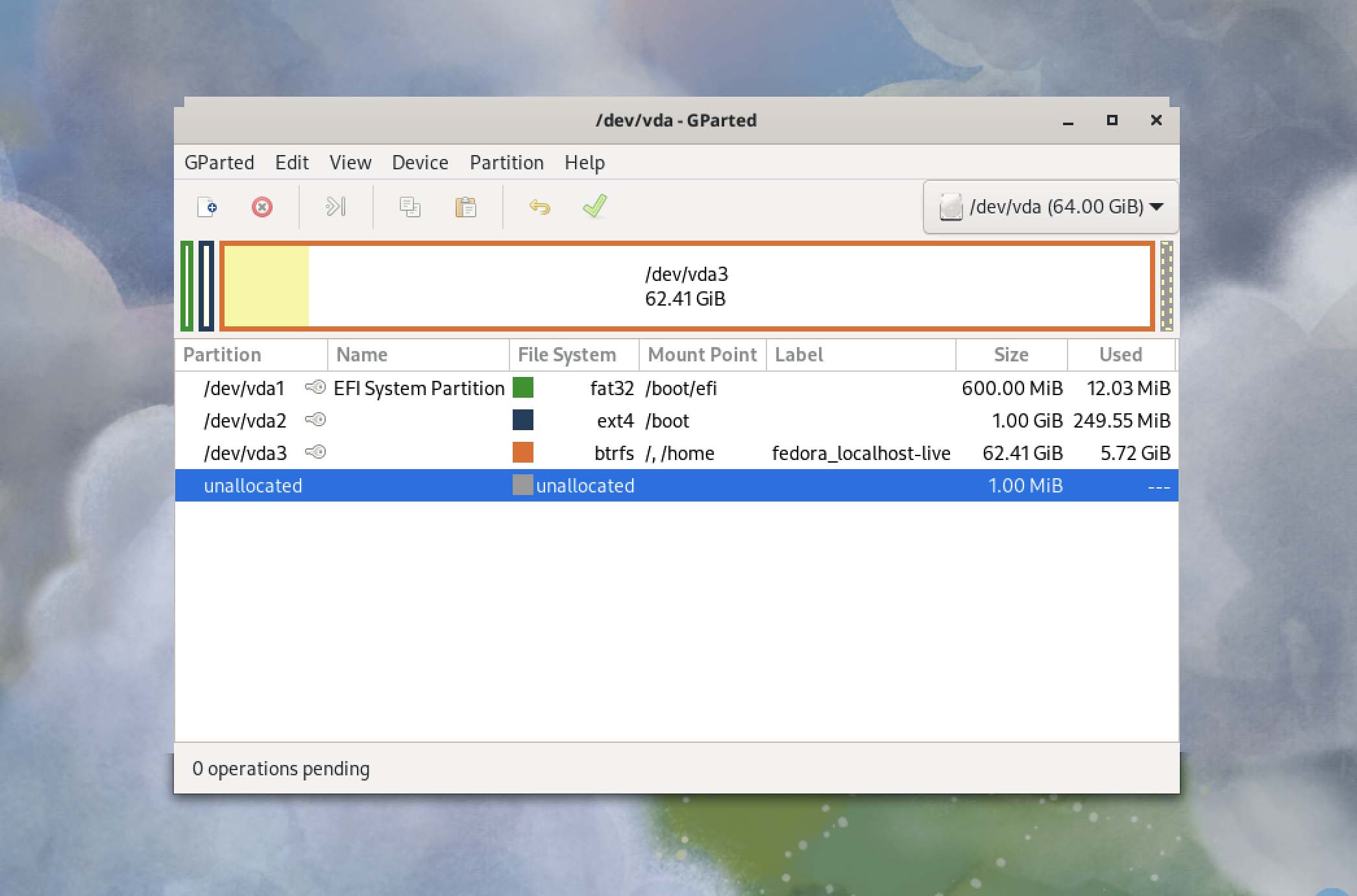
⚙️ Sistemi operativi supportati: Windows, macOS e Linux, nel senso che GParted si utilizza generalmente tramite l’ambiente avviabile GParted Live.
🧰 Funzionalità principali: Creazione ed eliminazione delle partizioni; ridimensionamento e spostamento delle partizioni; copia e incolla delle partizioni; controllo e assegnazione di etichette alle partizioni; impostazione di nuovi UUID; gestione di un’ampia gamma di file system, tra cui NTFS, exFAT, FAT32, ext2/3/4, XFS, Btrfs, HFS/HFS+, UFS e altri.
💰 Prezzi: Gratuito. GParted è un software open source con licenza GNU General Public License.
🕹️ Versione demo/di prova: Utilizzabile gratuitamente e senza restrizioni.
🧑💻 Livello di difficoltà: Medio. L’interfaccia è grafica e piuttosto accessibile, ma poiché il programma lavora a livello di partizione e si usa spesso da un supporto di avvio, richiede comunque almeno una conoscenza di base.
GParted è un editor grafico gratuito delle partizioni che puoi usare per ridimensionare, copiare e spostare partizioni senza perdere dati o corrompere file. È quindi un’ottima soluzione per ridurre una partizione e creare spazio per un altro sistema operativo, una partizione di backup o semplicemente riorganizzare la disposizione delle partizioni senza cancellare il disco.
Uno dei motivi per cui abbiamo scelto GParted è la sua compatibilità multipiattaforma. Può essere eseguito su sistemi Linux, macOS e Windows avviando il computer da una chiavetta USB o da un CD/DVD. Molti professionisti IT lo considerano uno dei migliori software di riparazione degli HDD, perché permette di recuperare partizioni diventate inaccessibili, risolvere problemi di avvio gestendo i flag delle partizioni e verificare l’integrità del file system con un’opzione di riparazione integrata.
GParted è già incluso in strumenti diffusi come Partclone e il già citato Clonezilla, oppure può essere scaricato come distribuzione GNU/Linux avviabile e leggera per computer basati su x86. La possibilità di mettere in coda più modifiche prima di applicarle lo rende flessibile e permette di correggere eventuali scelte prima di confermarle: un netto passo avanti rispetto a Gestione disco, lo strumento integrato di Windows, e a utilità simili di terze parti.
👤 Esperienza degli utenti:
«Ho provato prima MS DISKPART, ma non riuscivo a estendere la partizione primaria nello spazio non allocato. GParted ha svolto il lavoro in modo rapido ed efficiente, risparmiandomi parecchi grattacapi. Ringrazio tutte le persone coinvolte per questa splendida utilità.»
– prlwtski, utente di SourceForge.
✅ Vantaggi:
- Mette in coda le modifiche prima di applicarle.
- Funziona al di fuori del sistema operativo.
- Non richiede riavvii per applicare le modifiche.
🙁 Svantaggi:
- Richiede un supporto di avvio esterno.
- Il download è di grandi dimensioni.
9. DiskWarrior – Il migliore per la diagnostica su Mac
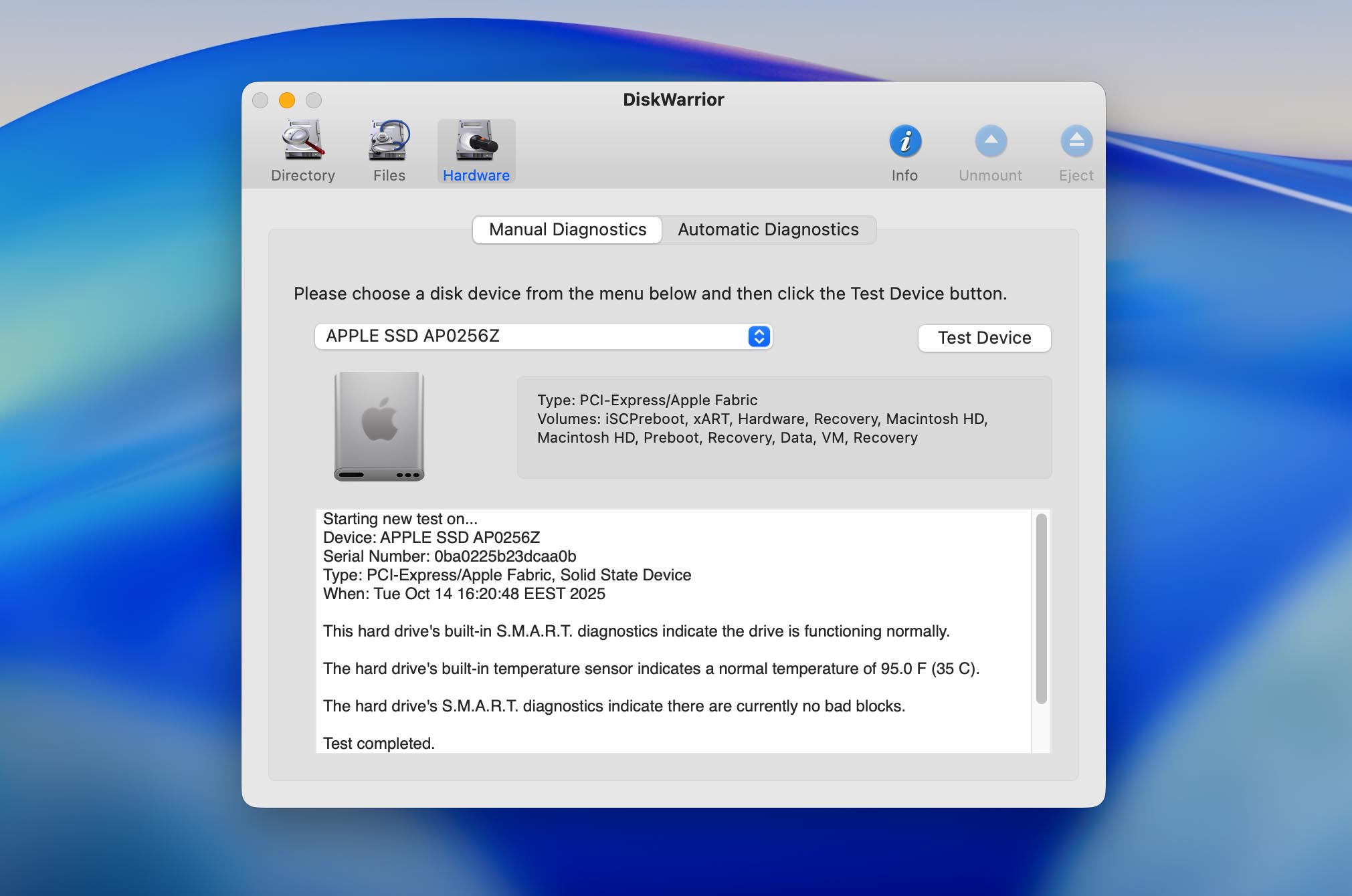
⚙️ Sistemi operativi supportati: Solo macOS.
🧰 Funzionalità principali: Ricostruzione e riparazione delle directory; recupero di file inaccessibili a causa di danni alle directory; anteprima prima della sostituzione; monitoraggio S.M.A.R.T. dello stato dei dischi; controllo dei file e dei permessi; supporto per volumi HFS+, configurazioni RAID, Fusion Drive, volumi Time Machine, immagini disco e altre configurazioni di archiviazione Mac, purché formattate con file system supportati.
💰 Prezzi: Software a pagamento, con possibilità di acquistare una nuova copia (119,95 $) o un aggiornamento.
🕹️ Versione demo/di prova: Non esiste una vera prova gratuita. Il prodotto può mostrare in anteprima come si presenterebbe un disco riparato.
🧑💻 Livello di difficoltà: Medio. L’interfaccia è più semplice degli strumenti a riga di comando, ma è comunque utile conoscere i file system del Mac, le modalità di avvio e la differenza tra i volumi HFS+ supportati e i casi di ricostruzione APFS non supportati.
DiskWarrior è uno degli strumenti più affidabili per la diagnostica e il recupero degli hard disk disponibili per Mac. A differenza delle utilità standard, si concentra sulla ricostruzione e sulla riparazione della struttura delle directory, spesso all’origine di problemi di accesso ai file, prestazioni lente o dischi che non si avviano. Può correggere directory corrotte, migliorare le prestazioni del disco e recuperare i dati persi a causa del danno.
Il suo approccio non distruttivo protegge i dati durante la scansione, la riparazione e la ricostruzione delle directory. Inoltre, crea report visivi e chiari sullo stato del disco, facilitando l’individuazione e la risoluzione di potenziali problemi. Sebbene al momento di questa revisione non supporti APFS, la sua affidabilità sui dischi formattati in HFS e HFS Plus lo ha reso una scelta di fiducia per decenni.
👤 Esperienza degli utenti:
«DiskWarrior vale assolutamente quello che costa se ti capita anche solo con una certa regolarità di avere a che fare con file system HFS+ danneggiati o corrotti.»
– kramer314, utente di Reddit.
✅ Vantaggi:
- Specializzato in HFS+ su macOS.
- Ricostruisce le directory senza sovrascrivere i dati persi.
- Può recuperare file persi o inaccessibili da dischi danneggiati.
- Ottimizza la struttura delle directory, migliorando le prestazioni del disco.
🙁 Svantaggi:
- Disponibile esclusivamente per Mac.
- Poco adatto alla maggior parte dei Mac moderni.
- Non è disponibile una versione gratuita o di prova.
- Non supporta APFS.
10. HDD Regenerator – Il migliore per riparare i settori danneggiati
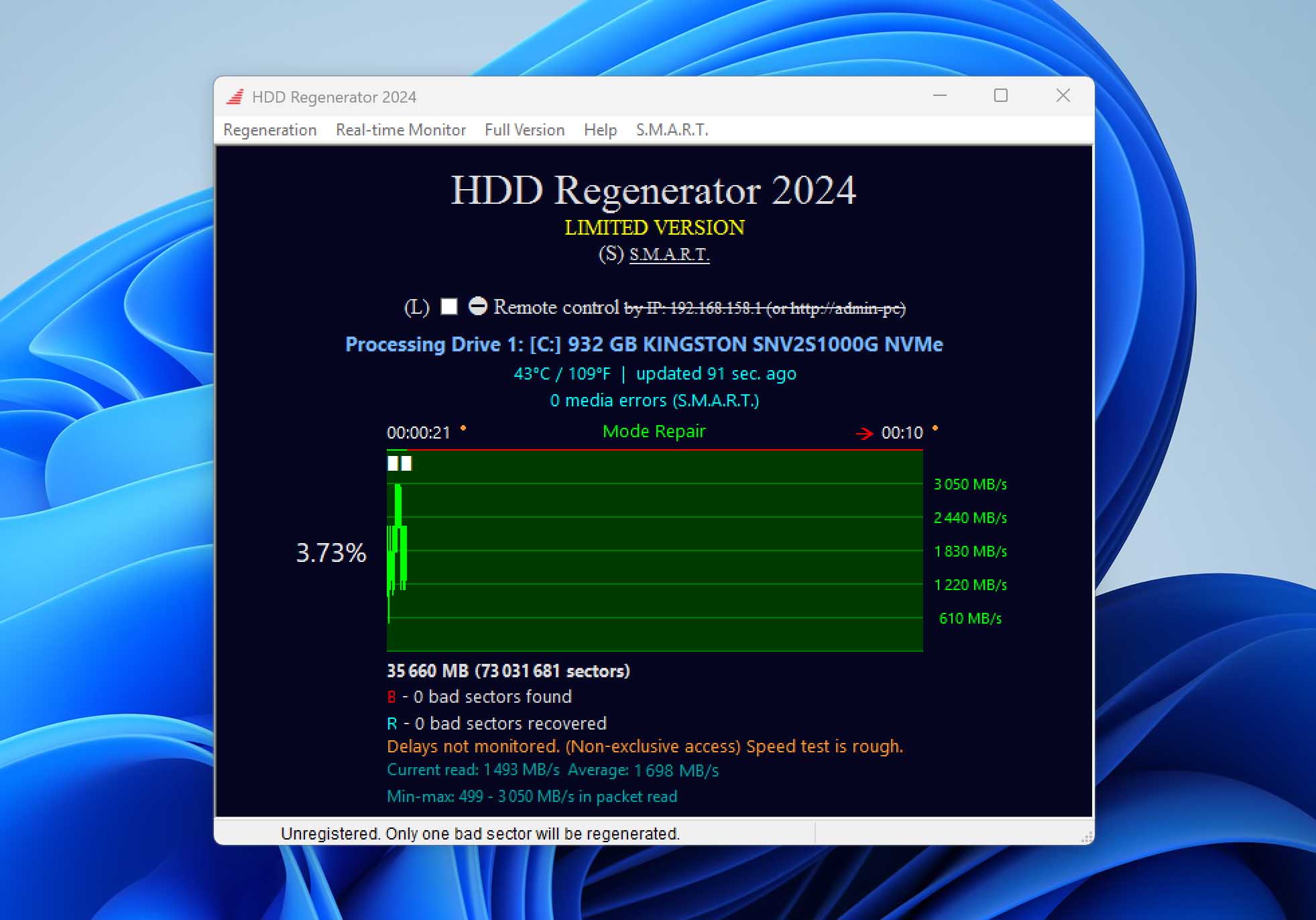
⚙️ Sistemi operativi supportati: Windows 10 e 11 per la versione attuale di HDD Regenerator, che può anche essere eseguito da supporti avviabili per l’uso con praticamente qualsiasi sistema operativo.
🧰 Funzionalità principali: Scansione del disco a livello fisico; rilevamento dei settori danneggiati; rigenerazione dei settori danneggiati; monitoraggio S.M.A.R.T.; supporto per USB avviabili; modalità di scansione, test, aggiornamento dei settori e rigenerazione; supporto per HDD, SSD e dischi NVMe nella versione attuale; supporto per qualsiasi file system, poiché lavora a un livello inferiore a quello del file system.
💰 Prezzi: 89,99 $ (la precedente versione del 2011 è proposta a 49,99 $).
🕹️ Versione demo/di prova: Sì. La demo gratuita può scansionare il disco e tentare di rigenerare il primo settore danneggiato che trova, principalmente per mostrare se una rigenerazione completa potrebbe essere possibile.
🧑💻 Livello di difficoltà: Medio. Poiché lavora a livello fisico sul disco e prevede procedure di riparazione da supporti avviabili, è utile avere alcune conoscenze tecniche.
Windows include uno strumento per riparare hard disk capace di correggere gli errori logici del file system, ma non tenta di risolvere i difetti fisici. HDD Regenerator, invece, è uno strumento specializzato nella riparazione degli HDD, progettato per rilevare i settori fisicamente danneggiati sulla superficie di un hard disk e tentare di ripararli con la tecnologia proprietaria Hysteresis loops generator, sviluppata da Dmitriy Primochenko.
L’ultima versione di HDD Regenerator supporta Windows 10/11 e dispositivi di archiviazione moderni come SSD e dischi NVMe. Il programma può essere avviato da un supporto di avvio, quindi può essere utilizzato su qualsiasi sistema, indipendentemente dal sistema operativo. Oltre alla riparazione dei settori danneggiati, l’ultima versione include il supporto completo per S.M.A.R.T., il monitoraggio degli hard disk in tempo reale e il recupero dei dati corrotti.
👤 Esperienza degli utenti:
«In passato ho usato HDD Regenerator e ha risolto un problema che altri programmi non erano riusciti a risolvere.»
– muchmore777, utente di Reddit.
✅ Vantaggi:
- Rilevamento rapido dei settori danneggiati.
- Può riuscire a ripristinare il funzionamento del disco correggendo alcuni settori danneggiati.
- Monitoraggio delle condizioni dell’hard disk in tempo reale.
🙁 Svantaggi:
- Lento sugli hard disk di dimensioni molto grandi.
- Piuttosto costoso.
11. AOMEI Partition Assistant – Il migliore per gestire gli hard disk
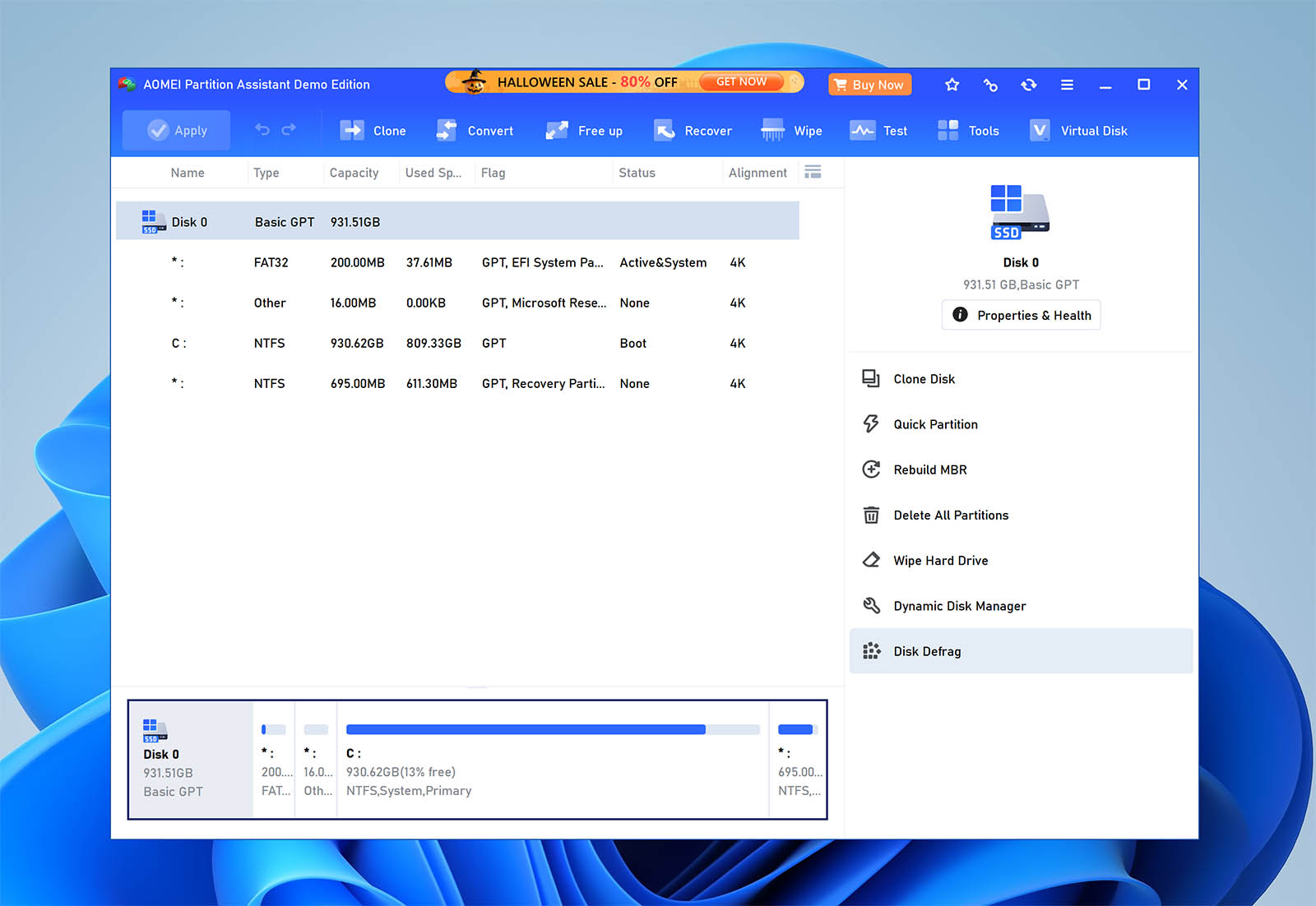
⚙️ Sistemi operativi supportati: Windows. Le edizioni attuali supportano Windows 11, 10, 8.1, 8 e 7, oltre alle edizioni Windows Server nei piani dedicati ai server.
🧰 Funzionalità principali: Gestione delle partizioni; ridimensionamento, spostamento, unione, divisione, creazione, eliminazione e formattazione delle partizioni; clonazione dei dischi; migrazione del sistema operativo; conversione MBR/GPT; conversione tra dischi dinamici e di base; recupero delle partizioni; creazione di supporti avviabili; creazione di Windows To Go; cancellazione sicura; strumenti per eliminare i file superflui.
💰 Prezzi: Edizioni Professional e Server a pagamento. I prezzi ufficiali attuali partono da 49,95 $ all’anno o 59,95 $ per una licenza a vita per Professional, mentre i piani Server partono da 169 $ all’anno.
🕹️ Versione demo/di prova: Sì. Esiste un’edizione Standard gratuita e AOMEI offre anche prove gratuite delle edizioni a pagamento.
🧑💻 Livello di difficoltà: Da facile a medio. L’interfaccia è adatta ai principianti e si basa su procedure guidate, ma alcune operazioni richiedono comunque una conoscenza delle partizioni.
Nonostante il nome, AOMEI Partition Assistant non è l’ennesimo strumento per spostare, ridimensionare e creare partizioni. È in realtà un gestore di hard disk ricco di funzionalità, capace di risolvere praticamente tutti i problemi più comuni dei dischi. Puoi usarlo per riparare hard disk esterni, migrare il sistema operativo su un nuovo disco o convertire da MBR a GPT senza perdere dati. Include la possibilità di distruggere in modo sicuro i file sensibili, impedendone il recupero persino con Disk Drill.
Il sistema di operazioni in coda permette di predisporre più modifiche prima di applicarle, riducendo al minimo il rischio di errori durante operazioni complesse. AOMEI Partition Assistant può essere impostato per essere eseguito prima dell’avvio del sistema operativo, permettendo di lavorare su dischi altrimenti inaccessibili, anche per recuperare dati da un hard disk esterno. L’interfaccia è semplice e contiene tutte le informazioni necessarie, pur consentendo di eseguire operazioni dettagliate di gestione e riparazione dei dischi.
✅ Vantaggi:
- L’interfaccia intuitiva lo rende facile da usare.
- Può essere eseguito prima dell’avvio di Windows.
- Permette di mettere in coda le modifiche prima di applicarle.
🙁 Svantaggi:
- Non può convertire i dischi dinamici in dischi di base.
- Le licenze a pagamento sono piuttosto costose.
12. Hard Disk Sentinel – Il migliore per il monitoraggio avanzato dello stato dei dischi
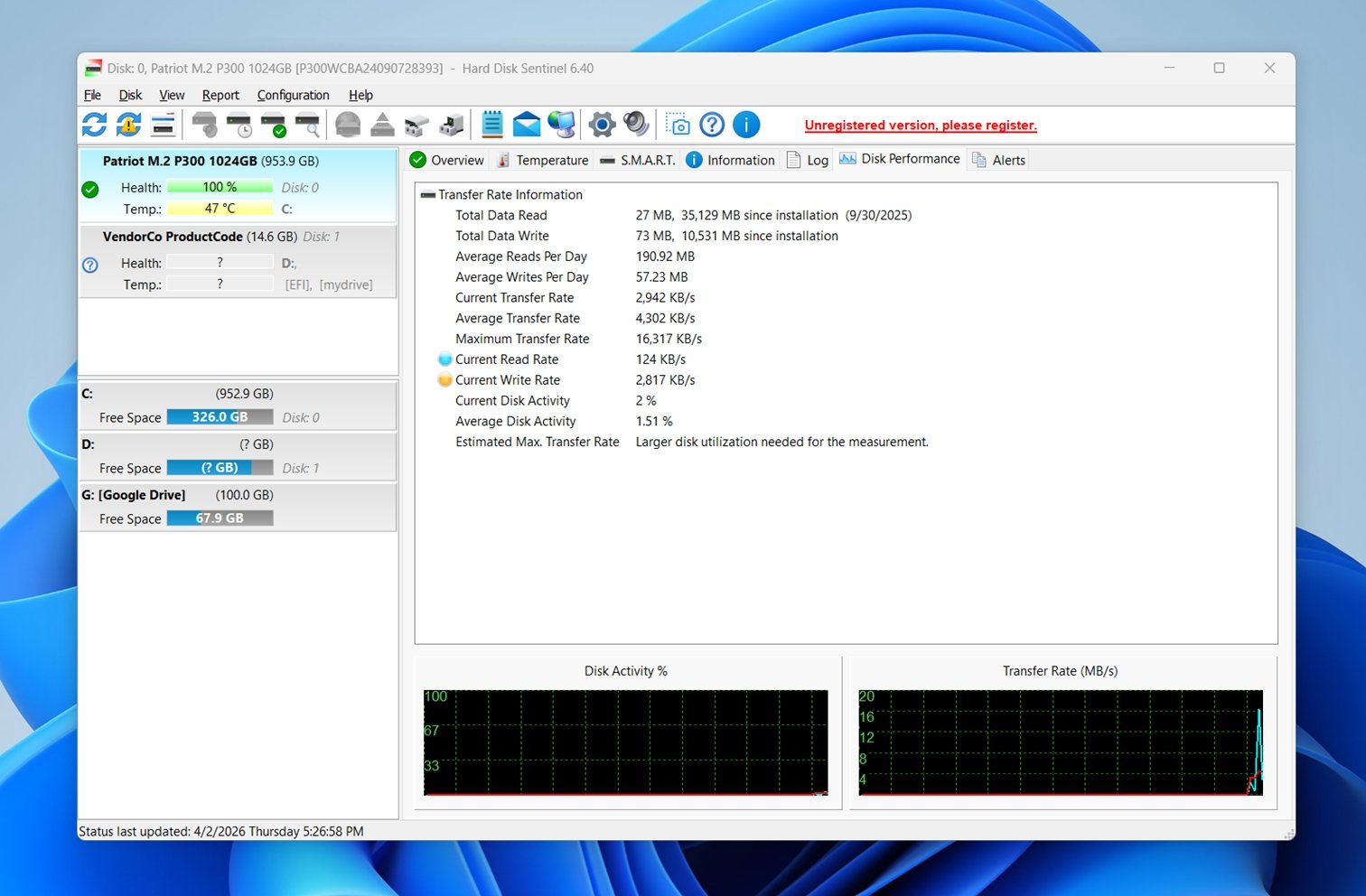
⚙️ Sistemi operativi supportati: Windows come piattaforma principale, con edizioni separate disponibili anche per Linux e DOS. La versione per Windows offre il maggior numero di funzionalità.
🧰 Funzionalità principali: Monitoraggio S.M.A.R.T.; monitoraggio dello stato e della temperatura; monitoraggio della velocità di trasferimento in tempo reale; autotest brevi ed estesi integrati; avvisi e report dettagliati sullo stato. L’edizione Professional include anche funzioni aggiuntive come opzioni di backup, monitoraggio remoto e un’API per gli sviluppatori.
💰 Prezzi: Software a pagamento, disponibile nelle edizioni Standard e Professional (59 $), oltre a opzioni di licenza per famiglie e aziende.
🕹️ Versione demo/di prova: Sì. Per Windows è disponibile una prova con funzionalità limitate, mentre le edizioni Linux e DOS sono offerte gratuitamente.
🧑💻 Livello di difficoltà: Medio. L’interfaccia per Windows è molto più accessibile degli strumenti diagnostici a riga di comando, ma la quantità di dati tecnici sullo stato dei dischi può comunque risultare impegnativa per chi è alle prime armi con il monitoraggio.
Hard Disk Sentinel, o HDSentinel, è soprattutto una suite di monitoraggio e diagnostica dei dischi. È anche questo a distinguerlo da strumenti come CrystalDiskInfo o GSmartControl. Entrambi sono validi per controllare lo stato dei dischi, ma Hard Disk Sentinel va oltre, con analisi più dettagliate, maggiori opzioni di avviso, test integrati e funzioni di protezione aggiuntive nelle edizioni superiori. Se cerchi un software di riparazione degli hard disk incentrato sugli avvisi tempestivi e sul monitoraggio continuo, questa è una delle scelte migliori della categoria.
Il suo punto di forza principale è la profondità dell’analisi. Hard Disk Sentinel legge sia gli attributi S.M.A.R.T. generali sia quelli specifici del produttore, stima lo stato e le prestazioni, monitora le temperature e può avviare gli autotest hardware del disco.
L’autotest esteso può verificare l’intera superficie, individuare le aree deboli e riallocare eventuali settori danneggiati tramite i meccanismi hardware integrati del disco. Non lo consideriamo quindi un vero strumento di riparazione dei settori danneggiati paragonabile ai programmi dedicati che promettono interventi a basso livello, ma offre comunque più di un’utilità di base per la riparazione dei dischi.
Un altro motivo per cui merita un posto in questo elenco è la varietà di hardware supportato: funziona con IDE, SATA, NVMe, SCSI, SAS, la maggior parte dei dischi USB, SSD, SSHD, array RAID e, in alcuni casi, configurazioni legate ai NAS. Questo ampio supporto è utile per chi desidera un unico strumento professionale per la riparazione degli HDD con cui tenere sotto controllo diversi tipi di dispositivi di archiviazione, senza dover usare più utilità.
👤 Esperienza degli utenti:
«HD Sentinel è uno strumento estremamente prezioso e importante, che consiglio a chiunque utilizzi qualsiasi versione di Windows. È una parte molto importante del mio servizio di consulenza informatica.»
– Dan S Tong, recensore su Trustpilot
✅ Vantaggi:
- Monitoraggio dettagliato di stato, temperatura e prestazioni.
- Supporta un’ampia gamma di tipi di dischi.
- Più avanzato di molti strumenti gratuiti dedicati esclusivamente al monitoraggio.
- Autotest integrati e numerose opzioni di avviso.
- L’edizione Professional aggiunge backup, monitoraggio remoto e accesso all’API.
- Un’ottima scelta per il monitoraggio continuo dello stato degli HDD nell’ambito della riparazione.
🙁 Svantaggi:
- Su Windows non è gratuito oltre il periodo di prova.
- La quantità di informazioni può risultare eccessiva per gli utenti occasionali.
- Alcune delle funzioni più avanzate sono disponibili solo nell’edizione Professional.
13. SpinRite – Il migliore per i computer meno recenti
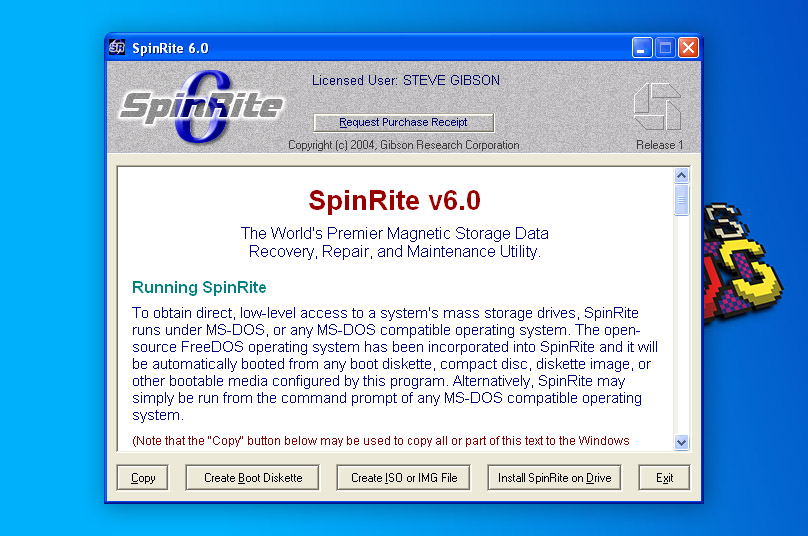
⚙️ Sistemi operativi supportati: Sistemi PC compatibili con processori Intel o AMD e supporto BIOS. SpinRite viene eseguito dal proprio ambiente FreeDOS avviabile, quindi può essere usato sui dischi di computer con Windows, Linux o altri sistemi operativi.
🧰 Funzionalità principali: Analisi e manutenzione dei dischi a basso livello; recupero dei dati da settori instabili; test della superficie; aggiornamento dei settori; stress test dei dischi; creazione di supporti avviabili; operazioni sul supporto fisico indipendenti dal file system. SpinRite è più orientato alla riparazione e alla manutenzione dei supporti magnetici che al moderno recupero a livello di file.
💰 Prezzi: Software a pagamento (89,00 $).
🕹️ Versione demo/di prova: Non propriamente. GRC offre l’utilità gratuita separata BootAble per verificare se un computer può avviare FreeDOS ed eseguire SpinRite, ma SpinRite è un prodotto a pagamento.
🧑💻 Livello di difficoltà: Difficile. SpinRite è uno strumento avviabile specializzato con una procedura d’uso vecchio stile.
Considerando che l’ultima versione di SpinRite, un’applicazione per recuperare file persi dai dispositivi di archiviazione magnetici come gli hard disk, è stata rilasciata nel lontano 2004, potresti sorprenderti di trovarla in questo elenco. Il motivo per cui abbiamo deciso di includerla è semplice: resta il miglior strumento per riparare hard disk sui computer meno recenti. SpinRite lavora a basso livello, accedendo ai dati magnetici sul disco anziché affidarsi al file system. Questo gli permette di recuperare dati da dischi illeggibili, che presentano errori intermittenti o che stanno cedendo lentamente nel tempo.
Poiché viene eseguito in una versione live di FreeDOS, puoi usarlo per scansionare praticamente qualsiasi computer, anche uno che non funziona più correttamente. Supporta non solo i file system di Windows, ma anche DOS FAT, tutti i file system Linux, Novell, Macintosh e altri. Oltre al recupero, SpinRite può rilevare i settori deboli prima che cedano, così sai che esistono. Sebbene l’interfaccia testuale possa ricordare Windows XP, le capacità di scansione e riparazione a basso livello lo rendono una soluzione unica.
👤 Esperienza degli utenti:
«Spinrite e Zero Assumption Recovery sono stati la mia accoppiata migliore quando il disco risponde.»
– flunky_the_majestic, utente di Reddit.
✅ Vantaggi:
- Funziona su computer con hardware meno recente.
- Non richiede un sistema operativo.
- Dichiara di poter recuperare dati e rinnovare la superficie dell’hard disk.
🙁 Svantaggi:
- Secondo alcuni utenti, il software non mantiene le sue promesse.
- Può usurare le unità a stato solido con scritture eccessive.
14. Victoria for Windows – Il migliore per rimappare i settori danneggiati
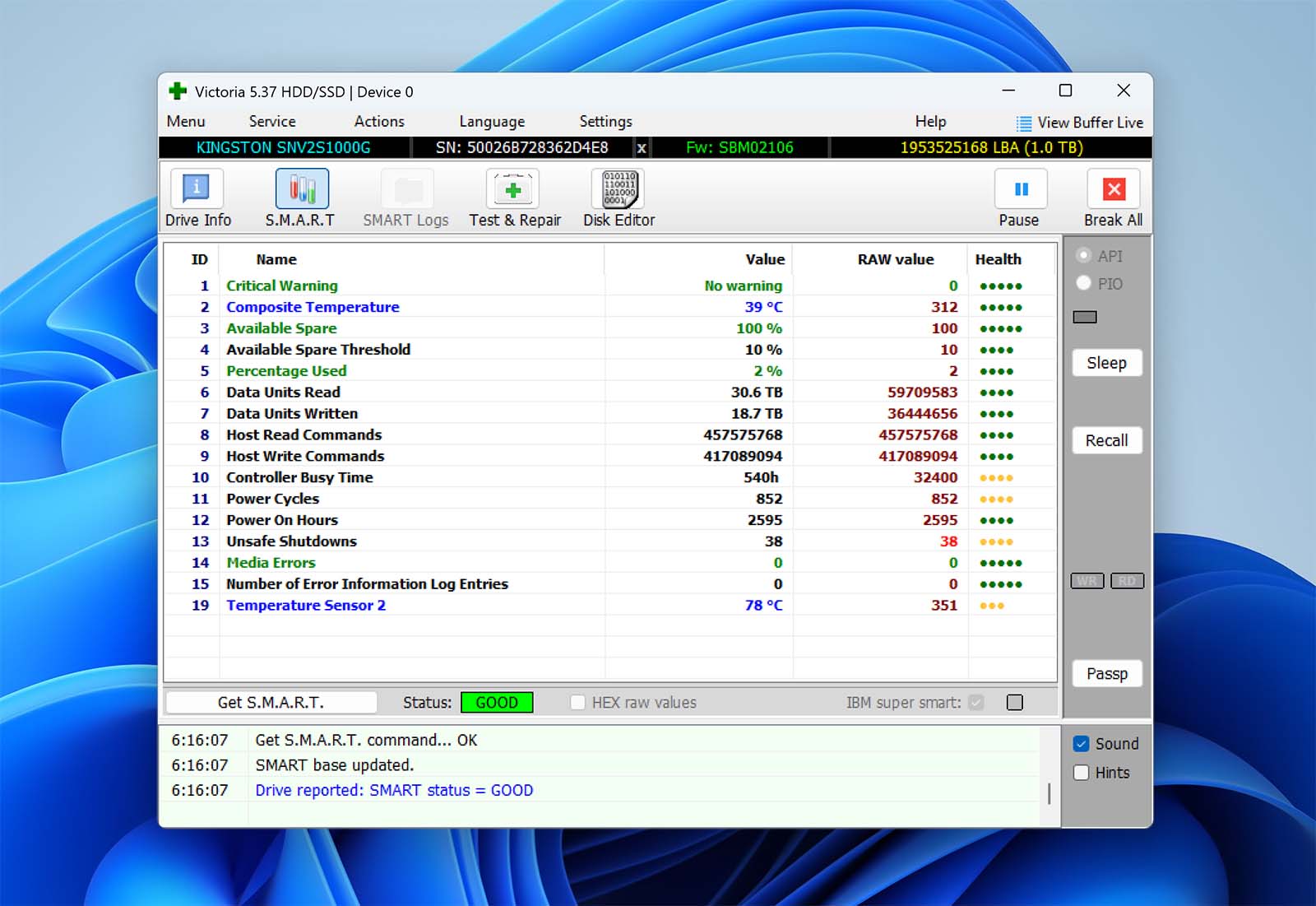
⚙️ Sistemi operativi supportati: Windows 2000, XP, 7, 8 e 10 nelle versioni x86 e x64. Nell’archivio è disponibile anche un ramo DOS precedente.
🧰 Funzionalità principali: Diagnostica S.M.A.R.T.; scansione della superficie; test dei dischi; grafici della velocità durante le scansioni complete dei settori; supporto per HDD, SSD, schede di memoria e altri dispositivi di archiviazione; supporto NVMe e SAS/SCSI nella versione 5.37; funzioni di riparazione limitate per problemi di lieve entità. Il sito ufficiale segnala anche una modalità PIO avanzata che può accedere ad alcuni dischi IDE/SATA parzialmente guasti a un livello inferiore rispetto ai normali livelli di Windows e del BIOS.
💰 Prezzi: Gratuito.
🕹️ Versione demo/di prova: La versione completa è gratuita, senza edizioni a pagamento né funzionalità bloccate.
🧑💻 Livello di difficoltà: Da medio a difficile. L’interfaccia standard per Windows è utilizzabile, ma Victoria include funzioni avanzate di diagnostica e accesso a basso livello, soprattutto nella modalità PIO.
Victoria for Windows è un’utilità per la diagnostica degli hard disk che permette di visualizzare informazioni dettagliate sui propri dischi e risolverne i problemi. Una delle sue funzioni più utili è la possibilità di scansionare gli hard disk alla ricerca di settori danneggiati e rimapparli su settori funzionanti. Poiché i settori danneggiati sono un segnale di deterioramento del disco, la rimappatura può permettere di riportarlo in condizioni di funzionamento e recuperare tutti i dati rimasti. Sebbene l’interfaccia datata possa scoraggiare alcuni utenti, è senza dubbio uno strumento notevole con molte applicazioni pratiche. E, soprattutto, è completamente gratuito.
✅ Vantaggi:
- Fornisce informazioni dettagliate sugli hard disk.
- Permette di esaminare i dati S.M.A.R.T.
- Mostra una panoramica dei settori a colori per facilitarne l’identificazione.
🙁 Svantaggi:
- Mancano istruzioni chiare.
15. HD Tune Pro – Il migliore per i benchmark e la scansione degli errori dei dischi
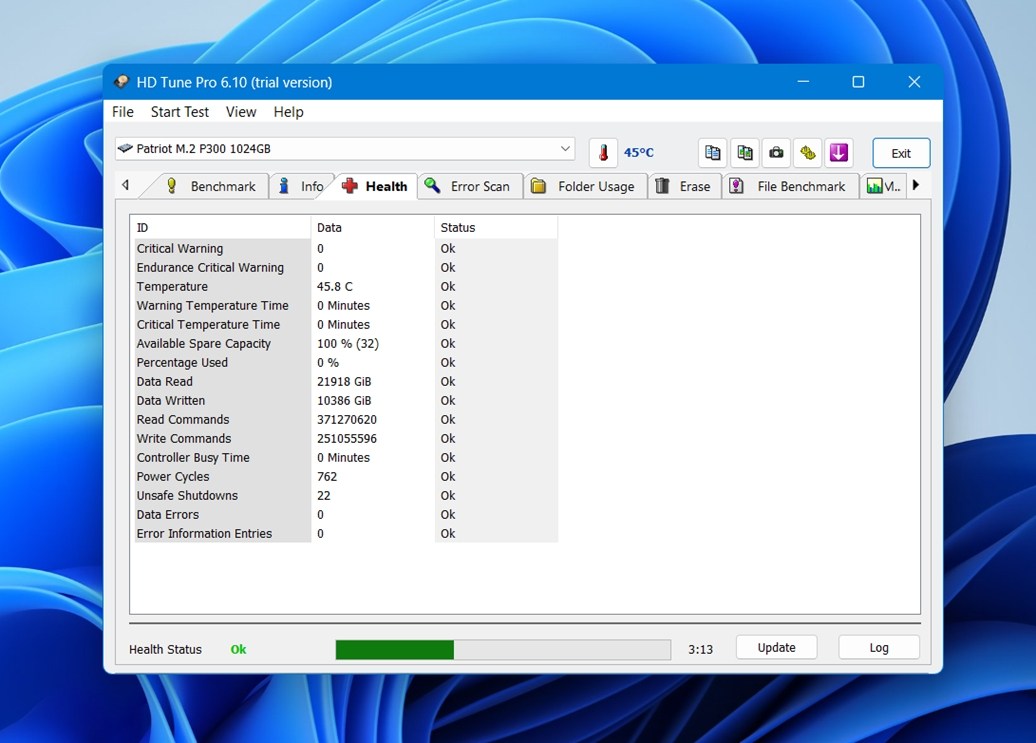
⚙️ Sistemi operativi supportati: Windows 7, 8, 10 e 11 nelle versioni a 64 bit per l’ultima versione HD Tune Pro 6.x. La precedente edizione gratuita di HD Tune supporta versioni meno recenti di Windows, come 2000, XP e Vista, ma non appartiene all’attuale ramo Pro.
🧰 Funzionalità principali: Benchmark di lettura e scrittura; informazioni dettagliate sui dischi; controlli dello stato S.M.A.R.T.; scansioni alla ricerca di errori; registri degli errori; cancellazione sicura; benchmark dei file; test della cache; monitoraggio dei dischi; statistiche sulla temperatura; autotest S.M.A.R.T.; statistiche dei dispositivi; controlli dello stato di più dischi.
💰 Prezzi: Licenza HD Tune Pro per un singolo utente a 29,95 dollari USA.
🕹️ Versione demo/di prova: Sì. HD Tune Pro offre una prova di 14 giorni.
🧑💻 Livello di difficoltà: Da facile a medio. Alcuni grafici, valori S.M.A.R.T. e risultati dei benchmark richiedono comunque una certa interpretazione. Puoi usarlo senza essere un esperto, ma sapere cosa stai osservando aiuta.
HD Tune Pro è più vicino a CrystalDiskInfo e Hard Disk Sentinel, ma si concentra maggiormente sui benchmark, sui test della superficie e sull’analisi dei dischi. Questa combinazione gli assegna un ruolo diverso in un elenco di software di riparazione degli hard disk.
Puoi controllare lo stato S.M.A.R.T., eseguire una scansione alla ricerca di errori, misurare le velocità di trasferimento, esaminare i dati sulle temperature e persino cancellare un disco in modo sicuro. Questo lo rende più versatile di un semplice strumento per valutare lo stato degli HDD. Se cerchi un’utilità per i dischi che offra diagnosi, test delle prestazioni e rilevamento dei primi segnali d’allarme, è un’ottima soluzione. Ti mette a disposizione molti dati utili.
Un altro punto a suo favore è che HD Tune Pro funziona con più tipi di dispositivi di archiviazione: supporta hard disk interni ed esterni, SSD, chiavette USB e lettori di schede di memoria, anche se alcune funzioni dipendono dall’hardware. Non tutti gli strumenti per riparare hard disk forniscono dati utili sullo stato e sulle scansioni di una gamma così ampia di dispositivi. Se il tuo obiettivo è testare un disco lento, cercare errori sulla superficie o confrontare le prestazioni prima e dopo alcune modifiche, HD Tune Pro è una scelta sensata.
👤 Esperienza degli utenti:
«Prova HD Tune per misurare la velocità di lettura del tuo SSD. È gratuito e facile da usare.»
– Utente del forum Tom’s Hardware
✅ Vantaggi:
- Riunisce monitoraggio dello stato, benchmark e scansione alla ricerca di errori in un’unica applicazione.
- Più ricco di funzionalità rispetto agli strumenti gratuiti di base per controllare lo stato dei dischi.
- Utile per HDD, SSD, dischi esterni, chiavette USB e alcuni lettori di schede.
- Include la cancellazione sicura e più moduli diagnostici.
- Una buona scelta se vuoi sia test delle prestazioni sia controlli dello stato.
🙁 Svantaggi:
- La versione Pro attuale è disponibile solo per Windows.
- Alcune funzioni dipendono dalla capacità del disco o del box esterno di rendere disponibili i dati necessari.
Esistono soluzioni fai da te alternative per riparare un hard disk?
La riparazione hard disk danneggiato o illeggibile non richiede sempre un intervento professionale o un software costoso. Prima di inviare il disco a un laboratorio o investire in strumenti specializzati, puoi provare diverse soluzioni pratiche fai da te. Questi metodi ti aiutano a risolvere errori logici comuni, controllare i collegamenti hardware e ripristinare l’accesso ai file, spesso senza spendere nulla. Pur non potendo riparare danni fisici gravi, provare prima queste alternative può farti risparmiare tempo e denaro.
| Metodo | Tipo | Dettagli | Quando provarlo |
| Eseguire un antivirus | Software | Utile quando i file sono scomparsi, il PC si comporta in modo strano o i problemi sono iniziati all’improvviso | Come primo passo se sospetti malware o un comportamento anomalo del sistema |
| CHKDSK / S.O.S. | Strumento integrato | CHKDSK è per Windows; S.O.S. è l’equivalente per Mac | Quando il disco mostra errori, si apre lentamente o diventa inaccessibile |
| Reinstallare i driver / aggiornare il firmware | Intervento sul sistema | Particolarmente indicato per i dischi rilevati dall’hardware ma dal comportamento incostante | Quando il disco si disconnette, ha prestazioni scarse o non viene rilevato correttamente |
| Formattare il disco | Soluzione fai da te di ultima istanza | Una formattazione rapida ricrea il file system; una formattazione completa controlla anche la superficie in modo più approfondito | Solo dopo aver effettuato il backup o recuperato i dati |
| Controllare cavi e porte | Controllo hardware | L’hard disk si collega alla scheda madre tramite due cavi: uno di alimentazione e un cavo SATA per il trasferimento dei dati. Cavi allentati o danneggiati possono causare molti problemi, quindi un rapido controllo aiuta a evitare interventi diagnostici inutili. I dischi esterni sono leggermente diversi: dovrai controllare le porte USB, i cavi ed eventuali adattatori o box esterni. |
Quando il disco non viene rilevato o si disconnette in modo casuale |
| Provare un altro computer | Passaggio diagnostico | Se il disco funziona su un altro computer, il problema è probabilmente nel tuo sistema e non nel disco. Prova a collegare l’hard disk a un computer diverso. Se funziona normalmente su un altro sistema, il problema è probabilmente nel tuo PC anziché nel disco stesso. | Quando vuoi isolare la causa prima di usare un software di riparazione |
| Servizio professionale di recupero dati | Professionale | I servizi professionali di recupero dati offrono solitamente le maggiori probabilità di successo, soprattutto quando un disco presenta danni fisici, grave corruzione dei dati, settori danneggiati o non viene più rilevato correttamente. Gli svantaggi sono i costi e i tempi, poiché il lavoro richiede spesso attrezzature di laboratorio specializzate, diagnostica manuale e procedure in camera bianca. | Quando il disco emette ticchettii o rumori di sfregamento, scompare dal BIOS o continua a dare problemi |
Conclusione
I problemi degli hard disk possono essere stressanti, ma gli strumenti software giusti possono aiutarti a recuperare dati, correggere errori e gestire i dischi in sicurezza. Tra le soluzioni esaminate in questo articolo, abbiamo selezionato i tre migliori strumenti nelle rispettive categorie. Per un elenco più ampio dei software di recupero consigliati per Windows, consulta la nostra lista dei migliori software di recupero dati per Windows.
- Disk Drill per il recupero dati. L’interfaccia intuitiva e le potenti funzioni di recupero di Disk Drill lo rendono un’ottima soluzione per qualsiasi utente. Può ripristinare partizioni e file persi da dischi corrotti o non avviabili e supporta dispositivi RAID e NAS su Windows e macOS.
- Hard Disk Sentinel per la diagnostica e il monitoraggio dello stato. Monitora HDD, SSD, dischi NVMe, array RAID e dischi esterni, tiene traccia dello stato S.M.A.R.T. e della temperatura, esegue test ed è progettato per fornire avvisi tempestivi e un monitoraggio continuo.
- Clonezilla per la creazione di immagini disco. Clonezilla resta uno dei migliori strumenti per creare backup completi byte per byte di dischi o partizioni. La sua flessibilità e il supporto per più file system lo rendono prezioso per backup sicuri, migrazioni di sistema e, soprattutto, per prepararsi al recupero in caso di perdita di dati.
Nella tabella qui sotto trovi un breve riepilogo di ciascuno strumento.
| Disk Drill | Hard Disk Sentinel | Clonezilla |
| ✅ Funziona con dischi interni, esterni, RAID, NAS e virtuali ✅ Recupera e ricostruisce file video danneggiati ✅ Mostra l’anteprima di qualsiasi file per cui sia installato il programma associato ✅ Lo strumento byte per byte funziona anche come scansione della superficie per individuare settori danneggiati ✅ La versione gratuita permette di recuperare fino a 100 MB ❌ Nessuna assistenza telefonica. |
✅ Monitora HDD, SSD, dischi NVMe, array RAID e dischi esterni. ✅ Tiene traccia di stato, temperatura, prestazioni e valori S.M.A.R.T. ✅ Esegue test e fornisce avvisi. ✅ Crea report sullo stato facili da comprendere. ❌ Su Windows è a pagamento, salvo le edizioni con funzionalità limitate |
✅ Completamente gratuito e open source ✅ Funziona su Windows, macOS, Linux, BSD e VMware ✅ Permette di crittografare e comprimere i backup ✅ Ripristina i boot loader MBR e GPT ❌ Richiede un supporto di avvio esterno ❌ Difficile da imparare a usare per chi non ha esperienza |
| Vai alla panoramica | Vai alla panoramica | Vai alla panoramica |
Domande frequenti
Molti software di riparazione degli hard disk funzionano anche sugli SSD, non solo sugli HDD. Il significato di «funzionano», però, dipende dal tipo di strumento.
Le applicazioni di monitoraggio dello stato e di diagnostica di solito supportano entrambi. Strumenti come CrystalDiskInfo, GSmartControl, SeaTools e Hard Disk Sentinel possono leggere i dati S.M.A.R.T. di molti SSD e HDD, quindi sono utili in entrambi i casi.
Anche i gestori di partizioni e gli strumenti di clonazione funzionano spesso con entrambi i tipi di disco.
Le differenze cominciano a emergere nella riparazione a basso livello. Gli strumenti tradizionali dedicati agli HDD sono stati progettati tenendo conto dei piatti rotanti, dei settori e del funzionamento dei supporti magnetici. Gli SSD funzionano in modo diverso, quindi funzioni come la riparazione dei settori danneggiati, la rigenerazione della superficie o qualsiasi operazione che prometta di «rinnovare» il disco riguardano solitamente molto più gli HDD che gli SSD.
Dipende dal tipo di settori danneggiati. I settori danneggiati a livello logico, detti soft bad sectors, possono essere riparati in modo affidabile con strumenti software. Quelli danneggiati fisicamente, detti hard bad sectors, sono invece generalmente considerati irreparabili.
Alcuni strumenti professionali di riparazione degli HDD e utilità specializzate come HDD Regenerator possono aiutare in casi limitati, ma quando i settori danneggiati cominciano ad accumularsi, il disco non è più affidabile per un utilizzo a lungo termine. Tieni sotto controllo i dati S.M.A.R.T. e, se i segnali d’allarme continuano ad aumentare, sostituisci il disco.
Assolutamente sì. Per prima cosa dovresti recuperare i dati con un software di recupero come Disk Drill. Una volta recuperati i dati, puoi provare a riparare il disco con strumenti come CHKDSK, DiskGenius o DiskWarrior, oppure semplicemente formattarlo, dato che tutti i tuoi dati sono ormai al sicuro.
È difficile stimare questi costi, perché ogni servizio di recupero è diverso e questo influisce sul prezzo finale. Indicativamente, un intervento di recupero costa tra 300 $ e 3.000 $, ma il prezzo può certamente superare questa fascia nei casi particolari o urgenti.
Mille volte sì. Se un disco presenta errori ricorrenti, danni fisici o un aumento dei settori danneggiati, sostituirlo è la scelta migliore. Le riparazioni fai da te possono aiutare temporaneamente, ma i problemi continueranno a peggiorare fino al guasto completo del disco.
Prima di eseguire qualsiasi software di riparazione degli hard disk, limita il più possibile l’uso del disco. Questo è particolarmente importante se contiene file preziosi o mostra già segni di guasto. (Ogni scrittura aggiuntiva può rendere il recupero più difficile.)
Se i dati sono importanti, il primo passo dovrebbe solitamente essere un backup o la creazione di un’immagine disco. Crea un backup byte per byte o clona il disco, se lo strumento lo consente, oppure copia almeno tutti i file importanti ancora accessibili. In questo modo avrai una soluzione di ripiego più sicura se il tentativo di riparazione peggiora la situazione.
Dovresti anche capire con quale tipo di problema hai a che fare. Un errore del file system, una partizione mancante, settori danneggiati, prestazioni lente, ticchettii e avvisi S.M.A.R.T. non richiedono tutti la stessa soluzione. Nella maggior parte dei casi, il passo migliore è usare un software di recupero. Se però il disco emette rumori meccanici insoliti, dovresti fermarti e valutare un aiuto professionale anziché una riparazione fai da te.
Quindi, nell’ordine: smetti di usare il disco, esegui un backup o creane un’immagine, identifica il problema, controlla lo stato del disco e solo allora esegui lo strumento di riparazione adatto alla situazione.
Se il disco è lento ma ancora abbastanza stabile da poter essere letto normalmente, Clonezilla è una delle migliori soluzioni. È gratuito, affidabile e progettato specificamente per creare immagini disco e clonare dischi; è un’ottima scelta per copie complete dei dischi e immagini di backup.
Se il disco è lento perché potrebbe essere in avaria, Disk Drill può essere la scelta migliore. Il suo strumento di backup byte per byte è progettato tenendo conto dei dischi danneggiati e include funzioni come il backup a più passaggi, la regolazione automatica delle dimensioni dei blocchi, nuovi tentativi di lettura sui settori danneggiati e la possibilità di saltare le zone lente o danneggiate anziché bloccarsi su di esse. Questo lo rende più pratico di uno strumento di clonazione standard quando il disco è instabile o comincia a deteriorarsi.
No. A meno che tu non riesca a ripristinarli con HDD Regenerator, quei dati sono persi per sempre. Il disco tenterà di rimappare i dati su un settore di riserva sano, ma non c’è modo di sapere quali dati fossero memorizzati su ciascun settore.