Recovery Vault is a Windows-only Disk Drill feature designed to help protect your files from future data loss. It keeps track of deleted files on protected drives, making them easier to recover if they are accidentally removed. Below, you’ll find answers to the most frequently asked questions about Recovery Vault and how it works.
What Is Recovery Vault?
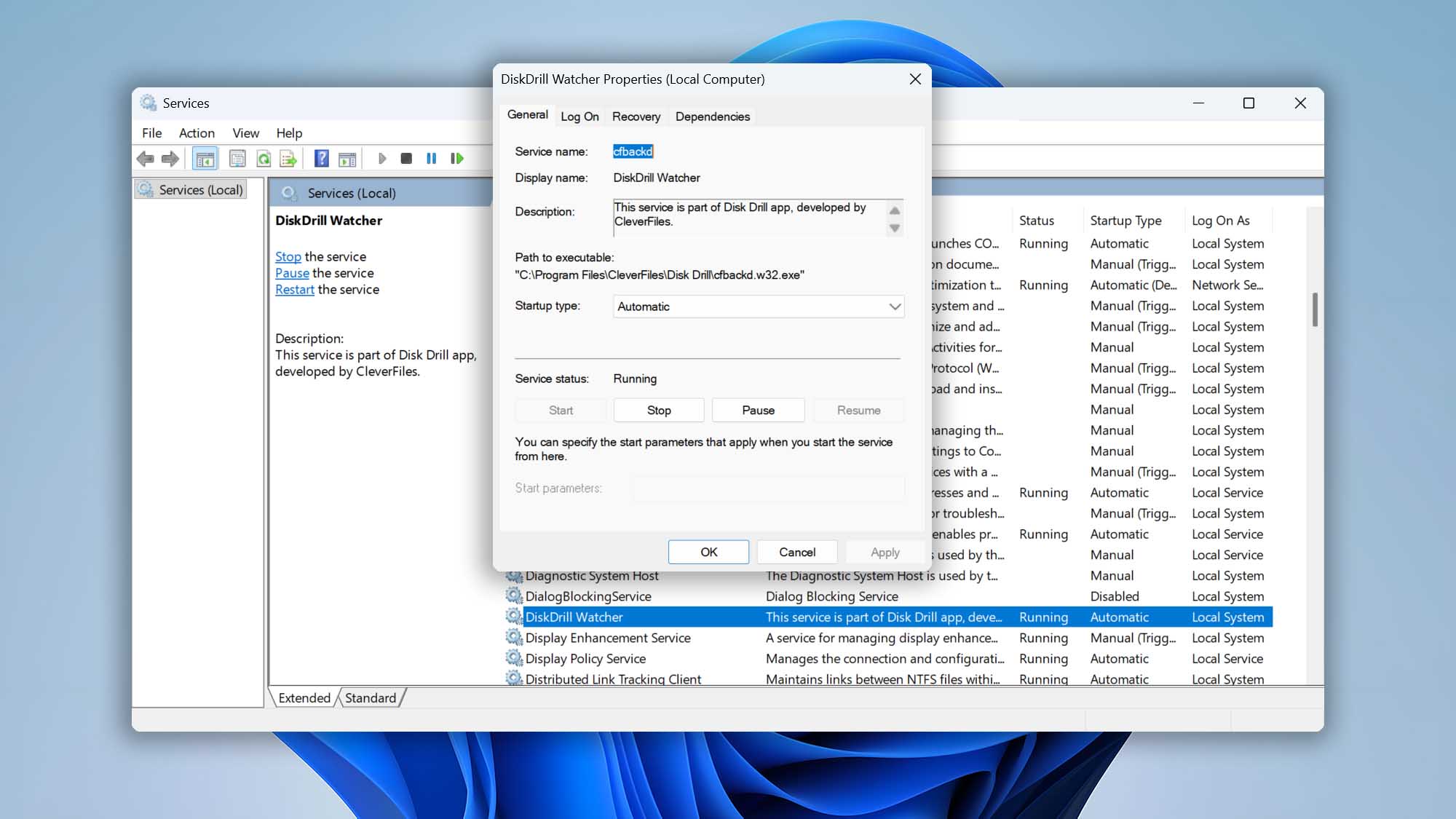
When Recovery Vault is enabled to protect a particular drive or partition, Disk Drill uses a special background service to monitor that drive or partition for changes. When a file is deleted, Disk Drill remembers the metadata for the file.
Why Should I Use Recovery Vault?
Most modern file systems do not preserve complete metadata for deleted files, such as the original file name, folder path, or exact file location. This can make deleted file recovery more difficult. Without the original file name, you may need to preview dozens—or even hundreds—of recovered files to find the one you need.
When you protect a drive with Recovery Vault, Disk Drill keeps track of key file metadata in advance, which can make future recovery faster, easier, and more accurate:
- Scanning for lost files is much quicker. There is no need to do a lengthy Deep Scan.
- Deleted files keep their filenames intact, so the file you need to recover can be easily identified.
- Files can be recovered at no extra charge. There is no need to upgrade to a paid version of Disk Drill in order to recover files from a folder protected by Recovery Vault.
Recovery Vault saves the metadata of deleted files, but it does not save a copy of the file itself. While Recovery Vault greatly improves your chances of recovering a file, it does not guarantee it — the deleted files could be overwritten by new data and lost for good. Recovery Vault can protect any folder on your drive or partition, so not only can it help with files that were sent to the Recycle Bin, but it can also help recover files that were transferred to another disk. The Recovery Vault footprint is fairly small and it does not require a lot of storage space.
How to Enable and Configure Recovery Vault Protection in Disk Drill for Windows
1. How Do I Enable Protection?
To enable Recovery Vault protection for a drive or partition, follow these steps:
- Connect the drive to your Windows PC. If you want to protect an external drive, make sure it is connected to your computer.
⚠️ Important: Recovery Vault protection works only when Disk Drill is installed locally on the Windows PC where the protected drive is connected.
- Launch Disk Drill.
- Select the drive or partition you want to protect. Disk Drill will display a list of available drives and partitions. If the drive you want to protect does not appear, click Show them in the bottom-right corner of the screen to reveal hidden devices or partitions. If the drive still does not appear, refer to the Scanning FAQs for troubleshooting steps.
- Click the shield icon next to the partition you want to protect.
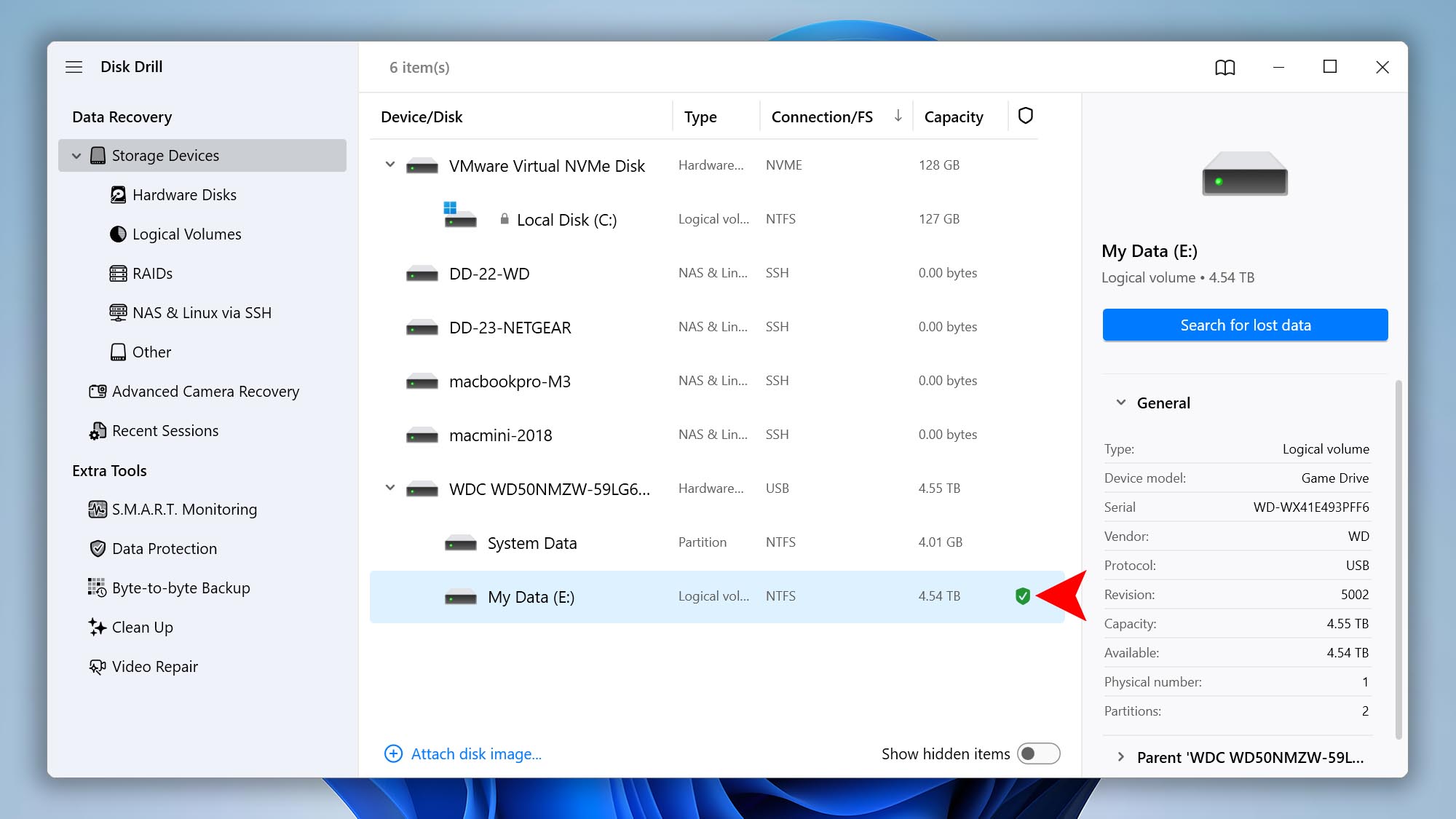
That’s it — Recovery Vault protection is now enabled for the selected partition. Disk Drill may need some time to index the drive, especially if it contains a large number of files. The indexing process will continue in the background until it is complete.
2. How Do I Configure Recovery Vault Protection?
After you enable Recovery Vault, you can customize how Disk Drill protects each partition. The Data Protection module lets you choose protected folders, set exclusion masks, turn Recovery Vault on or off, and clear existing deleted-file records when needed.
- Open Disk Drill and go to Extra Tools > Data Protection.
- Select the partition you want to configure. Use the Recovery Vault toggle to turn protection on or off for the selected partition.
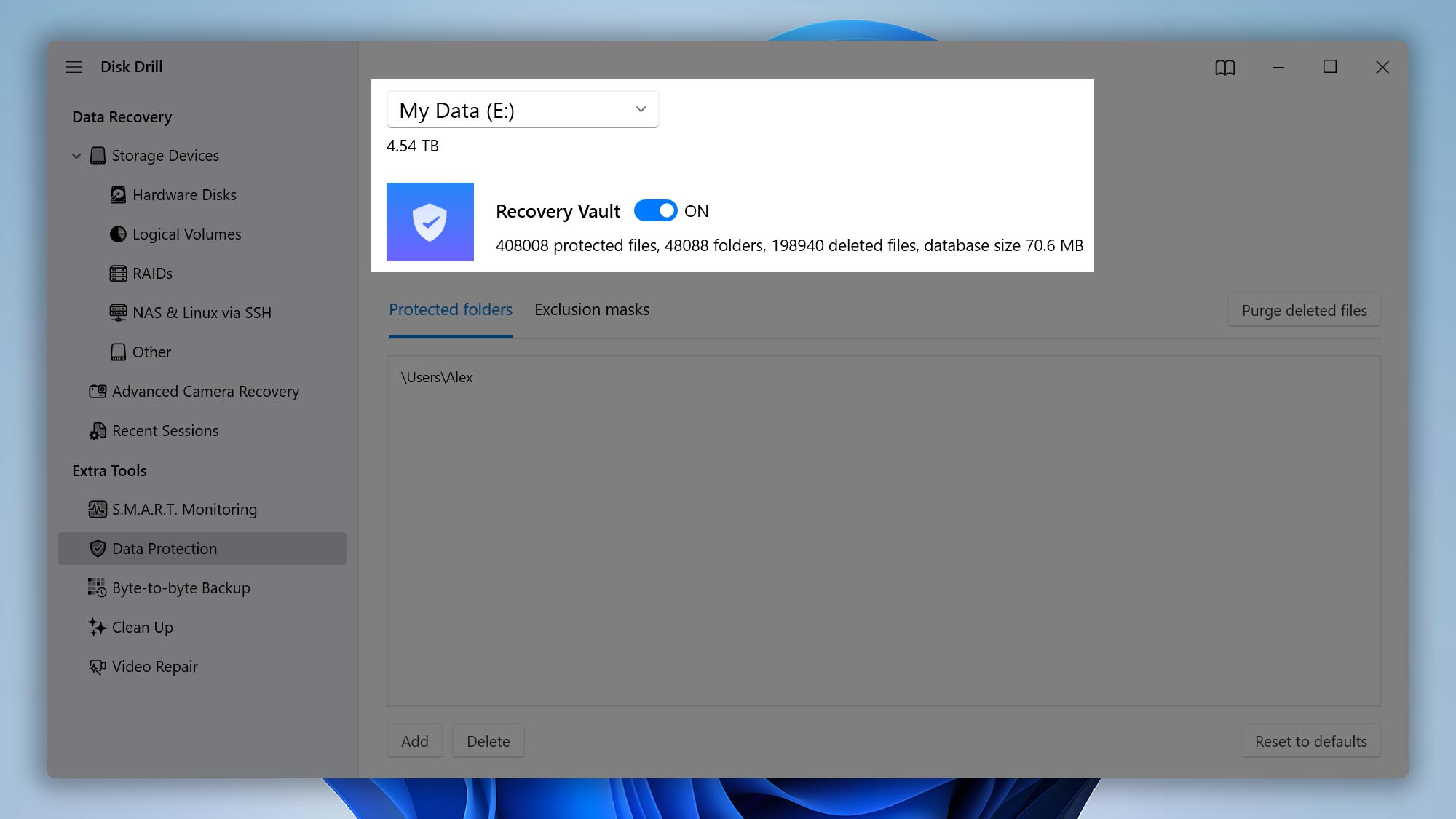
- Open the Protected folders tab to manage the locations protected by Recovery Vault. Click Add to include a custom folder, Delete to remove a folder you no longer want to protect, or Reset to defaults to restore the default protection settings.
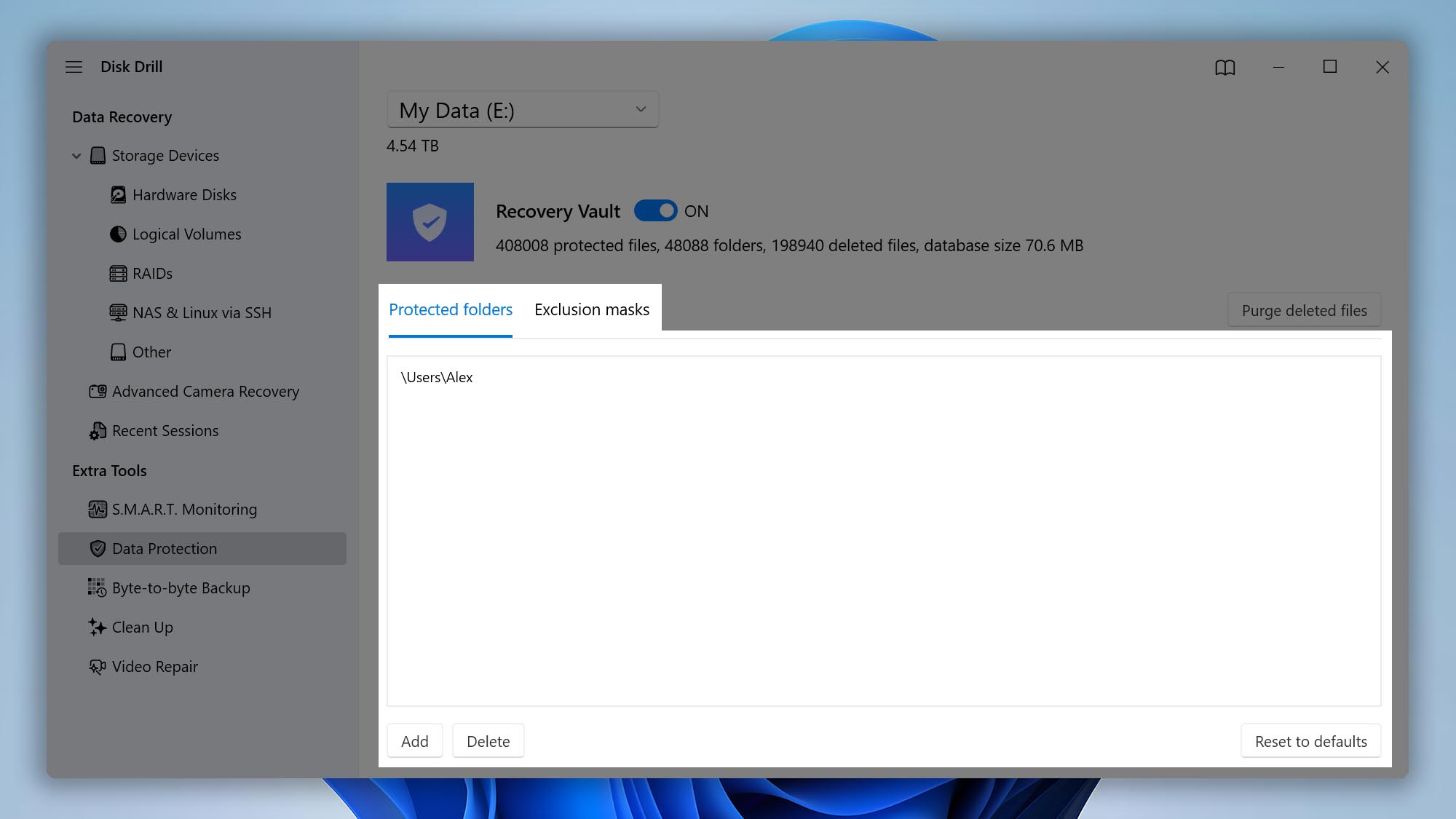
- Open the Exclusion masks tab to configure which files, subfolders, or paths should be excluded from Recovery Vault protection. Exclusion masks can help prevent temporary, system, or unnecessary files from being indexed.
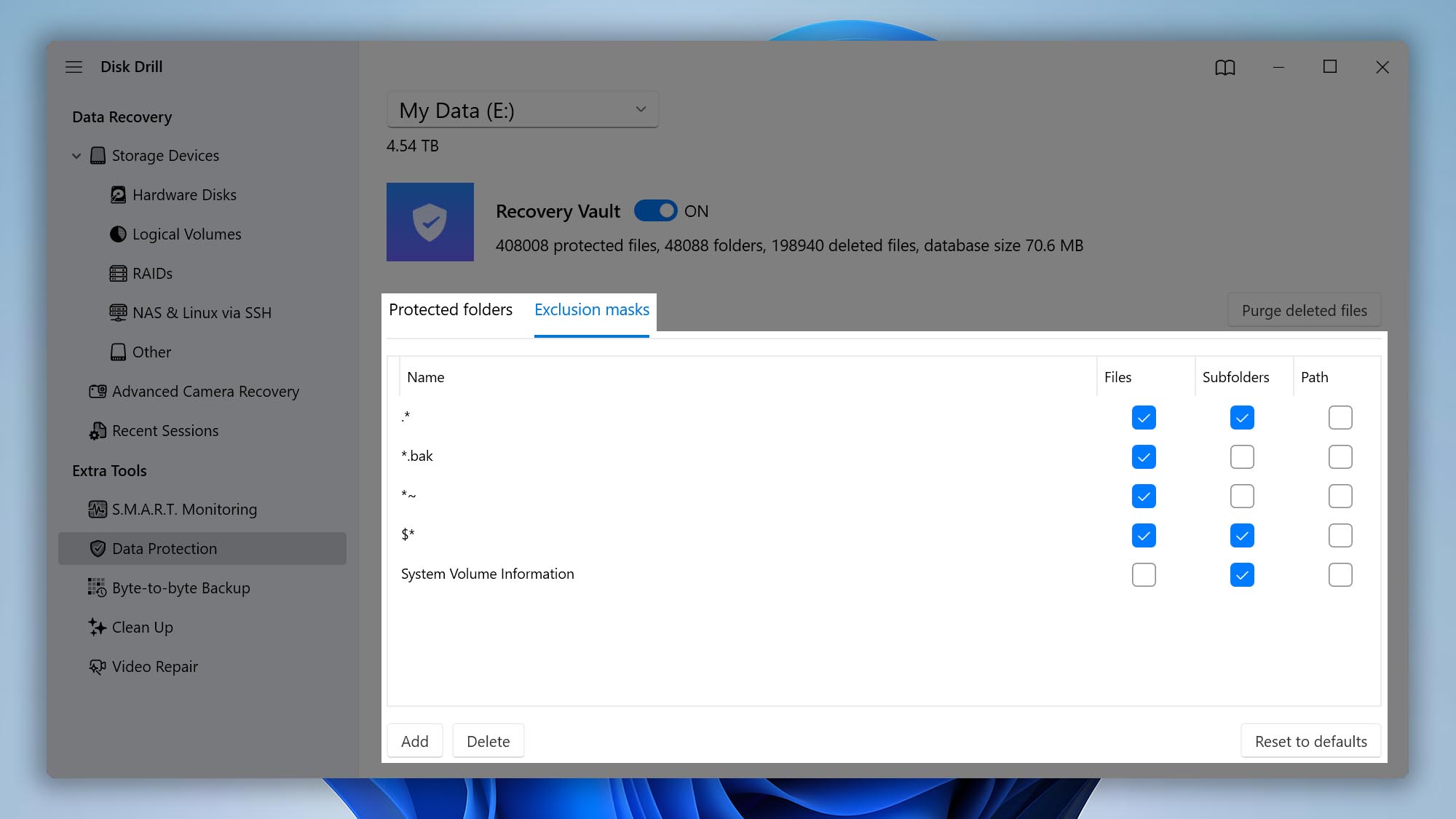
- To clear the existing Recovery Vault records for deleted files on the selected partition and start from scratch, click Purge deleted files.
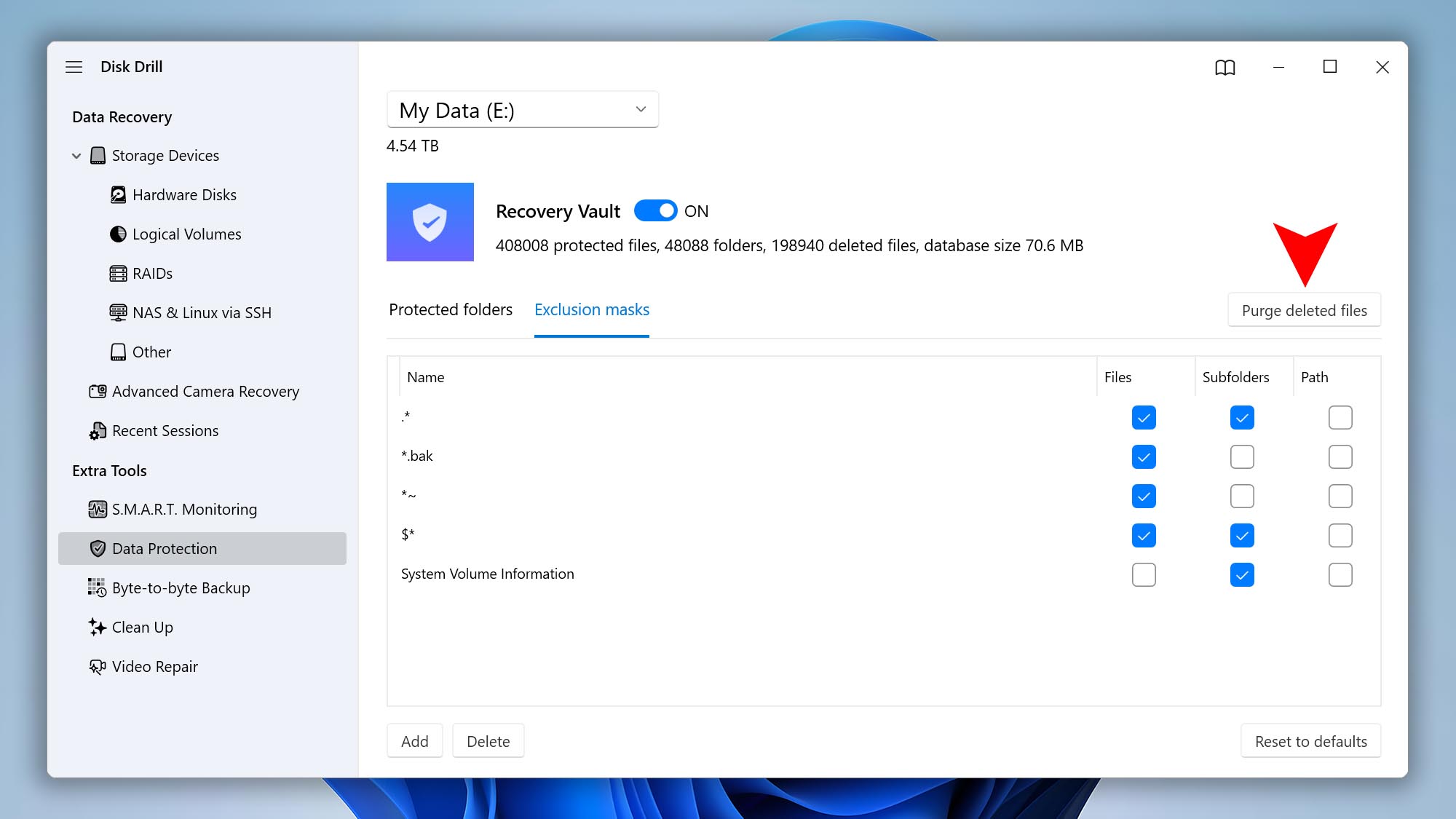
Once configured, Disk Drill will continue monitoring protected locations in the background. The Recovery Vault database size depends on the number of protected files, folders, and deleted items tracked on the selected drive or partition.
3. How Do I Scan for and Recover Lost Files Protected by Recovery Vault?
You can recover files using this method only if Recovery Vault was enabled for the folder or partition before the data loss occurred. If Recovery Vault was not active at the time the files were deleted, the Undelete Protected Data option may not be available.
- If you want to recover files from an external drive, connect the drive to your Windows PC.
- If you want to recover files from your computer’s internal hard drive, connect an external drive first. This gives you a safe location to save the recovered files.
- Launch Disk Drill and select the partition you want to recover deleted files from.
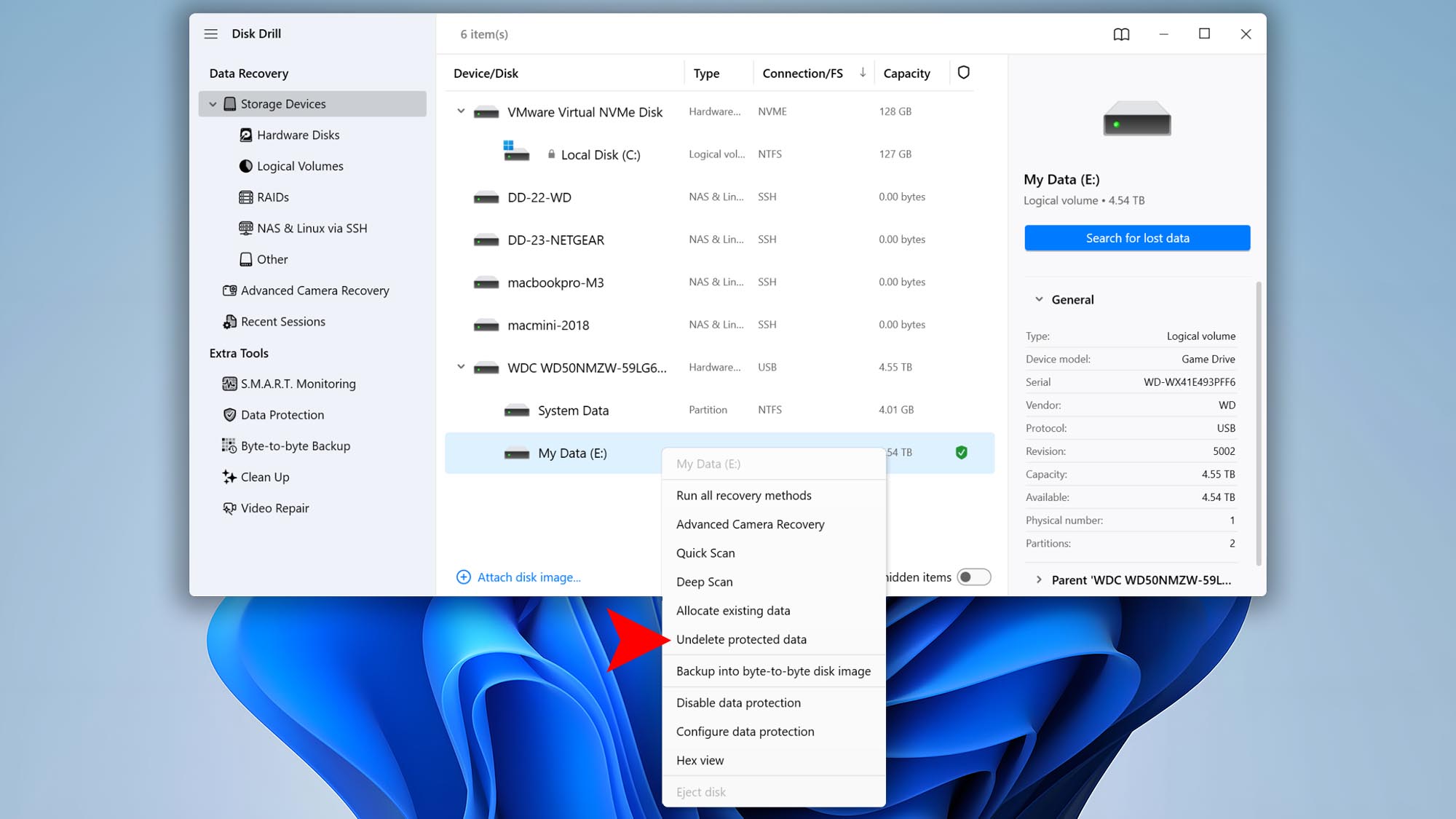
- Right-click the selected partition and choose Undelete Protected Data from the drop-down menu.
💡 Note: If you do not see the Undelete Protected Data option, there is no Recovery Vault database associated with that partition.
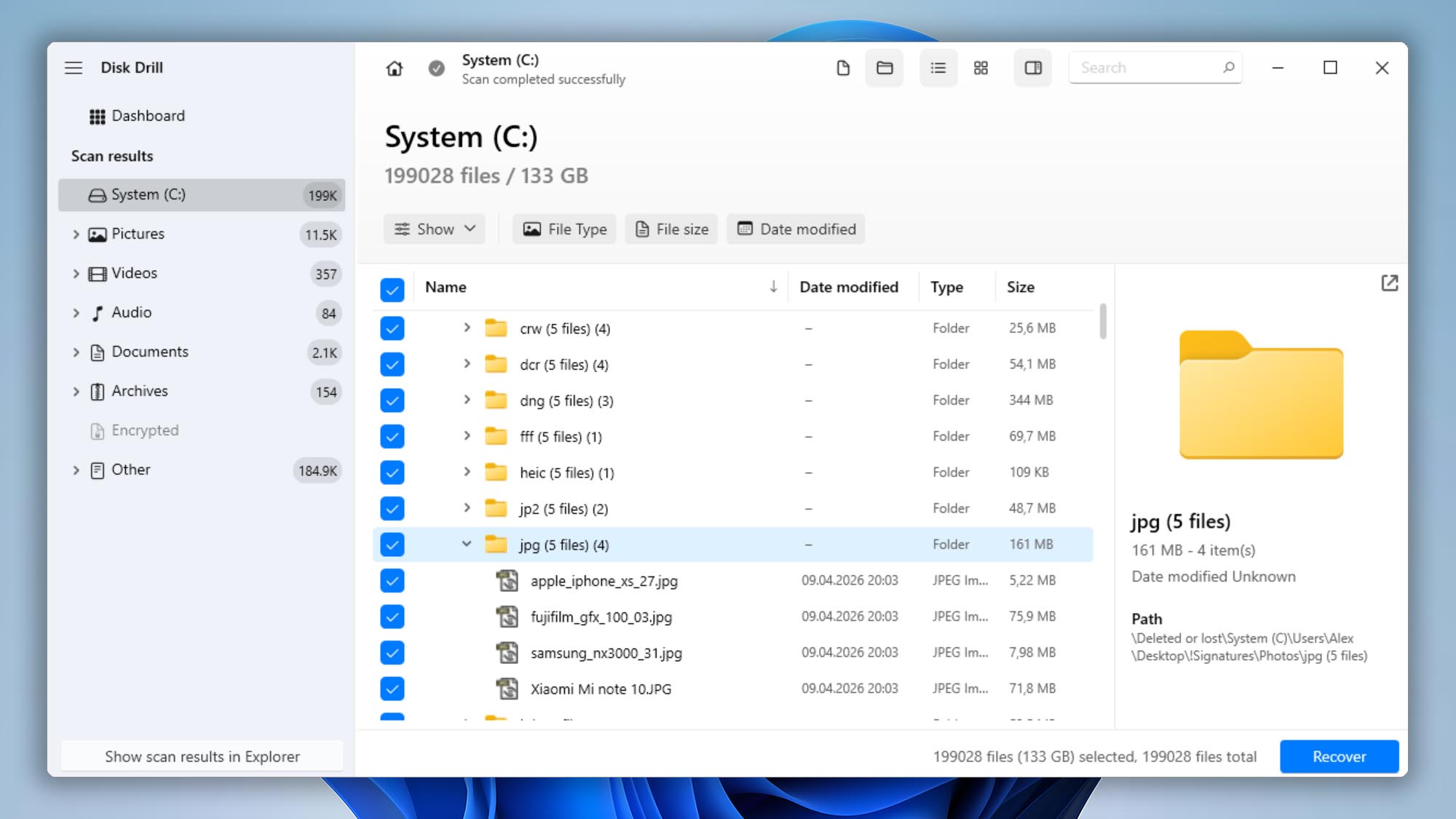
- Wait for Disk Drill to finish scanning. Once the scan is complete, a list of recoverable files protected by Recovery Vault will appear.
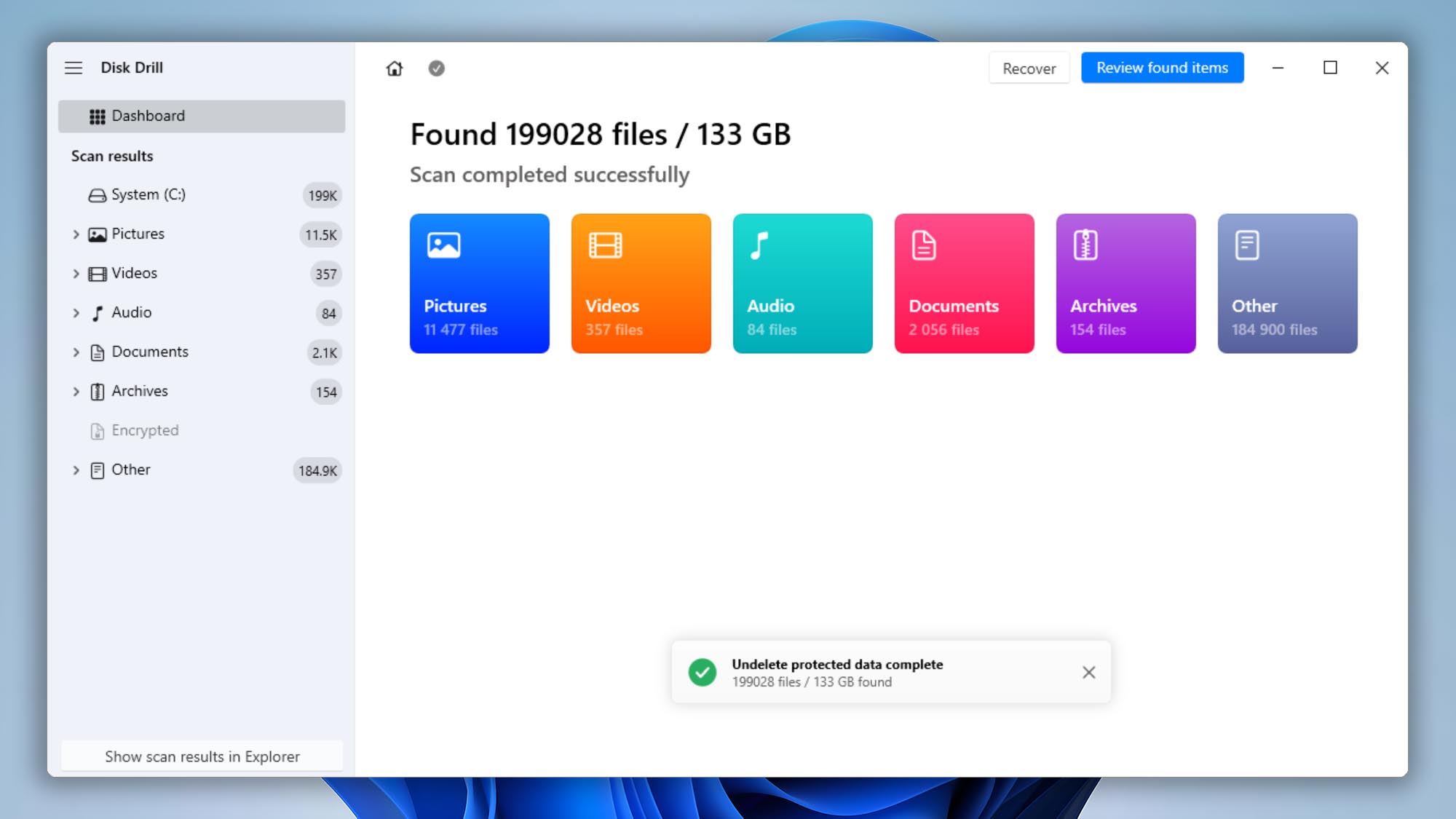
- Filter the scan results as needed by keyword, file type, file size, or date. For more details about filtering recovered files, see the Scanning FAQs.
ℹ️ Tip: There is no need to preview files when using this method, because Recovery Vault recovery is free.
- Select the checkbox next to each file you want to restore, then click the Recover button.
- Choose a safe destination folder for the recovered files.
⚠️ Warning: We strongly recommend saving recovered files to a different drive than the one you are recovering data from. Saving files back to the same drive can overwrite deleted data and significantly reduce your chances of successful recovery.
Technical Details and FAQs About Disk Drill Recovery Vault
Learn how Recovery Vault works in Disk Drill for Windows, what file information it stores, and how it can improve your chances of recovering deleted files. Below, we take a closer look at the most common Recovery Vault questions, technical details, and best practices for protecting your drives against future data loss.
1. Is Recovery Vault Resource Hungry?
No, Recovery Vault is not particularly resource hungry. In our tests, hard disk speed changes from 1-3% when Disk Drill is doing internal Recovery Vault routines and it produces no noticeable slowdowns. It doesn’t use too much disk space either — with 10,000 files protected, the Recovery Vault file is only about 60MB.
2. What Kind of Drives Can I Protect with Recovery Vault?
On a Windows PC, Disk Drill Recovery Vault can protect partitions formatted with FAT/FAT32, exFAT or NTFS file systems. Recovery Vault cannot be enabled on Linux-formatted partitions or RAW partitions, which are partitions without a recognized file system. The selected partition must also be accessible with read and write permissions.
Recovery Vault can also protect external storage devices, including external hard drives, external SSDs, and USB flash drives. When protection is enabled for an external drive, the Recovery Vault database is stored directly on that drive. This allows Disk Drill to update the Recovery Vault information on any Windows PC where Disk Drill is installed and the drive is connected.
Please note that Recovery Vault can only track file deletions while the protected drive is connected to a computer running Disk Drill with Recovery Vault enabled. If files are deleted on another computer or device without Disk Drill protection, the Recovery Vault database will not be updated. The drive must also be connected directly to your PC, as mapped network drives cannot be protected with Recovery Vault.
3. What Kind of Files Can I Protect with Recovery Vault?
Recovery Vault can protect any file type. Unlike signature-based recovery methods, such as Deep Scan, it is not limited to specific file formats or recognizable file signatures. This makes Recovery Vault especially useful when you need to recover deleted files from different folders or restore multiple file types at once.
Recovery Vault is also helpful for recovering text-based data, including documents, notes, and email-related files, when they were stored in protected locations. Because Recovery Vault tracks file metadata in advance, Disk Drill can often restore deleted files with their original names and folder structure.
Keep in mind that Recovery Vault can only help recover files from folders, drives, or partitions that were protected before the files were deleted. Files deleted from unprotected locations will not be included in the Recovery Vault database.
4. Should I Protect My System or Program Files Folder?
No. We do not recommend enabling Recovery Vault protection for Windows system folders or the Program Files folder. These locations are constantly used by Windows and installed applications, which means they generate a large amount of file activity. Monitoring them with Recovery Vault may slow down your PC and increase the size of the Recovery Vault database unnecessarily.
System and application files are also not the type of data most users typically need to recover. If an application is deleted or damaged, licensed users can usually download and reinstall a fresh copy from the software developer’s website.
For best results, use Disk Drill Recovery Vault to protect folders that contain personal or important files, such as Documents, Pictures, Videos, Music, and other locations where you store data that cannot be easily replaced.
5. Why Didn’t a File I Deleted Show Up in Recovery Vault?
There are a few reasons why a file might not show up:
- The partition you deleted the file from was not protected. Go through this tutorial to ensure you have the right volumes protected.
- The volume may have been protected, but Recovery Vault can only track files in folders that were specifically included in its protection settings. To verify this, go to Extra Tools > Data Protection, open the Protected folders tab, and make sure the folder that contained the deleted file is listed there.
- The Windows will only actually delete a file from a FAT disk/partition after it resets its internal file cache. This is probably true for NTFS-partitioned media as well (if it’s mounted in read-write mode). If you wait for a some time, the file should eventually show up.
6. Why Can’t Some of My Volumes/Partitions Be Protected with Recovery Vault?
Some volumes or partitions cannot be protected because Recovery Vault works only with supported file systems and drives that Disk Drill can access with read/write permissions. To enable Recovery Vault protection, the selected partition must meet the following requirements:
- Recovery Vault can only be applied to FAT/FAT32, exFAT or NTFS formatted partitions.
- The partition has to be formatted using the file system mentioned above. Meaning… you can’t protect an unallocated space or raw partition without a file system on it.
- The partition has to be correctly mounted to your PC to be protected.
- The partition has to be write/read enabled. Read-only partitions or disk images cannot be protected.
7. live.db and dead.db – What Are They?
Some users are wondering what the two files are and how they are used by Disk Drill for Windows. We’ll try to give a little insight here.
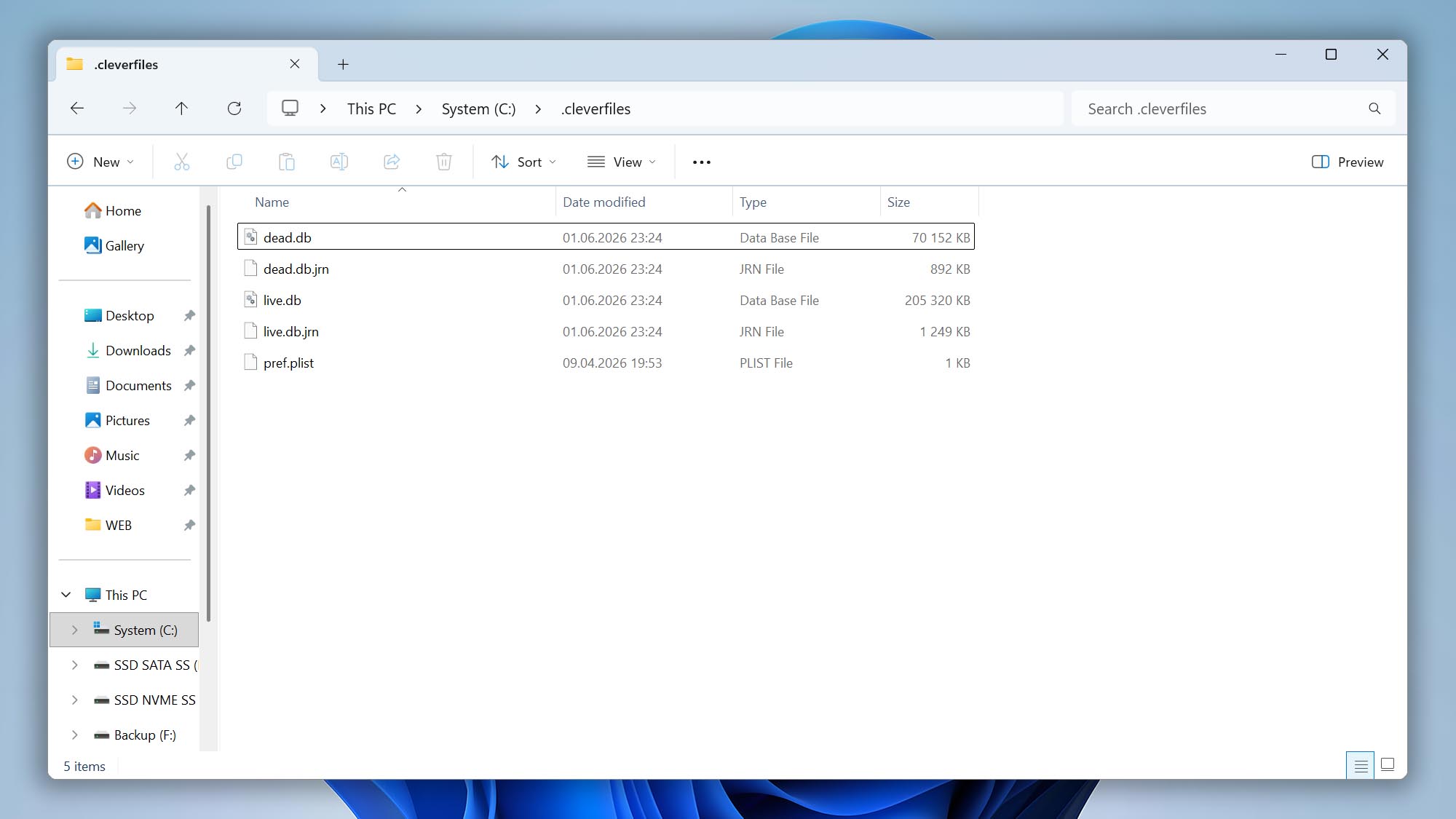
live.db and dead.db are the artifacts of Recovery Vault module. These files contain folder and file names, size, last modification time and on-disk location for files in tracked folders.
Disk Drill for Windows uses live.db to store the more or less fresh snapshot of real non-deleted files in the tracked folders. When Disk Drill detects deletion of a file, it moves the file information from live.db to dead.db. Then dead.db is used to restore deleted files when possible.
If you work for law enforcement or a forensic agency, we might be able to provide an interface to these files assuming proper level of privacy protection of our end-users.
8. Can Recovery Vault be Used in Forensic Research?
We occasionally receive inquiries from law enforcement agencies around the world about Disk Drill and its forensic capabilities. While Disk Drill is best known as data recovery software, many organizations also use its advanced recovery and disk analysis features to support digital investigations and other critical work.
Disk Drill’s Recovery Vault can significantly improve your chances of successful data recovery by keeping track of files deleted from protected drives. This same feature may also be useful in certain digital investigation scenarios. If Recovery Vault was enabled before the files were deleted, its index may help investigators determine whether specific files were previously present on a storage device.
Recovery Vault should not be considered a guaranteed forensic method or a replacement for dedicated forensic software. However, when it has been enabled by the user, its index files may provide valuable information that can help recover or identify important digital evidence. Depending on what was tracked, Recovery Vault may store file and folder names, file sizes, last modification dates, and on-disk locations for files deleted from protected locations.
If you are interested in using Disk Drill for your forensic needs, and would like to get our help on deciphering Recovery Vault index files, we’d be glad to help. Reach out if you represent government, law enforcement divisions or an official contractor.