APFS (Apple File System) is the default file system across Apple platforms—including macOS, iOS, iPadOS, tvOS, watchOS, and visionOS. It replaced Mac OS Extended (HFS+) to better match today’s storage: SSDs, flash media, strong encryption, and modern reliability expectations.
Unlike older file systems that rely on fixed partitions and journal-based protection, APFS is built around containers, space sharing, copy-on-write metadata, snapshots, and fast cloning. These features don’t just improve performance—they also influence backups, security, and what’s realistically recoverable after accidental deletion.
APFS vs. HFS+: What Changed (and Why Apple Moved on)
HFS was originally designed in the mid 80’s and was specifically designed for technologies of the time, primarily spinning hard disks. Modern computers rarely make use of spinning hard disks and SSD (Solid State Drives) are becoming more and more common. In addition portable media such as memory cards and USB drives, collectively referred to as flash memory, are now common and function similarly to SSD hard drives. APFS was designed as a clean break—optimized for flash/SSD behavior, modern crash protection, and encryption-first devices.
Here are the big differences that matter:
1) 64-bit Scale
APFS is a 64-bit file system designed to support enormous file counts (Apple describes it as supporting “over 9 quintillion files” on a single volume). That scale also aligns with modern metadata, timestamps, and storage addressing.
2) Containers and Dynamic Storage Instead of Fixed Partitions
With HFS+, your partitions were typically sized up front. Resizing could be slow and risky. APFS introduces a container concept: multiple volumes can live inside one container and share free space dynamically.
3) Copy-on-write Metadata + Checkpoints (Crash Protection Without Classic Journaling)
APFS protects consistency using a copy-on-write approach and checkpointing. The practical benefit: updates are designed to be crash-safe without the same “write twice” behavior typical of journaling file systems.
4) Built-in Snapshots and Clones
APFS natively supports:
- Snapshots (read-only point-in-time states of a volume)
- Clones (instant file/directory copies that share blocks until changed)
These are now foundational to how macOS updates, Time Machine, and modern recovery workflows operate.
How APFS Works: Containers, Volumes, and Space Sharing
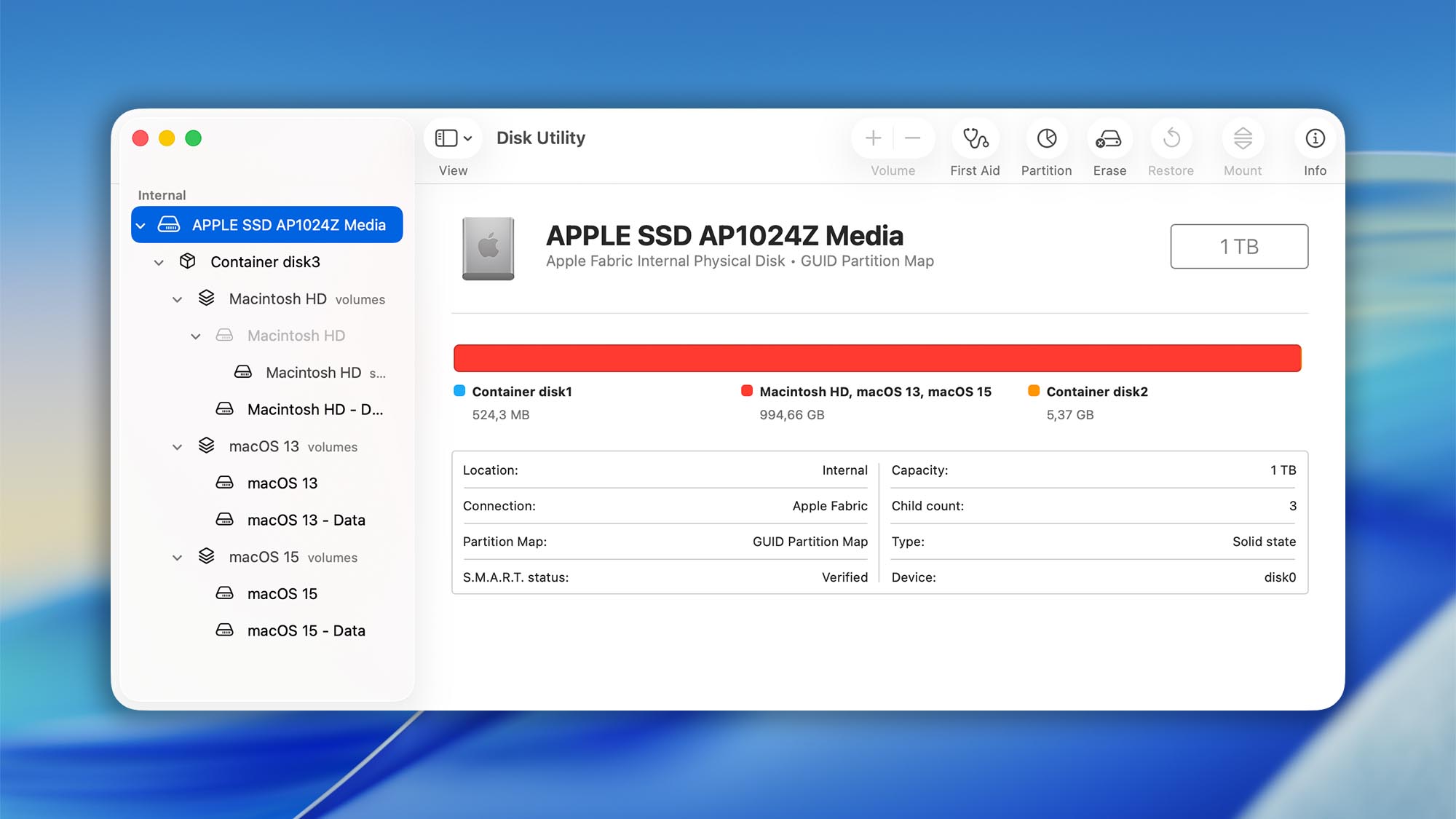
APFS storage is easiest to understand in layers:
APFS Container (the Pool)
A physical partition formatted as APFS typically contains a single APFS container. That container provides:
- Space management
- Crash protection mechanisms
- The ability to host multiple APFS volumes
APFS Volumes (the File Systems Inside the Container)
Inside a container you can create multiple volumes, each with its own:
- File/folder hierarchy
- Encryption settings
- Case sensitivity choice
- Optional allocation controls
Space Sharing (Why Free Space Looks Weird on Macs)
With APFS, volumes inside the same container can share the same free space. So instead of each volume having a rigid size, they expand/contract as needed.
In Disk Utility, Apple also highlights that modern macOS is installed as a volume group:
- One volume for the system (often “Macintosh HD”)
- One volume for data (often “Macintosh HD – Data”)
And for advanced setups, Disk Utility supports Reserve Size (guarantee minimum space) and Quota Size (cap maximum growth) per volume—useful for dual-boot style layouts, dev/test volumes, or separating work/personal data.
APFS Cloning: Instant Copies (but Not True Duplicates)
APFS can create clones of files and directories. A clone is fast because APFS does not immediately duplicate file data blocks. Instead, both files point to the same underlying blocks until one changes—then APFS writes new blocks (copy-on-write).
Why this is great
- Near-instant copies for large files (especially on SSDs)
- Reduced write amplification
- Faster workflows for apps that duplicate bundles/projects
Why this can surprise people
A cloned “copy” is not the same as a separate full duplicate. If the underlying storage experiences corruption in a shared region, both the original and its clone can be affected. For real redundancy, you still want backups (Time Machine, cloud, external, etc.).
Considerations & Compatibility with APFS
Most programs/applications will work properly with APFS “out of the box”. Changing a file system is rarely an issue for applications as this is a core operating system functionality and not something each individual program has to deal with. Some exceptions do exist to this rule and some programs especially in the file recovery sector may not be able to scan or detect APFS drives.
Disk Drill fully supports APFS. Disk Drill recovery approaches generally look like this:
- Quick Scan: best for very recently deleted files when APFS metadata still links to recoverable blocks. This can restore original names and folder structure when metadata is intact.
- Deep Scan: sector-by-sector methods that can recover more in tougher cases, often falling back to file signatures if file system metadata is gone.
- Time Machine: Disk Drill can scan Time Machine backup disks and also local snapshots in some scenarios (useful when the external backup drive wasn’t connected).