300+ Million
TOTAL DOWNLOADS
Search the website

When considering Mac OS X data recovery, much depends on the formatting (also called the file system) of the drive. But whether you are looking for HFS recovery for Mac, file recovery for Mac FAT32 systems, or NTFS recovery for Mac, Disk Drill can help. The tool can also be used to get data back from damaged APFS, FAT, and EXT3/EXT4 file systems.
Your Mac’s file systems can become corrupted or damaged for a variety of reasons. An infection by a virus or malware can result in a corrupted storage device. A failing drive with a bad sector may also be the cause of a damaged file system. Formatting problems, power spikes, and hardware failures can all be reasons that you may need to perform a file system repair on your Mac.
Signs that your storage device has a damaged or corrupt file system include:
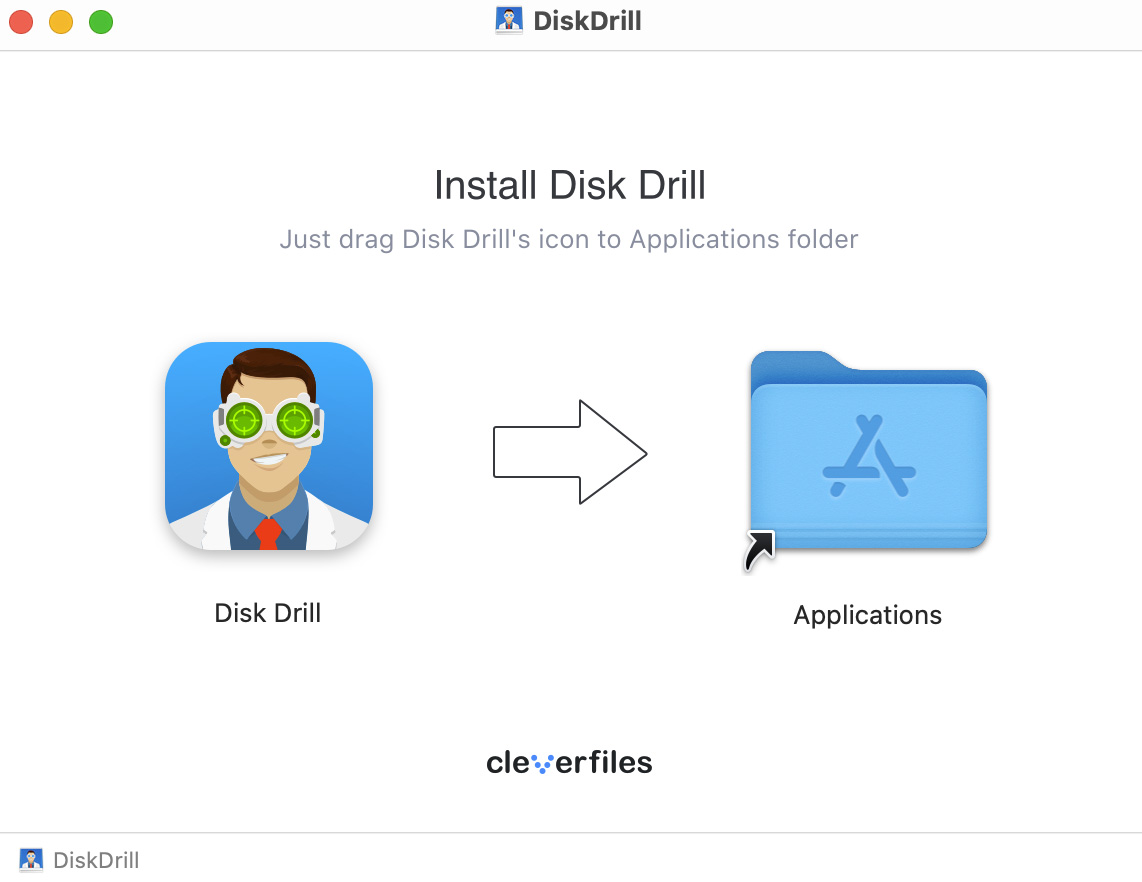
Download Disk Drill data recovery software for Mac to your machine and simply drag it to the Applications folder. When prompted, provide your administrator’s credentials to allow the program the functionality it requires. If the file system that you are interested in recovering is on your Mac’s main disk, perform the download and installation on an alternate stage device like a flash drive. This is to prevent the accidental overwriting of the information that you wish to recover.
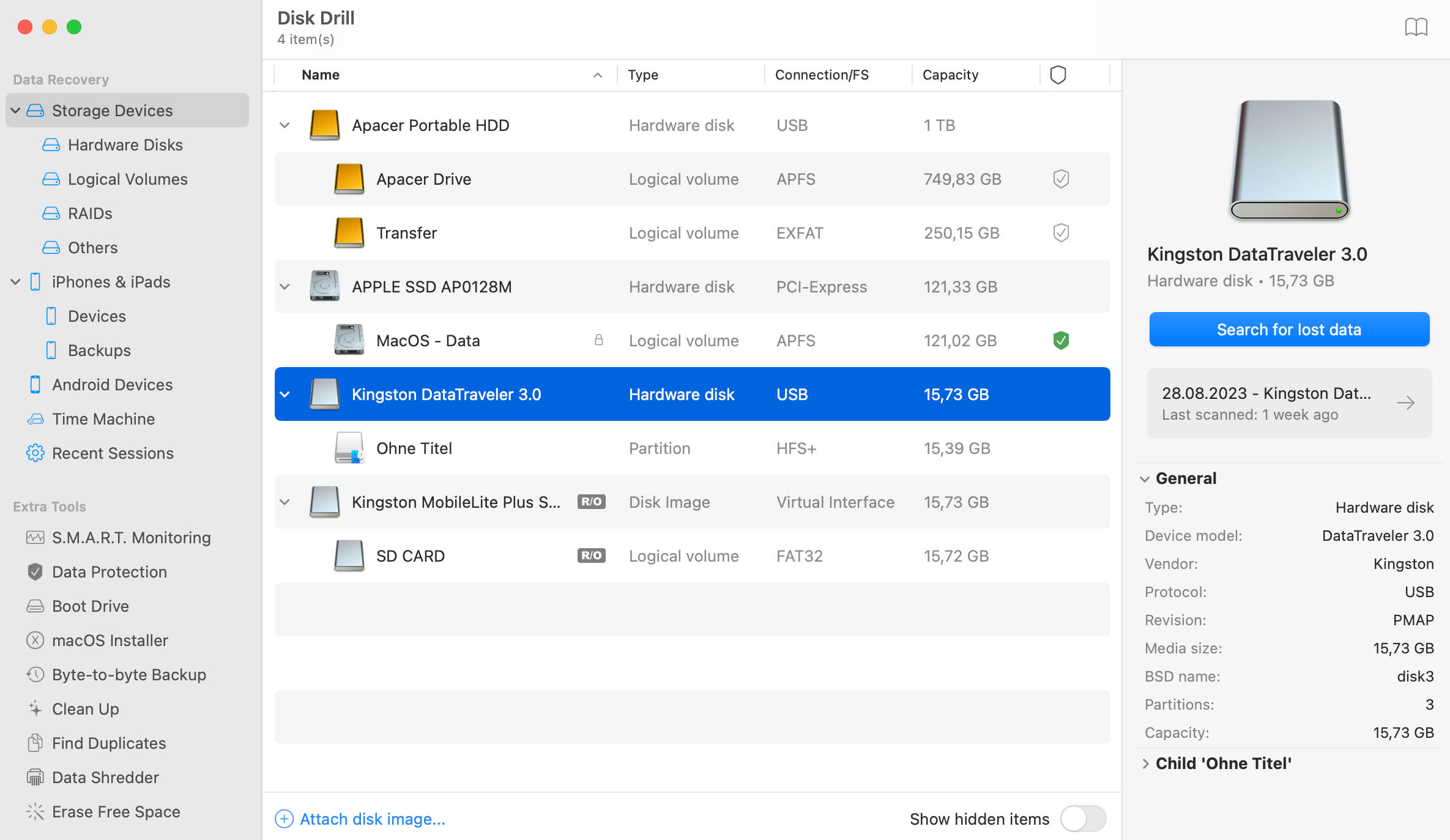
Launch Disk Drill and select the disk for recovery from the list presented in the app’s main window. If you are recovering a file system from an external device, connect it to your Mac before starting Disk Drill. It will appear in the disk list where you can select it to be scanned.
Click the Recover button to start scanning the selected disk. You can choose the type of scan you wish to run or let the program run all of its scanning algorithms in the optimal order. Using that option will provide the most complete recovery results.
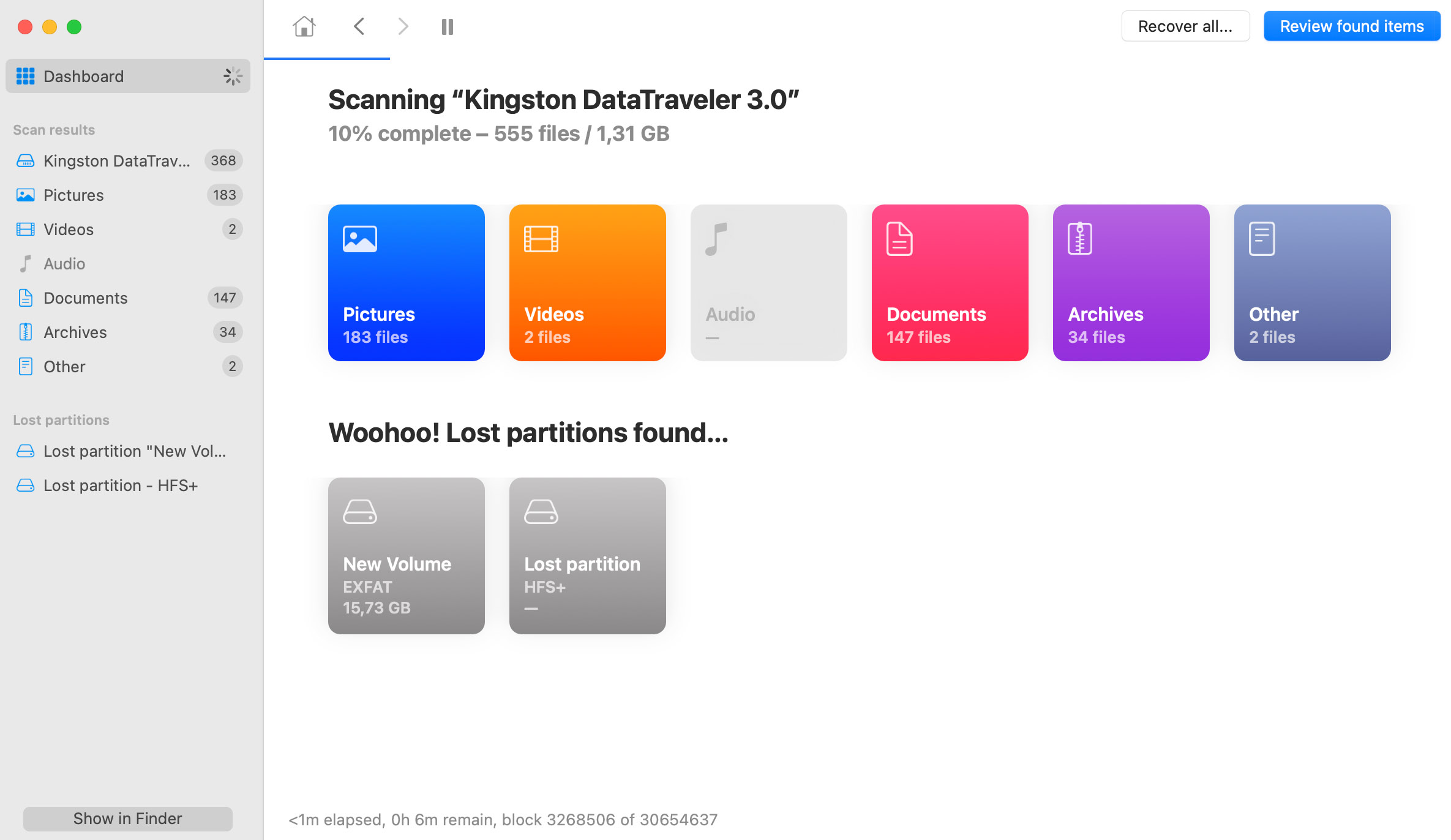
As the scan proceeds, Disk Drill will display a list of the files that can be recovered. You can pause the scan at any point and recover files that have been located by the software. Scan results can be mouted as a virtual disk, making it easy to move the recovered files to new storage locations.
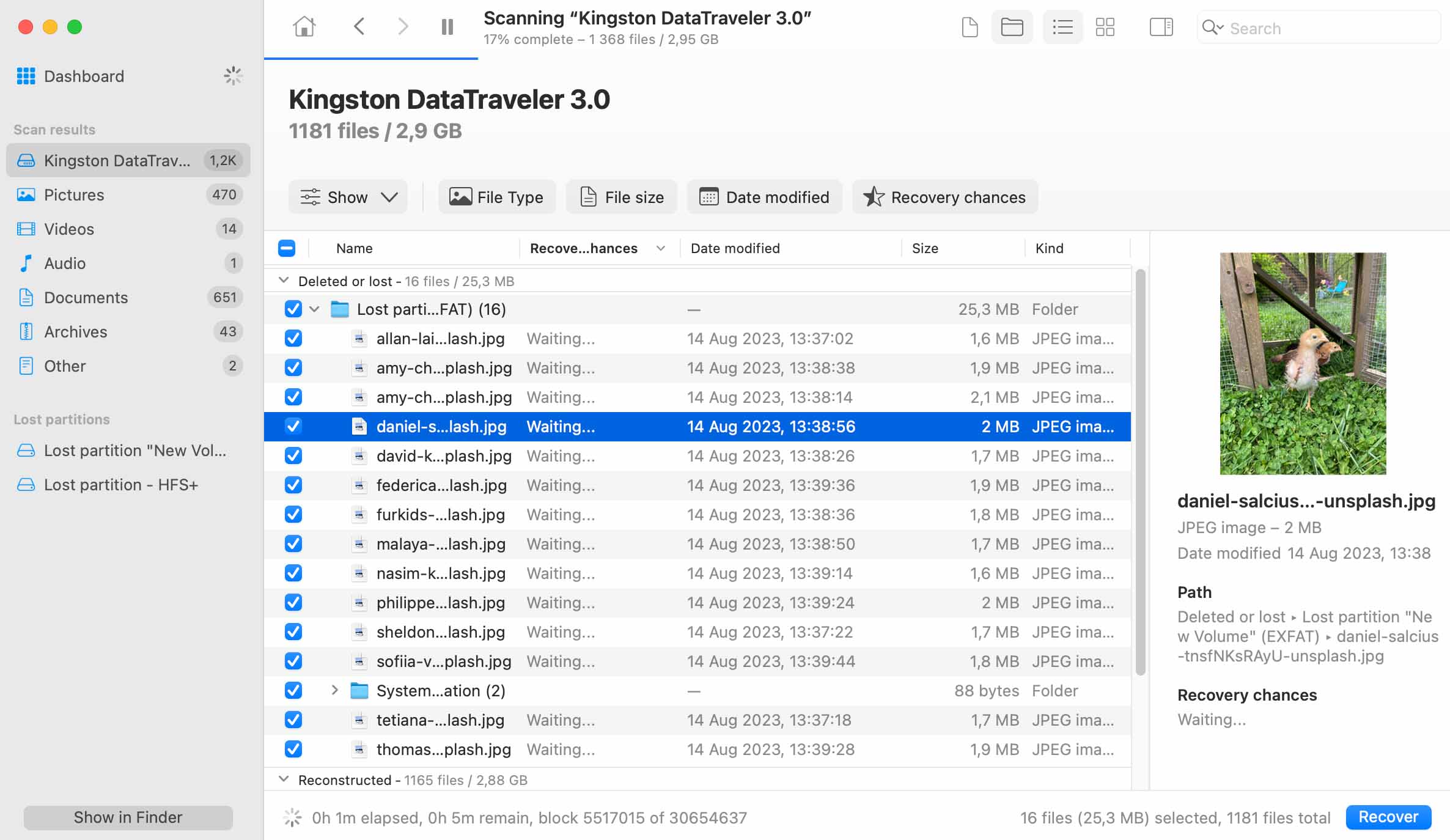
Click the Recover button a second time to recover the selected files. Choose a safe storage location that is not on the affected disk. This will prevent you from overwriting items that you wish to recover. You might want to reformat the original disk once you have recovered all of its data to install a fresh file system.
Disk Drill supports all major file systems for recovery. Here are the various file systems that can be restored with this versatile software tool.

Apple File System is the most recent Apple file system that is used by the macOS and iOS operating systems. Its features include support for full disk encryption and the ability to work with large storage volumes. APFS is optimized to provide better performance with solid-state drives.

The Hierarchical File System was the file system first introduced for use on Mac hard disks. It is rather inefficient and does not work well with large disks, which led to it being replaced by Apple.

The Hierarchical File System Extended was Apple’s answer to address issues with HFS. It uses disk space much more efficiently by reducing the minimum cluster size. This file system is very popular on Macs and MacBooks.

The New Technology File System was first introduced to the public with the Windows NT operating system. It is a native Windows file system that is still used by many storage devices. Disk Drill can be used to repair an external NTFS drive on a Mac.

The File Allocation Table and Extended File Allocation Table file systems are also Windows-specific file systems that can be recovered by Disk Drill for Mac. Just connect the device to your Mac and Disk Drill can scan and recover its contents.

Disk Drill for Mac can perform data recovery on EXT4 and EXT3 file systems. All you need to do is attach the storage device to your computer and select the Linux disk in the app’s window.
Disk Drill’s advanced scanning capabilities enable it to recover over 400 different file formats when restoring a damaged or corrupted file system. All popular video, image, audio, document, and archive formats are supported when performing a Mac file system recovery. Files can be filtered during recovery to make it easy to find the items you need.


Disk Drill can recover files from damaged or corrupted file systems from any type of disk-based device. If you can connect the device to the Mac running the recovery software, Disk Drill can scan it and recover its data. Here are some of the devices that are supported by this flexible recovery program.


Dell®, HP®, Acer®, Asus®, MacBook Pro®, MacBook Air®, Apple iMac® and more

HP®, Samsung®, Seagate®, Toshiba®, WD®, LaCie®, Intel®, Adata® and more

SanDisk®, Samsung®, Kingston®, Corsair®, Patriot®, PNY®, Verbatim®, Silicon Power® and more

SanDisk®, Transcend®, Toshiba®, Lexar®, Integral®, SP®, PNY®, Kingston® and more

Samsung®, HP®, Sony®, GoPro®, Canon®, Sigma®, Nikon®, Epson®, Panasonic® and more

Samsung Galaxy®, iPhone®, Lenovo®, Huawei®, OnePlus®, Google Pixel®, LG® and more
* If TRIM is disabled. Learn more >
The Disk Drill File System Recovery Toolkit for Mac includes many features that set it apart from the competition. Here is an overview of what you get with this comprehensive data recovery and protection application.

Recover files in over 400 different file formats and all major file systems from virtually any type of disk-based storage device with a few simple clicks.

Recover data from an SD or memory card quickly and easily by connecting the device to your machine with an external or internal reader.

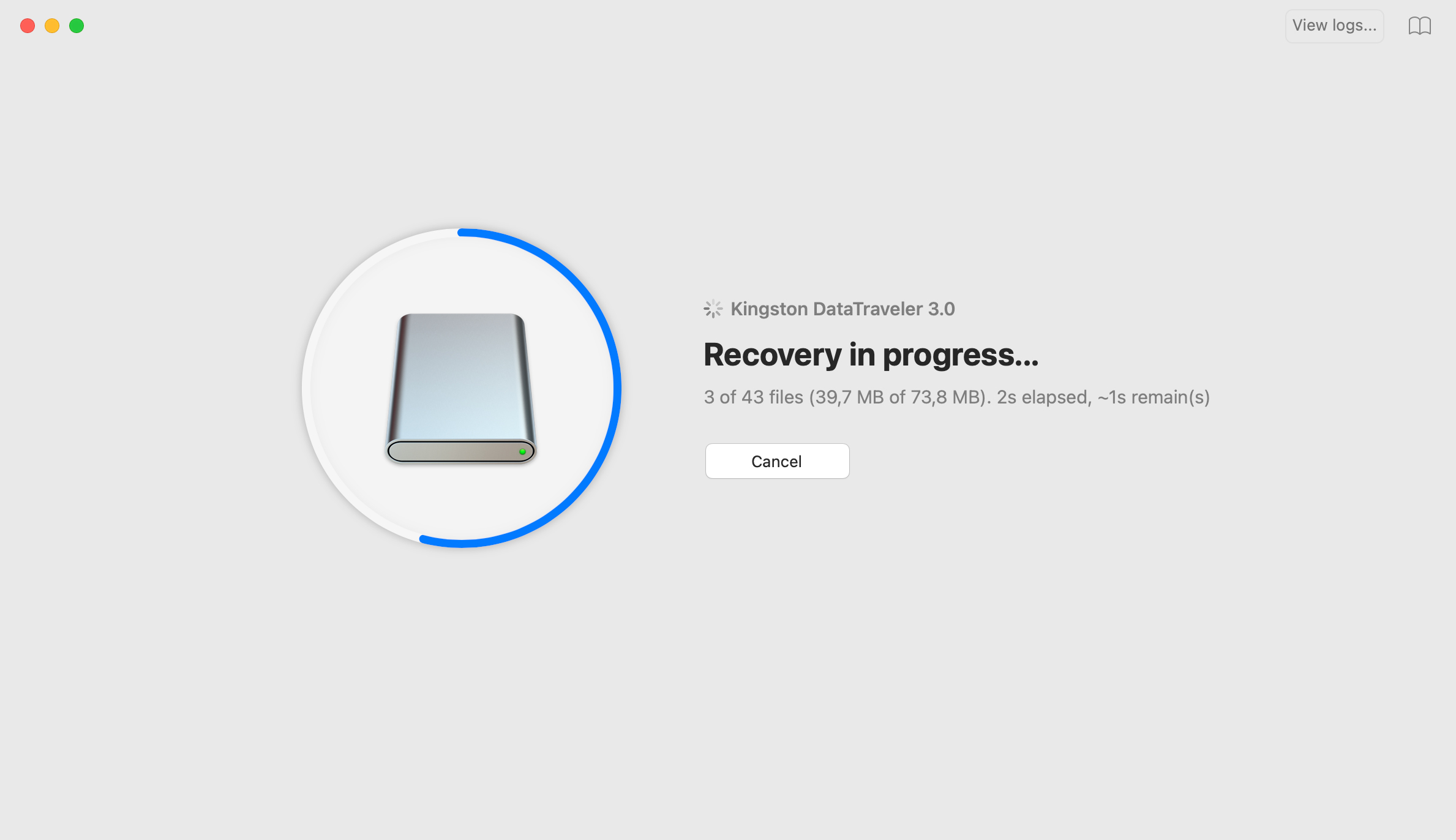
Protect your valuable hard drive data with the free Recovery Vault and Guaranteed Recovery tools that streamline file recovery from accidental deletion.

Losing a complete partition can be devastating. Restore the data from a lost or formatted partition and escape disaster with this software tool.

If you accidentally empty the Trash while it contains important data, you can get it back in a few clicks and keep right on working.

Recover data from iOS devices such as iPhones and iPads by connecting to your Mac. Disk Drill treats its storage as a disk and can recover its data.
Disk Drills data protection algorithms have zero impact on your system, are safe to run and provide exceptional benefits. Recovery Vault increases the chances of a fast and successful data recovery. Guaranteed Recovery eliminates the possibility of losing your most important data. Data protection features are highly configurable and can be enabled in Disk Drill at any time. These tools protect designated files and file systems and are both completely free.
Updated on by Disk Drill Team
Follow these steps to recover files in the Linux EXT3/EXT4 formats.
Disk Drill can recover lost data from a Mac HFS file system in multiple different ways.
Use the following steps to perform NTFS data recovery on Mac.
Best File System Recovery Software in 2021:
NTFS file system recovery is the process of recovering data from an NTFS formatted storage device. Repairing an NTFS file system from your Mac is possible with Disk Drill recovery software. Connect the storage device to your Mac and the app will scan it and recover its lost files and folders.
You will probably need to format the storage device to fix a corrupted file system on a MAC. First, you should use Disk Drill to recover the data from the device. Then follow these steps to format the disk or drive.

REQUIREMENTS
macOS 10.15.8–26.x, 69.7 MB
Use Disk Drill 1.x-5.x for OS X 10.5+
AVERAGE USER RANK
NEWEST RELEASE




TOTAL DOWNLOADS
PRO CLIENTS
in 160+ countries
 Thomas Pindelski
 Disk Drill has no detailed manual, nor is any needed, as there’s an excellent tutorial when you start the app, an evidencing of a very professional approach.
 mac.appstorm.net
 You throw away a folder without checking its contents, or prematurely decide you won't need a certain file anymore. That's why you should consider using an application like Disk Drill; to protect you against yourself and the fancies of technology. Simon Slanger