


Is your iPad library overrun with duplicate and similar-looking photos? This type of clutter is almost completely unavoidable, and just using the iPad’s basic features to clean them can get tedious if you’re dealing with a huge library.
So in this guide, we’ll show you different (and faster) ways to delete duplicate photos on your iPad, based on experimenting on our own devices, as well as explore how duplicate cleanup gets affected by iCloud sync.
Delete iPad Duplicate Photos with a Free Cleaner App
The most efficient way to get rid of duplicate photos on your iPad is by using third-party cleaning apps. These are iPad applications you can download from the App Store, which make cleanup much easier, thanks to unique features that the native Photos app doesn’t have.
For cleaning up duplicates, we recommend an app called Clever Cleaner: AI CleanUp App. Unlike the built-in Photos app, Clever Cleaner can also detect similar-looking photos–which actually occur way more often than strict duplicates. And you won’t have to wait half an hour for iPadOS to decide to index your data, since it detects changes almost instantaneously.
You don’t have to subscribe to use any of its features, including those demonstrated in this guide, so anyone can follow along:
- Download and install Clever Cleaner from the App Store.
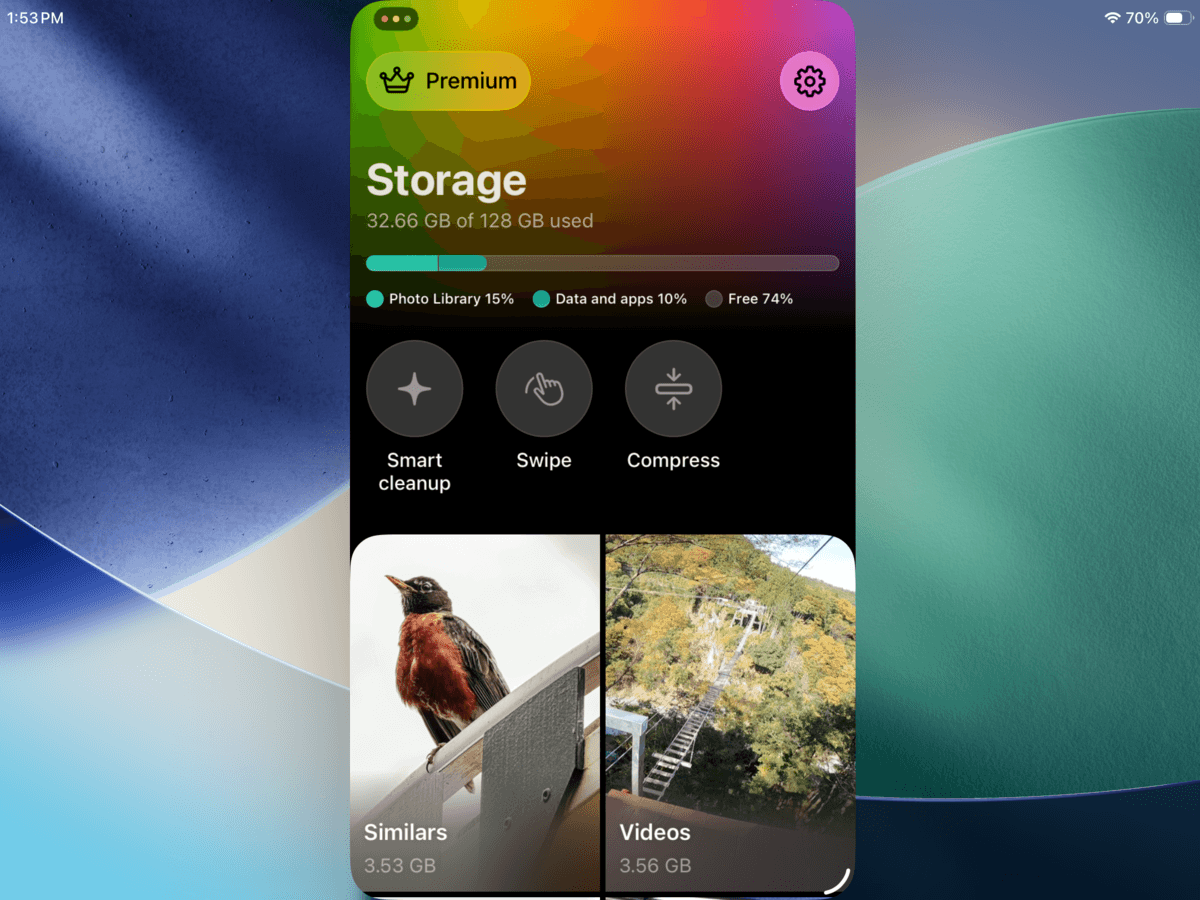
- Run Clever Cleaner. If you want to eliminate all your similar and duplicate photos ASAP without review, open Smart cleanup and select Remove ‘Similars’. If you want to review the photos first, tap the Similars tool from the main page instead.
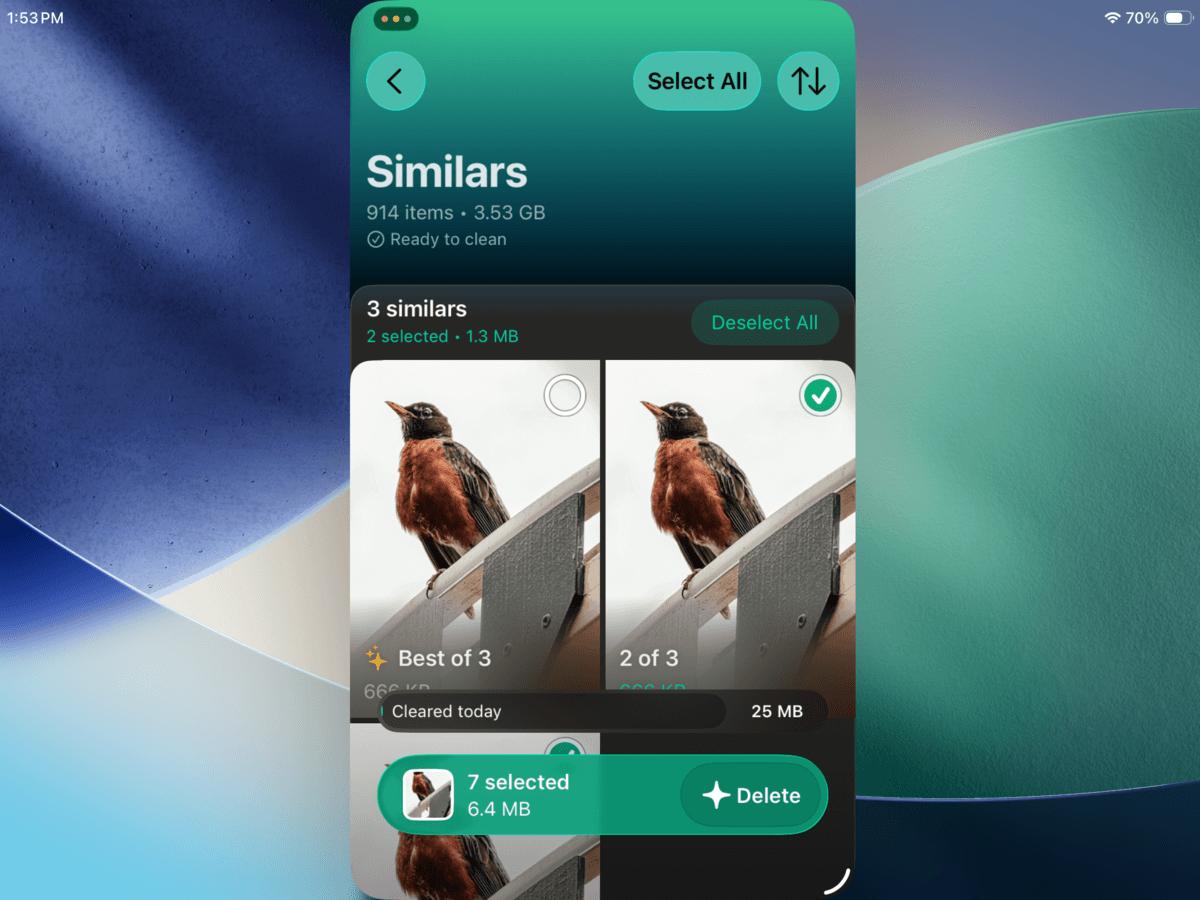
- The app automatically detects and groups all your duplicate and similar photos, groups them, and pre-selects the “Best Shot” among each group. The rest of the photos are already marked to be deleted (which you can manually change). Once you’re satisfied with the selection, tap Delete at the bottom of the screen.
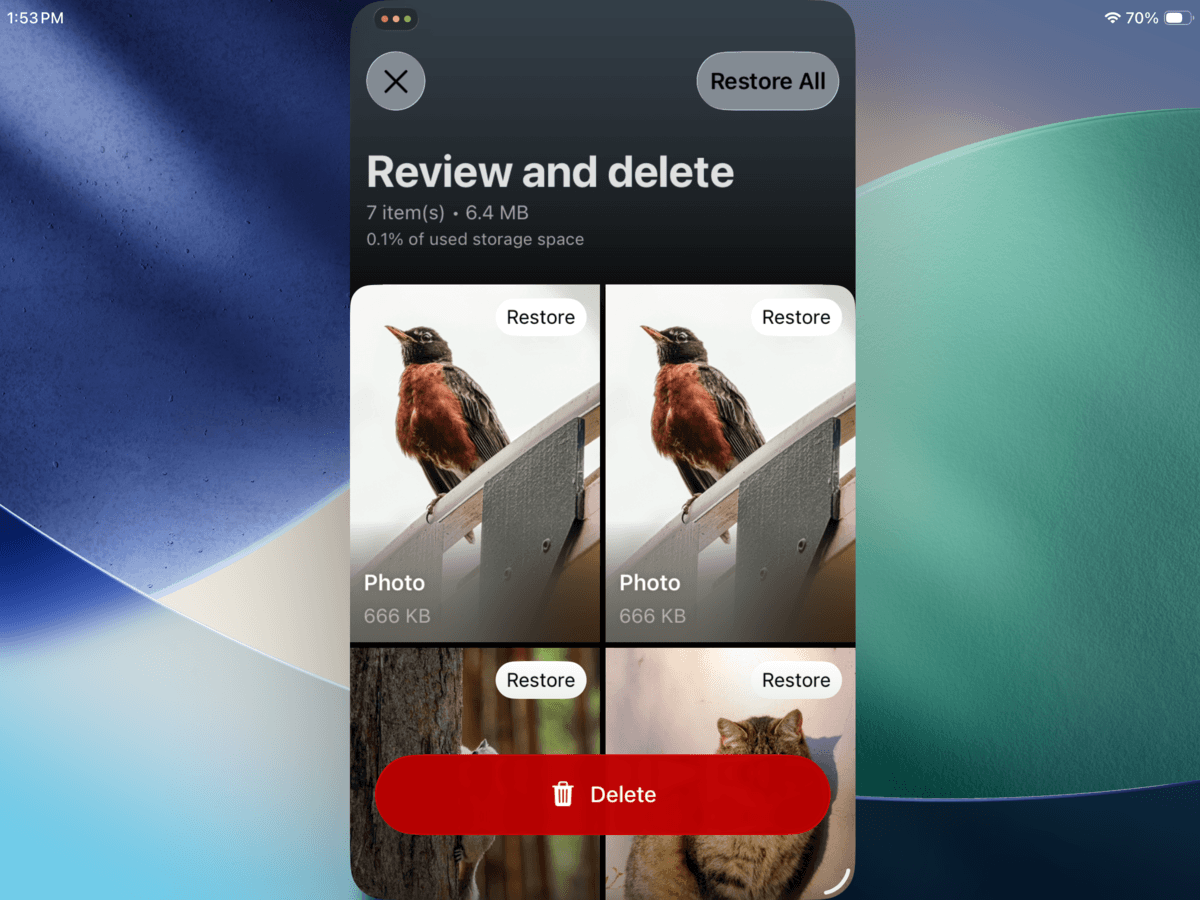
- The Review and delete page will appear. Go through your photos once more, then tap the Delete button.
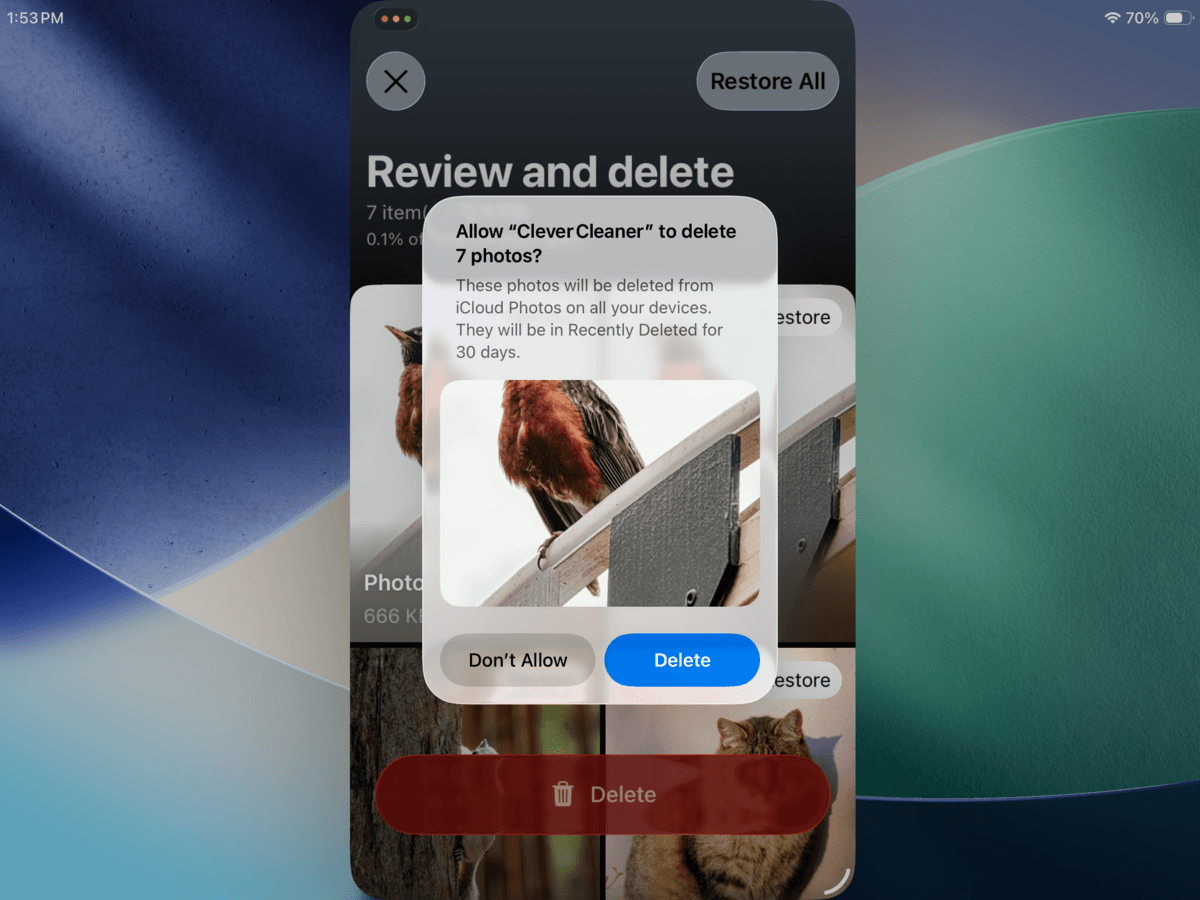
- Finally, tap Delete in the pop-up dialog that appears to confirm the action.
Aside from deleting similar and duplicate photos, Clever Cleaner has other features that can help you conveniently remove clutter from your library:
- Smart cleanup: Aside from removing all your similar and duplicate photos at once, this feature also lets you convert all your Live Photos to still images and compress all your screenshots.
- Swipe: Your entire library is categorized into monthly albums, as well as your Recents, Favorites, Screenshots, Videos, and Live Photos. You can review individual photos and videos from each album, then use left and right swipe gestures to keep or delete them.
- Compress: The Compress tool can reduce the file size of your photos and videos (if you don’t want to delete them), as well as convert Live Photos to still images.
- Videos: Unlike the native Photos app, you can sort videos by size or by date. You can also compress large videos you want to delete, or review and delete them in the built-in Swipe mode.
- Screenshots: Screenshots can also be compressed, deleted normally, and cleaned up with a built-in Swipe tool.
- Live photos: You can convert all your Live Photos into still images at once, delete them normally, or review and delete them through a built-in Swipe tool.
If you managed to download Clever Cleaner while its features were completely free to use, you’ll continue to have unlimited access (which the developers promised). But even if you missed the promo, the app has a very generous daily limit that many users won’t hit in one sitting. Swipe Mode is also completely free for everyone, with no limits.
In our opinion, unless you really don’t have the storage to spare, there’s little reason not to use this method to delete duplicate photos on your iPad. Most users will never need to pay for Pro; and aside from the fact that the native app can’t even detect similar photos (which usually occur a lot more often than exact duplicates do), Clever Cleaner just gets the work done faster.
Smart Cleanup only takes seconds, even for a huge library, and its “Best Copy” selection is reliable enough to make manual review mostly unnecessary. And since Clever Cleaner utilizes the Recently Deleted album in the Photos app, mistakes are easily reversible.
Use Duplicates Album to Delete Duplicate Photos on iPad
If you don’t want to use a third-party app to delete duplicate photos on your iPad, you can use a native feature in the Photos app called the Duplicates album. This is where iPadOS compiles all the duplicate photos it detected in your library while it indexed your data.
This method’s biggest weakness (and why we positioned it as a secondary method) is that it can only detect exact duplicates–which are multiple copies of the same image. If the photo was modified in any way, such as being cropped or resized, it won’t be flagged as a duplicate. This method works best for images duplicated through repeated exports, downloads, transfers, or scans. Here’s how to find duplicate photos on your iPad with the Duplicates album:
- Open the Photos app.
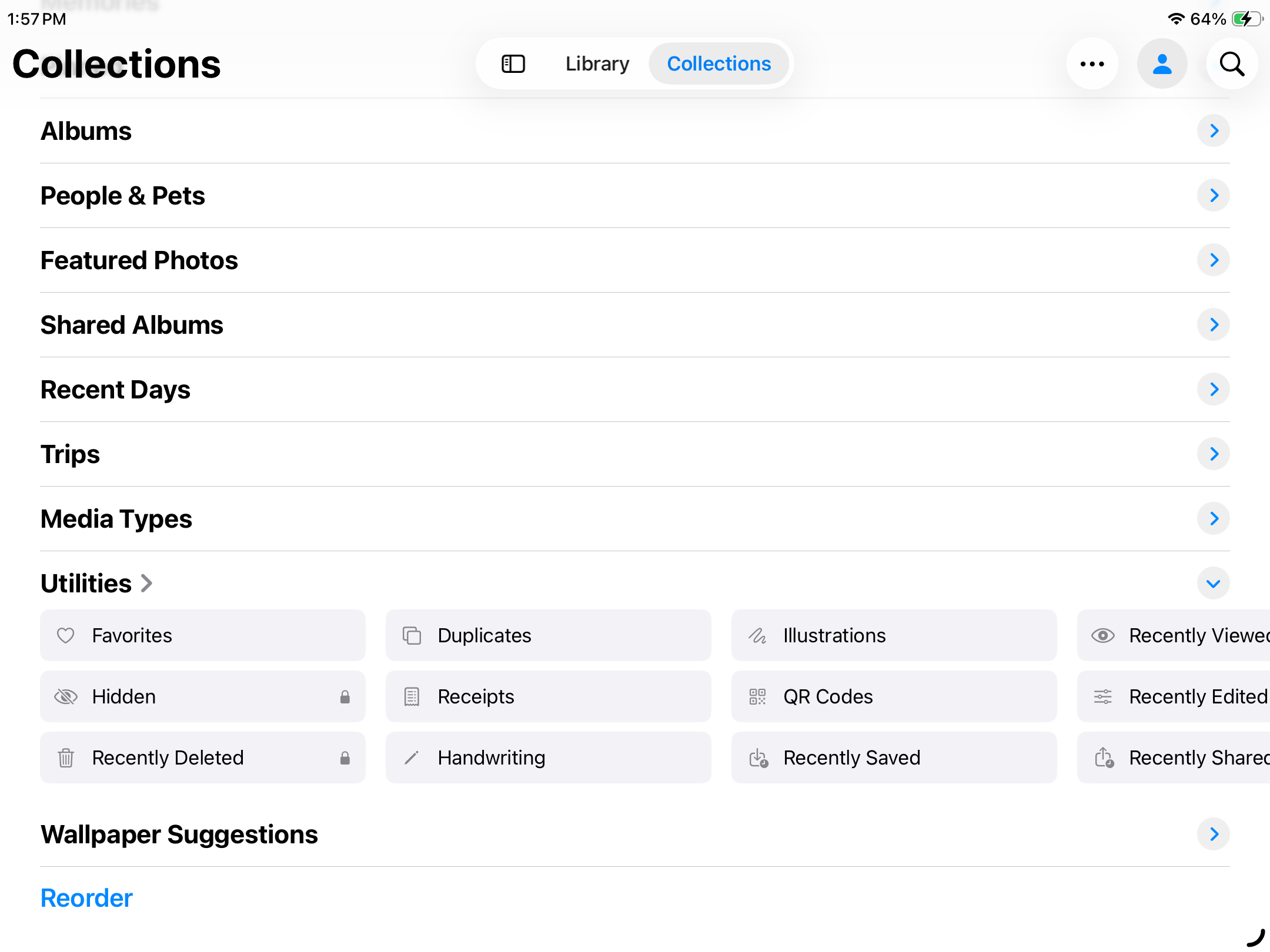
- Navigate to the Collections page. Then, scroll down to Utilities and tap Duplicates.
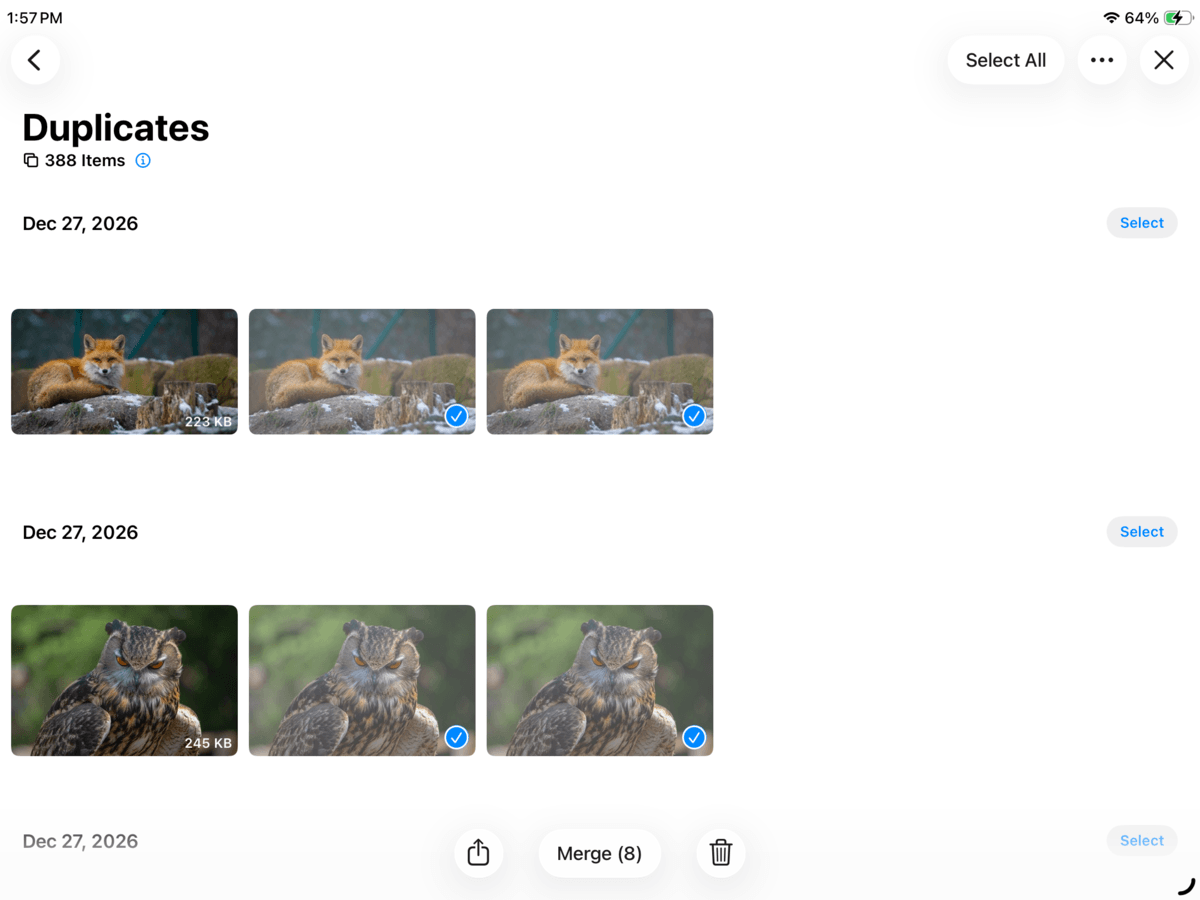
- You’ll find all the duplicate photos iOS detected in your library, organized in groups. Next to each group is the Merge button, which combines your photos when you tap it. To delete specific photos from a group, start by tapping Select in the top right corner and tapping the trash button 🗑️.
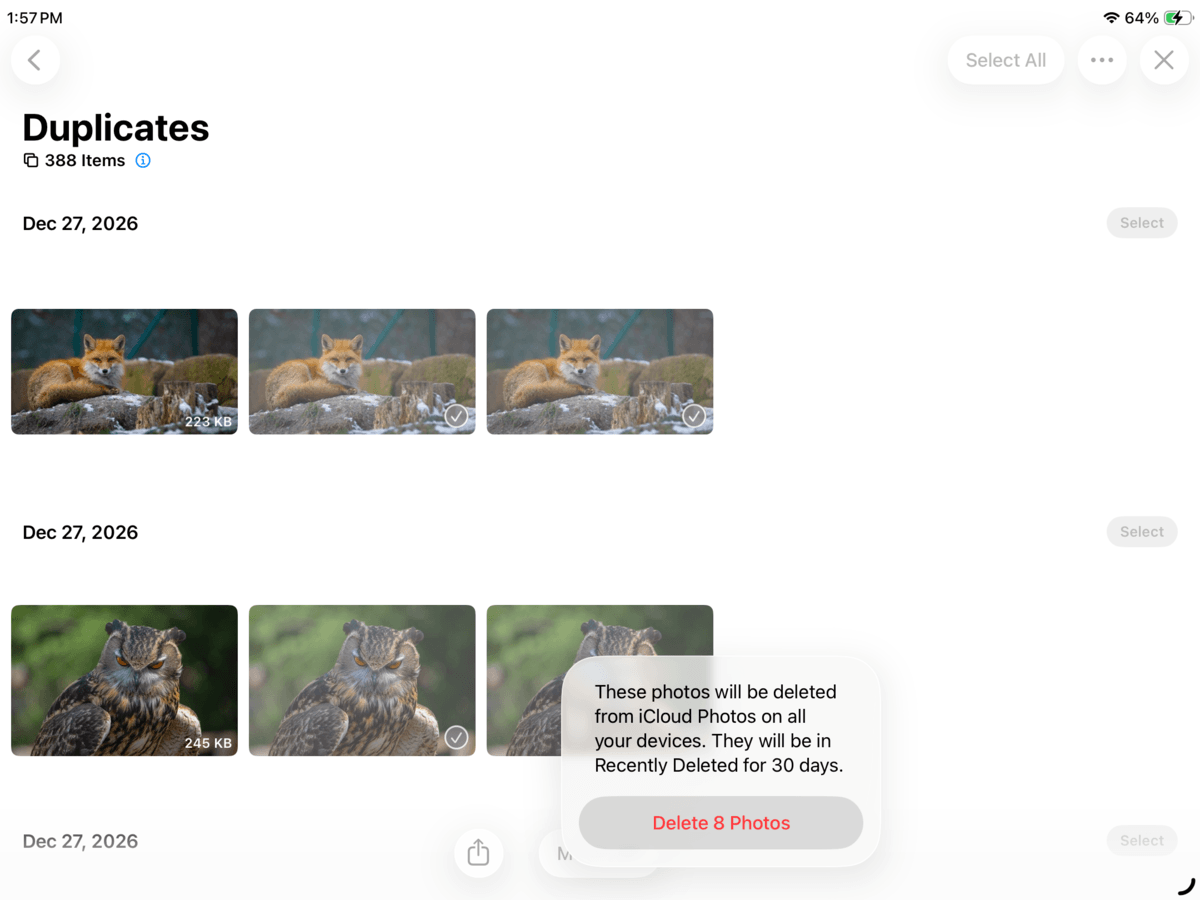
- Finally, tap Delete Photos (or Merge Photos) in the pop-up to confirm the action.
While having a built-in duplicate finder is useful, we couldn’t help but find it frustrating to work with. Aside from this feature’s inability to clean up similar photos (that are not exact duplicates), it created a real-life bottleneck in our workflow since indexing didn’t happen in real-time. If we wanted to take screenshots of the Duplicates album for our articles, we had to generate duplicates ahead of time to give iPadOS a head start.
If you don’t mind waiting for iOS to decide to index your photo library (and you only need to eliminate exact duplicates), this feature is perfectly usable. But if you want to get through your duplicates faster, even as they occur, consider using the cleaning app method instead.
If you want to learn more, we cover manual cleaning in greater detail in our guide on deleting duplicate and similar photos from your iPhone.
Does Deleting Duplicate Photos from iPad Affect iCloud?
If you use iCloud for Photos and enabled synchronization, any actions you take in your iPad’s local photo library get mirrored to iCloud. For example, deleting images from the Photos app on your iPad also deletes them from iCloud.
If you only want to remove duplicate photos from your iPad, not iCloud (e.g., to keep copies where metadata remains separate), you’ll need to disable iCloud sync first. Here’s a brief guide:
- Open the Settings app.
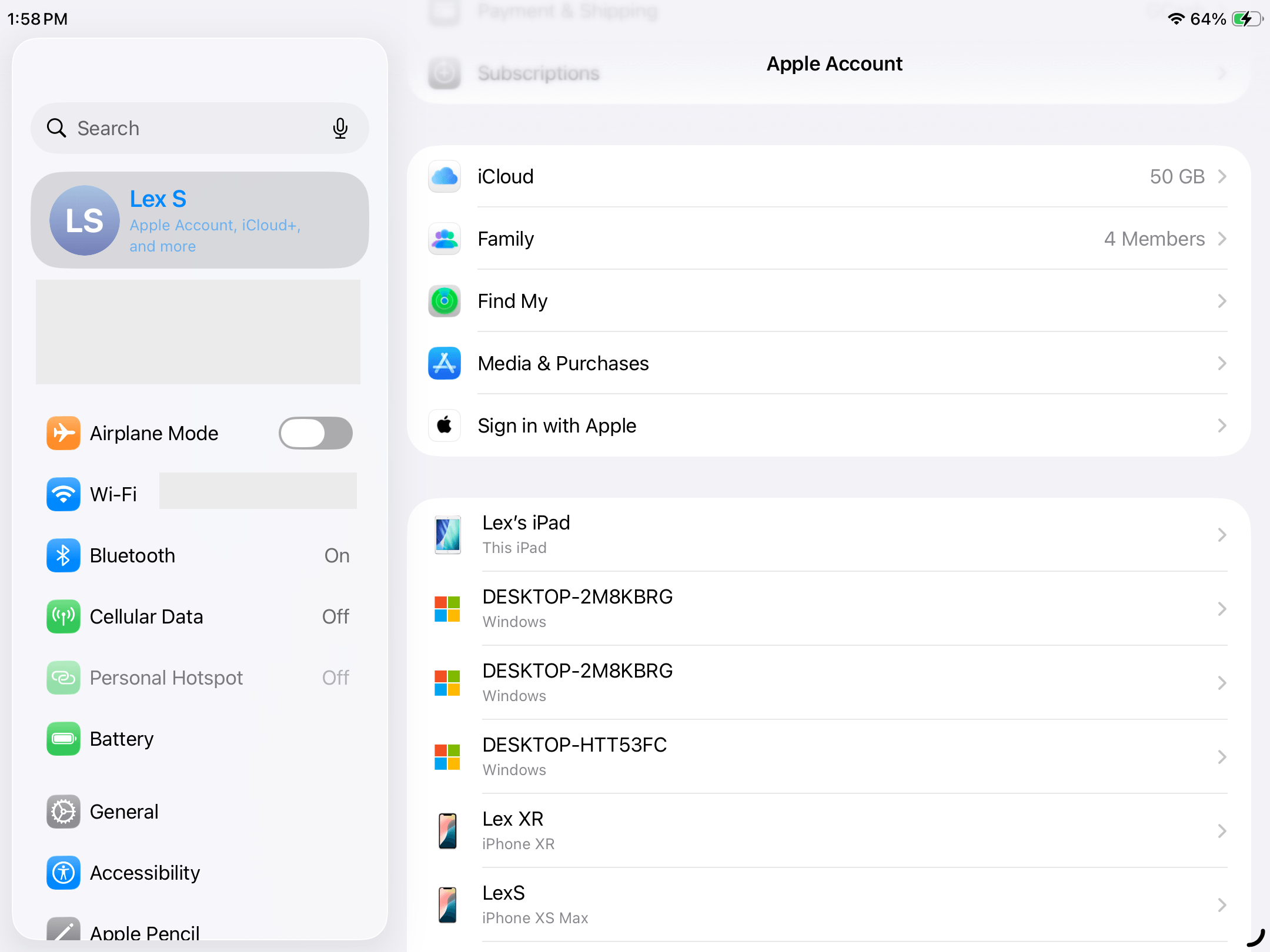
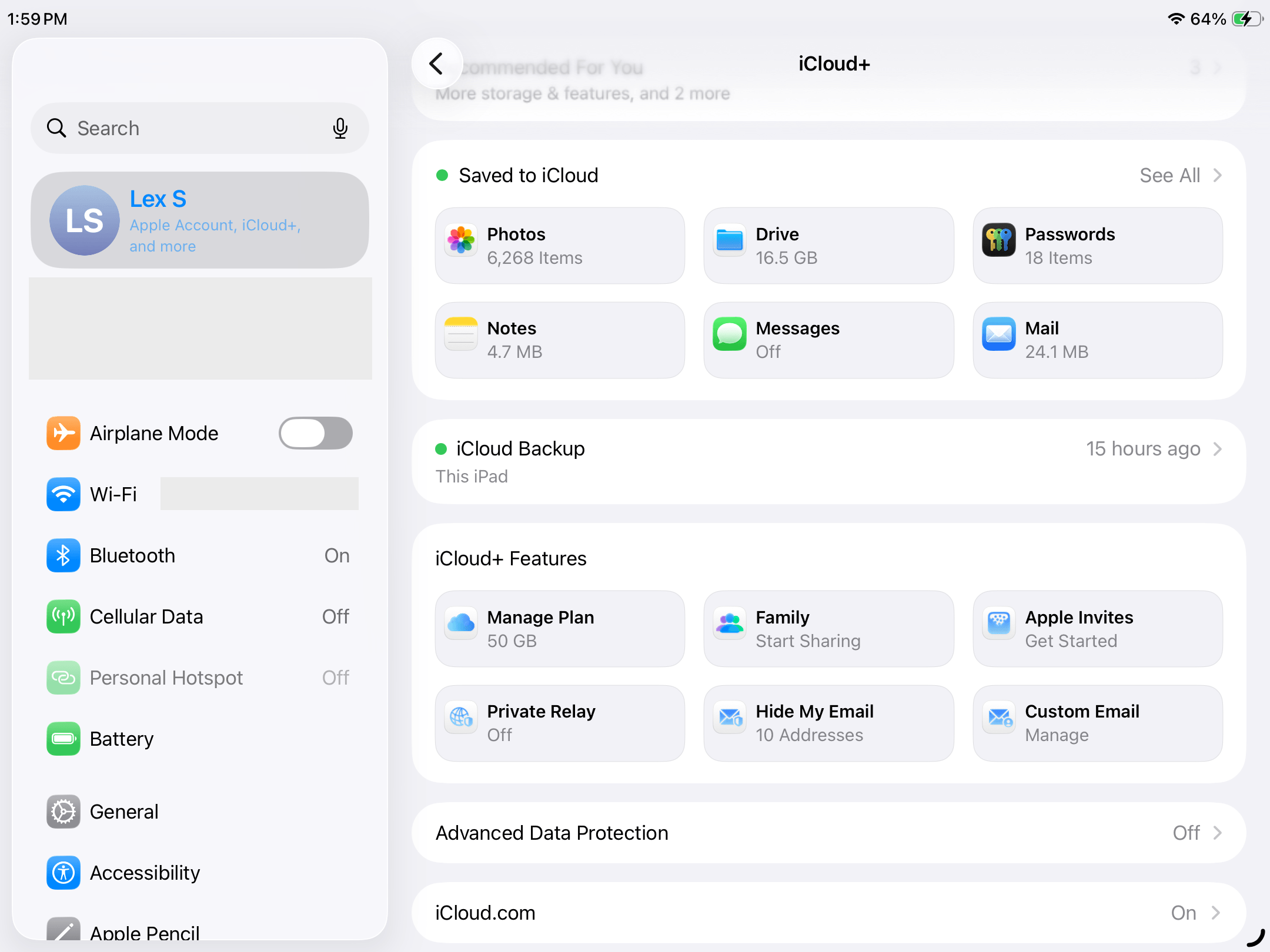
- Tap your Apple ID. On your Apple Account page, select iCloud.
- In the Saved to iCloud section, choose Photos.
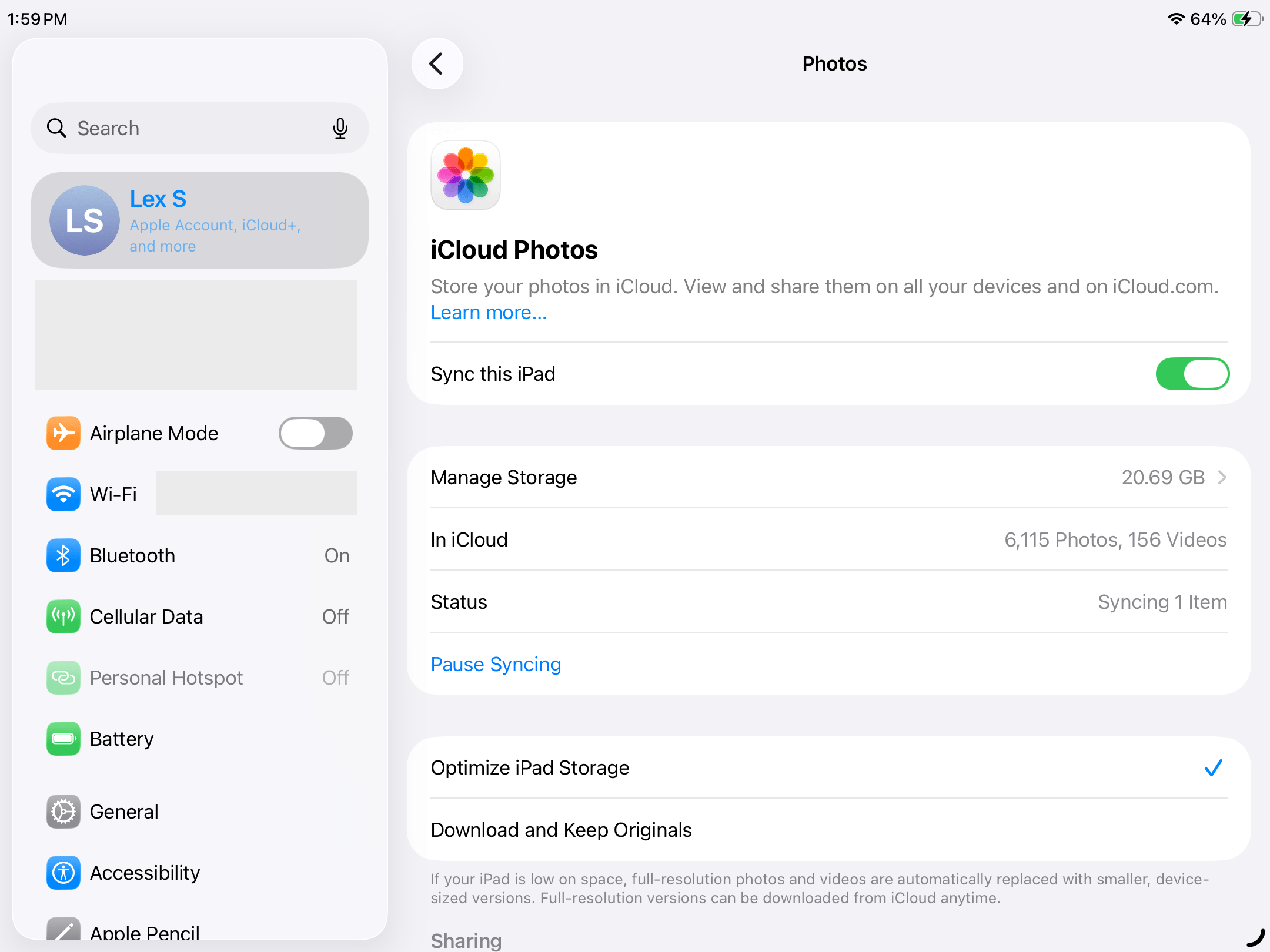
- Beside the Sync this iPad option, slide the toggle switch to the OFF position (gray).
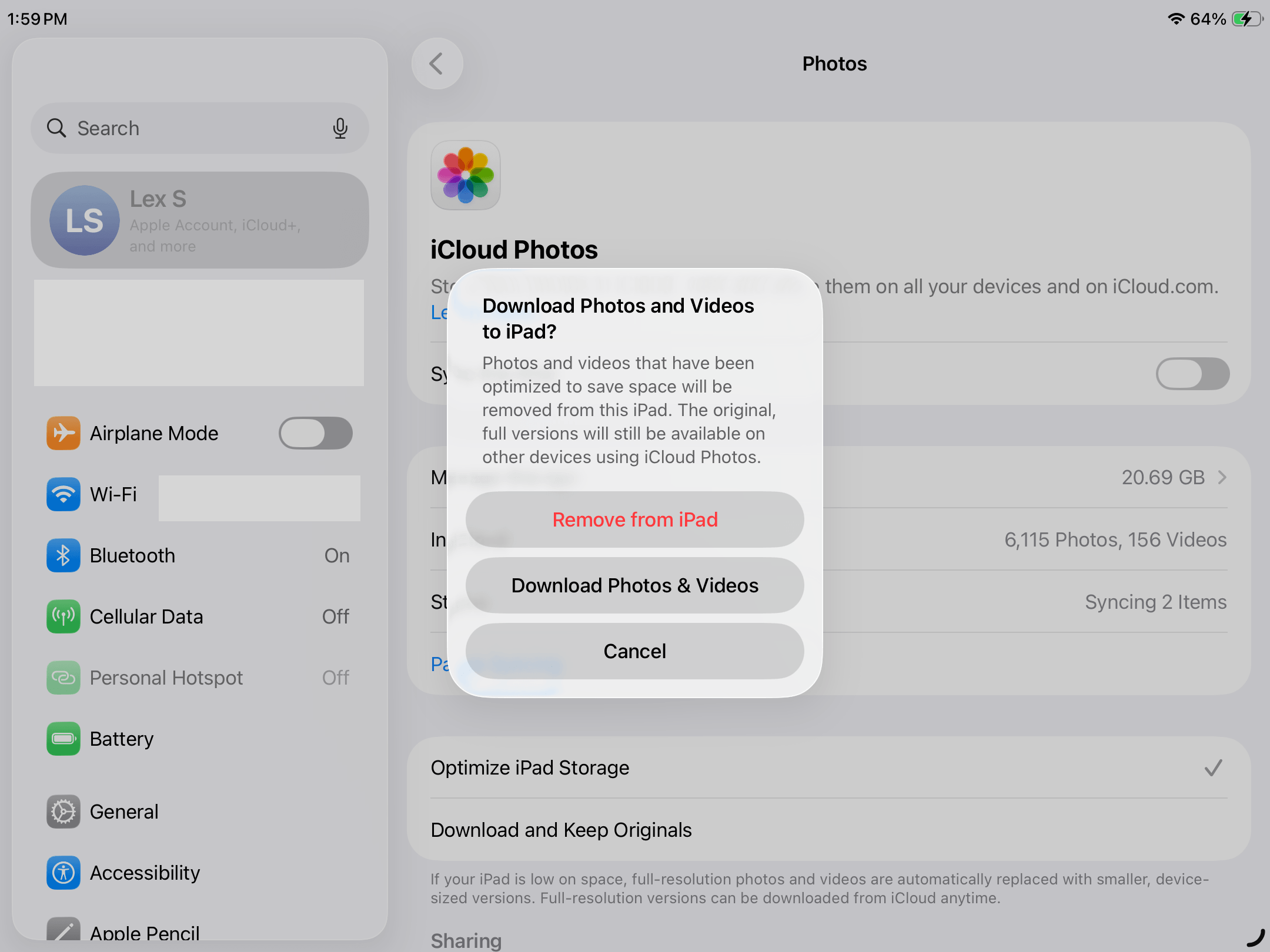
- Finally, tap Download Photos & Videos to save your photos to your local library and proceed with disabling iCloud.
We don’t recommend this method as a practical solution, since any deleted duplicates will return to your library if you ever re-enable iCloud sync.
Instead, if you want to keep copies of your photos separately while managing your iPhone’s local storage, use third-party cloud services like Google Photos or Dropbox. They don’t integrate with your library the same way iCloud does, often letting you keep a completely separate copy of your photos.
Conclusion
Here’s a quick summary of this guide that you can use as an overview, along with handy links that can move you to the appropriate section:
- The most efficient way (and our preferred method) to delete duplicate photos from your iPad is by using Clever Cleaner (free) or another third-party cleaning app; it’s much faster, especially for big libraries, and it can detect duplicate and similar photos.
- If you don’t want to use a third-party app, the second fastest way to get rid of duplicates is by merging or deleting them in the Duplicates album. However, note that it can only detect exact duplicates–”similar-looking” images are not considered.
- Manual deletion is also a valid, albeit slow, alternative. Utilize the search tool to group photos intuitively.
While you can’t completely stop duplicates from appearing in your library, there are ways you can meaningfully reduce how often they occur. Pay attention to what you download, delete unwanted shots immediately after taking them, and avoid saving the same image multiple times–in other words, be mindful about what you store on your device.
FAQ
Here are several ways to prevent duplicate photos on your iPad:
- Only use one synchronization method–either wireless sync or wired sync (using Finder on Mac or iTunes on Windows).
- Use one cloud storage service (e.g., only use iCloud or Google Photos–not both).
- If you use a third-party photo editing app, don’t forget to delete the original image.
- Take care to save attachments or downloaded images only once.
- Avoid using Burst Mode when capturing photos by turning off the camera timer and disabling the Use Volume Up for Burst feature (Settings app > Camera).
However, note that you can’t completely eliminate the possibility of duplicates occurring. A more realistic solution is to regularly clean up your library or immediately delete duplicate photos as they appear.
Yes, here’s how to remove duplicate photos on an iPad quickly:
- Option 1: Use the Duplicates album in the Photos app (Collections > Utilities). However, note that this feature only works for exact duplicates (multiple copies of the same image).
- Option 2: Download a third-party iPhone cleaner from the App Store. We recommend an app called Clever Cleaner: AI Cleanup App, which can eliminate both duplicate photos and similar-looking images. It’s also free forever for early users (as of this writing).
There are several iPad duplicate photo remover apps on the App Store, each with its own unique strengths and weaknesses. Our recommendation is an app called Clever Cleaner: AI Cleanup App because it’s completely free and ad-free as of this writing (and it will remain free for early users). It can detect duplicate and similar photos, and it has other useful library cleaning features–like a video compressor, Live Photo converter, swipe gestures, and more.
The Files app doesn’t have a built-in duplicate finder. A common workaround is to save the images to the Photos app and use the Duplicates album to find duplicates. Here’s a quick guide:
- Open the Files app and open the folder where the duplicates are located.
- Tap the menu button > Select.
- Choose the photos you want to review. You can also tap the Select All button. Then, tap the Share button.
- Tap Save Images.
- Lock and charge your iPad for 30 minutes to a few hours (depending on the size of your library). Then, open the Photos app.
- Open the Collections page and select Duplicates from the Utilities menu.
- Delete the original group of photos in the Files app.
Alternatively, you can manually browse the Files app and sort your files by Name, Kind, Date, or Size to make it easier to locate duplicates.
