


Is your iPhone’s photo library overrun with similar and duplicate photos? There are several ways to address this problem, which is the focus of this guide. Below, we’ll cover the duplicate detection feature in iOS, as well as introduce a convenient and powerful alternative that also works for similar-looking (but different) images.
And to give you another option, we’ll show you unique ways to use features in the native Photos app to intuitively find any photos you want to delete.
1. Merge Duplicate Photos with Duplicates Album
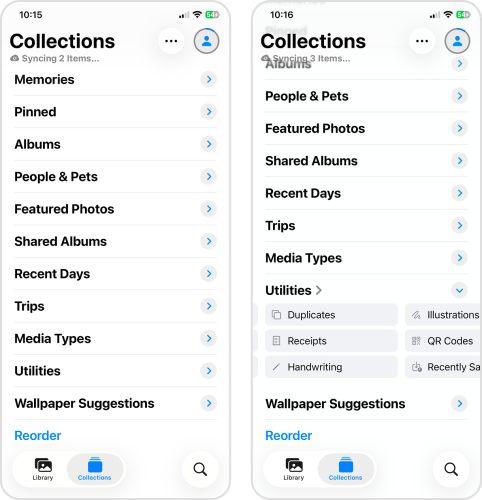
Let’s start with the most well-known solution to duplicates: the Photos app’s Duplicates album. Found in the Utilities section of your Collections page, this album compiles all of the duplicate photos iOS found after scanning and indexing the media in your library. There, you’ll find the Merge feature, which combines duplicate photos into one image.
The Duplicates album is super useful and easy to use, but its detection capabilities are limited to exact duplicates. iOS considers “duplicates” as multiple copies of the same image; maybe you saved an email attachment or downloaded a photo from a social app multiple times by accident.
In other words, even if two photos look identical to you, the album may not consider them as duplicates. If you’re trying to merge similar or identical photos, not exact duplicates, use Method 2 instead.
- Open the Photos app.
- Navigate to the Collections page. Then, scroll down to Utilities and tap Duplicates.
- Your duplicate photos should appear in groups, along with a Merge button. Tap Merge beside the photos you want to combine.
- Tap Merge Exact Copies in the pop-up dialog to confirm the action.
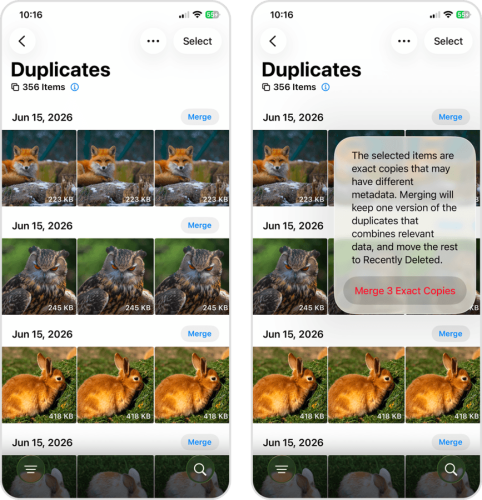
Alternatively, you can also merge all duplicate photos at once by tapping Select > Select All in the Duplicates album.
2. Get Rid of Duplicate and Similar Photos with Clever Cleaner (Free!)
Because of the Photos app’s limitations, the only way to delete both similar and duplicate photos is to use a third-party cleaner app. There are several that you can choose from in the App Store, but we’ll be using Clever Cleaner: AI Cleanup App for this guide.
Unlike the built-in Photos app, Clever Cleaner is capable of detecting both similar and duplicate photos. For similars, it has a 95% accuracy rate, and it automatically finds the “Best Shot” for you (while the “less good” photos are already selected for easy deletion). You can also use the built-in Smart Cleanup feature, which can instantly eliminate all the similar and duplicate photos in your library–don’t worry, you can still review them later.
Clever Cleaner also has a very generous free version that should be enough for most users, especially if you plan to use it daily. It’s more than enough for you to follow along with this guide.
- Download Clever Cleaner: AI Cleanup App from the App Store.
- Run Clever Cleaner. From the main page, tap Similars. Alternatively, if you want to get rid of all your similar and duplicate photos ASAP, you can also access Smart cleanup from here.
- In the Similars tool, all “Best Shots” have been selected for you automatically; all you need to do is review the selection (which you can change manually) and tap the Delete button at the bottom of the screen.
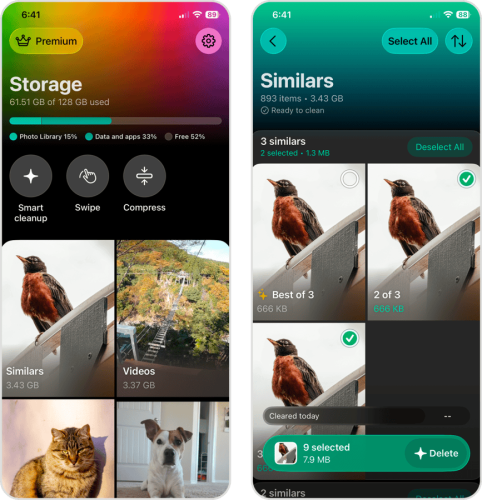
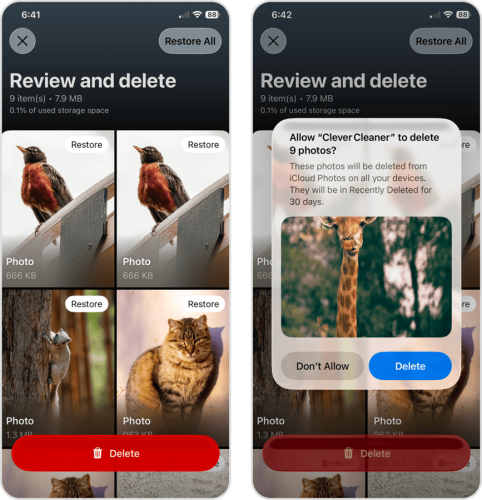
- The Review and delete page should appear. Make sure you didn’t accidentally get rid of anything important, then tap Delete.
- Finally, tap Delete in the pop-up to confirm the action.
- Once you’ve cleaned up your library, close Clever Cleaner and run the native Photos app. Navigate to the Collections page, then scroll down to the Utilities section and tap Recently Deleted.
- Tap Select in the top right corner of the screen.
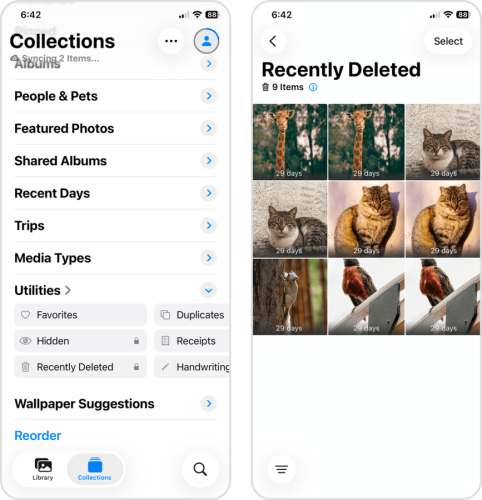
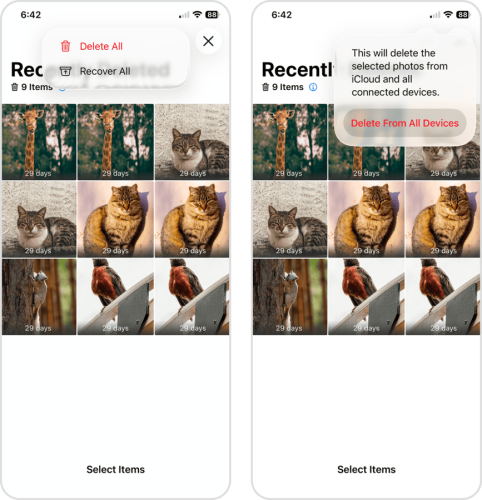
- In the same location, tap the meatball menu ⋯ and select Delete All.
- Finally, in the pop-up dialog that appears, tap Delete From All Devices to confirm the action.
Aside from deleting similar and duplicate photos, Clever Cleaner can also help you eliminate other types of media clutter and optimize your library. Here’s a quick rundown of what you can do with this app:
- Smart cleanup: Aside from automating similar and duplicate photo cleanup, Smart cleanup also lets you convert all your Live Photos into still images and compress all your screenshots without reviewing your library manually.
- Videos: Clever Cleaner compiles all your videos and lets you sort them by size or date, so you can prioritize your largest, oldest, or newest videos. More importantly, aside from deleting the videos, you can Compress them; this shrinks their file size with minimal impact on visual quality.
- Swipe: Swipe automatically sorts your library into monthly albums, where you can review photos, videos, Live Photos, and screenshots individually. This tool makes cleanup faster, as you can use left and right swipe gestures to instantly keep or delete each item and move to the next.
- Screenshots: Notorious for accumulating silently, all of your screenshots are compiled by the app, which you can delete or even compress.
- Live Photos: Live Photos are big files that combine high-resolution images, video clips, and audio clips in one “photo.” This tool lets you cut everything except the photo (essentially converting a Live Photo into a still image), significantly shrinking the file size.
- Compress: Aside from being a feature that you can use anywhere, Compress is also a standalone tool that you can use for any photo, video, screenshot, and Live Photo.
3. Bonus: Tidy Up Your Duplicates Manually
If you want to review a specific set of photos manually for duplicates, iOS gives you that option through auto-generated albums and collections. These are curated photos and videos that iOS automatically indexed and categorized based on their content. We’ll show you common areas of interest in most user libraries that you can use to begin your search.
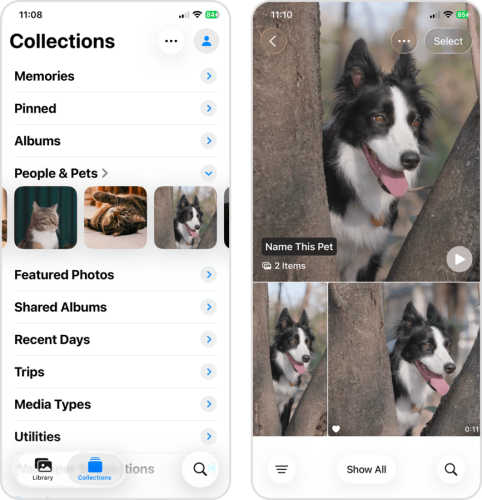
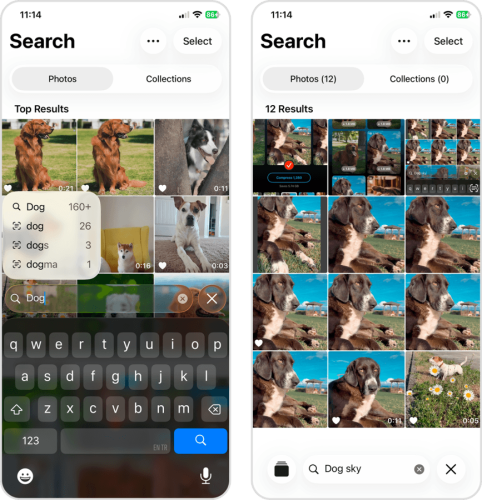
- People and Pets: iOS recognizes recurring subjects in your library; if you’ve taken a lot of photos or videos of certain friends, family, or pets, they’ll be added to this album. This is where you go to delete those 12 similar-looking photos of your cat, or that selfie with a friend you took multiple times to make sure it’s Instagram-worthy.
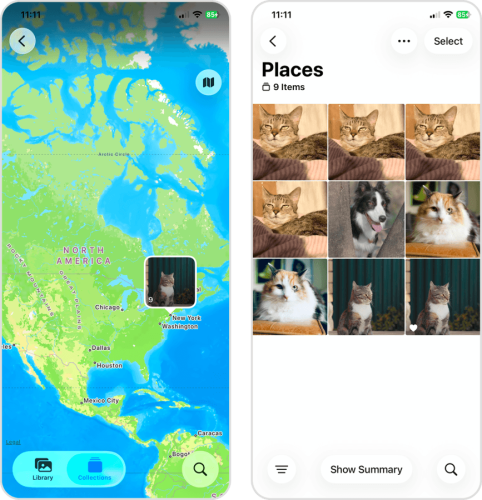
- Map: The Map album (Collections> Utilities > Map) shows you a literal map, with waypoints indicating the geographic locations where your photos were captured. For example, photos you took in Bali would appear above where Bali is on the map. This is a great way to find duplicates you may have generated during your trips.
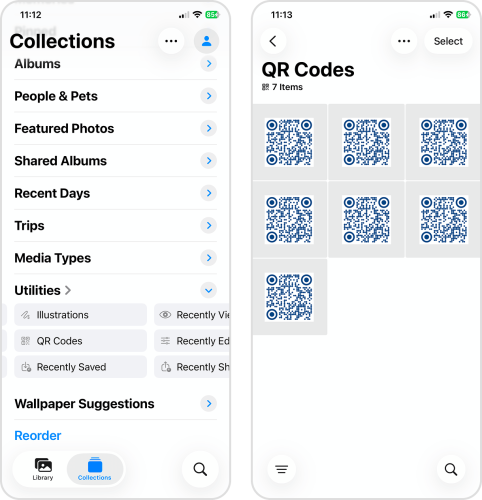
- Receipts & QR Codes: Online receipts and QR codes are commonly downloaded as attachments, and it’s easy to accidentally save them multiple times (e.g., downloading the same QR code for something you regularly pay for). Rather than regular albums or collections, you can find Receipts and QR Codes in Collections > Utilities > Map.
Conclusion
Here’s a quick summary of the guide in case you want to easily return to it later:
- If you want to merge exact duplicates, use the built-in Duplicates album in the Photos app (Photos > Collections > Utilities).
- For deleting similar and duplicate photos, third-party apps are better suited for the task. We recommend Clever Cleaner, which is currently free and will remain so for early users.
- To browse a specific group of photos for manual cleaning, use iOS’s auto-generated albums, collections, and utilities to locate them more easily.
Unfortunately, duplicate and similar photos are almost impossible to avoid, especially through years of usage. The only way to keep your library truly clean is by spotting and deleting unwanted photos and videos as they occur.
An app from our list of the best iPhone photo organizers can make this task, along with generally keeping your library tidy, much easier. But if you want to discover more ways to clean up your iPhone by eliminating other types of junk on your device, you can start with one of our many iOS guides.
FAQ
Yes, and there are two methods you can choose from. Here’s how to merge all duplicate photos on an iPhone at once for free:
- Use the native Photos app. Navigate to the Collections page and scroll down to the Utilities section. Tap Duplicates > Select > Select All > Merge. Note that this feature only works for exact duplicates.
- Use a third-party cleaner app. You can download cleaning apps from the iOS App Store, and most are capable of detecting duplicate and similar photos. We recommend Clever Cleaner: AI Cleanup App, which is completely free as of this writing (and it will stay free for early users).
There are several possible reasons why your iPhone won’t merge your duplicate photos:
- iOS hasn’t finished scanning and indexing your library, preventing it from recognizing your duplicates. Charge your iPhone, lock the screen, then check again after a few minutes.
- Your “duplicates” are actually similar photos. iOS only recognizes exact duplicates, which are copies of the same original image (usually resulting from repeated downloads). Use a third-party cleaning app like Clever Cleaner instead.
- You may need to update iOS; the Duplicates album was only released during the rollout of iOS 16. New updates also regularly fix system bugs that affect the Photos app or general data indexing.
- iCloud sync is enabled, but sync lag is preventing proper indexing. Make sure you’re connected to a stable network, charge your iPhone, and lock your screen for a few minutes before trying again.
Yes, there are two ways to mass delete iPhone duplicate photos, depending on your needs:
- Option 1: The native Photos app has a feature called Duplicates (Photos app > Collections > Utilities). If you tap Select > Select All, you can Merge all your duplicates. However, this only applies to exact duplicates, which are copies of the same image.
- Option 2: Many third-party cleaning apps can detect exact duplicates and similar-looking photos. There are several to choose from, but we recommend Clever Cleaner, which is completely free as of this writing (and will stay free for early users).
Yes, Apple has a duplicate photo finder in the Photos app > Collections > Utilities > Duplicates. It can merge individual groups of duplicate photos or all the duplicates in your library at once. However, it’s only limited to exact duplicates–copies of the same image. These usually result from accidentally downloading the same image more than once. For similar or identical-looking photos, you’ll need a third-party cleaning app.
