


Formatting a Compact Flash (CF) card wipes it clean in seconds, which is handy when you want a fresh card before a shoot. But one wrong tap and your photos or footage seem to be gone. The good news is that a quick format rarely erases your files right away. If you stop using the card and act fast, you can recover formatted CF card (or CFast and even CFexpress) data with the right software. Below, we’ll cover the common causes of formatting, how to get your files back, and how to stop it from happening again.
Causes That Lead to Format CF Card
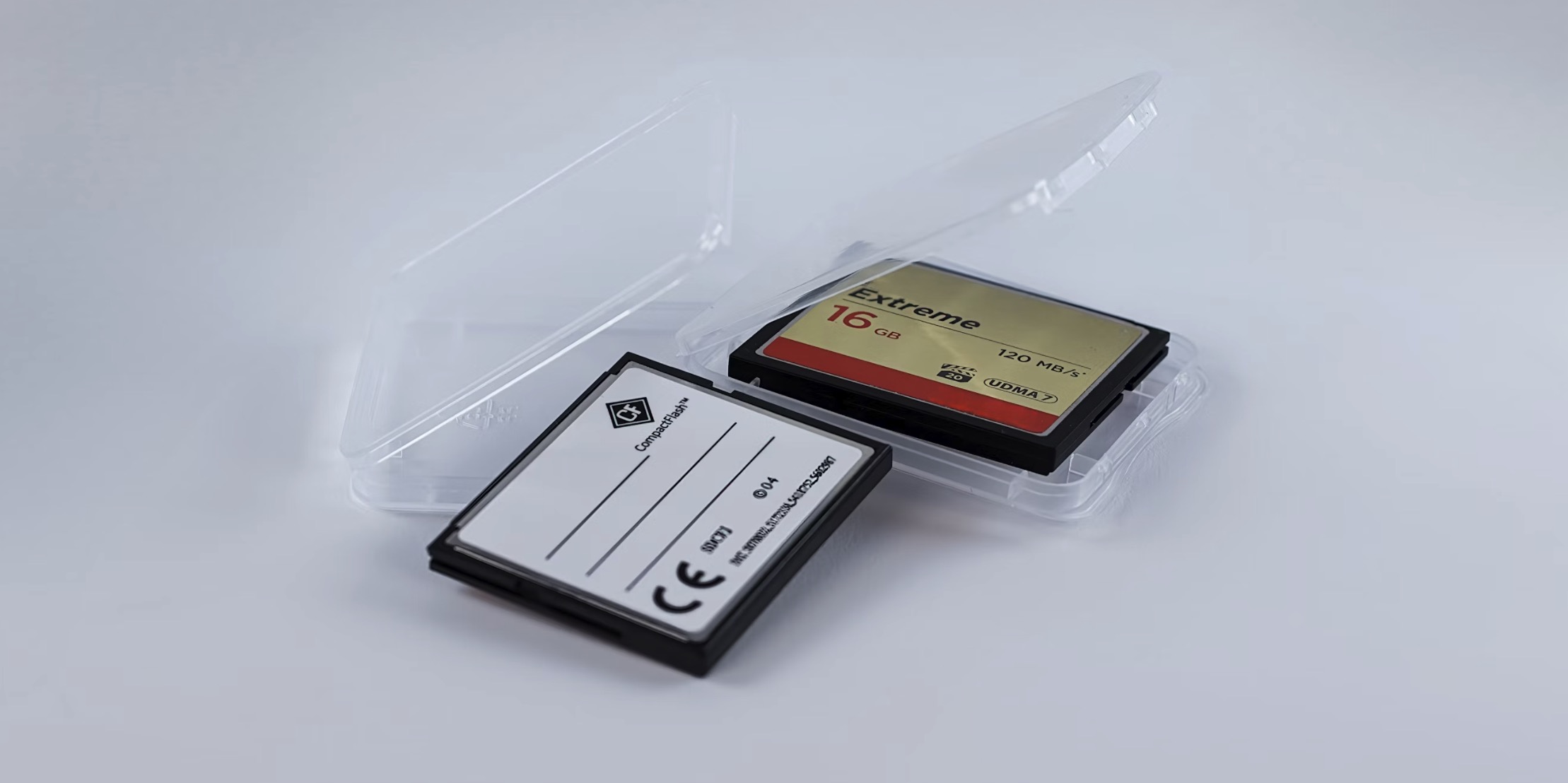
Before you rush into recovery, it pays to know how your card got formatted, because that decides how much you can get back. Below, we walk through the most common formatting scenarios, what to do in each case, and the odds of getting your data back.
| Scenario | Best course of action | Recovery chances |
| Accidental Quick Format. Done through the camera’s menu or after connecting the card to a computer. A quick format doesn’t overwrite the card’s data right away. This is what happened to a cinematographer who formatted the wrong CF card and lost around 20 to 30 GB of footage. | Stop using the card the moment you notice. Don’t save anything new to it, since every write lowers your odds. Connect the card and scan it with data recovery software right away. | Excellent, if you caught it before writing new data |
| Formatting followed by write operations. In a detailed post, a filmmaker formatted their Angelbird CF Express Type A card through a Sony FX6’s Quick Format option, then wrote about 70 GB of new footage to the 1 TB card before noticing. Once original files lose too much content to new writes, they become unrecognizable. | Scan the card with data recovery software to see what survived, but keep expectations low. In a case like this, your backups are the more reliable route. | Low, and drops with every new write |
| Full or secure format. A quick format only clears the file system table, but a full format or a data shredding tool overwrites the whole card with zeros, so nothing is left to pull back. | There’s no software fix here. Restoring from a backup is your only option. | None |
| CF card corruption triggering formatting prompts. A card develops errors and the camera or computer asks you to format it. That happened to a Nikon Z8 user whose Lexar Gold 256 GB CF Express Type B card threw warnings, then demanded a format. | Make a byte-to-byte image of the card first, then scan that image instead of the card itself to spare a fragile card from extra wear. | Good, especially if only a quick format ran |
| CF card suddenly becoming RAW on its own. A card can drop into a RAW state by itself and report the wrong size. One user’s card showed as RAW in Windows Disk Management with only 32 MB instead of its real 32 GB. | A RAW card points to a corrupted file system. Don’t format it. Create an image of the card and scan that instead. | Good, if you stay off the card |
How to Recover Formatted CF Card
A good backup is always your first choice. If you don’t have one, recovery software is the next best thing, and Disk Drill is a solid pick for both Windows and Mac. It lets you preview every found photo, video, and document with no limits, so you can confirm a file is intact before you recover it.
Here’s how to recover files from a formatted Compact Flash card using Disk Drill (works on both Windows and Mac):
- Download and install Disk Drill on your Windows PC or Mac. Then, connect your CF card reader to your computer.
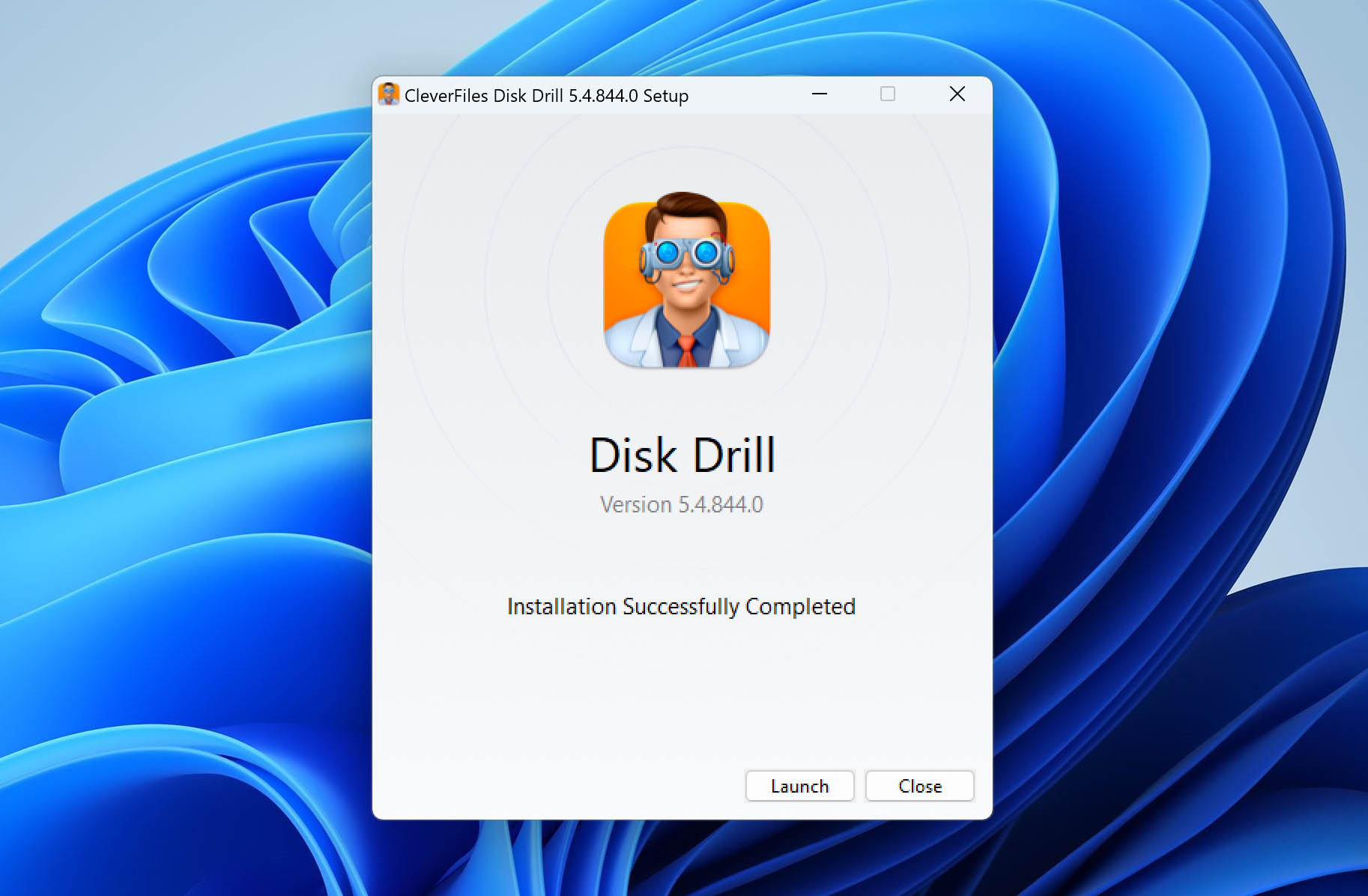
- Launch Disk Drill and locate your memory card in the device list. With your CF card selected, click the Search for lost data button to scan your card.
 Before the scan runs, Disk Drill lets you choose a scan method. If the formatted card held video, choose Advanced Camera Recovery (ACR) instead of the universal scan. ACR rebuilds fragmented video from cameras, so it gives you better results on the footage. If you know your camera model and recording settings, enter them so ACR knows what to look for. If you don’t, the default settings work fine.
💡 Note: If you formatted the card because of errors, or it shows other signs of trouble like dropouts or slow reads, make a byte-to-byte backup before you scan. You then run recovery on that image instead of the failing card, which protects it from extra wear. Here’s how to create a byte-to-byte backup.
Before the scan runs, Disk Drill lets you choose a scan method. If the formatted card held video, choose Advanced Camera Recovery (ACR) instead of the universal scan. ACR rebuilds fragmented video from cameras, so it gives you better results on the footage. If you know your camera model and recording settings, enter them so ACR knows what to look for. If you don’t, the default settings work fine.
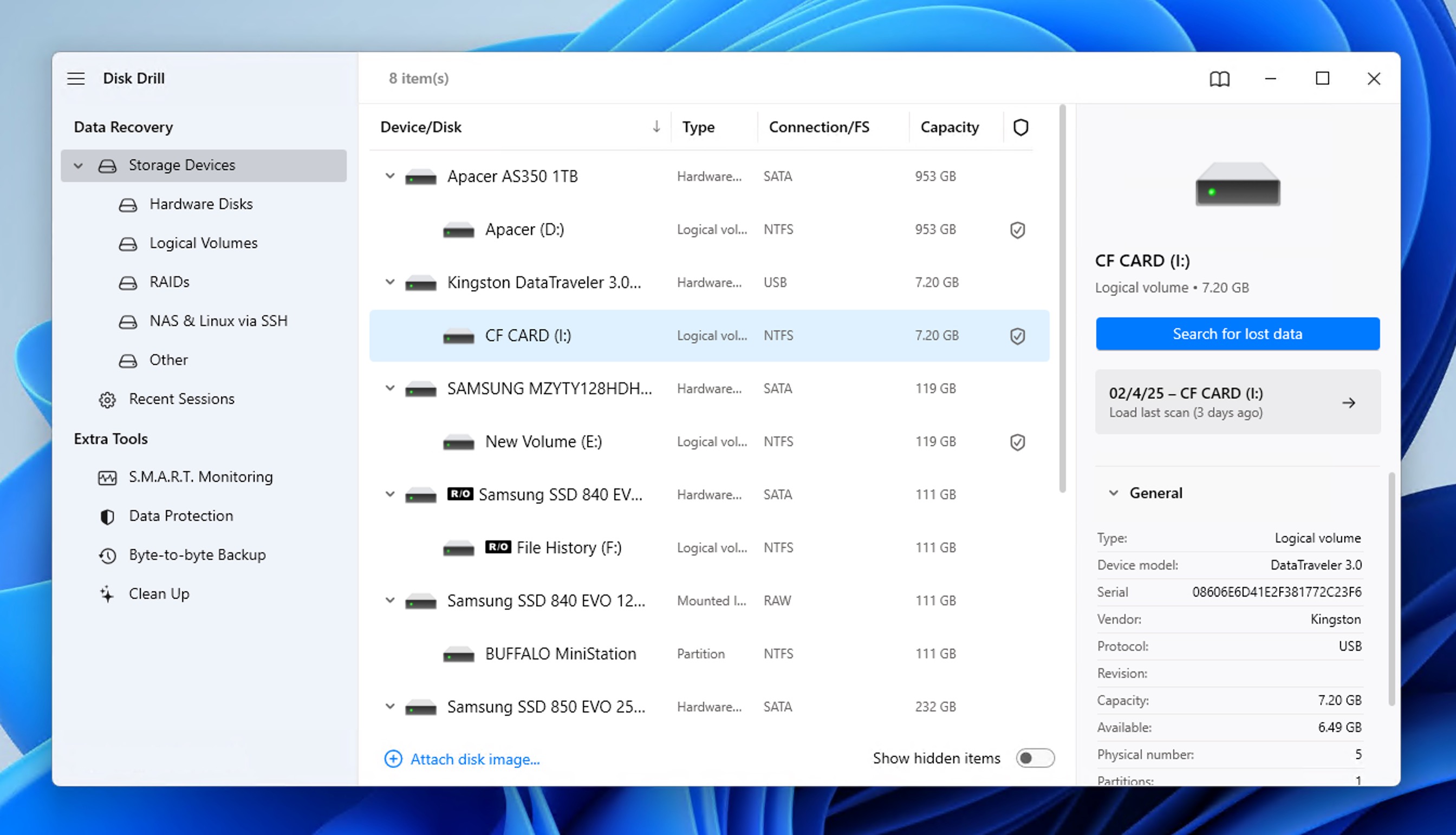
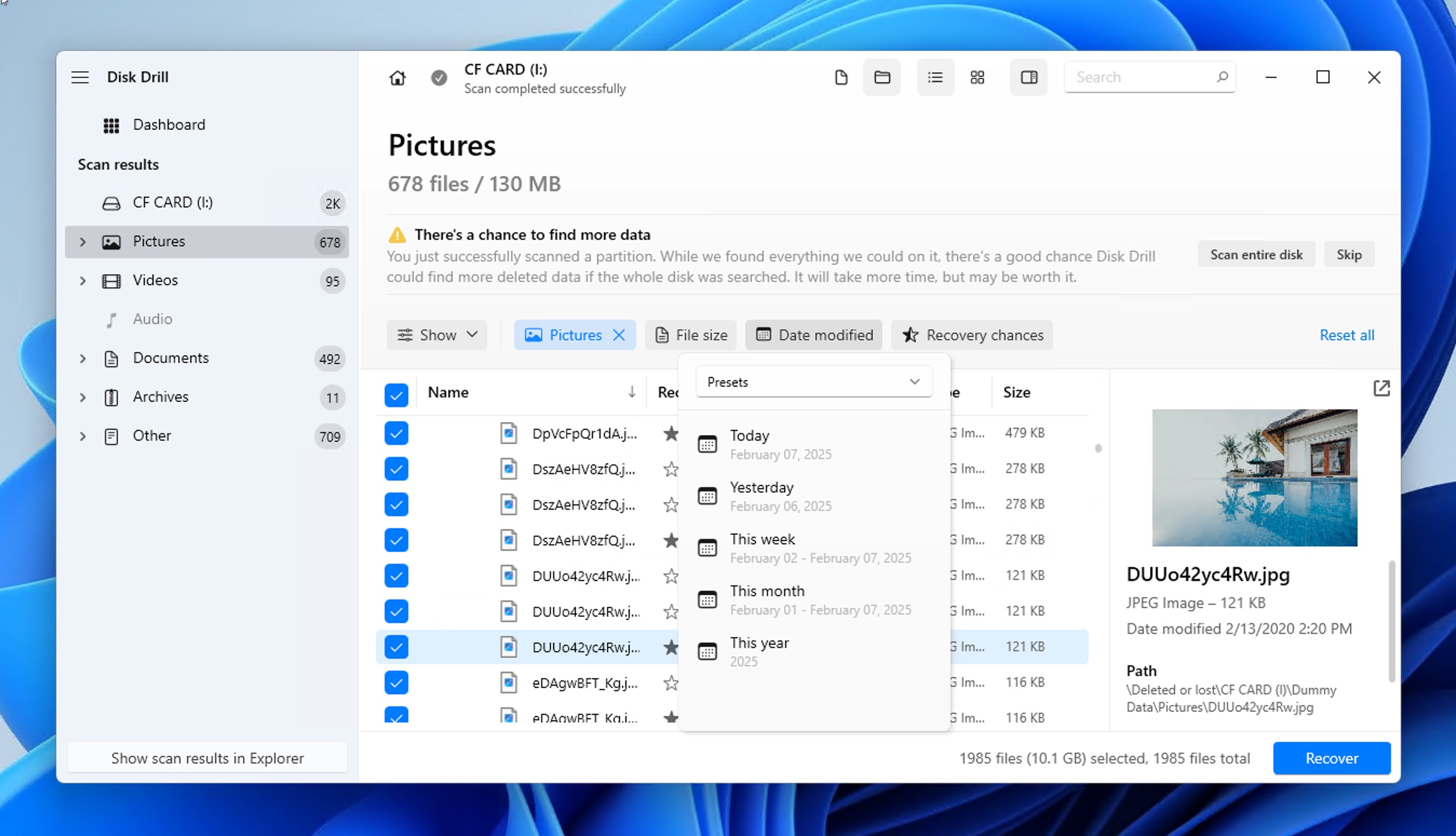
💡 Note: If you formatted the card because of errors, or it shows other signs of trouble like dropouts or slow reads, make a byte-to-byte backup before you scan. You then run recovery on that image instead of the failing card, which protects it from extra wear. Here’s how to create a byte-to-byte backup. - Once scanning is complete, review the found items, including photos, videos, and documents. You can filter files by format, date, size, and other criteria. Click a file to open a full-size preview and confirm it opens before you recover it. Files from a formatted card often land in a Reconstructed folder without their original names, so previewing is the fastest way to tell what’s what.
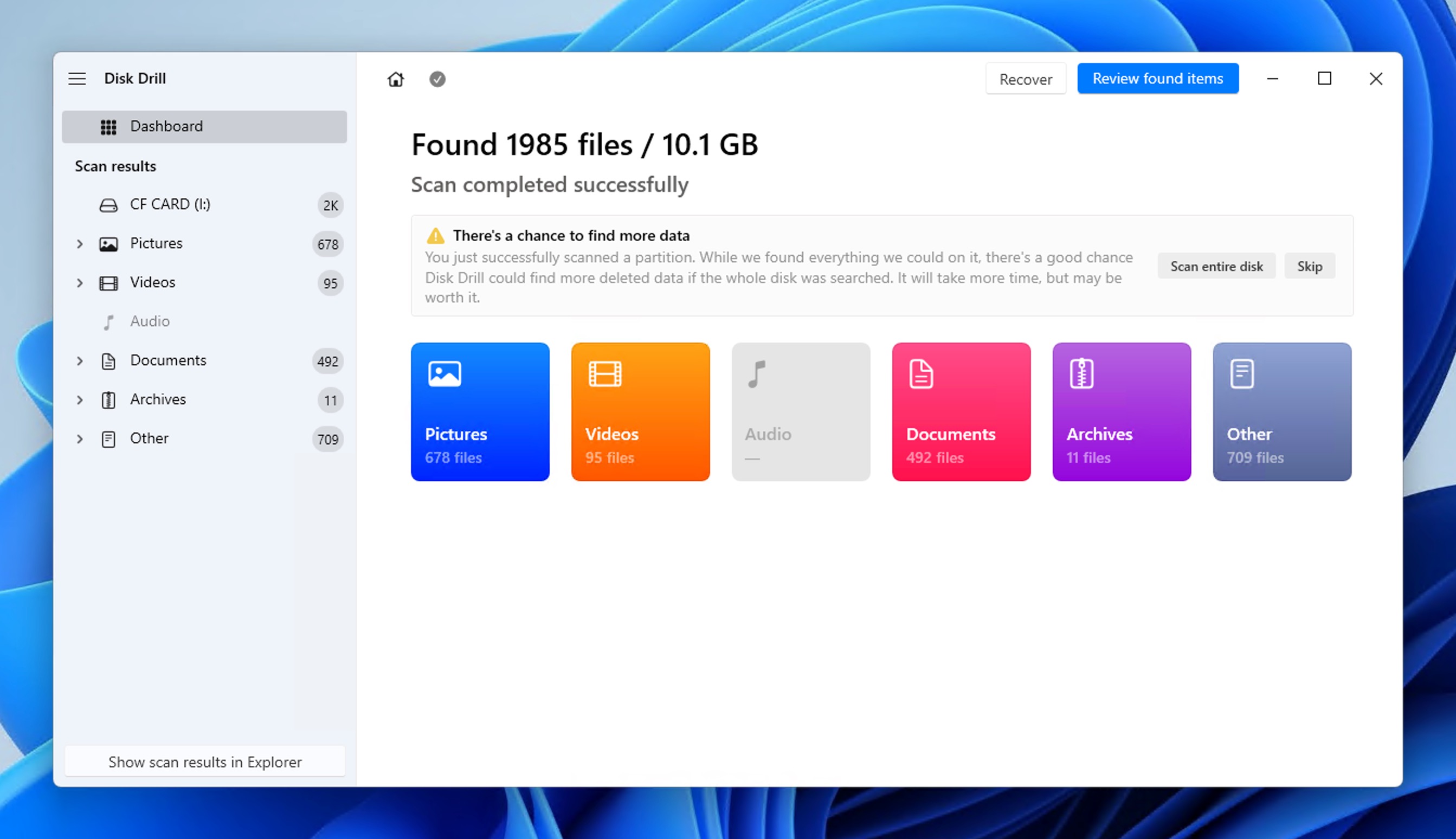
- Whenever you find an important file, click the checkbox next to it. The full-size preview helps here too, since the file names won’t always tell you which shot is which.
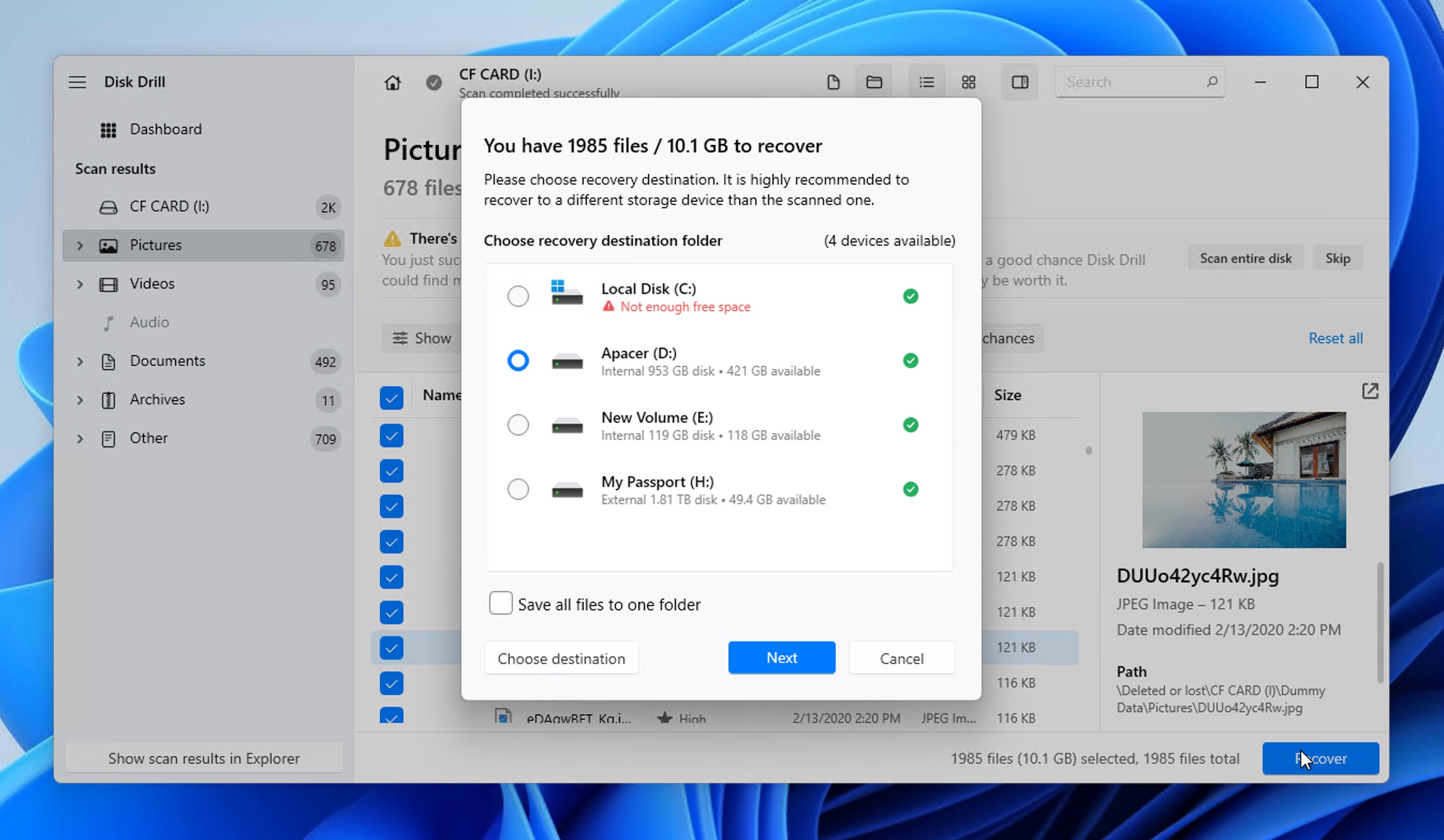
- Finally, click the Recover button and choose a safe destination folder (not on the CF card itself) to avoid overwriting data.
If you’re a professional photographer or videographer, you’ll be happy to know that Disk Drill is effective for recovering media files from CompactFlash cards, including CFast and CFexpress (Type A, Type B, Type C) cards from manufacturers such as Samsung, SanDisk, Transcend, and others.
Regular users who don’t rely on CF cards for professional purposes but still store important data on them can appreciate Disk Drill’s easy-to-use user interface, which simplifies the recovery process for everyone. You can even confirm the presence and integrity of your files before committing to the recovery process, thanks to the built-in file preview, and you can just as easily enable scan results filters to quickly locate the most important files.
When DIY Recovery Isn’t Enough: Data Recovery Services

In some scenarios, even the most advanced CF card recovery software like Disk Drill might not be sufficient to retrieve your data. Here are several real-world examples where DIY methods fall short:
- Unreadable cards: While your CF card may not be recognized by your computer’s operating system or camera, data recovery software might still be able to detect and scan it. However, if the card remains completely undetectable even when using specialized recovery software, professional data recovery services become necessary.
- Physical damage: As noted by a photography expert on Reddit, “CompactFlash card is an old, obsolete tech, with pins that are easy to damage.” This is particularly true for older CF cards, though even modern CFast and CFexpress cards can suffer physical damage. Bent pins, water damage, or internal component failure can make cards unreadable through normal means.
- Hardware recognition issues: Some users report their cards becoming completely invisible to their systems. In one troubling case, a user described: “My internal Card Reader doesn’t show my CF card for some ungodly reason,” even after trying multiple computers and card readers.
The good news is that professional data recovery services like Cleverfiles Data Recovery Center can often (but not always) deliver great results even after software attempts to recover formatted CFexpress card data have failed.
Unlike software solutions, professional labs can directly access the memory chips by bypassing damaged controllers and repair physical damage to card components. While professional data recovery is by no means cheap, the best companies out there will look at your CF card for free before providing a detailed assessment and quote, so you can make an informed decision about whether professional recovery is worth the investment for your specific case.
How to Fix a Corrupted CF Card After Formatting
Many users attempt to fix their corrupted CompactFlash cards by formatting them, often prompted by their cameras or computers displaying error messages like Drive X needs to be formatted.
While formatting can resolve many corruption issues and allow you to reuse the card after you’ve managed to recover formatted CF card data, sometimes corruption problems persist even after formatting.
If you’re still experiencing issues such as slow performance, random disconnections, or error messages, you can try using built-in file system repair tools before considering the replacement of the card.
For Windows users, the Command Prompt tool CHKDSK can help diagnose and fix file system errors:
- Connect your formatted CF card to your computer.
- Open Command Prompt as administrator by right-clicking the Start Menu and selecting Command Prompt (Admin).
- Type either
chkdsk [drive letter]: /forchkdsk [drive letter]: /f /r, then press Enter. The /f switch fixes file system errors and runs fast. Adding /r also scans the whole card for bad sectors and tries to read back what it can. That takes longer and works a weak card harder. We recommend you start with /f on its own.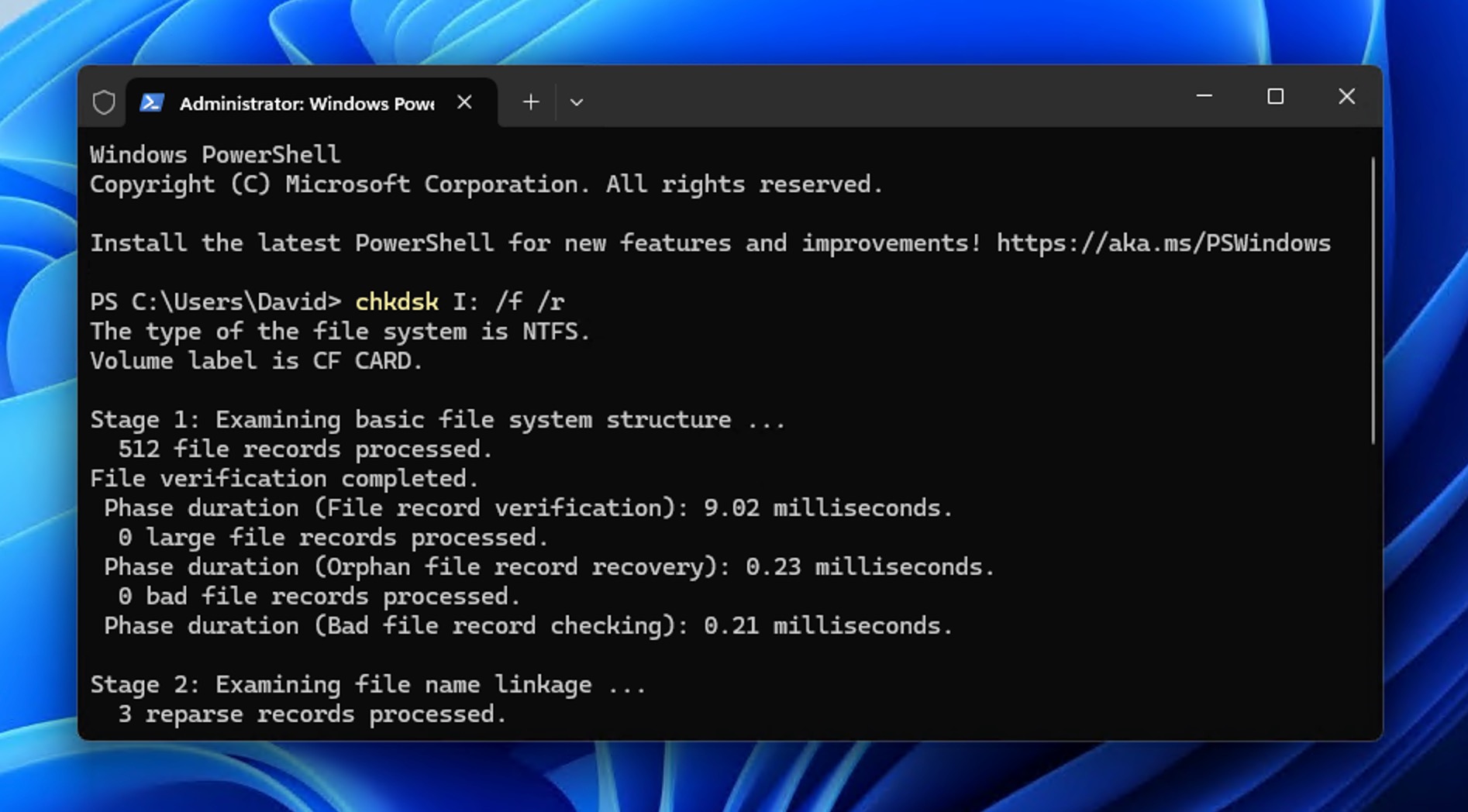
For Mac users, the built-in First Aid tool provides similar functionality:
- Open Disk Utility from Applications > Utilities.
- Select your CF card from the list of drives.
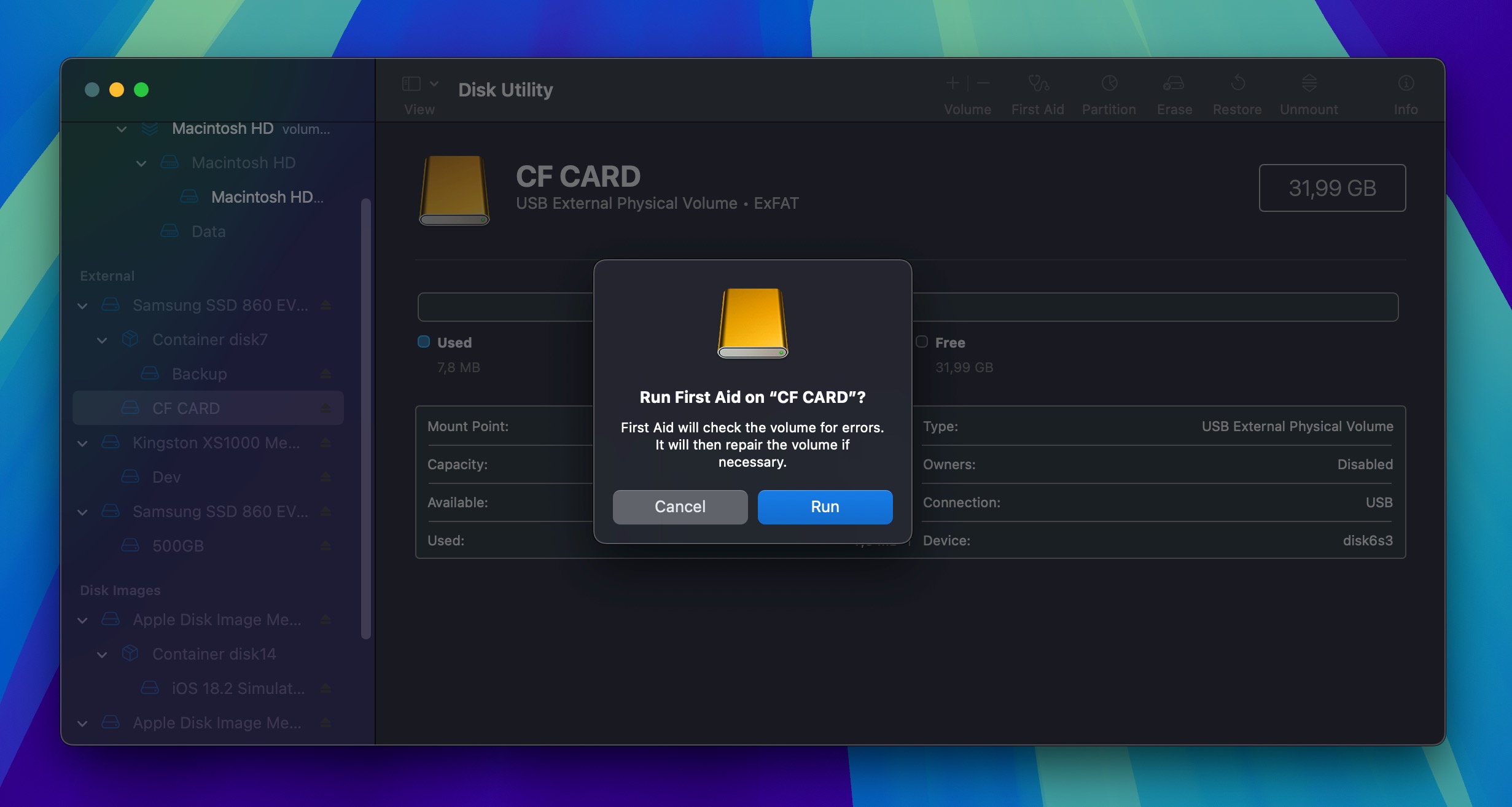
- Click the First Aid button in the toolbar and follow the prompts to scan and repair the card’s file system.
How to Format Your CF Card Safely
Data recovery software can help when things go wrong, but following proper formatting practices can help prevent data loss in the first place:
- 🔍 Check card contents before formatting. Always review the contents of your CF card thoroughly before formatting. One of the worst mistakes you can make is to insert your memory card into your computer and format it blindly based on its size or drive letter alone. You might end up like this poor member of the iNaturalist community.
- 📸 Use in-camera formatting. While you can format your CF card using your computer, always use your camera’s built-in format option instead. This guarantees the card is formatted with the correct file system and settings for your specific camera model, a practice recommended by top camera manufacturers.
- ⚡ Quick format vs Full format. Choose quick format for regular maintenance, but consider using full format if you plan to sell or dispose of the card to protect your privacy by overwriting all data.
- 🔄 Format after switching cameras. When using your CF card in a different camera model, format it in the new camera before use to prevent potential compatibility issues and file structure conflicts.
- ✂️ Don’t partition your CF card unless you have to. If you’re using your CF card as a general-purpose portable storage device, it might be tempting to create multiple partitions. However, this increases the chance of accidental file system damage. Instead, use multiple cards for different purposes.
- 🗑️ You can also reduce the need for formatting by simply deleting unwanted files instead. However, this only works if your card already has the correct file system and hasn’t become corrupted. Those are situations that would require formatting to resolve.
Conclusion
To recover a formatted CFexpress card or a regular CF card, you follow the same steps you’d use on any other memory card. Whether you’re recovering images from a formatted CF card or other file types, the same rule applies. Act fast, work in the right order, and your odds of getting most of your files back are good.
TL;DR
- Stop using the card so nothing overwrites the old data.
- Check the connection and card reader before you blame the card. Make sure it shows up in Disk Management with the right capacity, since a bad reader can look like a bad card.
- If the card seems flaky, make a byte-to-byte image and recover from that copy instead of the card itself.
- Pick the right scan mode. For video on a formatted card, Disk Drill’s Advanced Camera Recovery gives you the best shot.
- Go through the results carefully. After a format, recovered files often lose their original names, so you’ll need to sort them by hand.
FAQ
A quick format only removes the file system table while leaving the actual data intact and recoverable with CF card recovery software. A full format, on the other hand, overwrites the entire card with zeros, making recovery impossible. This is why quick format is much faster, but also why it leaves your deleted files potentially accessible to others if you plan to sell or dispose of the card.
Yes, you can recover formatted CFast card data if the card wasn’t overwritten during formatting (as the Full format option in Windows does) and you haven’t written so much new data to the card that the formatted data is completely gone on the physical level.
Stop using the card immediately. Don’t take any new photos or videos. Don’t save any files to the card. Remove it from your camera or device and don’t reinsert it until you’re ready to attempt recovery with appropriate software.
Yes, you can often recover files from a formatted Compact Flash card at home by using data recovery software. Alternatively, you can send the card to a professional data recovery center, but make sure the card’s contents are worth the money.
Yes. Footage in formats like MOV, MP4, MXF, BRAW, R3D, and ARRIRAW can often be recovered from a formatted card if you act quickly and don’t write new data to it. For the best results with video, use a tool with a dedicated video mode, such as Disk Drill’s Advanced Camera Recovery, which rebuilds fragmented clips that a standard scan can miss.
Formatting creates a new file system on the card, which makes previous data inaccessible. This process doesn’t always permanently erase files unless a full format is used. If only a quick format is performed, then recovery is possible unless data is overwritten.
Format a CF card only when necessary, such as when switching between different devices or if file corruption occurs. Regular formatting is not required unless you experience errors. In fact, frequent formatting (especially when a full format is performed) may shorten a card’s lifespan.
